

'%3e%3cpath%20d='M8%200C12.4183%200%2016%203.58172%2016%208C16%2012.4183%2012.4183%2016%208%2016C3.58172%2016%200%2012.4183%200%208C0%203.58172%203.58172%200%208%200ZM11.6162%204.38379C11.2257%203.99337%2010.5927%203.99338%2010.2021%204.38379L8%206.58594L5.79785%204.38379C5.40732%203.99334%204.77429%203.99329%204.38379%204.38379C3.99331%204.77429%203.99335%205.40733%204.38379%205.79785L6.58594%208L4.38379%2010.2021C3.99348%2010.5927%203.99341%2011.2257%204.38379%2011.6162C4.77426%2012.0066%205.40734%2012.0065%205.79785%2011.6162L8%209.41406L10.2021%2011.6162C10.5927%2012.0066%2011.2257%2012.0067%2011.6162%2011.6162C12.0067%2011.2257%2012.0066%2010.5927%2011.6162%2010.2021L9.41406%208L11.6162%205.79785C12.0066%205.40735%2012.0066%204.77429%2011.6162%204.38379Z'%20fill='%23080E17'%20fill-opacity='0.46'/%3e%3c/g%3e%3cdefs%3e%3cclipPath%20id='clip0_3761_713'%3e%3crect%20width='16'%20height='16'%20fill='white'/%3e%3c/clipPath%3e%3c/defs%3e%3c/svg%3e)



'%3e%3cpath%20fill-rule='evenodd'%20clip-rule='evenodd'%20d='M21.4999%2010.9993C21.4999%205.20009%2016.7986%200.498901%2010.9993%200.498901C5.19994%200.498901%200.498657%205.20009%200.498657%2010.9993C0.498657%2016.2404%204.33858%2020.5844%209.35855%2021.3722V14.0346H6.69238V10.9993H9.35855V8.68594C9.35855%206.05427%2010.9262%204.60062%2013.3248%204.60062C14.4736%204.60062%2015.6753%204.80571%2015.6753%204.80571V7.38979H14.3512C13.0468%207.38979%2012.64%208.19921%2012.64%209.0296V10.9993H15.5523L15.0867%2014.0346H12.64V21.3722C17.66%2020.5844%2021.4999%2016.2404%2021.4999%2010.9993Z'%20fill='%231568EA'/%3e%3c/g%3e%3c/svg%3e)


'%3e%3cpath%20d='M2.42045%2022.1876H6.31818V12.7217L0.75%208.54553V20.5171C0.75%2021.4414%201.49892%2022.1876%202.42045%2022.1876Z'%20fill='%234285F4'/%3e%3cpath%20d='M19.682%2022.1876H23.5797C24.5041%2022.1876%2025.2502%2021.4387%2025.2502%2020.5171V8.54553L19.682%2012.7217'%20fill='%2334A853'/%3e%3cpath%20d='M19.682%205.48293V12.7216L25.2502%208.54543V6.31816C25.2502%204.25236%2022.8921%203.07469%2021.2411%204.31361'%20fill='%23FBBC04'/%3e%3cpath%20d='M6.31824%2012.7217V5.48303L13.0001%2010.4944L19.6819%205.48303V12.7217L13.0001%2017.733'%20fill='%23EA4335'/%3e%3cpath%20d='M0.75%206.31816V8.54543L6.31818%2012.7216V5.48293L4.75909%204.31361C3.10534%203.07469%200.75%204.25236%200.75%206.31816Z'%20fill='%23C5221F'/%3e%3c/g%3e%3cdefs%3e%3cclipPath%20id='clip0_2954_7305'%3e%3crect%20width='24.5'%20height='18.375'%20fill='white'%20transform='translate(0.75%203.8125)'/%3e%3c/clipPath%3e%3c/defs%3e%3c/svg%3e)


For a ChatGPT conversation export, first decide what you need to keep. Use ChatGPT's data export for an account archive, a Word/PDF export extension for one conversation or selected replies, or browser printing for a quick PDF copy. These methods save different scopes of content and should not be treated as interchangeable backups.
If you are collecting research or preparing a report, an editable Word document is usually the useful starting point. If you need a record of your account history, request the archive first. The steps below help you choose the method, save the file, and check that the conversation is complete.
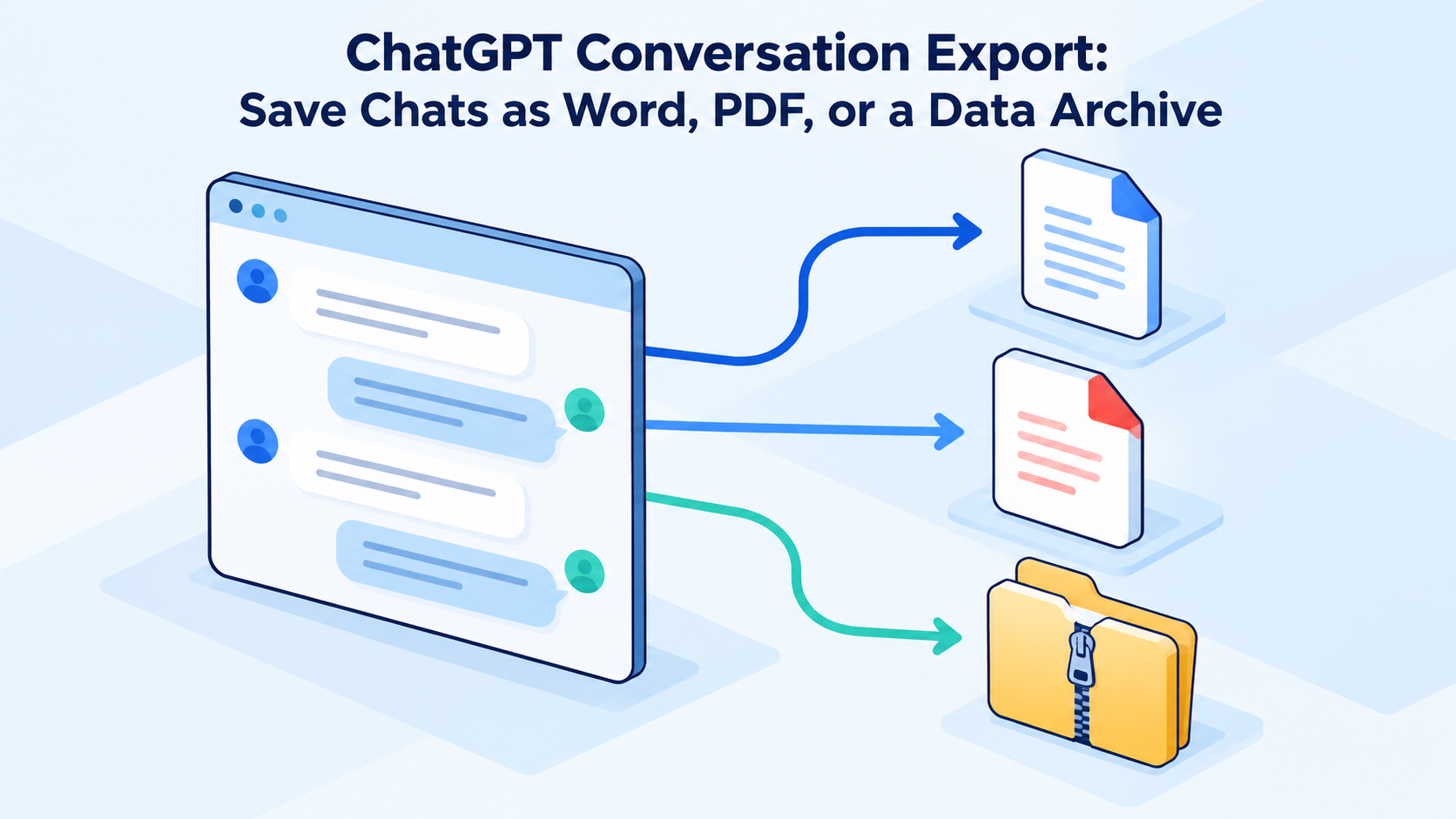
ChatGPT Conversation Export: Save Chats as Word, PDF, or a Data Archive
Export ChatGPT conversation history as a data archive
Use the official account export when you need a complete copy of eligible ChatGPT account data, not just a polished document from one thread. The route you choose depends on whether you can sign in and whether the account belongs to you or to a managed workspace.
Export from ChatGPT on the web or desktop app
Sign in to the ChatGPT account whose history you want to export. Open your profile menu, then select Settings.
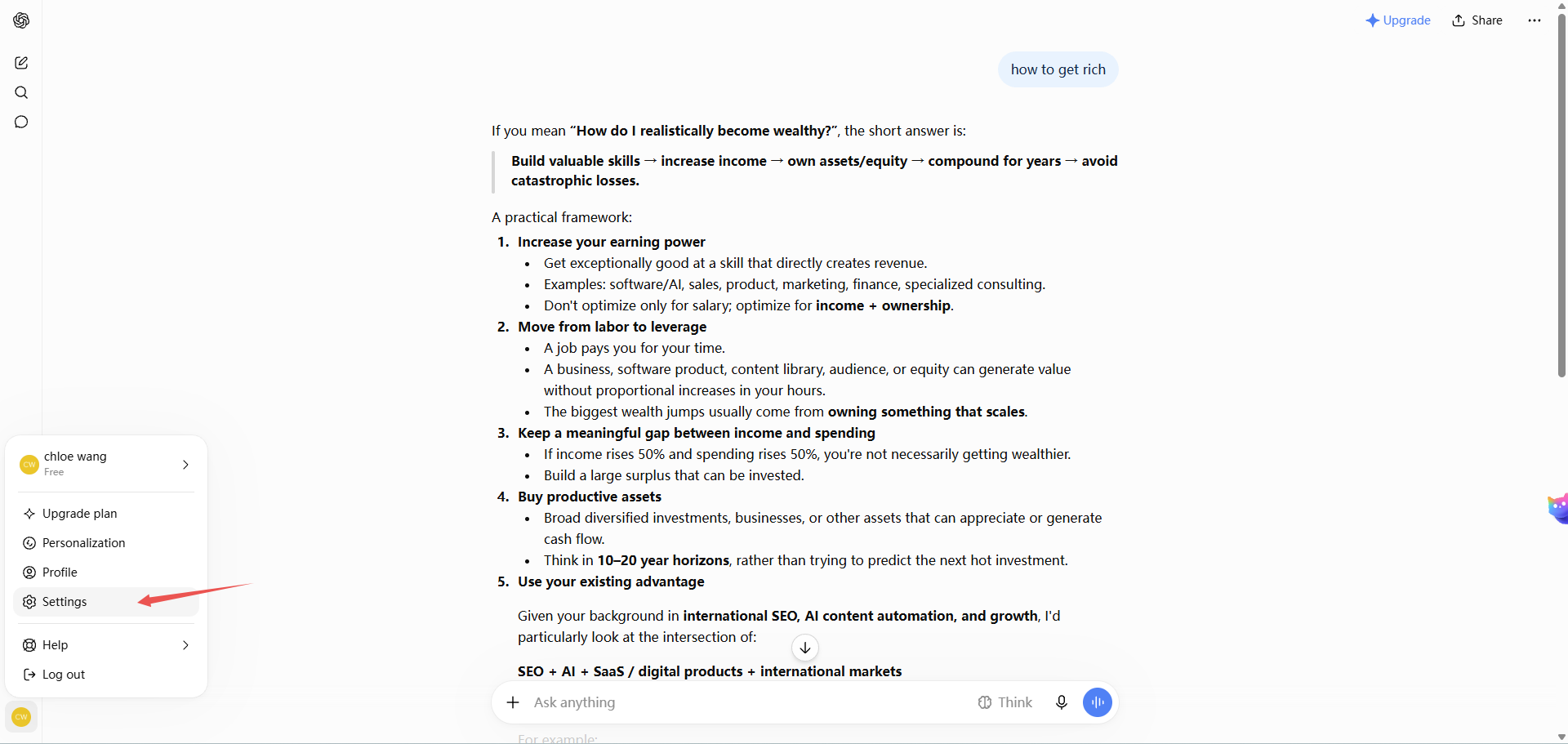
Open ChatGPT profile settings menu
Open Data controls. Under Export data, select Export, then choose Confirm export.
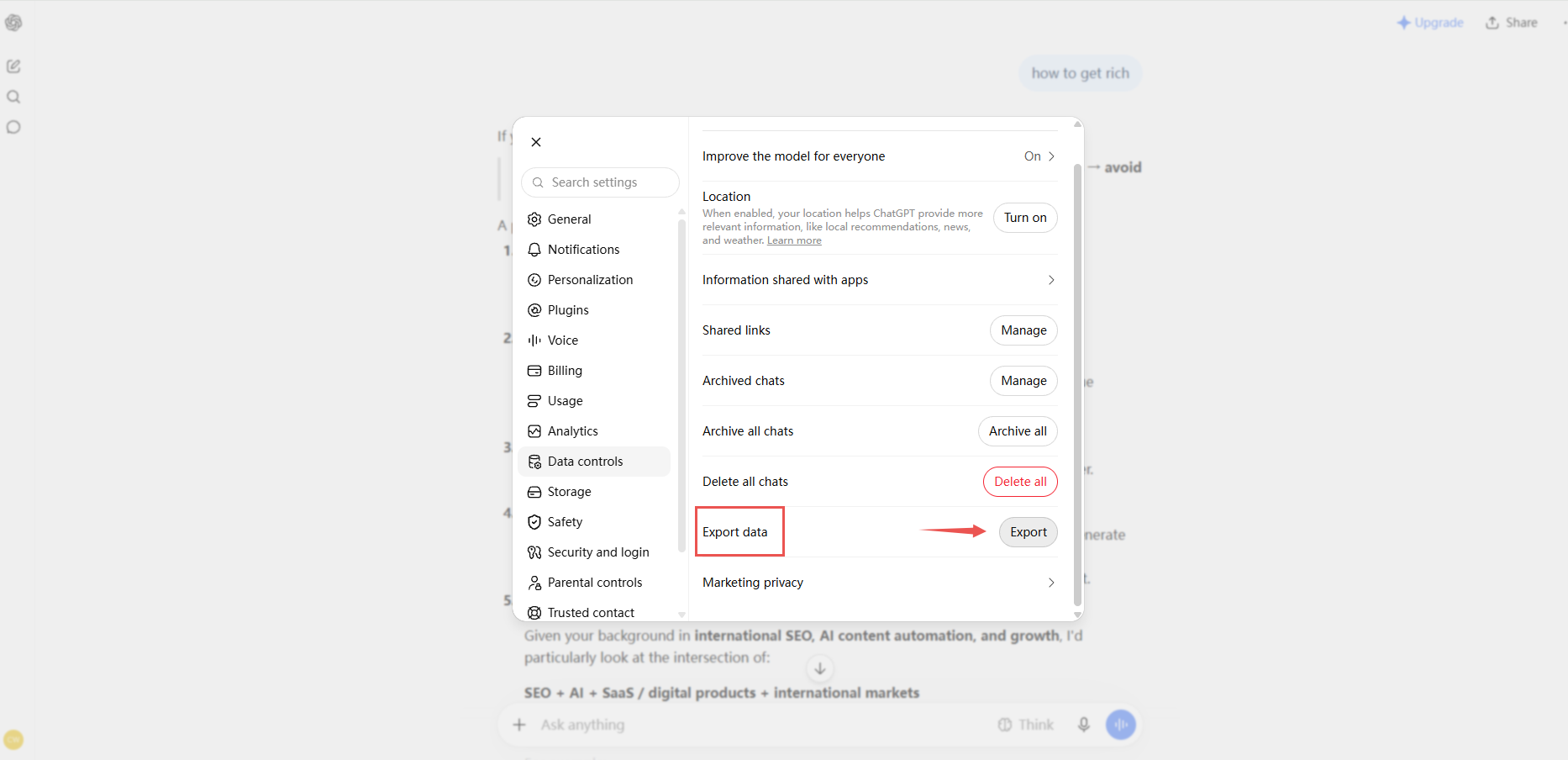
Choose ChatGPT Export Data option
Watch the email inbox or phone number connected to your account. OpenAI says an export can take up to seven days to arrive, and the download link expires 24 hours after delivery.
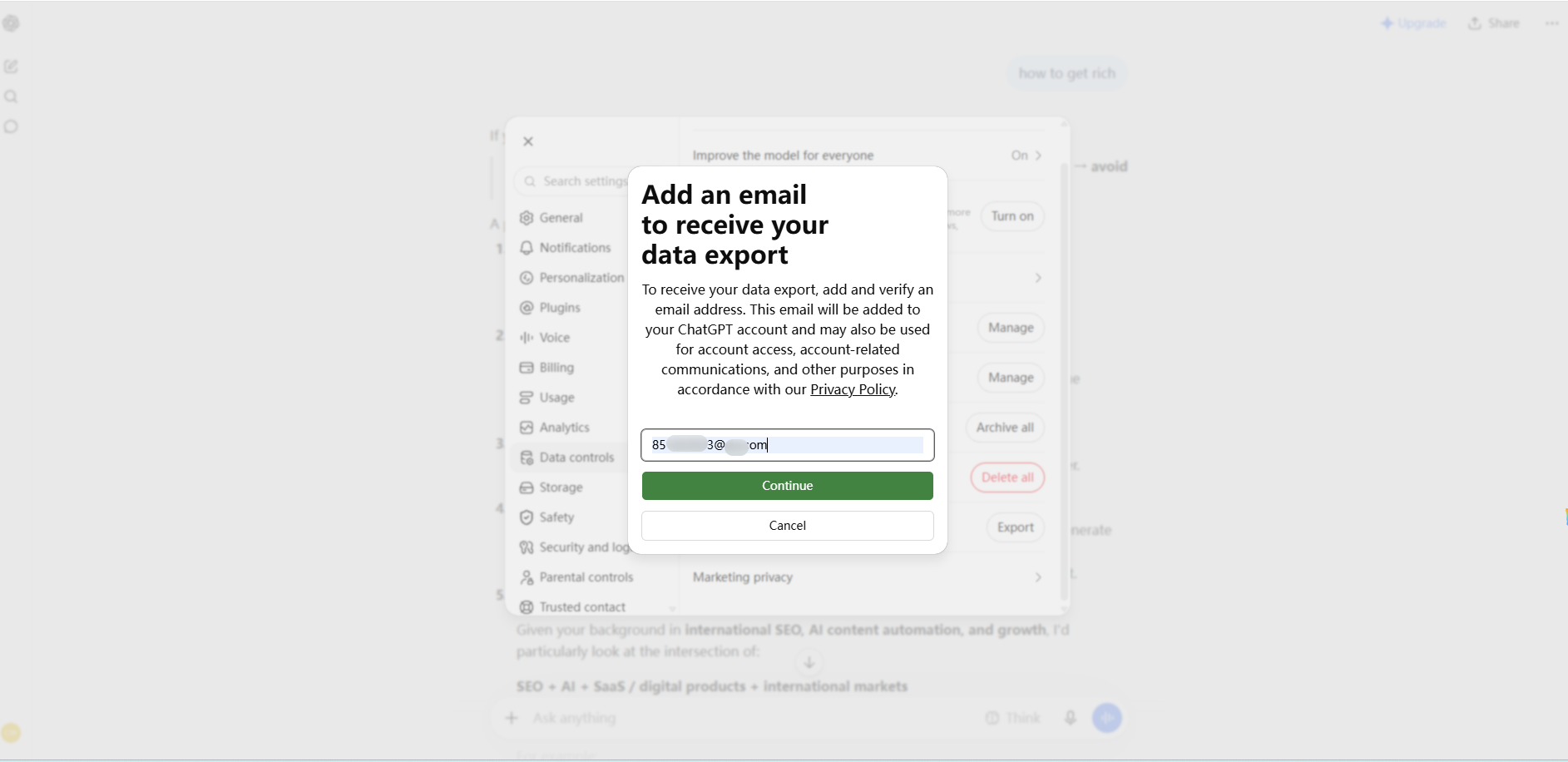
Download ChatGPT export from email
While signed in to the same account, select Download data export. Extract the ZIP and confirm that it contains the conversations you expected. An export cannot recover chats that were already deleted.
Export from the ChatGPT iOS or Android app
Open the ChatGPT app and its sidebar, then tap your profile icon to open Settings. Depending on the app version, the profile or menu control may appear in a different corner.
Select Data controls > Export Data, then confirm. Some Android versions may open ChatGPT on the web to finish the request.
Use the link sent to your registered email address, or by SMS if the account uses a phone number. The same 24-hour link limit applies.
The app export is an account-wide archive; it is not a one-tap download of only the conversation currently open. If you need a readable copy of one chat, use the Word or PDF methods in the next sections.
When to use the OpenAI Privacy Portal
Use the OpenAI Privacy Portal when you cannot sign in to a personal ChatGPT account or when you need to make a formal privacy request for a copy of your data. Select Make a Privacy Request, choose I have a consumer ChatGPT account, and then select Download my data. Be ready to verify ownership through the email address or phone number associated with the account.
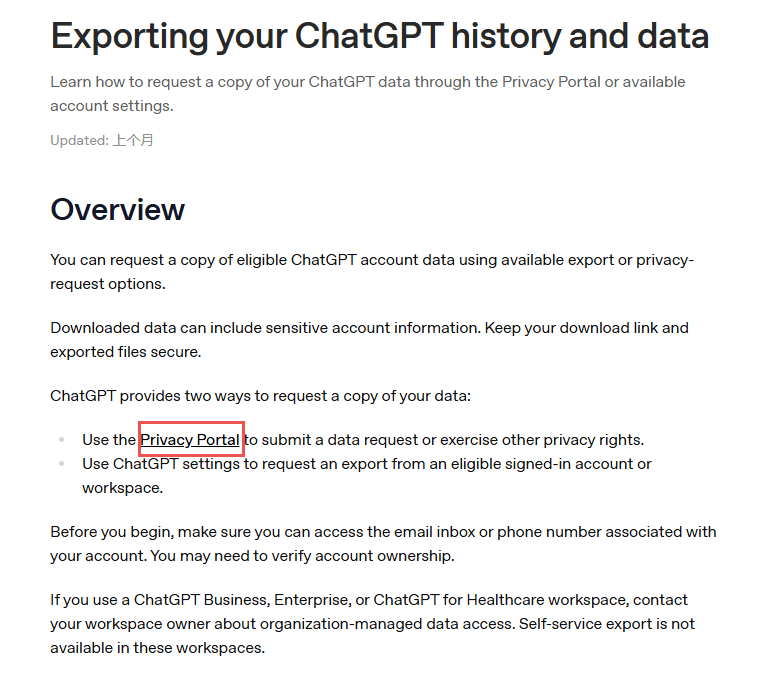
The Privacy Portal is an alternative request route, not a way to bypass organization controls. Self-service export is unavailable for ChatGPT Business, Enterprise, and ChatGPT for Healthcare workspaces; users of those managed workspaces should contact their workspace owner. Eligible Edu access depends on role and administrator settings. If a download link has expired, request a new export from Settings or the Privacy Portal. See OpenAI's official ChatGPT data export guide for current availability.
Choose the right output before you start
| Your goal | Best method | What to check |
|---|---|---|
| Back up an eligible personal account | ChatGPT Settings or mobile app | Required old and recent conversations are present |
| Request data when you cannot sign in | OpenAI Privacy Portal | You can verify the account email or phone number |
| Get data from a managed workspace | Contact the workspace owner | The organization's access and retention policy |
| Edit one conversation | Word export workflow | Message order and included prompts |
| Keep one readable copy | PDF export or browser printing | Every page and long table is complete |
Keep the downloaded archive unchanged and work from a separate copy. Give the folder a clear name such as chatgpt-archive-2026-09-30. Before filing it away, locate both an older conversation and a recent one that you expected to keep.
Do not change a ZIP file's extension to DOCX; that does not convert the archive into a Word document. Use the archive for storage and the next method for an editable conversation.
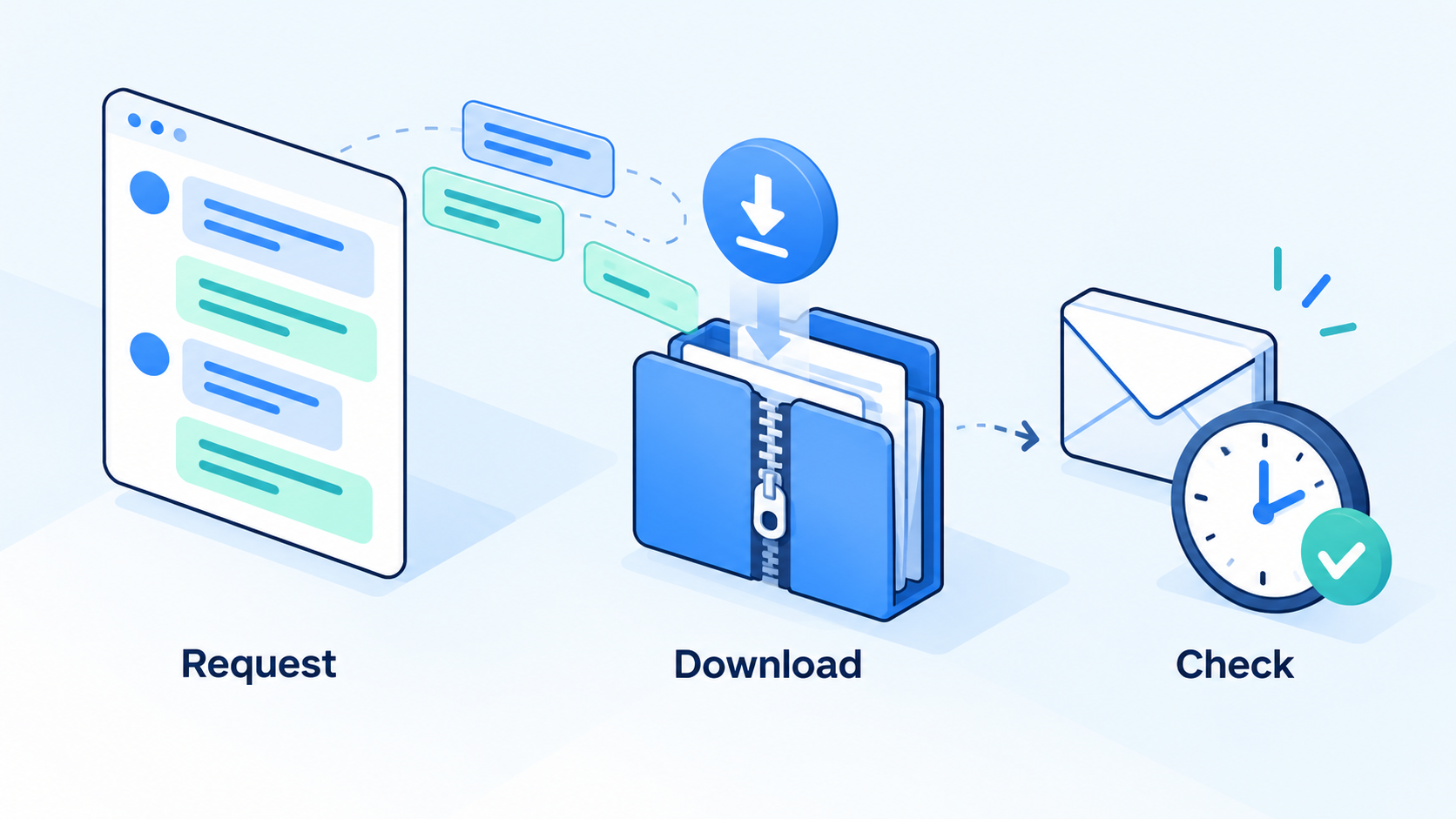
Chat history archive download workflow


Export one ChatGPT conversation to Word or PDF
For a readable file from a particular chat, the third-party ChatGPT to Word or PDF extension supports a complete conversation, an individual response, or selected messages. It is an extension workflow, not the built-in account archive.
Install the extension and choose your scope
Install the extension from its Chrome Web Store listing and refresh the ChatGPT page.
Open the conversation you want to save and wait for the required response to finish.
For the whole conversation, use the Word or PDF export control near the top right. For one response, use the corresponding control beneath that response.
For selected replies, enable selection mode, mark the messages you need, and use the export control for that selection.
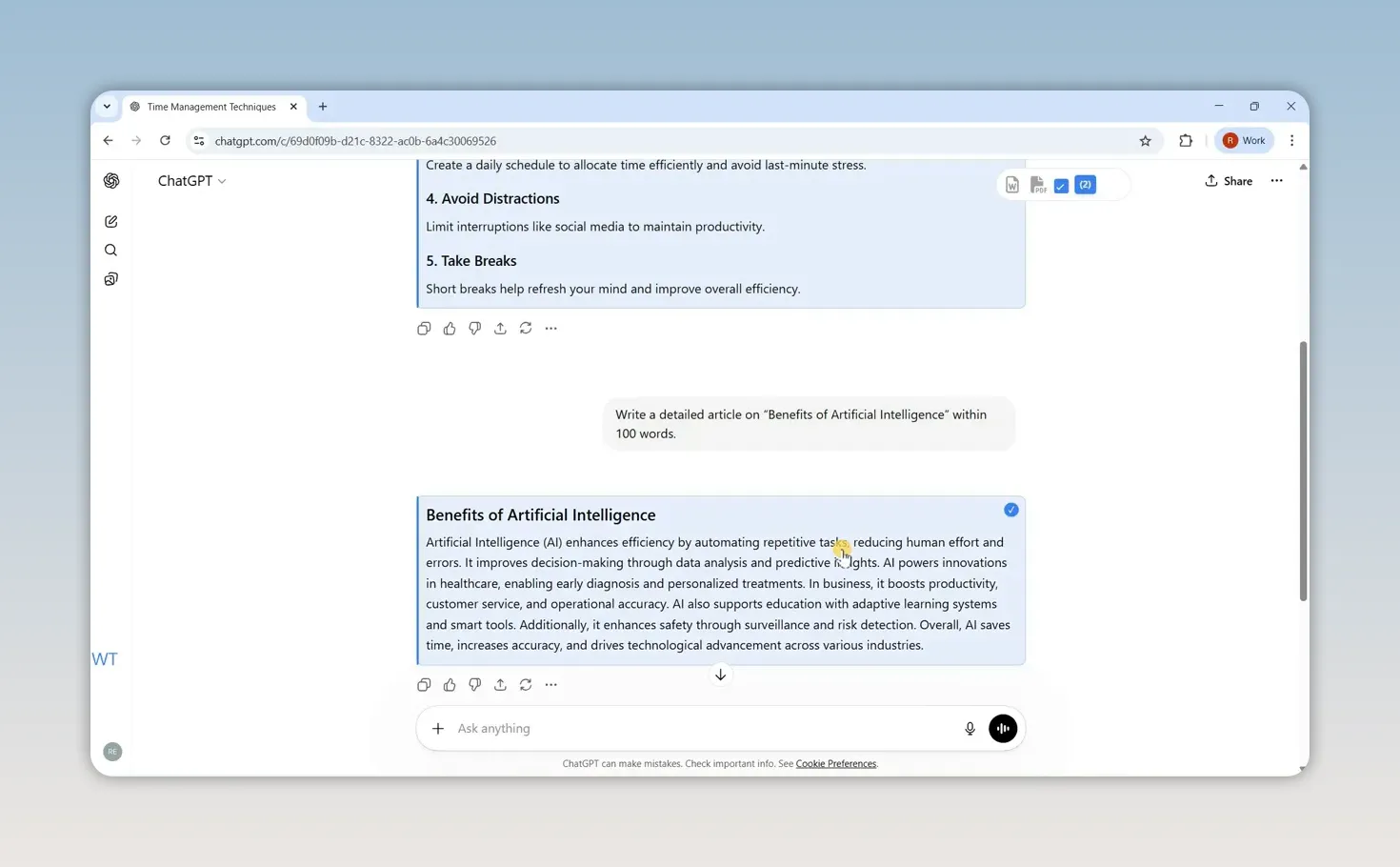
Selected ChatGPT responses ready for export
Include prompts only when they help
In the extension settings, choose whether the conversation download should contain only ChatGPT responses or also your prompts. The developer documents this choice in its conversation export instructions. Interface positions can change from the screenshots.
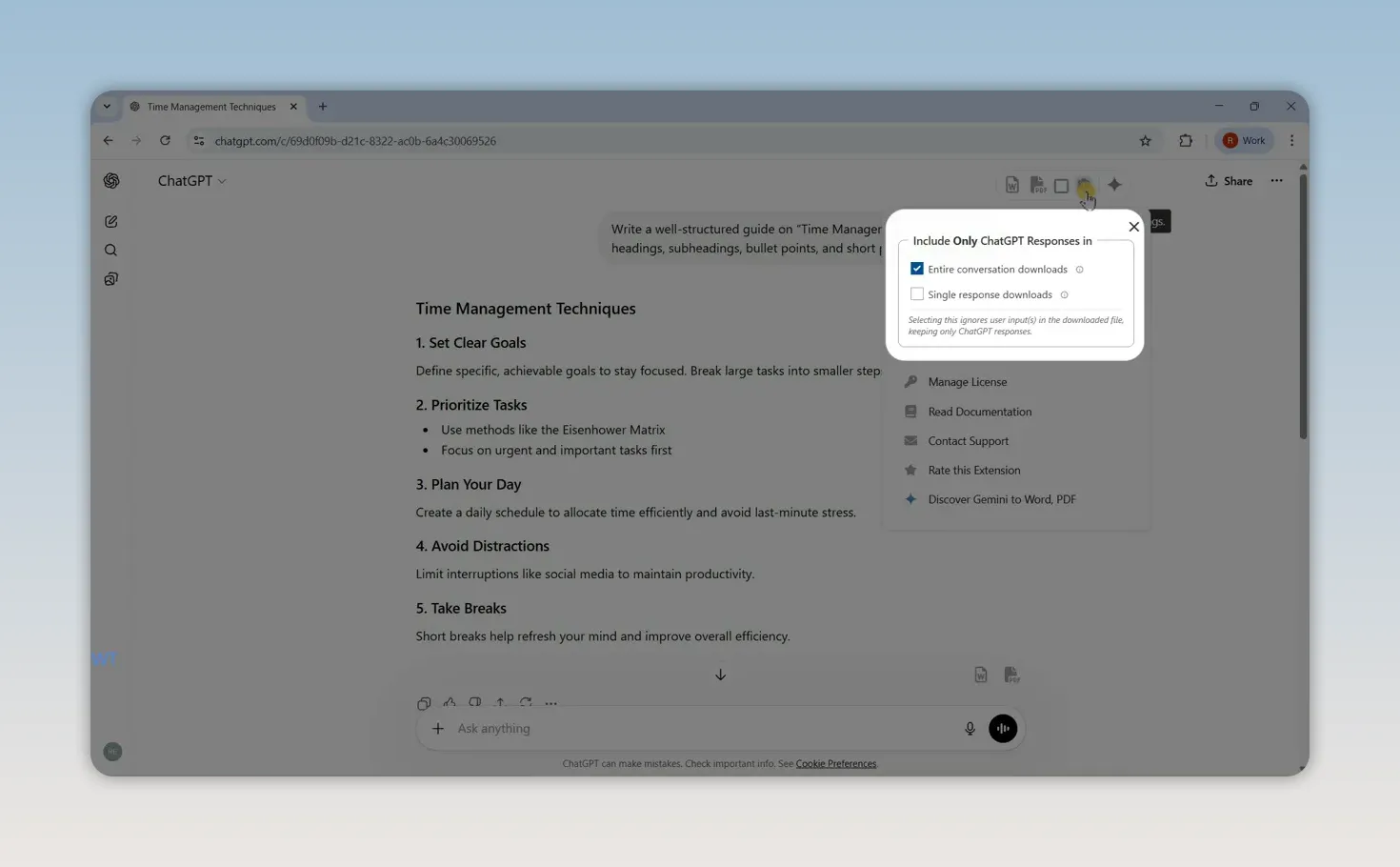
Extension settings controlling exported ChatGPT responses
For an interview-style record, keep both sides so readers can understand follow-up questions. For a report assembled from final answers, responses only can reduce clutter. However, a reply that begins “Use the second option” loses its meaning without the earlier context. Include that context or add a clearly labeled editorial note.
Check the downloaded document
Open the file before moving on. Compare the first and last selected replies, confirm that messages appear in the right order, and inspect a table, code block, or equation if the chat contains one. Review the actual Word or PDF output rather than assuming the export button guarantees a perfect layout.
Keep a distinction between an original transcript and an edited report. If you remove intermediate replies, label the document as selected excerpts. If you rewrite the text, save that version separately so you can return to the original wording.
Save a ChatGPT conversation as PDF without an extension
For a short conversation that is already visible in your browser, printing to PDF can provide a quick reading copy. Treat it as a capture of the printable page, not as proof that every message in a long thread has been saved.
Preview before saving
Open the conversation and review the messages you need. Expand any relevant collapsed content.
Open the browser's print dialog. In Chrome, press Ctrl+P on Windows or Linux, or Command+P on Mac.
Choose Save as PDF as the destination where available.
Inspect the preview from the first page to the last. Adjust scale, orientation, and margins if a table or code line runs off the page.
Save, reopen the PDF, and compare it with the conversation.
The appearance and completeness of a ChatGPT page in print preview need a manual check. Browser printing does not provide a dedicated conversation backup.
If pages or messages are missing
Check for an abrupt jump between topics, a response that ends mid-sentence, missing table rows, or a final page that stops before the last reply. If the preview is incomplete, cancel and use the conversation export method or build a document from the required messages. Repeatedly saving the same incomplete preview will not recover the missing content.
A shared link serves a different purpose: it gives access to a conversation rather than creating an offline file. For personal accounts, anyone with the link can view the shared content. Managed-workspace access follows workspace rules. Review the preview and audience before using a link, as explained in OpenAI's sharing guidance.
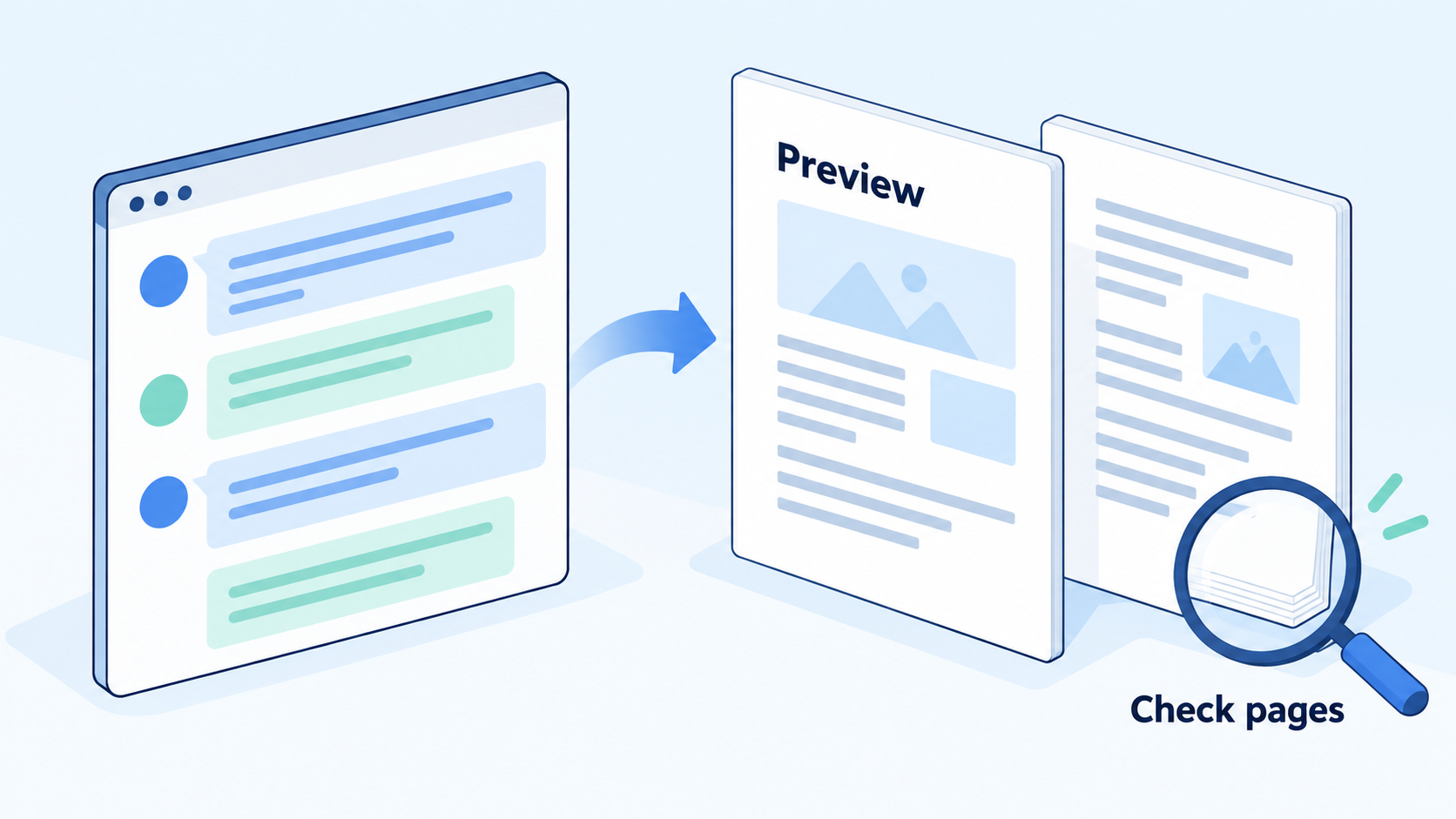
Conversation PDF preview and completeness illustration
Finish your exported conversation with WPS Writer
WPS Writer is a free word processor for DOC and DOCX documents. Use it to turn an exported chat into a readable research note, meeting brief, or working draft while keeping the original transcript separate.
Prepare an editable reading copy
Open the exported Word document in WPS Writer and save a working copy.
Add a descriptive title and a short note stating whether the file contains the entire conversation or selected excerpts.
Apply consistent heading styles, adjust paragraph spacing, and keep prompt and response labels clear if both are included.
Check wide tables, long code lines, links, and any formulas against the original conversation. Confirm factual claims before using the text in a report.
Save the editable document. When the layout is ready, use Menu > Export to PDF, choose the output settings, and open the exported PDF to review it.
The WPS document-to-PDF tutorial shows the export command; labels can vary by build. Editing an exported transcript does not require WPS AI. Check current feature availability separately if you want AI or other premium tools.
Keep the handoff understandable
Use filenames that distinguish the versions, such as research-chat-original.docx, research-notes-edited.docx, and research-notes-final.pdf. Keep source URLs with the claims they support. If you shorten an answer, make sure the surrounding paragraph still explains any conditions or uncertainty.
For a small excerpt, direct copying may be enough. For a multi-page document, the export-and-review workflow makes it easier to check the whole result and maintain a consistent layout.
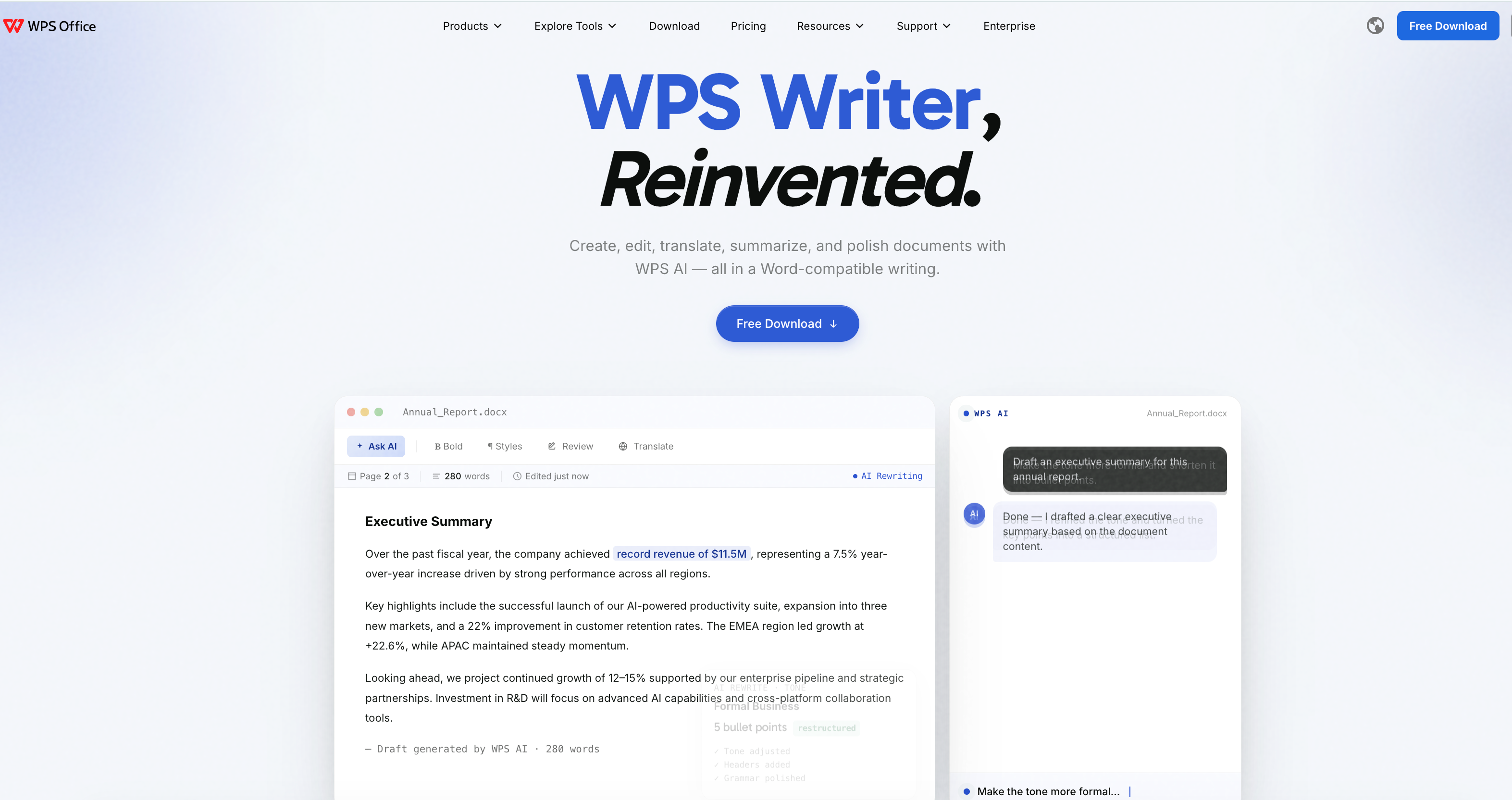
WPS Writer website showing document editing
FAQs
Can I export only one ChatGPT conversation?
Yes, the Word/PDF extension described above supports a single conversation and selected responses. For a short chat, browser printing is another option, provided you verify that the preview includes the content you need.
Why is Export data missing from ChatGPT settings?
Availability depends on your account and workspace. Free, Go, Plus, and Pro accounts support self-service export when signed in. Business, Enterprise, and Healthcare workspaces require contacting the workspace owner; eligible Edu workspaces depend on administrator settings.
What should I do if my export does not arrive?
Check the email address or phone number linked to the account, including spam folders. Allow the stated processing period before submitting another request. If it exceeds that period, contact OpenAI Support. Request a fresh export if the download link has expired.
Will exporting preserve every heading, equation, and table?
Do not assume identical formatting. Check message completeness and inspect complex content in the saved file. If you need editable headings or tables, choose Word and review them in a document editor before producing the final PDF.
Is a ChatGPT shared link the same as an exported file?
No. A shared link provides online access under ChatGPT's sharing rules. A downloaded document is a separate file you can store and open locally. Choose a file when your goal is an offline reading copy.

Summary
Choose your ChatGPT conversation export around the task: an official archive for account records, a Word/PDF extension for a conversation or selected replies, and browser printing for a checked reading copy. Keep prompts when they supply essential context, verify the saved file, and use WPS Writer to prepare an editable document and a final PDF.
'%3e%3cpath%20d='M19.9911%204.11386V6.471H18.5894C18.0775%206.471%2017.7322%206.57814%2017.5536%206.79243C17.3751%207.00671%2017.2858%207.32814%2017.2858%207.75671V9.44421H19.9019L19.5536%2012.0871H17.2858V18.8639H14.5536V12.0871H12.2769V9.44421H14.5536V7.49779C14.5536%206.39064%2014.8632%205.53201%2015.4822%204.92189C16.1013%204.31177%2016.9257%204.00671%2017.9554%204.00671C18.8304%204.00671%2019.509%204.04243%2019.9911%204.11386Z'%20fill='%23333333'/%3e%3c/g%3e%3cdefs%3e%3cclipPath%20id='clip0_2938_8199'%3e%3crect%20width='16'%20height='16'%20fill='white'%20transform='translate(8%204.00671)'/%3e%3c/clipPath%3e%3c/defs%3e%3c/svg%3e)
'%3e%3cpath%20d='M17.5237%2010.7813L23.4811%204H22.0699L16.8949%209.88693L12.7648%204H8L14.2469%2012.9029L8%2020.0133H9.4112L14.8725%2013.7952L19.2352%2020.0133H24M9.92053%205.04213H12.0885L22.0688%2019.0224H19.9003'%20fill='%23333333'/%3e%3c/g%3e%3cdefs%3e%3cclipPath%20id='clip0_2938_8200'%3e%3crect%20width='16'%20height='16.0134'%20fill='white'%20transform='translate(8%204)'/%3e%3c/clipPath%3e%3c/defs%3e%3c/svg%3e)


