

'%3e%3cpath%20d='M8%200C12.4183%200%2016%203.58172%2016%208C16%2012.4183%2012.4183%2016%208%2016C3.58172%2016%200%2012.4183%200%208C0%203.58172%203.58172%200%208%200ZM11.6162%204.38379C11.2257%203.99337%2010.5927%203.99338%2010.2021%204.38379L8%206.58594L5.79785%204.38379C5.40732%203.99334%204.77429%203.99329%204.38379%204.38379C3.99331%204.77429%203.99335%205.40733%204.38379%205.79785L6.58594%208L4.38379%2010.2021C3.99348%2010.5927%203.99341%2011.2257%204.38379%2011.6162C4.77426%2012.0066%205.40734%2012.0065%205.79785%2011.6162L8%209.41406L10.2021%2011.6162C10.5927%2012.0066%2011.2257%2012.0067%2011.6162%2011.6162C12.0067%2011.2257%2012.0066%2010.5927%2011.6162%2010.2021L9.41406%208L11.6162%205.79785C12.0066%205.40735%2012.0066%204.77429%2011.6162%204.38379Z'%20fill='%23080E17'%20fill-opacity='0.46'/%3e%3c/g%3e%3cdefs%3e%3cclipPath%20id='clip0_3761_713'%3e%3crect%20width='16'%20height='16'%20fill='white'/%3e%3c/clipPath%3e%3c/defs%3e%3c/svg%3e)



'%3e%3cpath%20fill-rule='evenodd'%20clip-rule='evenodd'%20d='M21.4999%2010.9993C21.4999%205.20009%2016.7986%200.498901%2010.9993%200.498901C5.19994%200.498901%200.498657%205.20009%200.498657%2010.9993C0.498657%2016.2404%204.33858%2020.5844%209.35855%2021.3722V14.0346H6.69238V10.9993H9.35855V8.68594C9.35855%206.05427%2010.9262%204.60062%2013.3248%204.60062C14.4736%204.60062%2015.6753%204.80571%2015.6753%204.80571V7.38979H14.3512C13.0468%207.38979%2012.64%208.19921%2012.64%209.0296V10.9993H15.5523L15.0867%2014.0346H12.64V21.3722C17.66%2020.5844%2021.4999%2016.2404%2021.4999%2010.9993Z'%20fill='%231568EA'/%3e%3c/g%3e%3c/svg%3e)


'%3e%3cpath%20d='M2.42045%2022.1876H6.31818V12.7217L0.75%208.54553V20.5171C0.75%2021.4414%201.49892%2022.1876%202.42045%2022.1876Z'%20fill='%234285F4'/%3e%3cpath%20d='M19.682%2022.1876H23.5797C24.5041%2022.1876%2025.2502%2021.4387%2025.2502%2020.5171V8.54553L19.682%2012.7217'%20fill='%2334A853'/%3e%3cpath%20d='M19.682%205.48293V12.7216L25.2502%208.54543V6.31816C25.2502%204.25236%2022.8921%203.07469%2021.2411%204.31361'%20fill='%23FBBC04'/%3e%3cpath%20d='M6.31824%2012.7217V5.48303L13.0001%2010.4944L19.6819%205.48303V12.7217L13.0001%2017.733'%20fill='%23EA4335'/%3e%3cpath%20d='M0.75%206.31816V8.54543L6.31818%2012.7216V5.48293L4.75909%204.31361C3.10534%203.07469%200.75%204.25236%200.75%206.31816Z'%20fill='%23C5221F'/%3e%3c/g%3e%3cdefs%3e%3cclipPath%20id='clip0_2954_7305'%3e%3crect%20width='24.5'%20height='18.375'%20fill='white'%20transform='translate(0.75%203.8125)'/%3e%3c/clipPath%3e%3c/defs%3e%3c/svg%3e)


If you spend more time rebuilding slides than deciding what the audience needs to know, ChatGPT for PowerPoint can shorten the first-draft and revision work. The useful part is not simply generating more slides; it is installing the correct add-in, giving it approved source material, and using it for a clearly bounded presentation task.
This guide shows the official installation path, the checks to complete before the first edit, and practical use cases for board updates, reports, audience-specific versions, and deck reviews.
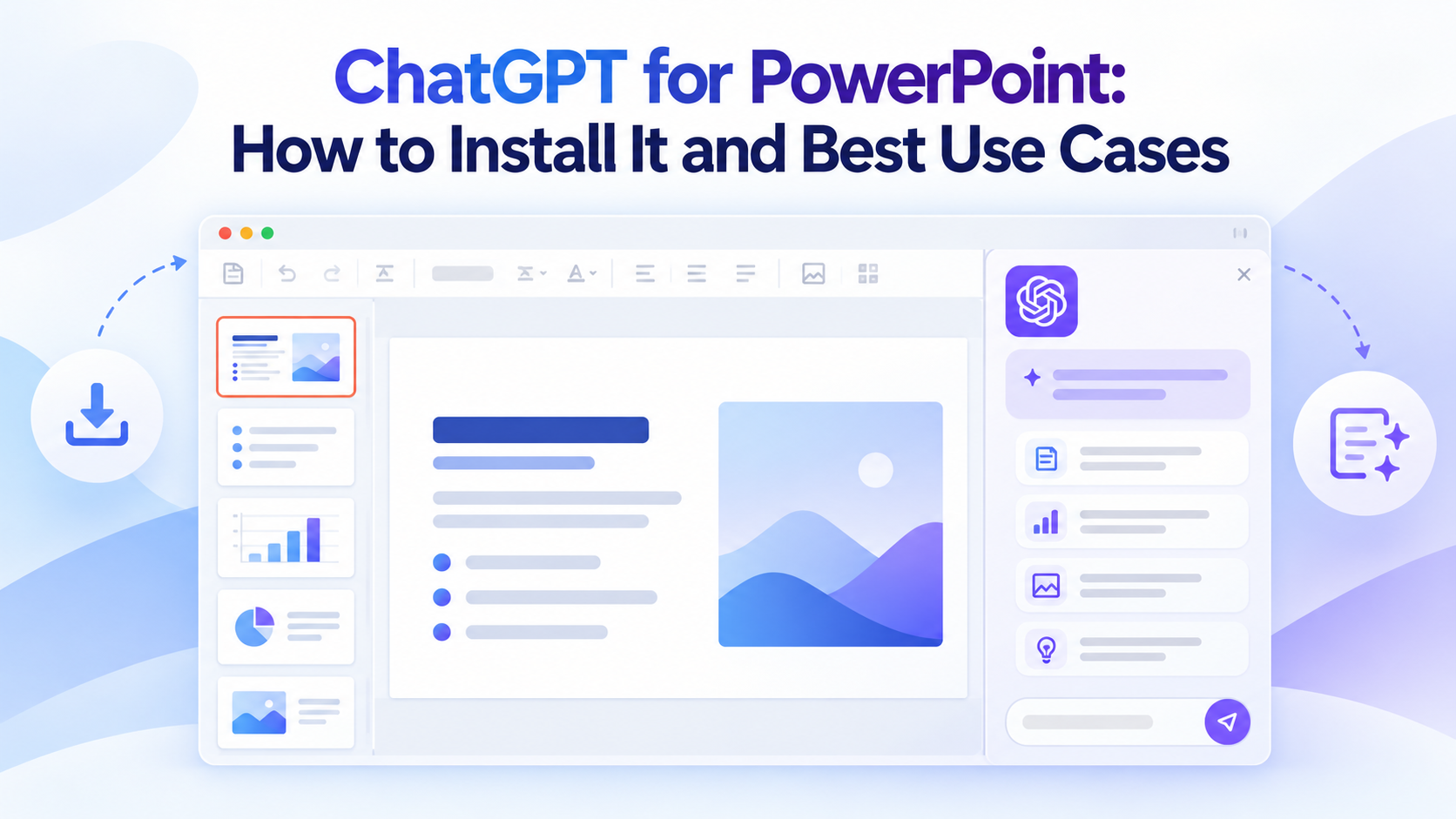
ChatGPT for PowerPoint: How to Install It and Best Use Cases
How to install ChatGPT for PowerPoint
ChatGPT for PowerPoint runs in a sidebar inside Microsoft PowerPoint and keeps the slide structure editable. Install it from Microsoft Marketplace through PowerPoint rather than downloading an unverified file from a search result.
Open Microsoft PowerPoint and choose Home > Add-ins.
Search for ChatGPT in the add-ins marketplace.
Select the official ChatGPT result, choose Add, and accept the requested permissions after reviewing them.
Open ChatGPT from the PowerPoint ribbon. The assistant should appear in a sidebar.
Sign in with the ChatGPT account that has access. Availability can depend on your plan, rollout, and workspace settings.
If the marketplace or Add button is unavailable, ask your Microsoft 365 administrator whether Store add-ins are blocked. An administrator can deploy the official manifest through Microsoft 365 admin center > Integrated apps > Deploy Add-in > Upload custom apps and assign it to approved users or groups. Role-based controls may also need to be enabled.
Use the official OpenAI installation guide to verify current availability and the administrator deployment path.
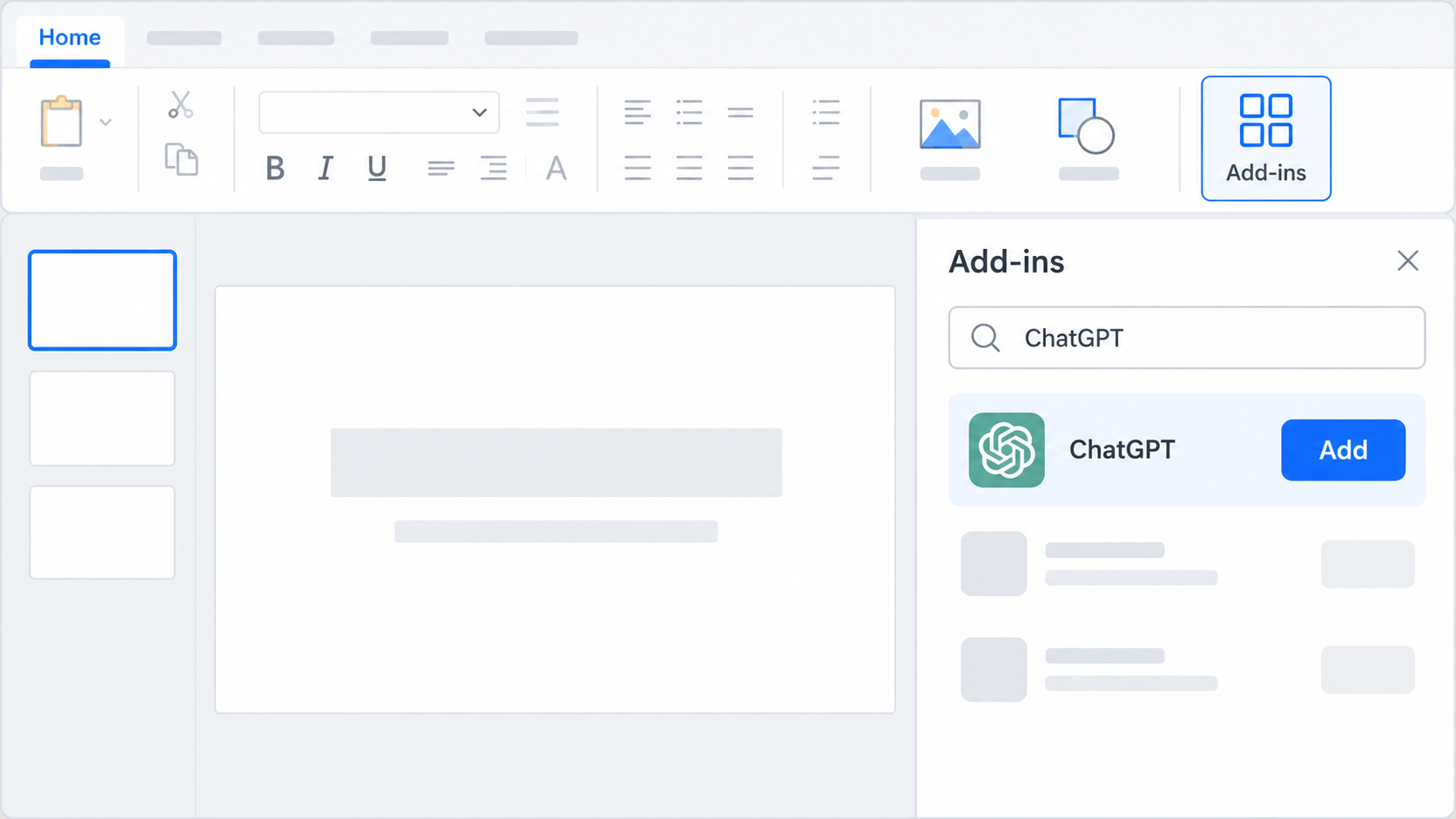
ChatGPT PowerPoint add-in installation mockup


Set up ChatGPT for PowerPoint before your first task
Start with a duplicate of the deck, especially when the presentation contains complex charts, carefully positioned shapes, or approved wording. OpenAI notes that advanced formatting and slide-management edits may still be limited, and an AI edit can be incomplete or incorrect.
Prepare a safe working copy
Save a copy with a clear draft label so you can revert unwanted changes.
Remove credentials, private messages, unnecessary personal data, and restricted links from source files.
Confirm that you are allowed to use every report, spreadsheet, image, and customer document you plan to provide.
Define the assignment
State the audience, presentation goal, decision you want, slide range, approved sources, and elements that must remain unchanged. For a large revision, ask ChatGPT to propose a plan before it edits the file.
Review slides 4–10 for an executive audience. Keep the master theme and all sourced numbers. First list the changes you recommend; do not edit until I approve the plan.
Review access and data boundaries
ChatGPT processes the prompts, presentation content, attachments, and connected context you make available. Workspace administrators can control add-in and app access, while the PowerPoint environment is also governed by your Microsoft agreement. Use only approved material and check internal policy before connecting another data source.
ChatGPT presentation planning workflow illustration
Best ChatGPT for PowerPoint use cases
The strongest use cases begin with a real audience and approved source material. Treat ChatGPT as a drafting and revision partner, while a human remains responsible for the argument, evidence, brand, and final delivery.
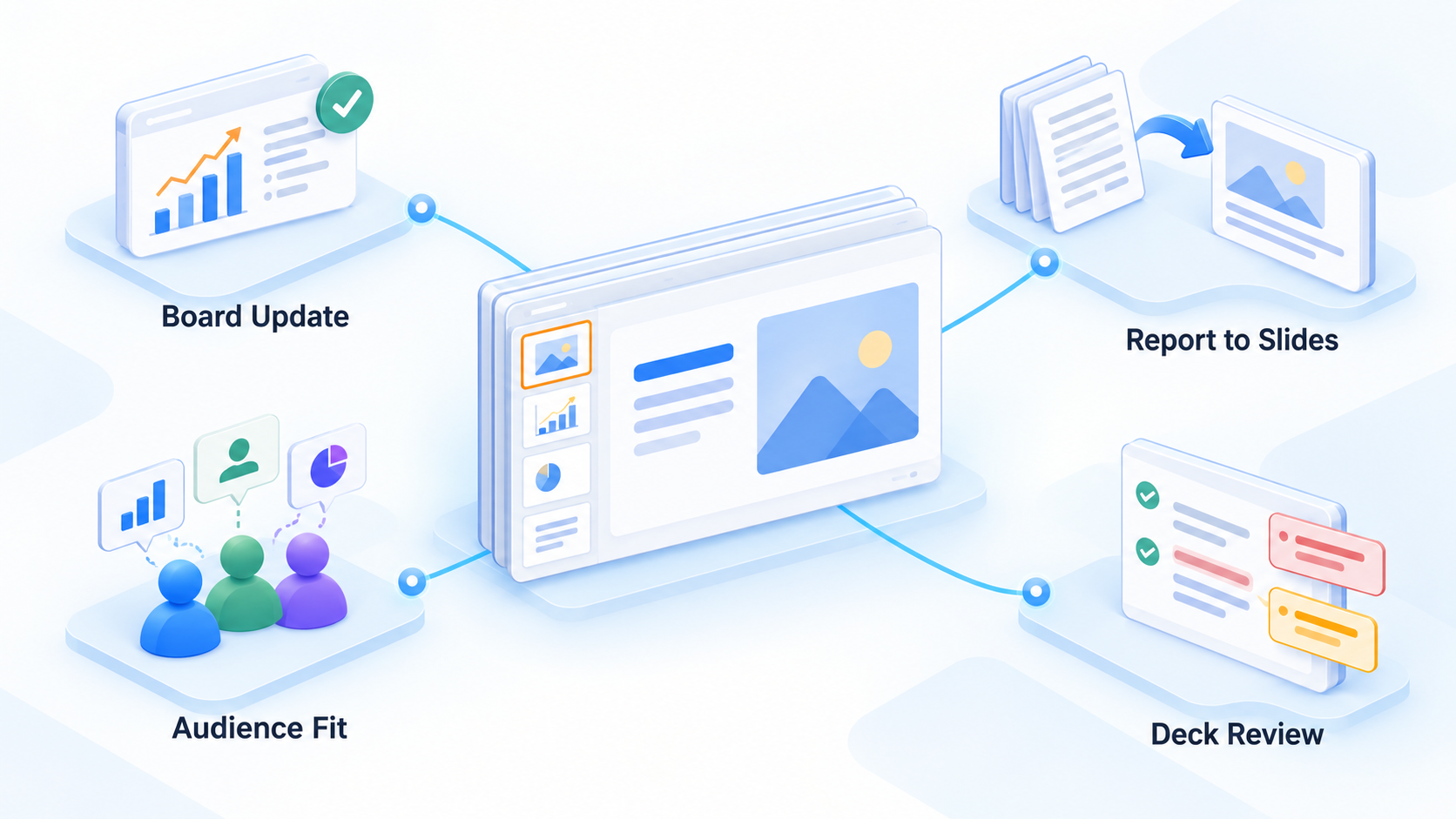
Build a board or business update
Provide approved notes, KPIs, and the existing board template. Ask for a short narrative that distinguishes results, risks, decisions, and next steps. Require a source note for every metric and review the proposed slide sequence before creation.
Turn a report into a focused deck
Use a long report, memo, or research file as source material and specify the number of slides, audience knowledge, and desired decision. Ask ChatGPT to identify missing evidence before it writes slide copy instead of filling gaps with assumptions.
Adapt one presentation for another audience
A technical deck may need a shorter executive version, while a sales deck may need a customer-specific version. Tell ChatGPT which claims and layouts must stay unchanged, which terms need simpler language, and which details should move to an appendix.
Review the story and likely questions
Ask what the deck is trying to prove, where the logic jumps, which slides repeat the same point, and what skeptical questions an audience may ask. This use case can improve the narrative without asking the system to redesign every slide.
Add or revise a contained set of slides
Request a risks slide, a recommendation slide, or a three-slide summary at an exact location. Define what surrounds the edit and what must not change. Small, explicit edits are easier to inspect than a request to “make the whole deck better.”
Create repeatable presentation workflows
Where available, Skills, templates, plugins, and approved apps can encode recurring presentation instructions. Use them for repeatable work such as weekly reviews, project updates, or standard customer briefs, but verify permissions and inputs every time.
Practical ChatGPT PowerPoint use cases
The Best Free Presentation Alternative: WPS Office
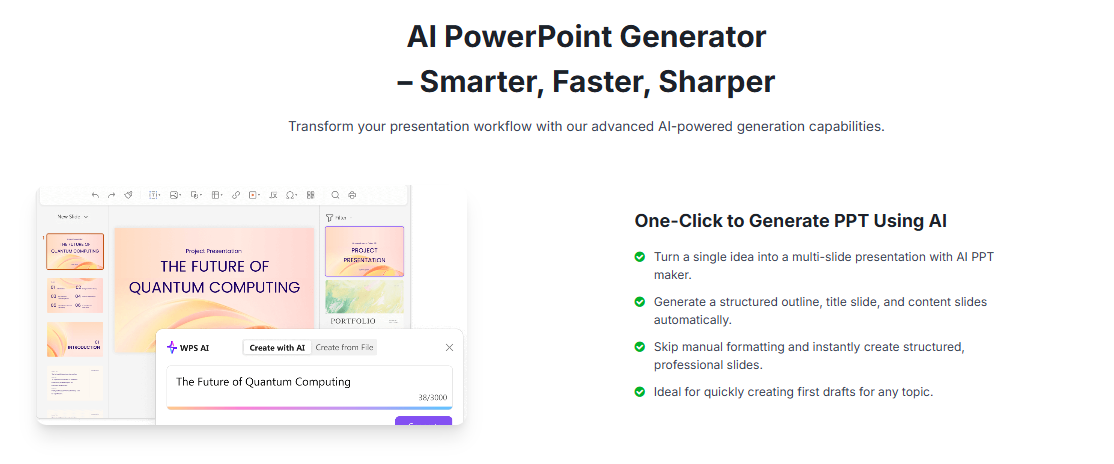
If the ChatGPT add-in is not enabled in your Microsoft 365 environment, WPS Presentation provides another route for building and editing PPT files. WPS AI Slides can help create an initial presentation structure from a topic, after which you can refine slide text, layouts, visuals, and exports in the presentation editor.
This option is useful when you want an integrated presentation workflow without waiting for an administrator to deploy a PowerPoint add-in. Availability of individual AI features can vary by account and version, so confirm the current controls in your installation before planning a production workflow.
| Workflow need | ChatGPT for PowerPoint | WPS Presentation |
|---|---|---|
| Quick access | Runs in a PowerPoint sidebar after add-in installation | Presentation editing and AI slide tools in the WPS environment |
| First draft | Build from approved source material and instructions | Generate a starting deck from a topic, then edit it |
| Audience revision | Ask for targeted changes to an existing deck | Use editable slides, templates, and manual refinement |
| Export and handoff | Keep the editable PowerPoint structure | Edit and hand off common presentation files |
| Access path | Depends on ChatGPT and Microsoft 365 controls | Download WPS Office and check available AI features |
Integrated editing: move from an AI-generated starting point to detailed slide changes in one office suite.
Template flexibility: apply a presentation template and adjust the draft rather than accepting a generic layout.
Practical handoff: keep the final presentation editable and review it before sharing.
WPS AI Slides presentation generator
FAQs
Is ChatGPT for PowerPoint an official add-in?
Yes. OpenAI documents an official ChatGPT for PowerPoint add-in available through Microsoft Marketplace. Verify the publisher and use the installation route linked from OpenAI documentation.
Why can I not find ChatGPT in PowerPoint Add-ins?
Your organization may block Store add-ins, the rollout may not have reached your account, or workspace access may be disabled. Ask the Microsoft 365 or ChatGPT workspace administrator to check deployment and role settings.
Can ChatGPT create a complete PowerPoint presentation?
It can create a first draft from instructions or source material and can add or revise slides. You should still inspect facts, numbers, citations, slide changes, and template consistency before relying on the result.
Can ChatGPT for PowerPoint use my company template?
It is designed to work within existing presentation templates where possible, but template adherence may not be perfect. Provide the approved deck, name the layouts and rules to preserve, and review every generated slide.
What is the safest first use case?
Start with a duplicate deck and a contained task, such as reviewing the story, simplifying three slides, or drafting one risks slide. Avoid giving it an entire confidential deck before permissions and data policy are clear.

'%3e%3cpath%20d='M19.9911%204.11386V6.471H18.5894C18.0775%206.471%2017.7322%206.57814%2017.5536%206.79243C17.3751%207.00671%2017.2858%207.32814%2017.2858%207.75671V9.44421H19.9019L19.5536%2012.0871H17.2858V18.8639H14.5536V12.0871H12.2769V9.44421H14.5536V7.49779C14.5536%206.39064%2014.8632%205.53201%2015.4822%204.92189C16.1013%204.31177%2016.9257%204.00671%2017.9554%204.00671C18.8304%204.00671%2019.509%204.04243%2019.9911%204.11386Z'%20fill='%23333333'/%3e%3c/g%3e%3cdefs%3e%3cclipPath%20id='clip0_2938_8199'%3e%3crect%20width='16'%20height='16'%20fill='white'%20transform='translate(8%204.00671)'/%3e%3c/clipPath%3e%3c/defs%3e%3c/svg%3e)
'%3e%3cpath%20d='M17.5237%2010.7813L23.4811%204H22.0699L16.8949%209.88693L12.7648%204H8L14.2469%2012.9029L8%2020.0133H9.4112L14.8725%2013.7952L19.2352%2020.0133H24M9.92053%205.04213H12.0885L22.0688%2019.0224H19.9003'%20fill='%23333333'/%3e%3c/g%3e%3cdefs%3e%3cclipPath%20id='clip0_2938_8200'%3e%3crect%20width='16'%20height='16.0134'%20fill='white'%20transform='translate(8%204)'/%3e%3c/clipPath%3e%3c/defs%3e%3c/svg%3e)


