

'%3e%3cpath%20d='M8%200C12.4183%200%2016%203.58172%2016%208C16%2012.4183%2012.4183%2016%208%2016C3.58172%2016%200%2012.4183%200%208C0%203.58172%203.58172%200%208%200ZM11.6162%204.38379C11.2257%203.99337%2010.5927%203.99338%2010.2021%204.38379L8%206.58594L5.79785%204.38379C5.40732%203.99334%204.77429%203.99329%204.38379%204.38379C3.99331%204.77429%203.99335%205.40733%204.38379%205.79785L6.58594%208L4.38379%2010.2021C3.99348%2010.5927%203.99341%2011.2257%204.38379%2011.6162C4.77426%2012.0066%205.40734%2012.0065%205.79785%2011.6162L8%209.41406L10.2021%2011.6162C10.5927%2012.0066%2011.2257%2012.0067%2011.6162%2011.6162C12.0067%2011.2257%2012.0066%2010.5927%2011.6162%2010.2021L9.41406%208L11.6162%205.79785C12.0066%205.40735%2012.0066%204.77429%2011.6162%204.38379Z'%20fill='%23080E17'%20fill-opacity='0.46'/%3e%3c/g%3e%3cdefs%3e%3cclipPath%20id='clip0_3761_713'%3e%3crect%20width='16'%20height='16'%20fill='white'/%3e%3c/clipPath%3e%3c/defs%3e%3c/svg%3e)




'%3e%3cpath%20fill-rule='evenodd'%20clip-rule='evenodd'%20d='M21.4999%2010.9993C21.4999%205.20009%2016.7986%200.498901%2010.9993%200.498901C5.19994%200.498901%200.498657%205.20009%200.498657%2010.9993C0.498657%2016.2404%204.33858%2020.5844%209.35855%2021.3722V14.0346H6.69238V10.9993H9.35855V8.68594C9.35855%206.05427%2010.9262%204.60062%2013.3248%204.60062C14.4736%204.60062%2015.6753%204.80571%2015.6753%204.80571V7.38979H14.3512C13.0468%207.38979%2012.64%208.19921%2012.64%209.0296V10.9993H15.5523L15.0867%2014.0346H12.64V21.3722C17.66%2020.5844%2021.4999%2016.2404%2021.4999%2010.9993Z'%20fill='%231568EA'/%3e%3c/g%3e%3c/svg%3e)


'%3e%3cpath%20d='M2.42045%2022.1876H6.31818V12.7217L0.75%208.54553V20.5171C0.75%2021.4414%201.49892%2022.1876%202.42045%2022.1876Z'%20fill='%234285F4'/%3e%3cpath%20d='M19.682%2022.1876H23.5797C24.5041%2022.1876%2025.2502%2021.4387%2025.2502%2020.5171V8.54553L19.682%2012.7217'%20fill='%2334A853'/%3e%3cpath%20d='M19.682%205.48293V12.7216L25.2502%208.54543V6.31816C25.2502%204.25236%2022.8921%203.07469%2021.2411%204.31361'%20fill='%23FBBC04'/%3e%3cpath%20d='M6.31824%2012.7217V5.48303L13.0001%2010.4944L19.6819%205.48303V12.7217L13.0001%2017.733'%20fill='%23EA4335'/%3e%3cpath%20d='M0.75%206.31816V8.54543L6.31818%2012.7216V5.48293L4.75909%204.31361C3.10534%203.07469%200.75%204.25236%200.75%206.31816Z'%20fill='%23C5221F'/%3e%3c/g%3e%3cdefs%3e%3cclipPath%20id='clip0_2954_7305'%3e%3crect%20width='24.5'%20height='18.375'%20fill='white'%20transform='translate(0.75%203.8125)'/%3e%3c/clipPath%3e%3c/defs%3e%3c/svg%3e)


HTML(Hypertext markup language) is a language that is used to design websites and save web pages from the internet. PDF(Portable document file) is a document file that consists of text and images.
A web page can be saved in the HTML format for sharing purposes with other users, but it's not a fruitful way to share the HTML file because it may miss a lot of features. To maintain the original HTML file feature, you should know " How to convert HTML to PDF Online '' ,so that you can share your file across any platform without disturbing its formatting.
Here we’re going to share a list of tools to convert HTML to PDF online for free.
How To Convert HTML To PDF Free Online Using Sejda
Sejda PDF Editor is a free tool that converts HTML files to PDF files. This tool offers online and offline conversion of HTML to PDF, with a lightweight PDF toolkit style that is easy for everyday users.
Here are a few steps to follow:
Step 1: Open the window, go to a browser and search “sejda HTML to PDF converter online” .
Step 2: Open the website, click on the “Convert URL to PDF” button, and in the 'web address,'
paste the URL of the Website that you want to convert, and click “Convert HTML to PDF”

Step 3: After some processing, a new window will appear; click on the “Download” button to start downloading.

For users who have already obtained a Sejda license key, you can easily enter it within the software's settings to unlock premium features; additionally, a direct download link for the corresponding version can be conveniently set up right there, streamlining the entire process.


How To Convert HTML To PDF Free Online Using pdfcrowd
Another HTML to PDF conversion tool is pdfcrowd. It's a free tool that offers a user-friendly interface and easy-to-use features, with a stronger developer/API angle than typical consumer PDF kits.
Here is the list of a few steps to follow for conversion of HTML file to PDF file:
Step 1: Open the mac, iPhone, or Windows; go to the browser and search pdfcrowd online HTML to PDF converter..
Step 2: In the pdfcrowd interface, you'll see a box; you need to paste your concerned website link in this box and then click on the “convert to PDF” button.

Step 3: You'll see a popup in which two options are available, “Download | Open”. Select the one that suits your needs.

How To Convert HTML To PDF Free Online Using Smallpdf
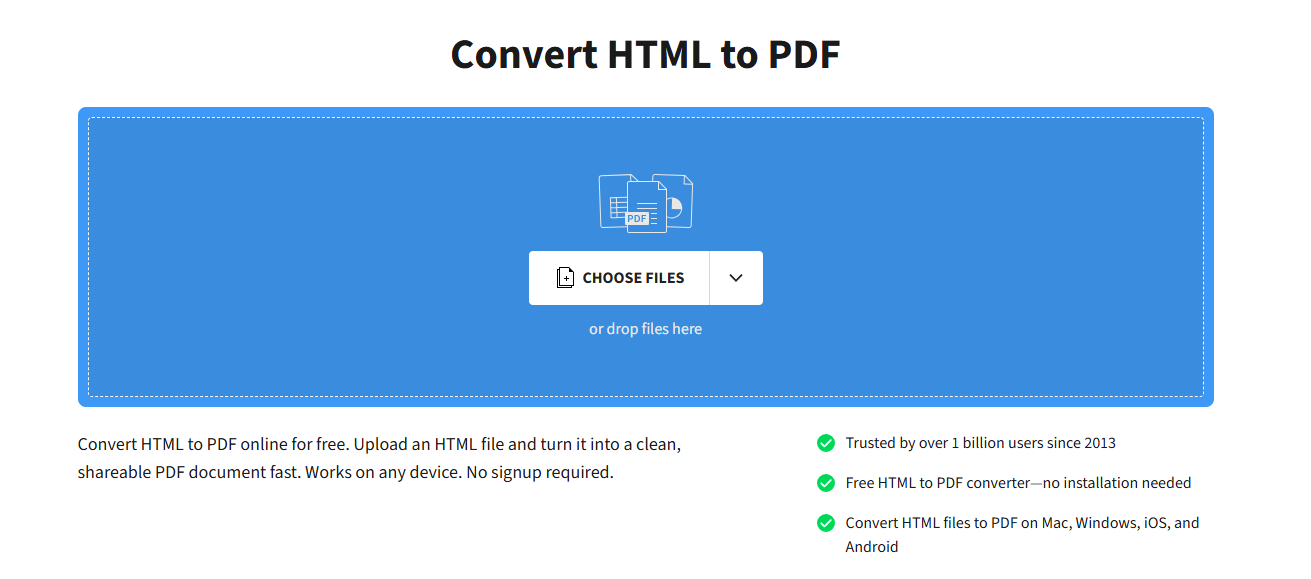
If you want a well-known consumer converter that feels different from Sejda’s PDF toolkit and pdfcrowd’s API-style workflow, Smallpdf is a strong choice. It is widely recognized for simple drag-and-drop PDF tasks and a clean web interface focused on everyday users rather than developer conversion settings.
Here are a few steps to follow:
Step 1: Open your browser and go to Smallpdf’s HTML to PDF / web-to-PDF tool (or search “Smallpdf HTML to PDF”).
Step 2: Upload your HTML file, or paste the webpage URL if the tool asks for a link, then start the conversion.
Step 3: Preview the result and download the PDF when processing finishes.
Smallpdf stands out for a polished consumer experience and a familiar PDF-suite brand, which makes it easy if you already use online PDF utilities for compress, convert, or share tasks.
After you convert HTML to PDF, you may still want to edit the file—fix text, shrink the size, merge pages, or simply read and organize the document. I found a particularly useful free option for that next step: WPS PDF Tools.
How To Edit Your PDF with WPS PDF Tools (After Conversion)
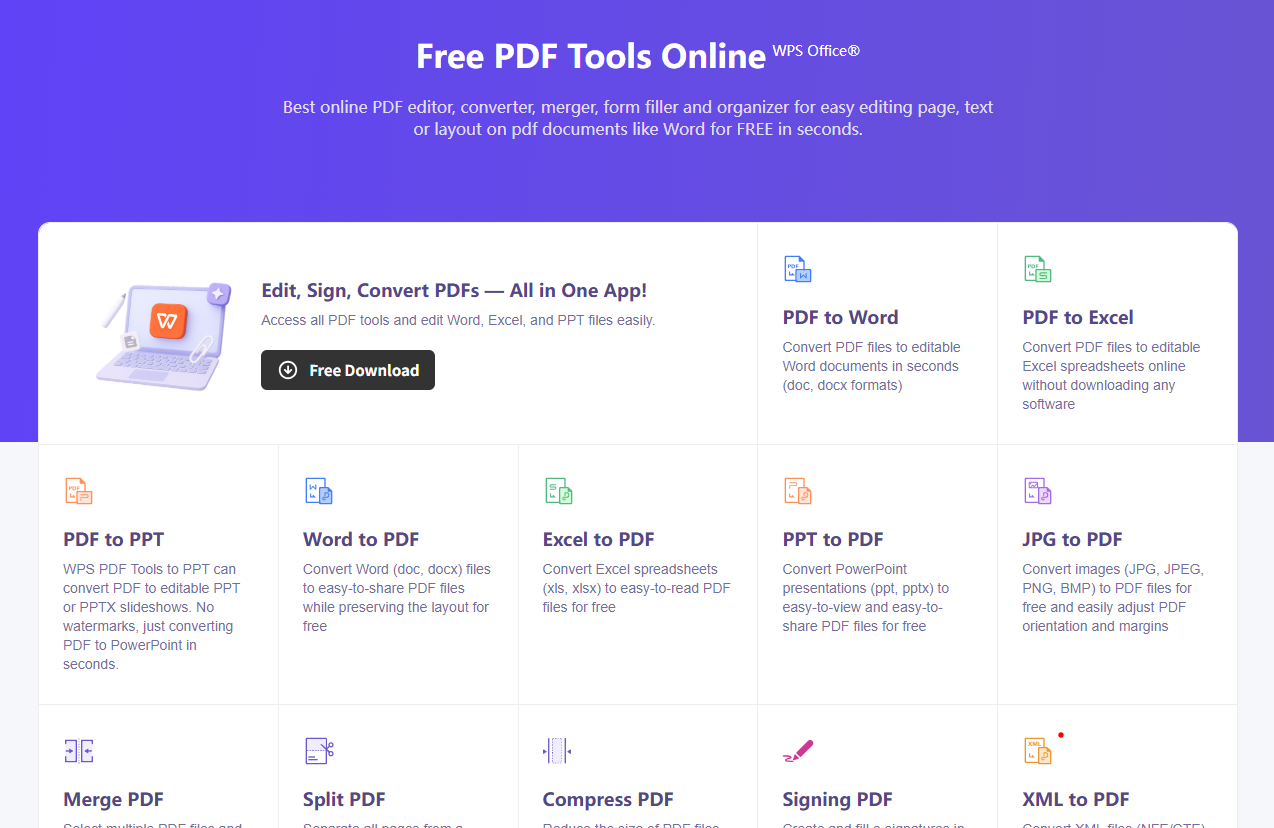
WPS PDF is a free, all-in-one online PDF toolkit. It is not positioned as an HTML-to-PDF converter here—instead, it helps after conversion, when you need comprehensive PDF work in one place.
Once your PDF is ready, these are the practical tools many people look for next:
Compress PDF — reduce file size for faster sharing and email.
Merge PDF — combine multiple PDFs into one document.
Split PDF — divide a large PDF or extract specific pages.
Read PDF — open and review the converted file clearly online.
Edit PDF — fix text, layout, and other content without starting over.
Here are a few steps to follow:
Step 1: Open https://pdf.wps.com/ in your browser after your HTML-to-PDF download is ready.
Step 2: Choose the tool that matches your next task—Compress PDF, Merge PDF, Split PDF, Read/Open PDF, or Edit PDF (you can also convert PDF to Word / Excel / PPT if needed).
Step 3: Upload the PDF you just created from your HTML or web page, then make your changes online.
Step 4: Download the updated PDF. For deeper desktop PDF features, you can also download WPS Office and continue in the desktop PDF toolkit.
This workflow keeps conversion and post-editing clear: use Sejda, pdfcrowd, or Smallpdf to create the PDF, then use free WPS PDF Tools online to polish, compress, merge, split, read, or edit the file.
FAQ
1. Can I convert HTML to PDF online for free?
Yes. Free online converters such as Sejda, pdfcrowd, and Smallpdf let you turn a webpage URL or HTML-related content into a PDF in your browser. After conversion, you can refine the file with free online PDF tools like WPS PDF if you need edits, compression, merge, split, or format conversion.
2. How do I convert a local HTML file to PDF?
Upload or open the local .html file in a converter that supports file input, or open the page in a browser and use Print → Save as PDF. If the tool mainly accepts a URL, host or open the HTML locally in a browser first, then convert the page address. Afterward, edit or compress the PDF online at pdf.wps.com if needed.
3. How can I convert a web page (URL) to PDF?
Paste the webpage URL into an online HTML/web-to-PDF tool (for example Sejda’s Convert URL to PDF, pdfcrowd, or Smallpdf), run the conversion, then download the PDF. This is useful when you want to share a site layout without sending raw HTML.
4. What is Html2pdf, and what should I do after converting?
“Html2pdf” usually refers to tools or libraries that turn HTML into PDF. For most everyday users, a free online converter is enough. After you have the PDF, use WPS PDF Tools online to compress, merge, split, read, or edit the PDF—or convert it to Word/Excel/PPT—without treating WPS as the HTML-to-PDF step itself.

'%3e%3cpath%20d='M19.9911%204.11386V6.471H18.5894C18.0775%206.471%2017.7322%206.57814%2017.5536%206.79243C17.3751%207.00671%2017.2858%207.32814%2017.2858%207.75671V9.44421H19.9019L19.5536%2012.0871H17.2858V18.8639H14.5536V12.0871H12.2769V9.44421H14.5536V7.49779C14.5536%206.39064%2014.8632%205.53201%2015.4822%204.92189C16.1013%204.31177%2016.9257%204.00671%2017.9554%204.00671C18.8304%204.00671%2019.509%204.04243%2019.9911%204.11386Z'%20fill='%23333333'/%3e%3c/g%3e%3cdefs%3e%3cclipPath%20id='clip0_2938_8199'%3e%3crect%20width='16'%20height='16'%20fill='white'%20transform='translate(8%204.00671)'/%3e%3c/clipPath%3e%3c/defs%3e%3c/svg%3e)
'%3e%3cpath%20d='M17.5237%2010.7813L23.4811%204H22.0699L16.8949%209.88693L12.7648%204H8L14.2469%2012.9029L8%2020.0133H9.4112L14.8725%2013.7952L19.2352%2020.0133H24M9.92053%205.04213H12.0885L22.0688%2019.0224H19.9003'%20fill='%23333333'/%3e%3c/g%3e%3cdefs%3e%3cclipPath%20id='clip0_2938_8200'%3e%3crect%20width='16'%20height='16.0134'%20fill='white'%20transform='translate(8%204)'/%3e%3c/clipPath%3e%3c/defs%3e%3c/svg%3e)


