

'%3e%3cpath%20d='M8%200C12.4183%200%2016%203.58172%2016%208C16%2012.4183%2012.4183%2016%208%2016C3.58172%2016%200%2012.4183%200%208C0%203.58172%203.58172%200%208%200ZM11.6162%204.38379C11.2257%203.99337%2010.5927%203.99338%2010.2021%204.38379L8%206.58594L5.79785%204.38379C5.40732%203.99334%204.77429%203.99329%204.38379%204.38379C3.99331%204.77429%203.99335%205.40733%204.38379%205.79785L6.58594%208L4.38379%2010.2021C3.99348%2010.5927%203.99341%2011.2257%204.38379%2011.6162C4.77426%2012.0066%205.40734%2012.0065%205.79785%2011.6162L8%209.41406L10.2021%2011.6162C10.5927%2012.0066%2011.2257%2012.0067%2011.6162%2011.6162C12.0067%2011.2257%2012.0066%2010.5927%2011.6162%2010.2021L9.41406%208L11.6162%205.79785C12.0066%205.40735%2012.0066%204.77429%2011.6162%204.38379Z'%20fill='%23080E17'%20fill-opacity='0.46'/%3e%3c/g%3e%3cdefs%3e%3cclipPath%20id='clip0_3761_713'%3e%3crect%20width='16'%20height='16'%20fill='white'/%3e%3c/clipPath%3e%3c/defs%3e%3c/svg%3e)




'%3e%3cpath%20fill-rule='evenodd'%20clip-rule='evenodd'%20d='M21.4999%2010.9993C21.4999%205.20009%2016.7986%200.498901%2010.9993%200.498901C5.19994%200.498901%200.498657%205.20009%200.498657%2010.9993C0.498657%2016.2404%204.33858%2020.5844%209.35855%2021.3722V14.0346H6.69238V10.9993H9.35855V8.68594C9.35855%206.05427%2010.9262%204.60062%2013.3248%204.60062C14.4736%204.60062%2015.6753%204.80571%2015.6753%204.80571V7.38979H14.3512C13.0468%207.38979%2012.64%208.19921%2012.64%209.0296V10.9993H15.5523L15.0867%2014.0346H12.64V21.3722C17.66%2020.5844%2021.4999%2016.2404%2021.4999%2010.9993Z'%20fill='%231568EA'/%3e%3c/g%3e%3c/svg%3e)


'%3e%3cpath%20d='M2.42045%2022.1876H6.31818V12.7217L0.75%208.54553V20.5171C0.75%2021.4414%201.49892%2022.1876%202.42045%2022.1876Z'%20fill='%234285F4'/%3e%3cpath%20d='M19.682%2022.1876H23.5797C24.5041%2022.1876%2025.2502%2021.4387%2025.2502%2020.5171V8.54553L19.682%2012.7217'%20fill='%2334A853'/%3e%3cpath%20d='M19.682%205.48293V12.7216L25.2502%208.54543V6.31816C25.2502%204.25236%2022.8921%203.07469%2021.2411%204.31361'%20fill='%23FBBC04'/%3e%3cpath%20d='M6.31824%2012.7217V5.48303L13.0001%2010.4944L19.6819%205.48303V12.7217L13.0001%2017.733'%20fill='%23EA4335'/%3e%3cpath%20d='M0.75%206.31816V8.54543L6.31818%2012.7216V5.48293L4.75909%204.31361C3.10534%203.07469%200.75%204.25236%200.75%206.31816Z'%20fill='%23C5221F'/%3e%3c/g%3e%3cdefs%3e%3cclipPath%20id='clip0_2954_7305'%3e%3crect%20width='24.5'%20height='18.375'%20fill='white'%20transform='translate(0.75%203.8125)'/%3e%3c/clipPath%3e%3c/defs%3e%3c/svg%3e)


Converting JPG files to PDF documents is essential when you’re trying to professionally share them or archive them in a compact format, ensuring uniform formatting across multiple devices. However, most users don’t know how to deal with such conversions without paying for expensive tools. So, what are the easiest ways to convert your JPGfiles to a PDF? In this guide, I’ll be covering some of the best tools you can use to simplify the process and walk you through how to convert JPG to PDF on Windows.


How to Convert JPG to PDF on WPS Online
Figuring out how to convert JPG to PDF can be incredibly confusing for beginners, and it’s easy to feel lost and overwhelmed in this frustrating mess. I’ve been there myself and I know how stressed it can be, but once you know the right tools to use and the exact steps to follow, it gets much simpler. In this section, I’ll be comparing some of the most effective tools that simplified the conversion process for me and helped me save a lot of time and stress.
WPS Online
WPS Online is one of the most straightforward and seamless ways to convert your JPG images to a single, compact PDF file. It offers a quick, web-based solution for all my file conversions, featuring a simple and intuitive user interface that’s incredibly easy to use so beginners can easily use it even if it’s their first time. It’s completely free and is filled with powerful features that help in streamlining the process of file conversions in my workflow.
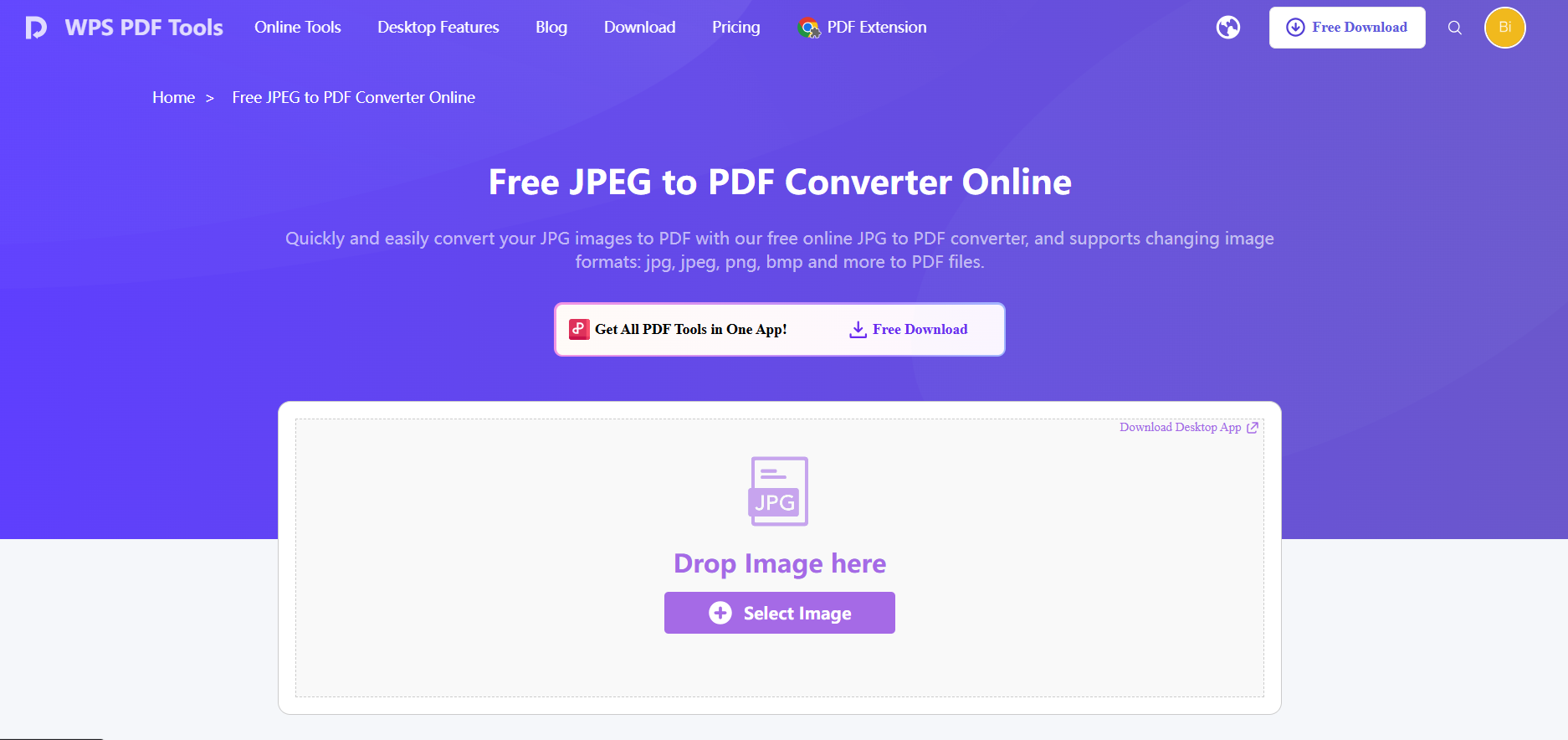
If you want to convert your JPG files to PDF using WPS Online, the process is incredibly simple and I’ve highlighted each step of the way down below.
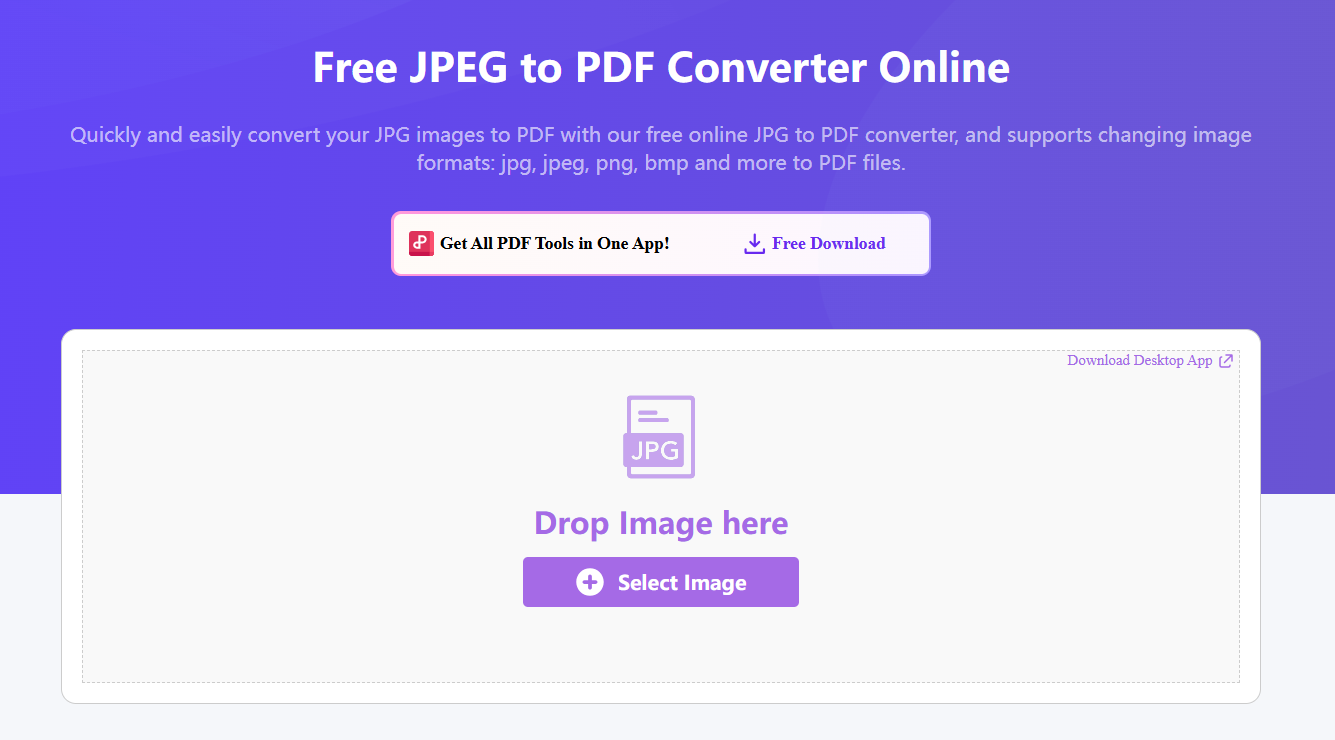
Step 1: Launch WPS Online Tool on your web browser and upload the pictures you want to use.
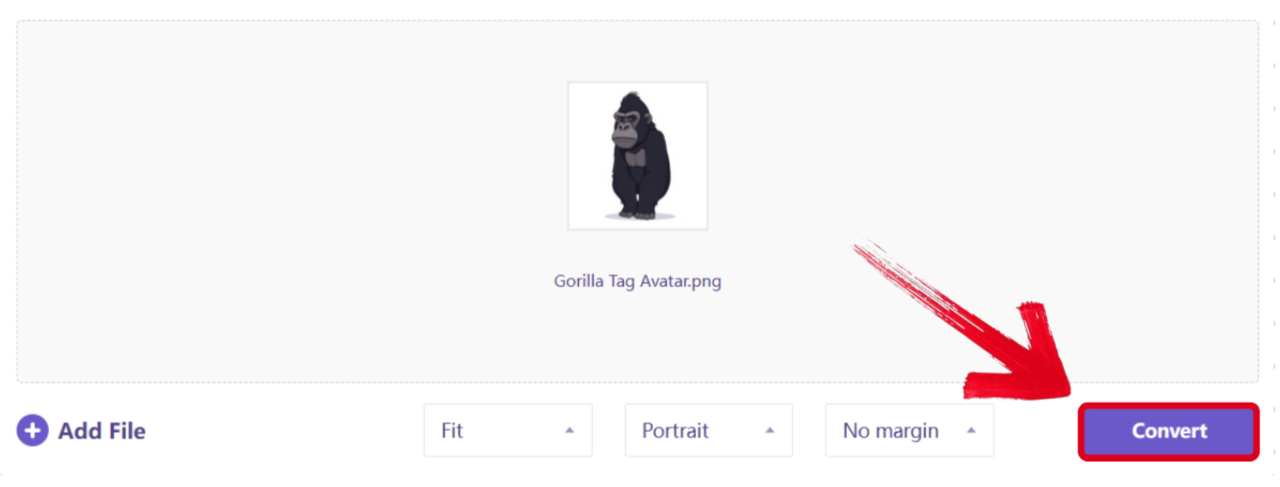
Step 2: Once your images have been uploaded, press Convert to start the process.
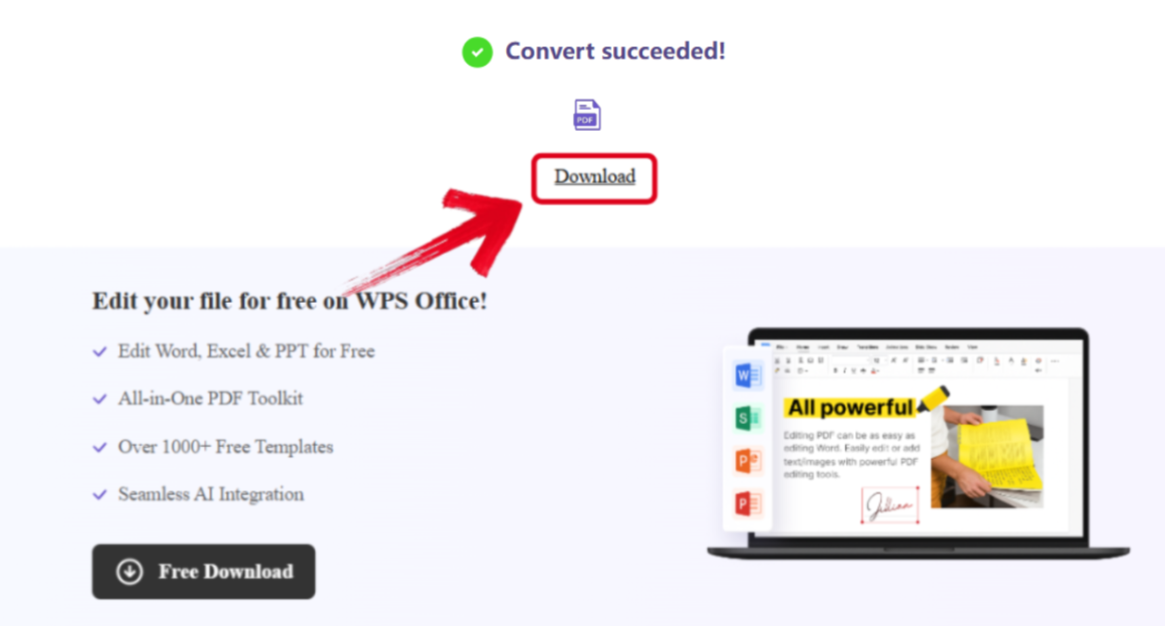
Step 3: After your images are done converting to a PDF, simply press Download to save it to your device.
WPS Office
WPS Office is the perfect solution for those looking for an all-in-one productivity suite with all the tools they need for their workflow. It’s a desktop-based application that comes with a package of tools for all your productivity needs, whether you need a photo editor or a PDF viewer. It’s free, efficient, and incredibly reliable, equipping you with all the features you need to have a productive and smoothly flowing workflow without any slowdowns or challenges.

If you want to use WPS Office to convert your JPG files to PDF, the process is incredibly straightforward and these are the steps you need to follow.
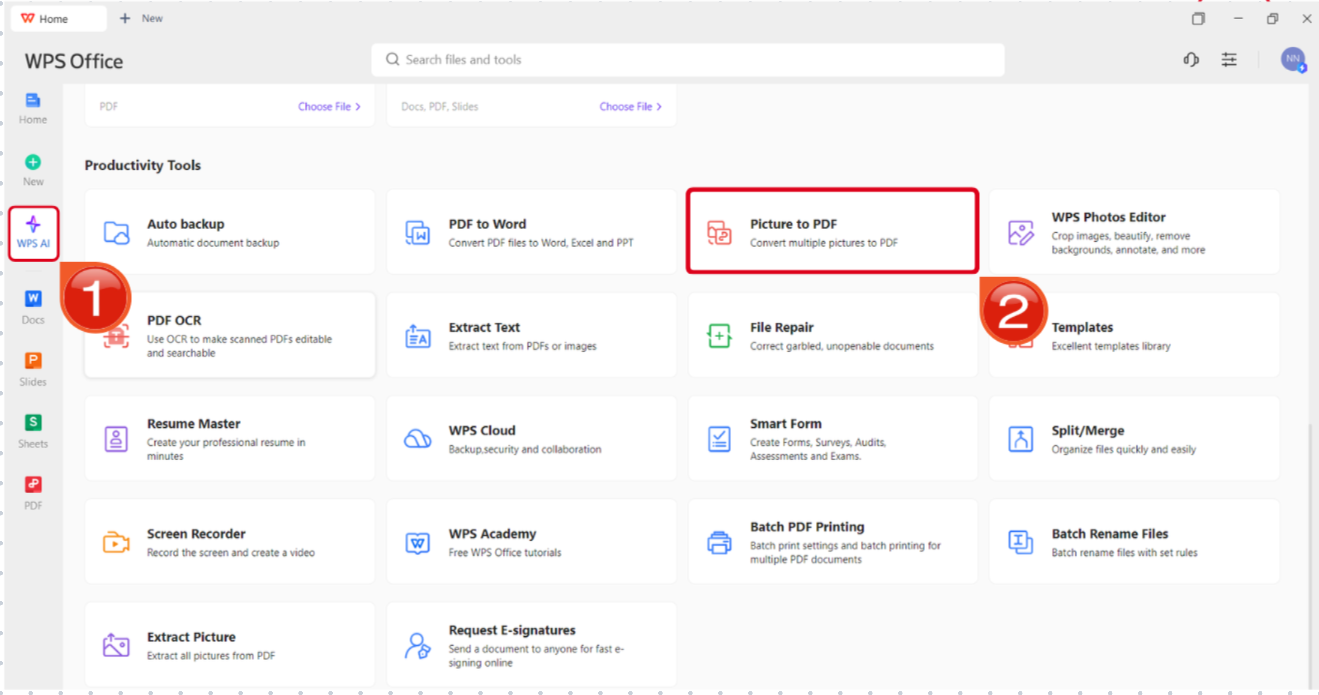
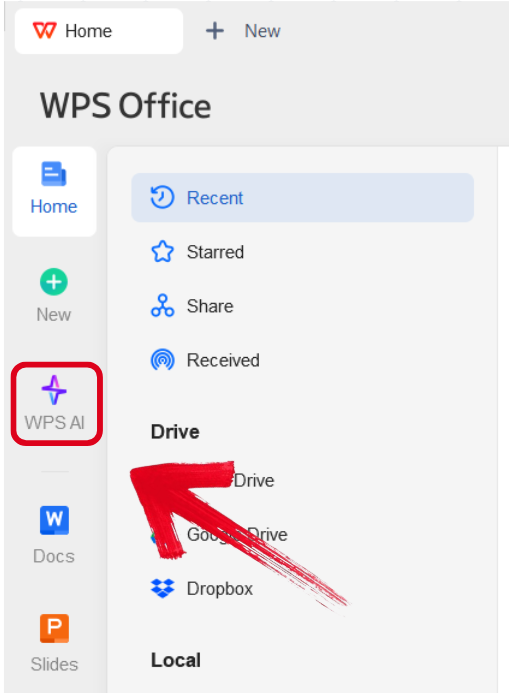
Step 1: Open WPS Office and navigate to the WPS AI Window, then select Picture to PDF.
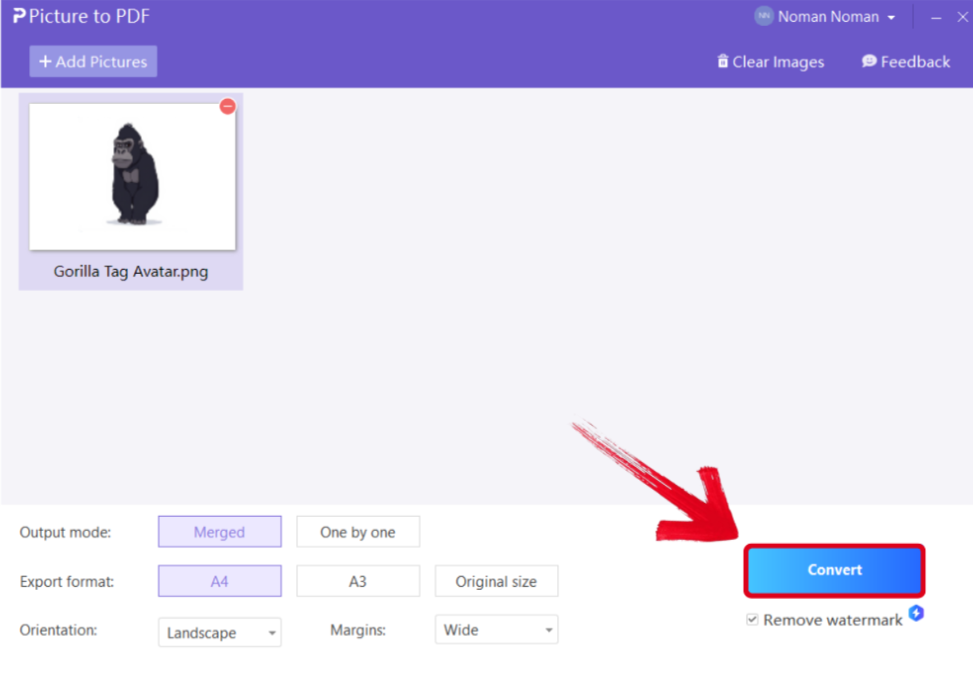
Step 2: Select the pictures you want to convert, then select Convert to start the process.
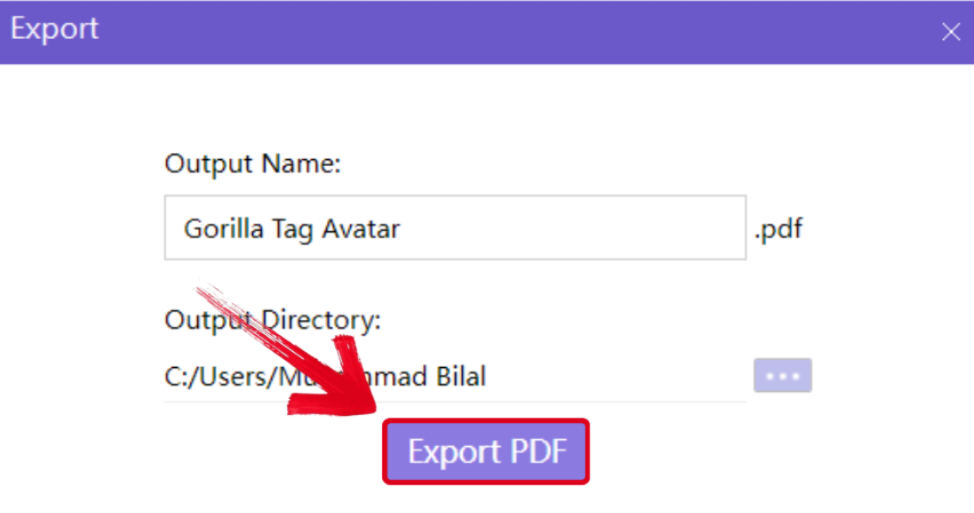
Step 3: Once the process has been completed, simply name your PDF file and press ExportPDF to save it to your device.
How to Convert PDF to JPG with OCR (Higher Quality Method)
Using OCR for your PDF to JPG conversion is the best option if you’re looking for high quality results that don’t lose their original quality or clarity. WPS Office features its own built-in OCR tool that delivers precise and accurate scans, ensuring sharper and more readable outputs every single time. In this section, I’ll be covering each step of the process to walk you through the conversion process through OCR.
Step 1: Open WPS Office on your computer and navigate to the WPS AI window to get started.
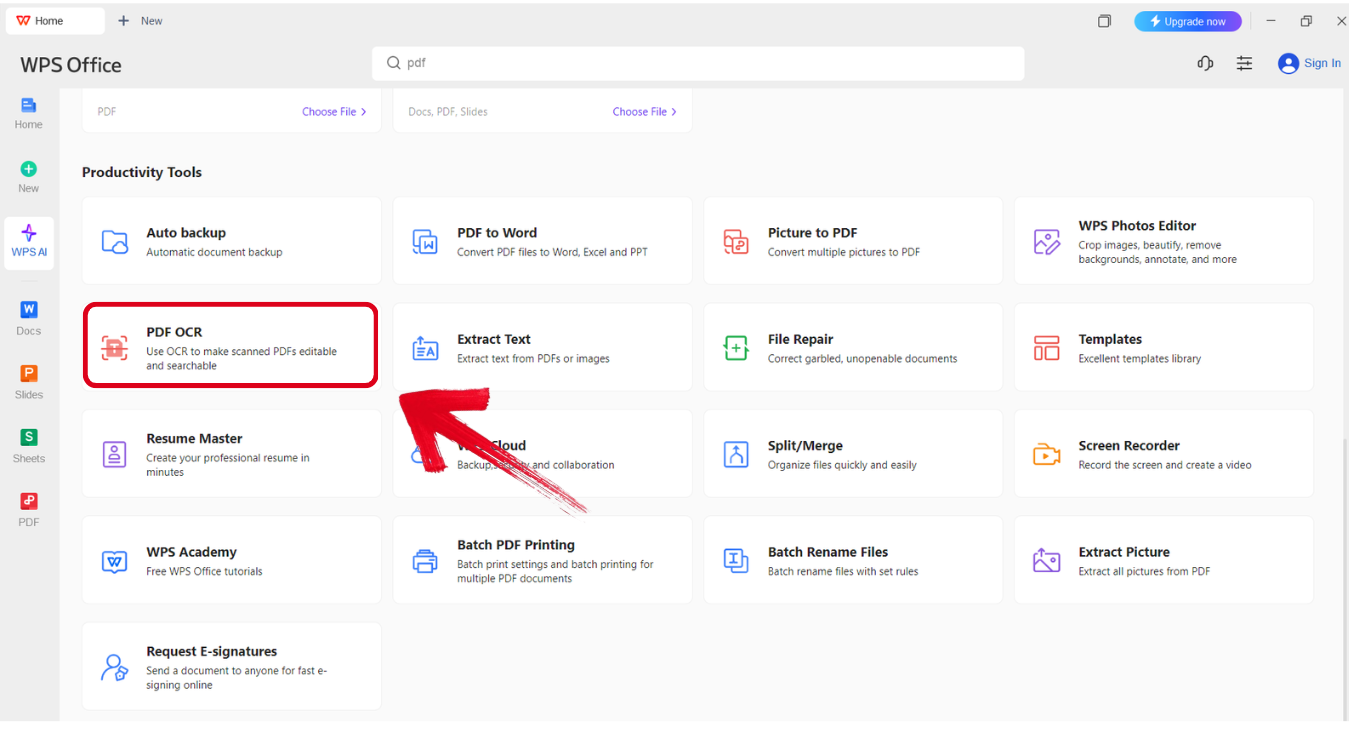
Step 2: In the WPS AI window, select PDF OCR to continue.
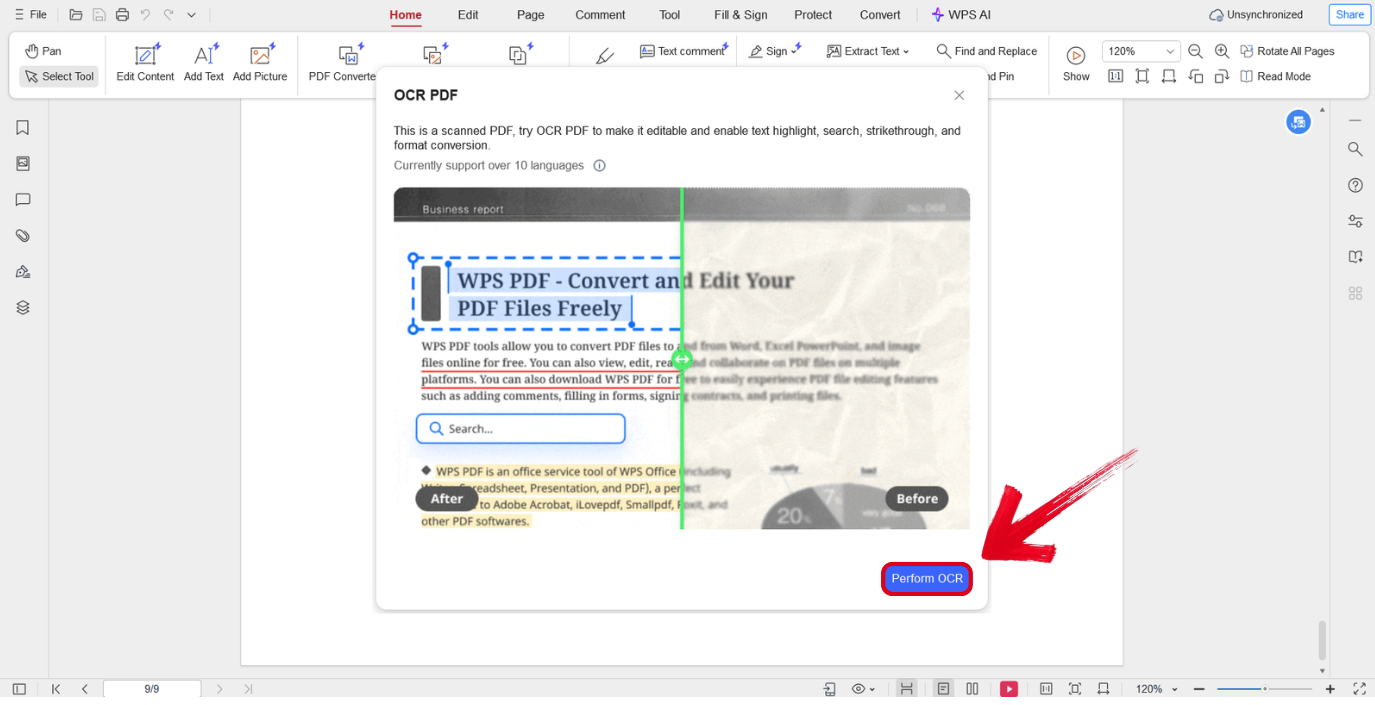
Step 3: Select the PDF file you want to use for the OCR and then press Perform OCR.
Why WPS PDF Tools Stands Out?
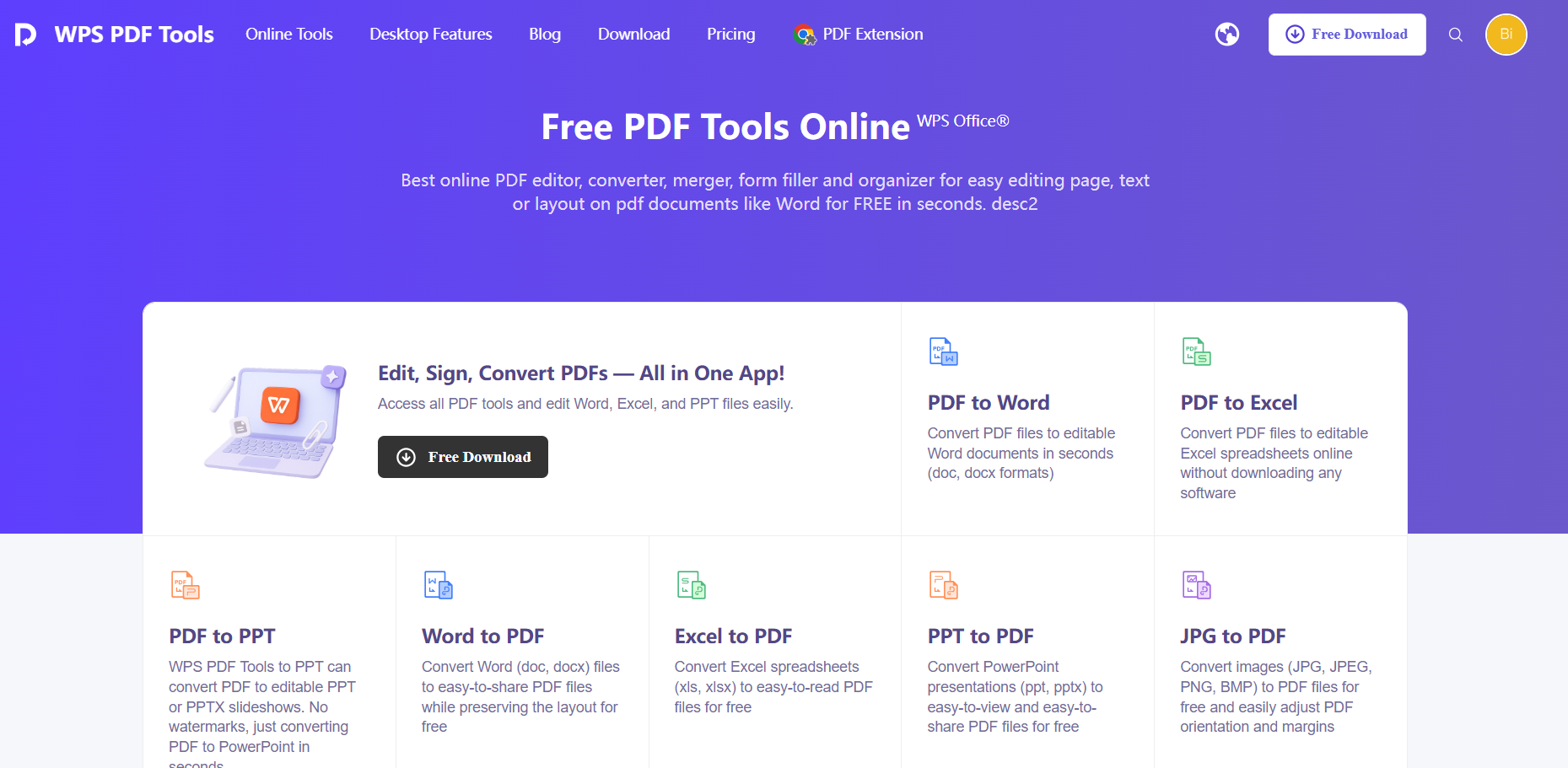
When dealing with file conversions on a regular basis, it’s important to have a tool that lets you manage all of them in one place. This is where WPS PDF Tools really saves the day for me, providing me an all-in-one solution to all my file conversions for completely free. It stands out for its versatile and user-friendly experience, making sure everything stays clean and straightforward for beginners and first-time users. It’s an ideal option for anyone looking to boost their productivity and be more efficient.
FAQs
Q1. What is the best free JPG to PDF converter for Windows users?
While there are several excellent options, WPS Converter stands out as the best overall choice. It combines a user-friendly interface with powerful features like batch conversion and high-quality output, all within a completely free tool that is part of the larger WPS Office suite.
Q2. How can I combine multiple JPG images into a single PDF file on Windows?
The easiest way is with a dedicated app. With a tool like WPS Converter, you can select all your JPG files at once, arrange them in your preferred order with a simple drag-and-drop, and convert them into one cohesive PDF document with a single click.
Q3. Can I convert JPG images to PDF without installing any software?
Yes, WPS Converter also offers an online version that lets you convert JPG files to PDF directly in your browser. Simply upload your images, arrange them, and download the resulting PDF.
Q4. Is it possible to adjust the PDF quality or size during conversion?
Yes, WPS Converter provides options to optimize the PDF for either smaller file size or higher image quality, giving you control over the balance between clarity and storage efficiency.
Q5. Can I convert JPG files in bulk to PDF with WPS Converter?
Absolutely. WPS Converter supports batch processing, allowing you to select multiple JPG images at once and convert them all into PDFs simultaneously, which saves time for larger projects.
Q6. Are there any limitations on the number of images I can convert at once?
In the free version, some limits may apply depending on file size or total number of images, but for most users, batch conversion of dozens of images works smoothly without issues.

'%3e%3cpath%20d='M19.9911%204.11386V6.471H18.5894C18.0775%206.471%2017.7322%206.57814%2017.5536%206.79243C17.3751%207.00671%2017.2858%207.32814%2017.2858%207.75671V9.44421H19.9019L19.5536%2012.0871H17.2858V18.8639H14.5536V12.0871H12.2769V9.44421H14.5536V7.49779C14.5536%206.39064%2014.8632%205.53201%2015.4822%204.92189C16.1013%204.31177%2016.9257%204.00671%2017.9554%204.00671C18.8304%204.00671%2019.509%204.04243%2019.9911%204.11386Z'%20fill='%23333333'/%3e%3c/g%3e%3cdefs%3e%3cclipPath%20id='clip0_2938_8199'%3e%3crect%20width='16'%20height='16'%20fill='white'%20transform='translate(8%204.00671)'/%3e%3c/clipPath%3e%3c/defs%3e%3c/svg%3e)
'%3e%3cpath%20d='M17.5237%2010.7813L23.4811%204H22.0699L16.8949%209.88693L12.7648%204H8L14.2469%2012.9029L8%2020.0133H9.4112L14.8725%2013.7952L19.2352%2020.0133H24M9.92053%205.04213H12.0885L22.0688%2019.0224H19.9003'%20fill='%23333333'/%3e%3c/g%3e%3cdefs%3e%3cclipPath%20id='clip0_2938_8200'%3e%3crect%20width='16'%20height='16.0134'%20fill='white'%20transform='translate(8%204)'/%3e%3c/clipPath%3e%3c/defs%3e%3c/svg%3e)


