


'%3e%3cpath%20fill-rule='evenodd'%20clip-rule='evenodd'%20d='M21.4999%2010.9993C21.4999%205.20009%2016.7986%200.498901%2010.9993%200.498901C5.19994%200.498901%200.498657%205.20009%200.498657%2010.9993C0.498657%2016.2404%204.33858%2020.5844%209.35855%2021.3722V14.0346H6.69238V10.9993H9.35855V8.68594C9.35855%206.05427%2010.9262%204.60062%2013.3248%204.60062C14.4736%204.60062%2015.6753%204.80571%2015.6753%204.80571V7.38979H14.3512C13.0468%207.38979%2012.64%208.19921%2012.64%209.0296V10.9993H15.5523L15.0867%2014.0346H12.64V21.3722C17.66%2020.5844%2021.4999%2016.2404%2021.4999%2010.9993Z'%20fill='%231568EA'/%3e%3c/g%3e%3c/svg%3e)


'%3e%3cpath%20d='M2.42045%2022.1876H6.31818V12.7217L0.75%208.54553V20.5171C0.75%2021.4414%201.49892%2022.1876%202.42045%2022.1876Z'%20fill='%234285F4'/%3e%3cpath%20d='M19.682%2022.1876H23.5797C24.5041%2022.1876%2025.2502%2021.4387%2025.2502%2020.5171V8.54553L19.682%2012.7217'%20fill='%2334A853'/%3e%3cpath%20d='M19.682%205.48293V12.7216L25.2502%208.54543V6.31816C25.2502%204.25236%2022.8921%203.07469%2021.2411%204.31361'%20fill='%23FBBC04'/%3e%3cpath%20d='M6.31824%2012.7217V5.48303L13.0001%2010.4944L19.6819%205.48303V12.7217L13.0001%2017.733'%20fill='%23EA4335'/%3e%3cpath%20d='M0.75%206.31816V8.54543L6.31818%2012.7216V5.48293L4.75909%204.31361C3.10534%203.07469%200.75%204.25236%200.75%206.31816Z'%20fill='%23C5221F'/%3e%3c/g%3e%3cdefs%3e%3cclipPath%20id='clip0_2954_7305'%3e%3crect%20width='24.5'%20height='18.375'%20fill='white'%20transform='translate(0.75%203.8125)'/%3e%3c/clipPath%3e%3c/defs%3e%3c/svg%3e)


Need to convert PPT to PDF so your slides open cleanly on any device? A PDF copy freezes the layout, keeps your charts and images sharp, and stops viewers from accidentally editing your content. It is the standard format for sharing decks, sending proposals, printing handouts, and archiving finished presentations.
This guide shows you how to convert PPT to PDF for free with WPS Office. You will learn the main export path, how to include speaker notes, how to protect fonts and layout, and how to convert several files at once.
How to Convert PPT to PDF for Free with WPS Office
Why You Should Convert PPT to PDF
PPT files are designed for on-screen editing and presenting, not for reliable delivery. When a recipient opens your deck in another version of the software, fonts may shift, images may move, and text boxes can overflow. A PDF is a fixed-layout format, so every slide stays exactly where and how you built it.
Compatibility: PDF opens on Windows, macOS, mobile, and web without extra software.
Printing: PDF keeps page breaks and margins stable on paper.
Protection: Viewers can read and present your slides but cannot change them.
File size: A well-compressed PDF is often smaller than the original PPT.
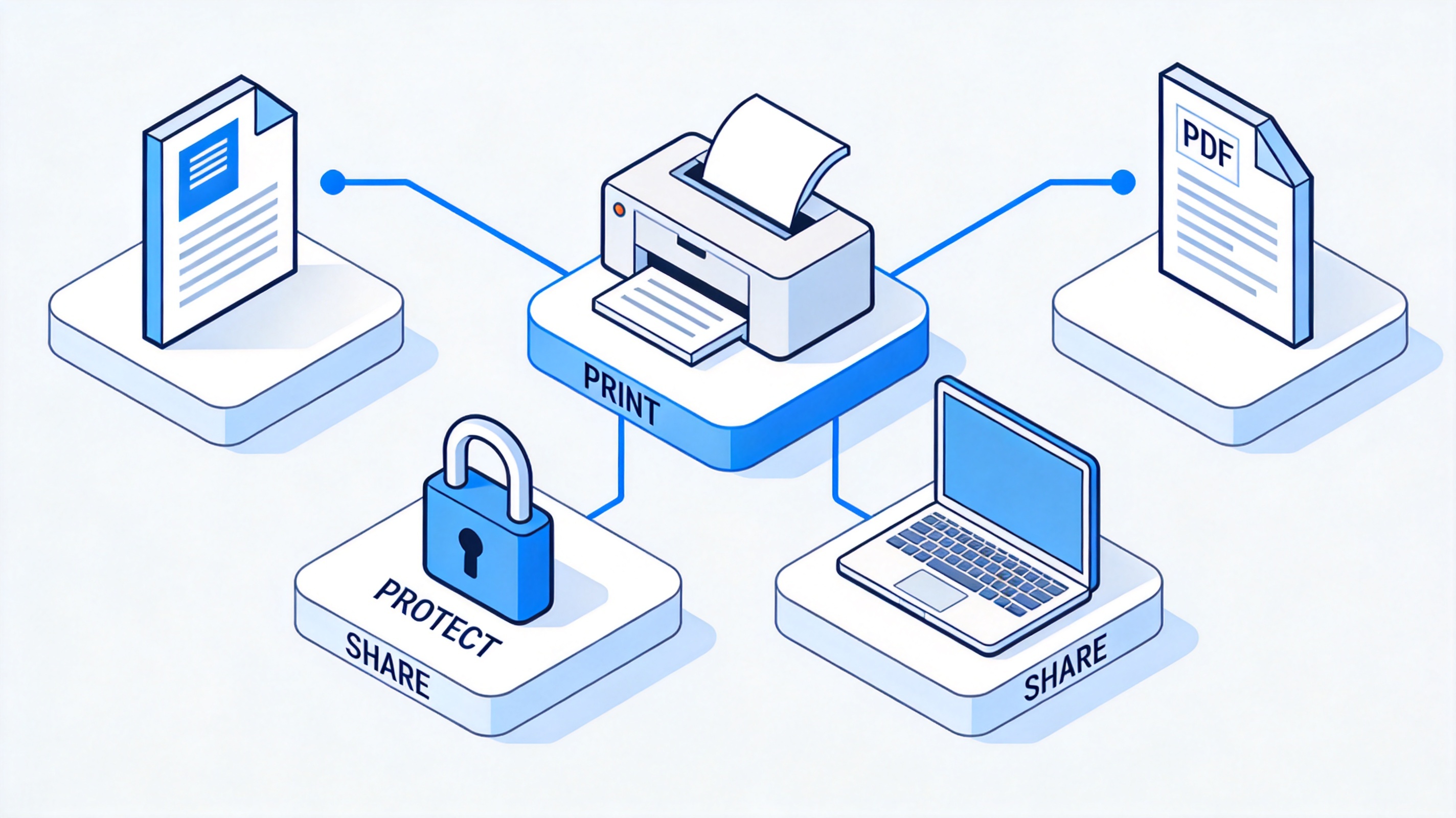
Convert PPT to PDF for sharing and printing


How to Convert PPT to PDF in WPS Office
The built-in exporter does the whole job in a few clicks. Follow these steps to convert PPT to PDF on your desktop.
Open the file — Launch WPS Presentation and open the .ppt or .pptx file you want to convert.
Open the File menu — Click the File tab in the top-left corner of the window.
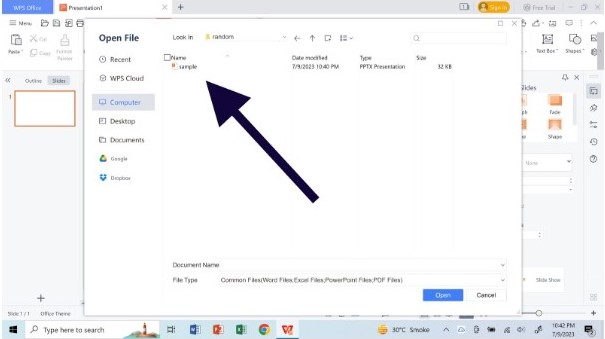
open the .ppt or .pptx file Choose Export to PDF — Select Export to PDF from the menu. WPS opens the export dialog.
Set the export range — Pick All Slides to convert the whole deck, or enter a custom page range to convert PPT to PDF for only selected slides.
Choose the output type — Select Common PDF to keep the slides editable as a normal PDF, or choose an image-based option if your plan supports it.
Click Export — Choose a save location, name the file, and press Export to create the PDF.
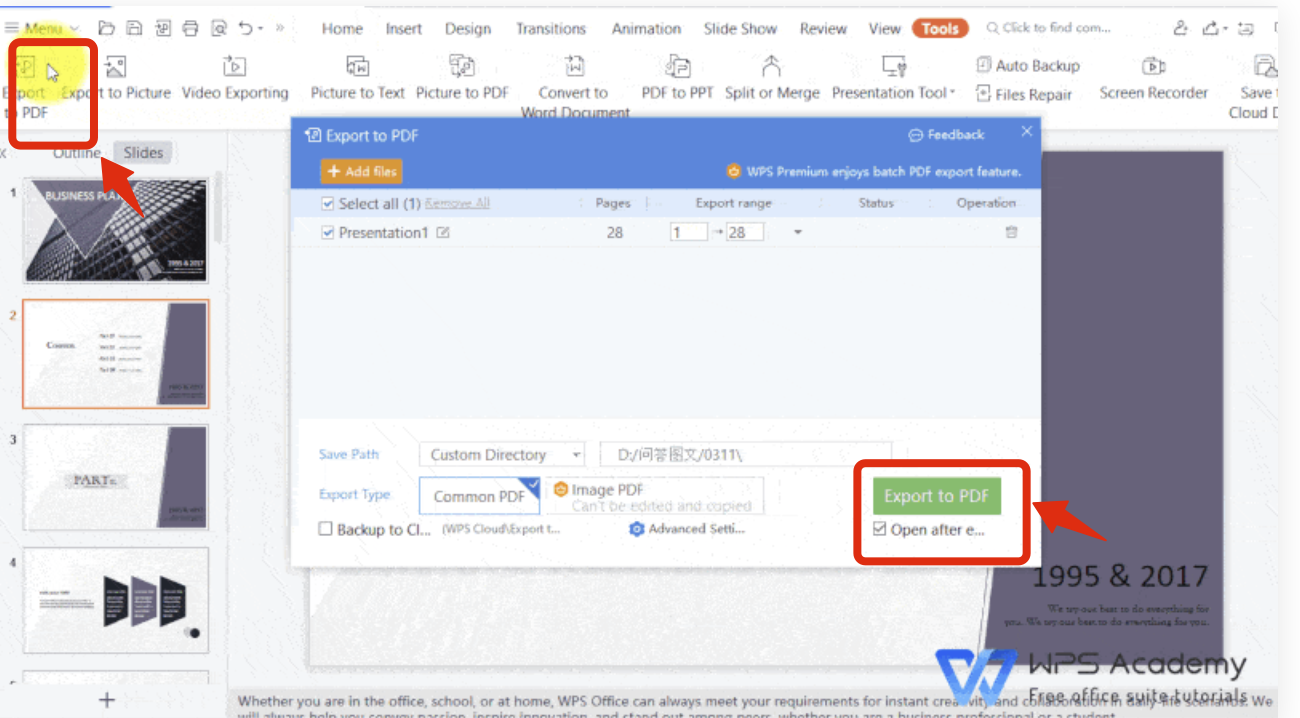
Steps to export PPT to PDF document
How to Batch Convert PPT to PDF for Multiple Files
When you have several decks to send or archive, batch conversion saves time. WPS lets you add multiple presentations and convert PPT to PDF for all of them at once.
Open the batch tool — From the WPS Office home screen or menu, open the PDF conversion or batch tools.
Add your files — Select the PowerPoint files you want to convert. You can add .ppt and .pptx files together.
Set the output options — Choose the target PDF format and a common save folder.
Start the conversion — Click Convert and wait for the batch to finish, then review the generated PDFs.
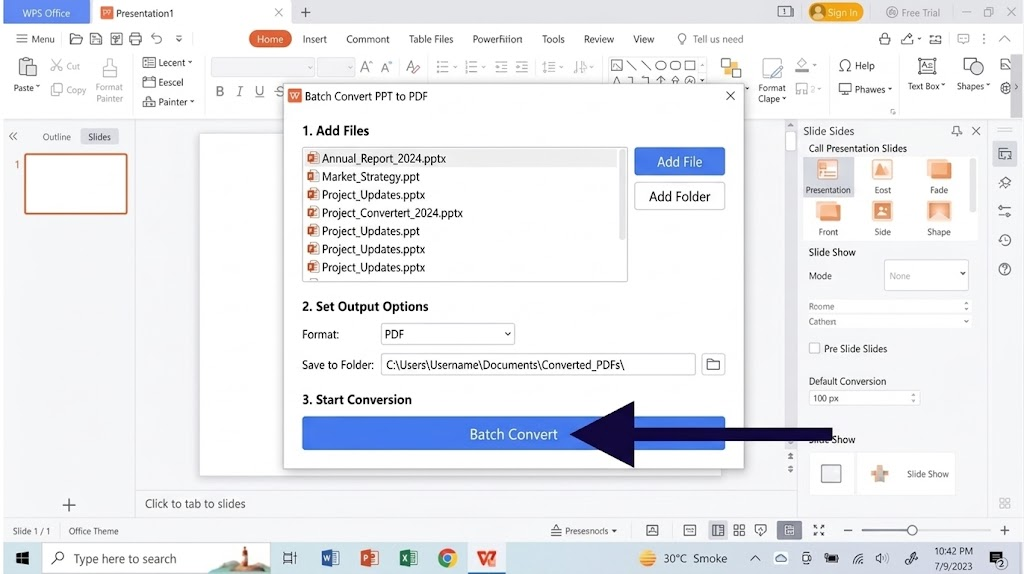
Batch convert PPT files to PDF
Best PDF Editor for Windows and Mac: WPS Office
WPS Presentation gives you a fast, built-in way to convert PPT to PDF without buying premium software or uploading your slides to a random website. Your files stay on your device, and the export works for Microsoft PowerPoint files as well as older .ppt files. The same suite includes Writer, Spreadsheet, and PDF tools, so you can handle every document type in one place.
Because the converter is bundled with the free desktop app, you keep the same workflow every time: open, export, and share. If you later need to control file size, see our guide on how to increase PDF size, or learn how to create archival PDF/A documents.
WPS Office free office suite download
FAQs
Can I convert PPT to PDF for free in WPS Office?
Yes. WPS Presentation includes a free built-in exporter, so you can convert PPT to PDF without paying, installing a plugin, or uploading your file online.
Does converting PPT to PDF keep animations and transitions?
PDF is a static format, so animations and transitions are flattened. Each slide becomes a finished page, which is what you want for sharing and printing.
Can I convert only specific slides to PDF?
Yes. In the Export to PDF dialog, choose a custom page range, such as slides 3 through 8, and WPS will convert only those pages.
Will my fonts change when I convert PPT to PDF?
Only if they are not embedded. Enable the embed-fonts option during export so the PDF keeps your exact typefaces on any device.
Can I batch convert multiple PPT files to PDF at once?
Yes. Use the WPS batch conversion tool to add several .ppt or .pptx files and convert them all to PDF in a single run.

Summary
Converting PPT to PDF with WPS Office is fast, free, and keeps your presentation looking identical everywhere. Open the file, choose File > Export to PDF, set your range and output type, and export. For handouts, include speaker notes; to keep text intact, embed fonts. When you have many decks, use the batch tool to convert them all at once and share professional PDFs with confidence.

'%3e%3cpath%20d='M19.9911%204.11386V6.471H18.5894C18.0775%206.471%2017.7322%206.57814%2017.5536%206.79243C17.3751%207.00671%2017.2858%207.32814%2017.2858%207.75671V9.44421H19.9019L19.5536%2012.0871H17.2858V18.8639H14.5536V12.0871H12.2769V9.44421H14.5536V7.49779C14.5536%206.39064%2014.8632%205.53201%2015.4822%204.92189C16.1013%204.31177%2016.9257%204.00671%2017.9554%204.00671C18.8304%204.00671%2019.509%204.04243%2019.9911%204.11386Z'%20fill='%23333333'/%3e%3c/g%3e%3cdefs%3e%3cclipPath%20id='clip0_2938_8199'%3e%3crect%20width='16'%20height='16'%20fill='white'%20transform='translate(8%204.00671)'/%3e%3c/clipPath%3e%3c/defs%3e%3c/svg%3e)
'%3e%3cpath%20d='M17.5237%2010.7813L23.4811%204H22.0699L16.8949%209.88693L12.7648%204H8L14.2469%2012.9029L8%2020.0133H9.4112L14.8725%2013.7952L19.2352%2020.0133H24M9.92053%205.04213H12.0885L22.0688%2019.0224H19.9003'%20fill='%23333333'/%3e%3c/g%3e%3cdefs%3e%3cclipPath%20id='clip0_2938_8200'%3e%3crect%20width='16'%20height='16.0134'%20fill='white'%20transform='translate(8%204)'/%3e%3c/clipPath%3e%3c/defs%3e%3c/svg%3e)


