


'%3e%3cpath%20fill-rule='evenodd'%20clip-rule='evenodd'%20d='M21.4999%2010.9993C21.4999%205.20009%2016.7986%200.498901%2010.9993%200.498901C5.19994%200.498901%200.498657%205.20009%200.498657%2010.9993C0.498657%2016.2404%204.33858%2020.5844%209.35855%2021.3722V14.0346H6.69238V10.9993H9.35855V8.68594C9.35855%206.05427%2010.9262%204.60062%2013.3248%204.60062C14.4736%204.60062%2015.6753%204.80571%2015.6753%204.80571V7.38979H14.3512C13.0468%207.38979%2012.64%208.19921%2012.64%209.0296V10.9993H15.5523L15.0867%2014.0346H12.64V21.3722C17.66%2020.5844%2021.4999%2016.2404%2021.4999%2010.9993Z'%20fill='%231568EA'/%3e%3c/g%3e%3c/svg%3e)


'%3e%3cpath%20d='M2.42045%2022.1876H6.31818V12.7217L0.75%208.54553V20.5171C0.75%2021.4414%201.49892%2022.1876%202.42045%2022.1876Z'%20fill='%234285F4'/%3e%3cpath%20d='M19.682%2022.1876H23.5797C24.5041%2022.1876%2025.2502%2021.4387%2025.2502%2020.5171V8.54553L19.682%2012.7217'%20fill='%2334A853'/%3e%3cpath%20d='M19.682%205.48293V12.7216L25.2502%208.54543V6.31816C25.2502%204.25236%2022.8921%203.07469%2021.2411%204.31361'%20fill='%23FBBC04'/%3e%3cpath%20d='M6.31824%2012.7217V5.48303L13.0001%2010.4944L19.6819%205.48303V12.7217L13.0001%2017.733'%20fill='%23EA4335'/%3e%3cpath%20d='M0.75%206.31816V8.54543L6.31818%2012.7216V5.48293L4.75909%204.31361C3.10534%203.07469%200.75%204.25236%200.75%206.31816Z'%20fill='%23C5221F'/%3e%3c/g%3e%3cdefs%3e%3cclipPath%20id='clip0_2954_7305'%3e%3crect%20width='24.5'%20height='18.375'%20fill='white'%20transform='translate(0.75%203.8125)'/%3e%3c/clipPath%3e%3c/defs%3e%3c/svg%3e)


Sometimes the shape gallery does not have the exact outline you need for a diagram, a map, or a custom illustration. That is where the freeform shape tools help: you draw your own silhouette with straight and curved segments, then fine-tune every point afterwards. This guide shows how to draw and edit a freeform shape in WPS Presentation, a free and cross-platform alternative to PowerPoint, so you can build the exact graphic your slide needs.
How to Draw and Edit a Freeform Shape in WPS Presentation
What Is a Freeform Shape in a Presentation
A freeform shape is a custom outline you draw on a slide instead of picking a preset rectangle, circle, or arrow. WPS Presentation offers two ways to build one:
Freeform tool draws a shape from straight segments and curved segments that you place by clicking and dragging.
Scribble tool works like a pen to create a loose, hand-drawn line in a single stroke.
After drawing, you can also reshape any shape by editing its points (vertices). Small black points mark where a curve ends or two segments meet; dragging them changes the outline. You might use a freeform shape to trace part of an image, draw an organic icon, or outline a region on a map.
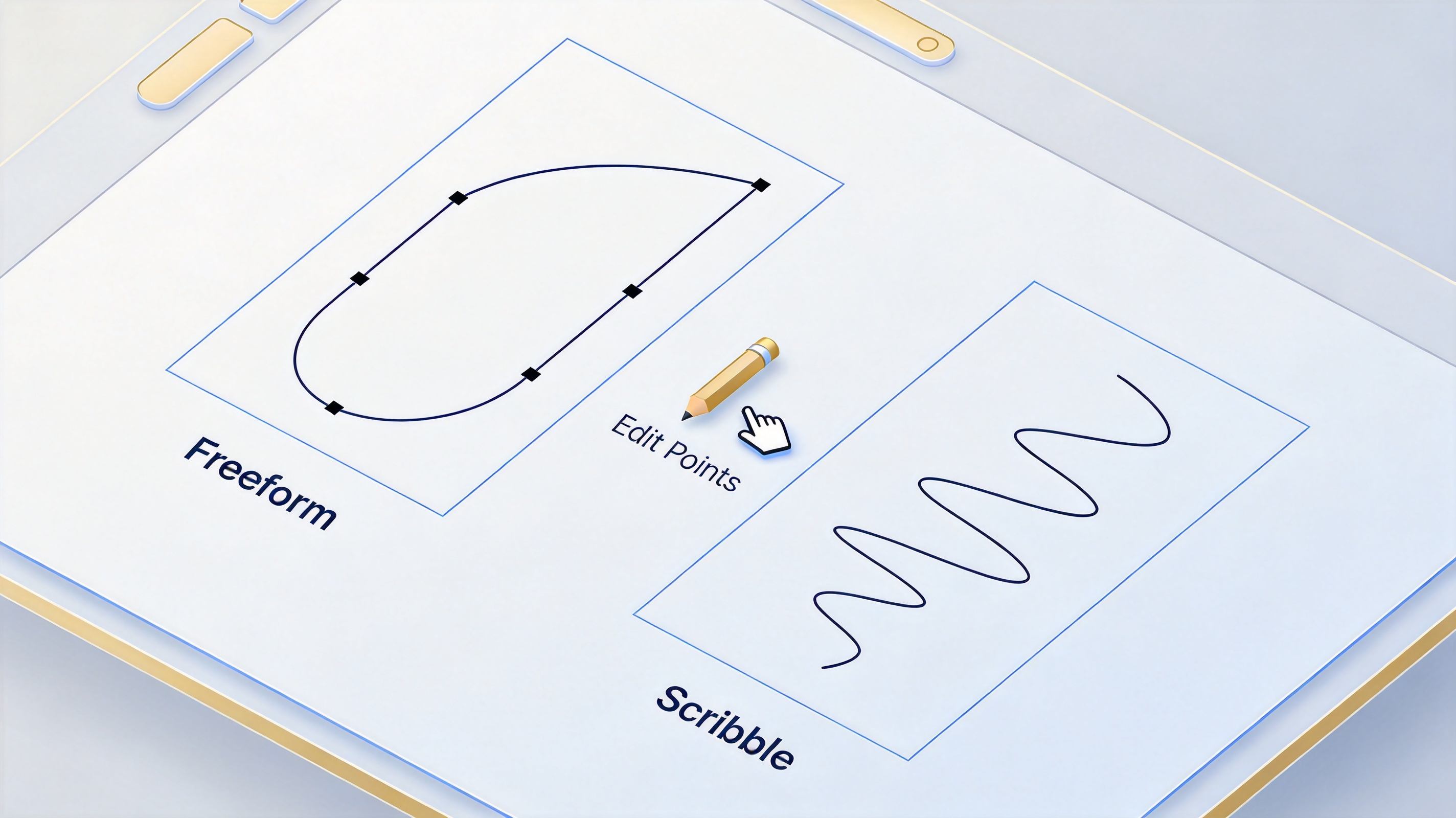
freeform and scribble drawing tools


How to Draw a Freeform Shape in WPS Presentation
Drawing a freeform shape takes only a few clicks:
Open the deck — Open WPS Presentation and open the slide where you want the shape.
Open the shape menu — Go to the Insert tab and click Shapes.
Pick a line tool — In the Lines section, choose Freeform to draw straight and curved segments, or choose Scribble for a hand-drawn stroke.
Draw the outline — Click on the slide to place a starting point; click again to add a straight segment, or hold and drag to draw a curve. Repeat until the shape looks right.
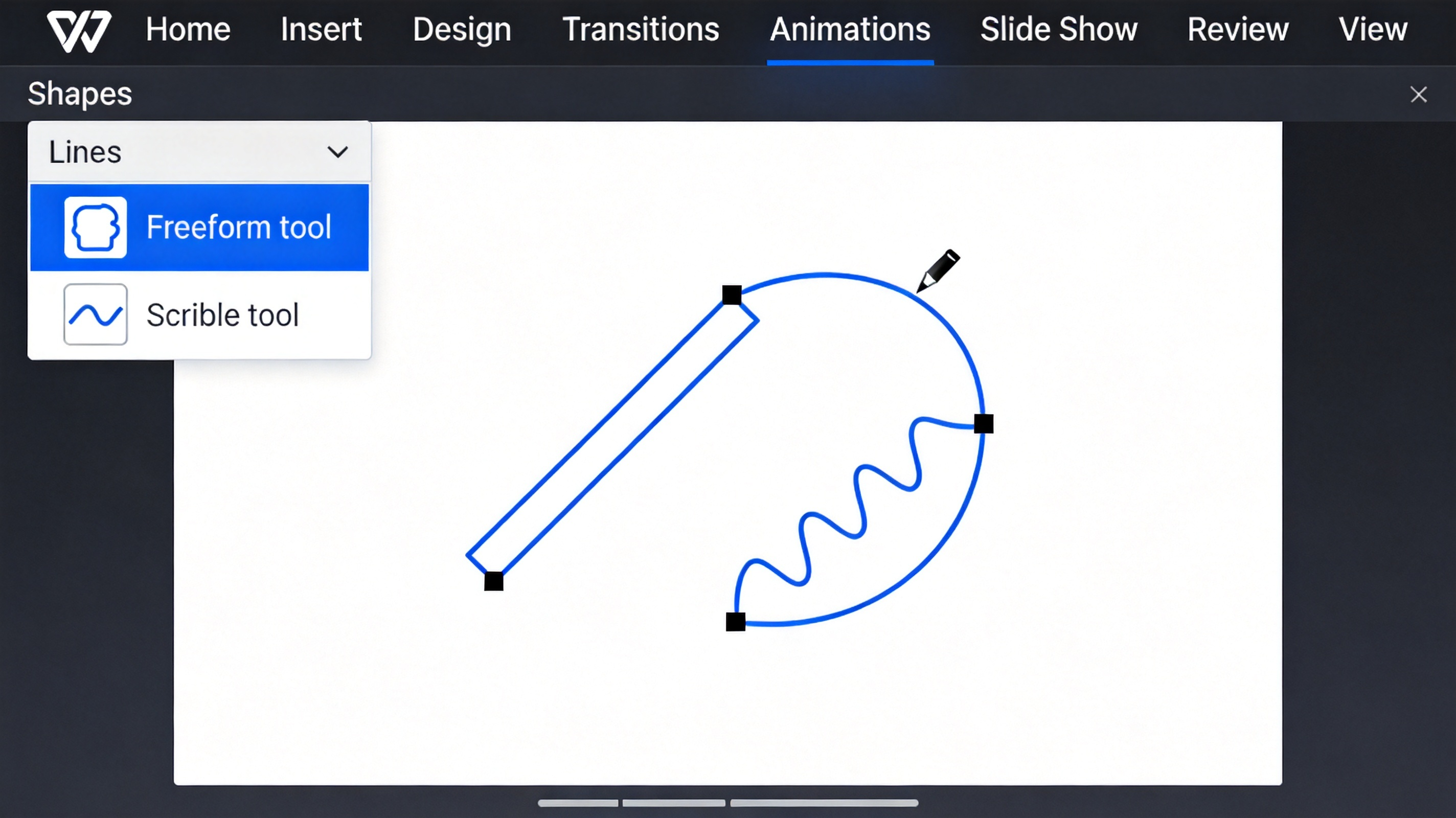
draw a freeform shape in WPS
Finish the shape — Double-click to leave the shape open, or click near the starting point to close it into a solid shape.
Tip: The shape stays fully editable. Change its fill, outline, and effects any time from the shape tools. If you prefer to annotate slides freehand during a presentation, see how to draw on PowerPoint in WPS.
How to Edit a Freeform Shape by Adjusting Its Points
You are not stuck with the first outline you draw. Editing the points of a freeform shape lets you correct or improve it precisely:
Select the shape — Click the freeform shape on the slide.
Open edit points — On the Shape Format (Drawing Tools) tab, click Edit Shape and then Edit Points.
Drag a point — Move any black point to change the shape. Control handles on a curve let you adjust how sharply or smoothly it bends.
Add or remove points — Right-click a point to add a new one, or delete one to simplify the outline.
Finish editing — Click anywhere outside the shape when the outline looks right.
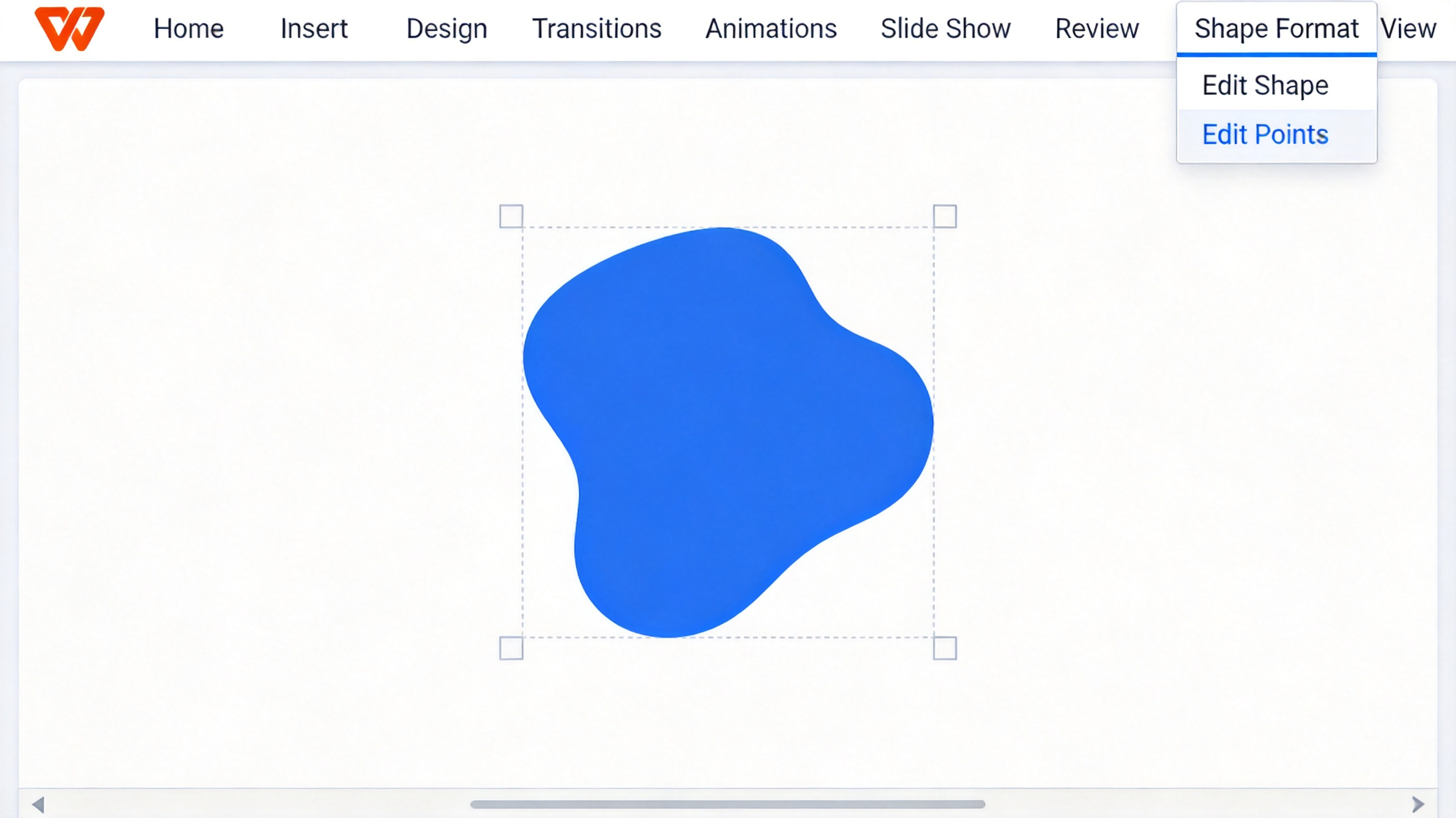
edit points menu in WPS
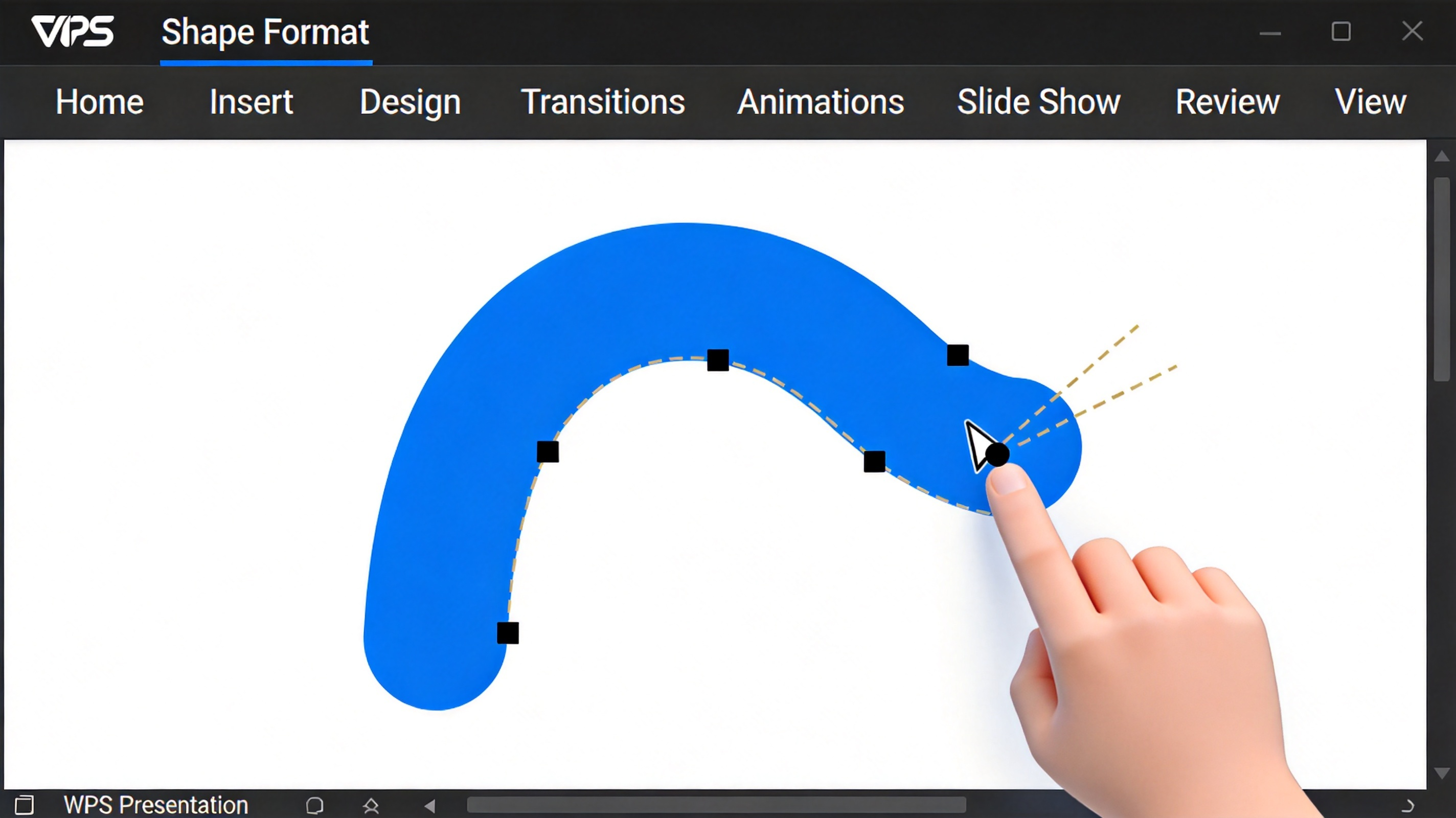
drag freeform shape vertex in WPS
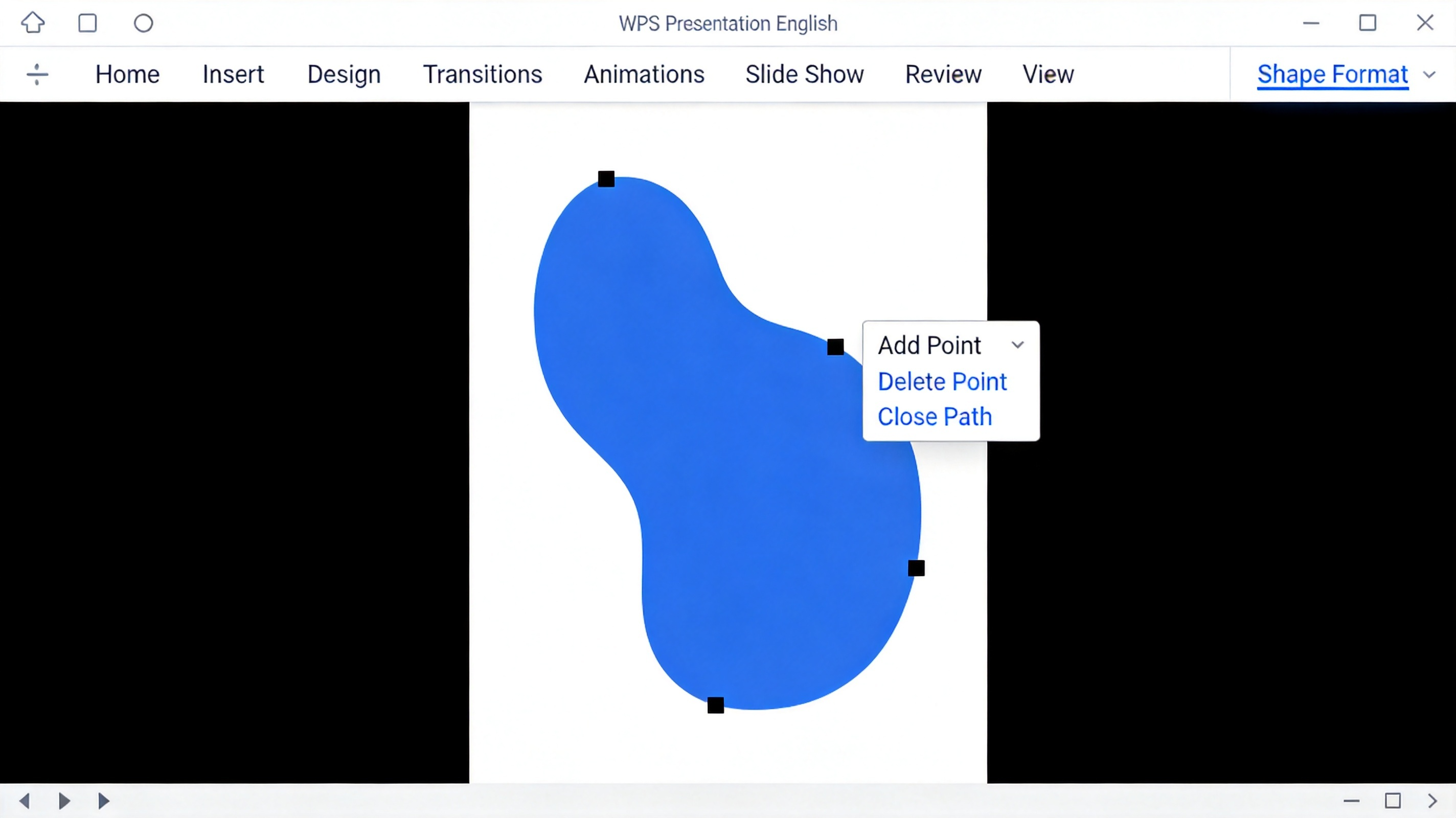
add or delete freeform shape point
Tips to Refine and Combine Your Freeform Shapes
Small tricks make freeform shapes look professional:
Merge shapes — Select two or more shapes and use the merge commands (Combine, Union, Subtract, Intersect) to create one custom shape from overlapping outlines.
Keep points tidy — Use the fewest points that still describe the outline; extra points make curves harder to smooth.
Use guides — Turn on alignment guides so a traced shape lines up with other objects on the slide.
Copy the style — Use Format Painter to apply the same fill and outline to several shapes at once.
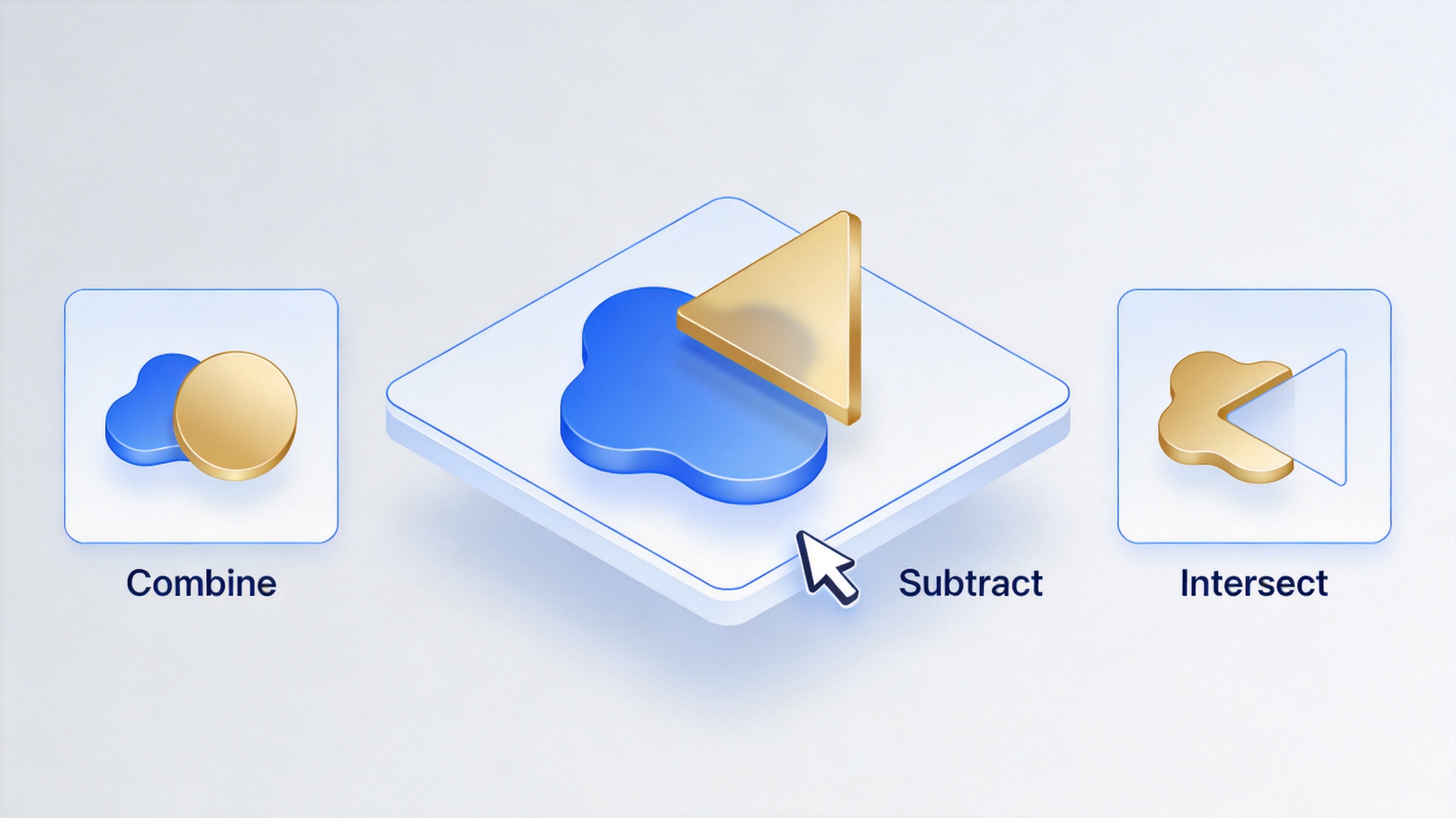
combine freeform shapes with merge tools
Shapes behave like other presentation objects, so the same tricks apply when you flip or rotate them; see how to flip a shape in PowerPoint if you need to mirror a graphic.
The Best Free Alternative: WPS Office for Presentations
Microsoft PowerPoint is paid, and its web version does not fully support drawing a freeform shape the way the desktop app does. WPS Office gives you a free alternative: WPS Presentation includes the same Freeform and Scribble tools, edit points, and merge shape commands in a Microsoft-like interface. You can open and save PPTX files, work on Windows, macOS, Linux, and mobile, and keep every outline you draw in a standard format others can open.
To get started, download WPS Office and open WPS Presentation. You can also open existing .pptx decks directly and draw or edit a freeform shape right away.
WPS Office free presentation suite download
FAQs
What is the difference between Freeform and Scribble in WPS Presentation?
Freeform draws precise straight and curved segments that you place one by one; Scribble creates a loose, hand-drawn line in a single stroke.
Can I edit a freeform shape after I draw it?
Yes. Select the shape, open the Shape Format (Drawing Tools) tab, click Edit Shape and then Edit Points, and drag the black points to reshape it.
How do I close a freeform shape in WPS Presentation?
Click near the starting point when you finish drawing, or double-click to leave the shape open.
Is the freeform shape tool included in the free version of WPS Office?
Yes. WPS Presentation includes the Freeform, Scribble, and Edit Points tools in the free version.
Can I combine a freeform shape with other shapes?
Yes. Select the shapes and use the merge commands (Combine, Union, Subtract, Intersect) to build one custom shape.


'%3e%3cpath%20d='M19.9911%204.11386V6.471H18.5894C18.0775%206.471%2017.7322%206.57814%2017.5536%206.79243C17.3751%207.00671%2017.2858%207.32814%2017.2858%207.75671V9.44421H19.9019L19.5536%2012.0871H17.2858V18.8639H14.5536V12.0871H12.2769V9.44421H14.5536V7.49779C14.5536%206.39064%2014.8632%205.53201%2015.4822%204.92189C16.1013%204.31177%2016.9257%204.00671%2017.9554%204.00671C18.8304%204.00671%2019.509%204.04243%2019.9911%204.11386Z'%20fill='%23333333'/%3e%3c/g%3e%3cdefs%3e%3cclipPath%20id='clip0_2938_8199'%3e%3crect%20width='16'%20height='16'%20fill='white'%20transform='translate(8%204.00671)'/%3e%3c/clipPath%3e%3c/defs%3e%3c/svg%3e)
'%3e%3cpath%20d='M17.5237%2010.7813L23.4811%204H22.0699L16.8949%209.88693L12.7648%204H8L14.2469%2012.9029L8%2020.0133H9.4112L14.8725%2013.7952L19.2352%2020.0133H24M9.92053%205.04213H12.0885L22.0688%2019.0224H19.9003'%20fill='%23333333'/%3e%3c/g%3e%3cdefs%3e%3cclipPath%20id='clip0_2938_8200'%3e%3crect%20width='16'%20height='16.0134'%20fill='white'%20transform='translate(8%204)'/%3e%3c/clipPath%3e%3c/defs%3e%3c/svg%3e)


