

'%3e%3cpath%20d='M8%200C12.4183%200%2016%203.58172%2016%208C16%2012.4183%2012.4183%2016%208%2016C3.58172%2016%200%2012.4183%200%208C0%203.58172%203.58172%200%208%200ZM11.6162%204.38379C11.2257%203.99337%2010.5927%203.99338%2010.2021%204.38379L8%206.58594L5.79785%204.38379C5.40732%203.99334%204.77429%203.99329%204.38379%204.38379C3.99331%204.77429%203.99335%205.40733%204.38379%205.79785L6.58594%208L4.38379%2010.2021C3.99348%2010.5927%203.99341%2011.2257%204.38379%2011.6162C4.77426%2012.0066%205.40734%2012.0065%205.79785%2011.6162L8%209.41406L10.2021%2011.6162C10.5927%2012.0066%2011.2257%2012.0067%2011.6162%2011.6162C12.0067%2011.2257%2012.0066%2010.5927%2011.6162%2010.2021L9.41406%208L11.6162%205.79785C12.0066%205.40735%2012.0066%204.77429%2011.6162%204.38379Z'%20fill='%23080E17'%20fill-opacity='0.46'/%3e%3c/g%3e%3cdefs%3e%3cclipPath%20id='clip0_3761_713'%3e%3crect%20width='16'%20height='16'%20fill='white'/%3e%3c/clipPath%3e%3c/defs%3e%3c/svg%3e)




'%3e%3cpath%20fill-rule='evenodd'%20clip-rule='evenodd'%20d='M21.4999%2010.9993C21.4999%205.20009%2016.7986%200.498901%2010.9993%200.498901C5.19994%200.498901%200.498657%205.20009%200.498657%2010.9993C0.498657%2016.2404%204.33858%2020.5844%209.35855%2021.3722V14.0346H6.69238V10.9993H9.35855V8.68594C9.35855%206.05427%2010.9262%204.60062%2013.3248%204.60062C14.4736%204.60062%2015.6753%204.80571%2015.6753%204.80571V7.38979H14.3512C13.0468%207.38979%2012.64%208.19921%2012.64%209.0296V10.9993H15.5523L15.0867%2014.0346H12.64V21.3722C17.66%2020.5844%2021.4999%2016.2404%2021.4999%2010.9993Z'%20fill='%231568EA'/%3e%3c/g%3e%3c/svg%3e)


'%3e%3cpath%20d='M2.42045%2022.1876H6.31818V12.7217L0.75%208.54553V20.5171C0.75%2021.4414%201.49892%2022.1876%202.42045%2022.1876Z'%20fill='%234285F4'/%3e%3cpath%20d='M19.682%2022.1876H23.5797C24.5041%2022.1876%2025.2502%2021.4387%2025.2502%2020.5171V8.54553L19.682%2012.7217'%20fill='%2334A853'/%3e%3cpath%20d='M19.682%205.48293V12.7216L25.2502%208.54543V6.31816C25.2502%204.25236%2022.8921%203.07469%2021.2411%204.31361'%20fill='%23FBBC04'/%3e%3cpath%20d='M6.31824%2012.7217V5.48303L13.0001%2010.4944L19.6819%205.48303V12.7217L13.0001%2017.733'%20fill='%23EA4335'/%3e%3cpath%20d='M0.75%206.31816V8.54543L6.31818%2012.7216V5.48293L4.75909%204.31361C3.10534%203.07469%200.75%204.25236%200.75%206.31816Z'%20fill='%23C5221F'/%3e%3c/g%3e%3cdefs%3e%3cclipPath%20id='clip0_2954_7305'%3e%3crect%20width='24.5'%20height='18.375'%20fill='white'%20transform='translate(0.75%203.8125)'/%3e%3c/clipPath%3e%3c/defs%3e%3c/svg%3e)


HTML is the standard for creating web pages but it’s not the best option when it comes to sharing and printing, that’s where HTML to PDF conversion becomes essential. However, most people struggle to find reliable methods to easily print their HTML web pages directly. Luckily, I’ve found some of the most effective tools for you in this guide. I’ll be highlighting detailed step-by-step walkthroughs to walk you through how to print HTML as PDF using browser.


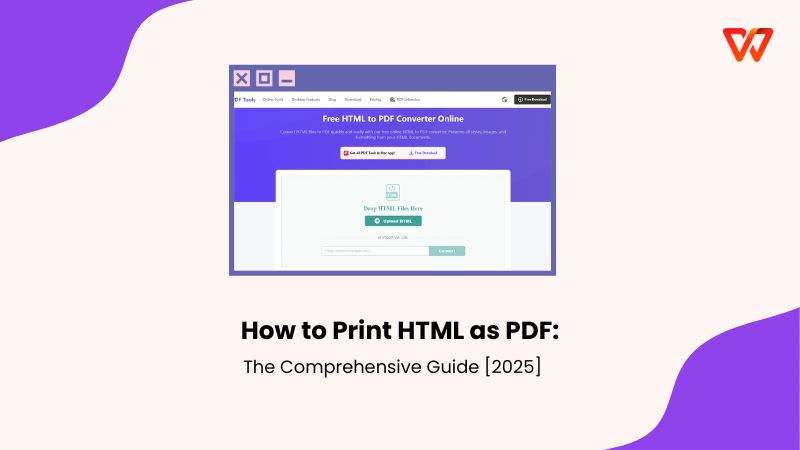
Convert HTML to PDF Using WPS PDF Tools (Online)
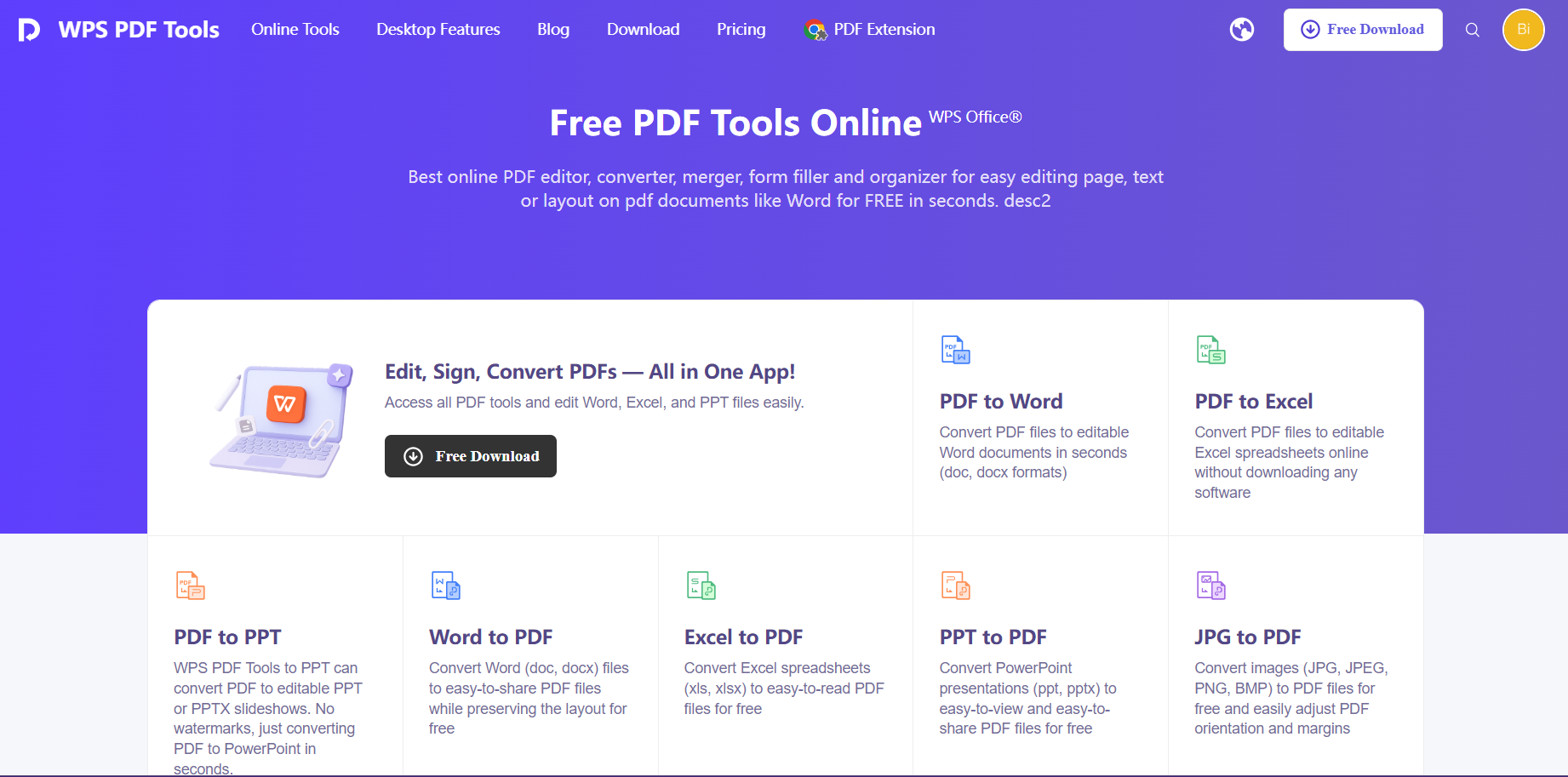
One of the simplest ways to convert your HTML files to PDF is using an online tool. It provides a quick and hassle-free way for you to make your web pages easily printable, without requiring any installation or extra tools. In this section, It’s a completely free and incredibly reliable tool that helps me with all my file conversions, providing an all-in-one solution to my work requirements.
I’ll be highlighting the entire step-by-step process of using browser to print HTML as PDF using WPS PDF Tools down below, helping you get rid of any confusion.
Step 1: Upload the HTML file you want to convert, or simply paste the URL to get started.
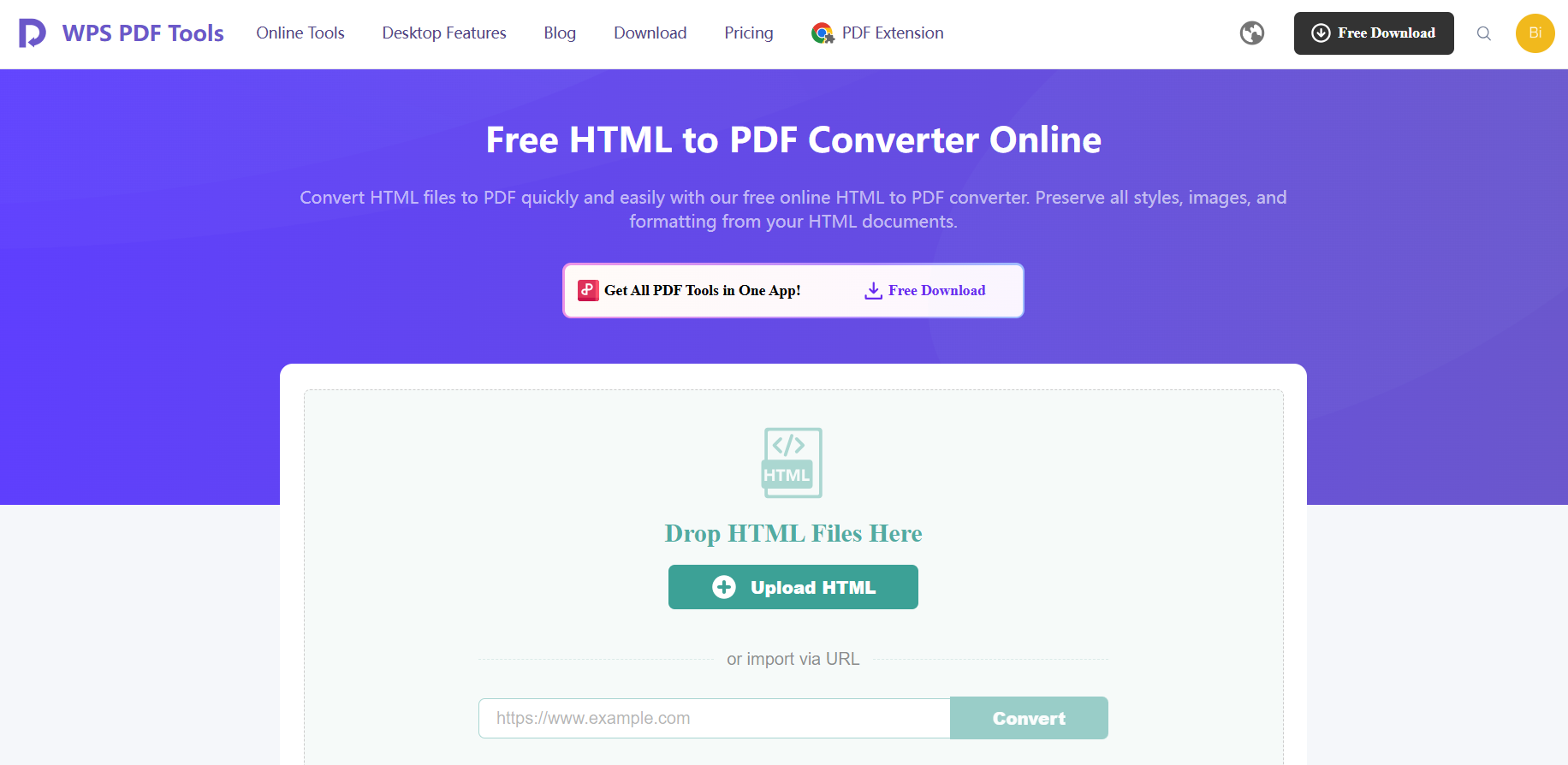
Step 2: Once the conversion process is complete, simply press Download to export the PDF file to your device.

Convert HTML to PDF Using a Web Browser
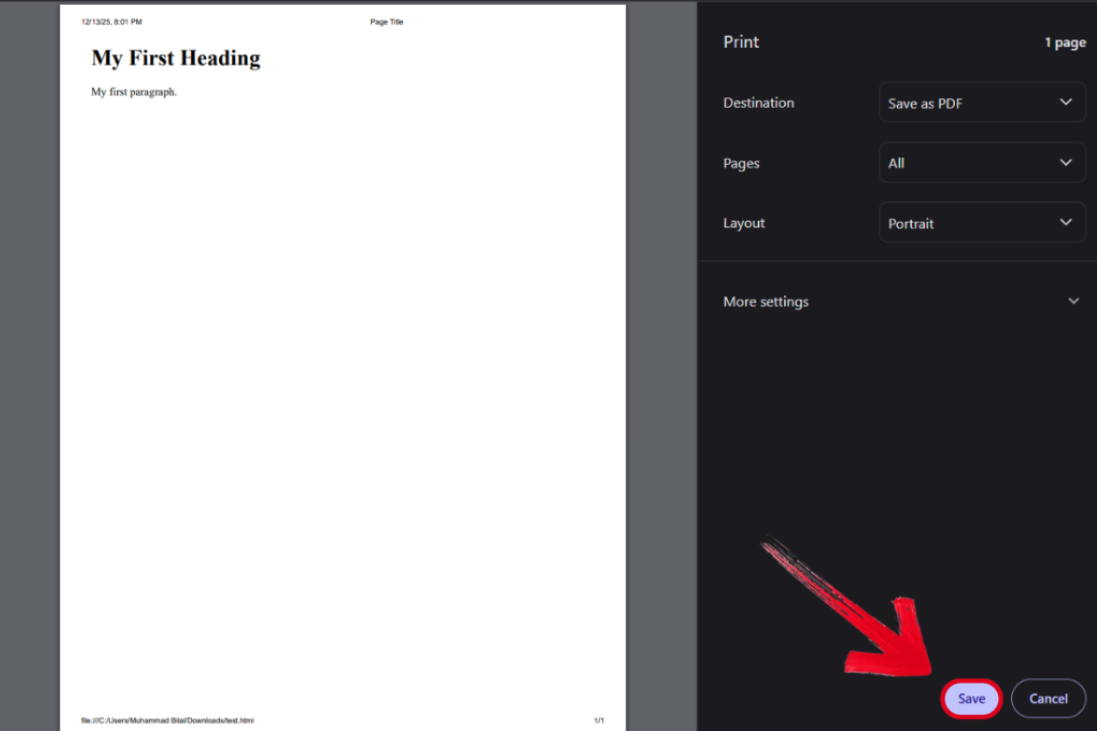
If you want something even faster and easier to use, you can use your web browser’s built-in features to convert your HTML to PDF and print it easily. The process is incredibly simple and is supported by many browsers, making it one of the most straightforward ways you can use to print your HTML web pages. In this section, I’ll be covering each step of the way to help you simplify the process.
Step 1: Open the web page you want to print on your desired web browser.
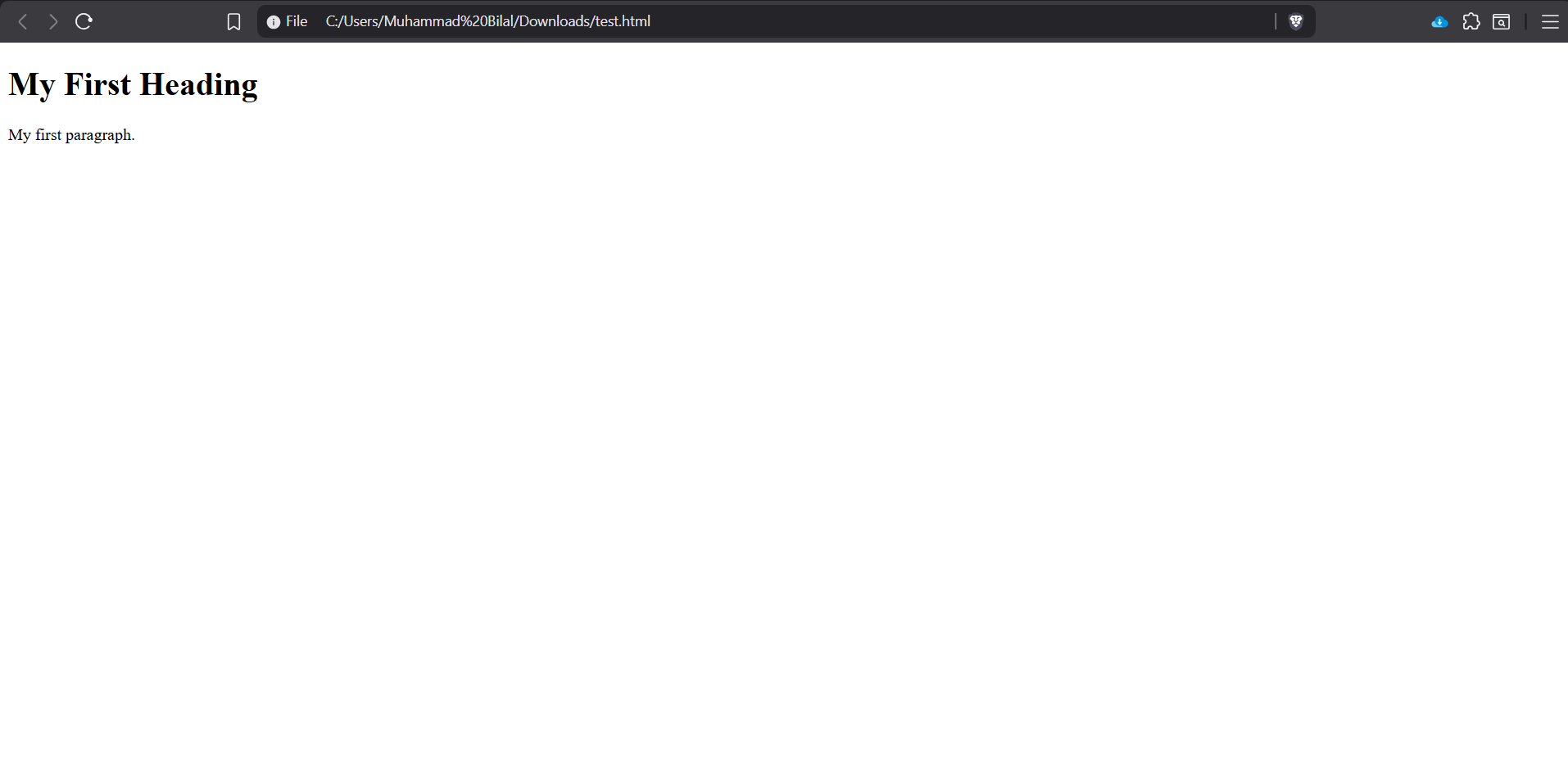
Step 2: Now, simply press Ctrl + Pto open the Print Window and select Save to export your PDF.
Convert HTML to PDF Using WPS Office
For those of you working with file conversions on a regular basis, online solutions are not viable. They require an active internet connection and can get repetitive when dealing with bulk files. This is why I personally use desktop-based tools like WPS Office for all my file conversions. It’s completely free and is filled with powerful features to streamline my workflow and help me be more productive and efficient.
These are the steps you need to follow to ensure a hassle-free and quick conversion process.
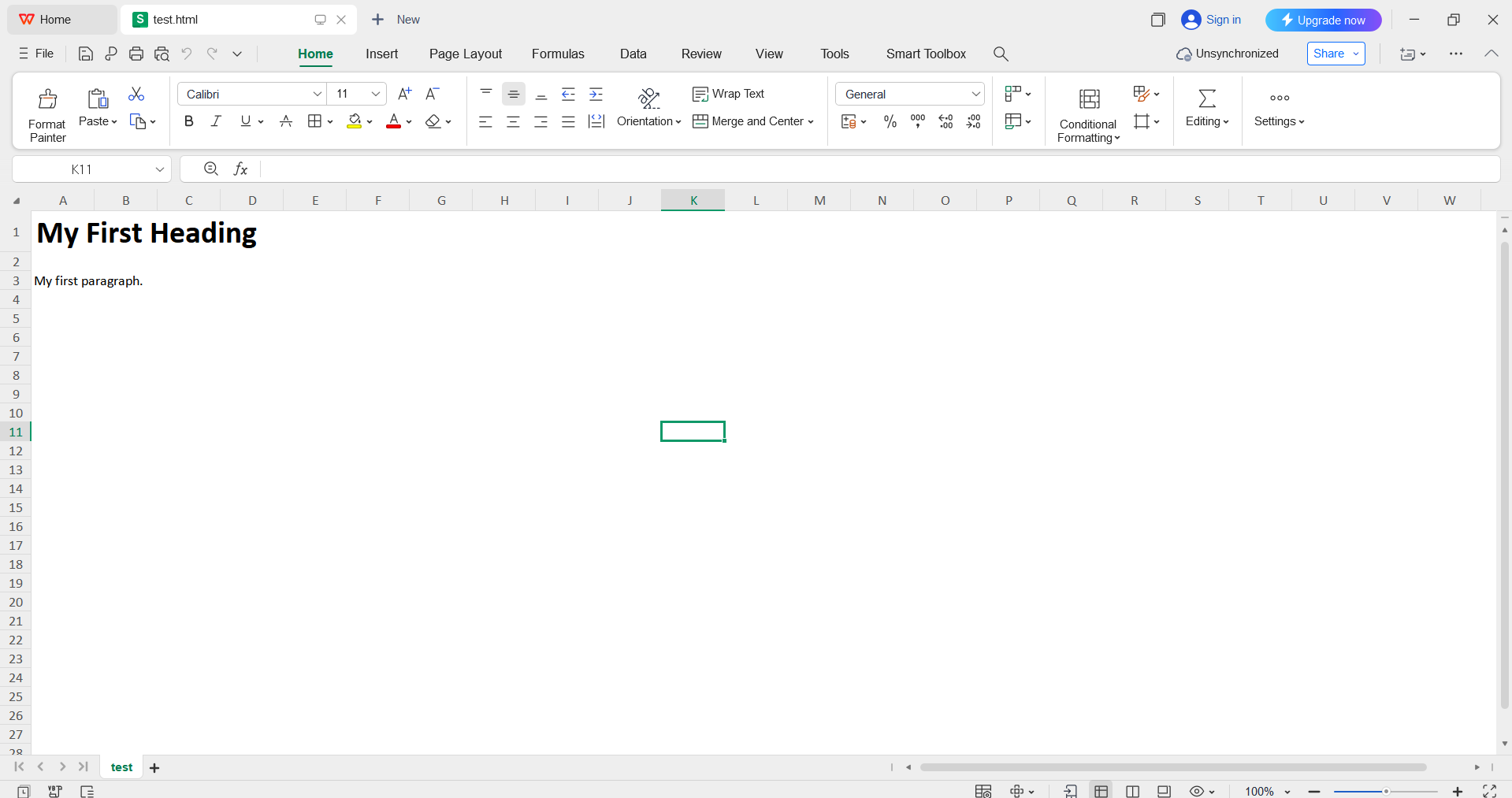
Step 1: Open your HTML file with WPS Office to get started.
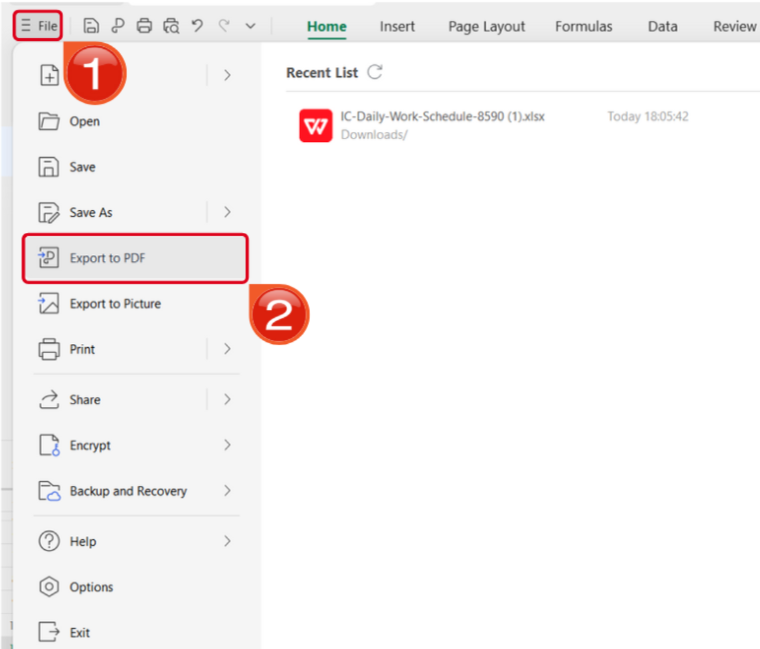
Step 2: Open the Files menu and select Export to PDF to convert your HTML file to a PDF document.
Why WPS PDF Tools Stands Out?
I’ve used many tools over the years for file conversions, most of them disappointing me with unreliable and clunky interfaces that just slow me down and add to my worries. This is what makes WPS PDF Tools stand out to me, providing a reliable and seamless experience every single time. It ensures quick and high-quality conversions for all my files, without having me deal with the hassle of lengthy installations or annoying paywalls.
FAQs
Q1. How can I convert an HTML file to PDF in WPS PDF tools?
Upload your HTML file to the WPS PDF converter or directly drag it to the editing area, or paste the URL here. Then you can choose "Generate long PDF" or not. Click "Convert" and download your high-quality PDF in seconds.
Q2. Will my PDF look exactly like the webpage?
Mostly yes! WPS PDF Tool preserves text, images, and layout. Minor differences might appear if the page has dynamic elements or pop-ups, but your main content will stay intact.
Q3. Can I customize the PDF layout before conversion?
Yes, you can set page size, orientation, margins, and choose whether to include headers or footers for a professional-looking PDF.
Q4. Can I convert multiple HTML files at once?
Yes, WPS PDF tools support batch conversion, allowing you to convert several HTML files to PDF in a single process for faster workflow.

'%3e%3cpath%20d='M19.9911%204.11386V6.471H18.5894C18.0775%206.471%2017.7322%206.57814%2017.5536%206.79243C17.3751%207.00671%2017.2858%207.32814%2017.2858%207.75671V9.44421H19.9019L19.5536%2012.0871H17.2858V18.8639H14.5536V12.0871H12.2769V9.44421H14.5536V7.49779C14.5536%206.39064%2014.8632%205.53201%2015.4822%204.92189C16.1013%204.31177%2016.9257%204.00671%2017.9554%204.00671C18.8304%204.00671%2019.509%204.04243%2019.9911%204.11386Z'%20fill='%23333333'/%3e%3c/g%3e%3cdefs%3e%3cclipPath%20id='clip0_2938_8199'%3e%3crect%20width='16'%20height='16'%20fill='white'%20transform='translate(8%204.00671)'/%3e%3c/clipPath%3e%3c/defs%3e%3c/svg%3e)
'%3e%3cpath%20d='M17.5237%2010.7813L23.4811%204H22.0699L16.8949%209.88693L12.7648%204H8L14.2469%2012.9029L8%2020.0133H9.4112L14.8725%2013.7952L19.2352%2020.0133H24M9.92053%205.04213H12.0885L22.0688%2019.0224H19.9003'%20fill='%23333333'/%3e%3c/g%3e%3cdefs%3e%3cclipPath%20id='clip0_2938_8200'%3e%3crect%20width='16'%20height='16.0134'%20fill='white'%20transform='translate(8%204)'/%3e%3c/clipPath%3e%3c/defs%3e%3c/svg%3e)


