

'%3e%3cpath%20d='M8%200C12.4183%200%2016%203.58172%2016%208C16%2012.4183%2012.4183%2016%208%2016C3.58172%2016%200%2012.4183%200%208C0%203.58172%203.58172%200%208%200ZM11.6162%204.38379C11.2257%203.99337%2010.5927%203.99338%2010.2021%204.38379L8%206.58594L5.79785%204.38379C5.40732%203.99334%204.77429%203.99329%204.38379%204.38379C3.99331%204.77429%203.99335%205.40733%204.38379%205.79785L6.58594%208L4.38379%2010.2021C3.99348%2010.5927%203.99341%2011.2257%204.38379%2011.6162C4.77426%2012.0066%205.40734%2012.0065%205.79785%2011.6162L8%209.41406L10.2021%2011.6162C10.5927%2012.0066%2011.2257%2012.0067%2011.6162%2011.6162C12.0067%2011.2257%2012.0066%2010.5927%2011.6162%2010.2021L9.41406%208L11.6162%205.79785C12.0066%205.40735%2012.0066%204.77429%2011.6162%204.38379Z'%20fill='%23080E17'%20fill-opacity='0.46'/%3e%3c/g%3e%3cdefs%3e%3cclipPath%20id='clip0_3761_713'%3e%3crect%20width='16'%20height='16'%20fill='white'/%3e%3c/clipPath%3e%3c/defs%3e%3c/svg%3e)




'%3e%3cpath%20fill-rule='evenodd'%20clip-rule='evenodd'%20d='M21.4999%2010.9993C21.4999%205.20009%2016.7986%200.498901%2010.9993%200.498901C5.19994%200.498901%200.498657%205.20009%200.498657%2010.9993C0.498657%2016.2404%204.33858%2020.5844%209.35855%2021.3722V14.0346H6.69238V10.9993H9.35855V8.68594C9.35855%206.05427%2010.9262%204.60062%2013.3248%204.60062C14.4736%204.60062%2015.6753%204.80571%2015.6753%204.80571V7.38979H14.3512C13.0468%207.38979%2012.64%208.19921%2012.64%209.0296V10.9993H15.5523L15.0867%2014.0346H12.64V21.3722C17.66%2020.5844%2021.4999%2016.2404%2021.4999%2010.9993Z'%20fill='%231568EA'/%3e%3c/g%3e%3c/svg%3e)


'%3e%3cpath%20d='M2.42045%2022.1876H6.31818V12.7217L0.75%208.54553V20.5171C0.75%2021.4414%201.49892%2022.1876%202.42045%2022.1876Z'%20fill='%234285F4'/%3e%3cpath%20d='M19.682%2022.1876H23.5797C24.5041%2022.1876%2025.2502%2021.4387%2025.2502%2020.5171V8.54553L19.682%2012.7217'%20fill='%2334A853'/%3e%3cpath%20d='M19.682%205.48293V12.7216L25.2502%208.54543V6.31816C25.2502%204.25236%2022.8921%203.07469%2021.2411%204.31361'%20fill='%23FBBC04'/%3e%3cpath%20d='M6.31824%2012.7217V5.48303L13.0001%2010.4944L19.6819%205.48303V12.7217L13.0001%2017.733'%20fill='%23EA4335'/%3e%3cpath%20d='M0.75%206.31816V8.54543L6.31818%2012.7216V5.48293L4.75909%204.31361C3.10534%203.07469%200.75%204.25236%200.75%206.31816Z'%20fill='%23C5221F'/%3e%3c/g%3e%3cdefs%3e%3cclipPath%20id='clip0_2954_7305'%3e%3crect%20width='24.5'%20height='18.375'%20fill='white'%20transform='translate(0.75%203.8125)'/%3e%3c/clipPath%3e%3c/defs%3e%3c/svg%3e)


If you need to change PDF page size for printing, sharing, or fixing layout, the right tool matters. A poorly scaled page can make images look uneven and text harder to read. Below you will learn how to resize PDF documents with five popular options—online and offline—without giving up clarity.
Whether you prefer a desktop app or a browser workflow, these methods cover free and premium tools so you can adjust page dimensions quickly and keep content quality intact.
How to Resize PDF Format Using WPS Office for Free
WPS PDF editor is a free, secure all-in-one suite for Word, Spreadsheet, Presentation, and PDF. You can change page size offline, then continue with edit, merge, compress, and PDF-to-Office conversion in the same toolkit—ideal when you care about privacy and everyday productivity.
Steps on how to resize PDF for free are as follows:
Step1:
Open the PDF file you want to resize in WPS Office.
Step2:
Once you open the PDF document, click on the "Page" option at the top of the screen and select the "Page Size" option. You will see a popup menu as you click on the page size option.

Step3:
In this popup, you can set the page by standard page size or adjust it yourself by clicking on the custom radio button. Confirm your target dimensions, then save the file.


How To Resize PDF Free Online Using Sejda Tool
Sejda PDF editor is a free online tool to convert and change page size. It can switch page formats or add margins and padding when you need a quick browser-based job.
Follow these steps to resize PDF files:
Step1:
Go to the browser and search "sejda tool for page resize."
Step2:
Inside the Sejda tool, click on the "Upload PDF files" option and select the PDF document from local storage.

Step3:
You will see two options: one is to add margin and padding, and the second is to change page size. Select the "Change Page Size" option.

Step4:
Once you click on the "Change Page Size" option, you will see different page sizes. Select one according to your need, then download the finished file.

How to Resize PDF Using Adobe Acrobat
Adobe Acrobat is a professional desktop PDF editor widely used in enterprises. You can adjust page boxes and print sizes when you need precise control for production workflows.
Follow these steps:
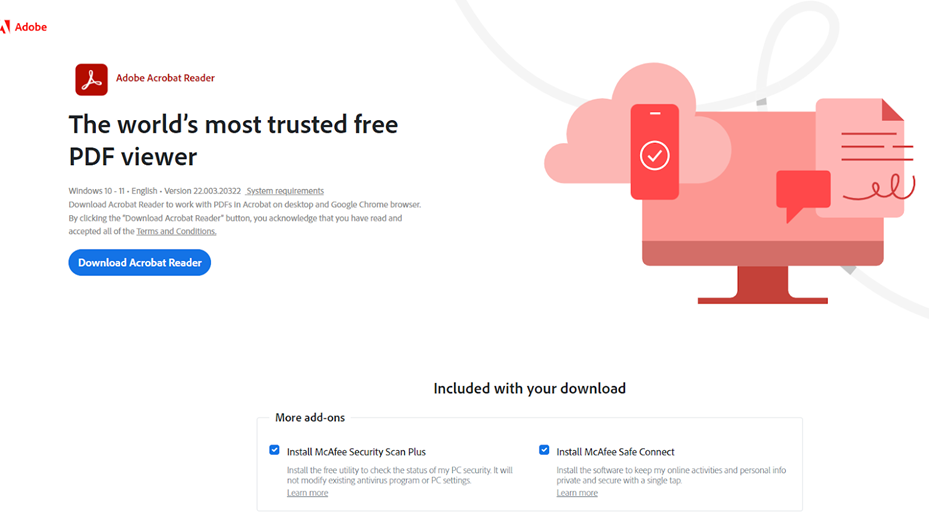
Step1:
Open your file in Adobe Acrobat and go to File > Print (or use Set Page Boxes / Crop Pages, depending on your Acrobat version).
Step2:
Choose a virtual PDF printer or page-size controls, then pick a standard size (such as A4 or Letter) or enter a custom size.
Step3:
Preview the result, confirm scaling options so content is not clipped, and save or print the updated PDF.
Acrobat is powerful, but many advanced features sit behind a paid subscription, so it may not be the lightest choice for a simple free task.
How to Resize PDF Free Online Using iLovePDF
iLovePDF is a browser-based toolkit for quick PDF jobs. Its organize/resize-style tools help when you prefer an online workflow without installing software.
Follow these steps:
Step1:
Open iLovePDF in your browser and choose the tool that changes page size.

Step2:
Upload the PDF from your device, then select the target page size or percentage scale.

Step3:
Process the file and download the result. Keep in mind that free online plans may include file limits, so verify settings before uploading sensitive documents.

How to Resize PDF Online Using Smallpdf
Smallpdf PDF editor offers fast online PDF utilities. You can change page layout through its organize tools when you need a one-off conversion in the browser.
Follow these steps:
Step1:
Visit Smallpdf and open the tool used to change page size.

Step2:
Upload your PDF, pick the new page size or scale, and apply the change.

Step3:
Download the finished file. Smallpdf is convenient for quick tasks, though free daily limits may apply if you run this workflow often.

Resize PDF Tools Comparison
Use this quick comparison before you pick a tool:
| Tool | Best For | PDF Editing | OCR | Compression | Batch | PDF → Office | Offline | Office Workflow |
|---|---|---|---|---|---|---|---|---|
| WPS Office ★★★★★ | PDF + Office all-in-one | ✓ | ✓ | ✓ | ✓ | ✓ | ✓ | ✓ |
| Adobe Acrobat ★★★★☆ | Enterprise PDF specialists | ✓ | ✓ | ✓ | ✓ | ✓ | ✓ | Limited |
| Sejda ★★☆☆☆ | Quick browser PDF tasks | ✓ | Limited | ✓ | Limited | ✓ | Desktop only | ✗ |
| Smallpdf ★★☆☆☆ | Fast online PDF utilities | ✓ | ✓ | ✓ | Limited | ✓ | ✗ | ✗ |
| iLovePDF ★★☆☆☆ | Quick online one-off jobs | ✓ | ✓ | ✓ | Limited | ✓ | ✗ | ✗ |

FAQ
How to resize a PDF offline?
Use a desktop app such as WPS Office or Adobe Acrobat. In WPS, open the file, go to Page > Page Size, pick a standard or custom size, and save. Offline tools are useful when you do not want to upload documents.
How to edit a PDF file online in Sejda?
Open Sejda in your browser, upload the PDF, then use Edit or related tools to change text and layout. For page size specifically, use Sejda’s change page size options, then download the result.
Can I edit a PDF offline?
Yes. Download WPS Office to edit PDF offline securely on your computer—adjust text, annotate, merge, compress, and resize PDF pages without an internet connection. It is a strong free option when you want both editing and page resizing in one place.
How to resize a PDF file without losing quality?
Prefer page-size controls over heavy re-encoding. Choose the correct target size, avoid extreme upscaling of images, and preview before saving. Desktop tools like WPS help you keep layouts readable while you resize PDF carefully.
Summary
'%3e%3cpath%20d='M19.9911%204.11386V6.471H18.5894C18.0775%206.471%2017.7322%206.57814%2017.5536%206.79243C17.3751%207.00671%2017.2858%207.32814%2017.2858%207.75671V9.44421H19.9019L19.5536%2012.0871H17.2858V18.8639H14.5536V12.0871H12.2769V9.44421H14.5536V7.49779C14.5536%206.39064%2014.8632%205.53201%2015.4822%204.92189C16.1013%204.31177%2016.9257%204.00671%2017.9554%204.00671C18.8304%204.00671%2019.509%204.04243%2019.9911%204.11386Z'%20fill='%23333333'/%3e%3c/g%3e%3cdefs%3e%3cclipPath%20id='clip0_2938_8199'%3e%3crect%20width='16'%20height='16'%20fill='white'%20transform='translate(8%204.00671)'/%3e%3c/clipPath%3e%3c/defs%3e%3c/svg%3e)
'%3e%3cpath%20d='M17.5237%2010.7813L23.4811%204H22.0699L16.8949%209.88693L12.7648%204H8L14.2469%2012.9029L8%2020.0133H9.4112L14.8725%2013.7952L19.2352%2020.0133H24M9.92053%205.04213H12.0885L22.0688%2019.0224H19.9003'%20fill='%23333333'/%3e%3c/g%3e%3cdefs%3e%3cclipPath%20id='clip0_2938_8200'%3e%3crect%20width='16'%20height='16.0134'%20fill='white'%20transform='translate(8%204)'/%3e%3c/clipPath%3e%3c/defs%3e%3c/svg%3e)


