

'%3e%3cpath%20d='M8%200C12.4183%200%2016%203.58172%2016%208C16%2012.4183%2012.4183%2016%208%2016C3.58172%2016%200%2012.4183%200%208C0%203.58172%203.58172%200%208%200ZM11.6162%204.38379C11.2257%203.99337%2010.5927%203.99338%2010.2021%204.38379L8%206.58594L5.79785%204.38379C5.40732%203.99334%204.77429%203.99329%204.38379%204.38379C3.99331%204.77429%203.99335%205.40733%204.38379%205.79785L6.58594%208L4.38379%2010.2021C3.99348%2010.5927%203.99341%2011.2257%204.38379%2011.6162C4.77426%2012.0066%205.40734%2012.0065%205.79785%2011.6162L8%209.41406L10.2021%2011.6162C10.5927%2012.0066%2011.2257%2012.0067%2011.6162%2011.6162C12.0067%2011.2257%2012.0066%2010.5927%2011.6162%2010.2021L9.41406%208L11.6162%205.79785C12.0066%205.40735%2012.0066%204.77429%2011.6162%204.38379Z'%20fill='%23080E17'%20fill-opacity='0.46'/%3e%3c/g%3e%3cdefs%3e%3cclipPath%20id='clip0_3761_713'%3e%3crect%20width='16'%20height='16'%20fill='white'/%3e%3c/clipPath%3e%3c/defs%3e%3c/svg%3e)




'%3e%3cpath%20fill-rule='evenodd'%20clip-rule='evenodd'%20d='M21.4999%2010.9993C21.4999%205.20009%2016.7986%200.498901%2010.9993%200.498901C5.19994%200.498901%200.498657%205.20009%200.498657%2010.9993C0.498657%2016.2404%204.33858%2020.5844%209.35855%2021.3722V14.0346H6.69238V10.9993H9.35855V8.68594C9.35855%206.05427%2010.9262%204.60062%2013.3248%204.60062C14.4736%204.60062%2015.6753%204.80571%2015.6753%204.80571V7.38979H14.3512C13.0468%207.38979%2012.64%208.19921%2012.64%209.0296V10.9993H15.5523L15.0867%2014.0346H12.64V21.3722C17.66%2020.5844%2021.4999%2016.2404%2021.4999%2010.9993Z'%20fill='%231568EA'/%3e%3c/g%3e%3c/svg%3e)


'%3e%3cpath%20d='M2.42045%2022.1876H6.31818V12.7217L0.75%208.54553V20.5171C0.75%2021.4414%201.49892%2022.1876%202.42045%2022.1876Z'%20fill='%234285F4'/%3e%3cpath%20d='M19.682%2022.1876H23.5797C24.5041%2022.1876%2025.2502%2021.4387%2025.2502%2020.5171V8.54553L19.682%2012.7217'%20fill='%2334A853'/%3e%3cpath%20d='M19.682%205.48293V12.7216L25.2502%208.54543V6.31816C25.2502%204.25236%2022.8921%203.07469%2021.2411%204.31361'%20fill='%23FBBC04'/%3e%3cpath%20d='M6.31824%2012.7217V5.48303L13.0001%2010.4944L19.6819%205.48303V12.7217L13.0001%2017.733'%20fill='%23EA4335'/%3e%3cpath%20d='M0.75%206.31816V8.54543L6.31818%2012.7216V5.48293L4.75909%204.31361C3.10534%203.07469%200.75%204.25236%200.75%206.31816Z'%20fill='%23C5221F'/%3e%3c/g%3e%3cdefs%3e%3cclipPath%20id='clip0_2954_7305'%3e%3crect%20width='24.5'%20height='18.375'%20fill='white'%20transform='translate(0.75%203.8125)'/%3e%3c/clipPath%3e%3c/defs%3e%3c/svg%3e)


Whether you are preparing reports, archiving webpages, or sharing formatted information, the ability to convert HTML to PDF reliably can save significant time. However, many tools still struggle with CSS styling, responsive layouts, JavaScript-rendered elements, or larger file sizes.
So how can you convert HTML to PDF without losing quality or risking your data privacy? This guide explains the most effective methods available today, evaluates popular tools, and introduces a more reliable alternative for high-fidelity, professional output.


Part 1. Top Online HTML to PDF Converters
Online tools remain the most convenient option when users need to convert HTML to PDF quickly without installing software. They work directly in the browser, support both HTML file uploads and webpage URLs, and are ideal for one-time or lightweight conversions. Below is an overview of the most widely used online HTML to PDF converters, along with their strengths, limitations, and best-fit scenarios.
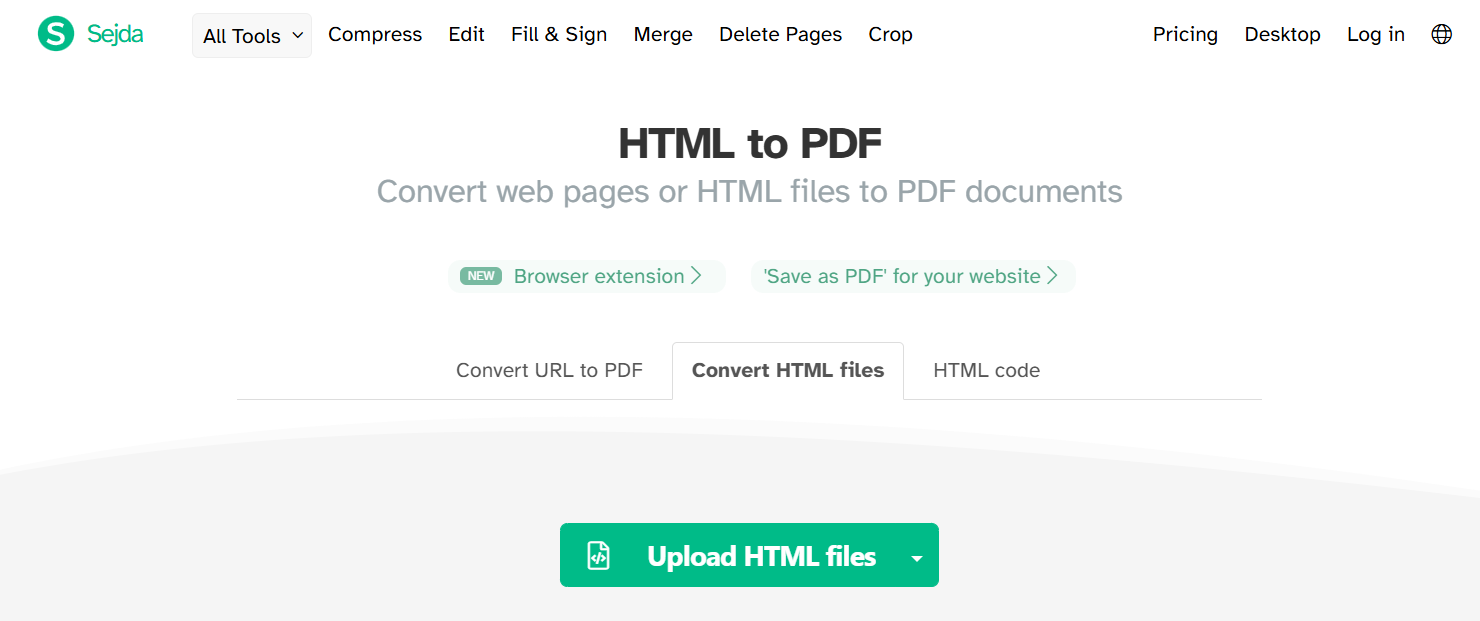
1. Sejda
Sejda is a well-known online platform offering various PDF utilities, including a dedicated HTML to PDF converter. It is designed for users who want fast, browser-based conversions with minimal setup.
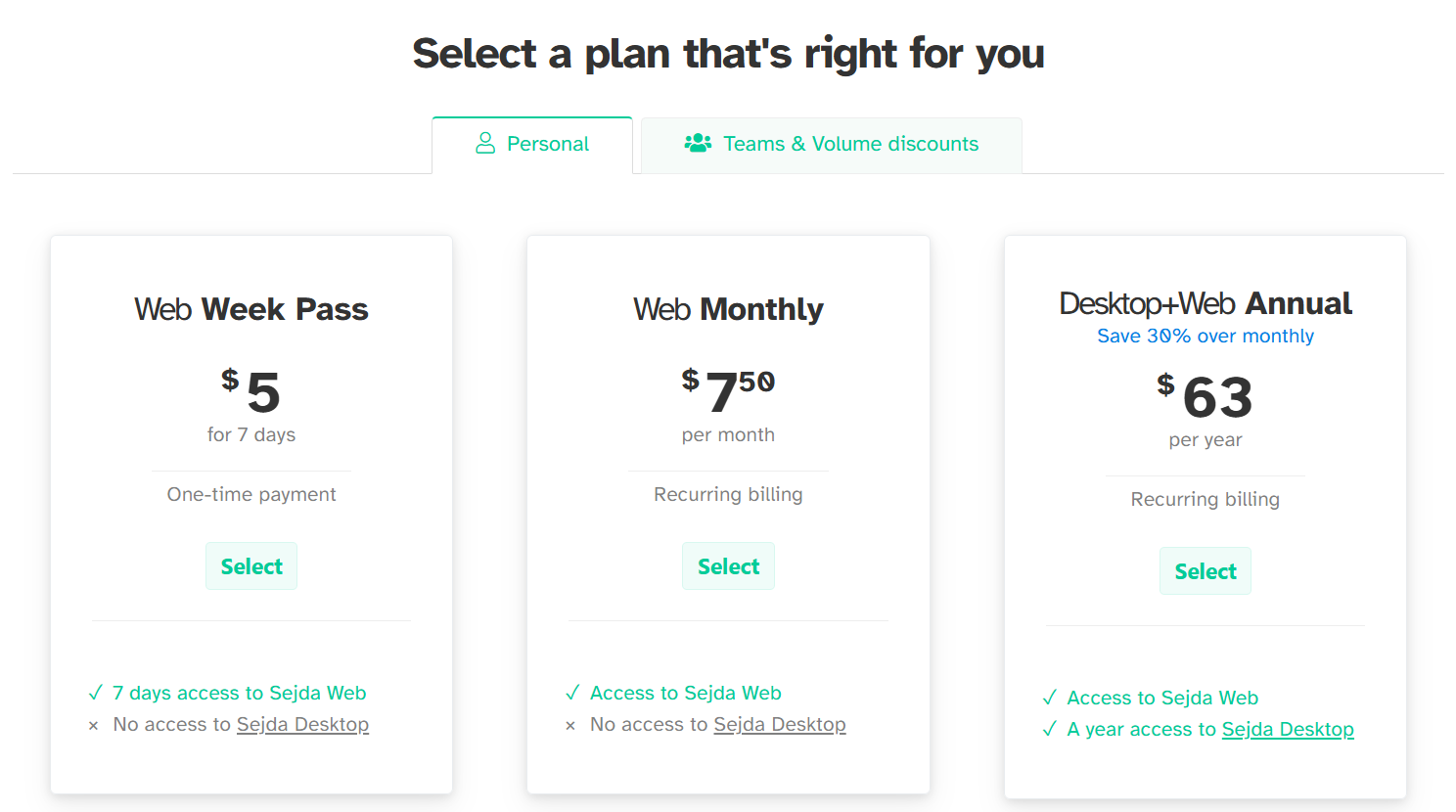
Pricing:
Sejda offers free usage with daily task limits. Paid plans unlock higher file sizes, more conversions, and additional PDF features.
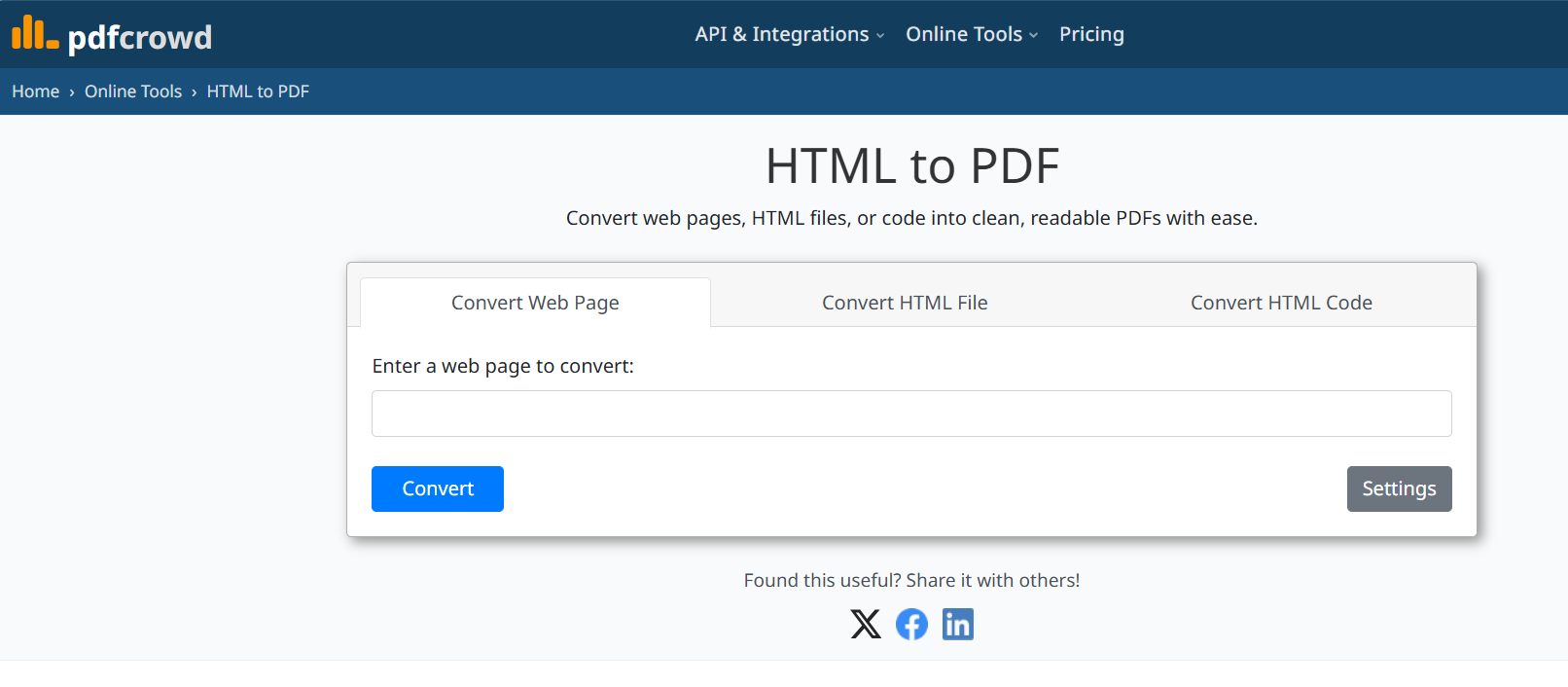
2. PDFCrowd
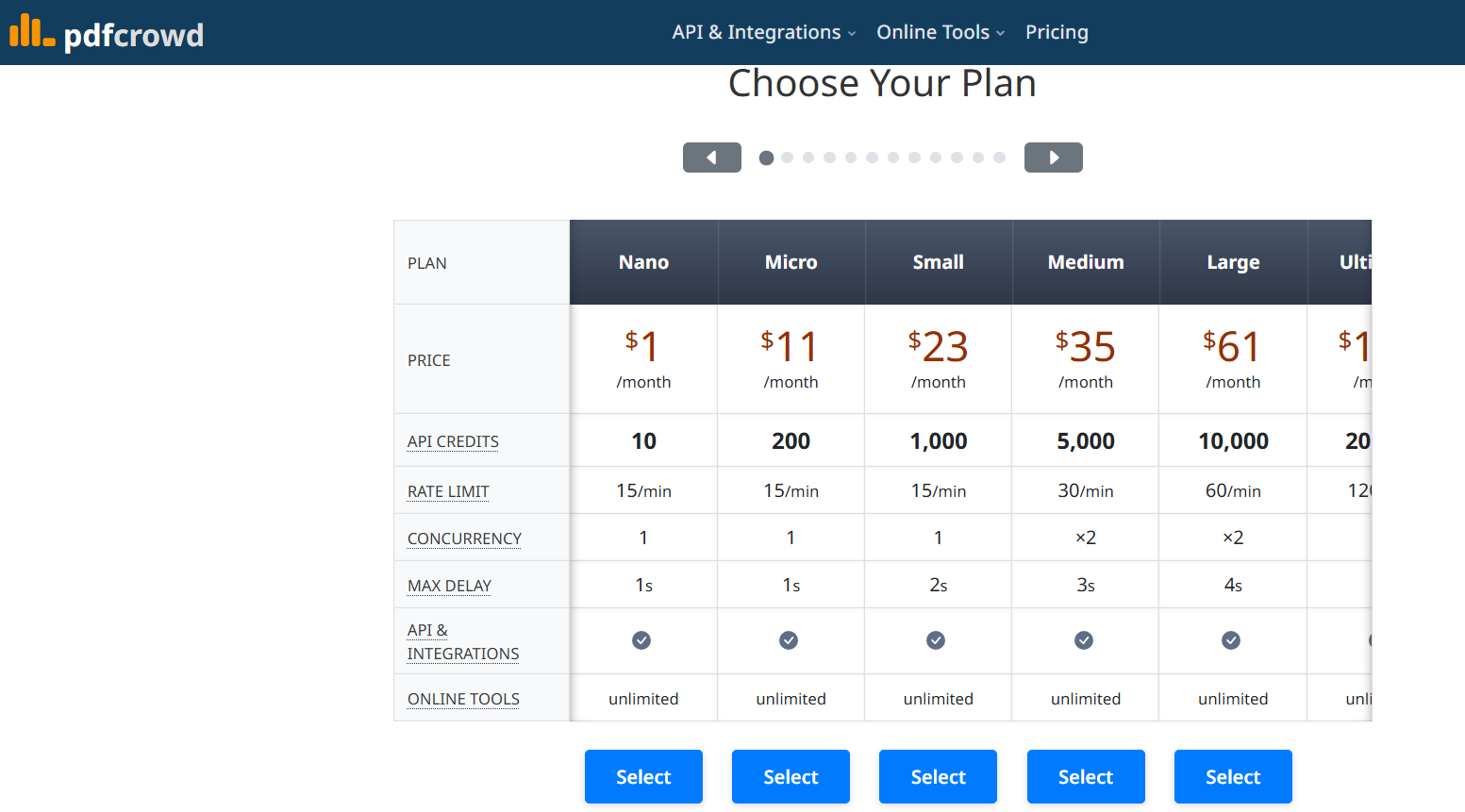
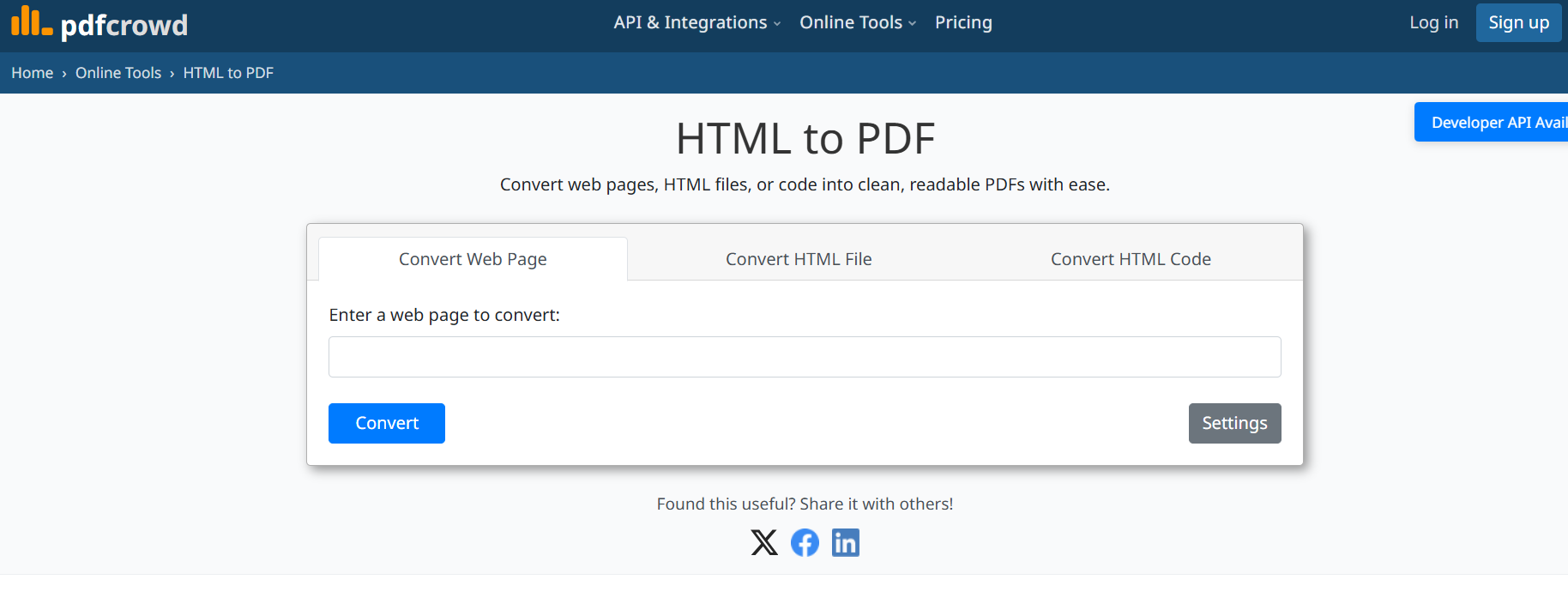
PDFCrowd is a versatile HTML to PDF converter available both as an online tool and as a full API solution. It is commonly used by developers who need automated batch conversions or integration with web applications.
Pricing:
The online converter has a limited free tier. API and commercial plans are subscription-based.
3. CloudConvert
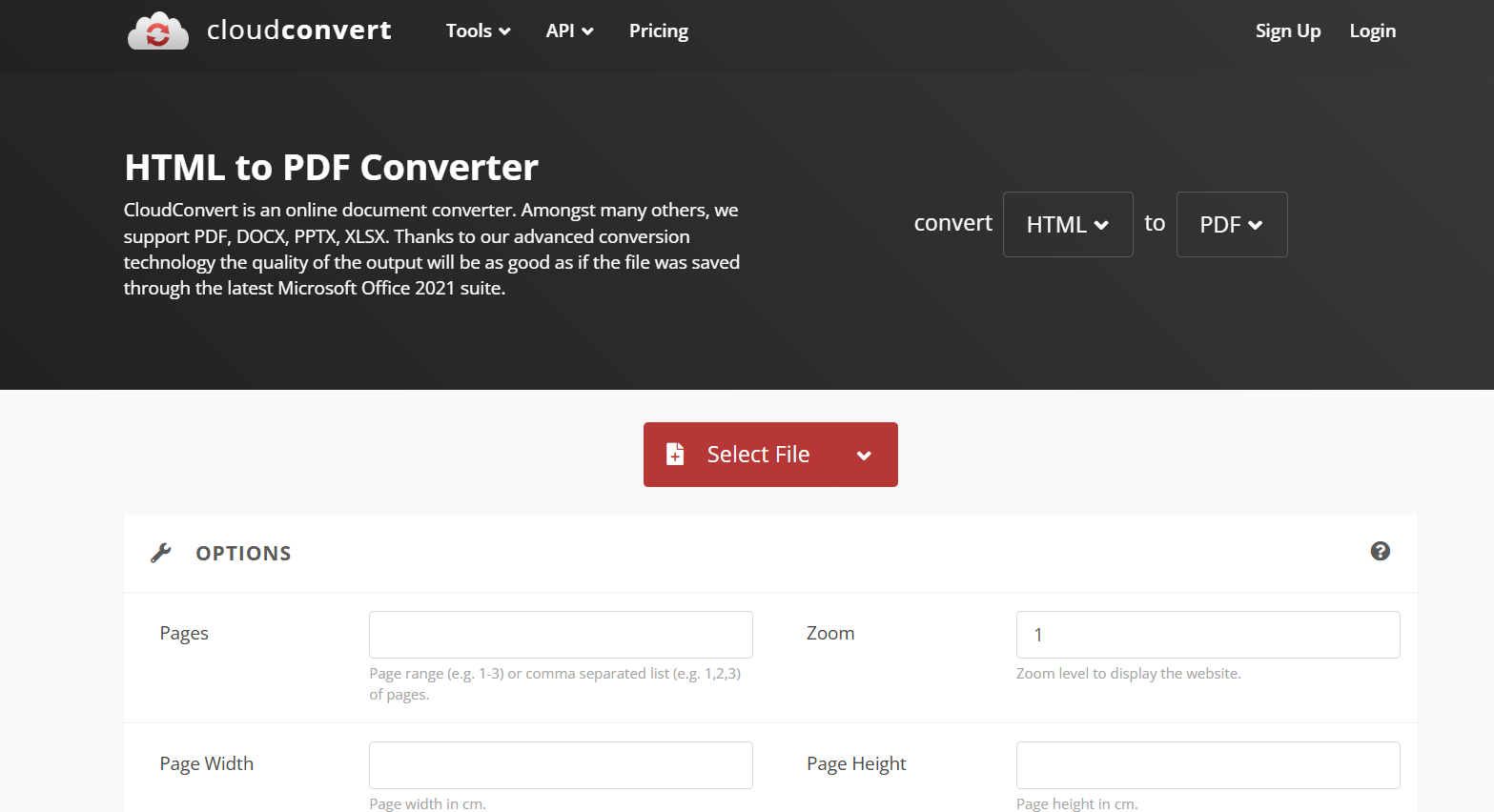
CloudConvert is a cloud-based file conversion platform that supports hundreds of file types, including HTML to PDF. It is suitable for users needing flexibility across different formats.
Pricing:
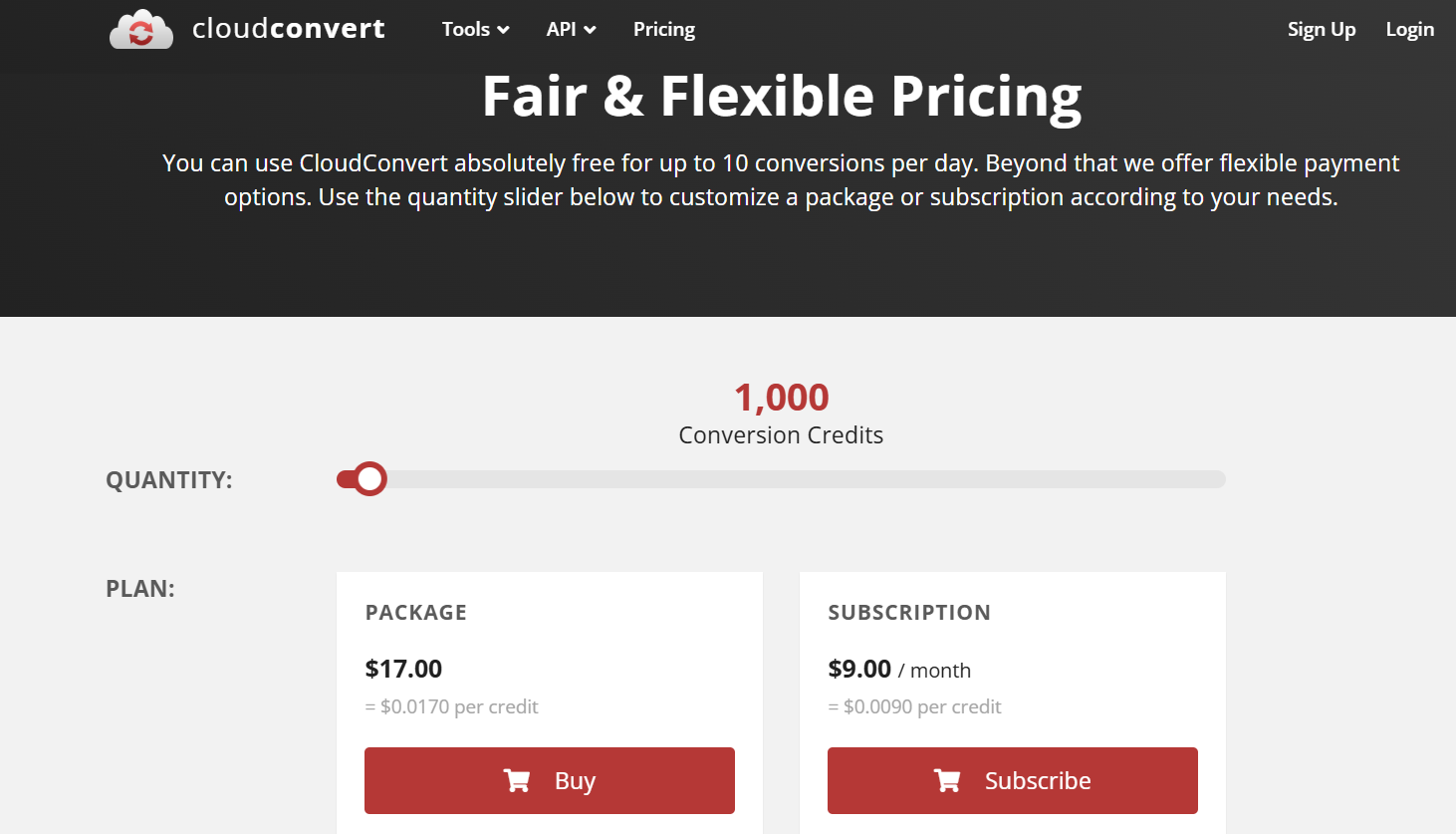
Free users receive limited conversion minutes. Paid plans operate on a credit-based model.
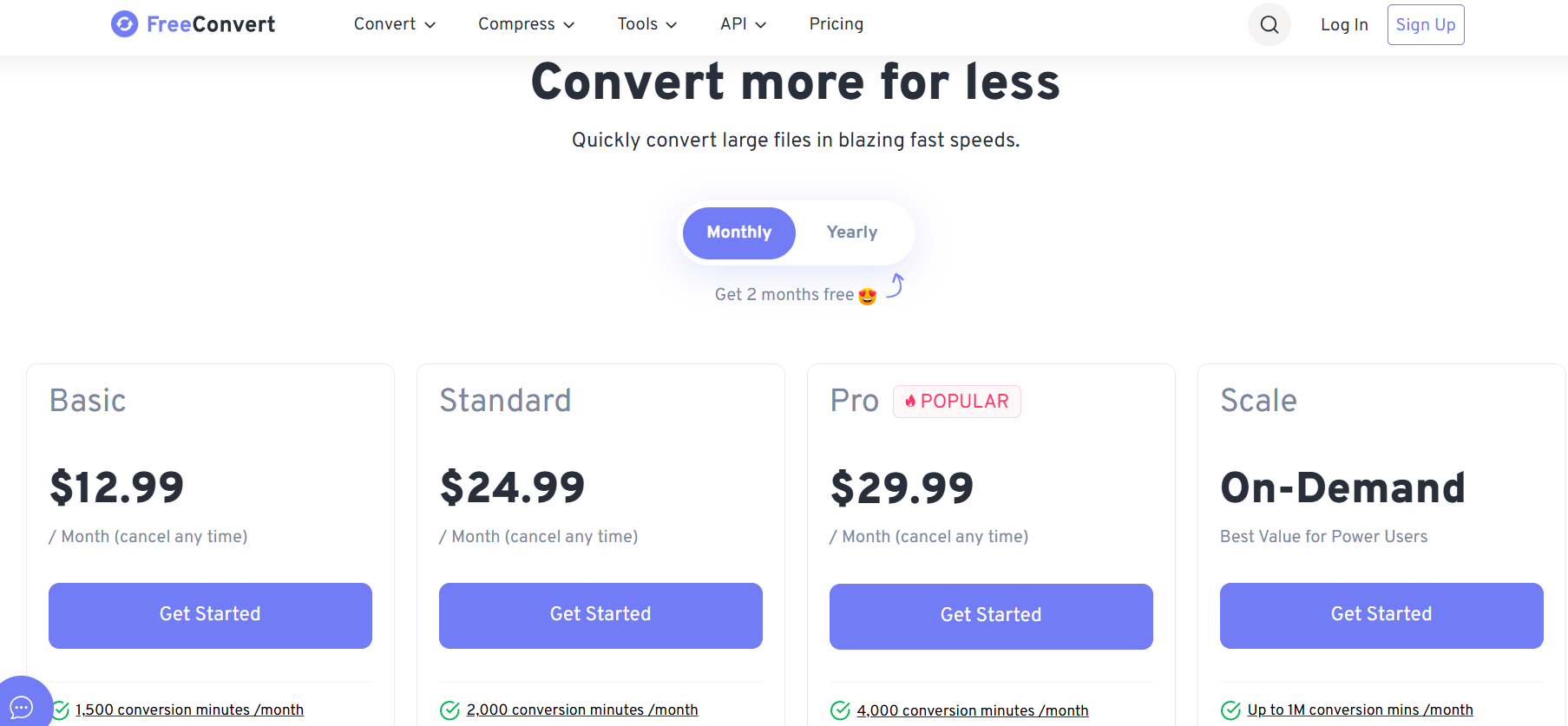
4. FreeConvert
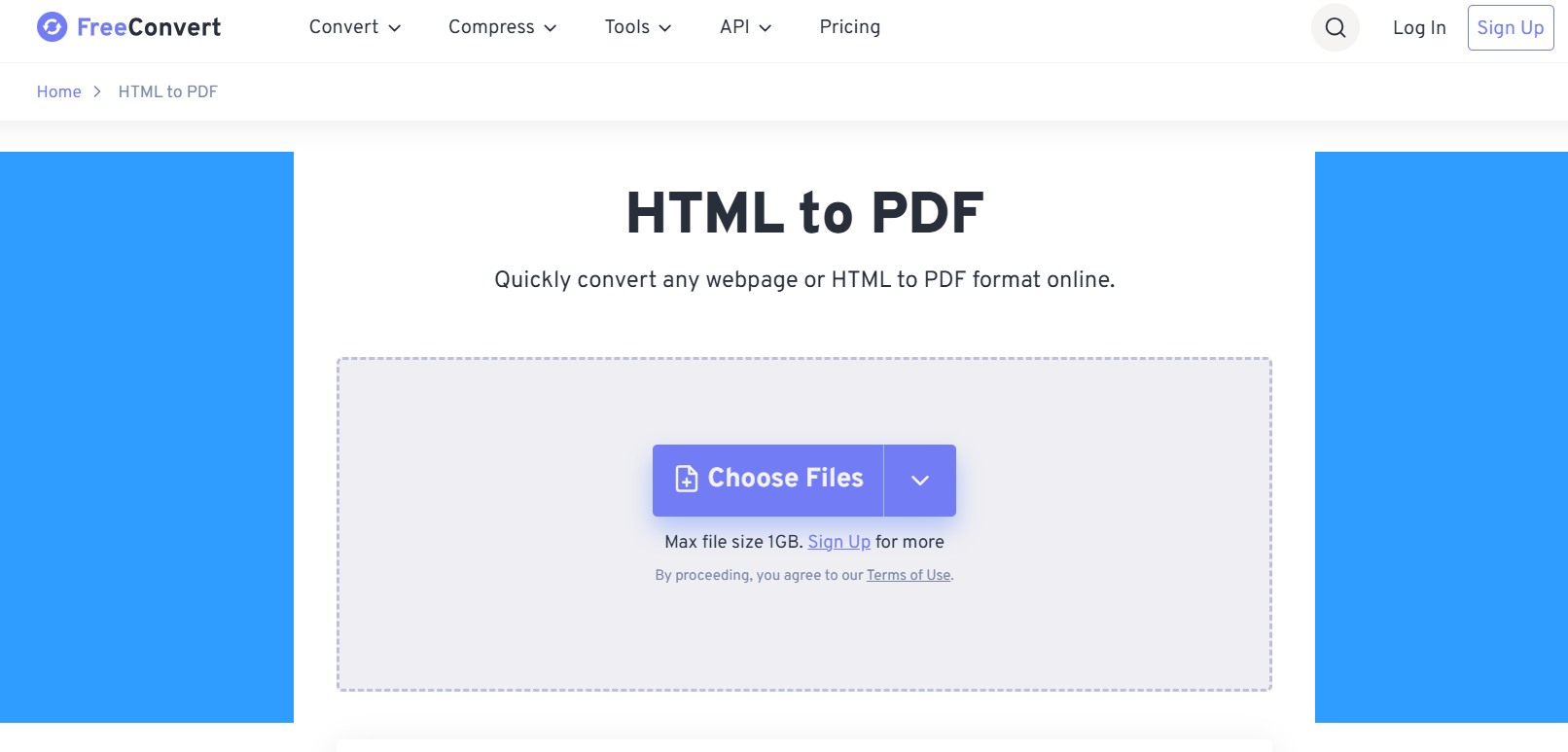
FreeConvert provides a simple, easy-to-use interface for quick HTML to PDF conversions. It is a popular choice among users who need straightforward functionality without advanced settings.
Pricing:
Free usage includes file size limitations and queue wait times. Premium plans remove limits and unlock faster processing.
5. Docupilot
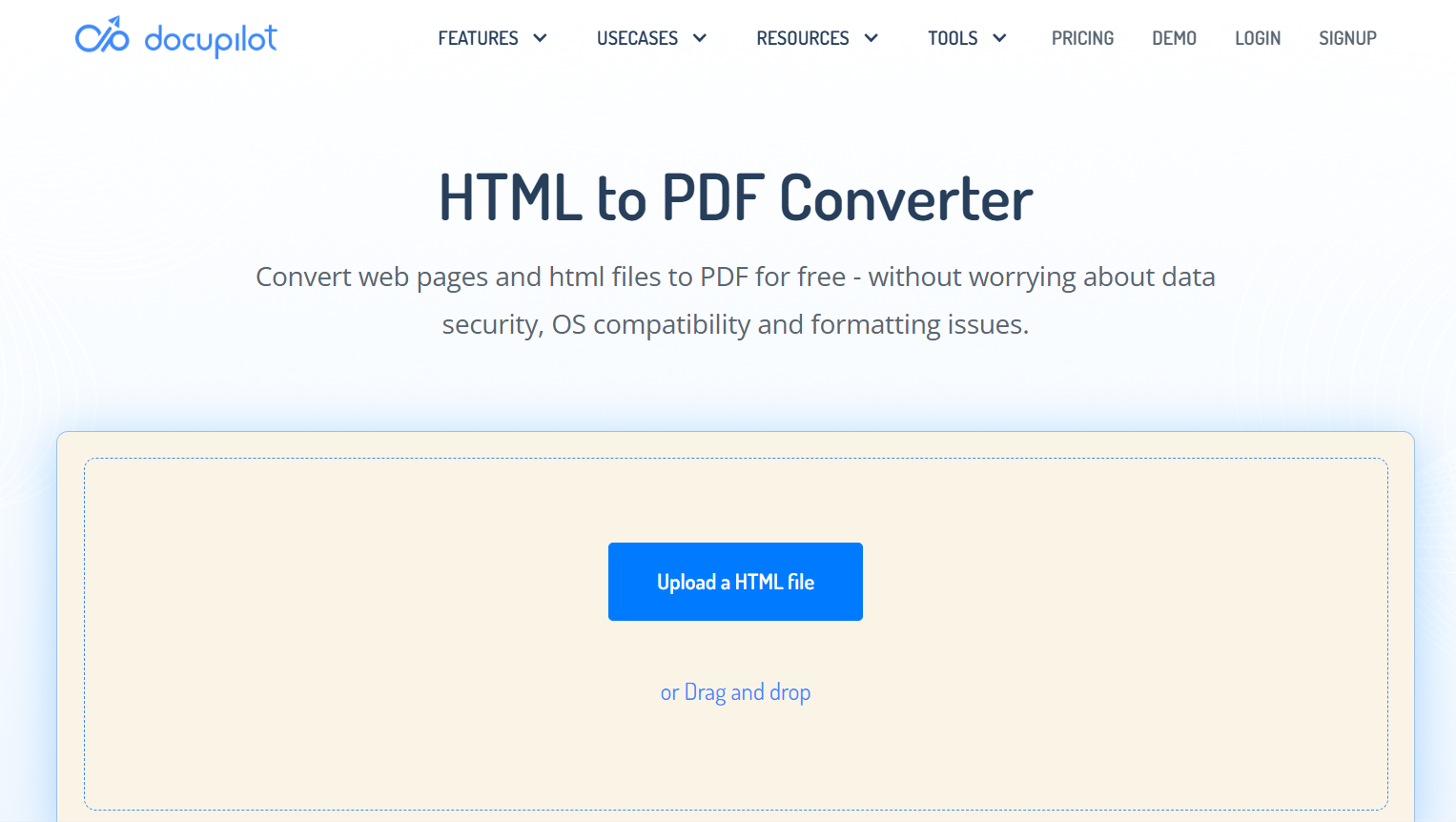
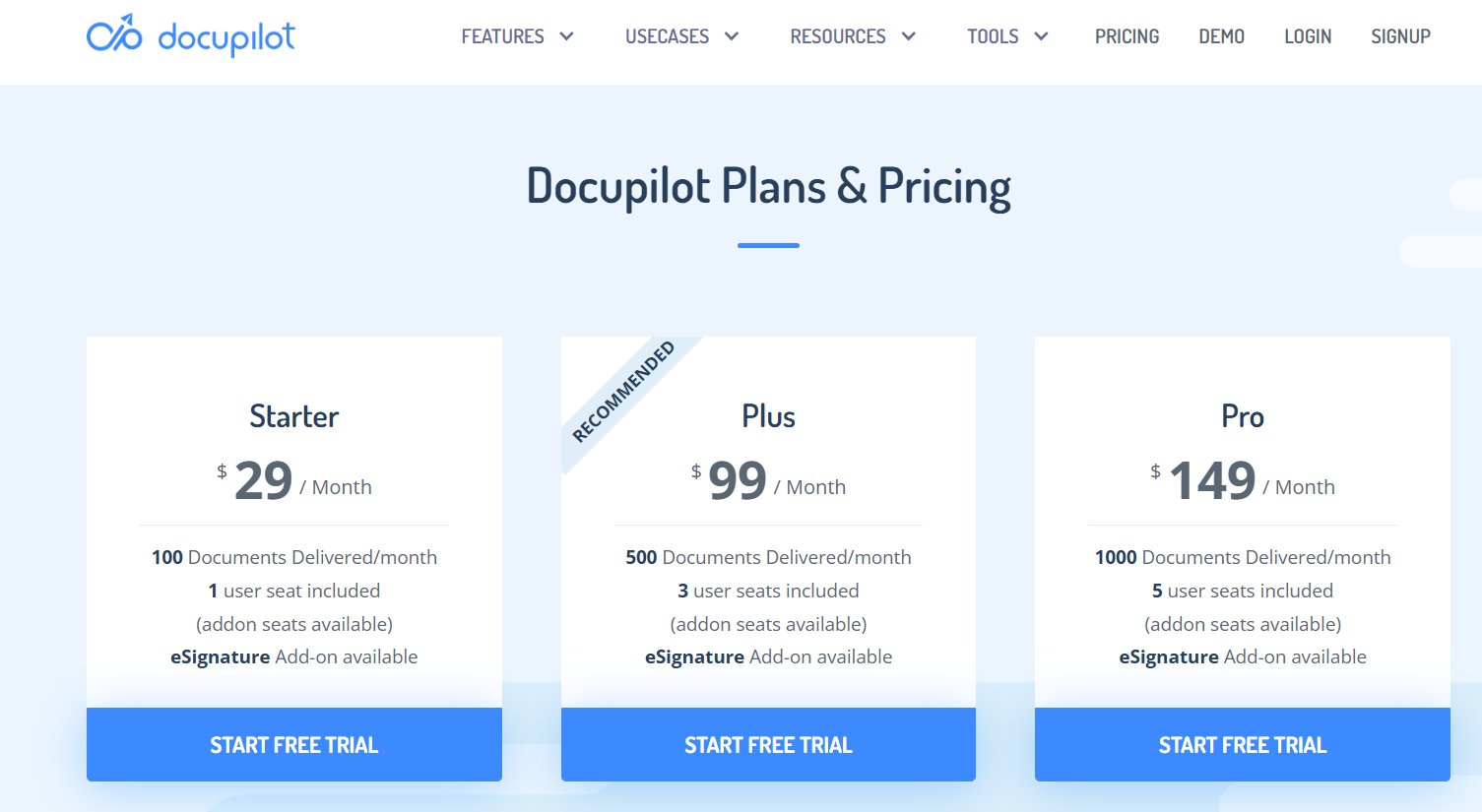
Docupilot is a document automation platform that includes an HTML to PDF converter as part of its workflow tools. It is primarily designed for businesses generating recurring PDFs from templates or HTML sources.
Pricing:
Docupilot is subscription-based, with plans depending on automation volume and team usage.
Part 2. How to Convert HTML to PDF Using Online Tools
Online converters offer one of the simplest ways to convert HTML to PDF, especially when handling quick tasks or previewing formatted output. Although interfaces vary slightly, most tools follow the same basic workflow. Below is a general step-by-step process that applies to nearly all online HTML to PDF converters.
Step 1. Access the online converter tool
Open your preferred online HTML to PDF converter in a web browser. Tools such as Sejda, CloudConvert, PDFCrowd, and FreeConvert are suitable for fast and one-time conversions.
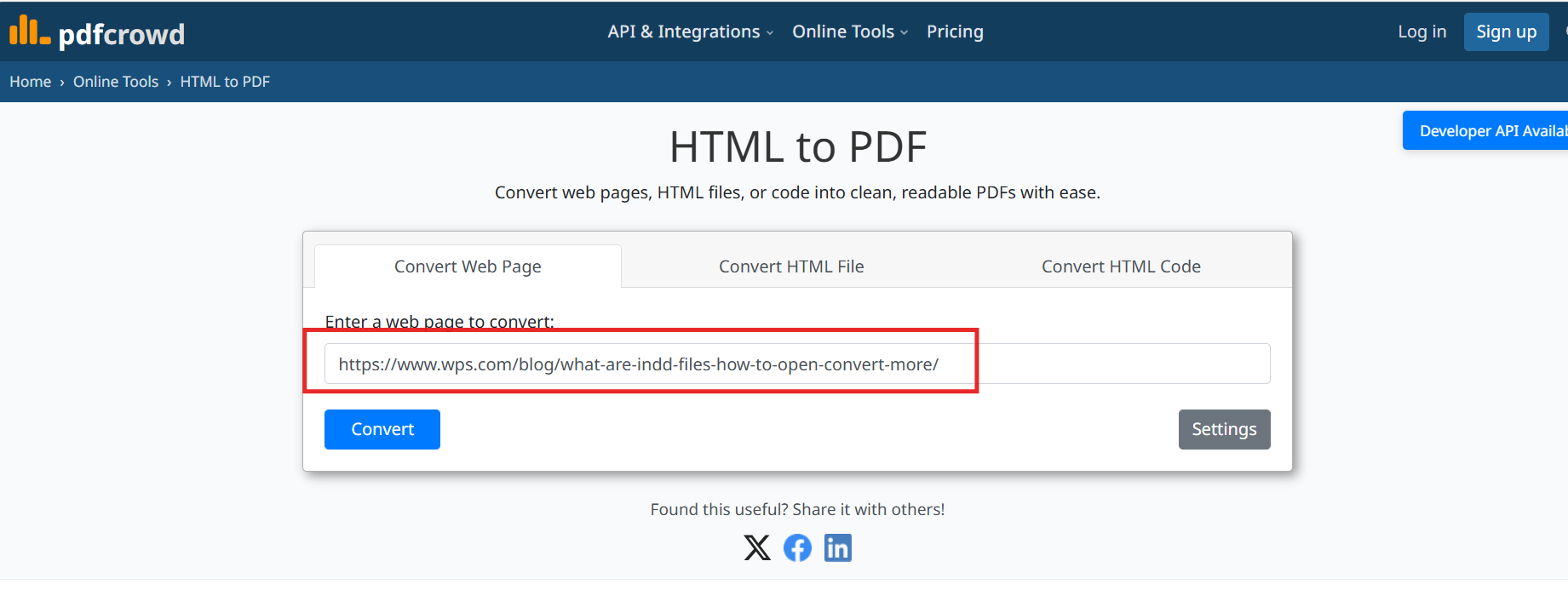
Step 2. Input HTML file or webpage URL
You can usually choose between two options: uploading an HTML file from your device or entering a webpage URL. Select the method that aligns with your needs.
Step 3. Adjust conversion settings (if available)
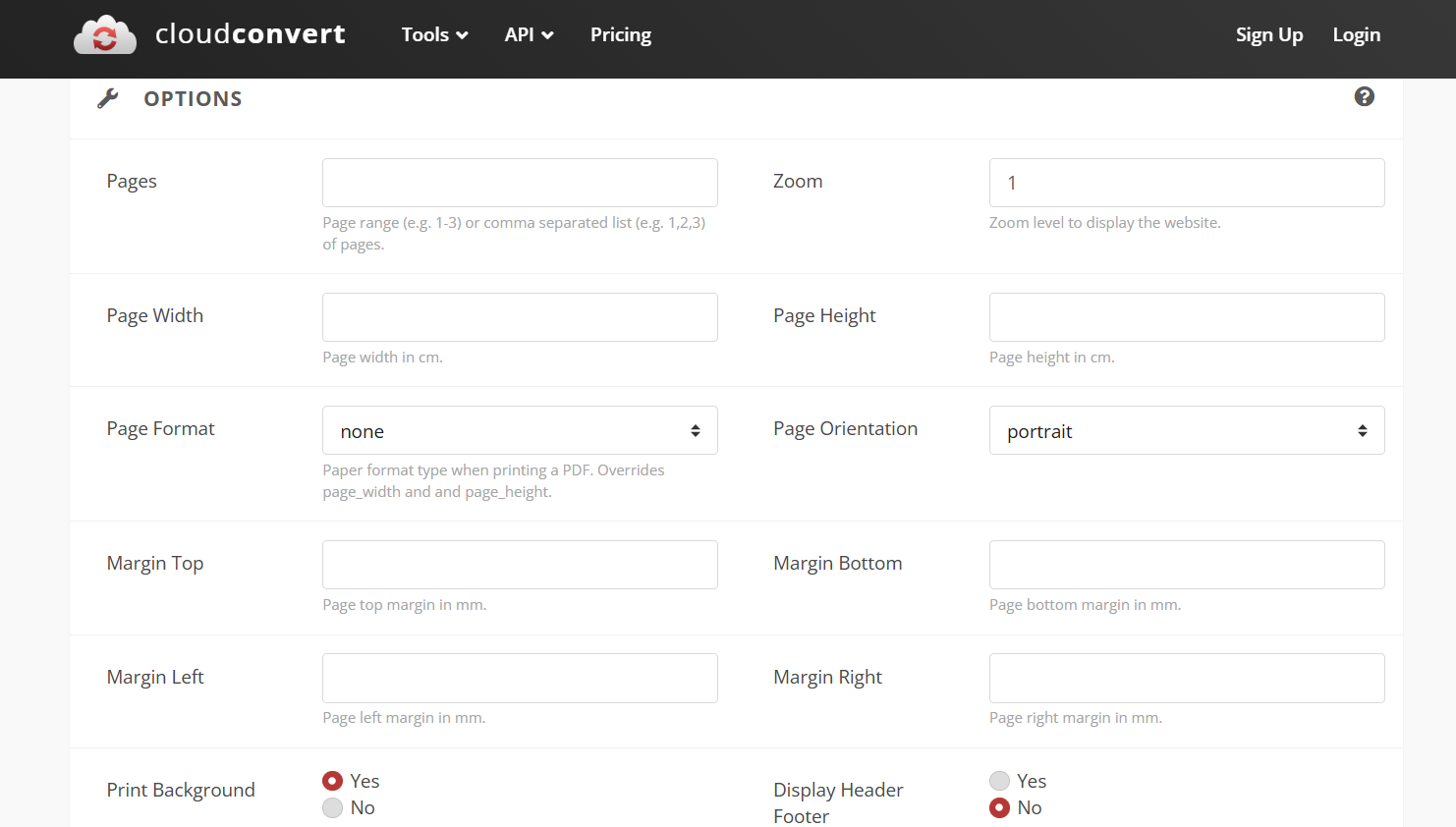
Many online converters provide optional settings like page size, orientation, margins, scaling, or CSS handling. Modify these settings when working with custom layouts or complex web pages.
Step 4. Initiate the conversion
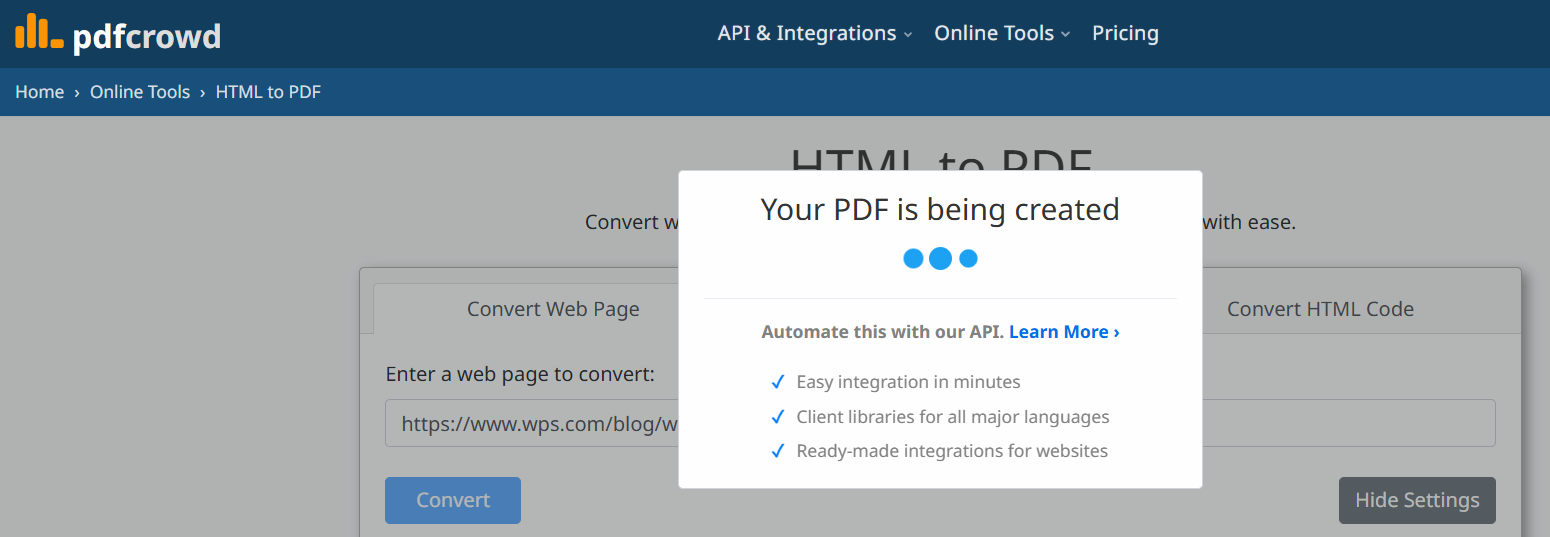
Click Convert or Start to begin the conversion. The tool will process HTML structure, apply styles, and generate a PDF version of your content.
Step 5. Download the resulting PDF file
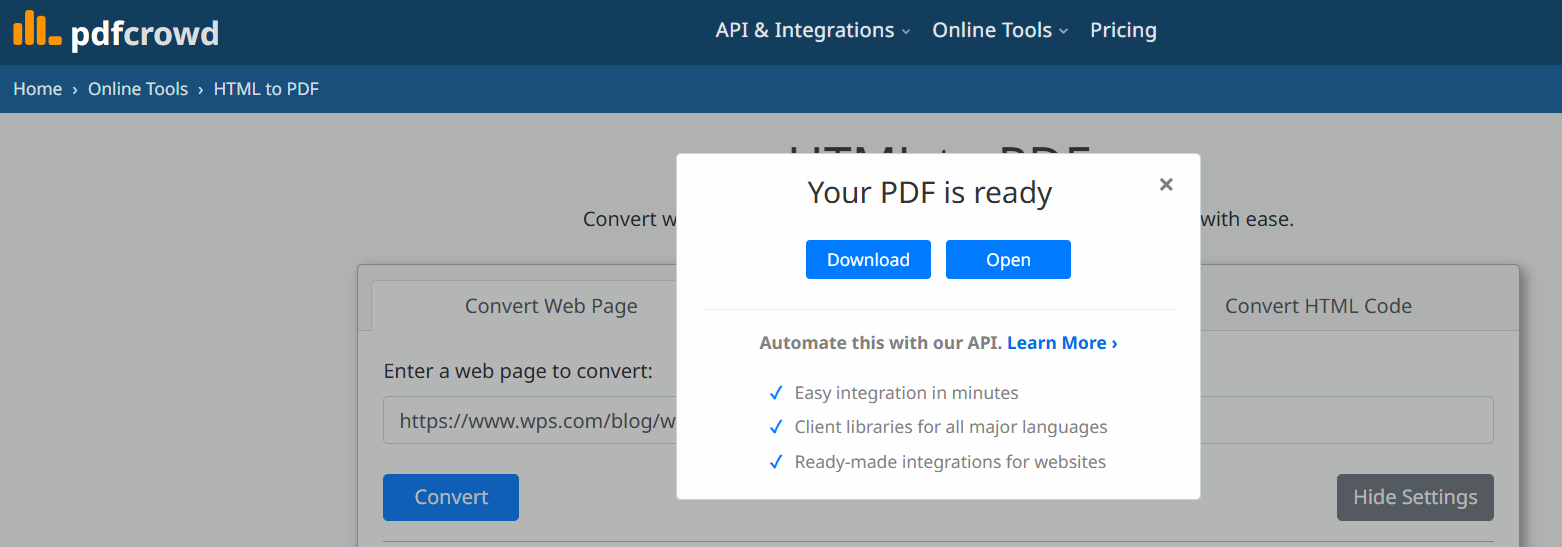
After processing completes, download the PDF file to your device. Review the output to ensure proper layout, formatting, and styling have been preserved.
Part 3. Best Alternative: WPS PDF Tools
While online tools are convenient for quick tasks, they often struggle with layout accuracy, CSS-heavy HTML designs, and privacy-sensitive content. For users who need consistent formatting, secure processing, and professional-quality results when converting HTML to PDF, WPS PDF Tools serves as a more reliable and flexible solution. It supports both online and offline conversion, making it suitable for personal, academic, and business workflows.
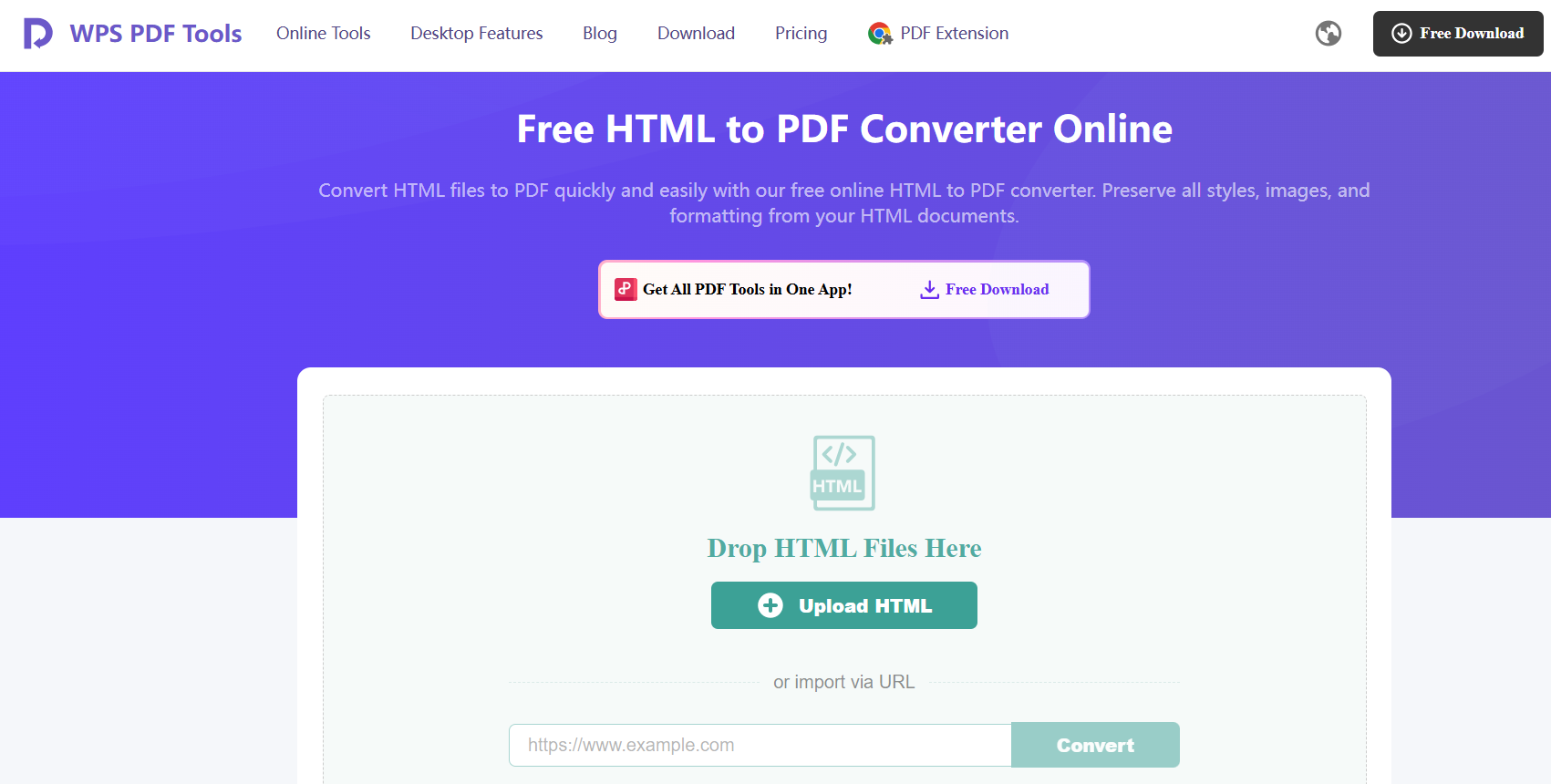
WPS PDF Tools includes a built-in HTML to PDF conversion feature that accurately renders styled HTML pages, responsive layouts, and dynamic content. It supports converting local HTML files as well as live webpage URLs, ensuring versatility for different use cases. Because the conversion can be performed offline within the WPS Office suite, users avoid the typical limitations found in online converters, such as file-size caps, watermarks, or inconsistent quality.
Unique Advantages
Superior CSS and layout preservation
WPS uses an advanced rendering engine capable of interpreting CSS rules, fonts, spacing, and structural elements. This helps maintain the original design more effectively than basic online converters that may flatten or break layout components.
Offline conversion capability
Because WPS offers desktop processing, users can convert HTML to PDF without uploading sensitive content to third-party servers. This improves data security and makes the tool suitable for confidential documents.
No watermarks on output
Unlike many free converters, WPS generates clean, watermark-free PDFs even at no cost, making it more practical for professional use.
Batch processing support
For users handling multiple HTML reports, templates, or webpages, WPS enables batch conversion to streamline repetitive tasks.
Seamless WPS Office integration
Since HTML to PDF is part of the WPS Office ecosystem, users can easily combine PDF editing, viewing, annotating, and exporting features without switching tools.
Functions and Features
Convert both HTML files and webpage URLs to PDF
Customize page size, orientation, and margins
Preserve hyperlinks, headings, and formatting
Support rendering of CSS styles and JavaScript-generated content
Enable online and offline usage depending on the workflow
Provide fast conversion with high fidelity
Integrate with other WPS PDF editing features
Part 4. WPS PDF Tools vs. Other HTML to PDF Converters
When converting HTML to PDF, the quality of the output can vary significantly across tools. Online converters are helpful for quick tasks, but many struggle with advanced styling, large file sizes, or privacy-sensitive workflows. Below is a comparison table showing how WPS PDF Tools performs against other widely used converters like Sejda, PDFCrowd, CloudConvert, and FreeConvert.
Comparison Table: WPS PDF Tools vs. Popular Converters
| Feature / Criteria | WPS PDF Tools | Sejda | PDFCrowd | CloudConvert | FreeConvert |
|---|---|---|---|---|---|
| Ease of Use | Simple interface with online + desktop workflow | Easy | Moderate | Moderate | Easy |
| Format Preservation | Excellent CSS, layout, and JS rendering | Good but limited | Good for structured HTML | Good with settings | Basic, may break layouts |
| Conversion Speed | Fast online/offline processing | Fast | Moderate | Depends on the queue | Moderate |
| File Size Limitations | No major limits offline | Limits on the free plan | Limits on the free tier | Credit/minute limits | Free size limits |
| Privacy & Security | Offline mode available, no uploads required | Online only | Online + API | Cloud processing | Online only |
| System Compatibility | Windows, macOS, Linux (via WPS Office) | Browser-based | Browser/API | Browser | Browser |
| Watermark-Free Output | Yes | The free version may include restrictions | Paid plans only | Depends on credits | The free plan may add constraints |
WPS stands out primarily for its high layout accuracy, offline capability, and lack of watermarks, making it a more practical option for professional use cases.
FAQs
What is the easiest way to convert HTML to PDF for free?
The easiest way to convert HTML to PDF for free is to use WPS PDF Tools. Its online HTML to PDF converter free option does not add watermarks and preserves formatting accurately, making it ideal for both personal and professional tasks.
Do HTML to PDF converters preserve CSS styling and layouts?
High-quality converters such as WPS PDF Tools can preserve CSS rules, fonts, spacing, and overall structure. However, basic online tools may struggle with complex designs, resulting in layout inconsistencies.
Can I convert a live webpage URL to PDF using these tools?
Yes. Most HTML to PDF converters support entering a webpage URL to generate a PDF. WPS PDF Tools also allows URL conversion, providing accurate rendering of modern web layouts.
Is it safe to use an online HTML to PDF converter?
Safety depends on the tool. Online converters store and process files on remote servers, which may raise privacy concerns for sensitive content. If you need more control over your data, using an offline tool like WPS PDF Tools is a more secure option.
Are there options to convert HTML to PDF offline?
Yes. WPS PDF Tools provides offline HTML to PDF conversion through the WPS Office suite. This allows users to convert documents without uploading them, ensuring confidentiality and eliminating online processing limits.

'%3e%3cpath%20d='M19.9911%204.11386V6.471H18.5894C18.0775%206.471%2017.7322%206.57814%2017.5536%206.79243C17.3751%207.00671%2017.2858%207.32814%2017.2858%207.75671V9.44421H19.9019L19.5536%2012.0871H17.2858V18.8639H14.5536V12.0871H12.2769V9.44421H14.5536V7.49779C14.5536%206.39064%2014.8632%205.53201%2015.4822%204.92189C16.1013%204.31177%2016.9257%204.00671%2017.9554%204.00671C18.8304%204.00671%2019.509%204.04243%2019.9911%204.11386Z'%20fill='%23333333'/%3e%3c/g%3e%3cdefs%3e%3cclipPath%20id='clip0_2938_8199'%3e%3crect%20width='16'%20height='16'%20fill='white'%20transform='translate(8%204.00671)'/%3e%3c/clipPath%3e%3c/defs%3e%3c/svg%3e)
'%3e%3cpath%20d='M17.5237%2010.7813L23.4811%204H22.0699L16.8949%209.88693L12.7648%204H8L14.2469%2012.9029L8%2020.0133H9.4112L14.8725%2013.7952L19.2352%2020.0133H24M9.92053%205.04213H12.0885L22.0688%2019.0224H19.9003'%20fill='%23333333'/%3e%3c/g%3e%3cdefs%3e%3cclipPath%20id='clip0_2938_8200'%3e%3crect%20width='16'%20height='16.0134'%20fill='white'%20transform='translate(8%204)'/%3e%3c/clipPath%3e%3c/defs%3e%3c/svg%3e)


