

'%3e%3cpath%20d='M8%200C12.4183%200%2016%203.58172%2016%208C16%2012.4183%2012.4183%2016%208%2016C3.58172%2016%200%2012.4183%200%208C0%203.58172%203.58172%200%208%200ZM11.6162%204.38379C11.2257%203.99337%2010.5927%203.99338%2010.2021%204.38379L8%206.58594L5.79785%204.38379C5.40732%203.99334%204.77429%203.99329%204.38379%204.38379C3.99331%204.77429%203.99335%205.40733%204.38379%205.79785L6.58594%208L4.38379%2010.2021C3.99348%2010.5927%203.99341%2011.2257%204.38379%2011.6162C4.77426%2012.0066%205.40734%2012.0065%205.79785%2011.6162L8%209.41406L10.2021%2011.6162C10.5927%2012.0066%2011.2257%2012.0067%2011.6162%2011.6162C12.0067%2011.2257%2012.0066%2010.5927%2011.6162%2010.2021L9.41406%208L11.6162%205.79785C12.0066%205.40735%2012.0066%204.77429%2011.6162%204.38379Z'%20fill='%23080E17'%20fill-opacity='0.46'/%3e%3c/g%3e%3cdefs%3e%3cclipPath%20id='clip0_3761_713'%3e%3crect%20width='16'%20height='16'%20fill='white'/%3e%3c/clipPath%3e%3c/defs%3e%3c/svg%3e)



'%3e%3cpath%20fill-rule='evenodd'%20clip-rule='evenodd'%20d='M21.4999%2010.9993C21.4999%205.20009%2016.7986%200.498901%2010.9993%200.498901C5.19994%200.498901%200.498657%205.20009%200.498657%2010.9993C0.498657%2016.2404%204.33858%2020.5844%209.35855%2021.3722V14.0346H6.69238V10.9993H9.35855V8.68594C9.35855%206.05427%2010.9262%204.60062%2013.3248%204.60062C14.4736%204.60062%2015.6753%204.80571%2015.6753%204.80571V7.38979H14.3512C13.0468%207.38979%2012.64%208.19921%2012.64%209.0296V10.9993H15.5523L15.0867%2014.0346H12.64V21.3722C17.66%2020.5844%2021.4999%2016.2404%2021.4999%2010.9993Z'%20fill='%231568EA'/%3e%3c/g%3e%3c/svg%3e)


'%3e%3cpath%20d='M2.42045%2022.1876H6.31818V12.7217L0.75%208.54553V20.5171C0.75%2021.4414%201.49892%2022.1876%202.42045%2022.1876Z'%20fill='%234285F4'/%3e%3cpath%20d='M19.682%2022.1876H23.5797C24.5041%2022.1876%2025.2502%2021.4387%2025.2502%2020.5171V8.54553L19.682%2012.7217'%20fill='%2334A853'/%3e%3cpath%20d='M19.682%205.48293V12.7216L25.2502%208.54543V6.31816C25.2502%204.25236%2022.8921%203.07469%2021.2411%204.31361'%20fill='%23FBBC04'/%3e%3cpath%20d='M6.31824%2012.7217V5.48303L13.0001%2010.4944L19.6819%205.48303V12.7217L13.0001%2017.733'%20fill='%23EA4335'/%3e%3cpath%20d='M0.75%206.31816V8.54543L6.31818%2012.7216V5.48293L4.75909%204.31361C3.10534%203.07469%200.75%204.25236%200.75%206.31816Z'%20fill='%23C5221F'/%3e%3c/g%3e%3cdefs%3e%3cclipPath%20id='clip0_2954_7305'%3e%3crect%20width='24.5'%20height='18.375'%20fill='white'%20transform='translate(0.75%203.8125)'/%3e%3c/clipPath%3e%3c/defs%3e%3c/svg%3e)


Make an Impact With 3D: How to Sequence Viewpoints, Motion, and Timing
A 3D model rarely fails on stage because the model itself is wrong. It fails because the viewpoint jumps between slides, because three animations fire while you are still explaining one idea, or because the file crawls on the meeting-room computer that is not yours. Making an impact with 3D is a sequencing problem, not a modeling problem.
This guide covers the layer that sits above the model: how to storyboard before you touch geometry, how to advance a viewpoint across slides so the audience keeps its bearings, how to bind motion to the sentence you are speaking, and how to hand the deck off in a form that still works. Placement, rotation, and reset controls are not repeated here; the assumption is that a model is already on a slide and you are ready to orchestrate it.
Make an Impact With 3D: How to Sequence Viewpoints, Motion, and Timing
Make an Impact With 3D: What Actually Creates Impact
Impact comes from three things working together: a controlled change of viewpoint, motion that happens on the exact sentence it belongs to, and one visual hero per slide. Adding more models or more animation effects does not add impact; it removes it.
The Three Ingredients of 3D Impact
One hero object per point. The audience should be able to point at the object that carries the argument.
A viewpoint delta the eye can follow. Each transition should move roughly the same distance in the same direction, not spin.
Motion tied to narration. An object moves while you are talking about it, and stops when you stop.
What This Guide Assumes
You already have a 3D model placed on a slide and you know how to rotate, translate, and reset it. If you have not inserted one yet, work through the setup steps in insert a 3D model into PowerPoint first, then come back to this layer.
When 3D Is the Wrong Choice
Data pages and text-heavy pages: a chart or a table communicates faster, and a rotating object competes with the numbers.
Slides with two or more 3D objects: the audience loses the subject and starts watching the models instead of the argument.
Three or more consecutive slides of heavy rotation: without a fixed reference point, viewers lose their sense of space and the sequence reads as noise.
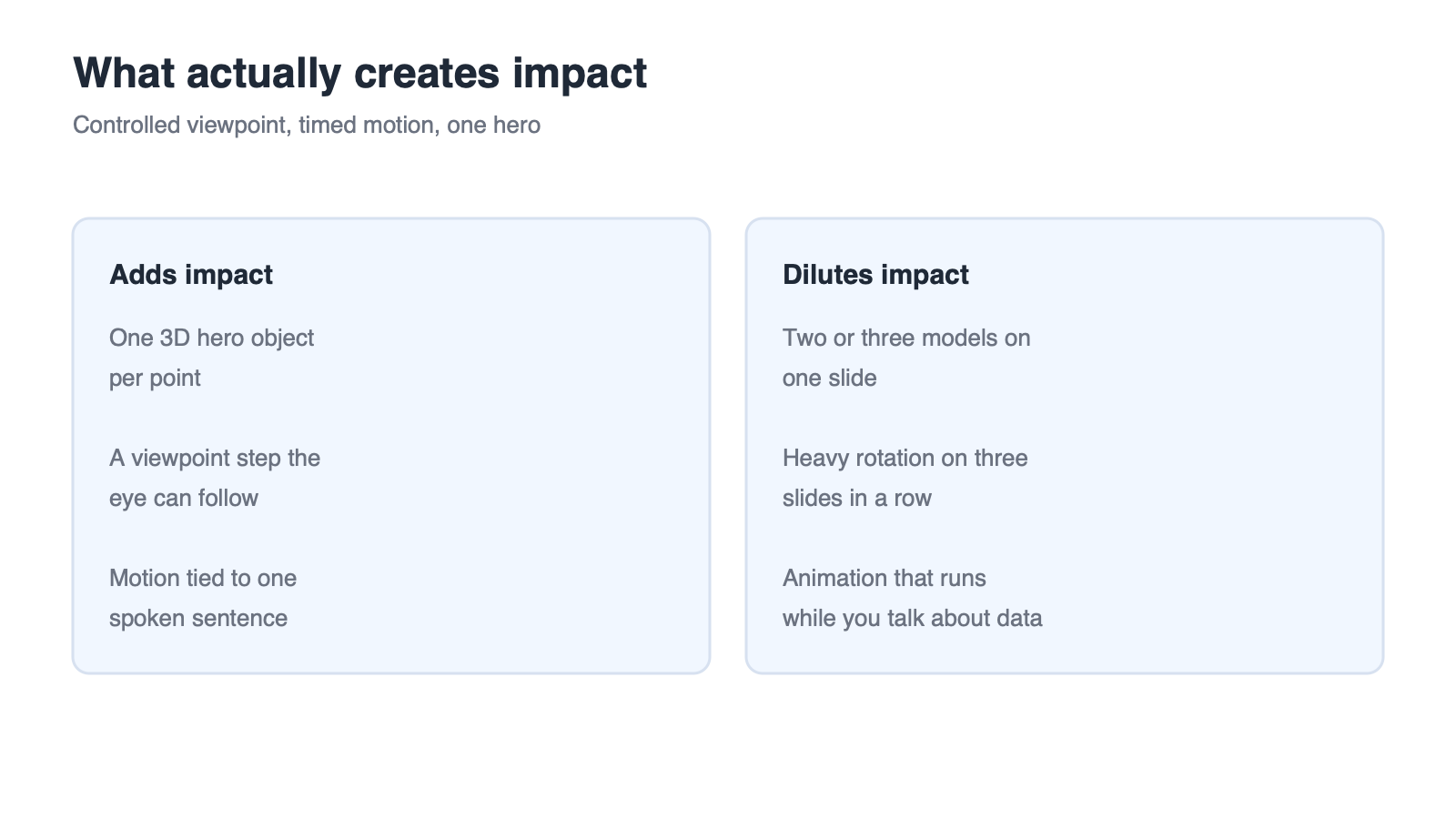
What adds and dilutes 3D impact


Storyboard the Impact Before You Touch the Model
Storyboard on paper or in a plain table before you open the presentation. Give every argument a row, and fill the row before the slide exists. This is the step that makes every later rotation look intentional instead of decorative.
Build a Three-Column Storyboard
Use three columns: the point you are making, the 3D object that carries it, and the viewpoint the slide starts and ends on.
| Point | 3D hero object | Start → end viewpoint |
|---|---|---|
| The housing holds the sensor stack | Cutaway housing model | Front → 45° left |
| The seal is the failure point | Same housing model | 45° left → side profile |
| Assembly order matters | Same housing model | Side profile → exploded angle |
Pick One Hero Object Per Point
Reuse the same model across several points instead of introducing a new one each slide. A single object that keeps rotating becomes a character the audience follows; a parade of new models becomes visual clutter.
Decide Starting and Ending Angles
Write the angle in words, for example front, 45° left, side profile, or slightly above. Writing it down forces the next step to be a planned rotation rather than an improvised one.
Cut anything that has not advanced the story by the fourth slide. A decorative model still costs file size, rendering time, and one more thing that can break in the room.
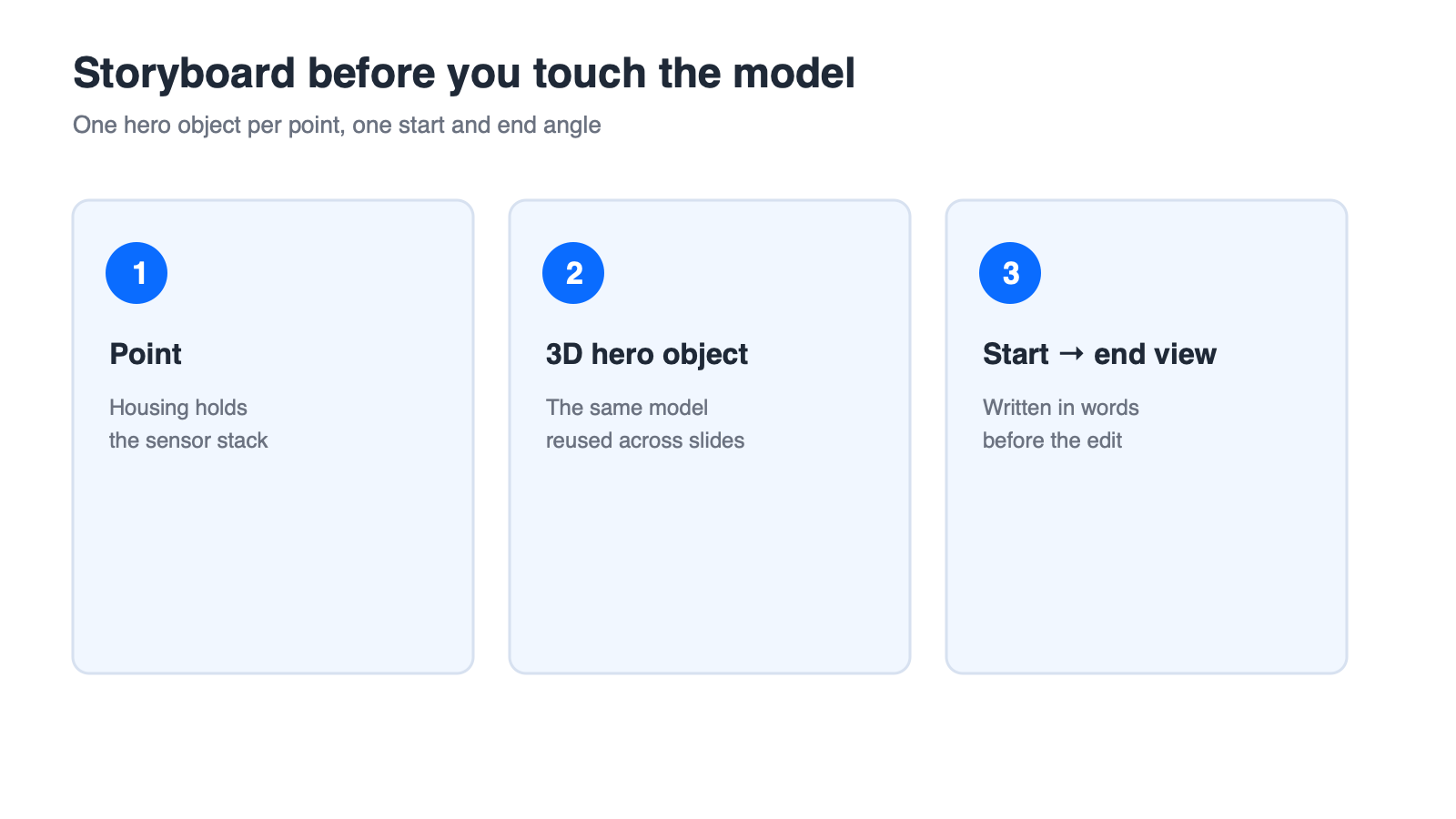
Storyboard columns for a 3D sequence
Sequence Viewpoints Across Slides With Transitions
Cross-slide continuity is what separates a 3D sequence from a collection of 3D slides. The technique is small, repeatable, and boring on purpose: duplicate the slide, change only the viewpoint, and let a transition carry the audience across.
Duplicate, Rotate, Then Transition
Duplicate the slide that already holds the model in its starting position.
On the new slide, select the same object and change only its view. Do not move it, rescale it, or change the light direction.
Add a Morph-style transition between the two slides.
Repeat two or three times to build the progression, then stop on the slide that carries your conclusion.
Keep the Change Small Enough to Follow
Keep each step to roughly 45 degrees or less, hold the same zoom level, and keep the object centred in the same place on the slide. If the object also grows or shifts sideways, the audience reads two changes at once and the sequence feels unstable.
Check Continuity in Slide Show Mode
Play three slides in a row in slide show mode and watch for a reverse jump, a scale pop, or a moment where the object snaps back to its starting position. When you see one, undo that single slide and redo the rotation instead of adjusting the transition duration.
If you present the same PPTX from WPS Presentation, play the sequence once in slide show mode and confirm the transitions still read correctly on your machine. Whether a given Morph-style transition is reproduced with the same animation semantics as PowerPoint depends on the file and the version in use, so treat playback as a check to run rather than a promise.
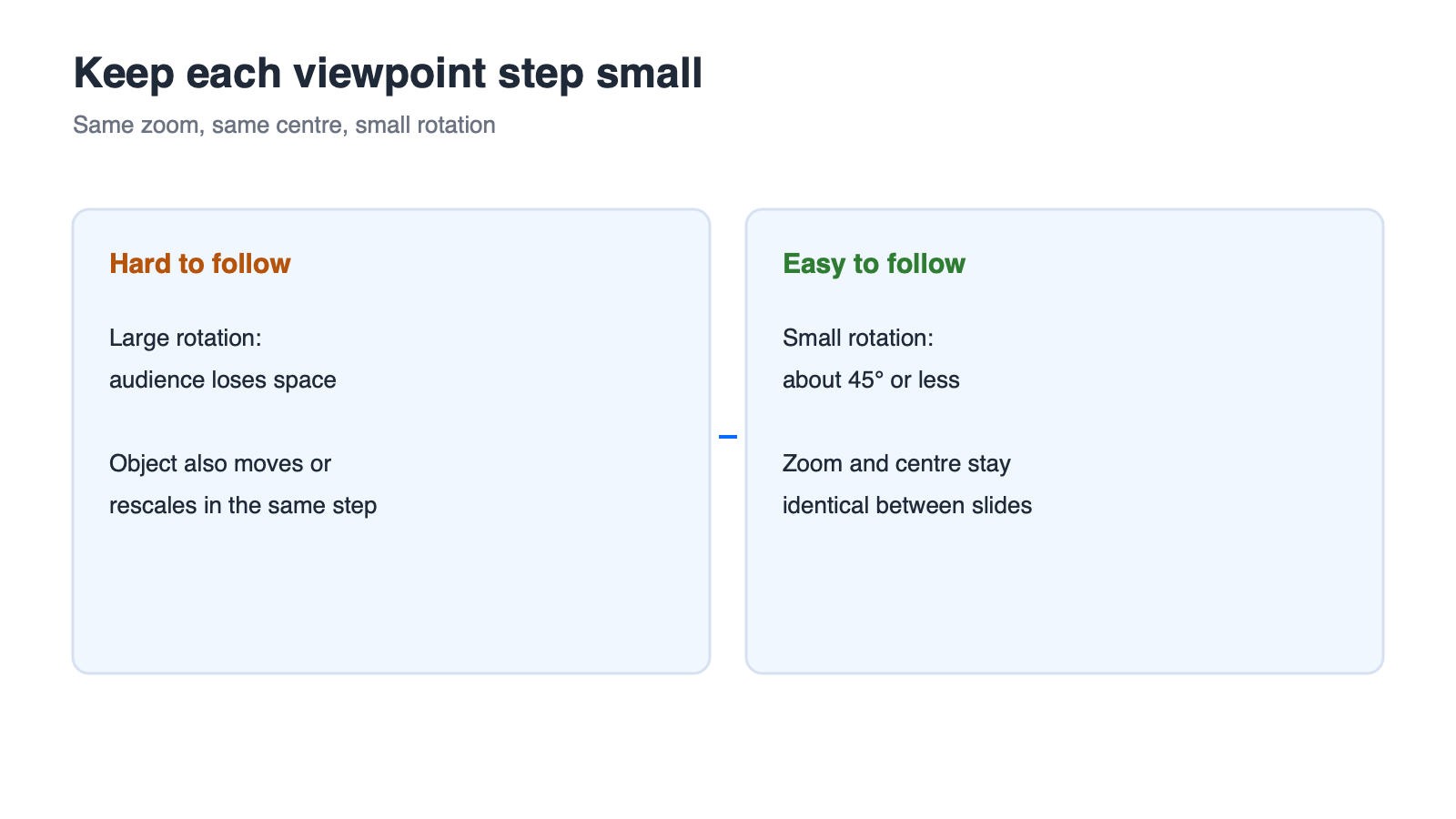
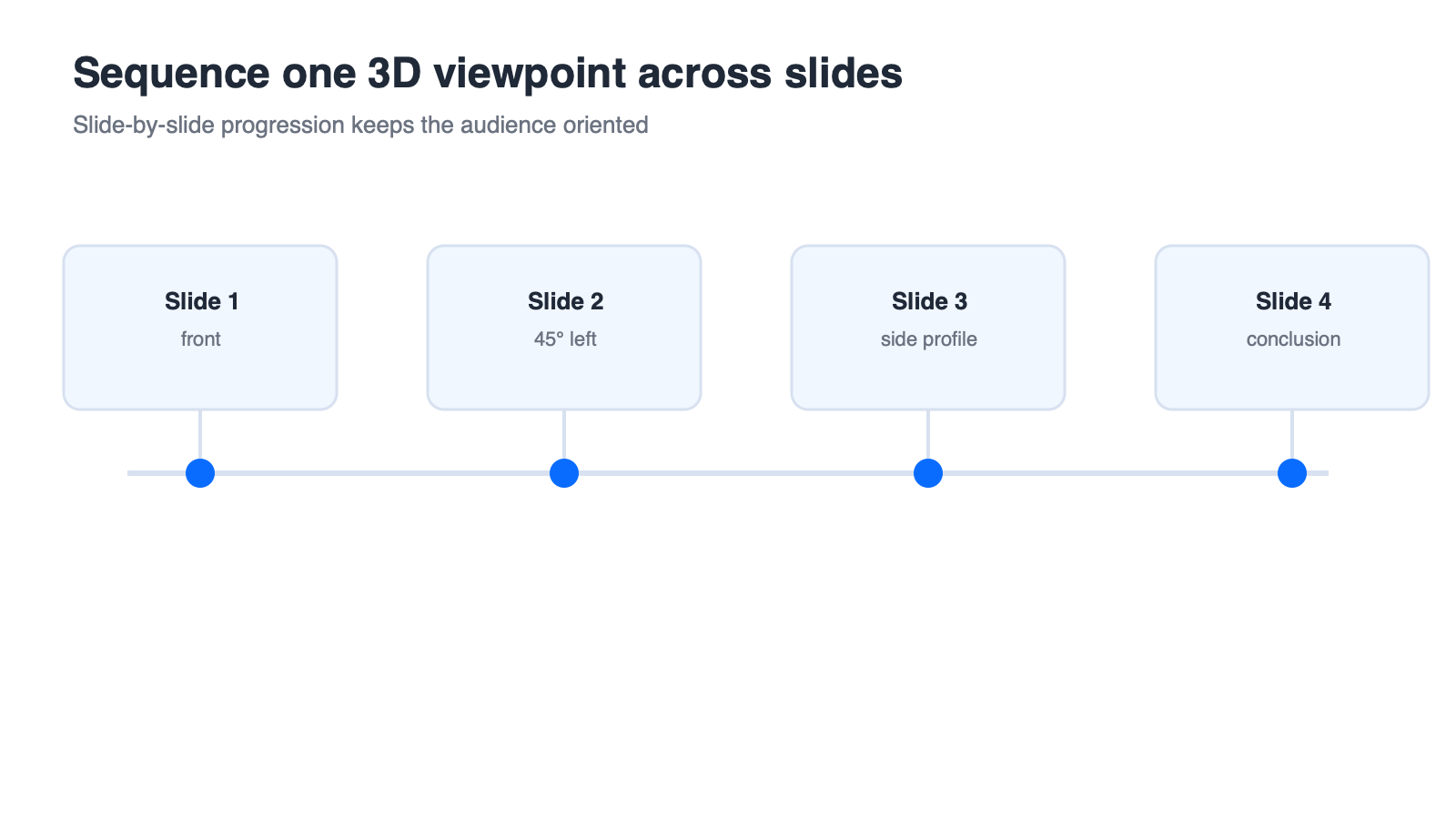
Small viewpoint steps between slides
Time 3D Motion to Your Narration and Slide Builds
Motion timing is where most 3D decks fall apart, because the animation was designed to look good in the editor rather than to match a sentence. Use one spoken line as your unit of timing.
One Motion Per Spoken Point
Write down the sentence you will say for each motion. If two animations are waiting while you say one sentence, delete one of them. The audience can only follow one movement at a time.
Order and Trigger in the Animation Pane
Open the animation pane and reduce the list to the motions you actually need. Set each one to start on click, or together with the previous animation when the movement is meant to feel continuous. The pane order is the order the audience will see, so read it top to bottom as if it were the script.
Rehearse and Trim
Rehearse the section out loud once and note where the motion finishes before you do, or where you finish and the object is still moving. Trim or extend those by small amounts and rehearse again; the useful measurement is your own delivery, not a stopwatch figure quoted from somewhere else.
Anti-Patterns to Avoid
Stacking a rotation, a zoom, and a movement on the same slide.
Leaving a looping motion running in the background while you discuss data.
Playing a decorative animation on a slide where the only thing that matters is a number.
Give every motion a stop condition: the click, the moment your explanation ends, or the point where the object reaches its final viewpoint.
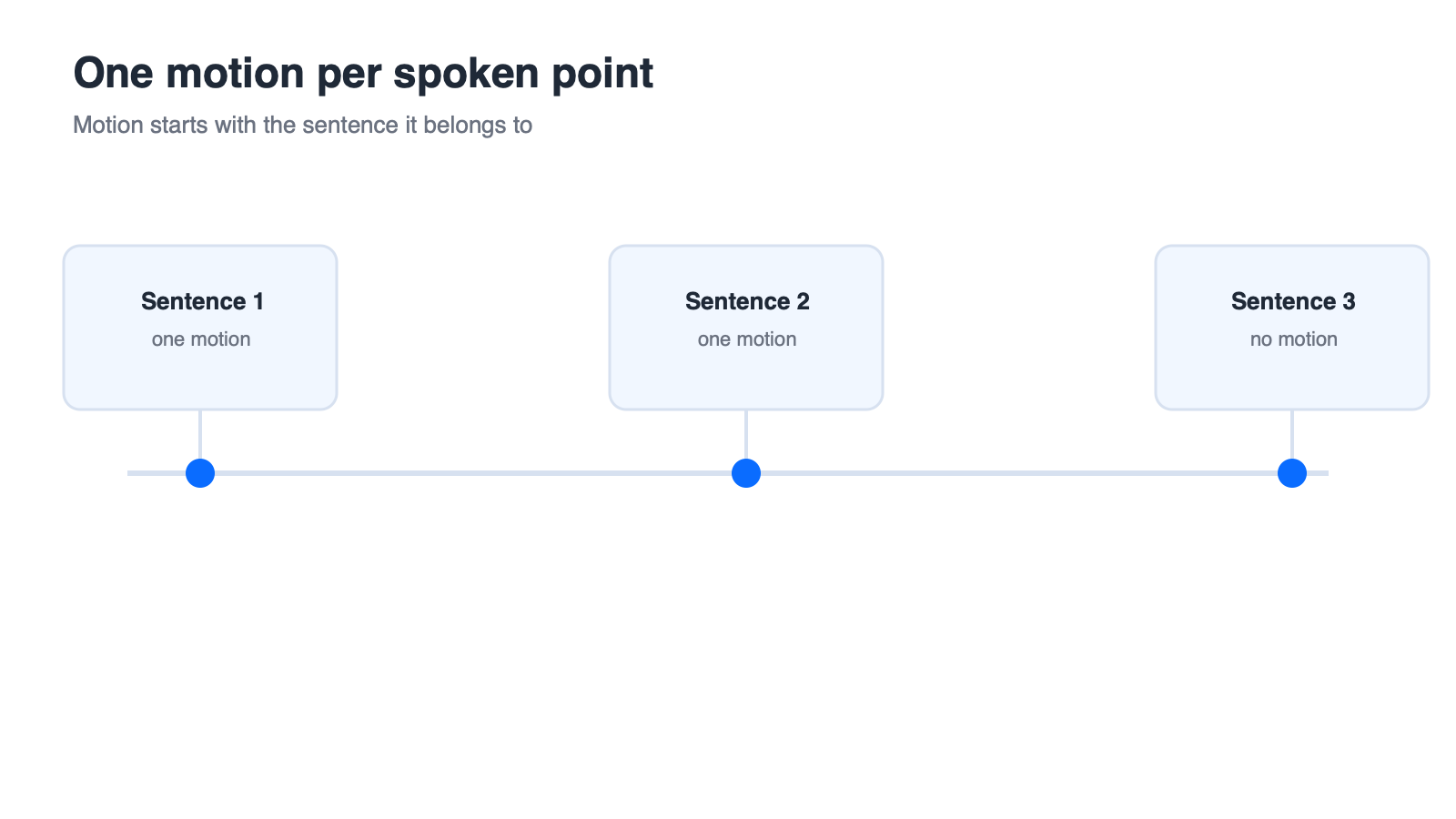
One motion per spoken sentence
WPS Presentation: Present and Export 3D Decks Without Breaking Them
Delivery is a separate job from design. Once the sequence is built, you need to know what will actually happen on the machine in the room, and what the handout will look like when the animation is gone.
Open and Play the Deck
Open the same PPTX in WPS Presentation for a playback check and for text and layout adjustments. What you are verifying is that the deck opens, the slides advance, and the 3D objects render as expected on your machine.
Export a Flattened PDF for Handouts
Export a PDF for distribution. Because PDF is a static format, animation and interaction do not carry over, so choose the frames you want people to keep and make sure the final viewpoint of each sequence is the one that lands in the export.
What We Do Not Claim
This article does not claim that WPS Presentation reproduces every PowerPoint 3D animation effect, that it exposes the same 3D material and lighting editing panels, or that Morph transitions behave identically across the two products. Those points are described here as items to verify against the current official documentation for your version.
File Size and Compression Checks
Compare the deck size before and after you add the 3D sequence, and open the file once on a machine that is not your own. You can start from the free download at WPS Office if the presentation machine does not have a suite installed.
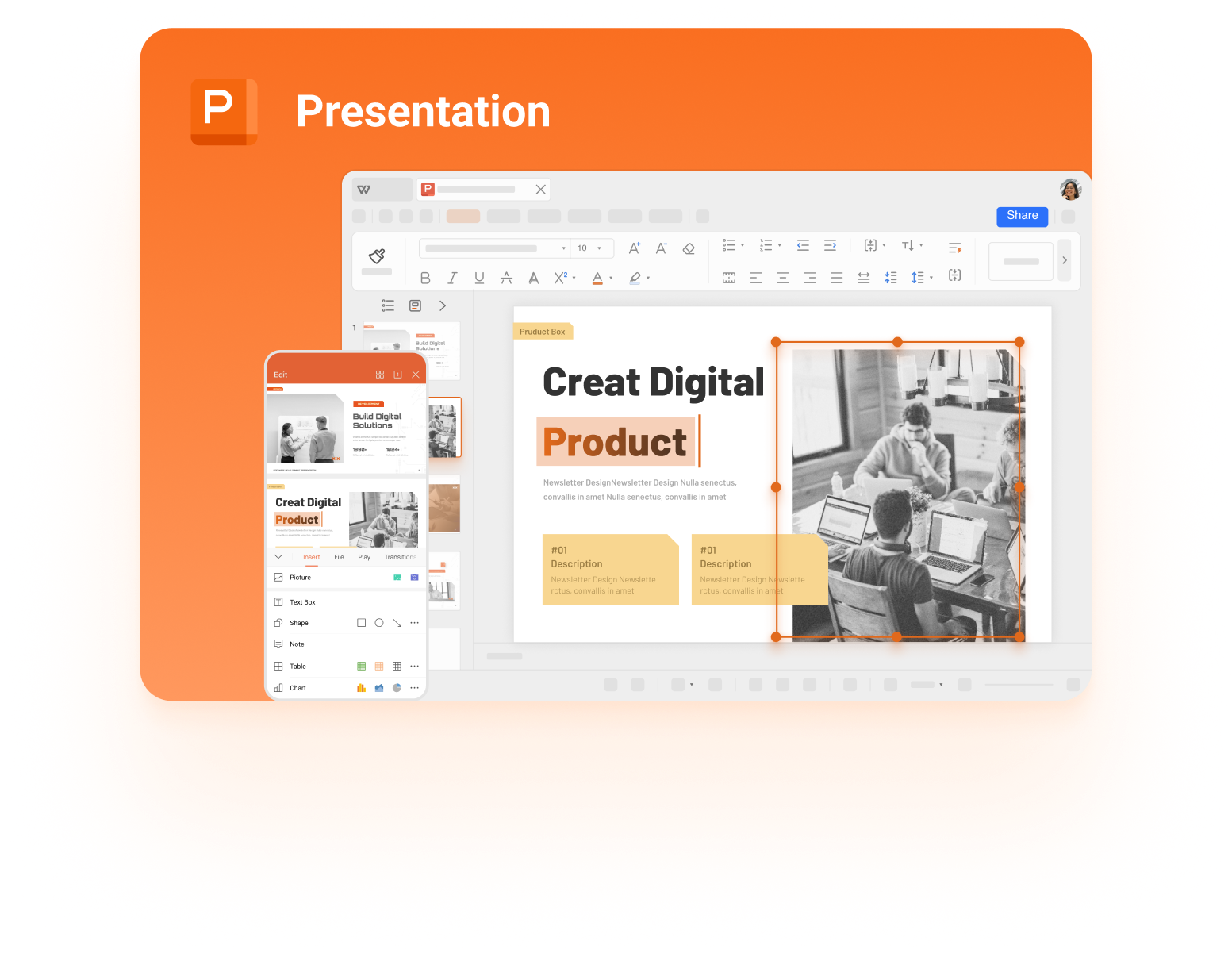
WPS Presentation editing a slide deck
Keep the Deck Fast: Size, Rendering, and Fallbacks
A deck that stutters loses the impact you spent the storyboard on. Fix performance in a fixed order so you always know which change caused a regression.
Reduce Polygons Before Textures
Start with geometry. A lower-polygon version of the same object usually renders faster and is hard to tell apart at presentation distance. Change one thing at a time and play the sequence after each change.
Compress Media Without Losing Text
Next, merge or compress textures, and only then compress the media inside the presentation. Keep text on separate slides where possible so that reducing image quality never blurs a label the audience needs to read.
Fallback: Present the Same Story in 2D
Assume the worst case: an old machine, a projector that downsamples, or a venue that forbids installing anything. Prepare a static version of the same sequence.
| Situation | Fallback |
|---|---|
| Slow venue computer | Replace each viewpoint step with a still image captured at the same angle, in the same order. |
| Web or remote presentation | Use the still frames with a slide-by-slide progression so the viewpoint order still reads. |
| Printed handout | Export a flattened PDF so each frame is fixed at the moment you want people to study. |
Test on the Machine You Will Present From
Open the deck, run the whole sequence once, and check the two transitions before your key visual. Exporting and size checks can be done in WPS Presentation, with the same capability boundaries described in the previous section.
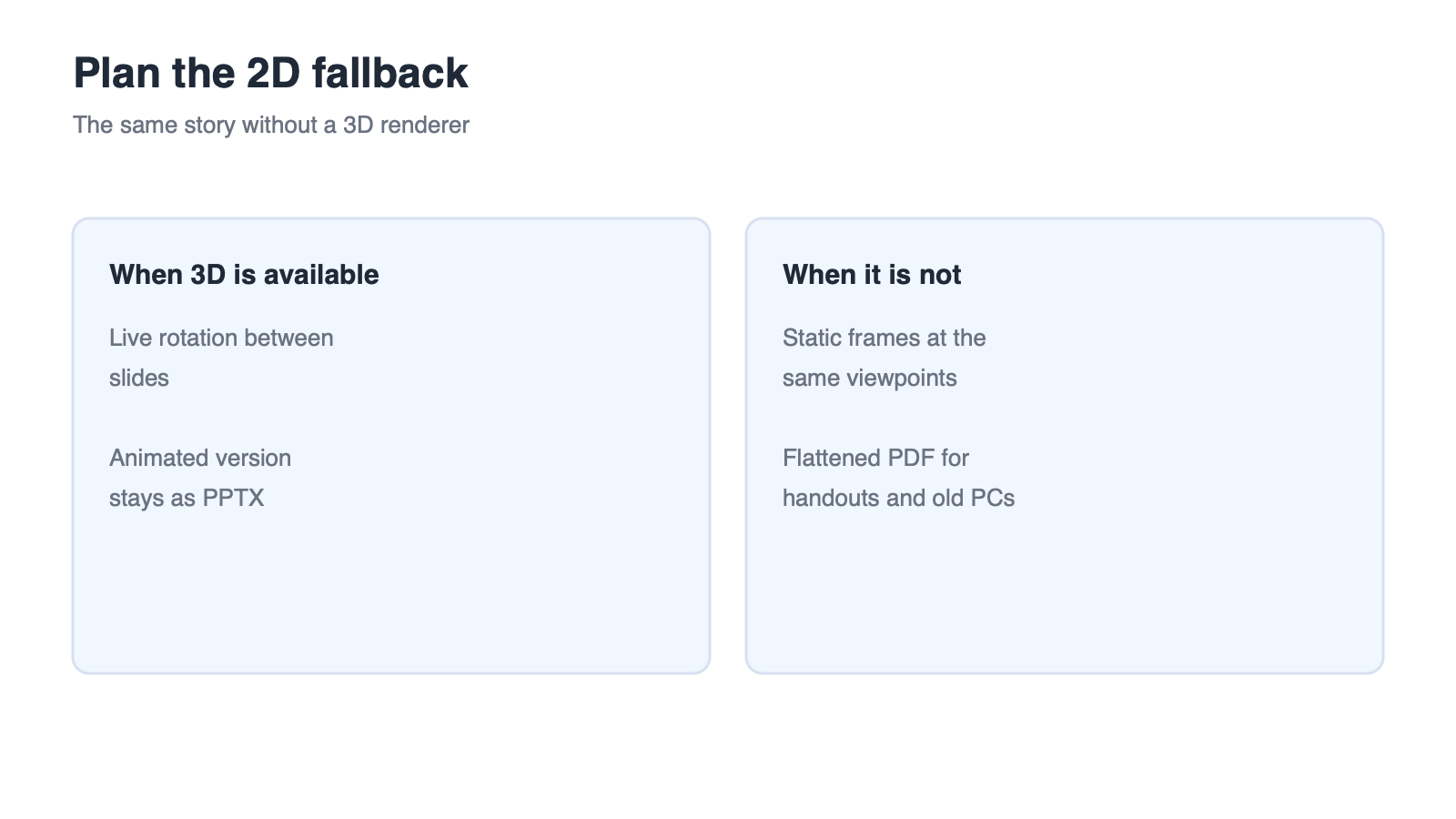
2D fallback plan for 3D decks
FAQs
How many 3D objects should one slide have?
One. A single hero object keeps the audience focused on the point you are making. If a slide genuinely needs two objects, split it into two slides and use the same viewpoint rule between them.
How much can I rotate a model between two slides before it looks jumpy?
Keep the step to roughly 45 degrees or less and hold the same zoom and position. The goal is that a viewer can track the movement without re-orienting themselves between slides.
Can I use 3D models when the venue computer is old?
Test it before you rely on it. Prepare a static 2D version of the same sequence using still images from the same viewpoints so the story survives even if animation playback is slow.
Does my 3D animation survive when I export to PDF?
No. PDF is a static format, so animation and interaction are not carried over. Choose the final viewpoint of each sequence for the export so the handout still tells the story.
Should I animate a 3D model on every slide?
No. Reserve motion for the one or two points that need it. Constant movement competes with your explanation and makes the moments that matter harder to remember.



'%3e%3cpath%20d='M19.9911%204.11386V6.471H18.5894C18.0775%206.471%2017.7322%206.57814%2017.5536%206.79243C17.3751%207.00671%2017.2858%207.32814%2017.2858%207.75671V9.44421H19.9019L19.5536%2012.0871H17.2858V18.8639H14.5536V12.0871H12.2769V9.44421H14.5536V7.49779C14.5536%206.39064%2014.8632%205.53201%2015.4822%204.92189C16.1013%204.31177%2016.9257%204.00671%2017.9554%204.00671C18.8304%204.00671%2019.509%204.04243%2019.9911%204.11386Z'%20fill='%23333333'/%3e%3c/g%3e%3cdefs%3e%3cclipPath%20id='clip0_2938_8199'%3e%3crect%20width='16'%20height='16'%20fill='white'%20transform='translate(8%204.00671)'/%3e%3c/clipPath%3e%3c/defs%3e%3c/svg%3e)
'%3e%3cpath%20d='M17.5237%2010.7813L23.4811%204H22.0699L16.8949%209.88693L12.7648%204H8L14.2469%2012.9029L8%2020.0133H9.4112L14.8725%2013.7952L19.2352%2020.0133H24M9.92053%205.04213H12.0885L22.0688%2019.0224H19.9003'%20fill='%23333333'/%3e%3c/g%3e%3cdefs%3e%3cclipPath%20id='clip0_2938_8200'%3e%3crect%20width='16'%20height='16.0134'%20fill='white'%20transform='translate(8%204)'/%3e%3c/clipPath%3e%3c/defs%3e%3c/svg%3e)


