

'%3e%3cpath%20d='M8%200C12.4183%200%2016%203.58172%2016%208C16%2012.4183%2012.4183%2016%208%2016C3.58172%2016%200%2012.4183%200%208C0%203.58172%203.58172%200%208%200ZM11.6162%204.38379C11.2257%203.99337%2010.5927%203.99338%2010.2021%204.38379L8%206.58594L5.79785%204.38379C5.40732%203.99334%204.77429%203.99329%204.38379%204.38379C3.99331%204.77429%203.99335%205.40733%204.38379%205.79785L6.58594%208L4.38379%2010.2021C3.99348%2010.5927%203.99341%2011.2257%204.38379%2011.6162C4.77426%2012.0066%205.40734%2012.0065%205.79785%2011.6162L8%209.41406L10.2021%2011.6162C10.5927%2012.0066%2011.2257%2012.0067%2011.6162%2011.6162C12.0067%2011.2257%2012.0066%2010.5927%2011.6162%2010.2021L9.41406%208L11.6162%205.79785C12.0066%205.40735%2012.0066%204.77429%2011.6162%204.38379Z'%20fill='%23080E17'%20fill-opacity='0.46'/%3e%3c/g%3e%3cdefs%3e%3cclipPath%20id='clip0_3761_713'%3e%3crect%20width='16'%20height='16'%20fill='white'/%3e%3c/clipPath%3e%3c/defs%3e%3c/svg%3e)


'%3e%3cpath%20fill-rule='evenodd'%20clip-rule='evenodd'%20d='M21.4999%2010.9993C21.4999%205.20009%2016.7986%200.498901%2010.9993%200.498901C5.19994%200.498901%200.498657%205.20009%200.498657%2010.9993C0.498657%2016.2404%204.33858%2020.5844%209.35855%2021.3722V14.0346H6.69238V10.9993H9.35855V8.68594C9.35855%206.05427%2010.9262%204.60062%2013.3248%204.60062C14.4736%204.60062%2015.6753%204.80571%2015.6753%204.80571V7.38979H14.3512C13.0468%207.38979%2012.64%208.19921%2012.64%209.0296V10.9993H15.5523L15.0867%2014.0346H12.64V21.3722C17.66%2020.5844%2021.4999%2016.2404%2021.4999%2010.9993Z'%20fill='%231568EA'/%3e%3c/g%3e%3c/svg%3e)


'%3e%3cpath%20d='M2.42045%2022.1876H6.31818V12.7217L0.75%208.54553V20.5171C0.75%2021.4414%201.49892%2022.1876%202.42045%2022.1876Z'%20fill='%234285F4'/%3e%3cpath%20d='M19.682%2022.1876H23.5797C24.5041%2022.1876%2025.2502%2021.4387%2025.2502%2020.5171V8.54553L19.682%2012.7217'%20fill='%2334A853'/%3e%3cpath%20d='M19.682%205.48293V12.7216L25.2502%208.54543V6.31816C25.2502%204.25236%2022.8921%203.07469%2021.2411%204.31361'%20fill='%23FBBC04'/%3e%3cpath%20d='M6.31824%2012.7217V5.48303L13.0001%2010.4944L19.6819%205.48303V12.7217L13.0001%2017.733'%20fill='%23EA4335'/%3e%3cpath%20d='M0.75%206.31816V8.54543L6.31818%2012.7216V5.48293L4.75909%204.31361C3.10534%203.07469%200.75%204.25236%200.75%206.31816Z'%20fill='%23C5221F'/%3e%3c/g%3e%3cdefs%3e%3cclipPath%20id='clip0_2954_7305'%3e%3crect%20width='24.5'%20height='18.375'%20fill='white'%20transform='translate(0.75%203.8125)'/%3e%3c/clipPath%3e%3c/defs%3e%3c/svg%3e)


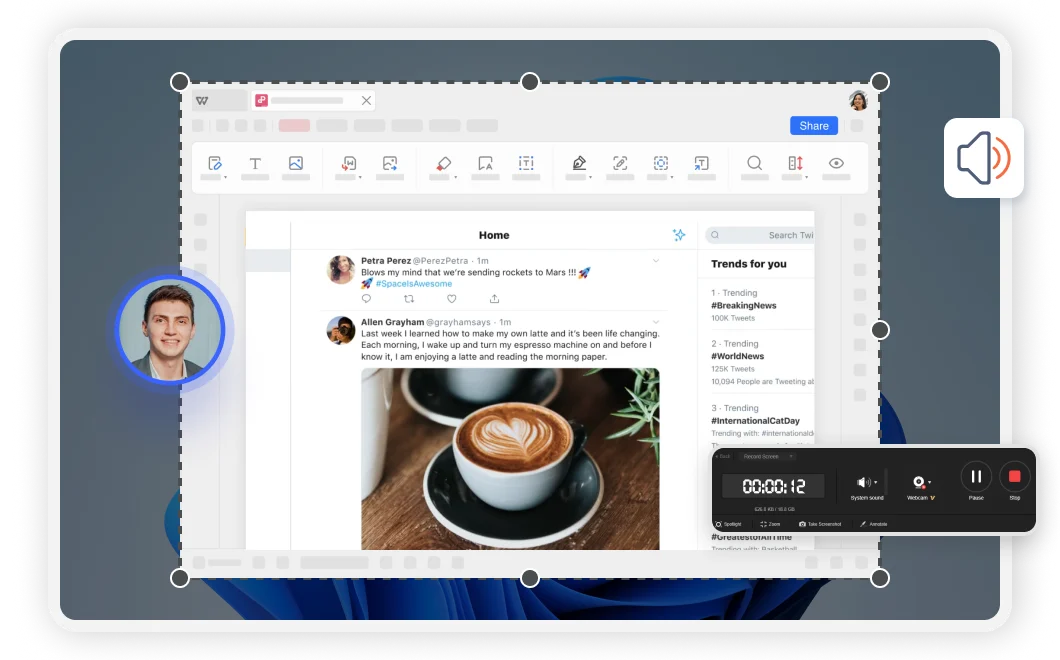
If you are looking for a screen recorder for PowerPoint, you usually want one of two outcomes: capture a software demo or browser window and drop the video onto a slide, or turn a full slide walkthrough into a shareable recording. Those jobs use different PowerPoint features—and mixing them up is the most common reason tutorials feel “wrong.”
This guide starts with PowerPoint’s built-in Insert → Screen Recording path, explains when you should use Record (narration and timings) instead, then compares free and free-friendly alternatives—including WPS Presentation’s Screen Recorder.
Screen Recorder for PowerPoint: Two Features People Confuse
Before you click Record, decide which workflow you need.
Insert → Screen Recording — Records a selected area of your computer screen (and usually audio / mouse pointer), then embeds the clip on the current slide. You can later right-click the video and choose Save Media as to export an MP4. This is the true “screen recorder inside PowerPoint.”
Record / Record Slide Show — Records narration, slide timings, optional ink, and (when supported) webcam while you present the deck. It is ideal for a self-running lesson or exported presentation video, but it does not capture arbitrary apps outside the slide canvas the way Screen Recording does.
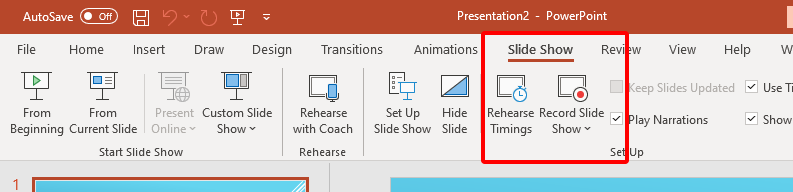
If your goal is “show Excel / a website / another app inside my deck,” use Screen Recording. If your goal is “talk through these slides like a live presenter,” use Record.
How to Use the Built-In Screen Recorder for PowerPoint
Microsoft documents Screen Recording for PowerPoint for Microsoft 365 and recent desktop builds (including PowerPoint 2024, 2021, 2019, and 2016). Menu labels can shift slightly by version; the Insert ribbon is the usual entry point.

Step 1: Open the target slide
Open your presentation and select the slide where the recorded clip should appear.
Step 2: Start Screen Recording
Go to the Insert tab and choose Screen Recording (often in the Media group).
Step 3: Select the recording area
On the control dock, choose Select Area and drag to frame the region you want. Microsoft notes a minimum size of 64×64 pixels. Full-screen shortcuts can differ by build—confirm the hint on your control dock before you start a long take.
Step 4: Confirm audio and pointer
By default, PowerPoint typically records audio and the mouse pointer. Deselect Audio or Record Pointer on the dock if you need a silent clip or a cleaner cursor-free capture.
Step 5: Record, pause, and stop
Select Record, wait for the countdown, then demonstrate the workflow. Use Pause if you need a break. When finished, stop the recording. If the control dock auto-hides, move the pointer to the top of the screen to bring it back (unless you pinned it).
Step 6: Set how the video starts on the slide
The clip is added to the slide. Right-click the video frame, open the start options, and choose whether it plays automatically, on click, or in the click sequence.
Step 7: Trim and export if needed
Right-click the video and choose Trim to cut the start or end. For a standalone file, right-click again and choose Save Media as, then save an MP4 to disk. Built-in trimming is basic—middle cuts and multi-track edits usually need a dedicated video editor.


When Record Beats a Screen Recorder for PowerPoint
Choose PowerPoint’s Record experience (or older Slide Show → Record Slide Show) when you need:
Per-slide narration and timings
Optional talking-head / webcam capture while advancing slides
Easy re-record of a single weak slide
Export of the narrated deck as a video for LMS, email, or async updates
Remember Microsoft’s timing caveat for narrated shows: audio and video are not captured during slide transitions, so pause speaking while the slide changes. That limitation belongs to the narration recorder, not to Insert → Screen Recording demos of other apps.
Other Screen Recorder for PowerPoint Options to Consider
Built-in Screen Recording is enough for many tutorials. Switch tools when you need longer editing, instant share links, or a free-to-start office suite.
| Option | Best for | Trade-off |
|---|---|---|
| PowerPoint Insert → Screen Recording | Embedding a demo on a slide; quick MP4 via Save Media as | Needs desktop PowerPoint; limited editing |
| PowerPoint Record | Narrated decks with timings / export video | Not a general desktop screen grabber |
| Xbox Game Bar (Windows) | Fast app-window captures | Often weak for full desktop / File Explorer scenarios |
| OBS Studio | Layouts, webcam overlay, advanced audio | Steeper learning curve |
| Loom / browser recorders | Instant share links for teammates | Length/plan limits; less “inside the PPTX” control |
| WPS Presentation Screen Recorder | PPTX-friendly recording inside a free-to-start suite | Menus and paid extras can vary by version/plan |
WPS: A Free-Friendly Screen Recorder for PowerPoint
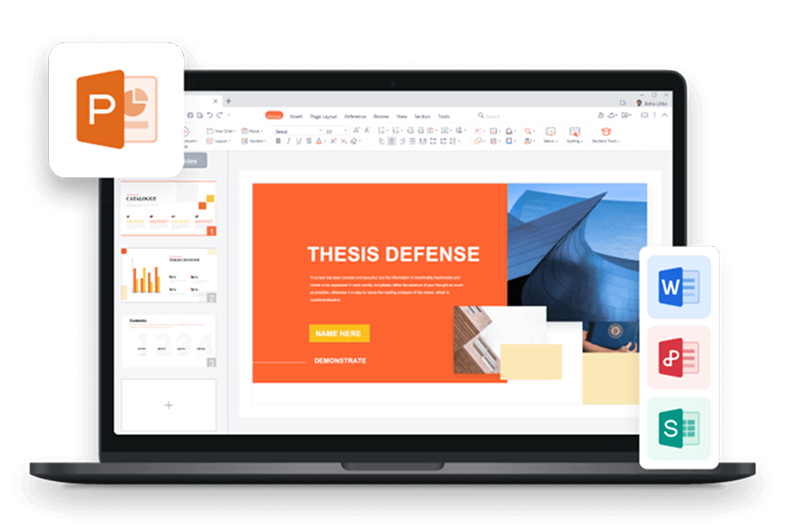
Many people searching for a screen recorder for PowerPoint are also hitting cost or install friction: they want to record a walkthrough, keep editing .pptx files, and avoid stacking a separate recorder plus a full Microsoft subscription for light use.
WPS Presentation includes a Tools → Screen Recorder path on many desktop builds. Official WPS guidance describes modes such as recording the screen (full, selected, or fixed region), locking a window, or recording a webcam. After you stop, you can save the video and place it in your presentation workflow the same way you would reuse any MP4/demo clip.
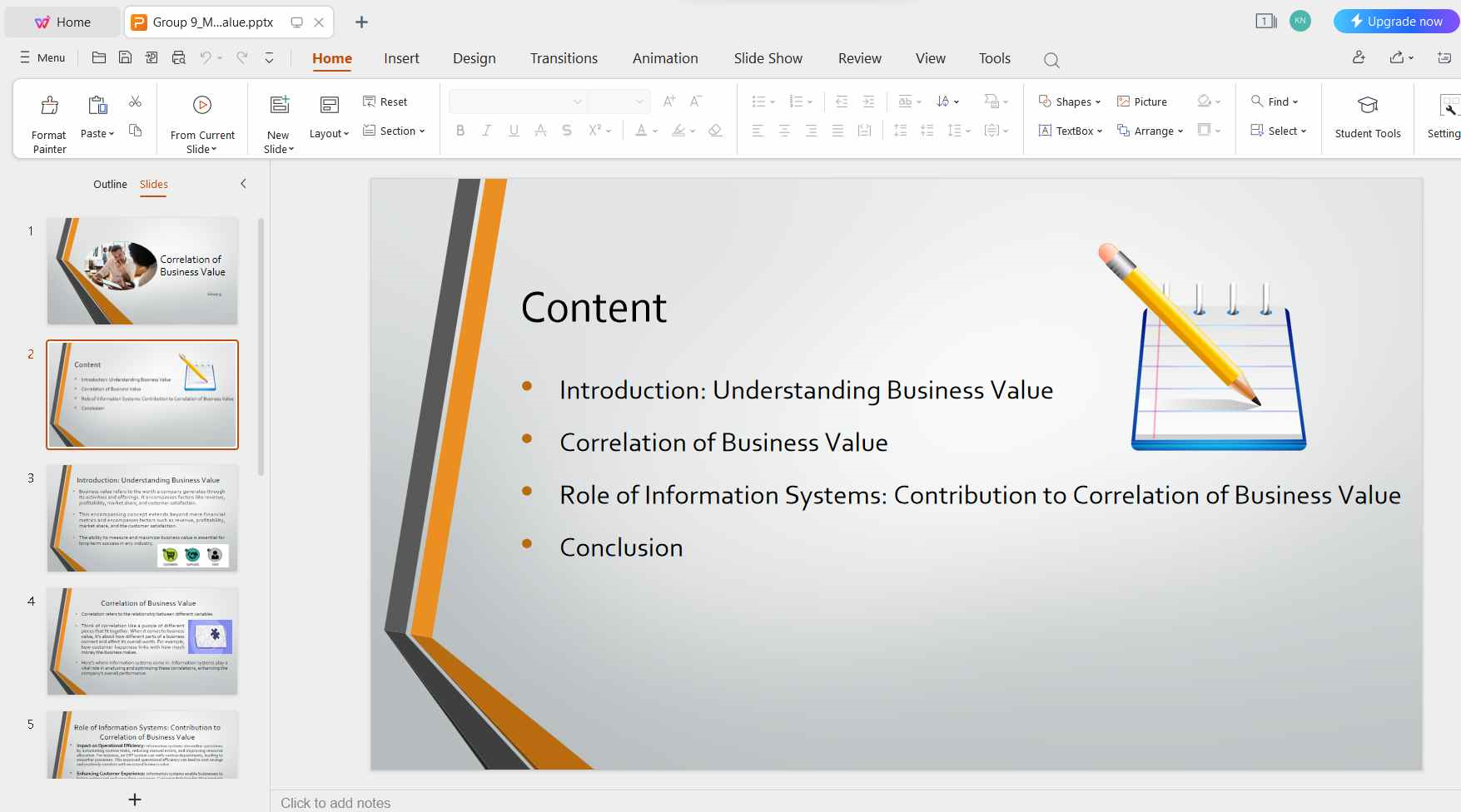
Step 1 — Open your deck in WPS Presentation. Create or open the .pptx file you plan to narrate or demo.

Step 2 — Open Tools → Screen Recorder. On the Tools tab, click the Screen Recorder button to launch the recorder window.
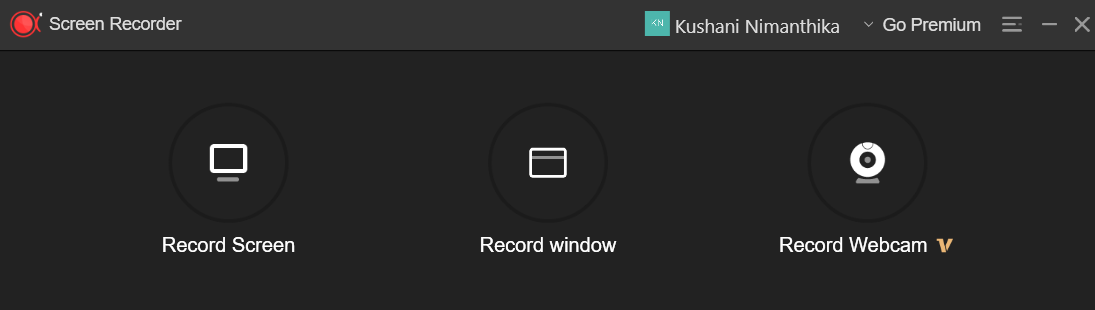
Step 3 — Choose a recording mode. Pick Record Screen, Record window, or Record webcam according to your demo. Then start recording, present your slides or other apps, and stop when finished.
Why teams often consider WPS here:
Core presentation work can stay free to start. Everyday slide editing and recording for many users does not require buying a full Microsoft-style plan first. Advanced extras (for example deeper PDF tools, higher limits, premium templates, or some webcam/editing capabilities, depending on region and plan) may sit behind paid upgrades—check the current official pricing page for your region.
One suite for slides, docs, and spreadsheets. If you upgrade, you typically keep using the same workspace for Writer, Spreadsheets, Presentation, and stronger PDF/conversion features instead of paying for separate single-purpose apps.
Templates and a lighter footprint. WPS targets a Microsoft-like interface with Office-format compatibility across Windows, macOS, Linux, iOS, and Android, which helps when you record on a laptop and tidy slides on another device later.
WPS is not a pixel-perfect clone of every Microsoft Record timing feature. If your must-have is Microsoft’s timed Record-and-export pipeline, stay on desktop PowerPoint. If your must-have is affordable PPTX editing plus an in-suite screen recorder, WPS is one of the clearest alternatives.
Screen Recorder for PowerPoint FAQ
Does PowerPoint include a screen recorder?
Yes on supported desktop builds. Use Insert → Screen Recording to capture a region, embed it on a slide, trim the ends, and optionally Save Media as an MP4.
Is Screen Recording the same as Record Slide Show?
No. Screen Recording captures part of your desktop for a slide. Record / Record Slide Show captures narration and timings while you present the deck.
Can I export the screen recording without the PowerPoint file?
Yes. Right-click the video on the slide and choose Save Media as to save a separate media file.
Does PowerPoint for the web include the same Screen Recording button?
Feature availability differs between desktop and web. If Insert → Screen Recording is missing, use a desktop build or an external recorder, then insert the finished video.
What if I only need narration, not a desktop demo?
Use Record presentation (or Insert → Audio for a single-slide clip). You do not need a full-screen recorder for voice-only walkthroughs.
Is WPS Screen Recorder free?
Core WPS apps are available on a free plan; some advanced recording or suite features may require a paid upgrade depending on your version and region. Confirm on the official WPS site before you buy.

'%3e%3cpath%20d='M19.9911%204.11386V6.471H18.5894C18.0775%206.471%2017.7322%206.57814%2017.5536%206.79243C17.3751%207.00671%2017.2858%207.32814%2017.2858%207.75671V9.44421H19.9019L19.5536%2012.0871H17.2858V18.8639H14.5536V12.0871H12.2769V9.44421H14.5536V7.49779C14.5536%206.39064%2014.8632%205.53201%2015.4822%204.92189C16.1013%204.31177%2016.9257%204.00671%2017.9554%204.00671C18.8304%204.00671%2019.509%204.04243%2019.9911%204.11386Z'%20fill='%23333333'/%3e%3c/g%3e%3cdefs%3e%3cclipPath%20id='clip0_2938_8199'%3e%3crect%20width='16'%20height='16'%20fill='white'%20transform='translate(8%204.00671)'/%3e%3c/clipPath%3e%3c/defs%3e%3c/svg%3e)
'%3e%3cpath%20d='M17.5237%2010.7813L23.4811%204H22.0699L16.8949%209.88693L12.7648%204H8L14.2469%2012.9029L8%2020.0133H9.4112L14.8725%2013.7952L19.2352%2020.0133H24M9.92053%205.04213H12.0885L22.0688%2019.0224H19.9003'%20fill='%23333333'/%3e%3c/g%3e%3cdefs%3e%3cclipPath%20id='clip0_2938_8200'%3e%3crect%20width='16'%20height='16.0134'%20fill='white'%20transform='translate(8%204)'/%3e%3c/clipPath%3e%3c/defs%3e%3c/svg%3e)


