



'%3e%3cpath%20fill-rule='evenodd'%20clip-rule='evenodd'%20d='M21.4999%2010.9993C21.4999%205.20009%2016.7986%200.498901%2010.9993%200.498901C5.19994%200.498901%200.498657%205.20009%200.498657%2010.9993C0.498657%2016.2404%204.33858%2020.5844%209.35855%2021.3722V14.0346H6.69238V10.9993H9.35855V8.68594C9.35855%206.05427%2010.9262%204.60062%2013.3248%204.60062C14.4736%204.60062%2015.6753%204.80571%2015.6753%204.80571V7.38979H14.3512C13.0468%207.38979%2012.64%208.19921%2012.64%209.0296V10.9993H15.5523L15.0867%2014.0346H12.64V21.3722C17.66%2020.5844%2021.4999%2016.2404%2021.4999%2010.9993Z'%20fill='%231568EA'/%3e%3c/g%3e%3c/svg%3e)


'%3e%3cpath%20d='M2.42045%2022.1876H6.31818V12.7217L0.75%208.54553V20.5171C0.75%2021.4414%201.49892%2022.1876%202.42045%2022.1876Z'%20fill='%234285F4'/%3e%3cpath%20d='M19.682%2022.1876H23.5797C24.5041%2022.1876%2025.2502%2021.4387%2025.2502%2020.5171V8.54553L19.682%2012.7217'%20fill='%2334A853'/%3e%3cpath%20d='M19.682%205.48293V12.7216L25.2502%208.54543V6.31816C25.2502%204.25236%2022.8921%203.07469%2021.2411%204.31361'%20fill='%23FBBC04'/%3e%3cpath%20d='M6.31824%2012.7217V5.48303L13.0001%2010.4944L19.6819%205.48303V12.7217L13.0001%2017.733'%20fill='%23EA4335'/%3e%3cpath%20d='M0.75%206.31816V8.54543L6.31818%2012.7216V5.48293L4.75909%204.31361C3.10534%203.07469%200.75%204.25236%200.75%206.31816Z'%20fill='%23C5221F'/%3e%3c/g%3e%3cdefs%3e%3cclipPath%20id='clip0_2954_7305'%3e%3crect%20width='24.5'%20height='18.375'%20fill='white'%20transform='translate(0.75%203.8125)'/%3e%3c/clipPath%3e%3c/defs%3e%3c/svg%3e)


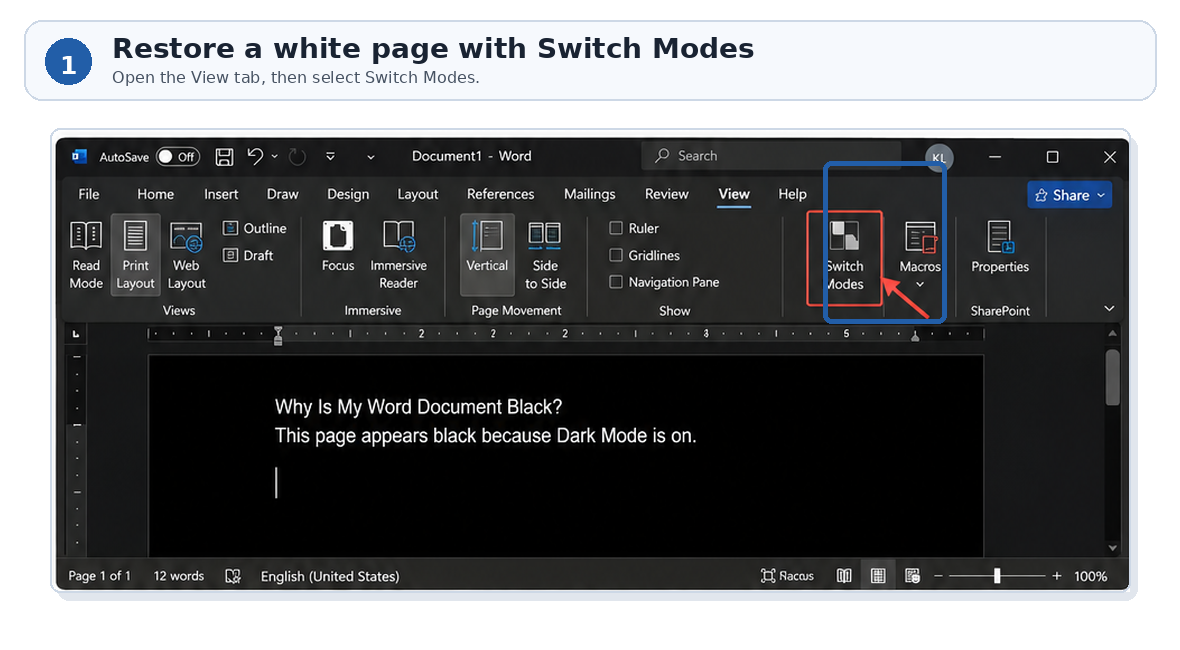
Why Is My Word Document Black? Dark Mode is the most likely cause. The document itself usually still has a white background and is not damaged.
Try this first: View > Switch Modes
- Open the View tab.
- Click Switch Modes.
This changes only the editing page from black to white. The ribbon and menus can remain dark.
- If only one document is affected, go to Design > Page Color > No Color.
- If the whole Word interface is dark, go to File > Account > Office Theme > White.
A page displayed in Word Dark Mode normally does not print with a black background. Dark Mode usually changes only how the document appears on your screen.
Why Is My Word Document Black?
A black Word page does not always mean that the document has a real black background.
In most cases, Microsoft Word is displaying the document canvas in Dark Mode. This can happen when:
- the Office Theme is set to Black;
- Word follows the dark appearance selected in Windows or macOS;
- the dark document canvas has been enabled;
- Microsoft 365 recently changed or updated its appearance settings.
Less commonly, one specific document may contain an actual black Page Color, background image, or full-page shape.
| What you see | Most likely cause | First action |
|---|---|---|
| All Word documents appear black | Word Dark Mode | View > Switch Modes |
| The ribbon and document page are both dark | Black Office Theme | Change Office Theme |
| You want a dark toolbar but a white page | Dark document canvas | Never change the document page color |
| Only one document is black | Actual Page Color or background element | Design > Page Color > No Color |
| Only the area behind text is black | Highlighting or paragraph shading | Home > No Color |
| Word and other applications show unusual colors | Windows Contrast Theme | Check Accessibility settings |
Dark Mode changes how the page appears in Word. Page Color changes the actual document formatting.
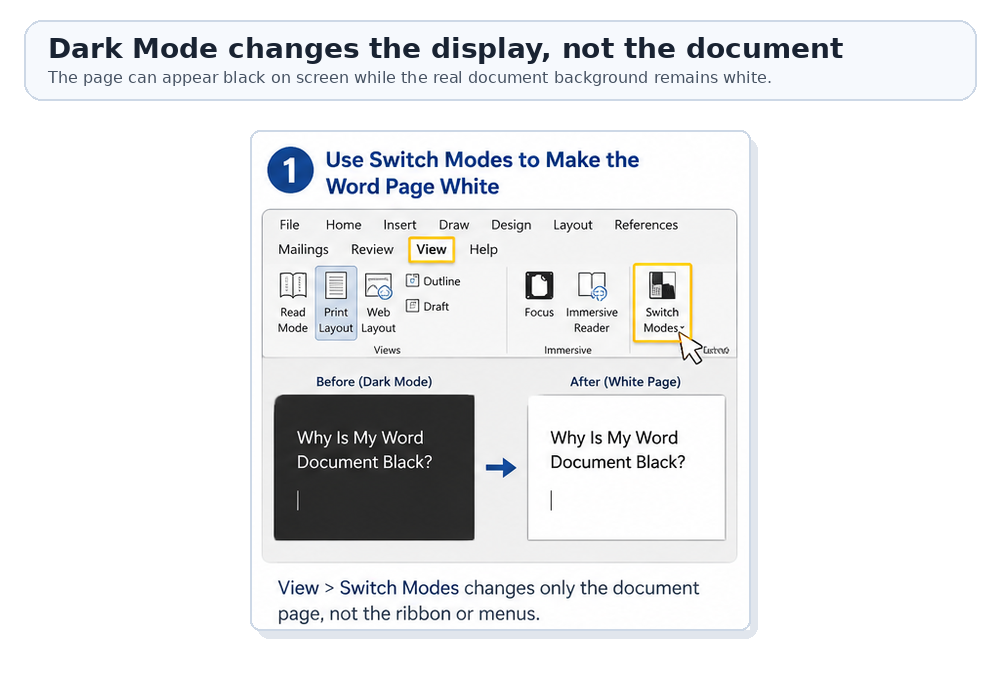
1. Use Switch Modes to Make the Word Page White
Start with this method when multiple Word documents appear black or when the page is black with white text.
Steps to switch the page back to white
- Open the affected Word document.
- Select the View tab on the ribbon.
- Click Switch Modes.
- Confirm that the document page changes to white.
The Word ribbon, toolbar, and menus may remain dark. This is normal because Switch Modes changes only the document canvas.
What does Switch Modes change?
Switch Modes changes the way Word displays the page on your device. It does not normally:
- change the document’s actual Page Color;
- delete or edit your content;
- change another person’s Word theme;
- make the document print with a black background.
What if Switch Modes is missing?
The button may be unavailable when Word is not using its Black theme, you are using an older Word version, Microsoft 365 needs an update, or your version uses a different interface layout.
2. Keep Word Dark but Always Use a White Page
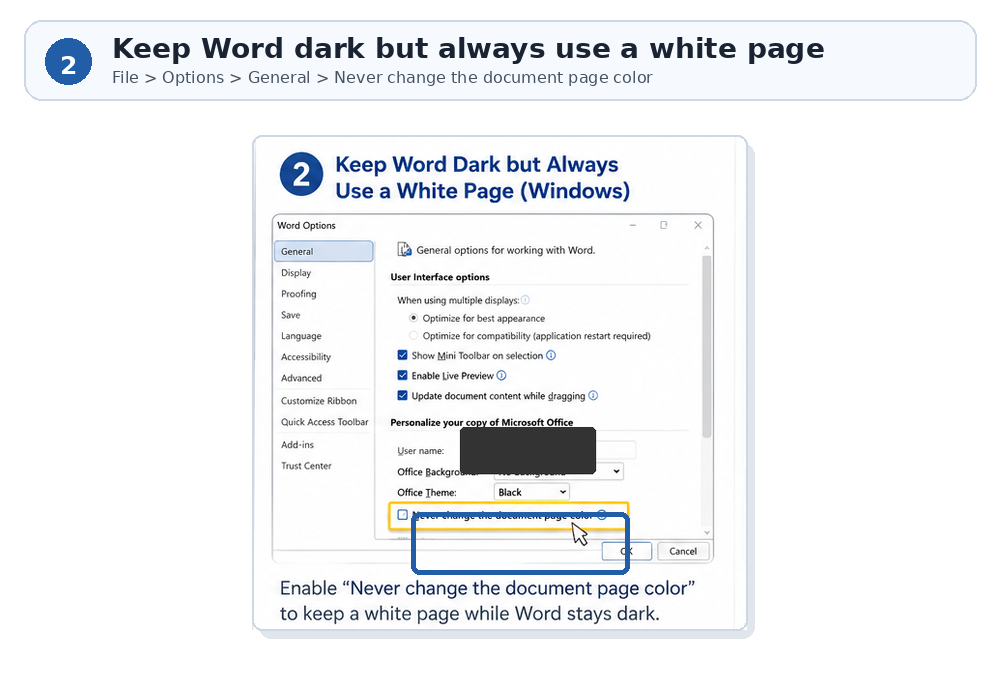
You do not need to disable Dark Mode completely. Word can keep its toolbar, ribbon, and menus dark while always displaying documents on a white page.
On Windows
- Open Microsoft Word.
- Go to File > Options.
- Select General.
- Find Personalize your copy of Microsoft Office.
- Enable Never change the document page color.
- Click OK.
On Mac
- Open Microsoft Word.
- Go to Word > Preferences.
- Select General.
- Find the Personalize section.
- Select Dark Mode has a white page color.
3. Turn Off Dark Mode Completely in Word
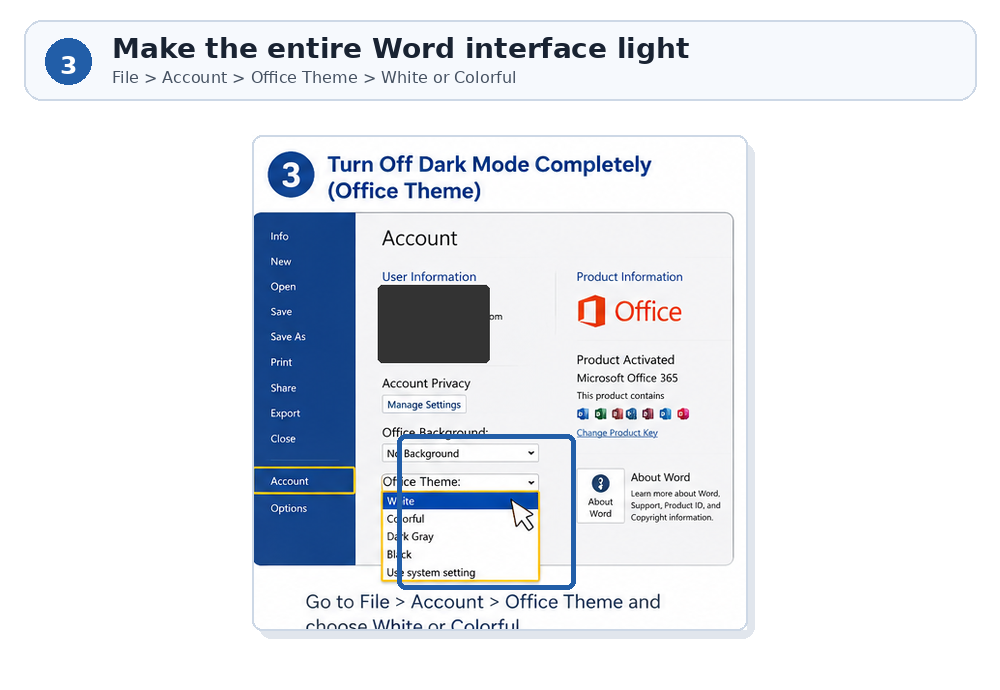
Use this method when you want the page, toolbar, ribbon, and menus to all return to a light appearance.
Change the Office Theme on Windows
- Open Word.
- Go to File > Account.
- Find Office Theme.
- Select White or Colorful.
Turn off Dark Mode on Mac
- Open Word.
- Go to Word > Preferences.
- Select General.
- Find the Personalize settings.
- Select Turn off Dark Mode.
Which setting should you use?
- View > Switch Modes: Make only the page white.
- Never change the document page color: Keep every document page white while Word remains dark.
- Office Theme > White: Make the entire Word application light.
4. Fix a Black Background in Only One Word Document
If your other Word files appear white but one specific document remains black, the problem may be stored inside that file.
The document may contain a black Page Color, full-page background image, large black shape, template formatting, or an object placed behind the text.
Remove the Page Color
- Open the affected document.
- Select the Design tab.
- Click Page Color.
- Choose No Color.
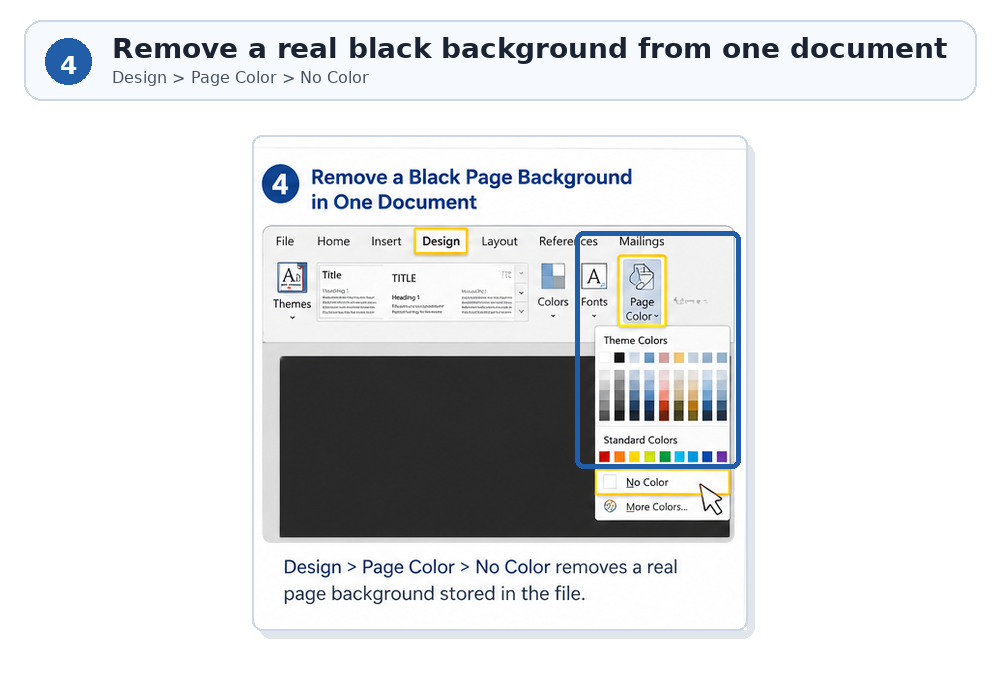
Compare it with a blank document
- If the blank document also appears black, check Dark Mode and the Office Theme.
- If the blank document is white, the original file probably contains a Page Color, shape, image, or template background.
Check for a full-page shape or image
If Page Color is already set to No Color, click around the black area. If you can select an object, use Shape Format > Shape Fill > No Fill, or delete the object if it is not needed.
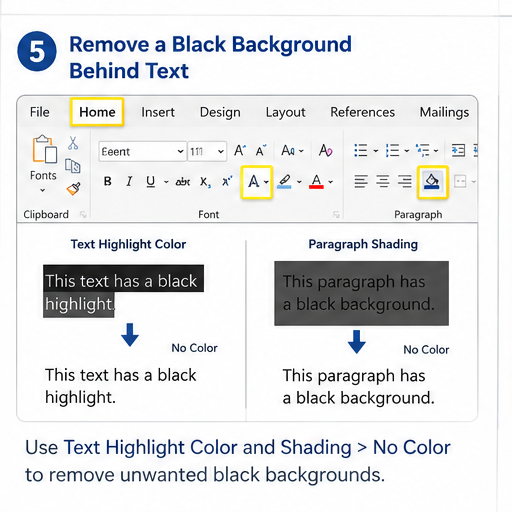
5. Remove a Black Background Behind Text
If the page is white but individual words, sentences, or paragraphs have black backgrounds, Word Dark Mode is probably not the cause.
Remove text highlighting
- Select the affected text.
- Open the Home tab.
- Open Text Highlight Color.
- Select No Color.
Remove paragraph shading
- Select the affected paragraph.
- Open the Home tab.
- Find the Paragraph group.
- Open Shading.
- Select No Color.
Paste the content without formatting
Text copied from a website, PDF, email, or another dark-mode application may include unwanted background formatting. Try Ctrl + Shift + V, choose Keep Text Only, or use Clear All Formatting.
6. Fix a Black Word Page on Mac
Make the page white
- Open the Word document.
- Select View.
- Click Switch Modes.
Keep Word dark with a white page
Go to Word > Preferences > General, then select Dark Mode has a white page color.
Turn off Word Dark Mode completely
Go to Word > Preferences > General, then select Turn off Dark Mode. If Word remains dark, check whether macOS uses Dark or Auto appearance.
7. Fix a Black Page in Word for the Web
Word for the web may use Dark Mode when your browser or operating system has a dark appearance.
- Open the document in Word for the web.
- Select the View tab.
- Click Switch Backgrounds.
Word for the web may remember this setting separately from Word for Windows or Mac.
8. What to Do If the Word Page Is Still Black
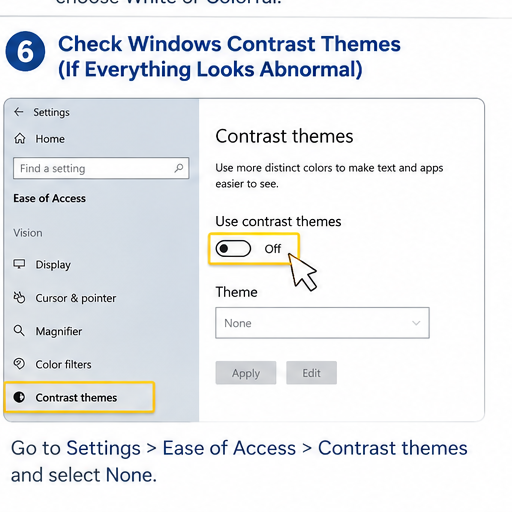
Turn off Windows Contrast Themes
If Word and other applications all show unusual, inverted, or extremely high-contrast colors: For more common Word problems and fixes, browse the Word errors guide collection.
- Open Settings.
- Select Accessibility.
- Open Contrast themes.
- Select None.
- Click Apply.
Check Windows color filters
Open Settings > Accessibility > Color filters, temporarily disable the filter, and check Word again.
Restart and update Word
Save your document, close every Word window, reopen the application, and compare the affected file with a new blank document. To update Word, go to File > Account > Update Options > Update Now.
Repair Microsoft Office
Use Office Repair only after the simpler display and formatting methods have failed. In Windows Installed apps, find Microsoft 365, choose Modify, run Quick Repair, and use Online Repair only if necessary.
Check whether the document is corrupted
A black Word page alone usually does not mean the file is corrupted. If the file also refuses to open, reports unreadable content, loses text or images, shows broken formatting in multiple editors, or repeatedly crashes Word, follow a dedicated how to fix a corrupted Word document guide before making further changes.
If Word closed unexpectedly and your latest changes were not saved, use this guide to recover unsaved Word documents on Windows, Mac, Android, or iPhone.
9. Will the Black Word Page Print Black?
A page displayed as black because of Word Dark Mode normally prints with a white background. Dark Mode changes the screen display and does not automatically change the document’s real Page Color.
If the file has an actual black Page Color, review File > Print and return to Design > Page Color > No Color when you want a white page.
Word also includes File > Options > Display > Print background colors and images. When enabled, an actual document background may be printed.
Dark Mode changes the display. Page Color changes the document.
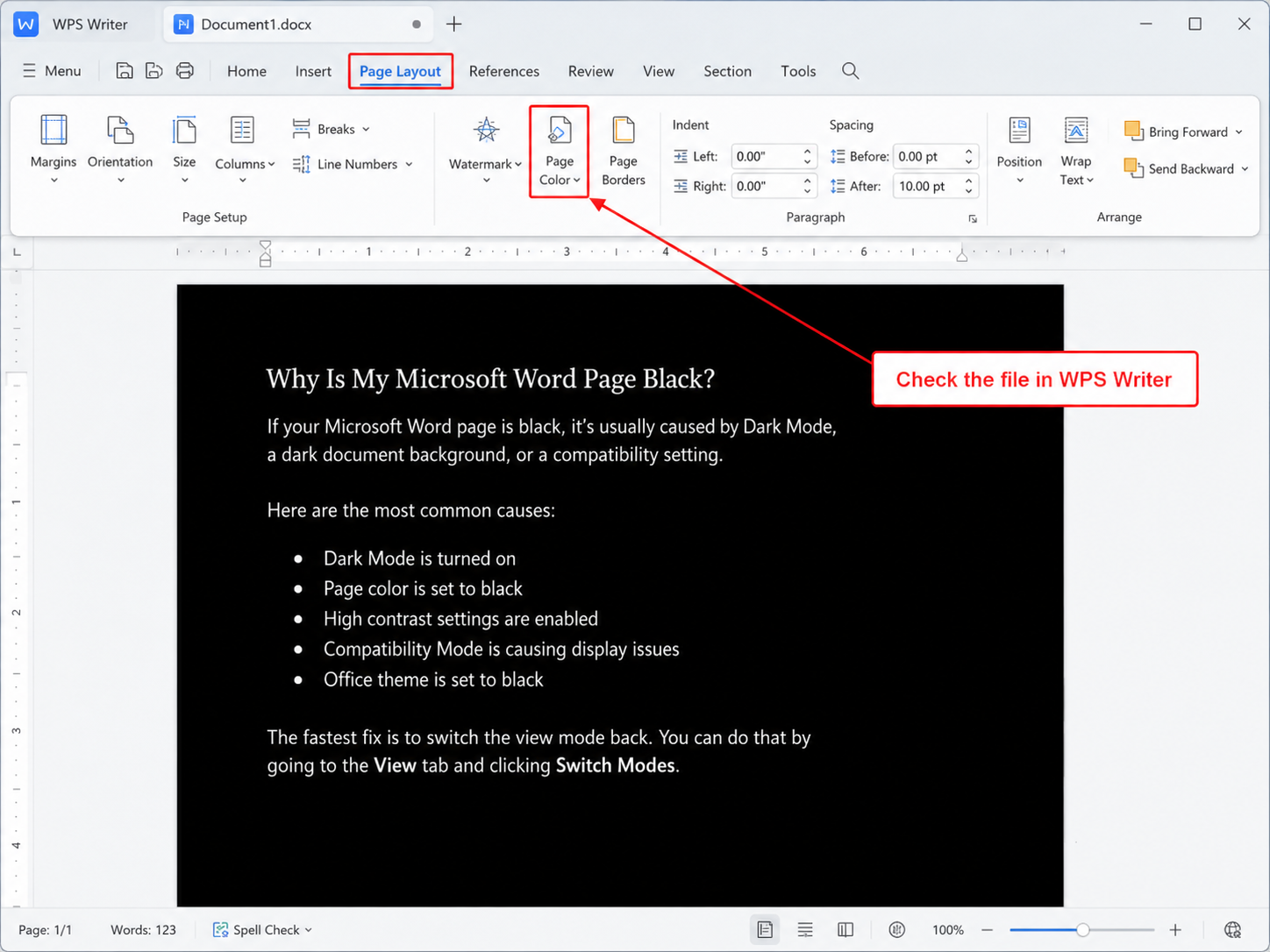
10. Check the Document in WPS Writer
If Microsoft Word is unavailable or continues to display the file incorrectly, open the DOCX document in WPS Writer to compare how it appears.
This can help determine whether the black page comes from Microsoft Word’s local Dark Mode settings, an actual Page Color stored in the document, a background shape or image, or text formatting.
Open and inspect the file
- Open WPS Office.
- Open the affected DOCX file in WPS Writer.
- Check whether the page still appears black.
- If the WPS interface is dark, switch to a light theme.
- If the document itself has a black background, go to Page Layout > Page Color.
- Restore the default page color.
- Save the corrected document as a new copy.
Open Your Word Document in WPS Writer
Open, inspect, edit, and save DOCX documents with a Word-compatible office suite.
Free Download


Frequently Asked Questions
Why Is My Word Document Black?
Word Dark Mode, the Black Office Theme, or your computer’s system theme was probably enabled. Start with View > Switch Modes.
How do I make the Word page white again?
Go to View > Switch Modes. This changes the editing canvas from black to white.
Does a black Word page mean the document has a black background?
Not necessarily. Dark Mode can make the page appear black even when the document still has a normal white background.
How do I keep Word dark but make the page white?
On Windows, enable Never change the document page color under File > Options > General. On Mac, select Dark Mode has a white page color under Word Preferences.
Why is only one Word document black?
The file may contain an actual Page Color, background image, full-page shape, or template formatting. Start with Design > Page Color > No Color.
Why does only my text have a black background?
The text may have highlighting, paragraph shading, or formatting copied from another source. Remove both Highlight Color and Shading.
Will a Word page displayed in Dark Mode print black?
Normally no. Dark Mode changes the screen display, while the document still prints using its normal page color.
Does a black page mean my Word document is corrupted?
Usually not. Check Dark Mode, Office Theme, Page Color, highlighting, and Windows display settings before considering file corruption.

'%3e%3cpath%20d='M19.9911%204.11386V6.471H18.5894C18.0775%206.471%2017.7322%206.57814%2017.5536%206.79243C17.3751%207.00671%2017.2858%207.32814%2017.2858%207.75671V9.44421H19.9019L19.5536%2012.0871H17.2858V18.8639H14.5536V12.0871H12.2769V9.44421H14.5536V7.49779C14.5536%206.39064%2014.8632%205.53201%2015.4822%204.92189C16.1013%204.31177%2016.9257%204.00671%2017.9554%204.00671C18.8304%204.00671%2019.509%204.04243%2019.9911%204.11386Z'%20fill='%23333333'/%3e%3c/g%3e%3cdefs%3e%3cclipPath%20id='clip0_2938_8199'%3e%3crect%20width='16'%20height='16'%20fill='white'%20transform='translate(8%204.00671)'/%3e%3c/clipPath%3e%3c/defs%3e%3c/svg%3e)
'%3e%3cpath%20d='M17.5237%2010.7813L23.4811%204H22.0699L16.8949%209.88693L12.7648%204H8L14.2469%2012.9029L8%2020.0133H9.4112L14.8725%2013.7952L19.2352%2020.0133H24M9.92053%205.04213H12.0885L22.0688%2019.0224H19.9003'%20fill='%23333333'/%3e%3c/g%3e%3cdefs%3e%3cclipPath%20id='clip0_2938_8200'%3e%3crect%20width='16'%20height='16.0134'%20fill='white'%20transform='translate(8%204)'/%3e%3c/clipPath%3e%3c/defs%3e%3c/svg%3e)


