

'%3e%3cpath%20d='M8%200C12.4183%200%2016%203.58172%2016%208C16%2012.4183%2012.4183%2016%208%2016C3.58172%2016%200%2012.4183%200%208C0%203.58172%203.58172%200%208%200ZM11.6162%204.38379C11.2257%203.99337%2010.5927%203.99338%2010.2021%204.38379L8%206.58594L5.79785%204.38379C5.40732%203.99334%204.77429%203.99329%204.38379%204.38379C3.99331%204.77429%203.99335%205.40733%204.38379%205.79785L6.58594%208L4.38379%2010.2021C3.99348%2010.5927%203.99341%2011.2257%204.38379%2011.6162C4.77426%2012.0066%205.40734%2012.0065%205.79785%2011.6162L8%209.41406L10.2021%2011.6162C10.5927%2012.0066%2011.2257%2012.0067%2011.6162%2011.6162C12.0067%2011.2257%2012.0066%2010.5927%2011.6162%2010.2021L9.41406%208L11.6162%205.79785C12.0066%205.40735%2012.0066%204.77429%2011.6162%204.38379Z'%20fill='%23080E17'%20fill-opacity='0.46'/%3e%3c/g%3e%3cdefs%3e%3cclipPath%20id='clip0_3761_713'%3e%3crect%20width='16'%20height='16'%20fill='white'/%3e%3c/clipPath%3e%3c/defs%3e%3c/svg%3e)




'%3e%3cpath%20fill-rule='evenodd'%20clip-rule='evenodd'%20d='M21.4999%2010.9993C21.4999%205.20009%2016.7986%200.498901%2010.9993%200.498901C5.19994%200.498901%200.498657%205.20009%200.498657%2010.9993C0.498657%2016.2404%204.33858%2020.5844%209.35855%2021.3722V14.0346H6.69238V10.9993H9.35855V8.68594C9.35855%206.05427%2010.9262%204.60062%2013.3248%204.60062C14.4736%204.60062%2015.6753%204.80571%2015.6753%204.80571V7.38979H14.3512C13.0468%207.38979%2012.64%208.19921%2012.64%209.0296V10.9993H15.5523L15.0867%2014.0346H12.64V21.3722C17.66%2020.5844%2021.4999%2016.2404%2021.4999%2010.9993Z'%20fill='%231568EA'/%3e%3c/g%3e%3c/svg%3e)


'%3e%3cpath%20d='M2.42045%2022.1876H6.31818V12.7217L0.75%208.54553V20.5171C0.75%2021.4414%201.49892%2022.1876%202.42045%2022.1876Z'%20fill='%234285F4'/%3e%3cpath%20d='M19.682%2022.1876H23.5797C24.5041%2022.1876%2025.2502%2021.4387%2025.2502%2020.5171V8.54553L19.682%2012.7217'%20fill='%2334A853'/%3e%3cpath%20d='M19.682%205.48293V12.7216L25.2502%208.54543V6.31816C25.2502%204.25236%2022.8921%203.07469%2021.2411%204.31361'%20fill='%23FBBC04'/%3e%3cpath%20d='M6.31824%2012.7217V5.48303L13.0001%2010.4944L19.6819%205.48303V12.7217L13.0001%2017.733'%20fill='%23EA4335'/%3e%3cpath%20d='M0.75%206.31816V8.54543L6.31818%2012.7216V5.48293L4.75909%204.31361C3.10534%203.07469%200.75%204.25236%200.75%206.31816Z'%20fill='%23C5221F'/%3e%3c/g%3e%3cdefs%3e%3cclipPath%20id='clip0_2954_7305'%3e%3crect%20width='24.5'%20height='18.375'%20fill='white'%20transform='translate(0.75%203.8125)'/%3e%3c/clipPath%3e%3c/defs%3e%3c/svg%3e)


Quick answer: In Microsoft Word, press Ctrl + P, set scaling to 100% (not Fit to Page / Shrink), then go to File → Options → Advanced, scroll to Print, and clear Scale content for A4 or 8.5 × 11 paper sizes. Confirm Layout → Size matches the paper in your tray (usually Letter in the U.S.).
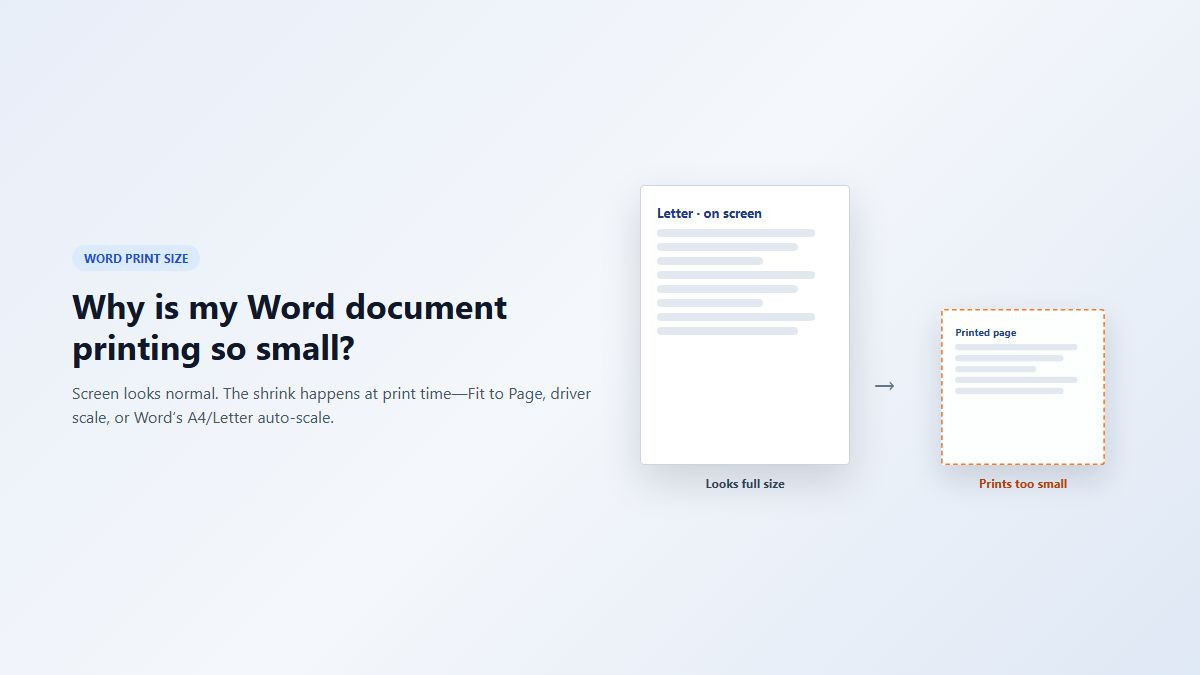
When people ask why is my word document printing so small, the on-screen layout usually looks fine. The shrink happens at print time—Word or the printer driver quietly scales Letter and A4, or “helps” with Fit to Page.
Start with the Word fixes below. If you open the same .docx in WPS, there’s a short check at the end.
Why Word prints smaller than it looks on screen
Most “tiny printout” cases come from one of these:
Print scaling set below 100% (Fit to Page, Shrink to Fit, or a custom percent like 92%)
Scale content for A4 or 8.5 × 11 left on in Word Options (silent Letter ↔ A4 rescale)
Paper size mismatch (document set to A4, tray loaded with Letter—or the reverse)
Pages per sheet greater than 1, or printer-driver “fit” options
Less often: Print Markup / review balloons eating margin space so the page looks squeezed
A useful clue: if the same file prints full size from a PDF or browser, the printer hardware is fine—the setting lives in Word or the Word print path.
Fix 1: Set print scale to 100% (no Fit to Page)
Use this first—it’s the fastest check in the Print screen.
Open the document in Word for Windows (Microsoft 365, Word 2021, or Word 2019).
Press Ctrl + P, or go to File → Print.
Under Settings, find scaling / page size options (wording varies by printer).
Choose 100%, Actual size, or No scaling. Turn off Fit to Page, Shrink to Fit, and similar options.
Confirm 1 page per sheet (not 2 or 4 pages per sheet).
Check the preview on the right, then print a test page.
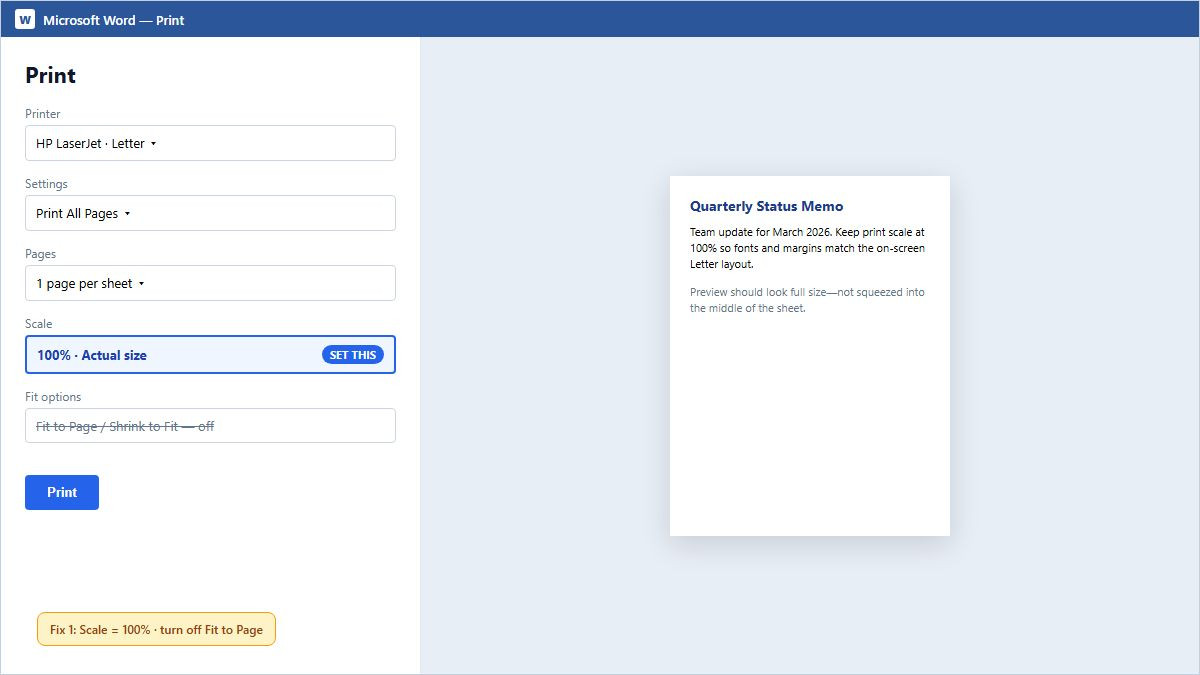
Tip: Some HP and other drivers default near 92–96%. Open Printer Properties from the Print screen and look for Fit / Scale / Resize there too.
Fix 2: Turn off Word’s A4 / Letter auto-scale
This is the setting that catches people after a Windows or Office update. Word can rescale between Letter and A4 even when the Print screen looks correct.
In Word, go to File → Options.
Select Advanced.
Scroll to the Print section.
Clear the check box: Scale content for A4 or 8.5 × 11 paper sizes.
Select OK, close Word completely, reopen the file, and print again.
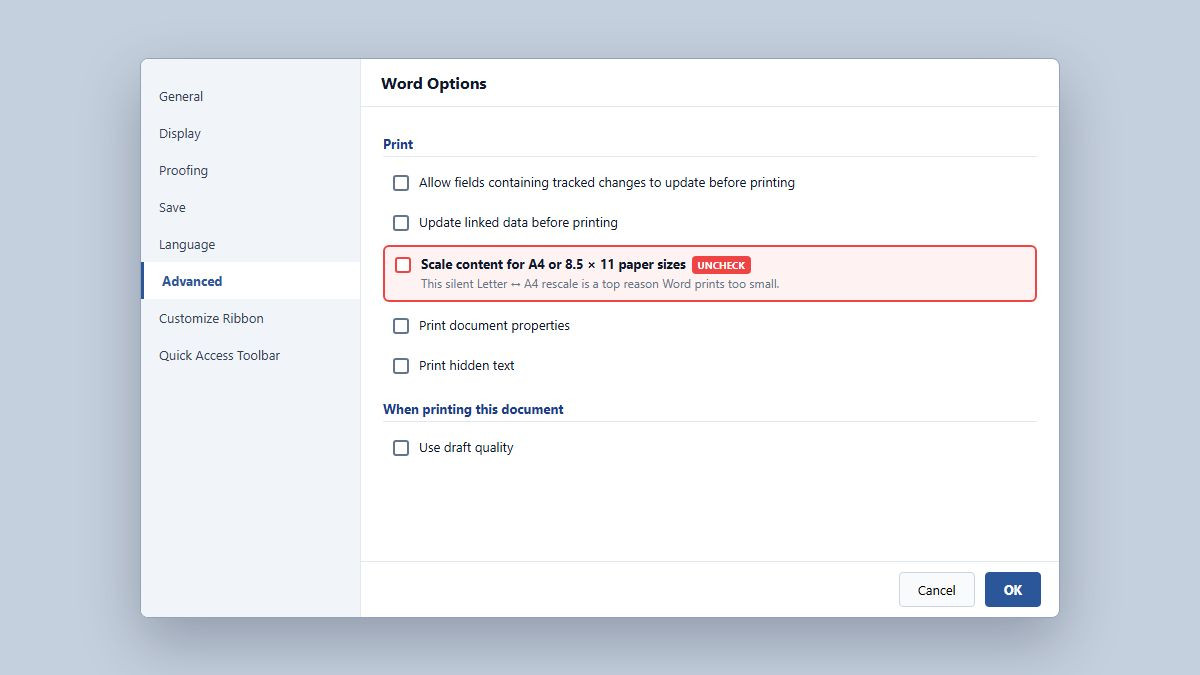
If PDF and Excel print normal size but Word does not, this option is a prime suspect.
Fix 3: Match document size to Letter paper
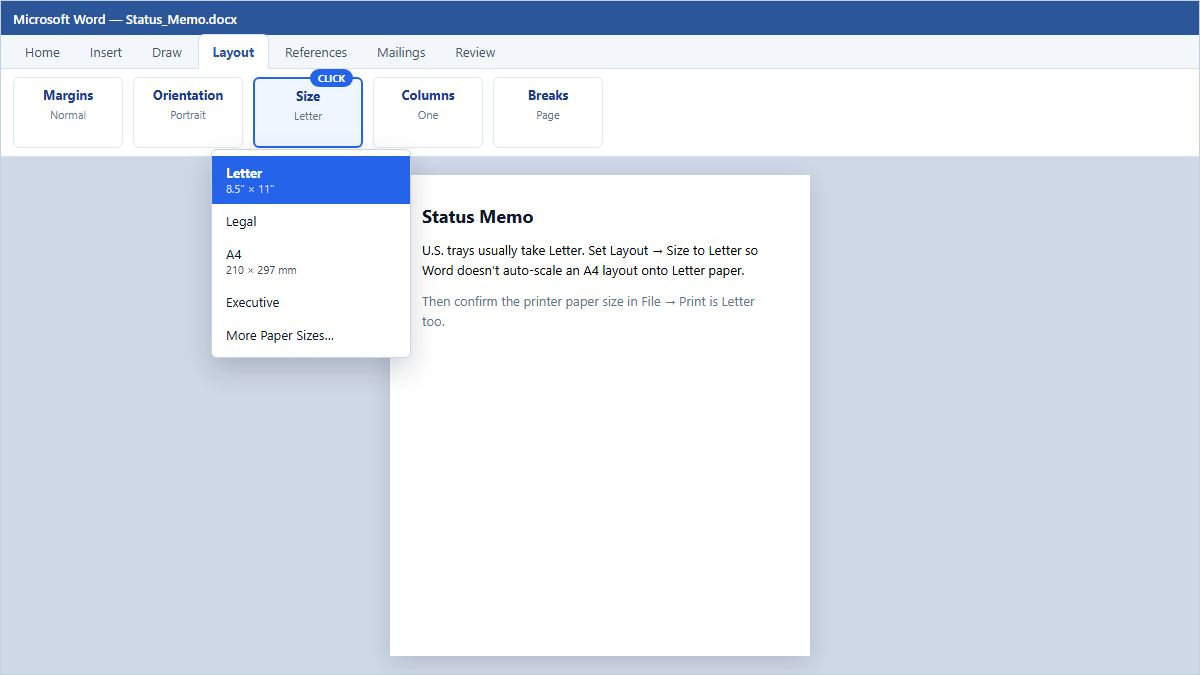
In the U.S., most home and office trays use Letter (8.5 × 11 in). An A4 layout on Letter paper (or the opposite) often triggers shrink or odd margins.
Open the Layout tab (or Page Layout).
Select Size → Letter if that’s what’s in the printer.
In File → Print, confirm the printer paper size is also Letter.
Print a one-page test and hold it against a known Letter sheet if alignment matters (forms, labels).
Fix 4: Rule out markup and “many pages on one sheet”
Under Print settings, open the pages dropdown and make sure you are not printing 2 pages per sheet (or more).
If the file has comments or tracked changes, clear Print Markup or switch Review to No Markup so Word doesn’t reserve a wide review margin.
Those issues don’t always shrink fonts the same way Fit to Page does, but they make the printed page look wrong next to what you designed on screen.
Fix 5: Check the printer driver (when only Word is wrong)
From Word’s Print screen, open Printer Properties / Preferences.
Set paper size to Letter, scaling to 100% / actual size, and disable fit-to-page style options.
Update or reinstall the manufacturer driver if settings won’t stick after Windows 11 updates.
Optional test: File → Print → Microsoft Print to PDF at 100%. If the PDF looks full size but the physical printer does not, focus on the printer profile—not the document.
Another option: print full size in WPS Writer
Already fixed it in Microsoft Word? You’re done. If you open the same .docx in WPS Office Writer instead, check the same ideas: paper size Letter, print scale 100%, and no fit-to-page shrink in the print dialog—then preview before you print.
FAQ
Why is my Word document printing so small but the screen looks normal?
Print-time scaling is usually on—Fit to Page, a percent under 100%, or Word’s Scale content for A4 or 8.5 × 11 option. The editing view can stay full size while the print job shrinks.
Where do I turn off Scale content for A4 or Letter?
Go to File → Options → Advanced, scroll to Print, and clear Scale content for A4 or 8.5 × 11 paper sizes. Restart Word and print again.
Why does PDF print fine but Word prints small?
That usually points to a Word Options or Word-to-driver setting—not a broken printer. Fix Word scaling first, then check Printer Properties only if the PDF path is already correct.
Should U.S. users set Letter or A4?
Use Letter when Letter paper is in the tray. Keep the document size, Print paper size, and printer preferences on the same standard so Word doesn’t auto-scale.
My printout is about 92% of full size—what’s wrong?
Many drivers apply a slight shrink by default. Set Word and the driver to 100% / Actual size, disable Fit to Page, and turn off A4/Letter content scaling in Word Options.
Summary
If your Word document is printing so small, set Print scaling to 100%, turn off Fit to Page, uncheck Scale content for A4 or 8.5 × 11 under Options → Advanced, and align Layout → Size with Letter paper in the U.S. Confirm 1 page per sheet and the printer driver’s scale. Use WPS Writer the same way only if you already work in WPS—Word’s fixes solve it for most people.



'%3e%3cpath%20d='M19.9911%204.11386V6.471H18.5894C18.0775%206.471%2017.7322%206.57814%2017.5536%206.79243C17.3751%207.00671%2017.2858%207.32814%2017.2858%207.75671V9.44421H19.9019L19.5536%2012.0871H17.2858V18.8639H14.5536V12.0871H12.2769V9.44421H14.5536V7.49779C14.5536%206.39064%2014.8632%205.53201%2015.4822%204.92189C16.1013%204.31177%2016.9257%204.00671%2017.9554%204.00671C18.8304%204.00671%2019.509%204.04243%2019.9911%204.11386Z'%20fill='%23333333'/%3e%3c/g%3e%3cdefs%3e%3cclipPath%20id='clip0_2938_8199'%3e%3crect%20width='16'%20height='16'%20fill='white'%20transform='translate(8%204.00671)'/%3e%3c/clipPath%3e%3c/defs%3e%3c/svg%3e)
'%3e%3cpath%20d='M17.5237%2010.7813L23.4811%204H22.0699L16.8949%209.88693L12.7648%204H8L14.2469%2012.9029L8%2020.0133H9.4112L14.8725%2013.7952L19.2352%2020.0133H24M9.92053%205.04213H12.0885L22.0688%2019.0224H19.9003'%20fill='%23333333'/%3e%3c/g%3e%3cdefs%3e%3cclipPath%20id='clip0_2938_8200'%3e%3crect%20width='16'%20height='16.0134'%20fill='white'%20transform='translate(8%204)'/%3e%3c/clipPath%3e%3c/defs%3e%3c/svg%3e)


