

'%3e%3cpath%20d='M8%200C12.4183%200%2016%203.58172%2016%208C16%2012.4183%2012.4183%2016%208%2016C3.58172%2016%200%2012.4183%200%208C0%203.58172%203.58172%200%208%200ZM11.6162%204.38379C11.2257%203.99337%2010.5927%203.99338%2010.2021%204.38379L8%206.58594L5.79785%204.38379C5.40732%203.99334%204.77429%203.99329%204.38379%204.38379C3.99331%204.77429%203.99335%205.40733%204.38379%205.79785L6.58594%208L4.38379%2010.2021C3.99348%2010.5927%203.99341%2011.2257%204.38379%2011.6162C4.77426%2012.0066%205.40734%2012.0065%205.79785%2011.6162L8%209.41406L10.2021%2011.6162C10.5927%2012.0066%2011.2257%2012.0067%2011.6162%2011.6162C12.0067%2011.2257%2012.0066%2010.5927%2011.6162%2010.2021L9.41406%208L11.6162%205.79785C12.0066%205.40735%2012.0066%204.77429%2011.6162%204.38379Z'%20fill='%23080E17'%20fill-opacity='0.46'/%3e%3c/g%3e%3cdefs%3e%3cclipPath%20id='clip0_3761_713'%3e%3crect%20width='16'%20height='16'%20fill='white'/%3e%3c/clipPath%3e%3c/defs%3e%3c/svg%3e)



'%3e%3cpath%20fill-rule='evenodd'%20clip-rule='evenodd'%20d='M21.4999%2010.9993C21.4999%205.20009%2016.7986%200.498901%2010.9993%200.498901C5.19994%200.498901%200.498657%205.20009%200.498657%2010.9993C0.498657%2016.2404%204.33858%2020.5844%209.35855%2021.3722V14.0346H6.69238V10.9993H9.35855V8.68594C9.35855%206.05427%2010.9262%204.60062%2013.3248%204.60062C14.4736%204.60062%2015.6753%204.80571%2015.6753%204.80571V7.38979H14.3512C13.0468%207.38979%2012.64%208.19921%2012.64%209.0296V10.9993H15.5523L15.0867%2014.0346H12.64V21.3722C17.66%2020.5844%2021.4999%2016.2404%2021.4999%2010.9993Z'%20fill='%231568EA'/%3e%3c/g%3e%3c/svg%3e)


'%3e%3cpath%20d='M2.42045%2022.1876H6.31818V12.7217L0.75%208.54553V20.5171C0.75%2021.4414%201.49892%2022.1876%202.42045%2022.1876Z'%20fill='%234285F4'/%3e%3cpath%20d='M19.682%2022.1876H23.5797C24.5041%2022.1876%2025.2502%2021.4387%2025.2502%2020.5171V8.54553L19.682%2012.7217'%20fill='%2334A853'/%3e%3cpath%20d='M19.682%205.48293V12.7216L25.2502%208.54543V6.31816C25.2502%204.25236%2022.8921%203.07469%2021.2411%204.31361'%20fill='%23FBBC04'/%3e%3cpath%20d='M6.31824%2012.7217V5.48303L13.0001%2010.4944L19.6819%205.48303V12.7217L13.0001%2017.733'%20fill='%23EA4335'/%3e%3cpath%20d='M0.75%206.31816V8.54543L6.31818%2012.7216V5.48293L4.75909%204.31361C3.10534%203.07469%200.75%204.25236%200.75%206.31816Z'%20fill='%23C5221F'/%3e%3c/g%3e%3cdefs%3e%3cclipPath%20id='clip0_2954_7305'%3e%3crect%20width='24.5'%20height='18.375'%20fill='white'%20transform='translate(0.75%203.8125)'/%3e%3c/clipPath%3e%3c/defs%3e%3c/svg%3e)


AI image generation has become incredibly popular for all types of creative work. With so many tools available, you've probably wondered if the Bing AI Image Generator is better than them or not. This review shows how to use Bing Image generator to generate consistent, high-quality images for your business, and I’ll also show how combining it with WPS Photos unlocks even more creative potential.



Introduction to Bing AI Image Generator
Bing AI image generator, also known as Image Creator, is an artificial intelligence-powered tool developed by Microsoft. It's a feature deeply integrated into Bing’s search engine, Copilot, and other platforms like Microsoft Designer.
You've probably seen other powerful AI image generator tools, but they often require a paid subscription, a complex setup, or technical knowledge. Bing solves this problem by providing access to some of the industry's most powerful models, including DALL-E 3 and even Microsoft's new in-house models, all in one place, so you don't have to pay for each model separately.
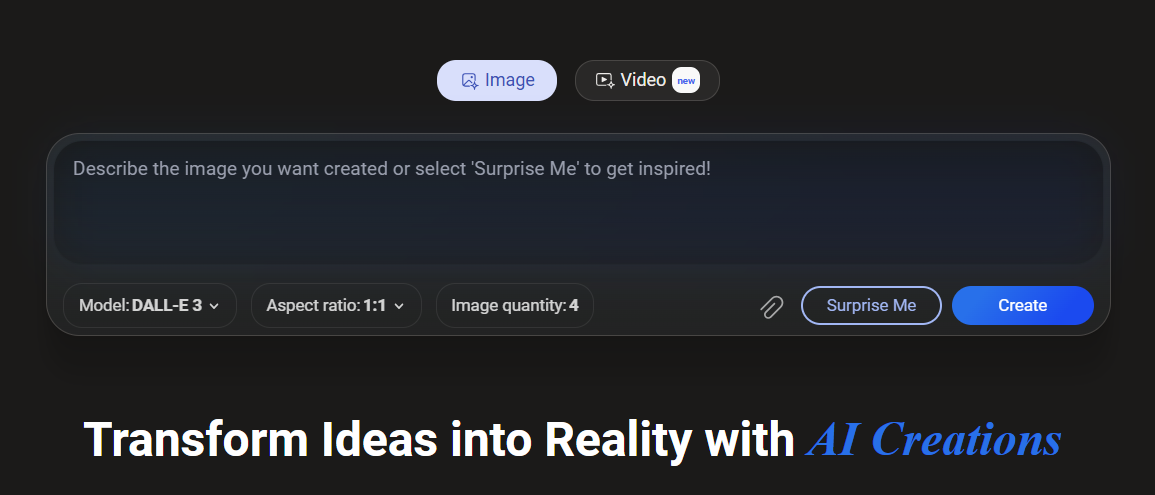
The best part is its boost system. You get a daily allowance for fast generations, but even after they run out, the tool still works, although it is a bit slower. This makes it one of the most accessible entry points for anyone looking to start creating high-quality AI images without a subscription.
How to Use Bing AI Image Generator Effectively
Using the AI image generator Bing is very straightforward, as you don't need any professional design experience.
Step 1: First, go to the Bing AI Image Generator website or find the "Image Creator" in the Bing search sidebar.
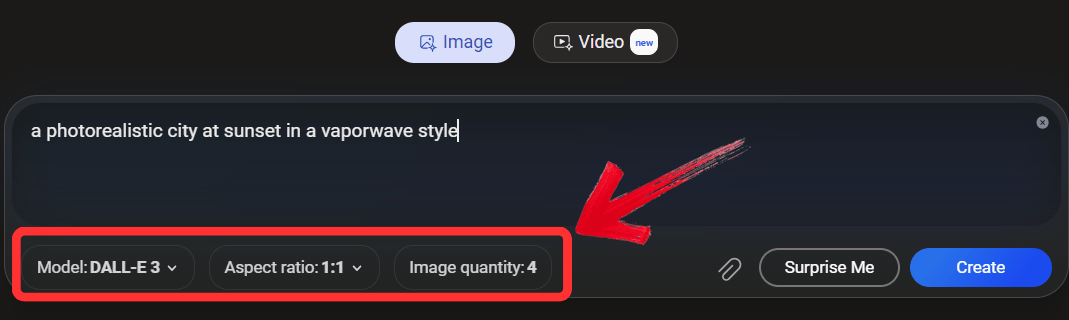
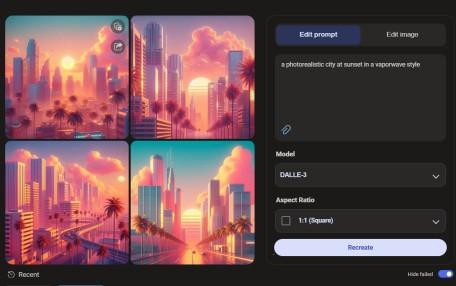
Step 2: In the text box, enter your prompt in the box. And select your model, aspect ratio, and how many images you want to generate.
Step 3: Then click on ‘Create’. The AI will use a "boost" to create four different visual options for you.
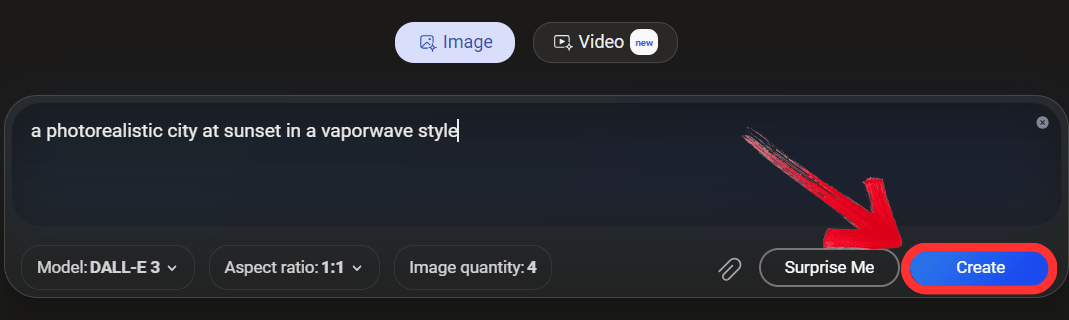
Step 4: The AI will use the "boost"credits to create four different visual options for you. Click on the image you like best.
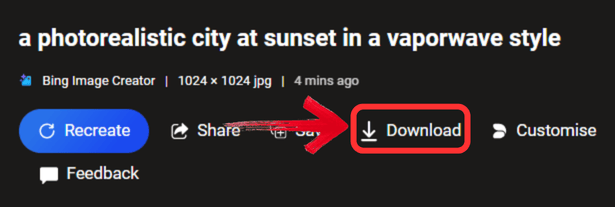
Step 5: Then click “Download” to save it to your computer.
WPS Photos – The Ideal Editing Partner
Getting a unique visual from the Bing AI Image Generator is a great starting point, and its speed is impressive. But you've probably noticed that AI-generated art often needs a finishing touch. The image might look good, but it might be blurry in some places, or worse, there will be no consistency across the image. This is an extremely common issue, no matter which AI Image software you use.
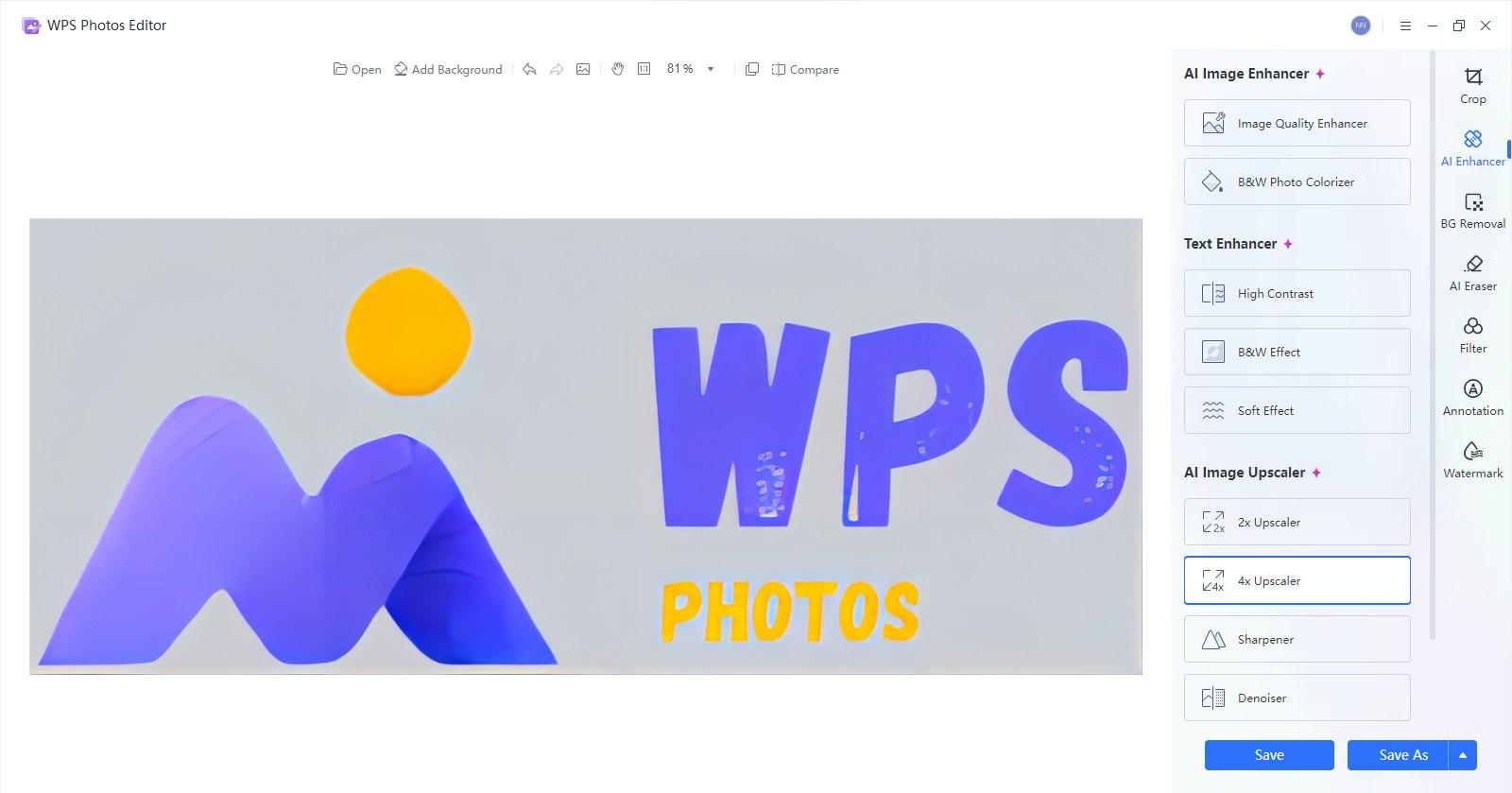
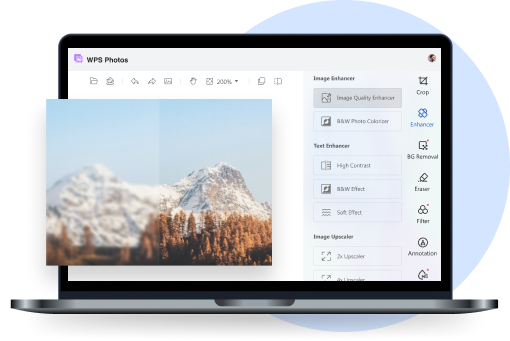
This is where a powerful editing tool becomes an essential partner. WPS Photos is designed for exactly this refinement. It’s built to take that promising draft from Bing AI image generator and turn it into a final professional-quality asset. And you don't need to be a design expert, its own AI-powered features do all the heavy lifting for you.
How to Use:
Here is how you can start editing your images using WPS Photos:
Step 1: First, upload your AI-generated photo that you downloaded from Bing AI into WPS Photos.

Step 2: Then choose an AI editing tool from the menu on the right-hand side.
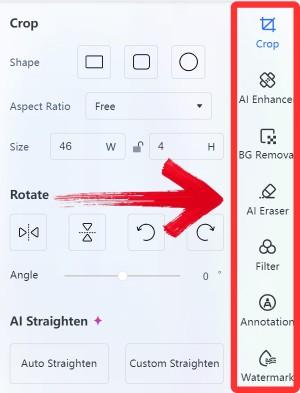
Step 3: Finally, click on “Export” to download and use your enhanced AI-generated image.

FAQs
Q1: Is Bing AI Image Generator free to use?
Yes, the Bing AI image generator is free for most users. It gives you "boosts" for faster generation, but you can still create images after they run out, just slower.
Q2: Does Bing AI Image Generator require technical skills?
No, it works with simple text prompts, so anyone can generate images without technical knowledge.
Q3: Can I edit the images created with Bing AI Image Generator?
Yes, you can refine them with third-party editing software like WPS Photos, which offers AI-powered enhancements.
Q4: Can WPS Photos remove unwanted objects from photos?
Yes, WPS Photos includes advanced tools for removing backgrounds or unwanted elements with precision.

'%3e%3cpath%20d='M19.9911%204.11386V6.471H18.5894C18.0775%206.471%2017.7322%206.57814%2017.5536%206.79243C17.3751%207.00671%2017.2858%207.32814%2017.2858%207.75671V9.44421H19.9019L19.5536%2012.0871H17.2858V18.8639H14.5536V12.0871H12.2769V9.44421H14.5536V7.49779C14.5536%206.39064%2014.8632%205.53201%2015.4822%204.92189C16.1013%204.31177%2016.9257%204.00671%2017.9554%204.00671C18.8304%204.00671%2019.509%204.04243%2019.9911%204.11386Z'%20fill='%23333333'/%3e%3c/g%3e%3cdefs%3e%3cclipPath%20id='clip0_2938_8199'%3e%3crect%20width='16'%20height='16'%20fill='white'%20transform='translate(8%204.00671)'/%3e%3c/clipPath%3e%3c/defs%3e%3c/svg%3e)
'%3e%3cpath%20d='M17.5237%2010.7813L23.4811%204H22.0699L16.8949%209.88693L12.7648%204H8L14.2469%2012.9029L8%2020.0133H9.4112L14.8725%2013.7952L19.2352%2020.0133H24M9.92053%205.04213H12.0885L22.0688%2019.0224H19.9003'%20fill='%23333333'/%3e%3c/g%3e%3cdefs%3e%3cclipPath%20id='clip0_2938_8200'%3e%3crect%20width='16'%20height='16.0134'%20fill='white'%20transform='translate(8%204)'/%3e%3c/clipPath%3e%3c/defs%3e%3c/svg%3e)


