Footnote formatting Word tasks may look minor, but they often decide
whether your document feels professional or sloppy. In academic and
professional writing, footnotes must follow strict style rules, and even
small inconsistencies stand out. Lots of users don’t know where Word
hides these settings or how to apply changes globally. In this guide,
you’ll learn practical, reliable ways to handle reference numbers,
separator lines, and inconsistent footnote styles using WPS Office.
Use Word, Excel, and PPT for FREE
Footnote Formatting Word
Common Footnote
Formatting Challenges & Solutions
Footnote formatting Word issues usually fall into a few recurring
categories. A single misaligned reference number or an inconsistent
separator line can disrupt the entire document’s flow. Most of these issues come from a
few repeated mistakes that users make without realizing how Word handles
footnotes behind the scenes. Identifying these errors early makes it
much easier to apply clean, consistent formatting that holds up across
pages and revisions.
Footnotes
Here are some common footnote formatting mistakes and here’s how to fix them:
Manually editing superscript reference numbers:This breaks consistency and causes formatting conflicts. Use the Footnote Reference style to control font, size, and positioning globally.
Ignoring the footnote separator line settings:Many users accept the default line even when it clashes with layout rules. Switch to Draft view and customize or remove the footnote separator line to match your document style.
Applying direct formatting instead of styles:Manually changing fonts or spacing leads to inconsistent footnotes. Modify the Footnote Text style so all footnotes update automatically.
Overlooking spacing and indentation issues:Crowded or misaligned footnotes reduce readability. Adjust paragraph spacing and hanging indents within the footnote style settings.
Not checking section-based numbering rules:Unexpected numbering resets often come from section breaks. Review footnote numbering options and set them to restart per section or continue throughout the document as needed.
With these fixes in place, future edits stay consistent and
formatting issues are far less likely to resurface.
How to Format Footnotes in
WPS Word
Working through footnote issues in Microsoft Word highlighted how
much more simple the process is in WPS Word. Its interface keeps all the
essential footnote controls in one place, making it easier to adjust
reference numbers, text
styles, and separator lines without digging through multiple
menus. Even advanced adjustments like managing long footnotes across
pages or converting footnotes to endnotes are far more straightforward
in WPS.
Basic Footnote
Formatting Steps in WPS Word
Before getting into advanced features, it helps to master the basic
footnote formatting steps in WPS Word. These foundational actions like
inserting footnotes, adjusting reference numbers, and styling the text
set the stage for consistent, professional-looking notes throughout your
document.
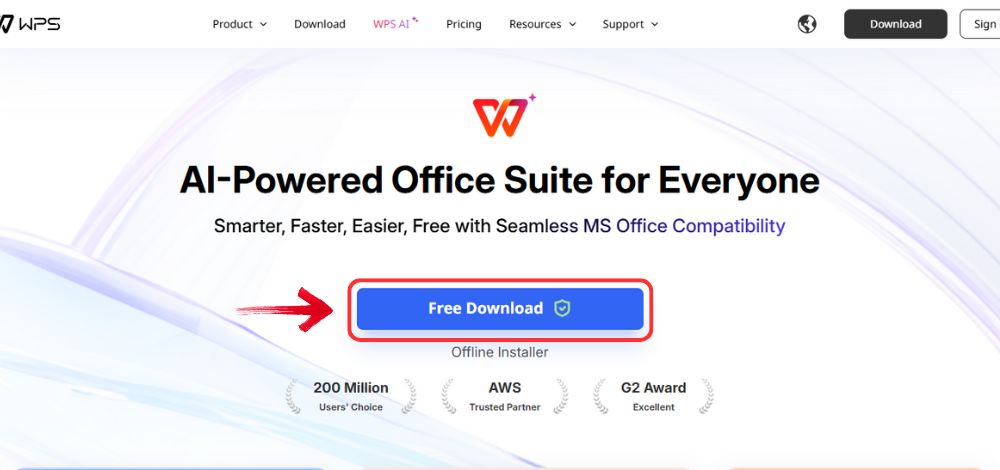
Step 1: First, open your browser to visit WPS Office and click the "Free Download" button to start the download.
Download WPS Office
Step 2: The download will finish in a few seconds.
Once done, run the installation file like you would for any other app or
software.
Step 3: WPS Office will show you a few simple terms
and conditions. Accept them, then click the "Install" button to begin the installation.
Install WPS Office
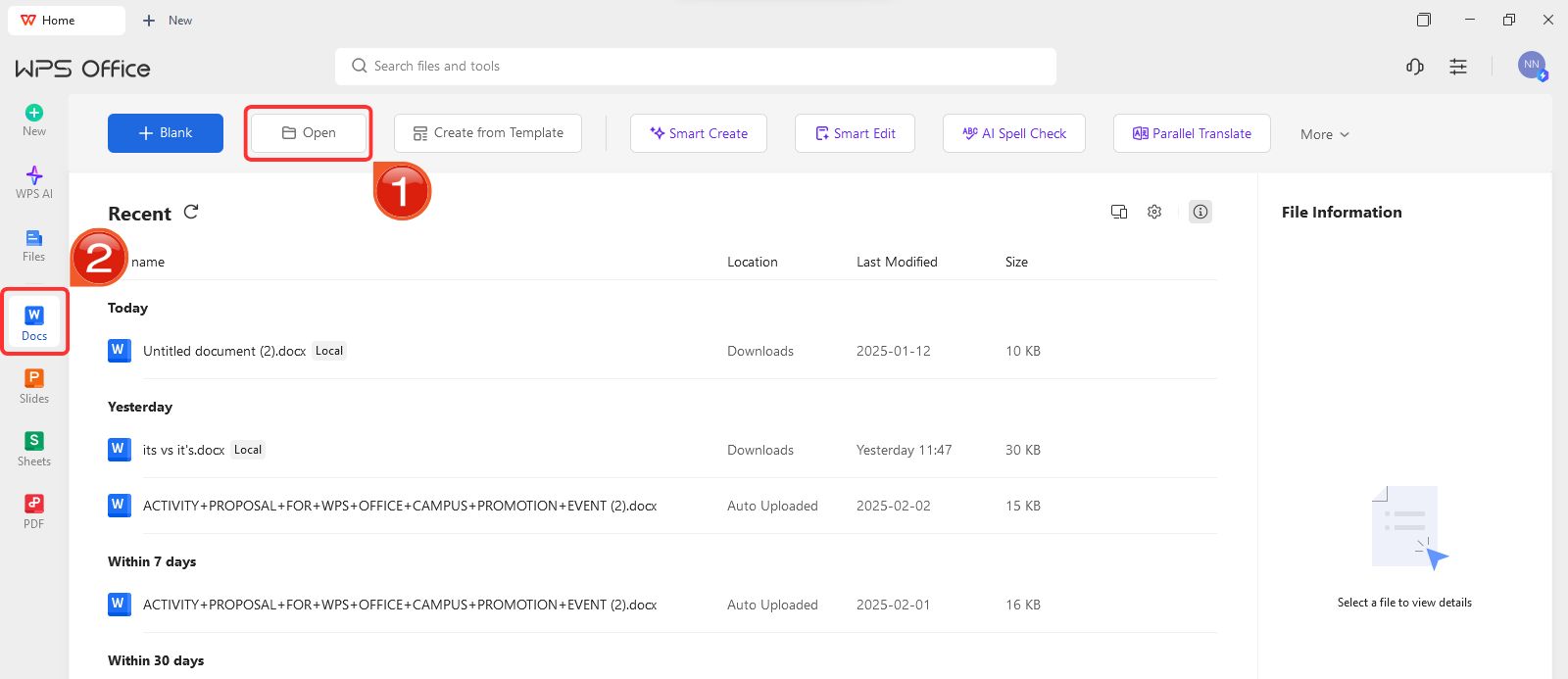
Step 4: After installation, on WPS Office, click on “Docs” from the left panel, then select “Open” to open a document in WPS Office.
Create new blank document
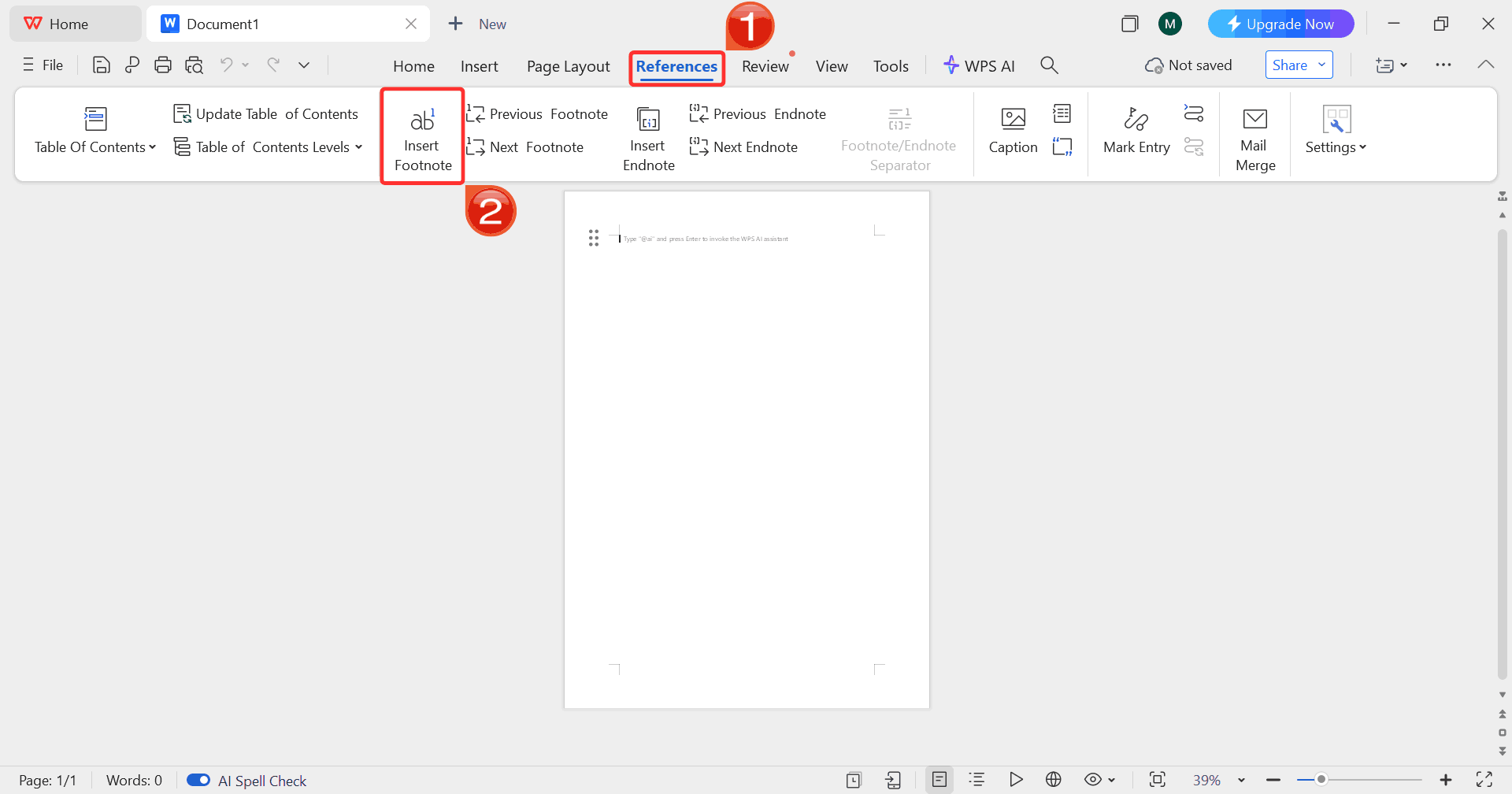
Step 5: Go to the “References" tab
and click “Insert Footnote”. WPS Word will
automatically add a superscript number in the text and create a
corresponding space at the bottom of the page
Insert Footnote
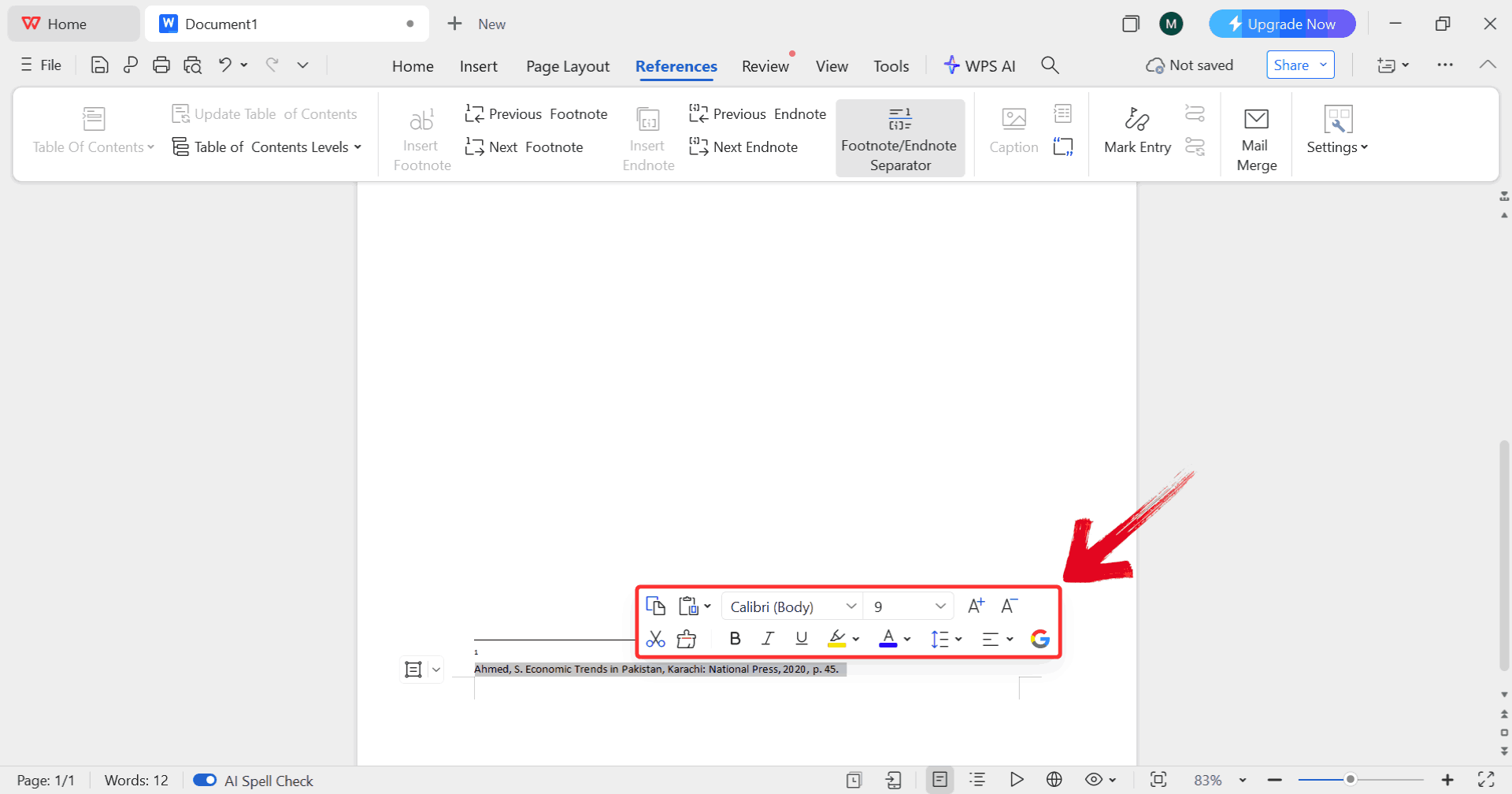
Step 6: Select the footnote text at the bottom of
the page which will give you the option to adjust the font, size, and
style to match your document requirements.
Select Text
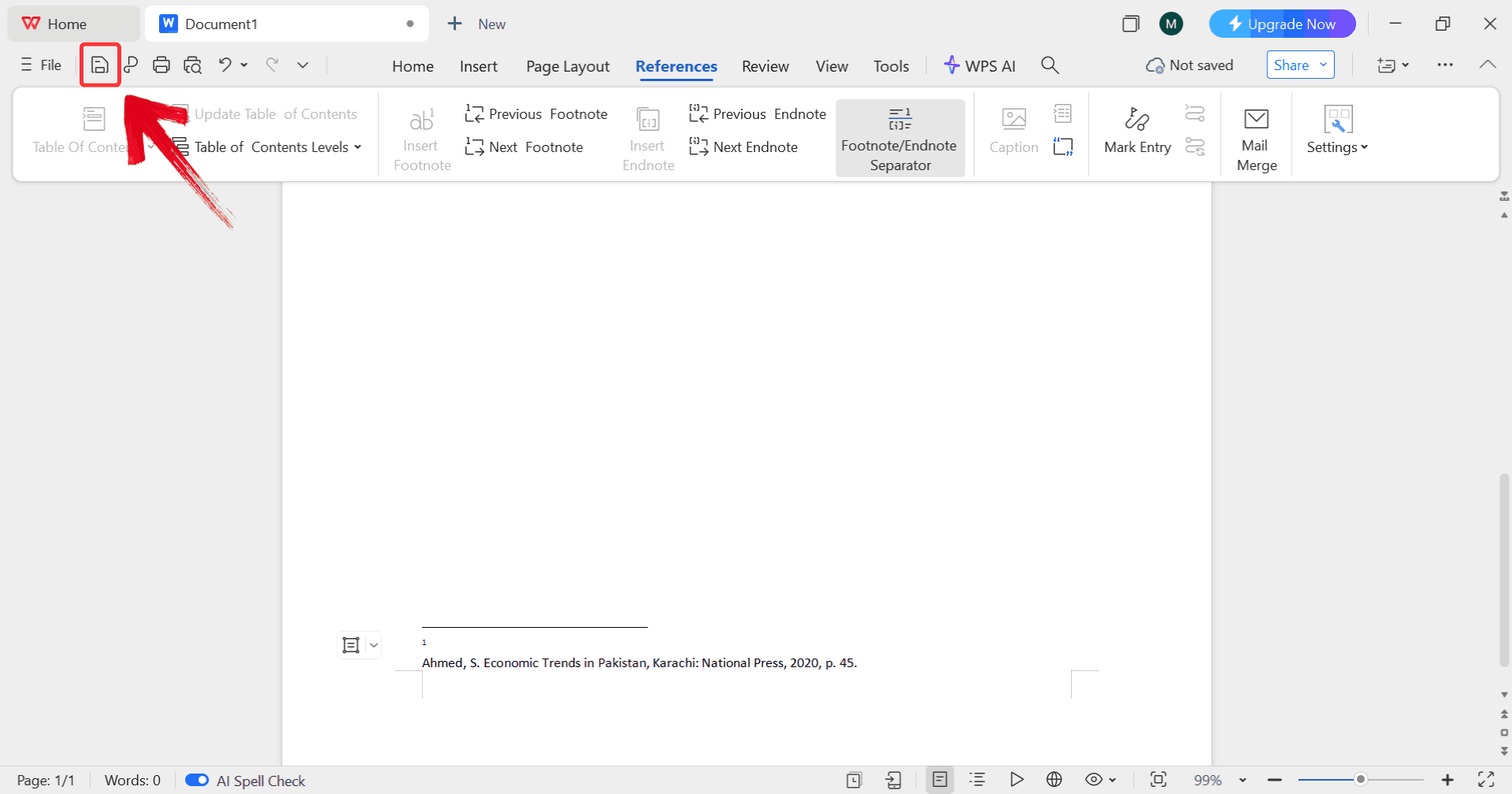
Step 7: Once you’ve applied your preferred
formatting, click on the save icon to save it as a custom style.
Save Changes
Advanced Footnote
Management in WPS Word
Once you’re comfortable with the basics, WPS Word offers advanced
footnote management tools to handle more complex documents. These
features let you convert footnotes to endnotes, control numbering per
section, manage long notes across pages, and ensure formatting stays
intact when exporting or sharing your files.
Step 1: Building on the basic insertion process, go
to the “References” tab, and click “Insert
Footnote”.
Insert Footnote
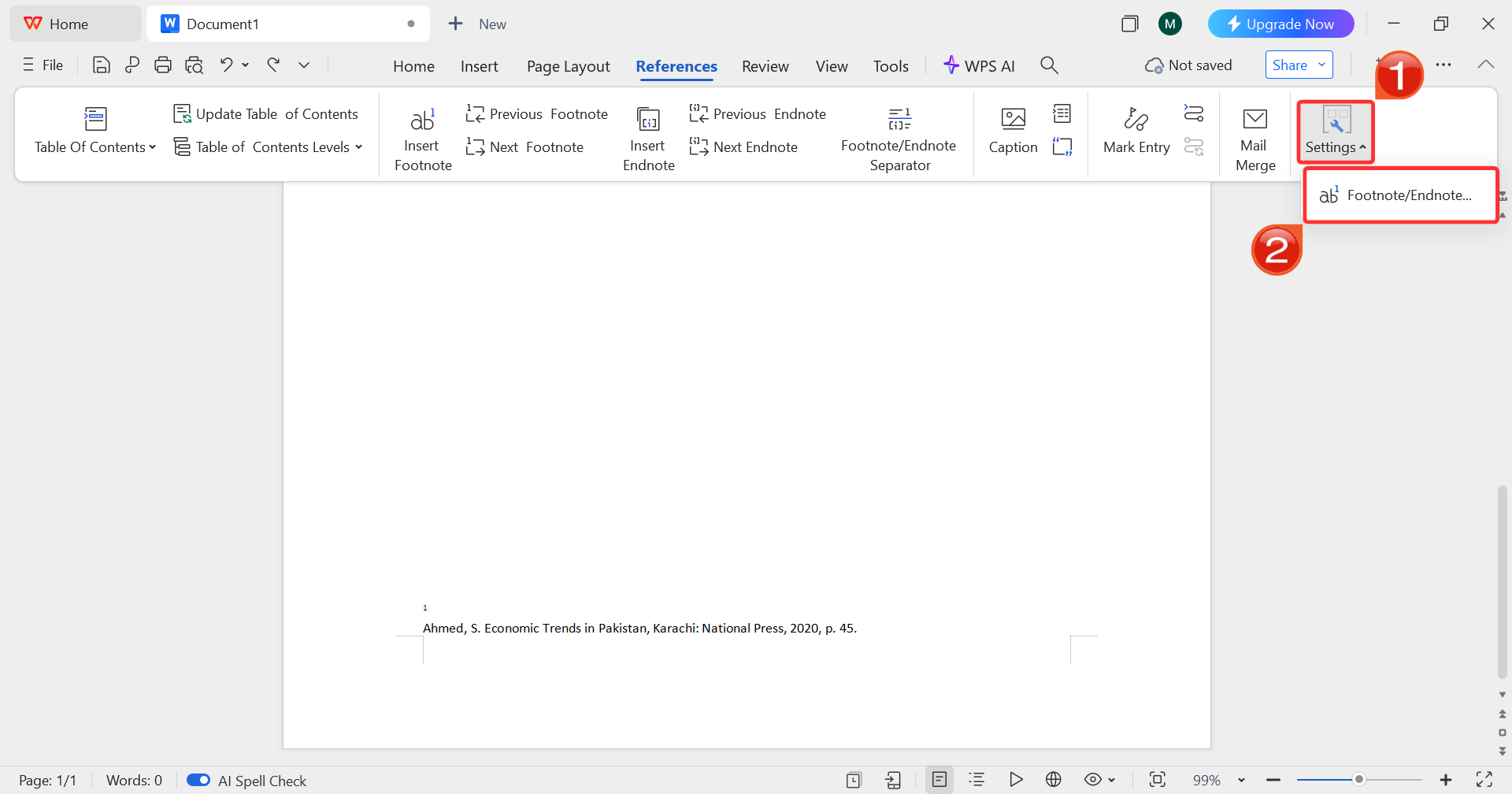
Step 2: While on the References tab, click “Settings” and then select “Footnote/Endnote”. This opens the panel where you can
adjust numbering, placement, and formatting options.
Open Settings
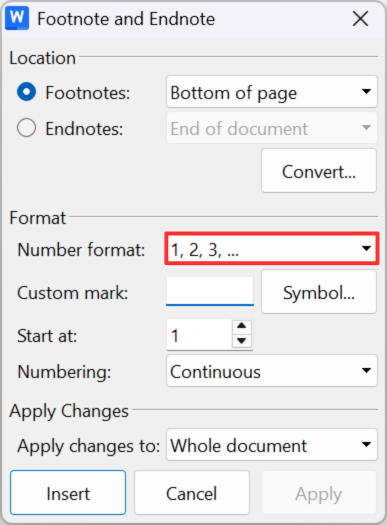
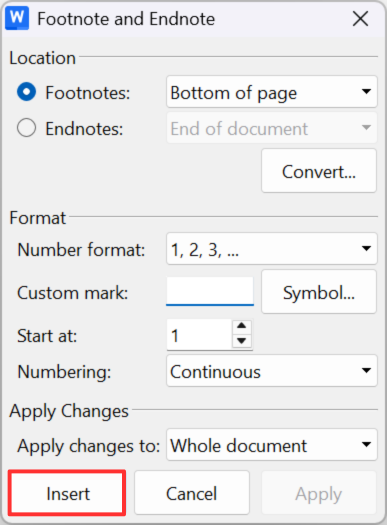
Step 3: In the panel, change the format settings as
needed like adjusting the numbering format to match your document’s
requirements.
Panel
Step 4: After configuring the format, click “Insert” to add the footnote or endnote with your
chosen settings into the document.
Click Insert
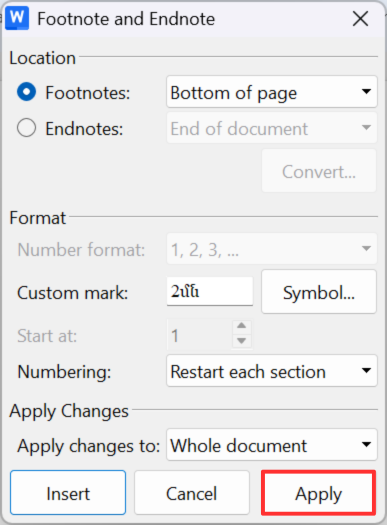
Step 5: Once everything looks correct, click “Apply” to save the changes and ensure that the
formatting updates across all footnotes in your document.
Apply Changes
Step 6: Once you’ve applied your preferred
formatting, click on the save icon to save it as a custom style.
Save Document
Why Choose WPS
Office for Document Formatting?
In the landscape of productivity tools, WPS Writer has
established itself as the writing component of a globally adopted office
suite, trusted on over 600 million devices each month around the world.
Unlike generic text editors, it offers a suite of helpful writing aids
like advanced outline tools and smart formatting options that make
drafting detailed reports or long-form content feel less like a chore
and more like sculpting your ideas into clarity. It lets you bring your
written work into professional form with minimal fuss, whether you’re
composing a research breakdown, crafting content for publication, or
polishing up a document for presentation.
WPS Writer
Advantages for Footnote Formatting
Free alternative to Microsoft Word with similar functionality
Intuitive interface for managing footnotes and styles
Full compatibility with Word document formats
Reliable preservation of footnote styles and layouts
Available on Windows, Mac, Linux, and mobile platforms
For users who frequently deal with academic or professional
documents, WPS Office reduces friction and simplifies complex formatting
tasks.
Troubleshooting Common
Footnote Issues
Even well-formatted documents can run into unexpected issues. Some
problems arise when copying text from other sources, sharing files
across different versions, or exporting to PDF. Addressing these issues
early saves time and ensures your footnotes remain consistent and
professional throughout the document. Below are the most common footnote
problems I’ve encountered and practical ways to fix them.
Formatting inconsistencies: Footnotes may look
different if direct formatting was applied or if styles were overridden.
You can reset the Footnote Text and Footnote Reference styles to
default, then reapply your custom formatting.
Compatibility issues between Word and WPS Word:Differences in versions or software can cause footnote layout shifts.
Always save files in .docx format and use WPS’s Preserve Formatting
option when exporting to Word or PDF.
Numbering errors: Footnotes may restart
unexpectedly or appear out of sequence. Check section breaks and
configure numbering to restart per section or continue throughout the
document as needed.
Misplaced separator lines: Separator lines may
appear too long, too short, or misaligned. Adjust the footnote separator
line in Outline view to match your desired layout.
Long footnotes splitting across pages: Extended
notes can break in inconvenient places, affecting readability. Adjust
spacing, indentation, and continuation marks in the footnote style to
control how long footnotes flow across pages.
By addressing these common issues, you can maintain clean, consistent
footnotes throughout any document and easily adjust the footnote
separator line Word settings to ensure a refined, professional
layout.
100% secure
FAQs
1. How
do I change the font style for all footnotes at once?
Use the Footnote Text style modification feature in WPS Word to apply
changes globally.
2. Can
I customize the footnote separator line in WPS Word?
Yes, WPS Word allows full customization of separator lines, including
style, length, and position.
3.
Is WPS Office compatible with Microsoft Word footnote formatting?
Absolutely. WPS Office maintains full compatibility with Word’s
footnote formatting and styles.
4. How do I
convert footnotes to endnotes in WPS Word?
Use the built-in conversion tool under the References tab to switch
between footnotes and endnotes.
5.
Why do my footnotes look different after copying text from another
document?
Copied content often carries hidden formatting. Clear formatting and
reapply your footnote styles to restore consistency.
Footnote formatting Word tasks often feel minor until they start disrupting the structure of an entire document. When reference numbers fail to match style requirements or separator lines appear inconsistent, the result quickly looks messy. Clear control over how to format footnotes in Word helps maintain readability and professional standards. Adjusting footnote style change Word settings ensures fonts, spacing, and numbering stay consistent from start to finish.
WPS Writer simplifies these adjustments by keeping all footnote controls accessible and reusable. Instead of fixing footnotes individually, structured formatting tools allow changes to apply everywhere at once. With the right setup, footnote formatting Word becomes a predictable process rather than a recurring distraction.
7+ years in productivity tech. I test and review the latest tools to simplify your workflow. Follow for honest app comparisons, practical guides, and curated tech picks to boost efficiency.


'%3e%3cpath%20d='M8%200C12.4183%200%2016%203.58172%2016%208C16%2012.4183%2012.4183%2016%208%2016C3.58172%2016%200%2012.4183%200%208C0%203.58172%203.58172%200%208%200ZM11.6162%204.38379C11.2257%203.99337%2010.5927%203.99338%2010.2021%204.38379L8%206.58594L5.79785%204.38379C5.40732%203.99334%204.77429%203.99329%204.38379%204.38379C3.99331%204.77429%203.99335%205.40733%204.38379%205.79785L6.58594%208L4.38379%2010.2021C3.99348%2010.5927%203.99341%2011.2257%204.38379%2011.6162C4.77426%2012.0066%205.40734%2012.0065%205.79785%2011.6162L8%209.41406L10.2021%2011.6162C10.5927%2012.0066%2011.2257%2012.0067%2011.6162%2011.6162C12.0067%2011.2257%2012.0066%2010.5927%2011.6162%2010.2021L9.41406%208L11.6162%205.79785C12.0066%205.40735%2012.0066%204.77429%2011.6162%204.38379Z'%20fill='%23080E17'%20fill-opacity='0.46'/%3e%3c/g%3e%3cdefs%3e%3cclipPath%20id='clip0_3761_713'%3e%3crect%20width='16'%20height='16'%20fill='white'/%3e%3c/clipPath%3e%3c/defs%3e%3c/svg%3e)




'%3e%3cpath%20fill-rule='evenodd'%20clip-rule='evenodd'%20d='M21.4999%2010.9993C21.4999%205.20009%2016.7986%200.498901%2010.9993%200.498901C5.19994%200.498901%200.498657%205.20009%200.498657%2010.9993C0.498657%2016.2404%204.33858%2020.5844%209.35855%2021.3722V14.0346H6.69238V10.9993H9.35855V8.68594C9.35855%206.05427%2010.9262%204.60062%2013.3248%204.60062C14.4736%204.60062%2015.6753%204.80571%2015.6753%204.80571V7.38979H14.3512C13.0468%207.38979%2012.64%208.19921%2012.64%209.0296V10.9993H15.5523L15.0867%2014.0346H12.64V21.3722C17.66%2020.5844%2021.4999%2016.2404%2021.4999%2010.9993Z'%20fill='%231568EA'/%3e%3c/g%3e%3c/svg%3e)


'%3e%3cpath%20d='M2.42045%2022.1876H6.31818V12.7217L0.75%208.54553V20.5171C0.75%2021.4414%201.49892%2022.1876%202.42045%2022.1876Z'%20fill='%234285F4'/%3e%3cpath%20d='M19.682%2022.1876H23.5797C24.5041%2022.1876%2025.2502%2021.4387%2025.2502%2020.5171V8.54553L19.682%2012.7217'%20fill='%2334A853'/%3e%3cpath%20d='M19.682%205.48293V12.7216L25.2502%208.54543V6.31816C25.2502%204.25236%2022.8921%203.07469%2021.2411%204.31361'%20fill='%23FBBC04'/%3e%3cpath%20d='M6.31824%2012.7217V5.48303L13.0001%2010.4944L19.6819%205.48303V12.7217L13.0001%2017.733'%20fill='%23EA4335'/%3e%3cpath%20d='M0.75%206.31816V8.54543L6.31818%2012.7216V5.48293L4.75909%204.31361C3.10534%203.07469%200.75%204.25236%200.75%206.31816Z'%20fill='%23C5221F'/%3e%3c/g%3e%3cdefs%3e%3cclipPath%20id='clip0_2954_7305'%3e%3crect%20width='24.5'%20height='18.375'%20fill='white'%20transform='translate(0.75%203.8125)'/%3e%3c/clipPath%3e%3c/defs%3e%3c/svg%3e)






'%3e%3cpath%20d='M19.9911%204.11386V6.471H18.5894C18.0775%206.471%2017.7322%206.57814%2017.5536%206.79243C17.3751%207.00671%2017.2858%207.32814%2017.2858%207.75671V9.44421H19.9019L19.5536%2012.0871H17.2858V18.8639H14.5536V12.0871H12.2769V9.44421H14.5536V7.49779C14.5536%206.39064%2014.8632%205.53201%2015.4822%204.92189C16.1013%204.31177%2016.9257%204.00671%2017.9554%204.00671C18.8304%204.00671%2019.509%204.04243%2019.9911%204.11386Z'%20fill='%23333333'/%3e%3c/g%3e%3cdefs%3e%3cclipPath%20id='clip0_2938_8199'%3e%3crect%20width='16'%20height='16'%20fill='white'%20transform='translate(8%204.00671)'/%3e%3c/clipPath%3e%3c/defs%3e%3c/svg%3e)
'%3e%3cpath%20d='M17.5237%2010.7813L23.4811%204H22.0699L16.8949%209.88693L12.7648%204H8L14.2469%2012.9029L8%2020.0133H9.4112L14.8725%2013.7952L19.2352%2020.0133H24M9.92053%205.04213H12.0885L22.0688%2019.0224H19.9003'%20fill='%23333333'/%3e%3c/g%3e%3cdefs%3e%3cclipPath%20id='clip0_2938_8200'%3e%3crect%20width='16'%20height='16.0134'%20fill='white'%20transform='translate(8%204)'/%3e%3c/clipPath%3e%3c/defs%3e%3c/svg%3e)


