

'%3e%3cpath%20d='M8%200C12.4183%200%2016%203.58172%2016%208C16%2012.4183%2012.4183%2016%208%2016C3.58172%2016%200%2012.4183%200%208C0%203.58172%203.58172%200%208%200ZM11.6162%204.38379C11.2257%203.99337%2010.5927%203.99338%2010.2021%204.38379L8%206.58594L5.79785%204.38379C5.40732%203.99334%204.77429%203.99329%204.38379%204.38379C3.99331%204.77429%203.99335%205.40733%204.38379%205.79785L6.58594%208L4.38379%2010.2021C3.99348%2010.5927%203.99341%2011.2257%204.38379%2011.6162C4.77426%2012.0066%205.40734%2012.0065%205.79785%2011.6162L8%209.41406L10.2021%2011.6162C10.5927%2012.0066%2011.2257%2012.0067%2011.6162%2011.6162C12.0067%2011.2257%2012.0066%2010.5927%2011.6162%2010.2021L9.41406%208L11.6162%205.79785C12.0066%205.40735%2012.0066%204.77429%2011.6162%204.38379Z'%20fill='%23080E17'%20fill-opacity='0.46'/%3e%3c/g%3e%3cdefs%3e%3cclipPath%20id='clip0_3761_713'%3e%3crect%20width='16'%20height='16'%20fill='white'/%3e%3c/clipPath%3e%3c/defs%3e%3c/svg%3e)



'%3e%3cpath%20fill-rule='evenodd'%20clip-rule='evenodd'%20d='M21.4999%2010.9993C21.4999%205.20009%2016.7986%200.498901%2010.9993%200.498901C5.19994%200.498901%200.498657%205.20009%200.498657%2010.9993C0.498657%2016.2404%204.33858%2020.5844%209.35855%2021.3722V14.0346H6.69238V10.9993H9.35855V8.68594C9.35855%206.05427%2010.9262%204.60062%2013.3248%204.60062C14.4736%204.60062%2015.6753%204.80571%2015.6753%204.80571V7.38979H14.3512C13.0468%207.38979%2012.64%208.19921%2012.64%209.0296V10.9993H15.5523L15.0867%2014.0346H12.64V21.3722C17.66%2020.5844%2021.4999%2016.2404%2021.4999%2010.9993Z'%20fill='%231568EA'/%3e%3c/g%3e%3c/svg%3e)


'%3e%3cpath%20d='M2.42045%2022.1876H6.31818V12.7217L0.75%208.54553V20.5171C0.75%2021.4414%201.49892%2022.1876%202.42045%2022.1876Z'%20fill='%234285F4'/%3e%3cpath%20d='M19.682%2022.1876H23.5797C24.5041%2022.1876%2025.2502%2021.4387%2025.2502%2020.5171V8.54553L19.682%2012.7217'%20fill='%2334A853'/%3e%3cpath%20d='M19.682%205.48293V12.7216L25.2502%208.54543V6.31816C25.2502%204.25236%2022.8921%203.07469%2021.2411%204.31361'%20fill='%23FBBC04'/%3e%3cpath%20d='M6.31824%2012.7217V5.48303L13.0001%2010.4944L19.6819%205.48303V12.7217L13.0001%2017.733'%20fill='%23EA4335'/%3e%3cpath%20d='M0.75%206.31816V8.54543L6.31818%2012.7216V5.48293L4.75909%204.31361C3.10534%203.07469%200.75%204.25236%200.75%206.31816Z'%20fill='%23C5221F'/%3e%3c/g%3e%3cdefs%3e%3cclipPath%20id='clip0_2954_7305'%3e%3crect%20width='24.5'%20height='18.375'%20fill='white'%20transform='translate(0.75%203.8125)'/%3e%3c/clipPath%3e%3c/defs%3e%3c/svg%3e)


Adding music to a presentation makes it feel more alive. Whether you want background music while your slides play automatically, a short sound effect on one slide, or a song clip for a class project, Google Slides can do it — but only if you know where the audio has to live first. In this guide, you will learn how to add music to Google Slides step by step, how to control playback, and what to do when the Insert Audio option does not work as expected.
How to Add Music to Google Slides
How to Add Music to Google Slides from Google Drive
Google Slides does not have a built-in music library, and it cannot upload audio directly from your computer. Every audio file must first be stored in Google Drive. Once the file is there, inserting it takes less than a minute.
Step 1. Upload your music file to Google Drive
Open Google Drive in your browser, click New > File upload, and choose your music file. Google Slides supports common audio formats such as MP3 and WAV. Wait until the upload finishes completely before moving on, or the file will not appear when you try to insert it.

Upload MP3 music file to Drive
Step 2. Open your presentation and pick a slide
Go to Google Slides and open the presentation you want to enhance. Click the slide where the music should start. If you want one track playing across the whole deck, choose the first slide.
Step 3. Insert the audio from Drive
Click Insert in the top menu. This opens the insert dropdown.
Select Audio. A window opens showing audio files in your Google Drive.
Choose your music file and click Insert. A speaker icon appears on the slide.
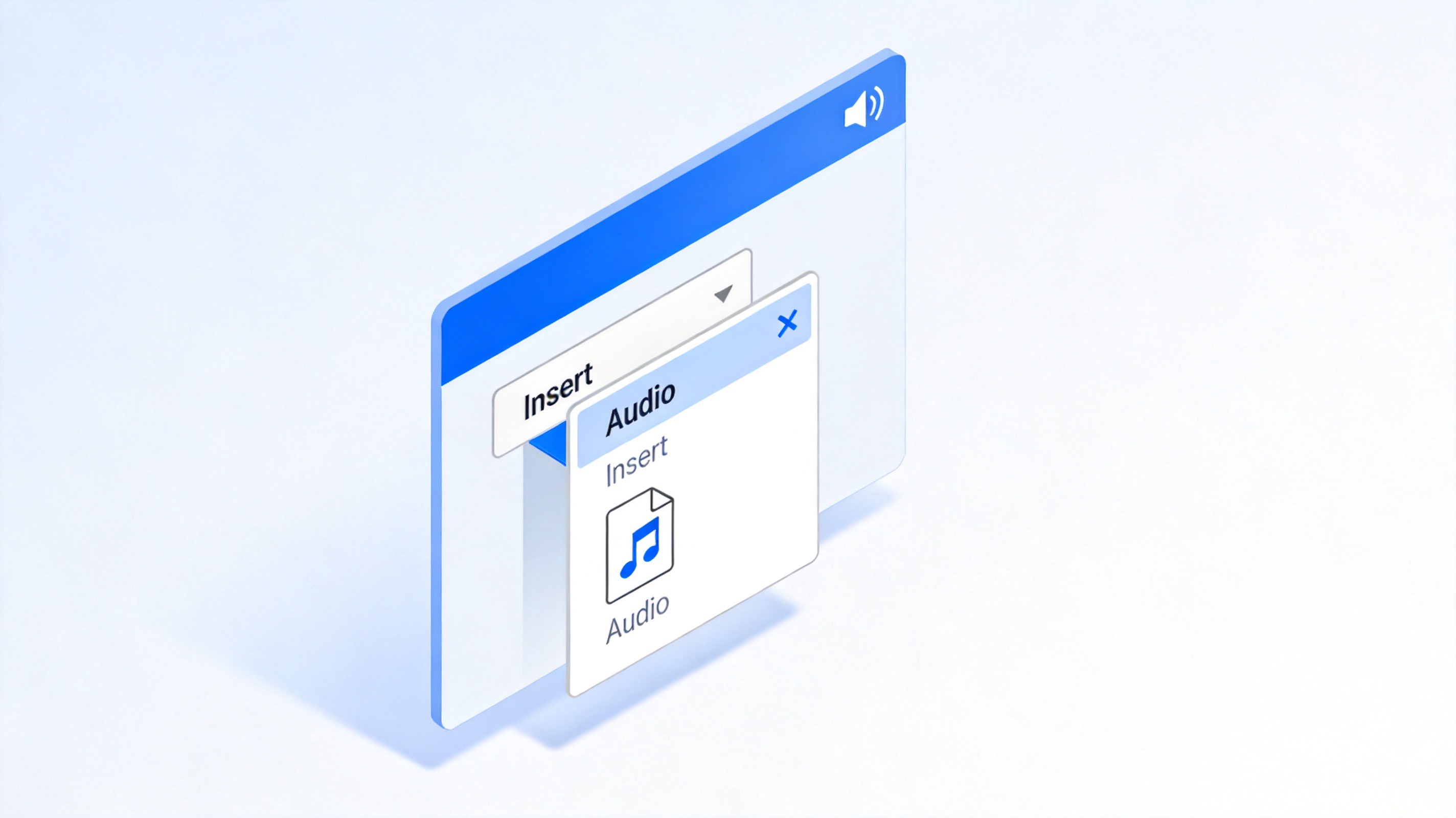
Insert audio menu in Google Slides
That is the core workflow. The speaker icon is the audio object: you can drag it anywhere on the slide, resize it, or delete it like any other element. Click it once to select it, then press the Delete key if you want to remove the track.


How to Set Music Playback After Adding Music to Google Slides
Inserting the file only places it on the slide. To decide when and how the music plays, use the format sidebar:
Select the speaker icon on your slide.
Click Format options in the toolbar (or right-click the icon and choose Format options).
Expand Audio playback and adjust the settings:
Start playing: choose On click or Automatically. Automatic start works well for self-running presentations.
Loop audio: turn this on if you want a short track to repeat until the presentation ends.
Stop on slide change: keep this on so the music does not continue over unrelated slides.
Hide icon when presenting: enable this so the audience sees your content, not a speaker symbol.
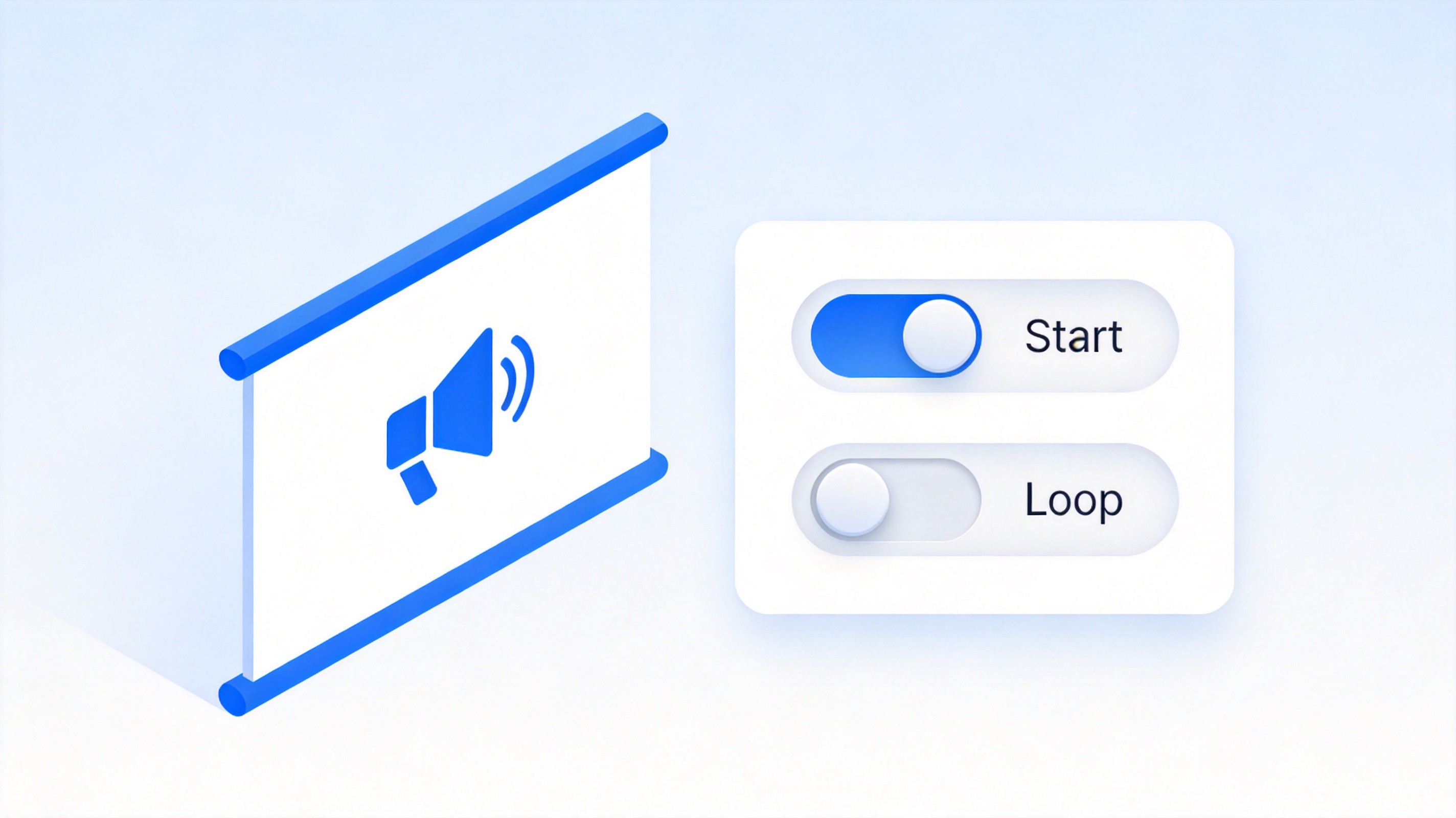
Audio playback settings loop options
A quick test is worth the extra minute: press the Present button and walk through the slides once. If the music starts too loudly or overlaps your narration, adjust the volume in the same Audio playback panel.
How to Add Music to Google Slides from YouTube
If your music is not a local file — for example, a song on YouTube — you cannot insert it as audio directly. The workaround is to embed the video itself:
Copy the YouTube link of the song or royalty-free track you want to use.
In Google Slides, click Insert > Video.
Paste the URL in the search field and press Enter, then select the video and click Insert.
Resize the video frame and use Format options > Video playback to set it to autoplay if needed.

Embed YouTube music video slides
Keep in mind that this method needs an internet connection during the presentation, and the video must remain publicly available on YouTube. For important presentations, a local MP3 in Google Drive is the more reliable choice.
Why Adding Music to Google Slides Is Not Working
When the audio will not insert or play, one of these causes is usually responsible:
The file is not in Google Drive. Insert > Audio only lists Drive files. Upload the track first and wait for the upload to finish.
Unsupported format. Stick to MP3 or WAV. Formats like FLAC or M4A may not appear or may fail to play.
Sharing permissions. If the audio file is restricted, viewers opening the deck elsewhere cannot hear it. Set the file to Anyone with the link can view.
Playback inside the editor. Audio plays reliably in Present mode; the editor view may not play it the same way.
If you frequently need offline presentations or richer audio controls, a desktop presentation app avoids these limits entirely — which brings us to the alternative below.
The Best Free Alternative: WPS Presentation
Google Slides depends on Drive storage and an internet connection. WPS Presentation, part of the free WPS Office suite, handles audio differently: you can insert music from your local disk in a couple of clicks, keep everything offline, and export the deck with audio embedded. It also opens and edits PowerPoint files directly, so nothing is lost when you move between tools.
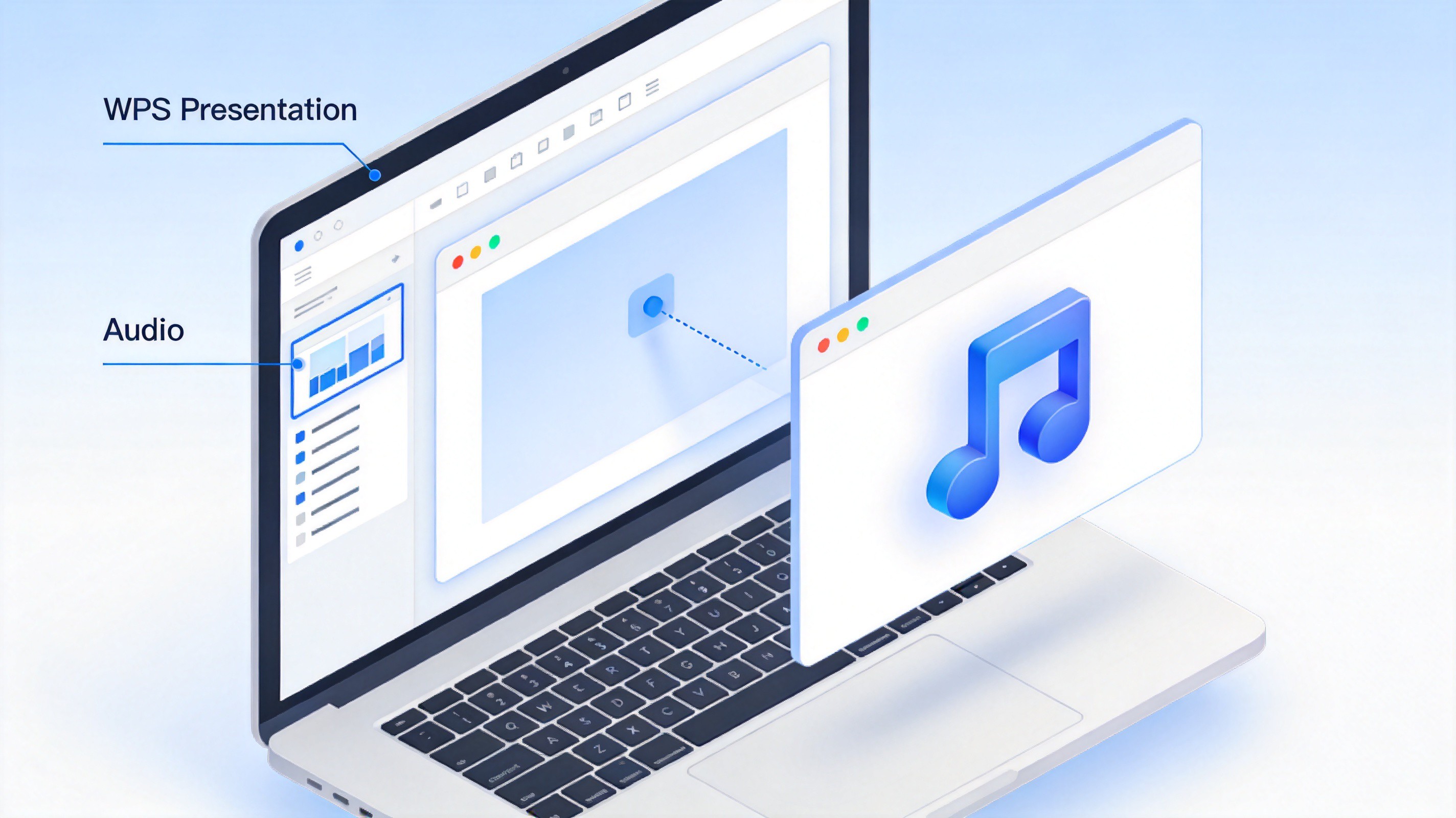
WPS Presentation insert audio offline
If you are comparing options, our guide on how to add music to a PowerPoint in WPS Office walks through the same process in the desktop app, and how to insert a video into Google Slides covers the video side of media insertion.
FAQs
Q1: Can I add music to Google Slides from my computer directly?
No. Google Slides cannot upload audio from your computer. Save the MP3 or WAV file to Google Drive first, then use Insert > Audio to place it on a slide.
Q2: How do I make music play across all slides in Google Slides?
Insert the audio on the first slide, select the speaker icon, open Format options > Audio playback, and turn on Loop audio. Keep in mind that audio stops when you change slides unless the track is long enough or looped.
Q3: What audio formats does Google Slides support?
MP3 and WAV are the safest choices. Less common formats may not show up in the Insert Audio window or may fail during playback.
Q4: Why is my inserted audio not playing for other viewers?
Most often it is a sharing permission issue. Open the audio file in Google Drive and set it so that anyone with the link can view. Then re-test the presentation in another account or incognito window.
Q5: Can I trim the music or fade it out in Google Slides?
No. Google Slides only offers start behavior, looping, and volume. To trim or fade a track, edit the audio file in a tool like Audacity first, then upload the edited version to Drive.


'%3e%3cpath%20d='M19.9911%204.11386V6.471H18.5894C18.0775%206.471%2017.7322%206.57814%2017.5536%206.79243C17.3751%207.00671%2017.2858%207.32814%2017.2858%207.75671V9.44421H19.9019L19.5536%2012.0871H17.2858V18.8639H14.5536V12.0871H12.2769V9.44421H14.5536V7.49779C14.5536%206.39064%2014.8632%205.53201%2015.4822%204.92189C16.1013%204.31177%2016.9257%204.00671%2017.9554%204.00671C18.8304%204.00671%2019.509%204.04243%2019.9911%204.11386Z'%20fill='%23333333'/%3e%3c/g%3e%3cdefs%3e%3cclipPath%20id='clip0_2938_8199'%3e%3crect%20width='16'%20height='16'%20fill='white'%20transform='translate(8%204.00671)'/%3e%3c/clipPath%3e%3c/defs%3e%3c/svg%3e)
'%3e%3cpath%20d='M17.5237%2010.7813L23.4811%204H22.0699L16.8949%209.88693L12.7648%204H8L14.2469%2012.9029L8%2020.0133H9.4112L14.8725%2013.7952L19.2352%2020.0133H24M9.92053%205.04213H12.0885L22.0688%2019.0224H19.9003'%20fill='%23333333'/%3e%3c/g%3e%3cdefs%3e%3cclipPath%20id='clip0_2938_8200'%3e%3crect%20width='16'%20height='16.0134'%20fill='white'%20transform='translate(8%204)'/%3e%3c/clipPath%3e%3c/defs%3e%3c/svg%3e)


