



'%3e%3cpath%20fill-rule='evenodd'%20clip-rule='evenodd'%20d='M21.4999%2010.9993C21.4999%205.20009%2016.7986%200.498901%2010.9993%200.498901C5.19994%200.498901%200.498657%205.20009%200.498657%2010.9993C0.498657%2016.2404%204.33858%2020.5844%209.35855%2021.3722V14.0346H6.69238V10.9993H9.35855V8.68594C9.35855%206.05427%2010.9262%204.60062%2013.3248%204.60062C14.4736%204.60062%2015.6753%204.80571%2015.6753%204.80571V7.38979H14.3512C13.0468%207.38979%2012.64%208.19921%2012.64%209.0296V10.9993H15.5523L15.0867%2014.0346H12.64V21.3722C17.66%2020.5844%2021.4999%2016.2404%2021.4999%2010.9993Z'%20fill='%231568EA'/%3e%3c/g%3e%3c/svg%3e)


'%3e%3cpath%20d='M2.42045%2022.1876H6.31818V12.7217L0.75%208.54553V20.5171C0.75%2021.4414%201.49892%2022.1876%202.42045%2022.1876Z'%20fill='%234285F4'/%3e%3cpath%20d='M19.682%2022.1876H23.5797C24.5041%2022.1876%2025.2502%2021.4387%2025.2502%2020.5171V8.54553L19.682%2012.7217'%20fill='%2334A853'/%3e%3cpath%20d='M19.682%205.48293V12.7216L25.2502%208.54543V6.31816C25.2502%204.25236%2022.8921%203.07469%2021.2411%204.31361'%20fill='%23FBBC04'/%3e%3cpath%20d='M6.31824%2012.7217V5.48303L13.0001%2010.4944L19.6819%205.48303V12.7217L13.0001%2017.733'%20fill='%23EA4335'/%3e%3cpath%20d='M0.75%206.31816V8.54543L6.31818%2012.7216V5.48293L4.75909%204.31361C3.10534%203.07469%200.75%204.25236%200.75%206.31816Z'%20fill='%23C5221F'/%3e%3c/g%3e%3cdefs%3e%3cclipPath%20id='clip0_2954_7305'%3e%3crect%20width='24.5'%20height='18.375'%20fill='white'%20transform='translate(0.75%203.8125)'/%3e%3c/clipPath%3e%3c/defs%3e%3c/svg%3e)


If a photo looks boxy on a slide or a profile image does not sit cleanly in a circle, you can crop a picture to fit in a shape instead of editing it in a separate image app. In Word, PowerPoint, Excel, and Outlook, Crop to Shape turns a regular photo into an oval, rounded rectangle, or other outline while you still see the surrounding page or slide.
This guide explains Fill versus Fit, the two main Office workflows, and how to get a similar result in WPS Office with Crop by Shape. Desktop apps give you the full crop-to-shape tools; Word for the web does not.
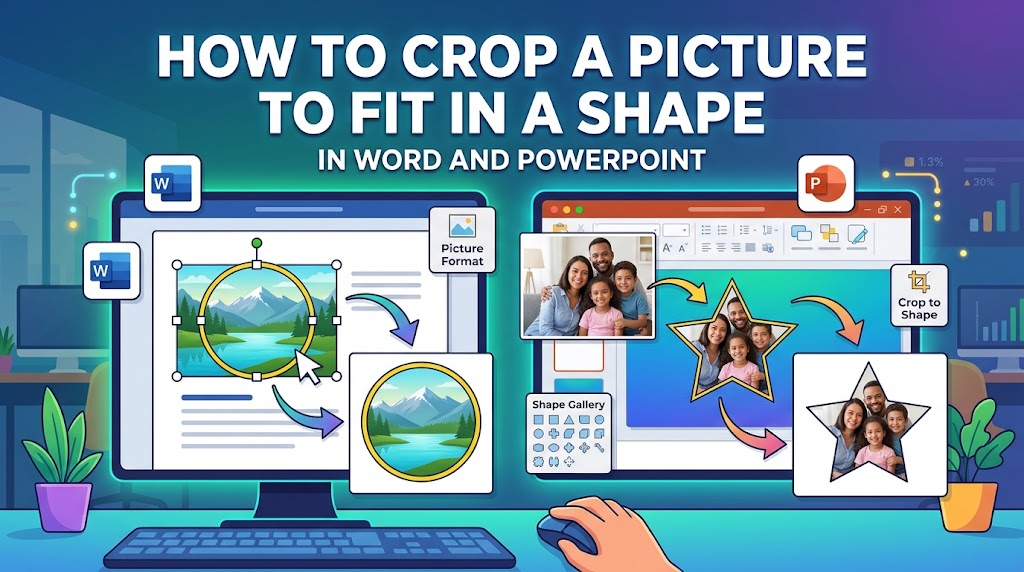
How to Crop a Picture to Fit in a Shape in Word and PowerPoint
What it means to crop a picture to fit in a shape
When you crop a picture to fit in a shape, Office keeps the photo and uses the shape as a mask. The outline changes; the file is still a picture, not a drawing you have to rebuild. A circle works well for team photos, a rounded rectangle for banners, and arrows or callout shapes for highlighting one part of a screenshot.
This is different from a basic rectangular crop. A regular crop only trims the edges. Crop to Shape also changes the silhouette, so the image can sit inside a layout instead of looking like a leftover rectangle. For everyday documents and slides, that is usually faster than exporting the photo to a design tool.
Cropping usually hides the extra pixels rather than deleting them. You can still drag the photo inside the frame later. If you need a smaller file, compress the picture after you finish framing it.
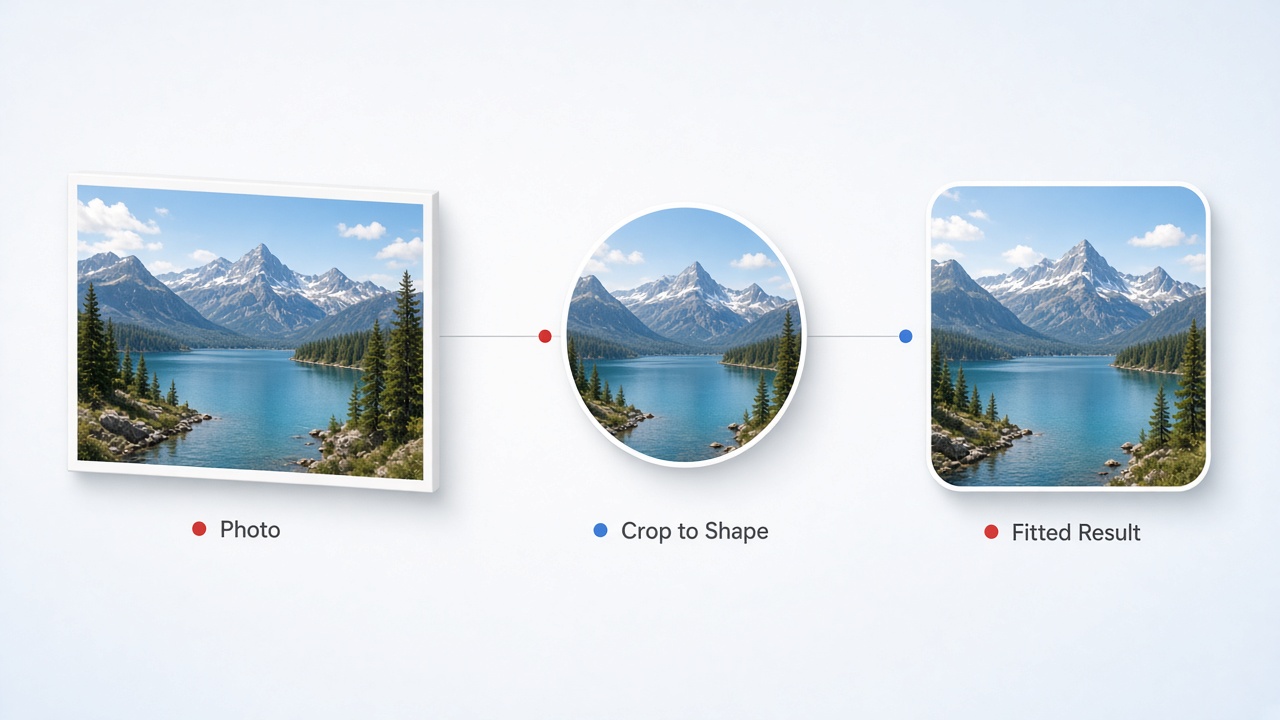
Crop a picture to shape


Prep tips before you crop a picture to fit in a shape
A few setup choices make it easier to crop a picture to fit in a shape without stretching the subject or cutting off a face, logo, or button.
Use a high-resolution photo. A small image will look soft once you enlarge it to fill a circle or banner.
Choose the shape first. Oval plus a 1:1 aspect ratio is the usual path to a true circle. Rounded rectangles work better for headers and product cards.
Keep the subject off the edge. Leave a little space above a head, around a logo, or beside a screenshot control so the mask does not clip it.
Do not stretch the picture. Crop or Fill/Fit first, then resize from a corner handle so the proportions stay intact.
Copy the picture if you need several shapes. Each crop uses one outline. Duplicate the original, then crop each copy separately.
If you are new to rectangular cropping, start with how to crop a picture in Office, then come back to shape masks. For a circle-only walkthrough in slides, see how to make a picture a circle in PowerPoint.
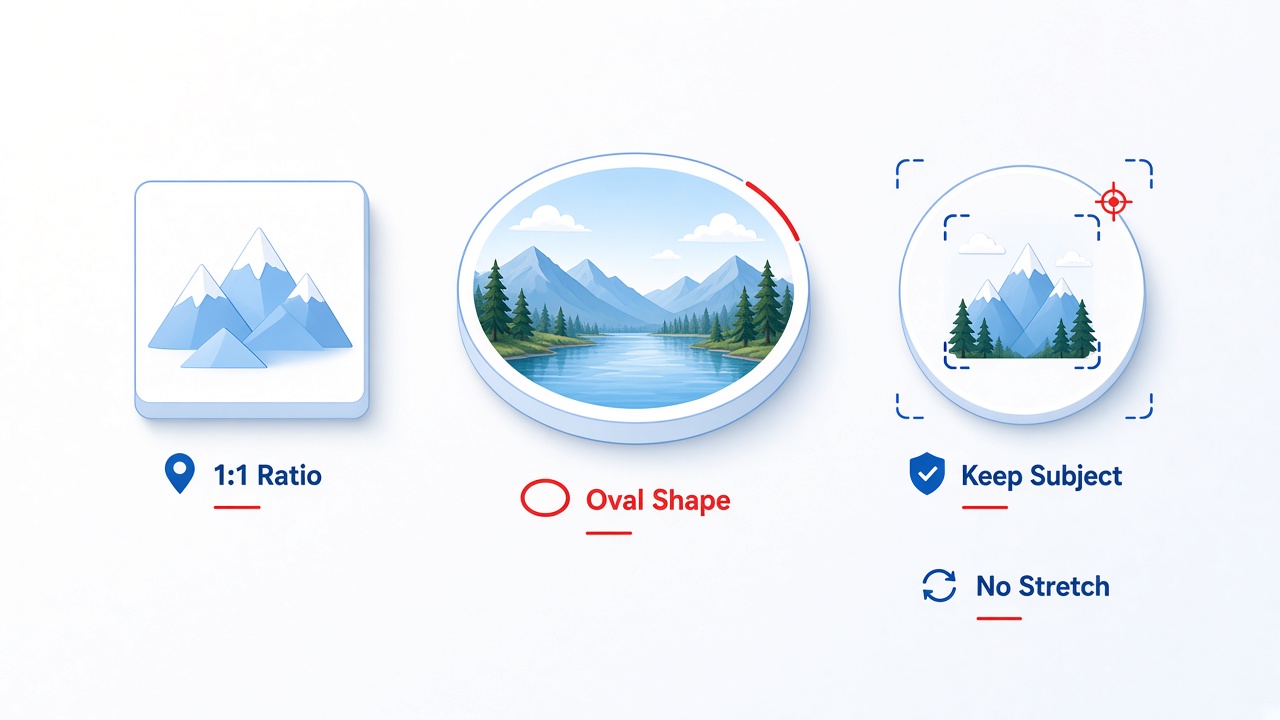
Oval crop ratio prep tips
How to crop a picture to fit in a shape in Word and PowerPoint
The fastest way to crop a picture to fit in a shape is to start with the photo. The same Picture Format path works in desktop Word, PowerPoint, Excel, and Outlook. Ribbon labels can vary slightly by version.
Insert a picture with Insert > Pictures, or select a picture already on the page or slide.
Open the Picture Format tab.
Select the arrow under Crop, choose Crop to Shape, then pick a shape such as Oval or Rounded Rectangle. The mask applies immediately.
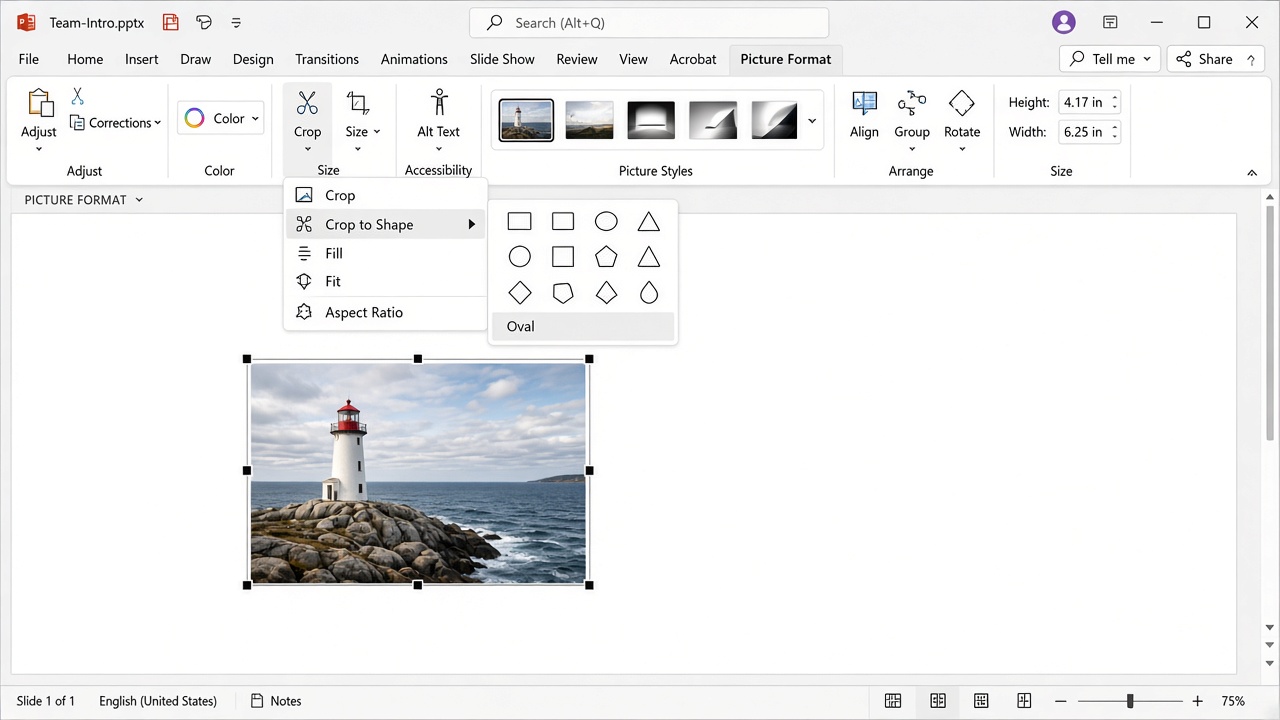
Crop to Shape menu PowerPoint
If you need a true circle, open the Crop menu again, choose Aspect Ratio, and select 1:1. Then drag the photo so the subject sits in the oval.
Click Crop again, press Esc, or click outside the picture to apply the result.
You can select several pictures and apply the same shape at once. In Word this is harder when pictures are set to In Line with Text, because Word cannot multi-select those images. Change the wrap first, or crop each picture separately.
Word for the web does not include the full desktop Crop to Shape command. You can still apply a few Picture Styles, but Fill, Fit, and the full shape gallery belong to the desktop apps. For a broader PowerPoint crop walkthrough, see how to crop a picture in PowerPoint.
How to fill a shape when you crop a picture to fit in a shape
The second way to crop a picture to fit in a shape is to draw the shape first, then fill it with a photo. Use this when the circle or banner size is already locked in the layout.
Go to Insert > Shapes and draw the outline you need.
Select the shape, open Shape Format, then choose Shape Fill > Picture and pick the image.
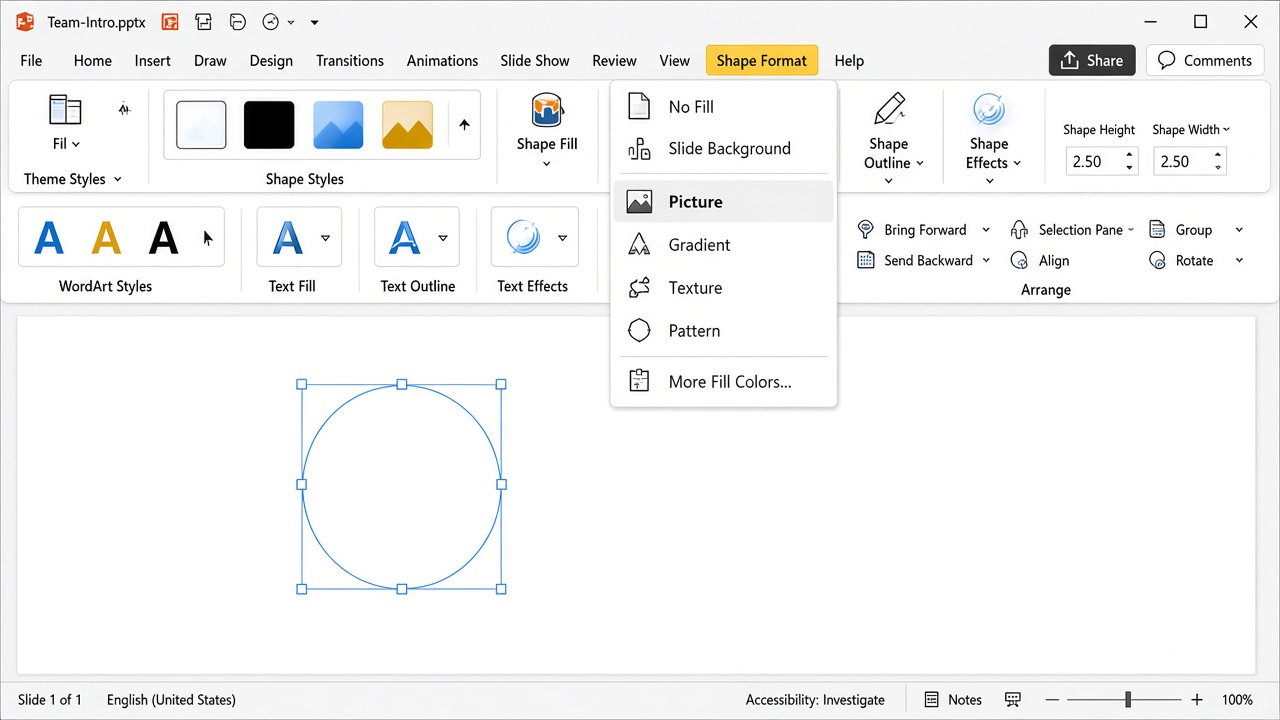
Fill a shape with picture
If the photo looks stretched or off-center, stay on Picture Format, open the Crop menu, and use Fill or Fit (covered in the next section).
If you do not want a border, set Shape Outline to No Outline.
You can still resize the filled shape from a corner handle. For custom outlines, Shape Format > Edit Shape > Edit Points lets you move vertex points. That edits the shape path; it is not the same as Crop to Shape.
Fill vs Fit: crop a picture to fit in a shape without empty space
Fill and Fit are the two Office tools that decide whether you crop a picture to fit in a shape with no empty margin, or keep the whole photo visible. They appear under the Crop arrow after the picture is in a shape.
Fill enlarges the photo until the shape is completely covered. Edges of the picture may be cut off. There is no empty space inside the outline.
Fit scales the photo so the entire image stays visible. You may see empty space at the sides or top and bottom of the shape.
Select the shaped picture and open Picture Format.
Select the arrow under Crop, then choose Fill or Fit. Black crop handles appear on the photo.
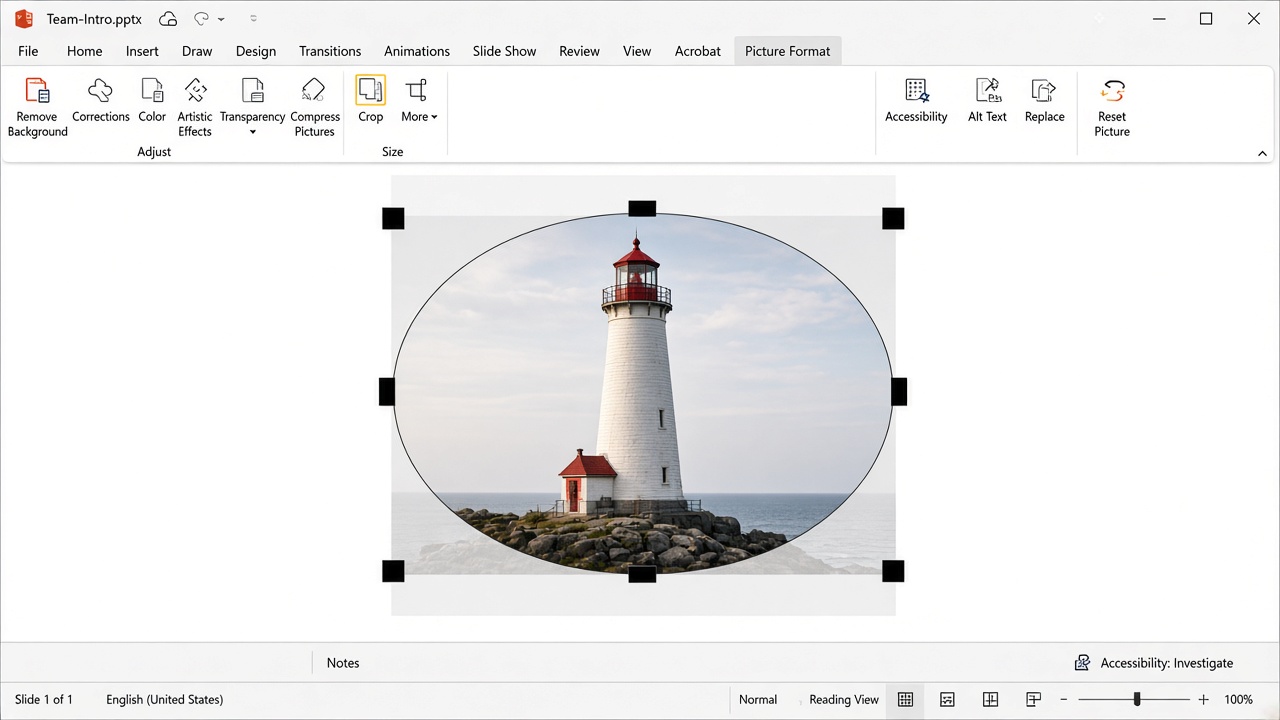
Fill oval crop handles PowerPoint
Drag the picture inside the frame so the important part sits in the center. Drag a black handle if you still need to trim a margin.
Hold Ctrl while dragging a side handle if you want to crop two opposite sides evenly (Windows desktop).
Press Esc or click outside the picture when the framing looks right.
Use Fill for profile circles, team grids, and banners that must look solid. Use Fit when you cannot lose any part of a chart, screenshot, or certificate.
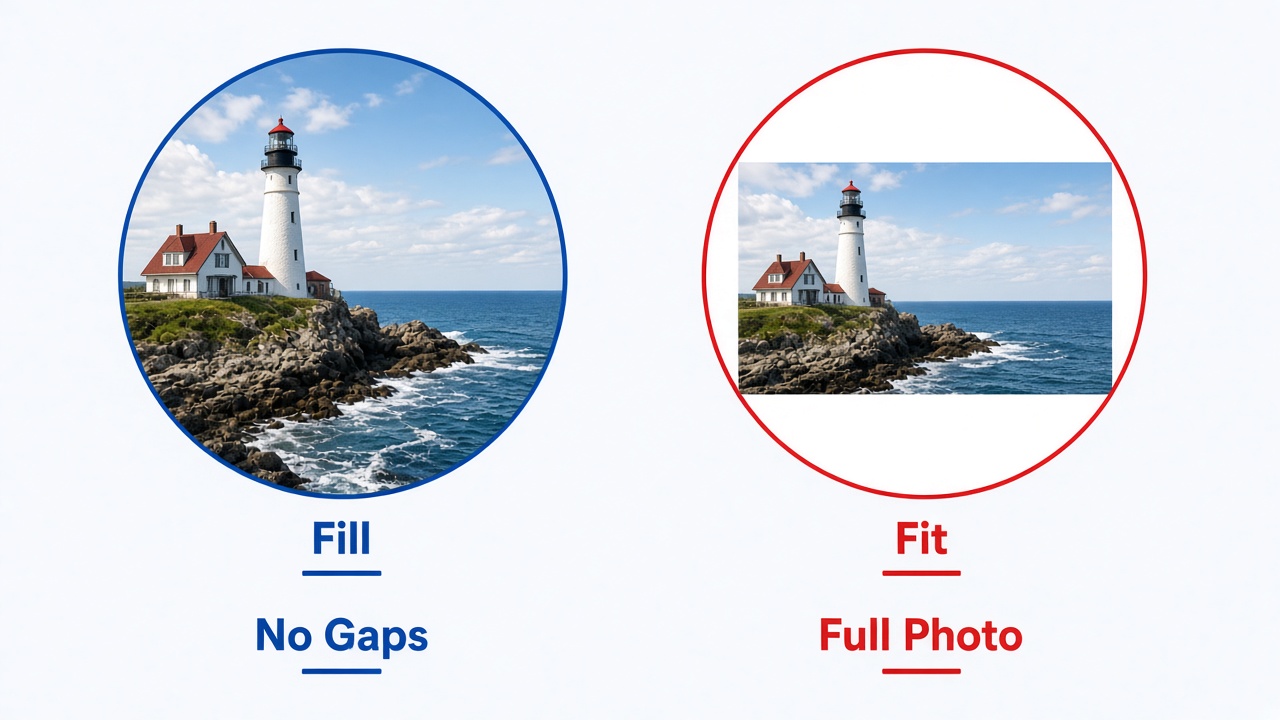
Fill vs Fit crop comparison
The Best Free Office Alternative: WPS Office
If you want a familiar office workflow without a Microsoft 365 subscription, WPS Office is a practical free alternative. Writer, Presentation, Spreadsheet, and PDF tools sit in one lightweight suite, so you can mask a photo and finish the document without switching apps.
WPS Presentation keeps picture tools close to the selected image. After you click a photo, you can open Picture Tools and use Crop by Shape or Crop by Scale, then adjust the mask in the Crop Panel. That is fewer nested ribbon clicks than hunting for Fill and Fit on a crowded Picture Format tab.
The suite is also useful when the picture is only one step in the job. You can crop a slide image, continue writing in the same file family, and export or edit a PDF without buying a separate photo editor. WPS Presentation opens common PowerPoint formats such as .pptx and .ppt, so existing decks stay editable.
Microsoft Office can crop a picture to a shape, but the everyday path is often ribbon-heavy and tied to a paid desktop or Microsoft 365 plan. WPS Office focuses on faster access, built-in shape presets, and a free starting point for Writer, slides, sheets, and PDFs.
| Capability | Microsoft Office | WPS Office |
|---|---|---|
| Quick access / UI friction | Crop, Crop to Shape, Fill, and Fit usually live in the Picture Format ribbon after you select the picture. | Faster picture actions from Picture Tools, a Crop dropdown, and a Crop Panel beside the image. |
| Preset and design flexibility | Large Crop to Shape gallery plus Aspect Ratio, Fill, and Fit on desktop apps. | Crop by Shape and Crop by Scale with several shape categories; the Crop Panel can change shape and scale without leaving the slide. |
| All-in-one capabilities | Picture tools sit in Word, PowerPoint, or Excel; advanced photo work may need extra Microsoft apps. | Writer, Presentation, Spreadsheet, PDF, and picture tools in one workspace, so you crop and finish the file together. |
| Export and reuse | The cropped picture stays in the Office file; saving a standalone PNG or JPG can take extra copy or export steps. | Keep working in the same suite and reuse the framed picture across documents, slides, and PDFs. |
| Pricing and accessibility | Full desktop Crop to Shape, Fill, and Fit are part of Microsoft 365 or a paid Office desktop license. | Free to start, lightweight, and available from the WPS download page. |
Key Advantages of WPS Office
Fewer clicks for shape crops: Crop by Shape, Crop by Scale, and the Crop Panel sit on Picture Tools instead of a nested Fill/Fit path.
One workspace after the crop: Continue in Writer, Presentation, Spreadsheet, or PDF without exporting to another editor.
Free everyday access: You can mask photos in documents and slides without paying for Microsoft 365 first.
Here is how to crop a picture to a shape in WPS Presentation or WPS Writer:
Open the file and select the picture.
Go to Picture Tools, open the Crop dropdown, and choose Crop by Shape.
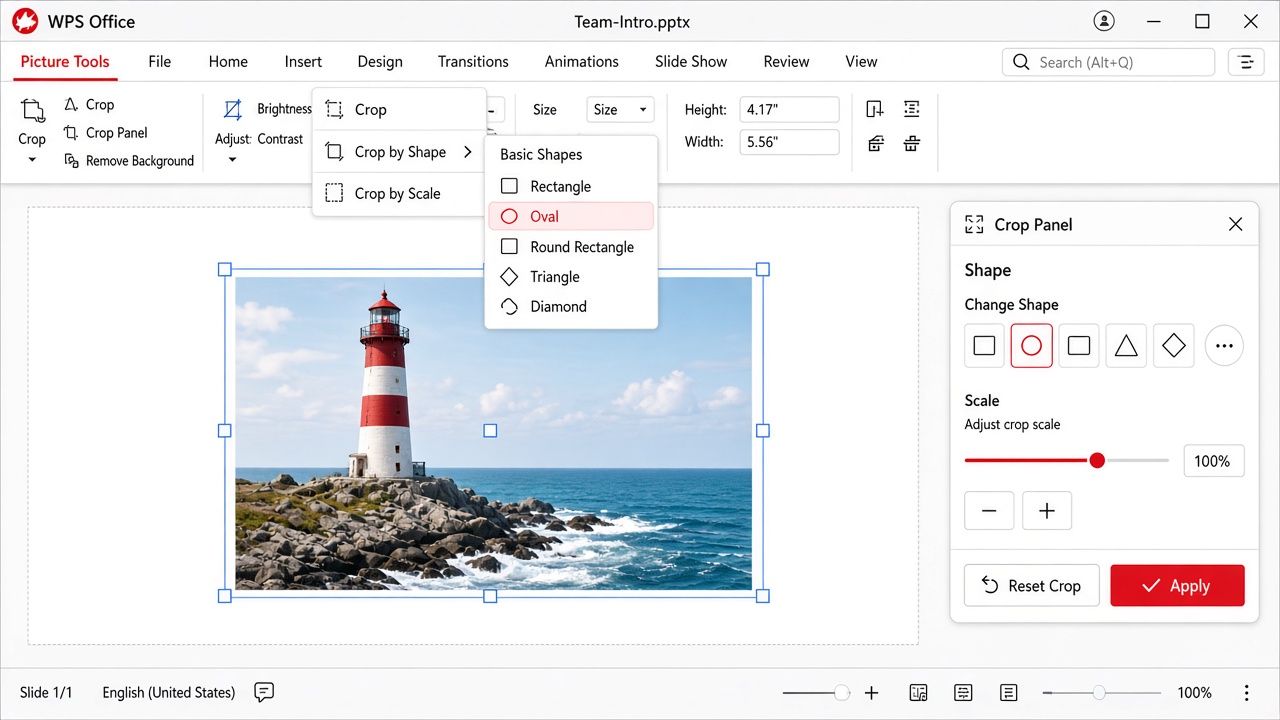
WPS Crop by Shape menu
Pick a shape such as Oval or Rounded Rectangle. The shaded area is the part that will be hidden.
Drag the black side handles to change the crop area. Use the Crop Panel on the right if you want to switch shape or scale without reopening the menu.
For a fixed ratio, use Crop by Scale (for example 1:1 for a circle-like oval).
Click outside the picture, press Enter, or choose Crop to finish. On a rounded rectangle, a yellow handle can adjust the corner curve.
WPS does not label the Microsoft Fill and Fit commands the same way. Use Crop by Shape plus the Crop Panel and handles to cover the outline or keep more of the photo visible. To start from a shape instead of a photo, insert the shape, open Drawing Tools, choose Shape Fill > Picture or texture fill > From Pictures, then open the image.
FAQs
Can I crop a picture to a perfect circle?
Yes. In Microsoft Office, use Crop to Shape > Oval, then set Aspect Ratio to 1:1 and reposition the photo. In WPS Office, use Crop by Shape > Oval and Crop by Scale 1:1 if you need a rounder result.
What is the difference between Fill and Fit?
Fill covers the whole shape and may cut off the edges of the photo. Fit shows the entire picture and may leave empty space inside the shape. These names appear in desktop Microsoft Office. In WPS Office, use Crop by Shape, Crop by Scale, and the Crop Panel to get a similar framing.
Does Word for the web support Crop to Shape?
No. Word for the web does not include the full desktop Crop to Shape tools. You can apply some Picture Styles there, but Fill, Fit, and the full shape gallery are desktop features.
Does cropping permanently delete the hidden part of the picture?
Usually not. Cropping hides the extra area inside the file, so you can still recrop later. To reduce file size, use Compress Pictures in Microsoft Office or save a flattened copy of the image. Only the desktop apps can permanently remove cropped areas in some Office versions; the web apps generally cannot.
Can I fill a shape with a picture in WPS Office?
Yes. Insert a shape, open Drawing Tools, choose Shape Fill > Picture or texture fill > From Pictures, then select the file. After that, adjust size and outline as needed.


'%3e%3cpath%20d='M19.9911%204.11386V6.471H18.5894C18.0775%206.471%2017.7322%206.57814%2017.5536%206.79243C17.3751%207.00671%2017.2858%207.32814%2017.2858%207.75671V9.44421H19.9019L19.5536%2012.0871H17.2858V18.8639H14.5536V12.0871H12.2769V9.44421H14.5536V7.49779C14.5536%206.39064%2014.8632%205.53201%2015.4822%204.92189C16.1013%204.31177%2016.9257%204.00671%2017.9554%204.00671C18.8304%204.00671%2019.509%204.04243%2019.9911%204.11386Z'%20fill='%23333333'/%3e%3c/g%3e%3cdefs%3e%3cclipPath%20id='clip0_2938_8199'%3e%3crect%20width='16'%20height='16'%20fill='white'%20transform='translate(8%204.00671)'/%3e%3c/clipPath%3e%3c/defs%3e%3c/svg%3e)
'%3e%3cpath%20d='M17.5237%2010.7813L23.4811%204H22.0699L16.8949%209.88693L12.7648%204H8L14.2469%2012.9029L8%2020.0133H9.4112L14.8725%2013.7952L19.2352%2020.0133H24M9.92053%205.04213H12.0885L22.0688%2019.0224H19.9003'%20fill='%23333333'/%3e%3c/g%3e%3cdefs%3e%3cclipPath%20id='clip0_2938_8200'%3e%3crect%20width='16'%20height='16.0134'%20fill='white'%20transform='translate(8%204)'/%3e%3c/clipPath%3e%3c/defs%3e%3c/svg%3e)


