



'%3e%3cpath%20fill-rule='evenodd'%20clip-rule='evenodd'%20d='M21.4999%2010.9993C21.4999%205.20009%2016.7986%200.498901%2010.9993%200.498901C5.19994%200.498901%200.498657%205.20009%200.498657%2010.9993C0.498657%2016.2404%204.33858%2020.5844%209.35855%2021.3722V14.0346H6.69238V10.9993H9.35855V8.68594C9.35855%206.05427%2010.9262%204.60062%2013.3248%204.60062C14.4736%204.60062%2015.6753%204.80571%2015.6753%204.80571V7.38979H14.3512C13.0468%207.38979%2012.64%208.19921%2012.64%209.0296V10.9993H15.5523L15.0867%2014.0346H12.64V21.3722C17.66%2020.5844%2021.4999%2016.2404%2021.4999%2010.9993Z'%20fill='%231568EA'/%3e%3c/g%3e%3c/svg%3e)


'%3e%3cpath%20d='M2.42045%2022.1876H6.31818V12.7217L0.75%208.54553V20.5171C0.75%2021.4414%201.49892%2022.1876%202.42045%2022.1876Z'%20fill='%234285F4'/%3e%3cpath%20d='M19.682%2022.1876H23.5797C24.5041%2022.1876%2025.2502%2021.4387%2025.2502%2020.5171V8.54553L19.682%2012.7217'%20fill='%2334A853'/%3e%3cpath%20d='M19.682%205.48293V12.7216L25.2502%208.54543V6.31816C25.2502%204.25236%2022.8921%203.07469%2021.2411%204.31361'%20fill='%23FBBC04'/%3e%3cpath%20d='M6.31824%2012.7217V5.48303L13.0001%2010.4944L19.6819%205.48303V12.7217L13.0001%2017.733'%20fill='%23EA4335'/%3e%3cpath%20d='M0.75%206.31816V8.54543L6.31818%2012.7216V5.48293L4.75909%204.31361C3.10534%203.07469%200.75%204.25236%200.75%206.31816Z'%20fill='%23C5221F'/%3e%3c/g%3e%3cdefs%3e%3cclipPath%20id='clip0_2954_7305'%3e%3crect%20width='24.5'%20height='18.375'%20fill='white'%20transform='translate(0.75%203.8125)'/%3e%3c/clipPath%3e%3c/defs%3e%3c/svg%3e)


You open a PDF on your laptop, spot a typo or a blank that needs filling—and nothing happens. The file looks finished, so many people convert it to Word first or pay for complex software just to change a few words. If you’re searching for how to edit a PDF file on laptop without that hassle, you’re in the right place.
You don’t have to overcomplicate it. Below are 3 easy methods for how to edit a PDF file on laptop: quick browser markup, an online editor for emergencies, and WPS Office when you need real text edits with better privacy.
Method 1: Using Your Browser for How to Edit a PDF File on Laptop
If you only need simple markup—highlights, text boxes, or an e-signature—your browser is often the fastest answer for how to edit a PDF file on laptop without installing anything.
Typical steps:
Right-click the PDF and open it with your browser (Microsoft Edge works well).
Use the top toolbar to add highlights, text, or a signature.
Click Save or Download to keep the annotated file.
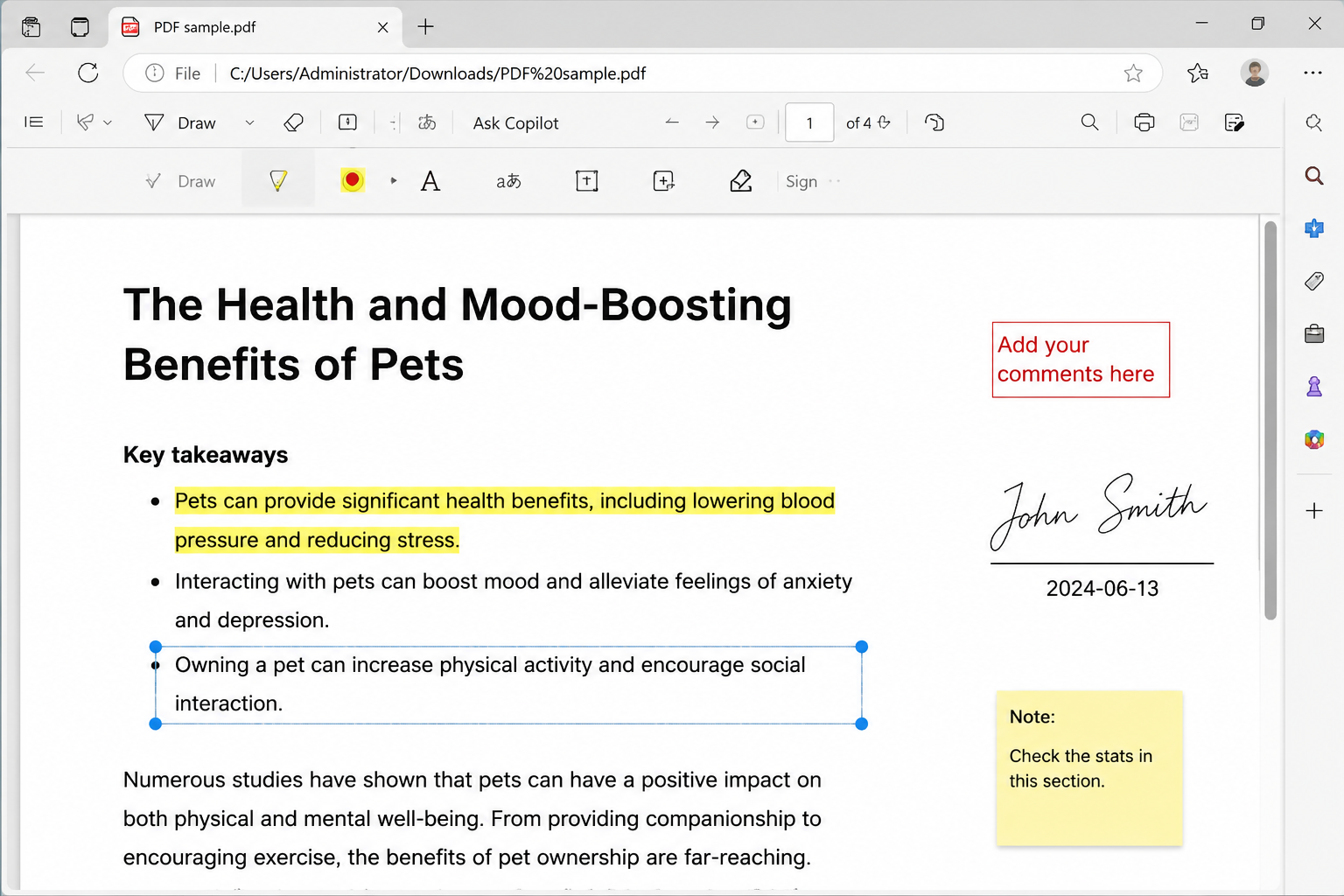
Using Browser to Edit a PDF
Pros: Fast, free, and no install required.
Cons: You generally can’t edit the original text or images—only add overlays on top. For deeper changes, you’ll need another way to edit a PDF file on laptop.
Method 2: Online PDF Editors for How to Edit a PDF File on Laptop Quickly
When you can’t install software and only need a one-off fix, online tools are a practical path for how to edit a PDF file on laptop in a hurry.
Typical steps:
Open an online PDF editor and drag-and-drop your file to upload.
Use the web tools to edit, cover, or annotate the content.
Download the updated PDF to your laptop.
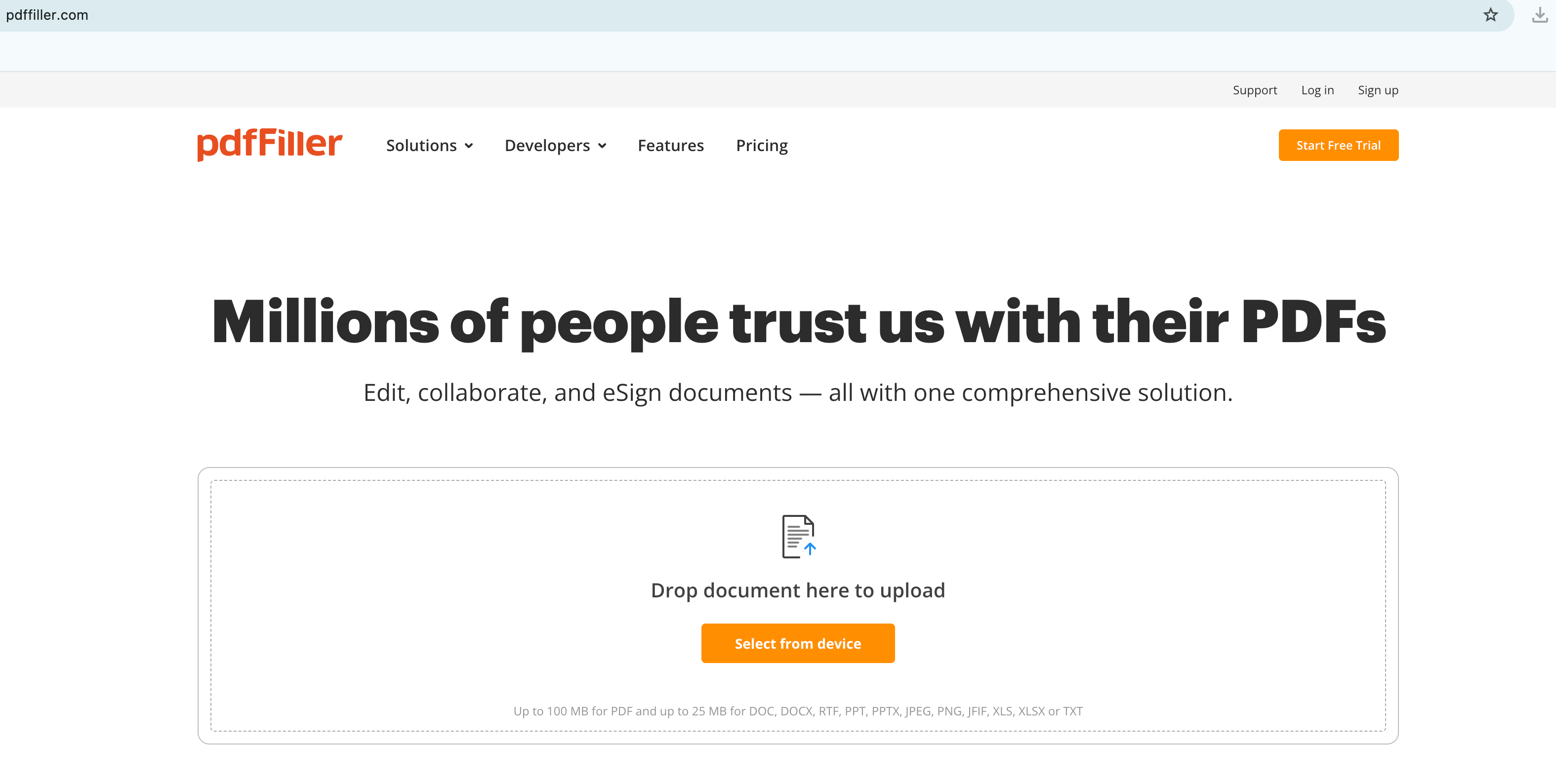
Online PDF editor upload page for how to edit a PDF file on laptop without installing software
Pros: No install; works from almost any computer with a browser.
Cons: Needs internet, can be slow with large files, and uploading sensitive documents carries privacy risk—so this isn’t always the best way to edit a PDF file on laptop for contracts or personal data.
Method 3: How to Edit a PDF File on Laptop with WPS Office (Recommended)
Choose this method when you want to edit a PDF file on laptop for real—change original text and images, keep the layout clean, and leave files on your device instead of uploading them.
Typical steps:
Open the PDF in WPS Office.
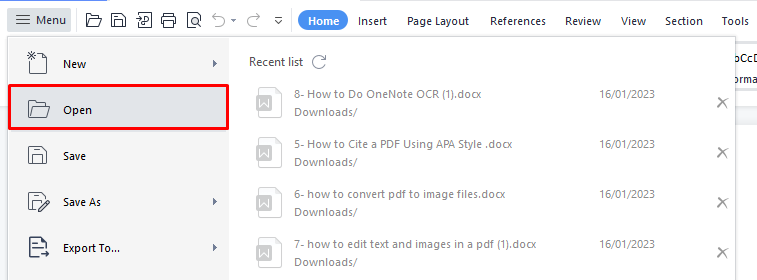
Open a PDF in WPS Office from the Menu Open button to edit a PDF file on laptop
Click Edit in the top toolbar to enter edit mode.
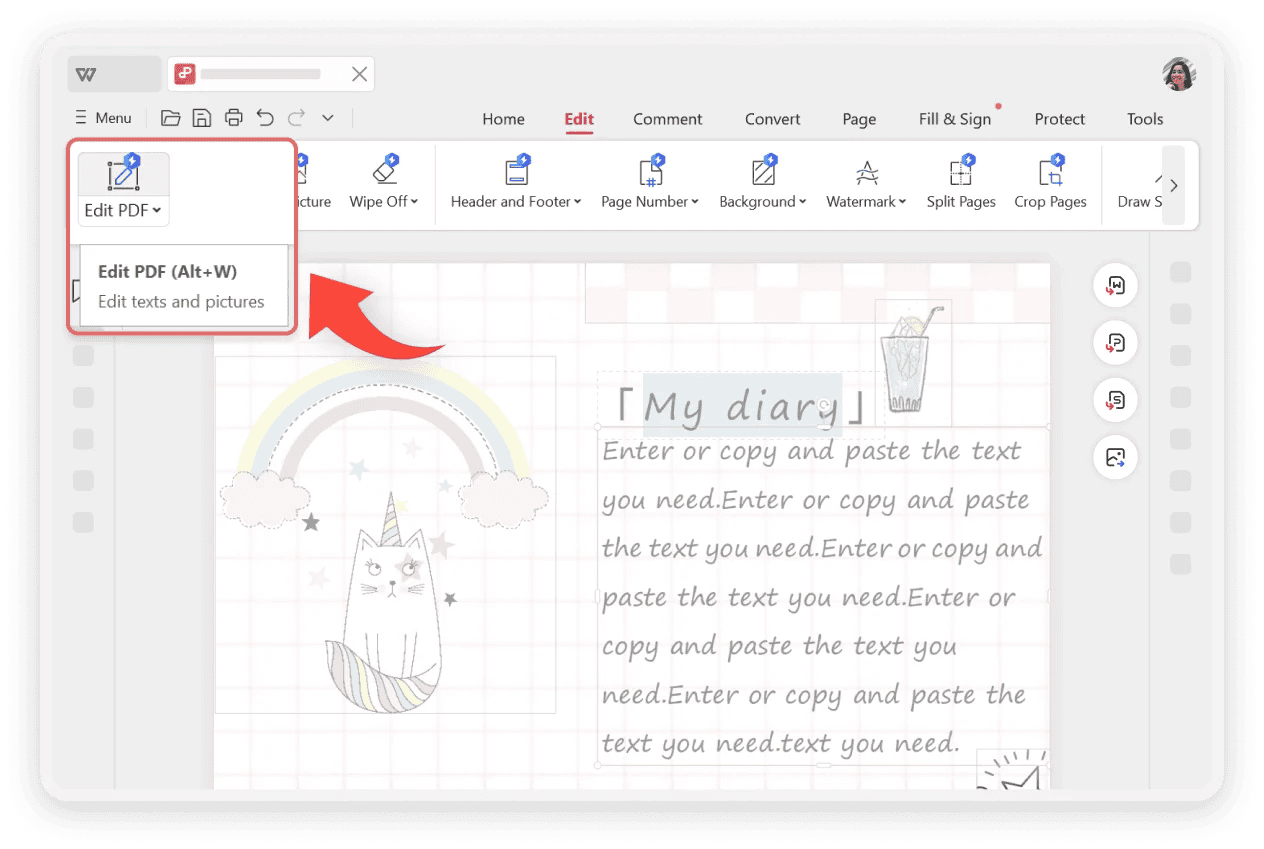
Click Edit PDF in WPS Office to edit texts and pictures when you edit a PDF file on laptop
Double-click text to add, delete, or rewrite it; click an image to replace or crop it.
Click Save or Export when you’re done.
Pros: Direct text and image editing, offline use, and stronger privacy for everyday work files.
Cons: Requires installing a desktop app (still lightweight compared with most premium PDF suites). For most people learning how to edit a PDF file on laptop, this is the most complete free-friendly option.
Comparing 3 Ways for How to Edit a PDF File on Laptop
Not every workflow fits every document. Use this side-by-side view to choose the right approach for how to edit a PDF file on laptop—quick markup, a temporary online fix, or full local editing.
| Feature | 1. Built-in browser | 2. Online editor sites | 3. WPS Office |
|---|---|---|---|
| Edit original text/images | No | Very limited | Full support |
| File security | Safe (local) | Lower (upload required) | High (local offline) |
| Offline use | Yes | No | Yes |
| Overall experience | Too limited | Free quotas / ads | Free, lightweight, all-in-one |
Put simply: browser markup is fine for light marks, online tools help in a pinch, and WPS is usually the better default when you need to edit a PDF file on laptop cleanly and securely.
Best Free Option for How to Edit a PDF File on Laptop: WPS Office
For most people searching how to edit a PDF file on laptop, the recurring pain points are the same: browsers only annotate, online tools require uploads, and premium suites feel heavy. WPS Office fills that gap with a practical desktop workflow.
Native text editing: Change PDF wording much like Word, with fonts that match the page more naturally.
Secure offline editing: Keep contracts and personal files on your laptop—no third-party upload required when you edit a PDF file on laptop.
Strong value vs Adobe Acrobat-style tools: Lighter to run, quicker to start, and rich free features for everyday edits.
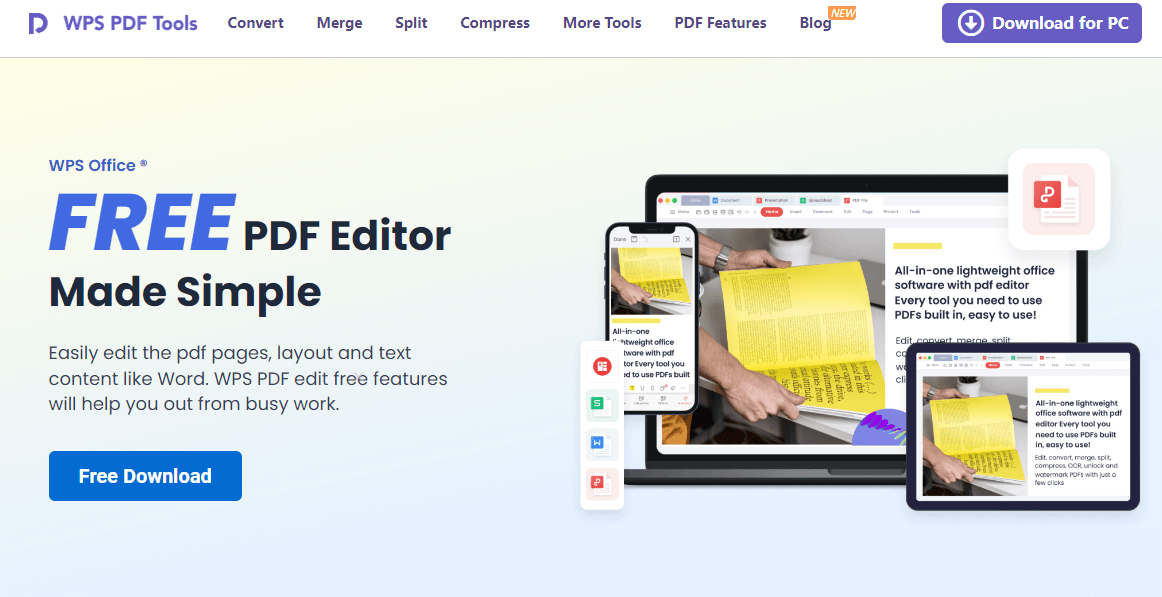
If you want reliable original-text edits without paying for a standalone premium PDF editor, download WPS Office for free and try Edit mode the next time you need to edit a PDF file on laptop.
Looking for more PDF editing guides? See how to edit a PDF in Word, how to edit a PDF online free without login, or explore the full WPS Edit PDF toolkit.
FAQs
Can I edit a PDF for free on my laptop?
Yes. Use your browser for simple annotations. If you need to change the original text, WPS Office’s free PDF editing features cover many everyday tasks when you want to edit a PDF file on laptop without buying expensive software.
How do I edit text in a scanned PDF?
Scanned PDFs are images first. Use a tool with OCR (such as WPS) to recognize the text, then edit the recognized content and proofread carefully. That OCR step is often the missing piece in how to edit a PDF file on laptop when the file came from a scan or photo.
Is it safe to edit sensitive PDFs online?
There’s risk, because the file usually leaves your device. For contracts or personal data, prefer a local desktop editor like WPS Office when you edit a PDF file on laptop.



'%3e%3cpath%20d='M19.9911%204.11386V6.471H18.5894C18.0775%206.471%2017.7322%206.57814%2017.5536%206.79243C17.3751%207.00671%2017.2858%207.32814%2017.2858%207.75671V9.44421H19.9019L19.5536%2012.0871H17.2858V18.8639H14.5536V12.0871H12.2769V9.44421H14.5536V7.49779C14.5536%206.39064%2014.8632%205.53201%2015.4822%204.92189C16.1013%204.31177%2016.9257%204.00671%2017.9554%204.00671C18.8304%204.00671%2019.509%204.04243%2019.9911%204.11386Z'%20fill='%23333333'/%3e%3c/g%3e%3cdefs%3e%3cclipPath%20id='clip0_2938_8199'%3e%3crect%20width='16'%20height='16'%20fill='white'%20transform='translate(8%204.00671)'/%3e%3c/clipPath%3e%3c/defs%3e%3c/svg%3e)
'%3e%3cpath%20d='M17.5237%2010.7813L23.4811%204H22.0699L16.8949%209.88693L12.7648%204H8L14.2469%2012.9029L8%2020.0133H9.4112L14.8725%2013.7952L19.2352%2020.0133H24M9.92053%205.04213H12.0885L22.0688%2019.0224H19.9003'%20fill='%23333333'/%3e%3c/g%3e%3cdefs%3e%3cclipPath%20id='clip0_2938_8200'%3e%3crect%20width='16'%20height='16.0134'%20fill='white'%20transform='translate(8%204)'/%3e%3c/clipPath%3e%3c/defs%3e%3c/svg%3e)


