



'%3e%3cpath%20fill-rule='evenodd'%20clip-rule='evenodd'%20d='M21.4999%2010.9993C21.4999%205.20009%2016.7986%200.498901%2010.9993%200.498901C5.19994%200.498901%200.498657%205.20009%200.498657%2010.9993C0.498657%2016.2404%204.33858%2020.5844%209.35855%2021.3722V14.0346H6.69238V10.9993H9.35855V8.68594C9.35855%206.05427%2010.9262%204.60062%2013.3248%204.60062C14.4736%204.60062%2015.6753%204.80571%2015.6753%204.80571V7.38979H14.3512C13.0468%207.38979%2012.64%208.19921%2012.64%209.0296V10.9993H15.5523L15.0867%2014.0346H12.64V21.3722C17.66%2020.5844%2021.4999%2016.2404%2021.4999%2010.9993Z'%20fill='%231568EA'/%3e%3c/g%3e%3c/svg%3e)


'%3e%3cpath%20d='M2.42045%2022.1876H6.31818V12.7217L0.75%208.54553V20.5171C0.75%2021.4414%201.49892%2022.1876%202.42045%2022.1876Z'%20fill='%234285F4'/%3e%3cpath%20d='M19.682%2022.1876H23.5797C24.5041%2022.1876%2025.2502%2021.4387%2025.2502%2020.5171V8.54553L19.682%2012.7217'%20fill='%2334A853'/%3e%3cpath%20d='M19.682%205.48293V12.7216L25.2502%208.54543V6.31816C25.2502%204.25236%2022.8921%203.07469%2021.2411%204.31361'%20fill='%23FBBC04'/%3e%3cpath%20d='M6.31824%2012.7217V5.48303L13.0001%2010.4944L19.6819%205.48303V12.7217L13.0001%2017.733'%20fill='%23EA4335'/%3e%3cpath%20d='M0.75%206.31816V8.54543L6.31818%2012.7216V5.48293L4.75909%204.31361C3.10534%203.07469%200.75%204.25236%200.75%206.31816Z'%20fill='%23C5221F'/%3e%3c/g%3e%3cdefs%3e%3cclipPath%20id='clip0_2954_7305'%3e%3crect%20width='24.5'%20height='18.375'%20fill='white'%20transform='translate(0.75%203.8125)'/%3e%3c/clipPath%3e%3c/defs%3e%3c/svg%3e)


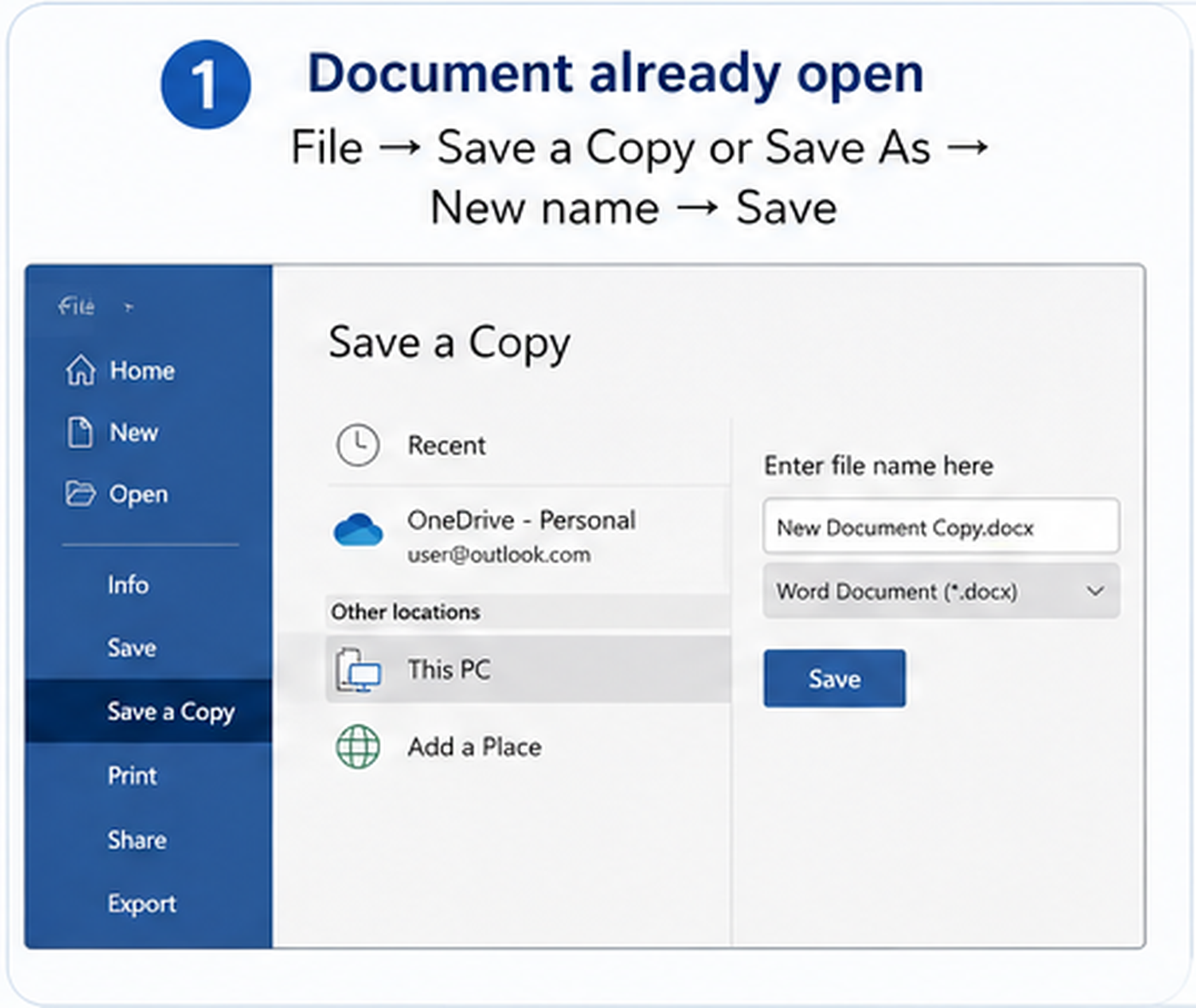
Quick answer: Here is how to make a copy of a Word document: if the document is already open, choose File > Save a Copy or Save As, enter a new file name, and save it before editing. If the file is closed, duplicate it directly in File Explorer on Windows or Finder on Mac.
Document already open
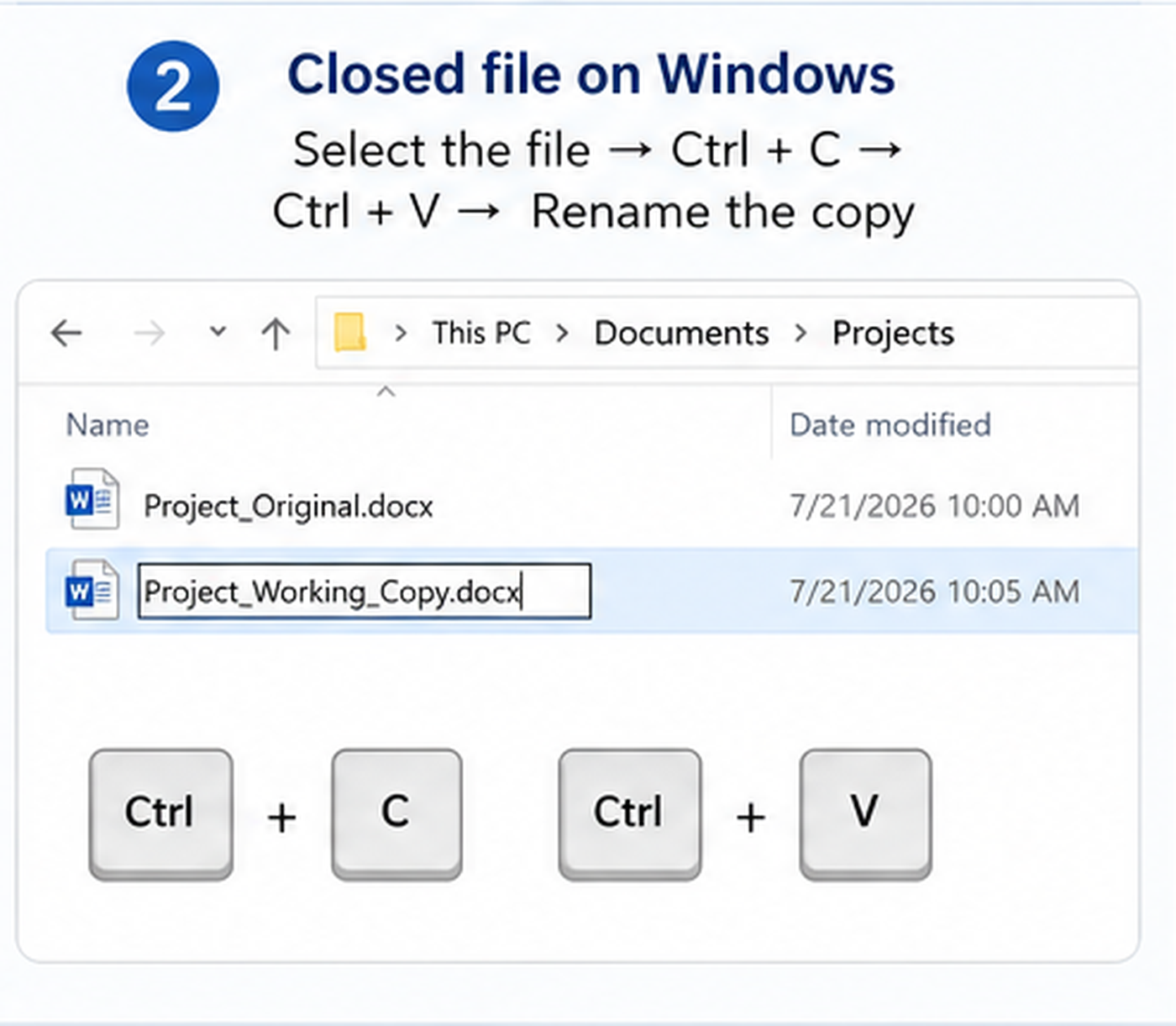
Closed file on Windows
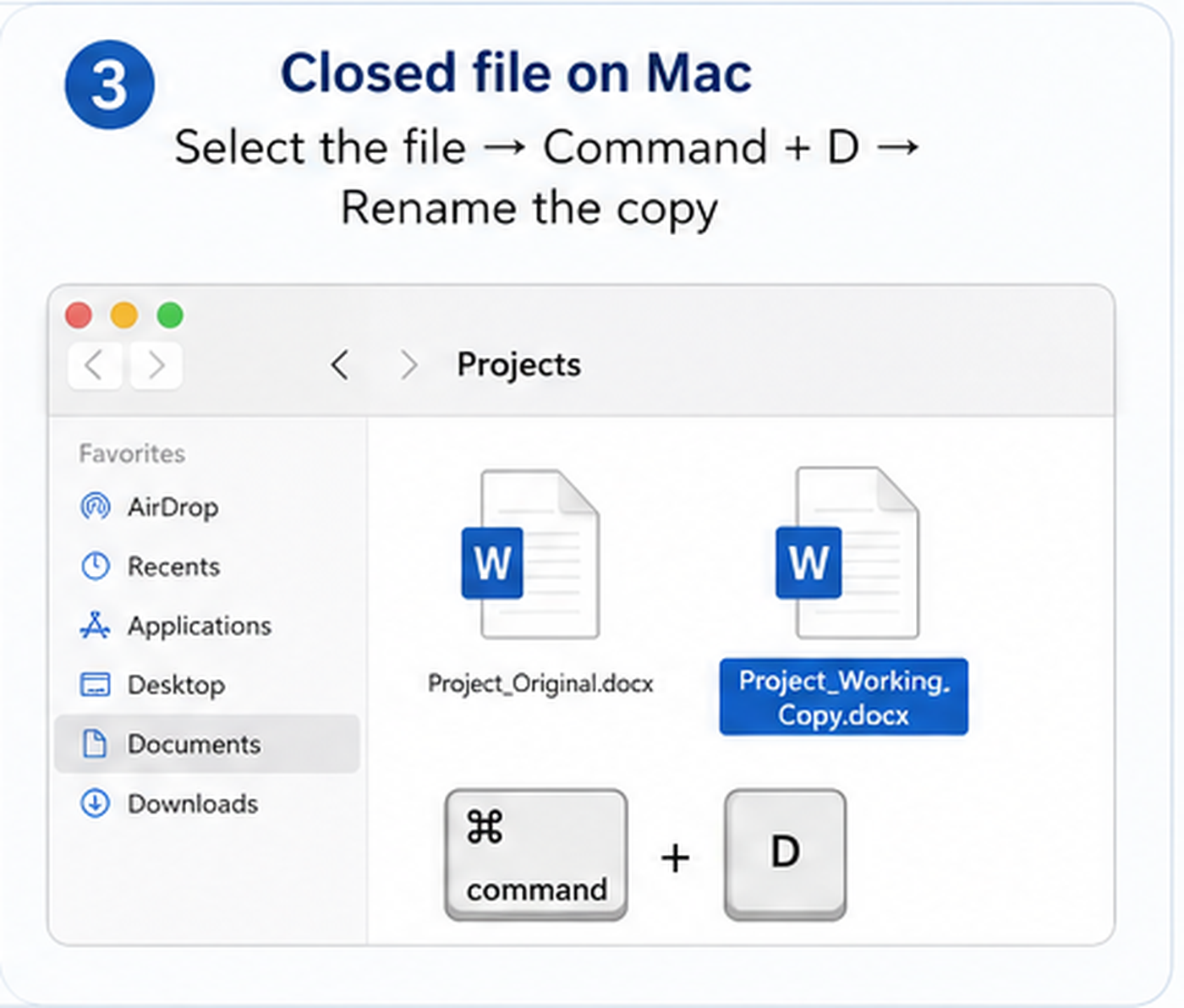
Closed file on Mac
The command may appear as Save a Copy or Save As, depending on your Word version and where the document is stored.
What Do You Need to Copy?
Before choosing a method, identify the result you actually need.
| Your goal | Best method | What you get |
|---|---|---|
| Create another complete Word file | File Explorer, Finder, Save As, or Save a Copy | A separate editable DOC or DOCX file |
| Create a new editable version | Save a Copy or Save As | A renamed draft, review, or final version |
| Repeat one page inside the same document | Copy and paste the page content | Another page in the current Word file |
| Create a fixed final version | Export or save the document as PDF | A file designed for sharing or printing |
Making a copy of the complete document and duplicating one page are different tasks. A document copy creates another Word file, while a page copy repeats content inside the same file.
What Does “Make a Copy of a Word Document” Mean?
Making a copy usually means creating another .doc or .docx file that can be opened and edited independently.
Project_Working_Copy.docx
Changes made to the working copy do not automatically change a separate local original.
You may need a document copy when you want to:
edit a template without changing the master file;
preserve an earlier draft;
create separate internal and client versions;
prepare files for different reviewers;
test major formatting changes safely;
keep both an editable DOCX and a final PDF.
The correct method depends mainly on whether the document is currently open, which device you are using, and where the file is stored.
Choose the Right Way to Copy Your Word Document
| Your situation | Recommended method | Detailed guide |
|---|---|---|
| The file is closed on Windows | Copy and paste it in File Explorer | Follow Method 1 below |
| The document is already open | Use Save a Copy or Save As | Save a copy of a Word document |
| You are using a Mac | Use Finder Duplicate or Word Save As | Make a copy of a Word document on Mac |
| You are using Word for the web | Download or save another copy | Follow Method 4 below |
| You are using a phone or tablet | Use Save a Copy or Save As in the mobile app | Follow Method 5 below |
| You only need one page | Duplicate the page content inside Word | Duplicate a page in Word |
| You are preparing schoolwork | Create clearly named draft and submission files | Create separate copies for schoolwork |
Method 1: Copy a Closed Word File in Windows
Use File Explorer when the Word document is not currently open. This method duplicates the complete saved file, including its text, formatting, images, tables, comments, headers, footers, and other saved document content.
Step 1: Open File Explorer
Open the folder containing the Word document. You can select the folder icon on the taskbar or press Windows + E.
Step 2: Select the Word File
Find the .doc or .docx file you want to copy. Select the file once without opening it.
Step 3: Copy the File
Press Ctrl + C. You can also right-click the file and select Copy.
Step 4: Choose the Destination
Stay in the same folder to create the copy beside the original. To place it somewhere else, open the destination folder before pasting.
Step 5: Paste the Copy
Press Ctrl + V. You can also right-click an empty area in the folder and select Paste.
Step 6: Rename the Copy
Give the copied document a name that explains its purpose.
Proposal_Working_Copy.docx
Before editing, confirm that both files are visible and that you are opening the newly created copy.
Copy the Document to Another Folder
This is useful when you want to keep the original in an archive while placing the working copy in an active project folder.
Method 2: Save an Open Word Document as a New Copy
Use this method when the document is already open in Microsoft Word.
Depending on your Word version and the document’s storage location, the command may appear as Save a Copy or Save As. Both can be used to create a separately named file. Save a Copy is especially common for cloud-based workflows, while some interfaces continue to show the traditional Save As command.
Basic Steps
Open the File menu.
Select Save a Copy or Save As.
Choose a folder or storage location.
Enter a different file name.
Keep Word Document (.docx) as the file type if the copy still needs editing.
Select Save.
Confirm that the new file name appears before making changes.
When Save As Is Commonly Used
the document is stored locally;
you want to select another folder;
you want to change the file name;
you want to choose another file format;
your Word interface retains the traditional command.
When Save a Copy Is Commonly Used
You may see Save a Copy in current Word versions and in OneDrive or SharePoint workflows. Create the copy before editing when AutoSave is active.
For detailed AutoSave, OneDrive, Word for the web, and troubleshooting instructions, see how to save a copy of a Word document without overwriting the original.
Method 3: Make a Copy of a Word Document on Mac
Mac users can duplicate a closed Word file in Finder or save an open document under a different name.
Duplicate a Closed Word File in Finder
Open Finder.
Locate the DOC or DOCX file.
Select the file.
Press Command + D.
You can also choose File > Duplicate. Rename the copied file before opening and editing it.
Save an Open Word Document on Mac
The exact menu label may vary according to the Word version and whether the document is stored locally or online.
For Finder screenshots, additional shortcuts, and Word for Mac instructions, follow the complete guide to make a copy of a Word document on Mac.
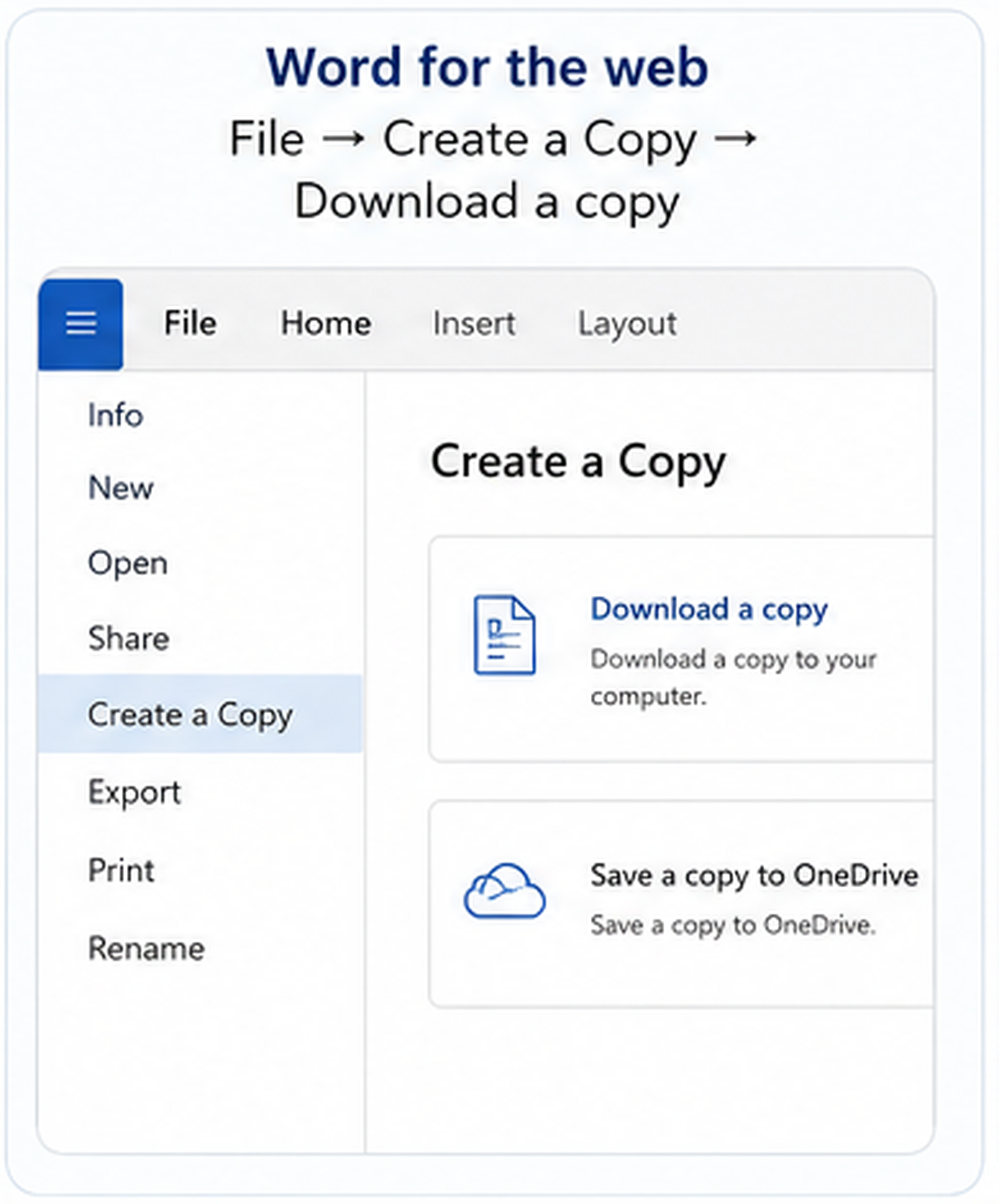
Method 4: Download or Create a Copy in Word for the Web
Word for the web saves documents automatically while you work.
To download a separate local Word file, use:
After downloading the document, you can rename it, move it to another folder, open it in a desktop editor, continue working offline, or send it as an attachment.
Create Another Cloud Copy
To create another version in OneDrive rather than downloading it, use the available Save As or copy command and give the new document a different name. Confirm that both cloud documents appear before editing.
Files Stored in Other Cloud Services
If the DOCX file is stored in Google Drive, Dropbox, or another cloud service, look for a command such as Make a copy, Duplicate, Save As, or Download. The exact label depends on the storage platform.
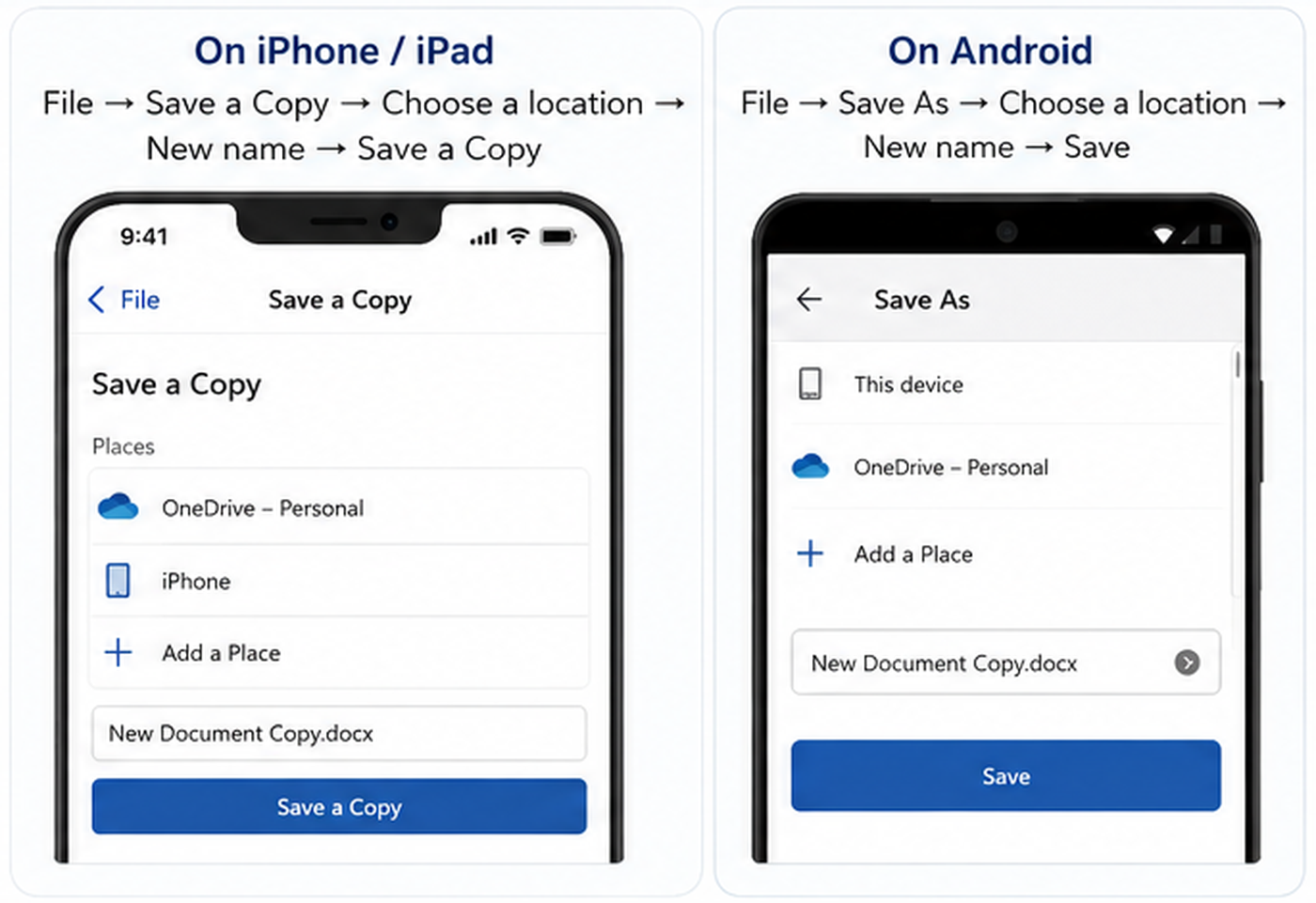
Method 5: Make a Copy of a Word Document on Mobile
The Word mobile interface differs between iPhone, iPad, Android phones, and tablets. Menu labels can also vary between app versions.
On iPhone or iPad
Create the copy before editing, particularly when AutoSave is active.
On Android
After saving on any mobile device, check the document title to confirm that you are editing the new copy.
Need to Copy Only One Page in Word?
Making a copy of a Word document creates another complete DOC or DOCX file. It does not automatically repeat one page inside the same document.
To copy one page, you normally need to select the page content, copy it, insert a new location or blank page, and paste the copied content.
Follow the separate guide to duplicate a page in Word without copying the entire document.
Common Reasons to Make a Word Document Copy
Edit a Template Safely
Keep the master template unchanged, then create a copy for each new proposal, report, invoice, contract, form, or letter.
Prepare Different Versions for Different Recipients
You may need one internal document containing comments and another clean document for a client. Separate files reduce the risk of sending internal notes to the wrong recipient.
Preserve a Document Before Review
Create a copy before adding comments, tracked changes, approval notes, client details, or major formatting changes.
Maintain Draft and Final Versions
Project_Draft.docx
Project_Final.docx
Keep Separate Schoolwork Versions
Students may need different files for the original draft, instructor feedback, revisions, and final submission. The student-focused guide explains how to create separate Word copies for schoolwork.
Should the Copy Stay as DOCX or Become a PDF?
| Your goal | Recommended format |
|---|---|
| Continue editing | DOCX |
| Create another Word version | DOCX |
| Preserve comments or tracked changes | DOCX |
| Share a completed document | |
| Print with a fixed layout |
Keep the Copy as DOCX for Editing
DOCX is the better choice when you still need to revise text, update images or tables, add comments, use Track Changes, collaborate with another editor, or create more versions later.
Use PDF for Final Delivery
PDF is useful when the content is complete and you want a stable layout for sharing or printing.
Project_Report_Final.pdf
The DOCX remains the editable version. The PDF becomes the final delivery file.
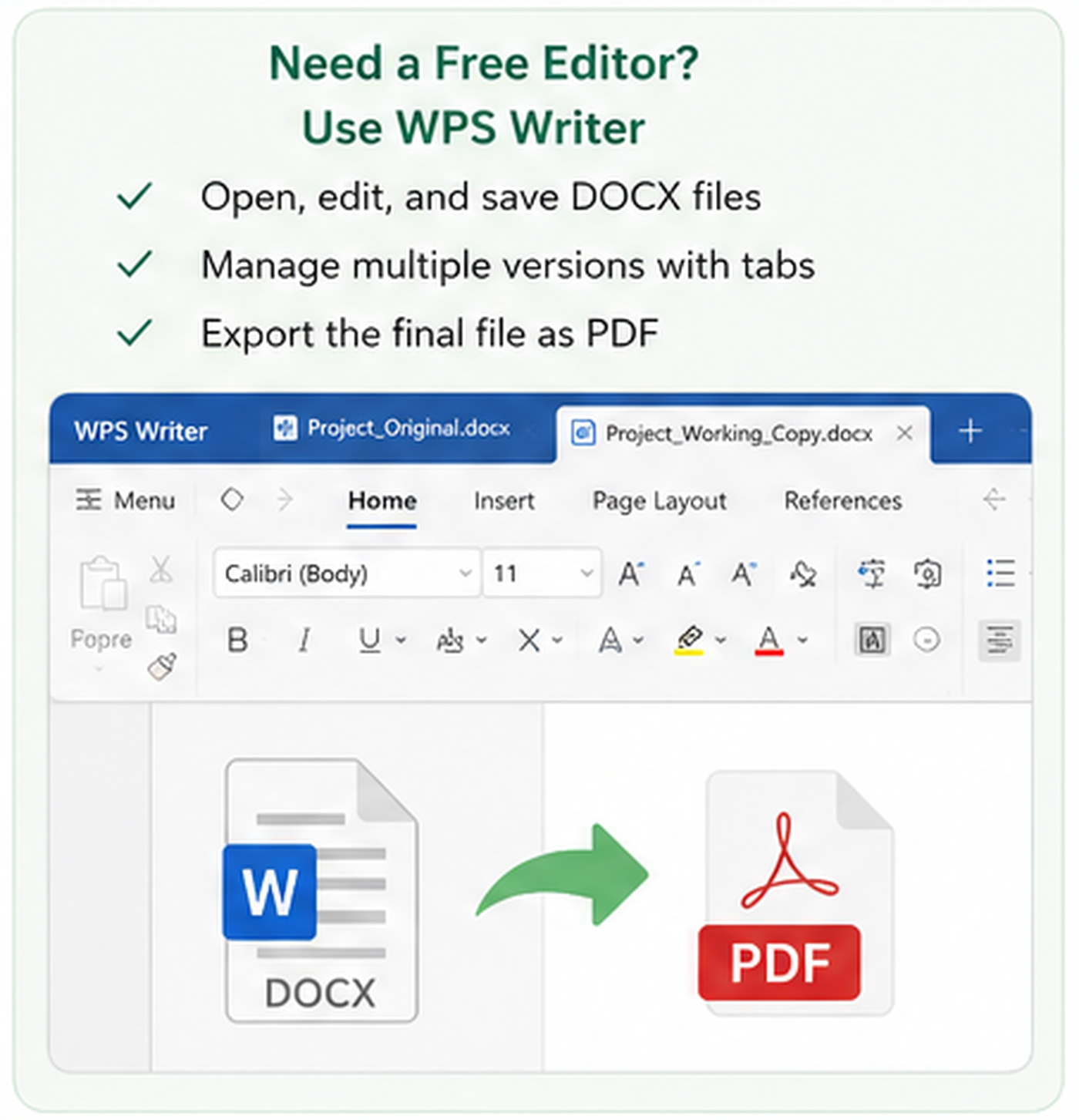
Need a Free Way to Copy and Edit Word Documents? Use WPS Writer
The methods above explain how to create a copy with Microsoft Word, File Explorer, Finder, Word for the web, or a mobile app.
However, copying the file is only the first step. You still need a compatible document editor when you want to open the copied DOCX, revise its content, create additional versions, or export a finished PDF.
WPS Writer is particularly useful when:
you do not have Microsoft Word installed;
you need a free way to complete common DOCX editing tasks;
you want to keep an original and several local working copies open;
you need both an editable DOCX and a final PDF;
you are not working inside an organization-managed Microsoft 365 system.
When WPS Writer May Be the Better Fit
| Your situation | Why WPS Writer is useful |
|---|---|
| You do not have Microsoft Word | Open and edit a copied DOC or DOCX file in a Word-compatible editor |
| You need common editing tools without buying Word first | Edit text, layouts, images, tables, and formatting in the copied file |
| You are managing several local versions | Keep multiple documents available as tabs in one workspace |
| You need an editable file and a delivery file | Save the working copy as DOCX and export the completed version as PDF |
| You received a Word file from someone else | Open the DOCX directly without converting it first |
Copy and Edit a DOCX File Without Microsoft Word
Open WPS Office and select Writer.
Open the original DOC or DOCX document.
Select Menu > Save As.
Enter a different file name.
Keep Word Document (.docx) as the file type.
Choose a destination folder.
Save the new file.
Confirm that the new file name appears before editing.
Manage the Original and Multiple Working Copies
WPS Office supports opening multiple documents as tabs in one window, allowing you to switch between original, draft, review, and final versions. Clear file names are still necessary.
Keep an Editable DOCX and Export the Final PDF
When Microsoft Word Is Still the Better Choice
Continue using Microsoft Word when the document belongs to an organization-managed Microsoft 365 environment, your team collaborates through OneDrive or SharePoint, you rely on AutoSave and Version History, or several people need real-time co-authoring.
Copy and Edit Your Word Document for Free
Open DOC and DOCX files, save separately named editable copies, work across multiple document versions, and export the completed file as PDF with WPS Writer.
How to Name and Organize Copied Word Files
Knowing how to make a copy of a Word document is only half the job—clear names reduce the risk of editing, deleting, or sharing the wrong version.
Project_Draft_01.docx
Project_Review.docx
Project_Final_2026-07-21.docx
Consider including the project name, editing stage, version number, reviewer or recipient, and date.
Avoid vague names such as Document copy.docx, Final final.docx, or New version 2.docx.
What to Do If You Cannot Create a Copy
The Original Was Already Changed
If AutoSave has already updated the original cloud document, stop editing and check Version History. See the detailed guide to save a copy of a Word document for prevention and recovery steps.
Save As or Save a Copy Is Missing
Look for alternative commands such as Save As, Save a Copy, Browse, More save options, Create a Copy, or Download a copy.
The Copied File Is Read-Only
A copied file may remain read-only because of restricted permissions, an organization-managed document, a protected file, an email attachment, an unwritable folder, or another user locking the file.
Formatting Changed in the Copy
Duplicate the complete DOCX file, keep DOCX as the file type, use Save a Copy or Save As, avoid plain-text formats, and review fonts, tables, images, page breaks, headers, and footers.


Frequently Asked Questions
How do I make a copy of a Word document without changing the original?
If the document is open, use File > Save a Copy or Save As, enter another name, and save it before editing. If the file is closed, duplicate it in File Explorer on Windows or Finder on Mac.
Does Save As create a separate Word document?
Yes. Save As can create a separate file when you choose a different name, location, or both. Confirm that the newly named document is open before making changes.
What is the difference between Save and Save a Copy?
Save updates the document currently open. Save a Copy creates another file with a different name or location. Some Word interfaces use Save As for the same general task.
How do I make a copy of a Word document on Mac?
Select the file in Finder and press Command + D. When the document is already open, use Save a Copy or Save As and enter another name.
How do I duplicate one page instead of the entire document?
Copy the content from that page and paste it into the required location in the same document. Follow the step-by-step guide to duplicate a page in Word.
Can I make a copy without Microsoft Word?
Yes. You can duplicate a DOCX file through File Explorer or Finder without opening Microsoft Word. To open and edit the copied document, use a DOCX-compatible editor such as WPS Writer.
Is a copied Word document a backup?
A separate copy can protect the original from accidental editing, but two files stored on the same device are not a complete backup. Important documents should also be stored in another location.

'%3e%3cpath%20d='M19.9911%204.11386V6.471H18.5894C18.0775%206.471%2017.7322%206.57814%2017.5536%206.79243C17.3751%207.00671%2017.2858%207.32814%2017.2858%207.75671V9.44421H19.9019L19.5536%2012.0871H17.2858V18.8639H14.5536V12.0871H12.2769V9.44421H14.5536V7.49779C14.5536%206.39064%2014.8632%205.53201%2015.4822%204.92189C16.1013%204.31177%2016.9257%204.00671%2017.9554%204.00671C18.8304%204.00671%2019.509%204.04243%2019.9911%204.11386Z'%20fill='%23333333'/%3e%3c/g%3e%3cdefs%3e%3cclipPath%20id='clip0_2938_8199'%3e%3crect%20width='16'%20height='16'%20fill='white'%20transform='translate(8%204.00671)'/%3e%3c/clipPath%3e%3c/defs%3e%3c/svg%3e)
'%3e%3cpath%20d='M17.5237%2010.7813L23.4811%204H22.0699L16.8949%209.88693L12.7648%204H8L14.2469%2012.9029L8%2020.0133H9.4112L14.8725%2013.7952L19.2352%2020.0133H24M9.92053%205.04213H12.0885L22.0688%2019.0224H19.9003'%20fill='%23333333'/%3e%3c/g%3e%3cdefs%3e%3cclipPath%20id='clip0_2938_8200'%3e%3crect%20width='16'%20height='16.0134'%20fill='white'%20transform='translate(8%204)'/%3e%3c/clipPath%3e%3c/defs%3e%3c/svg%3e)


