

'%3e%3cpath%20d='M8%200C12.4183%200%2016%203.58172%2016%208C16%2012.4183%2012.4183%2016%208%2016C3.58172%2016%200%2012.4183%200%208C0%203.58172%203.58172%200%208%200ZM11.6162%204.38379C11.2257%203.99337%2010.5927%203.99338%2010.2021%204.38379L8%206.58594L5.79785%204.38379C5.40732%203.99334%204.77429%203.99329%204.38379%204.38379C3.99331%204.77429%203.99335%205.40733%204.38379%205.79785L6.58594%208L4.38379%2010.2021C3.99348%2010.5927%203.99341%2011.2257%204.38379%2011.6162C4.77426%2012.0066%205.40734%2012.0065%205.79785%2011.6162L8%209.41406L10.2021%2011.6162C10.5927%2012.0066%2011.2257%2012.0067%2011.6162%2011.6162C12.0067%2011.2257%2012.0066%2010.5927%2011.6162%2010.2021L9.41406%208L11.6162%205.79785C12.0066%205.40735%2012.0066%204.77429%2011.6162%204.38379Z'%20fill='%23080E17'%20fill-opacity='0.46'/%3e%3c/g%3e%3cdefs%3e%3cclipPath%20id='clip0_3761_713'%3e%3crect%20width='16'%20height='16'%20fill='white'/%3e%3c/clipPath%3e%3c/defs%3e%3c/svg%3e)




'%3e%3cpath%20fill-rule='evenodd'%20clip-rule='evenodd'%20d='M21.4999%2010.9993C21.4999%205.20009%2016.7986%200.498901%2010.9993%200.498901C5.19994%200.498901%200.498657%205.20009%200.498657%2010.9993C0.498657%2016.2404%204.33858%2020.5844%209.35855%2021.3722V14.0346H6.69238V10.9993H9.35855V8.68594C9.35855%206.05427%2010.9262%204.60062%2013.3248%204.60062C14.4736%204.60062%2015.6753%204.80571%2015.6753%204.80571V7.38979H14.3512C13.0468%207.38979%2012.64%208.19921%2012.64%209.0296V10.9993H15.5523L15.0867%2014.0346H12.64V21.3722C17.66%2020.5844%2021.4999%2016.2404%2021.4999%2010.9993Z'%20fill='%231568EA'/%3e%3c/g%3e%3c/svg%3e)


'%3e%3cpath%20d='M2.42045%2022.1876H6.31818V12.7217L0.75%208.54553V20.5171C0.75%2021.4414%201.49892%2022.1876%202.42045%2022.1876Z'%20fill='%234285F4'/%3e%3cpath%20d='M19.682%2022.1876H23.5797C24.5041%2022.1876%2025.2502%2021.4387%2025.2502%2020.5171V8.54553L19.682%2012.7217'%20fill='%2334A853'/%3e%3cpath%20d='M19.682%205.48293V12.7216L25.2502%208.54543V6.31816C25.2502%204.25236%2022.8921%203.07469%2021.2411%204.31361'%20fill='%23FBBC04'/%3e%3cpath%20d='M6.31824%2012.7217V5.48303L13.0001%2010.4944L19.6819%205.48303V12.7217L13.0001%2017.733'%20fill='%23EA4335'/%3e%3cpath%20d='M0.75%206.31816V8.54543L6.31818%2012.7216V5.48293L4.75909%204.31361C3.10534%203.07469%200.75%204.25236%200.75%206.31816Z'%20fill='%23C5221F'/%3e%3c/g%3e%3cdefs%3e%3cclipPath%20id='clip0_2954_7305'%3e%3crect%20width='24.5'%20height='18.375'%20fill='white'%20transform='translate(0.75%203.8125)'/%3e%3c/clipPath%3e%3c/defs%3e%3c/svg%3e)


Quick answer: In Microsoft Word, go to Layout → Margins → Custom Margins, set Multiple pages to Book fold, then print with Print on Both Sides and Flip pages on short edge. Keep the page count a multiple of 4, fold the Letter sheets in half, and staple the spine.
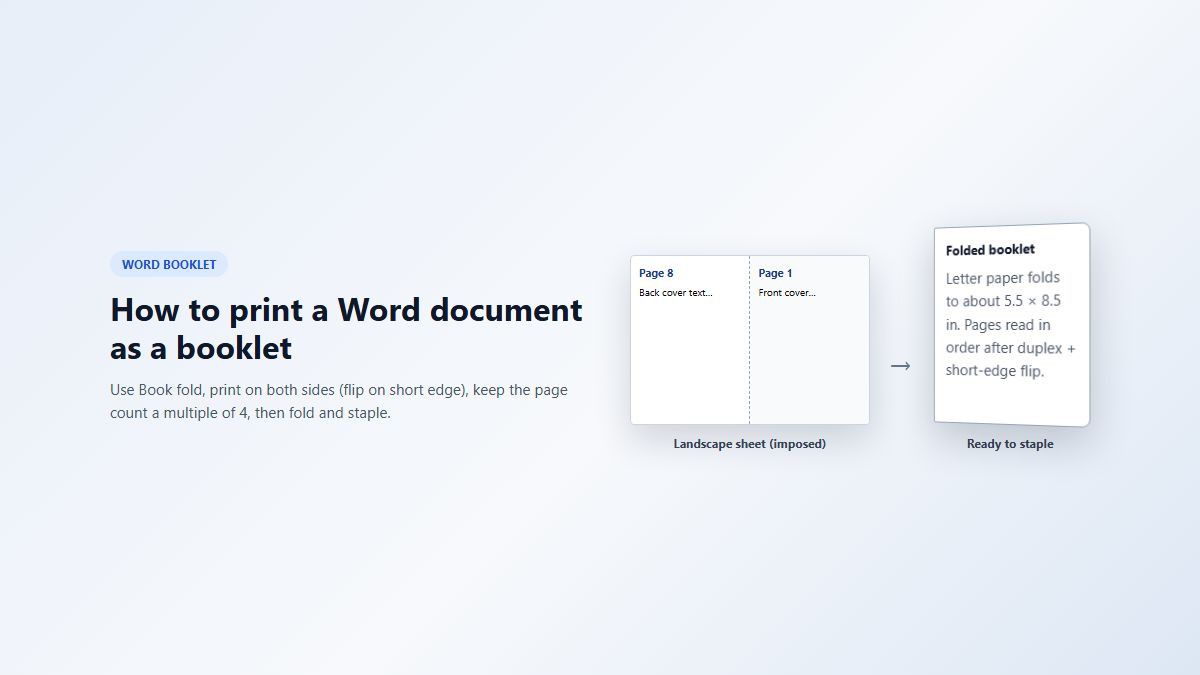
People searching for how to print a word document as a booklet usually already wrote the content. What they need is the layout that imposes pages for folding—and print settings that don’t flip the back side upside down.
Use the Word steps below first. If you open the same .docx in WPS, there’s a short check at the end.
What “print as a booklet” means in Word
A booklet is folded sheets nested together (often saddle-stitched with staples). On U.S. Letter paper, Book fold typically finishes around 5.5 × 8.5 inches after the fold.
Word’s Book fold setting does the hard part: it rearranges pages so that after duplex printing and folding, page 1 sits next to the back cover, and the rest read in order. You usually do not also turn on a separate “2 pages per sheet” option—Book fold already places two booklet pages on each side of the sheet.
Step 1: Set Book fold before you write (or before you print)
For less cleanup, set the layout early. You can still convert an existing document; just recheck images and tables afterward.
Open the document in Word for Windows (Microsoft 365, Word 2021, or Word 2019).
Go to the Layout tab.
Select Margins → Custom Margins (or open the Page Setup dialog launcher).
On the Margins tab, under Multiple pages, choose Book fold.
Confirm orientation switches to Landscape.
Set a small Gutter (often about 0.2–0.5 in) so text isn’t lost in the fold.
On the Paper tab, keep Letter if that’s what’s in the tray → OK.
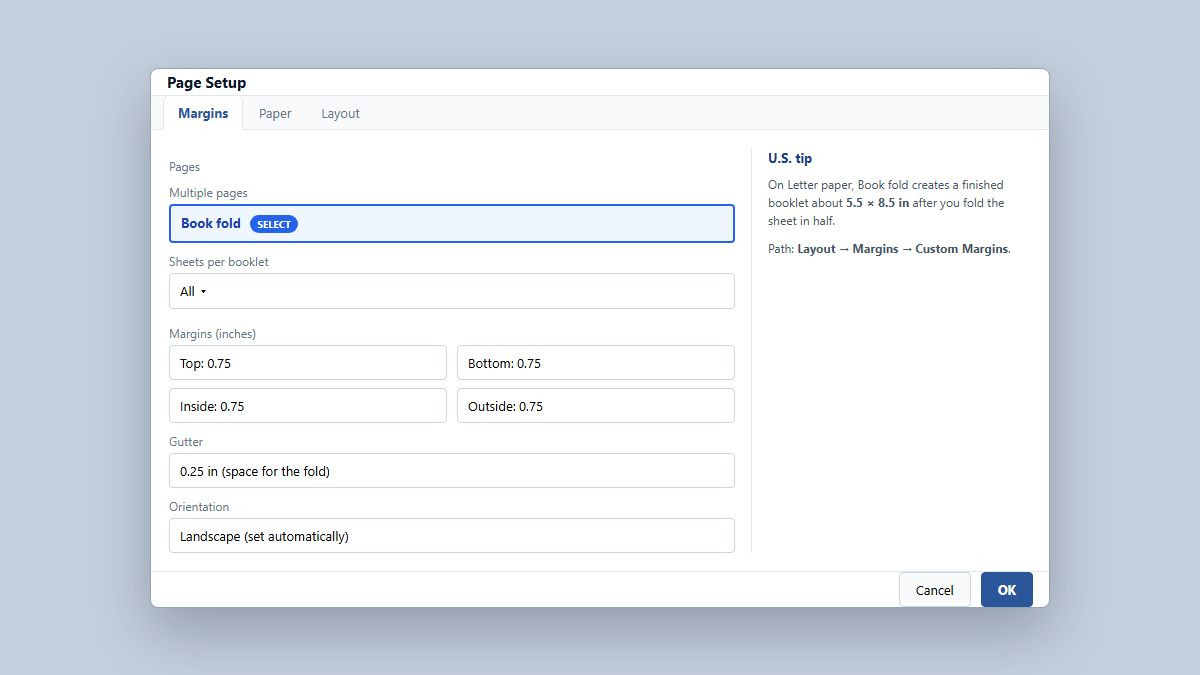
Tip: For long documents, use Sheets per booklet to split into smaller signatures you can nest or bind later.
Step 2: Make the page count a multiple of 4
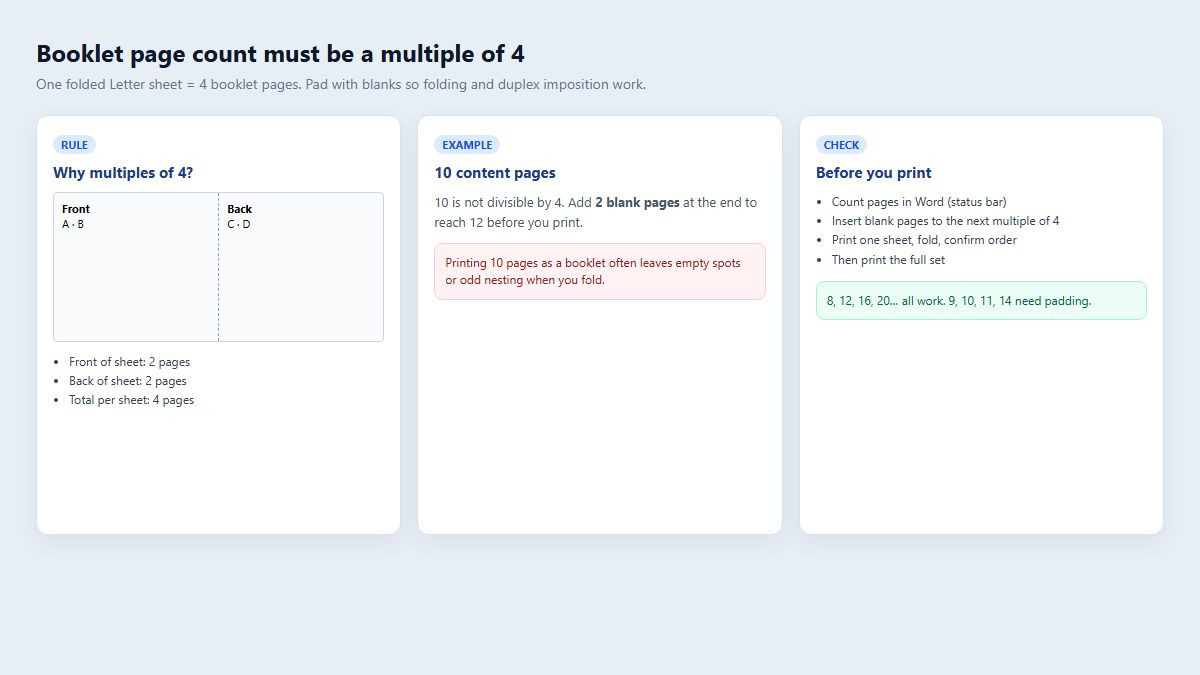
One physical sheet printed on both sides and folded once creates four booklet pages. If you have 10 pages of content, add two blanks to reach 12 before you print the full job.
Check the page count on Word’s status bar.
Insert blank pages at the end (or carefully at the start) until the total is 8, 12, 16, 20, and so on.
Skim Print Preview—don’t panic if the on-screen order doesn’t look sequential; imposition is for the folded stack.
Step 3: Print on both sides with Flip on short edge
Press Ctrl + P, or go to File → Print.
If your printer duplexes automatically, choose Print on Both Sides.
Select Flip pages on short edge (wording varies by driver). Landscape booklet sheets usually need the short-edge flip so the back isn’t upside down.
If you must duplex manually, choose Manually Print on Both Sides, then flip each sheet on the short edge when the printer asks for the second side.
Print one test sheet, fold it, and confirm page order before printing the whole booklet.
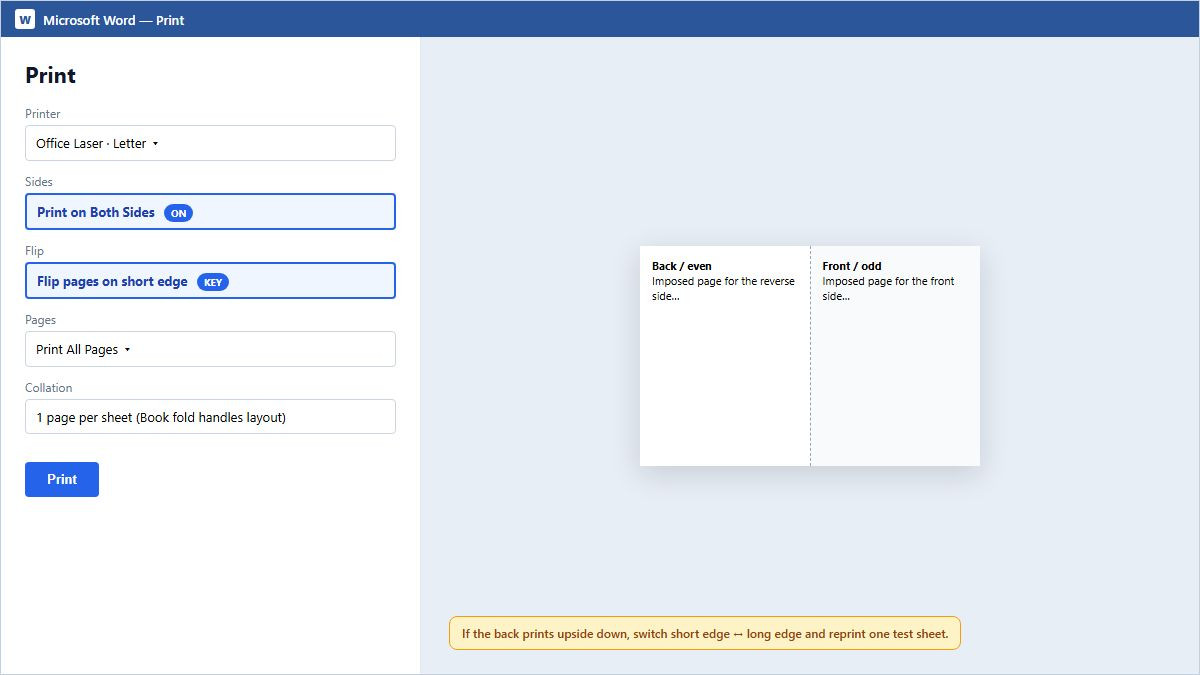
If the back side is upside down: switch short edge ↔ long edge, reprint one sheet, and fold again. Driver labels differ more than the Word UI does.
Step 4: Fold, nest, and staple
Stack the printed sheets in the order they came out (don’t reshuffle unless your printer reverse-collates).
Fold the stack in half along the short midpoint of the Letter sheet.
Staple along the fold (two staples for thicker sets), or take it to a print shop for saddle stitch.
Common booklet printing problems (and fixes)
Pages look out of order on screen: Expected with Book fold. Trust a folded test print.
Back pages upside down: Wrong duplex flip edge—use short edge for typical Book fold jobs.
Text too close to the spine: Increase gutter / inside margin.
Images or tables break after Book fold: Reposition wrapping objects; Book fold reformats the page width.
Book fold feels broken with “2 pages per sheet”: Don’t stack both. Use Book fold alone, or export to PDF and use a PDF reader’s Booklet mode.
Backup method: print the booklet from a PDF
If Word’s duplex path fights your driver:
Export or Save as PDF from Word.
Open the PDF in a reader that offers Booklet printing.
Print on both sides with the binding/flip setting that keeps backs upright.
Fold and staple the same way.
Another option: make a folded booklet in WPS Writer
Already finished in Microsoft Word? You’re done. Prefer WPS Office? Open the same .docx in Writer, set Letter paper, use booklet/book-fold style layout if available (or export to PDF and print as a booklet), choose double-sided short-edge flip, then test-fold one sheet before the full run.
FAQ
How do I print a Word document as a booklet on Letter paper?
Set Multiple pages to Book fold, keep paper size Letter, print on both sides with Flip on short edge, then fold each sheet (or the nested stack) in half.
Why must booklet pages be a multiple of 4?
Each sheet has two sides and two pages per side after the fold—four page slots. Pad with blanks to the next multiple of 4.
What’s the difference between Book fold and 2 pages per sheet?
Book fold imposes pages for folding into a booklet. 2 pages per sheet alone just shrinks sequential pages side by side and usually won’t create correct booklet order.
My booklet pages print upside down—what should I change?
Change the duplex option between Flip on short edge and Flip on long edge, then reprint a single test sheet and fold it.
Can I print a Word booklet without an automatic duplex printer?
Yes. Use Manually Print on Both Sides, flip on the short edge when refeeding, and always test one sheet first so the feed direction matches your printer.
Summary
To print a Word document as a booklet, choose Book fold under Page Setup, keep the page count a multiple of 4, and print on both sides with Flip on short edge. Test-fold one sheet, then print the full set and staple the spine. If Word and the driver disagree, export to PDF and use booklet printing there—or open the file in WPS Writer and apply the same duplex checks.



'%3e%3cpath%20d='M19.9911%204.11386V6.471H18.5894C18.0775%206.471%2017.7322%206.57814%2017.5536%206.79243C17.3751%207.00671%2017.2858%207.32814%2017.2858%207.75671V9.44421H19.9019L19.5536%2012.0871H17.2858V18.8639H14.5536V12.0871H12.2769V9.44421H14.5536V7.49779C14.5536%206.39064%2014.8632%205.53201%2015.4822%204.92189C16.1013%204.31177%2016.9257%204.00671%2017.9554%204.00671C18.8304%204.00671%2019.509%204.04243%2019.9911%204.11386Z'%20fill='%23333333'/%3e%3c/g%3e%3cdefs%3e%3cclipPath%20id='clip0_2938_8199'%3e%3crect%20width='16'%20height='16'%20fill='white'%20transform='translate(8%204.00671)'/%3e%3c/clipPath%3e%3c/defs%3e%3c/svg%3e)
'%3e%3cpath%20d='M17.5237%2010.7813L23.4811%204H22.0699L16.8949%209.88693L12.7648%204H8L14.2469%2012.9029L8%2020.0133H9.4112L14.8725%2013.7952L19.2352%2020.0133H24M9.92053%205.04213H12.0885L22.0688%2019.0224H19.9003'%20fill='%23333333'/%3e%3c/g%3e%3cdefs%3e%3cclipPath%20id='clip0_2938_8200'%3e%3crect%20width='16'%20height='16.0134'%20fill='white'%20transform='translate(8%204)'/%3e%3c/clipPath%3e%3c/defs%3e%3c/svg%3e)


