



'%3e%3cpath%20fill-rule='evenodd'%20clip-rule='evenodd'%20d='M21.4999%2010.9993C21.4999%205.20009%2016.7986%200.498901%2010.9993%200.498901C5.19994%200.498901%200.498657%205.20009%200.498657%2010.9993C0.498657%2016.2404%204.33858%2020.5844%209.35855%2021.3722V14.0346H6.69238V10.9993H9.35855V8.68594C9.35855%206.05427%2010.9262%204.60062%2013.3248%204.60062C14.4736%204.60062%2015.6753%204.80571%2015.6753%204.80571V7.38979H14.3512C13.0468%207.38979%2012.64%208.19921%2012.64%209.0296V10.9993H15.5523L15.0867%2014.0346H12.64V21.3722C17.66%2020.5844%2021.4999%2016.2404%2021.4999%2010.9993Z'%20fill='%231568EA'/%3e%3c/g%3e%3c/svg%3e)


'%3e%3cpath%20d='M2.42045%2022.1876H6.31818V12.7217L0.75%208.54553V20.5171C0.75%2021.4414%201.49892%2022.1876%202.42045%2022.1876Z'%20fill='%234285F4'/%3e%3cpath%20d='M19.682%2022.1876H23.5797C24.5041%2022.1876%2025.2502%2021.4387%2025.2502%2020.5171V8.54553L19.682%2012.7217'%20fill='%2334A853'/%3e%3cpath%20d='M19.682%205.48293V12.7216L25.2502%208.54543V6.31816C25.2502%204.25236%2022.8921%203.07469%2021.2411%204.31361'%20fill='%23FBBC04'/%3e%3cpath%20d='M6.31824%2012.7217V5.48303L13.0001%2010.4944L19.6819%205.48303V12.7217L13.0001%2017.733'%20fill='%23EA4335'/%3e%3cpath%20d='M0.75%206.31816V8.54543L6.31818%2012.7216V5.48293L4.75909%204.31361C3.10534%203.07469%200.75%204.25236%200.75%206.31816Z'%20fill='%23C5221F'/%3e%3c/g%3e%3cdefs%3e%3cclipPath%20id='clip0_2954_7305'%3e%3crect%20width='24.5'%20height='18.375'%20fill='white'%20transform='translate(0.75%203.8125)'/%3e%3c/clipPath%3e%3c/defs%3e%3c/svg%3e)


Handling PDF files often feels like trying to edit a stone tablet. Standard readers lock your files, and heavy editing suites are too complex or expensive. LightPDF Editor solves this by offering a lightweight, intuitive, and web-friendly solution to manage your documents easily.
Whether you need to fix a quick typo, extract text from an image, or find how to edit a pdf for free, this guide will show you exactly how to do it step-by-step.
What Is LightPDF Editor?
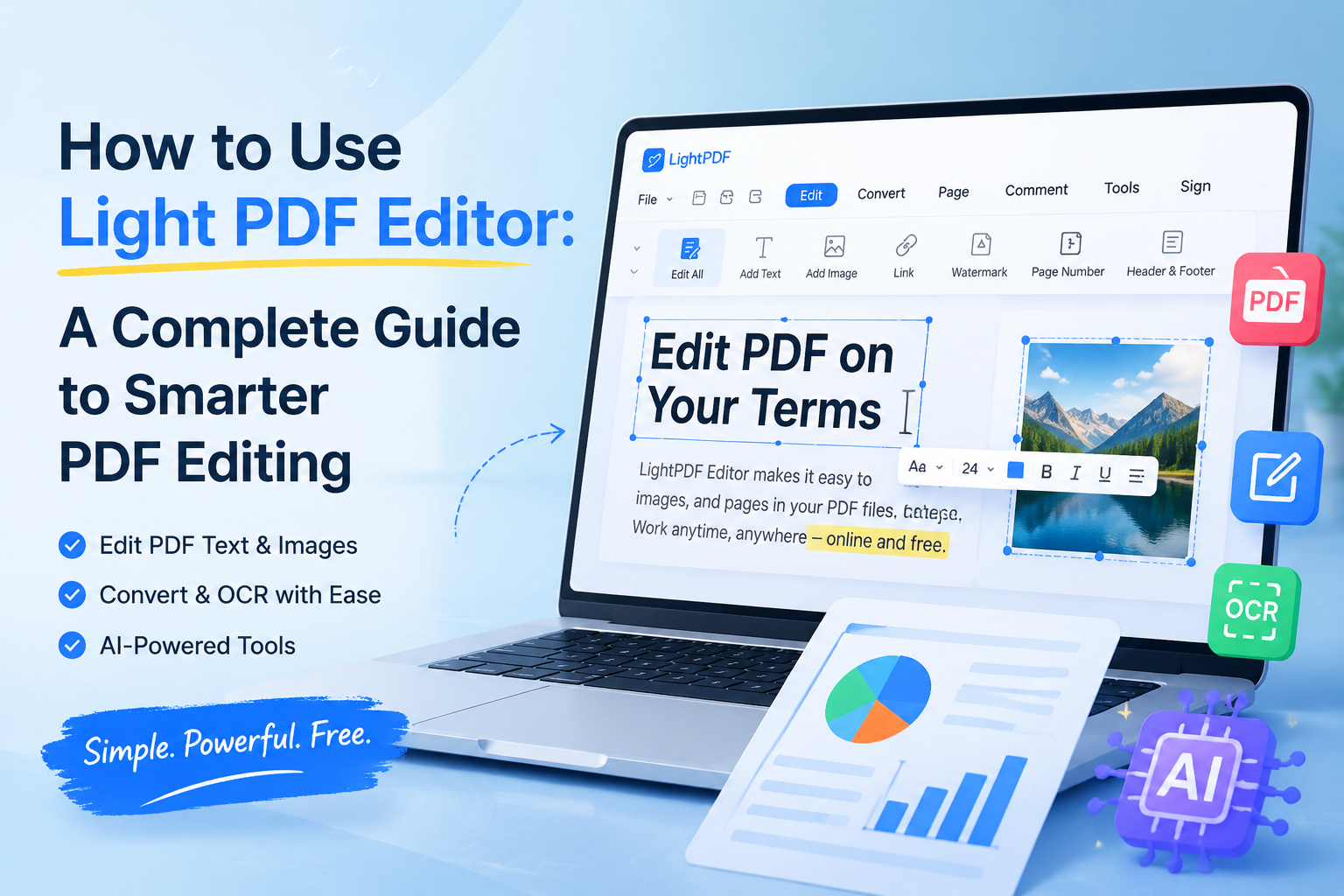
LightPDF Editor is a lightweight PDF toolkit for editing, converting, and managing documents in the browser or on desktop. Instead of locking you into a bulky desktop suite, this lightpdf editor focuses on everyday jobs: fix text, swap images, run OCR on scans, merge or compress files, add signatures, and use AI to chat with or summarize a PDF.
In short, LightPDF Editor is built for quick, install-light workflows so you can edit pdf online free without login for many everyday tasks. You upload a file, make the change, and download the result-ideal when you don't need Word, Excel, and PowerPoint open at the same time, but you do need the PDF to cooperate.
Key Features of LightPDF Editor
Here's a quick map of what LightPDF Editor covers day to day:
| Category | Features | What you can do |
|---|---|---|
| Edit & annotate | Text/image editing, find & replace, highlights, comments, shapes, links, redaction | Fix copy, swap visuals, mark reviews, and hide sensitive content before sharing |
| OCR & conversion | OCR, PDF to Word/Excel/PPT/TXT, Office/image to PDF, multi-format export | Turn scans into editable text and move files between PDF and Office formats |
| AI tools | ChatPDF, summarizer, analysis, translation, mind maps, PPT outlines, AI cleanup | Ask questions, get takeaways, translate docs, and clean watermarks/logos faster |
| Organize & optimize | Merge, split, compress, rotate, rearrange pages, batch processing | Combine packets, extract pages, shrink attachments, and fix page order |
| Security & sharing | E-signatures, password protect/unlock, watermarks, form filling | Sign contracts, lock sensitive files, brand pages, and fill forms without printing |
| Platforms & workflow | Web app, Windows/Mac desktop, iOS/Android, cloud sync | Work in-browser or offline, continue on mobile, and keep files across devices |


How to Use LightPDF Editor Step-by-Step
1. How to Edit PDF in LightPDF Editor
Need to update a price on a quote, swap a logo, or fix a name on a form? LightPDF Editor lets you edit a PDF more like a Word doc than a locked snapshot. Here's how.
Step 1: Upload and open Edit mode
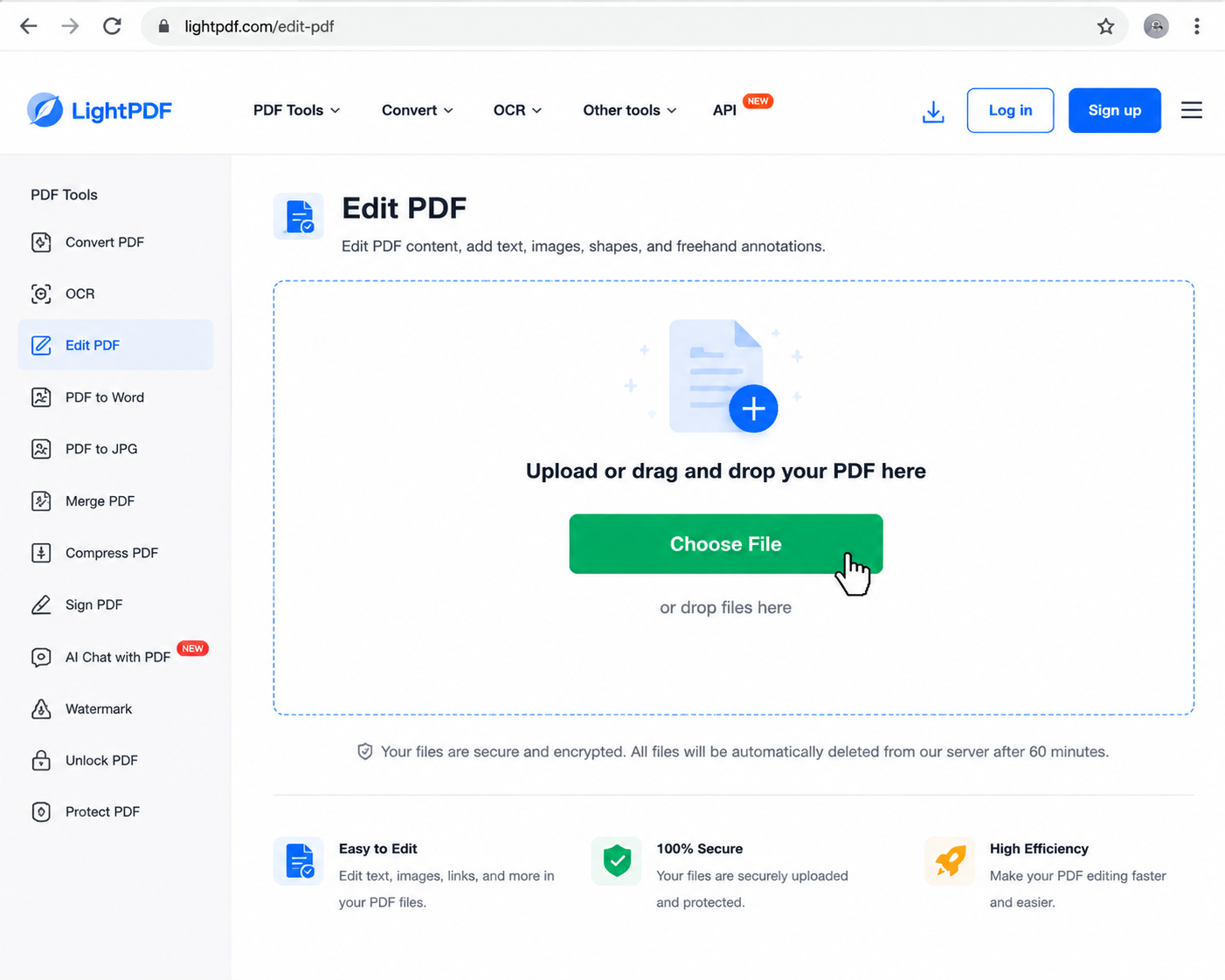
Go to the website or open the desktop app. Click Choose File to upload your PDF. In the top menu, open the Edit tab and pick the Edit tool so the page becomes interactive.
Step 2: Modify, add, or format text
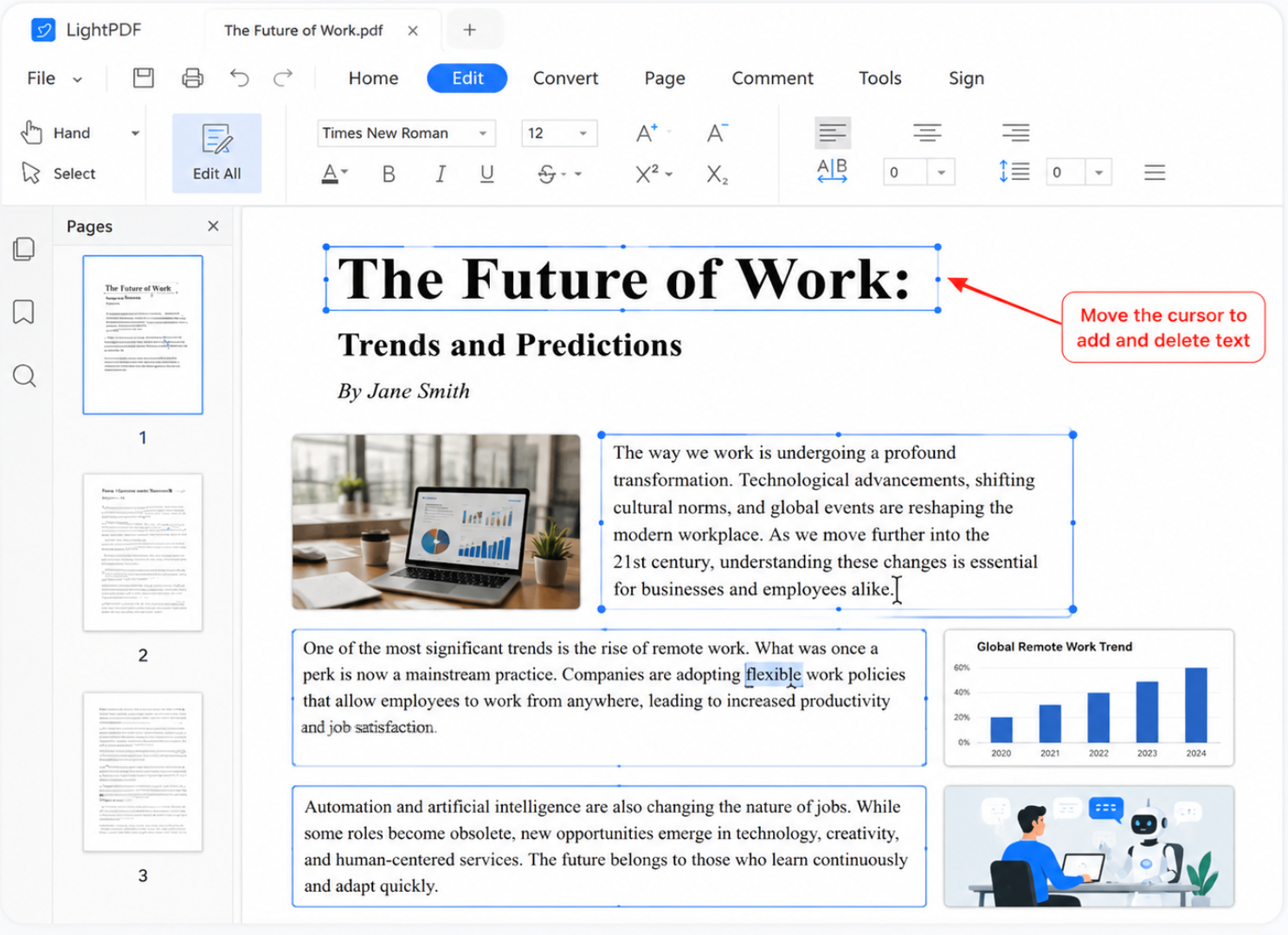
Click any text you want to change. The editor wraps it in an editable box.
Edit: Type over the existing text.
Add text: Click Add Text, click on the page, and start typing.
Format: Use the right-hand panel to match fonts, sizes, colors, and alignment so the page still looks intentional.
Step 3: Edit, replace, or move images
Stay in Edit mode, then:
Add an image: Click Add Image, pick a file, and place it on the page.
Move or resize: Drag the image, or pull the corners to scale it.
Rotate or replace: Select the image, then use the floating panel to rotate it or click Replace Image for a fresh graphic.
Step 4: Save and export
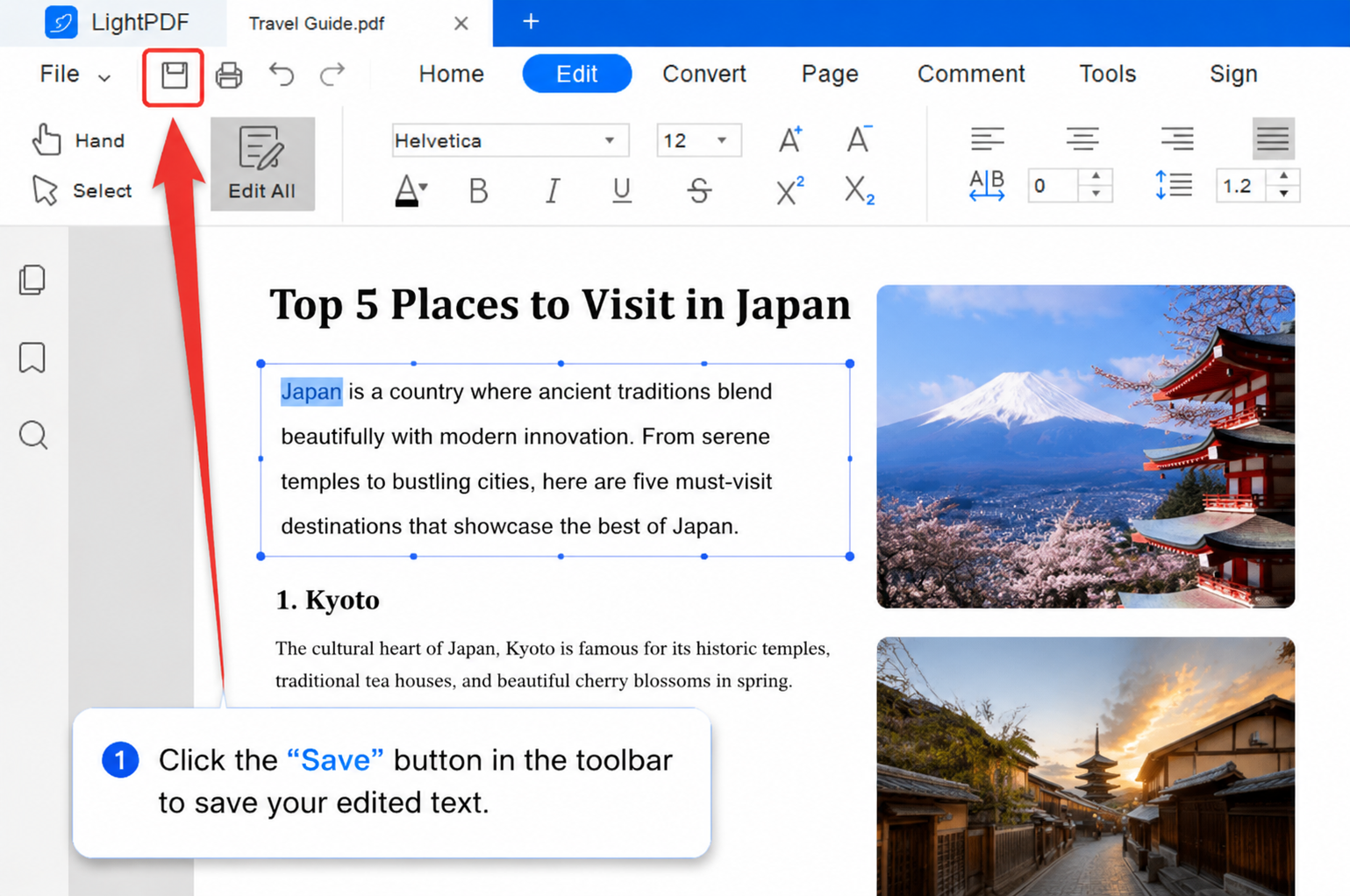
When the page looks right, hit Save or Download in the upper-right corner. Your updated file is ready to share-no print-scan-email loop required.
2. How to Use OCR in LightPDF Editor (Scan to Editable Text)
Got a phone photo of a receipt, a faxed contract, or a scanned textbook page that won't let you copy a single word? OCR is one of the most useful basic features in LightPDF Editor if you need to know how to edit scanned pdf files. It turns image-based PDFs into text you can search, select, and edit.
Step 1: Open the OCR tool
In the web or desktop app, open the OCR / scan-to-text tool, or upload your scanned PDF or image into the OCR workflow.
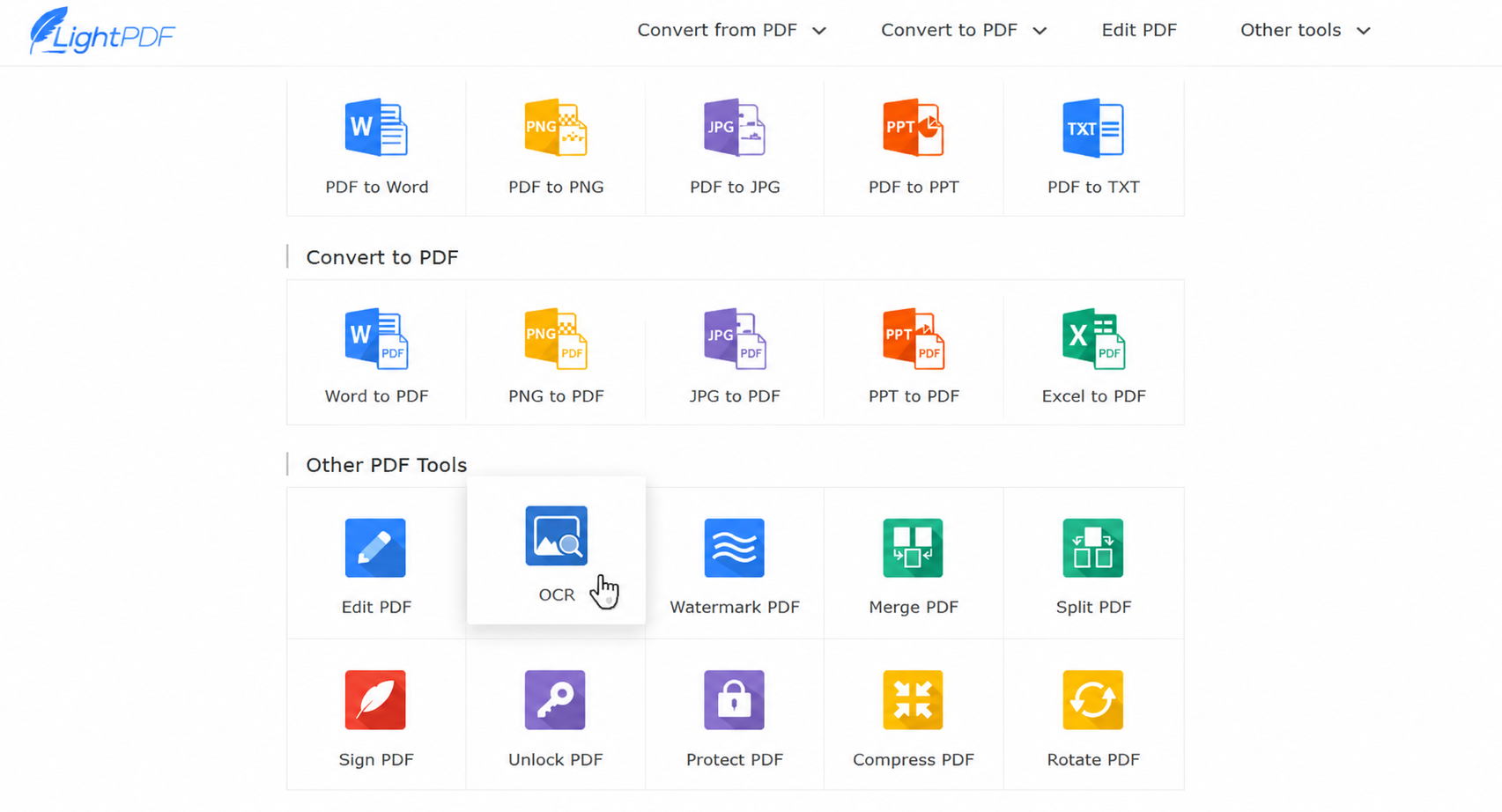
Step 2: Upload the scan or image PDF
Drop in the file you want recognized. Clearer scans usually mean cleaner results-so if the page is skewed or dark, a quick retake helps.
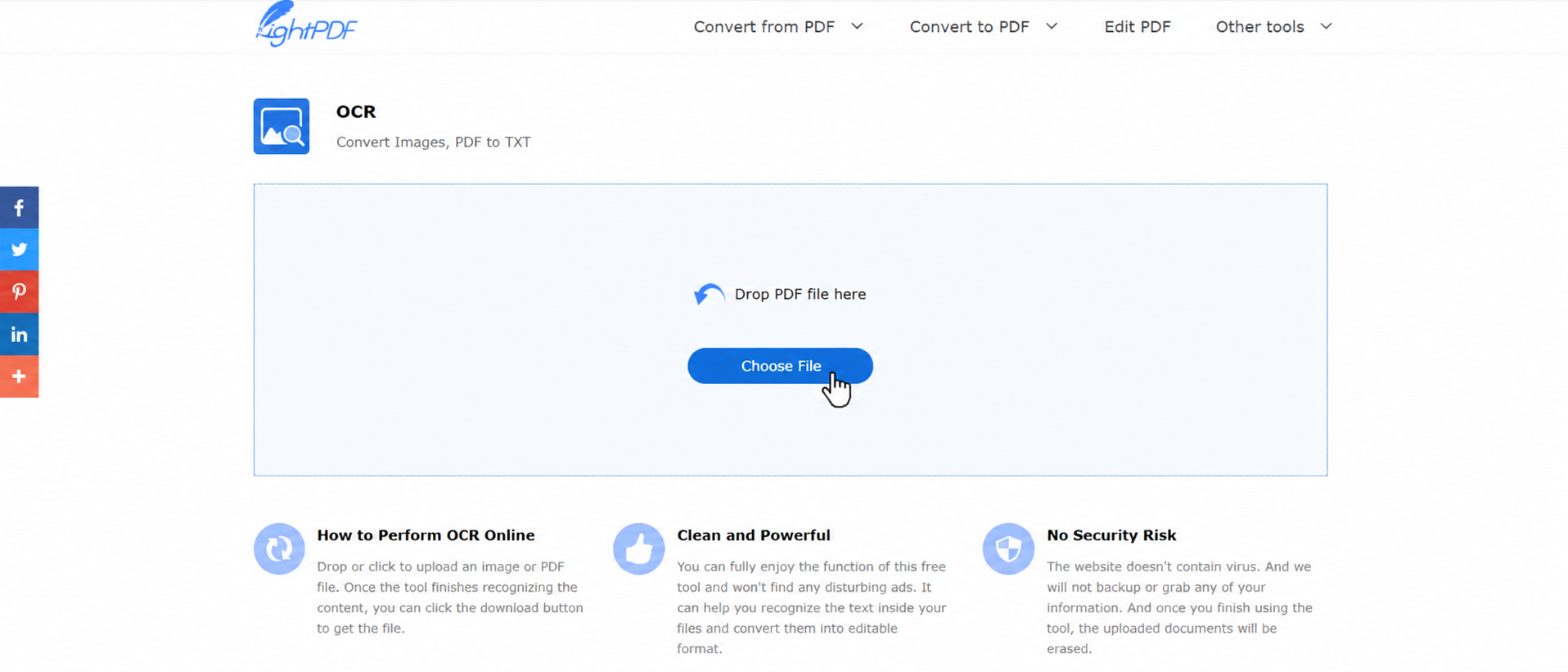
Step 3: Run OCR and obtain the converted file
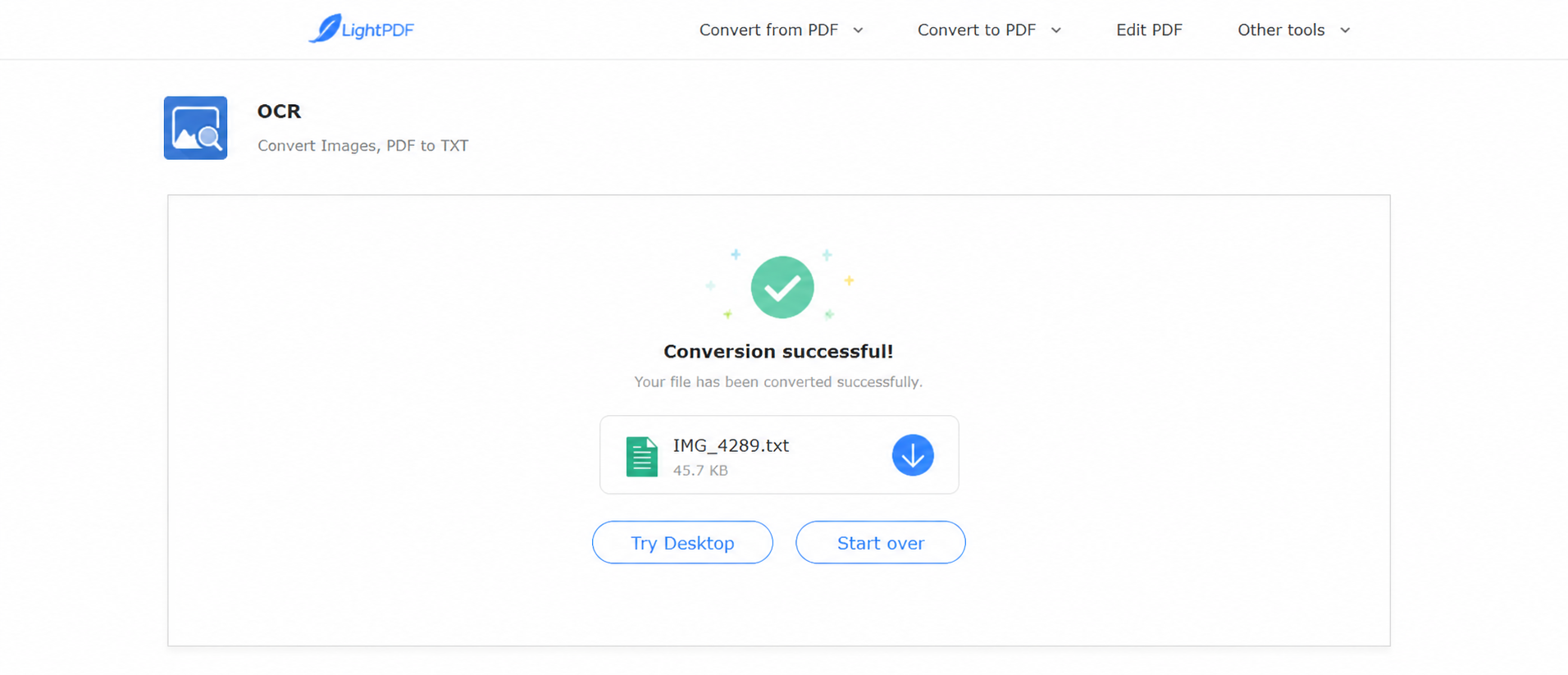
Step 4: Review, edit, and download
Skim the converted text for odd characters (common with logos or handwritten notes), fix anything important, then download. That once-unusable scan becomes something you can actually work with.
LightPDF Editor Pros, Cons, and Pricing
Before you commit, here's a quicker read on what this lightpdf editor does well, where it falls short, and what it typically costs.
| Pros | Cons |
|---|---|
| Fast for small edits, conversions, and AI summaries without a heavy suite | Free tier has daily caps, file-size limits, and is mainly web-only |
| Browser-friendly for shared or public computers | AI credits are capped (about 1,000/month on many paid plans) |
| AI extras in one place: chat, summarize, translate, mind maps | PDF-focused, so PDF -> Excel -> Word -> PPT still means app-switching |
| Premium covers web, Windows, Mac, Android, and iOS | Design-heavy layout work can feel lighter than a pro desktop editor |
| One Premium tier unlocks the main PDF + AI toolkit | Refund windows differ by plan; always check the current policy |
| Plan | Typical price | Best for |
|---|---|---|
| Free | $0 (daily limits) | Trying a few quick edits |
| Monthly Premium | About $19.99/month | Short-term or flexible use |
| Annual Premium | About $49.99/year | Regular users (often best value) |
| Perpetual / lifetime | About $109.99 one-time | Long-term use; large one-time AI credit grant (often ~40,000) |
Prices and promotions change, so confirm on the official pricing page. Team and education discounts may also be available.
Bottom line: LightPDF Editor is a smart pick for fast PDF edits, OCR, and AI helpers. If you need unlimited cross-format work and team collaboration in one window, keep reading-WPS Office covers that next layer. For focused PDF work, see WPS Edit PDF.
Best Free Alternative to LightPDF Editor: WPS Office
A dedicated PDF tool is excellent for isolated tasks. Real workdays rarely stop there. In a typical study session or office afternoon, you'll probably hit bottlenecks like these:
The constant app-switching loop: Pull a table from a PDF, run formulas in Excel, paste results into a Word report, then export back to PDF. With a PDF-only editor, you're still bouncing between tabs and apps.
The collaboration nightmare: You email a PDF. Everyone edits their own copy. You end up with five versions and no single source of truth.
WPS Office is built to bridge those gaps. As an all-in-one suite with Writer, Spreadsheet, Presentation, and a capable PDF editor, it tackles the work a standalone lightpdf editor isn't trying to own:
1. The all-in-one multi-tab workspace
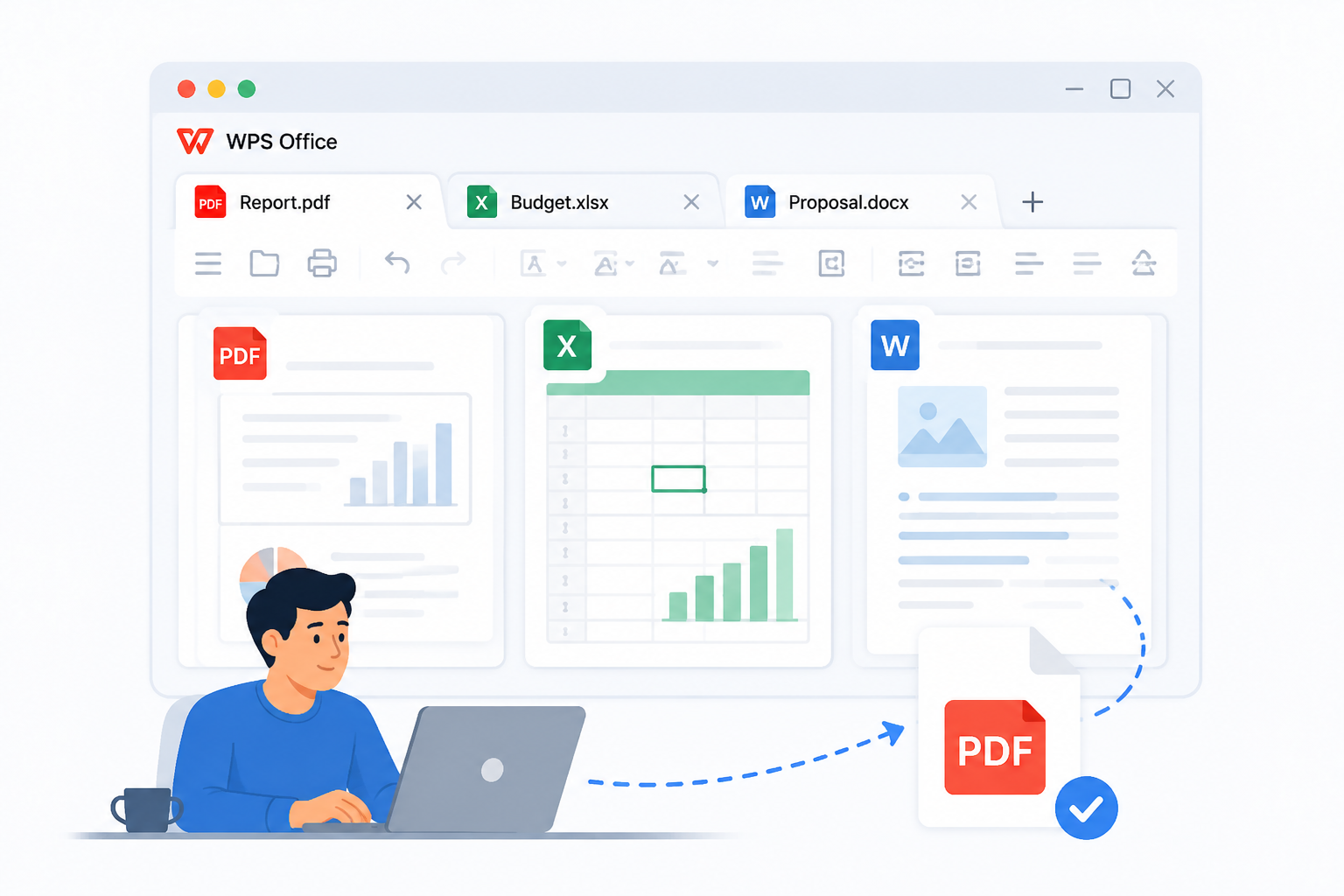
In WPS Office, PDFs, Excel sheets, and Word docs live as tabs in one window. Read a report in Tab A, crunch numbers in Tab B, draft the proposal in Tab C, then save back to PDF-without juggling separate programs.
2. Seamless cloud and team co-editing
Upload to WPS Cloud, share a link, and let teammates annotate, fill forms, sign, and comment on the same file in real time. That beats the email ping-pong that often follows a quick one-off PDF edit.
3. Strong format interoperability
WPS focuses on clean conversions between PDF and editable Word/Excel formats, and supports direct editing that keeps tables and alignment closer to the original-especially useful when your workflow outgrows a PDF-only tool.
4. Unbeatable cost-effectiveness with a robust free tier
WPS Office delivers premium productivity without the premium price tag, making it highly accessible:
WPS Standard (Free): Get instant access to basic PDF features, a free reader, 1GB of cloud space, and support for 47 file formats—no credit card required.
WPS Pro+ ($5.83/month): For advanced needs, just $5.83/month (billed annually) unlocks full PDF editing and conversion, advanced OCR, electronic signatures, 20GB of storage, and an ad-free workspace.
Compared to expensive, single-purpose PDF tools, it offers far more capabilities for a fraction of the cost.
How to Edit a PDF using WPS Office?
Prefer an all-in-one desktop workflow? Follow these steps in WPS Office, or jump to the WPS Edit PDF feature overview first.
Step 1: Launch WPS Office on your Windows PC and open the PDF file you want to edit.
Step 2: Click on the "Edit" tab in the toolbar and then select "Edit Content".

Step 3: Now you can make the necessary changes to the PDF file by clicking on the text or image you want to edit and then typing in your changes.
Step 4: Once you have finished editing the PDF file, click on "Save" to save your changes.

FAQ
Is LightPDF Editor free to use?
Yes, with limits. You can try core online tools on a small number of files per day, but heavy editing, larger files, and full AI access usually need a Premium plan. If you only fix one page occasionally, free may be enough; if PDFs are part of your daily job, budget for a subscription.
Can LightPDF Editor edit scanned PDFs?
Yes-that's what OCR is for. Upload the scan, run OCR, then edit or export the recognized text. Results are best on clear, upright pages; blurry phone photos may need a second pass or manual cleanup.
Is it safe to upload sensitive documents?
LightPDF states that transfers are encrypted and processed files are deleted after a short period, with GDPR and ISO-style certifications cited on its site. Still, for highly confidential contracts or medical files, prefer a trusted desktop workflow and avoid public Wi-Fi when uploading.
Why do I keep hitting paywalls or credit limits?
The free tier caps daily use, and AI features consume credits even on paid plans. If you summarize long reports all day, you'll burn through monthly AI credits faster than someone who only edits text. Check the current credit rules before relying on AI for high-volume work.

'%3e%3cpath%20d='M19.9911%204.11386V6.471H18.5894C18.0775%206.471%2017.7322%206.57814%2017.5536%206.79243C17.3751%207.00671%2017.2858%207.32814%2017.2858%207.75671V9.44421H19.9019L19.5536%2012.0871H17.2858V18.8639H14.5536V12.0871H12.2769V9.44421H14.5536V7.49779C14.5536%206.39064%2014.8632%205.53201%2015.4822%204.92189C16.1013%204.31177%2016.9257%204.00671%2017.9554%204.00671C18.8304%204.00671%2019.509%204.04243%2019.9911%204.11386Z'%20fill='%23333333'/%3e%3c/g%3e%3cdefs%3e%3cclipPath%20id='clip0_2938_8199'%3e%3crect%20width='16'%20height='16'%20fill='white'%20transform='translate(8%204.00671)'/%3e%3c/clipPath%3e%3c/defs%3e%3c/svg%3e)
'%3e%3cpath%20d='M17.5237%2010.7813L23.4811%204H22.0699L16.8949%209.88693L12.7648%204H8L14.2469%2012.9029L8%2020.0133H9.4112L14.8725%2013.7952L19.2352%2020.0133H24M9.92053%205.04213H12.0885L22.0688%2019.0224H19.9003'%20fill='%23333333'/%3e%3c/g%3e%3cdefs%3e%3cclipPath%20id='clip0_2938_8200'%3e%3crect%20width='16'%20height='16.0134'%20fill='white'%20transform='translate(8%204)'/%3e%3c/clipPath%3e%3c/defs%3e%3c/svg%3e)


