



'%3e%3cpath%20fill-rule='evenodd'%20clip-rule='evenodd'%20d='M21.4999%2010.9993C21.4999%205.20009%2016.7986%200.498901%2010.9993%200.498901C5.19994%200.498901%200.498657%205.20009%200.498657%2010.9993C0.498657%2016.2404%204.33858%2020.5844%209.35855%2021.3722V14.0346H6.69238V10.9993H9.35855V8.68594C9.35855%206.05427%2010.9262%204.60062%2013.3248%204.60062C14.4736%204.60062%2015.6753%204.80571%2015.6753%204.80571V7.38979H14.3512C13.0468%207.38979%2012.64%208.19921%2012.64%209.0296V10.9993H15.5523L15.0867%2014.0346H12.64V21.3722C17.66%2020.5844%2021.4999%2016.2404%2021.4999%2010.9993Z'%20fill='%231568EA'/%3e%3c/g%3e%3c/svg%3e)


'%3e%3cpath%20d='M2.42045%2022.1876H6.31818V12.7217L0.75%208.54553V20.5171C0.75%2021.4414%201.49892%2022.1876%202.42045%2022.1876Z'%20fill='%234285F4'/%3e%3cpath%20d='M19.682%2022.1876H23.5797C24.5041%2022.1876%2025.2502%2021.4387%2025.2502%2020.5171V8.54553L19.682%2012.7217'%20fill='%2334A853'/%3e%3cpath%20d='M19.682%205.48293V12.7216L25.2502%208.54543V6.31816C25.2502%204.25236%2022.8921%203.07469%2021.2411%204.31361'%20fill='%23FBBC04'/%3e%3cpath%20d='M6.31824%2012.7217V5.48303L13.0001%2010.4944L19.6819%205.48303V12.7217L13.0001%2017.733'%20fill='%23EA4335'/%3e%3cpath%20d='M0.75%206.31816V8.54543L6.31818%2012.7216V5.48293L4.75909%204.31361C3.10534%203.07469%200.75%204.25236%200.75%206.31816Z'%20fill='%23C5221F'/%3e%3c/g%3e%3cdefs%3e%3cclipPath%20id='clip0_2954_7305'%3e%3crect%20width='24.5'%20height='18.375'%20fill='white'%20transform='translate(0.75%203.8125)'/%3e%3c/clipPath%3e%3c/defs%3e%3c/svg%3e)


The fastest way to add a react native pdf view in 2026 is to install a native viewer library such as react-native-pdf (or a JSI-based drop-in like react-native-pdf-jsi), load a local or remote URI, and wrap the component in a full-screen container with loading and error states. WebView-only approaches still work for simple remote files, but native viewers win on zoom, large files, and offline caching.
Building a document-heavy app without a solid PDF viewer is a common trap. You ship chat, forms, and storage, then discover users expect contracts, manuals, and invoices to open inside the app, not in a browser tab.
If that sounds familiar, you are in the right place. Below you will learn which libraries fit which use cases, how to set up a production-ready React Native PDF viewer, and when in-app preview should hand off to a full desktop PDF editor.
Key Takeaways
For most apps,
react-native-pdfremains the practical default for a react native pdf view; JSI forks help when large files or Android 16KB page-size compliance matter.Always handle three sources: remote URL, local file path, and app asset, plus password-protected PDFs.
Ship loading, error, and empty states early; most user complaints are UX failures, not render failures.
Native viewers beat WebView for pinch-zoom, page navigation, and offline cache control.
In-app preview is for reading; deep edits, OCR, and conversions still belong in a desktop suite like WPS PDF.
Why Your App Needs a Reliable React Native PDF View
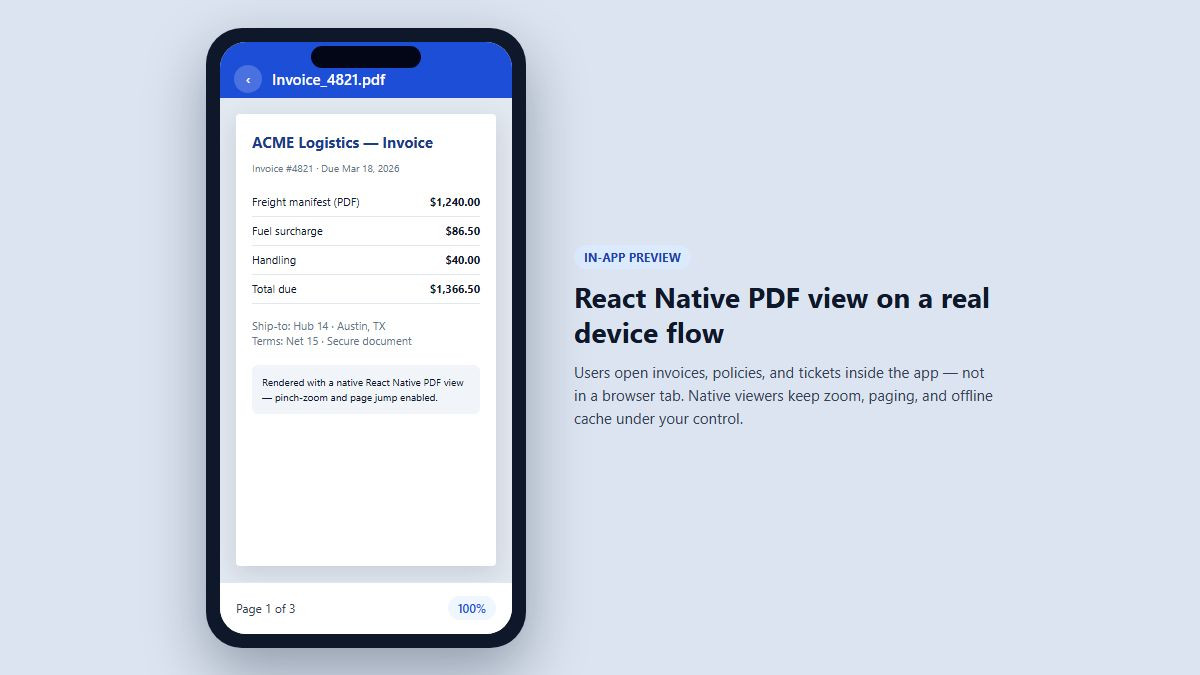
PDFs are still the exchange format for business documents. Mobile teams add a react native pdf view when users must open invoices, policies, tickets, or course materials without leaving the product.
A viewer is not optional polish. It is often the moment of trust: if the PDF fails to open, users assume the whole app is unreliable.
When Lena, a product engineer at a logistics startup, shipped driver paperwork in March 2025, her team used a bare WebView pointed at signed S3 URLs. It worked in QA. In the field, drivers on mid-range Android devices hit blank screens on 20+ MB manifests. Support tickets spiked within two weeks. After switching to a native React Native PDF viewer with paging and caching, crash reports dropped and average open time fell from roughly 8 seconds to under 2 seconds on the same devices.
That pattern shows up often: the first integration looks fine on a flagship phone and a 2-page sample file. Production traffic is messier.
What a good in-app viewer should cover:
Local and remote PDFs
Progress indicators while bytes download
Pinch-zoom and page jump
Password prompts for protected files
Memory-safe behavior on large documents
Want a clearer picture of what “edit later” looks like outside the app? See our guide on how to edit a PDF document when preview alone is not enough.
Choose the Right Library for React Native PDF View
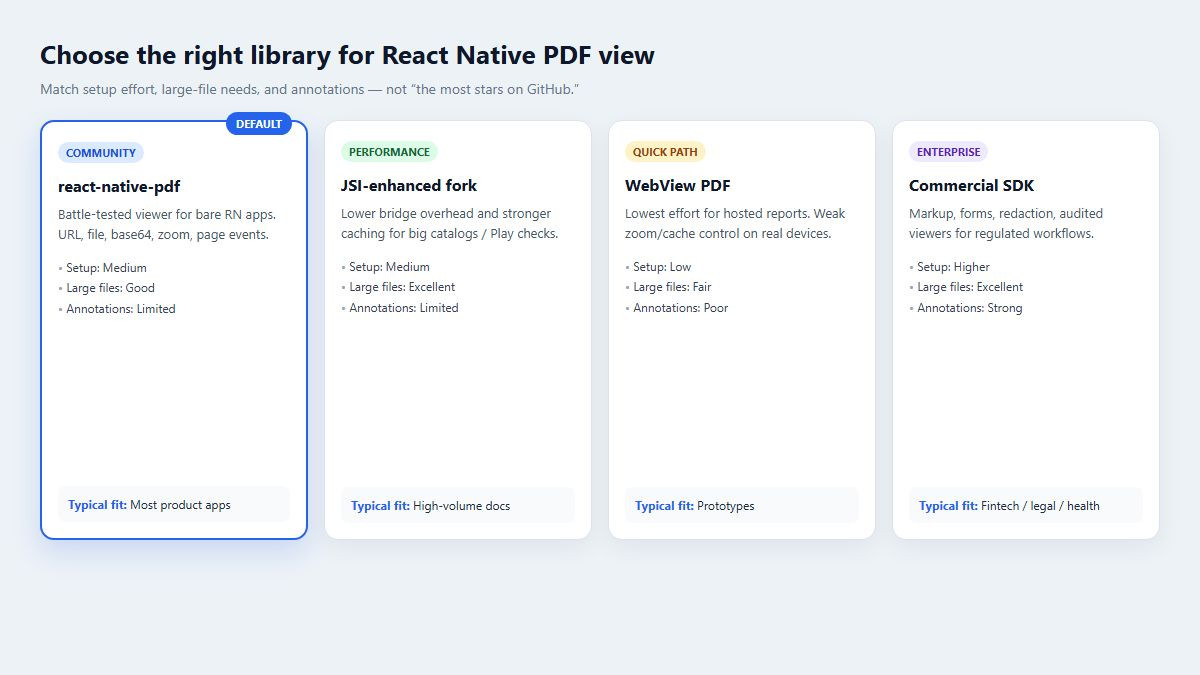
There is no single “best” library for every team. Pick based on Expo vs bare React Native, file size, and whether you need annotations.
react-native-pdf (community default)
react-native-pdf is still the most referenced open-source option for a react native pdf view. It renders from URL, file, or base64, supports horizontal/vertical scrolling, pinch-zoom, and page events.
Best for: bare React Native apps that need a battle-tested viewer without building a custom native module.
Watch-outs: native linking and platform build setup matter. Expo managed workflow usually needs a development build or config plugin path, not Expo Go alone.
JSI-enhanced forks (performance-focused)
Libraries such as react-native-pdf-jsi market themselves as drop-in replacements with lower bridge overhead, smarter caching, and stronger handling of very large files. Teams chasing Android 15+ packaging rules (including 16KB page-size readiness) often evaluate these forks when the classic package struggles in CI or Play Console checks.
Best for: apps that open large catalogs, offline document packs, or must stay ahead of Play compliance tooling.
WebView PDF display
Loading a PDF URL inside a WebView is the lowest-effort path. It can be enough for “open this hosted report” flows.
Best for: prototypes, admin-only tools, or short-lived remote links.
Limits: weaker control over caching, inconsistent zoom UX across iOS/Android, and fragile behavior with auth headers or blob downloads.
Commercial SDKs (annotations and editing)
Enterprise SDKs (for example Nutrient / PSPDFKit-class products) make sense when you need markup, form fill, redaction, or legally audited viewers.
Best for: fintech, legal, healthcare, and education products where annotation is a core feature, not a nice-to-have.
| Approach | Setup effort | Large files | Annotations | Typical fit |
|---|---|---|---|---|
| react-native-pdf | Medium | Good | Limited / via extras | Most product apps |
| JSI-enhanced fork | Medium | Excellent | Limited | High-volume document apps |
| WebView | Low | Fair | Poor | Quick remote previews |
| Commercial SDK | Higher | Excellent | Strong | Regulated workflows |
How to Set Up a React Native PDF View Step by Step
The following flow assumes a bare React Native project. Expo users should create a development build before adding native viewer modules. If you are still scaffolding, start from the official React Native getting started docs and Expo documentation.
1. Install the viewer and file helpers
Install the PDF component and a filesystem helper so you can download remote files when needed:
npm install react-native-pdf react-native-blob-util
# iOS
cd ios && pod install && cd ..
Confirm your React Native version matches the library’s peer requirements before you chase obscure build errors.
2. Add platform permissions and build settings
On Android, large downloads and cache folders need clear storage intent. On iOS, ATS rules may block insecure HTTP PDF hosts. Prefer HTTPS URLs in production.
If you use Flipper, Hermes, or a custom Gradle setup, rebuild after linking. Half of “PDF blank screen” reports are stale native binaries, not bad JSX.
3. Render a basic React Native PDF viewer
Keep the first version boring and observable:
import React, { useState } from 'react';
import { View, ActivityIndicator, StyleSheet, Text } from 'react-native';
import Pdf from 'react-native-pdf';

export default function DocumentViewer({ uri }) {
  const [error, setError] = useState(null);
  const source = { uri, cache: true };

  if (error) {
    returnCould not open this PDF. Check the link or try again.;
  }

  return (console.log(`Loaded ${pages} pages`)}
        onPageChanged={(page) => console.log(`Page ${page}`)}
        onError={(e) => setError(e)}
        trustAllCerts={false}
      />);
}

const styles = StyleSheet.create({
  container: { flex: 1 },
  pdf: { flex: 1, width: '100%' },
});
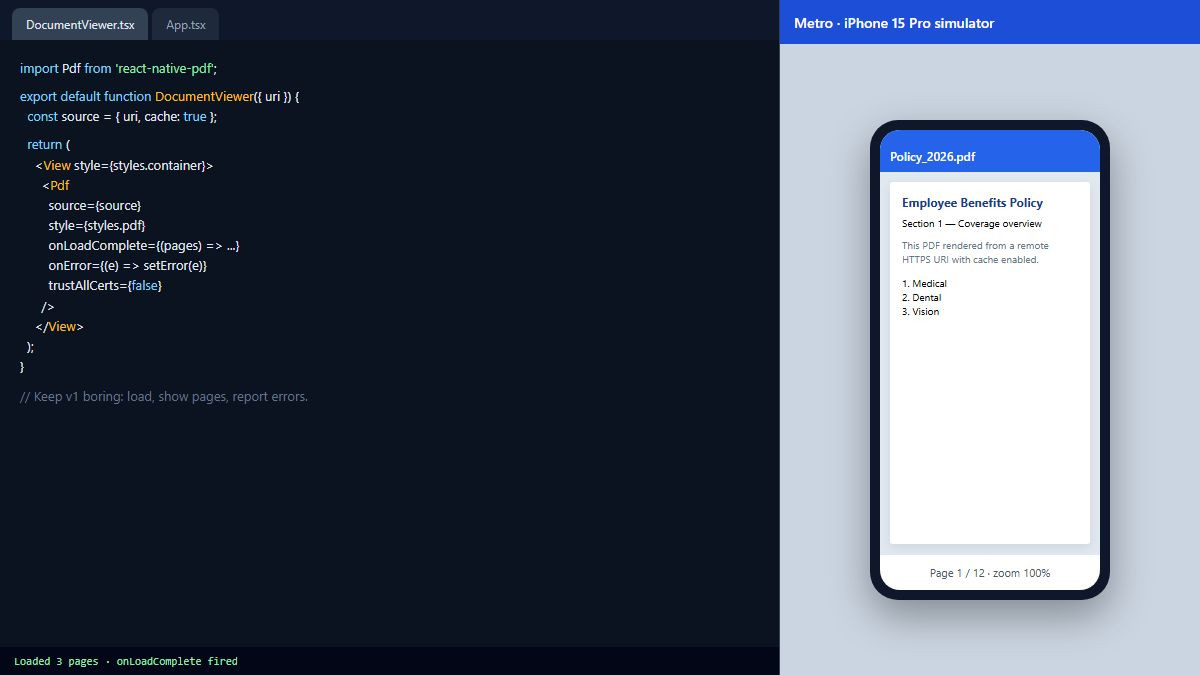
That single screen already covers the core react native pdf view job: load, show pages, report errors.
4. Support local files and assets
Remote URLs are only one source. Product flows often pass:
A downloaded path from the filesystem
A file shared from another app
A bundled onboarding PDF in assets
Normalize those into a source object the viewer understands. Cache remote files when users reopen the same contract repeatedly.
5. Add loading UX users can trust
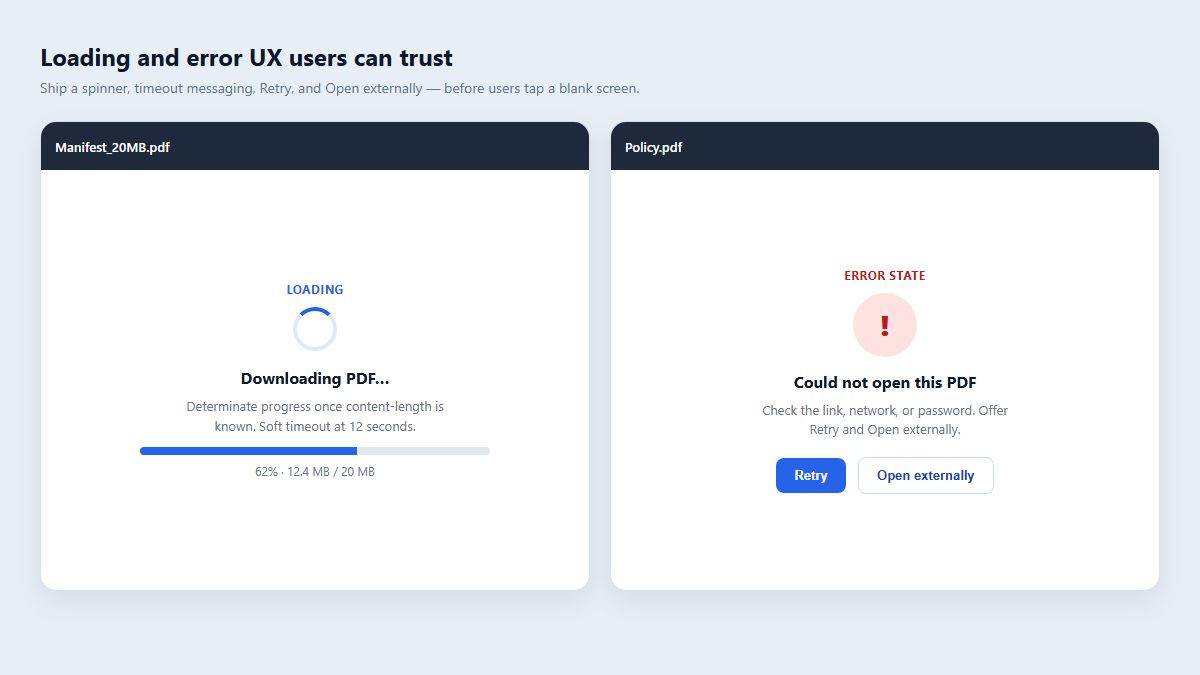
Show an indeterminate spinner for the first paint, then a determinate bar if you know content length. Display page count once onLoadComplete fires. If load fails, offer Retry and Open externally.
Marcus, who led mobile at a mid-size insurance firm, learned this the hard way in late 2025. Agents opened policy PDFs on poor hotel Wi-Fi during conferences. Without a timeout message, they tapped the screen repeatedly and filed “app frozen” tickets. Adding a 12-second soft timeout with Retry cut those tickets by more than half, even though the underlying network was unchanged.
Performance and UX Tips for React Native PDF Viewer Screens
A working render is step one. Smooth UX is what keeps one-star reviews away.
Keep memory under control
Do not preload an entire 200-page manual into JS memory if the library supports paging. Prefer cache-on-disk for remote files. Release screens on blur if your navigator stacks multiple viewers.
Design for thumbs, not mice
Place page controls in easy reach. Avoid tiny floating buttons over content. Double-tap zoom should feel intentional, not accidental.
Secure sensitive documents
For payroll or medical PDFs:
Prefer short-lived signed URLs
Disable unnecessary screenshot affordances where OS APIs allow
Clear cache on logout
Never log full PDF URLs that embed tokens
Decide what “edit” means in your product
Most in-app viewers are read-first. If users must fill forms, merge pages, OCR scans, or convert PDF to Word, deep editing usually happens in a desktop or full PDF suite. That split is healthy: your mobile app stays fast; document power tools stay powerful.
When teams outgrow pure preview, WPS PDF covers edit, convert, annotate, and sign workflows on desktop and mobile, which pairs well with an in-app react native pdf view used only for quick reading.
Ready to test the difference on real files? Download WPS Office and open the same PDFs your app will ship, so you can compare mobile preview quality with a full editor.
Common React Native PDF View Errors and Fixes
Blank screen after navigation
Usually a layout issue: the Pdf component needs flex: 1 inside a sized parent. Absolute positioning without height produces an invisible viewer.
Works on iOS, fails on Android (or the reverse)
Check MIME handling, content providers for local files, and cleartext traffic rules. Rebuild native projects after dependency changes.
Password-protected PDFs
Surface a password field and pass credentials through the library API. Do not hardcode passwords in the client.
Expo Go cannot load the native module
Expected for many native viewers. Use a custom development client / EAS build. Confirm your Expo SDK and library versions are compatible before blaming the PDF file.
Large file crashes
Try a JSI-oriented viewer, reduce initial preload radius, stream or download to disk first, and test on low-RAM devices, not only simulators.
When to Hand Off from In-App Preview to a Full PDF Editor
Your react native pdf view should answer: “Can I read this now?” A desktop-class editor answers: “Can I change, convert, and share this correctly?”
Hand off when users need to:
Edit text or images inside the PDF
Convert PDF to Word, Excel, or images
Compress oversized files before upload
Apply OCR to scanned pages
Merge or split packets for compliance packages
For those tasks, point power users to a capable suite. WPS Office’s PDF tools are built for everyday edit-and-convert work, and our blog also covers adjacent workflows such as editing PDFs with online tools when browser-based edits are enough.
Priya’s education startup kept grading rubrics inside a React Native teacher app. Preview worked. Teachers still exported files to desktop weekly to annotate rubrics and convert packets for parents. Once the team documented that handoff in onboarding (“Preview in app, polish in WPS PDF”), support noise about “missing edit buttons” nearly disappeared.
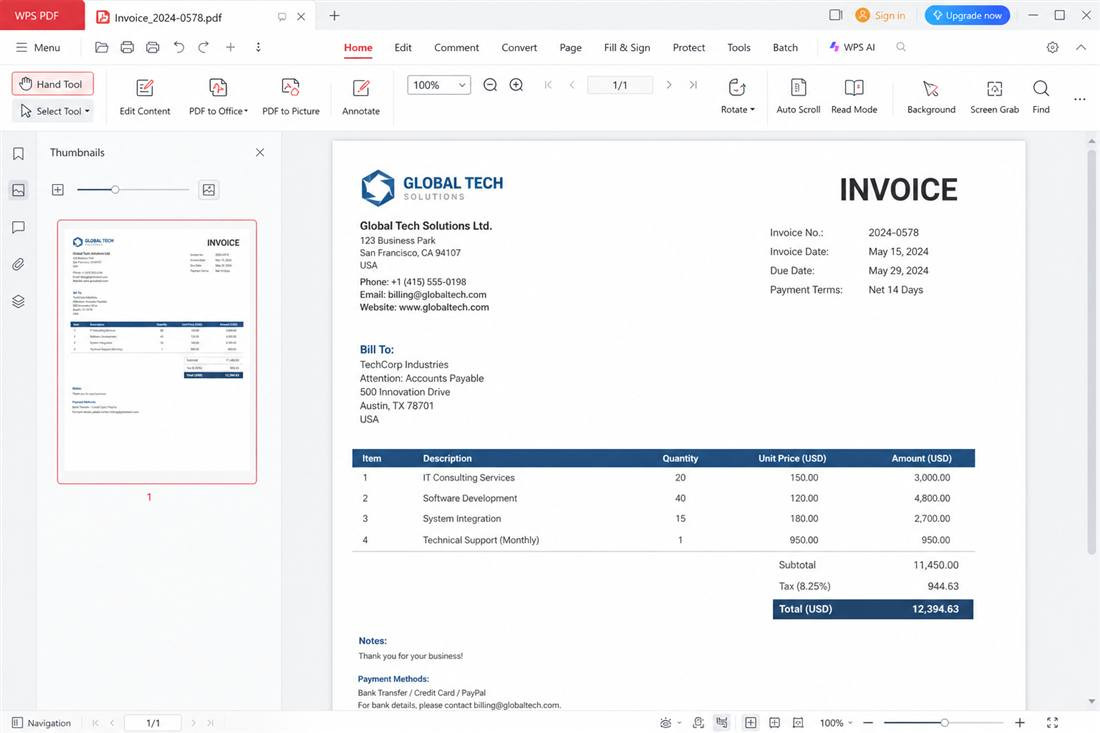
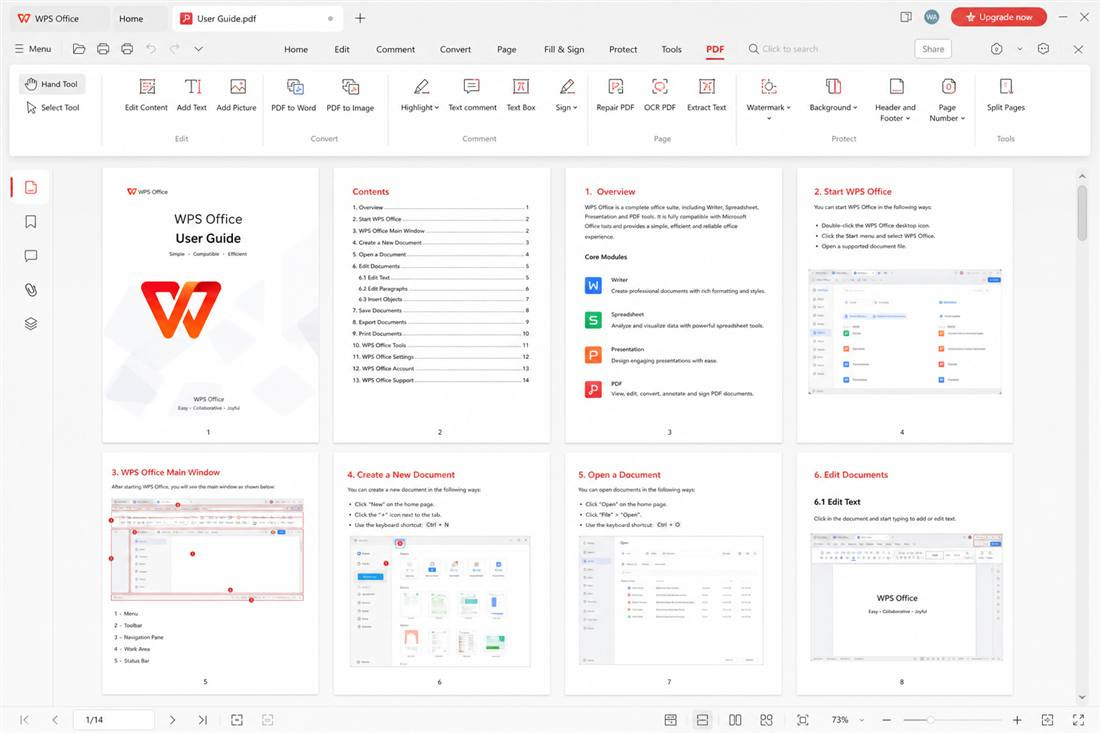
From there, use the PDF tools ribbon for edit, annotate, convert, or repair—work that does not belong in a lightweight React Native preview.
FAQ: React Native PDF View
What is the best library for a react native pdf view?
For most production apps, start with react-native-pdf. Move to a JSI-enhanced fork if large-file performance or newer Android packaging requirements force it. Choose a commercial SDK when annotations and form filling are core product features.
Can I display a PDF in React Native with Expo?
Yes, but you typically need a development build for native viewer modules. Pure Expo Go is limited for many native PDF packages. WebView can bridge early prototypes.
How do I open a local PDF file in React Native?
Obtain a filesystem path (download, share intent, or asset copy), then pass it as the viewer source.uri with the correct file:// prefix for your platform. Test Android content URIs separately from simple absolute paths.
Is WebView good enough as a React Native PDF viewer?
It is good enough for simple remote previews. It is usually not enough for offline-first document apps, complex zoom UX, or tightly controlled caching.
How do I handle very large PDF files?
Download to disk, enable caching, avoid loading the entire document into JS, test low-end devices, and evaluate higher-performance native viewers if crashes persist.
Conclusion
A dependable react native pdf view is less about fancy chrome and more about the basics done well: the right library for your stack, clear loading and error states, solid support for local and remote sources, and honest limits around editing.
Start with a native viewer such as react-native-pdf, instrument page load events, and validate on real devices with real file sizes. Use WebView only when the use case is truly lightweight. When users need serious editing, conversion, or OCR, pair your in-app preview with a full PDF workspace.
Next step: implement the sample viewer above in a development build, then stress-test with your largest customer PDF. For edit-and-convert workflows beyond mobile preview, try WPS PDF or download WPS Office and keep your React Native screen focused on fast, reliable reading.


'%3e%3cpath%20d='M19.9911%204.11386V6.471H18.5894C18.0775%206.471%2017.7322%206.57814%2017.5536%206.79243C17.3751%207.00671%2017.2858%207.32814%2017.2858%207.75671V9.44421H19.9019L19.5536%2012.0871H17.2858V18.8639H14.5536V12.0871H12.2769V9.44421H14.5536V7.49779C14.5536%206.39064%2014.8632%205.53201%2015.4822%204.92189C16.1013%204.31177%2016.9257%204.00671%2017.9554%204.00671C18.8304%204.00671%2019.509%204.04243%2019.9911%204.11386Z'%20fill='%23333333'/%3e%3c/g%3e%3cdefs%3e%3cclipPath%20id='clip0_2938_8199'%3e%3crect%20width='16'%20height='16'%20fill='white'%20transform='translate(8%204.00671)'/%3e%3c/clipPath%3e%3c/defs%3e%3c/svg%3e)
'%3e%3cpath%20d='M17.5237%2010.7813L23.4811%204H22.0699L16.8949%209.88693L12.7648%204H8L14.2469%2012.9029L8%2020.0133H9.4112L14.8725%2013.7952L19.2352%2020.0133H24M9.92053%205.04213H12.0885L22.0688%2019.0224H19.9003'%20fill='%23333333'/%3e%3c/g%3e%3cdefs%3e%3cclipPath%20id='clip0_2938_8200'%3e%3crect%20width='16'%20height='16.0134'%20fill='white'%20transform='translate(8%204)'/%3e%3c/clipPath%3e%3c/defs%3e%3c/svg%3e)


