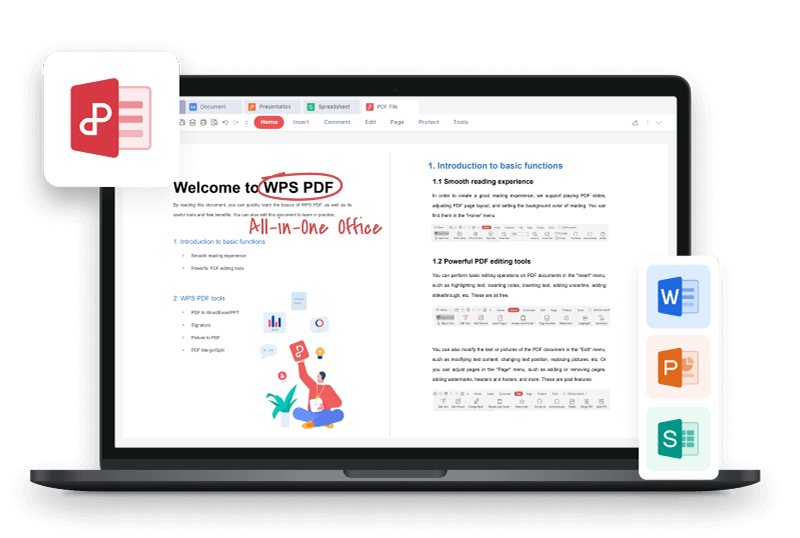


A word processor is software for creating, editing, formatting, and printing text documents. It turns typing into a laid-out page with headings, paragraphs, tables, images, and page numbers, then saves that page in a document format such as .docx or exports it as PDF. If you have ever written a resume, a school essay, or a client proposal on a computer, you have used one.
This guide defines what a word processor is, explains the components and file types you will meet, and compares the free and paid options across Windows, macOS, iPad, Linux, and the browser — including how WPS Writer, Google Docs, and LibreOffice Writer differ.
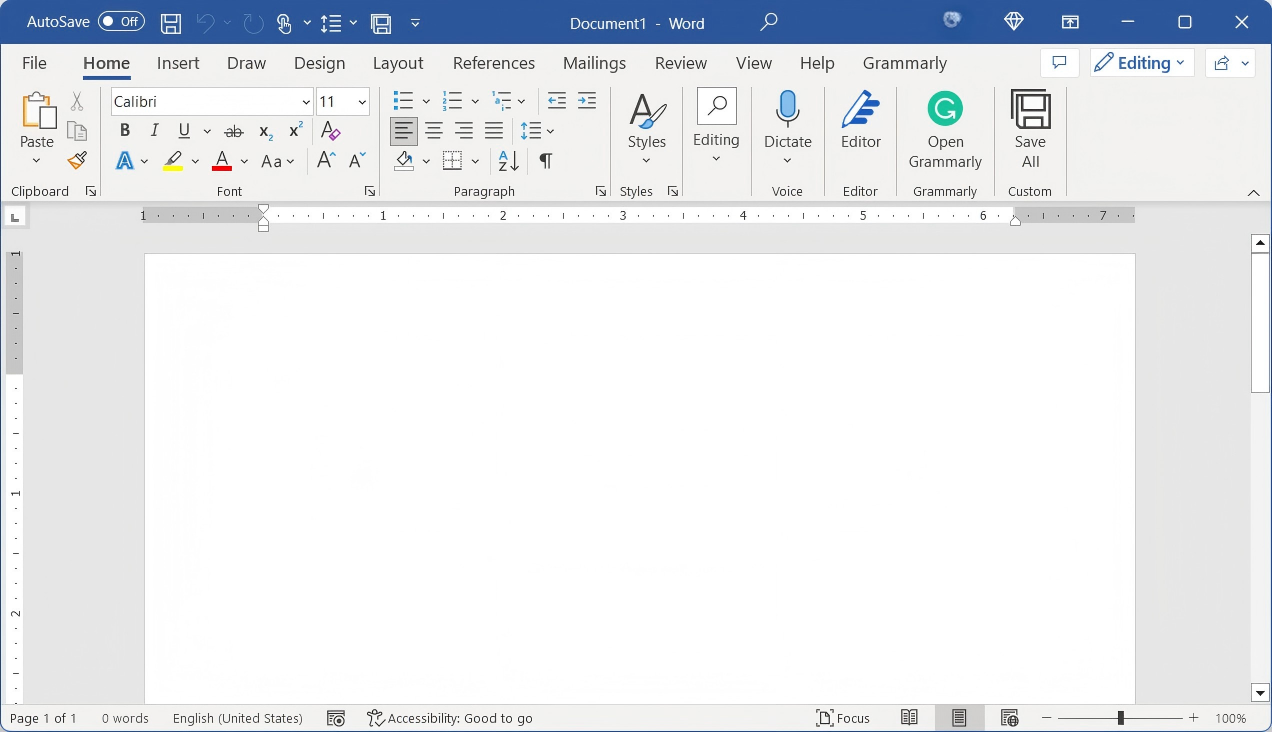
A classic word processor: the document, the toolbar, and the page on one screen
What is a word processor? A plain definition
A word processor is a program whose job is to produce a document you can read and print, not just a stream of characters. The difference from a plain text editor is layout: a word processor lets you set fonts, margins, line spacing, page size, headers, and footers, and it shows you the finished page on screen as you type.
Input: typing, dictation, or pasting text into a document.
Formatting: bold, italics, lists, styles, tables, images, and page breaks.
Layout: margins, columns, page numbers, and section breaks that decide how the page prints.
Output: saving in an editable format (.docx) or exporting a fixed one (.pdf).
The category is old — early examples ran on dedicated machines — but the modern definition is simple: if it can open a .docx, keep the layout intact, and print it, it is a word processor.
The core components of a word processor
Every word processor, free or paid, bundles the same handful of components. Knowing them makes it easy to compare tools that look different on the surface.
Editing surface: the page you type on, with a cursor, selection, and undo history.
Ribbon or toolbar: font, paragraph, and style controls; the more a tool hides here, the simpler it is to learn but the slower to format a long document.
Styles and templates: reusable heading and body styles that keep a 40-page report consistent, plus starter templates for resumes and letters.
Review tools: spell check, comments, and track changes for documents that pass between people.
Export and print: PDF export, print preview, and page setup.
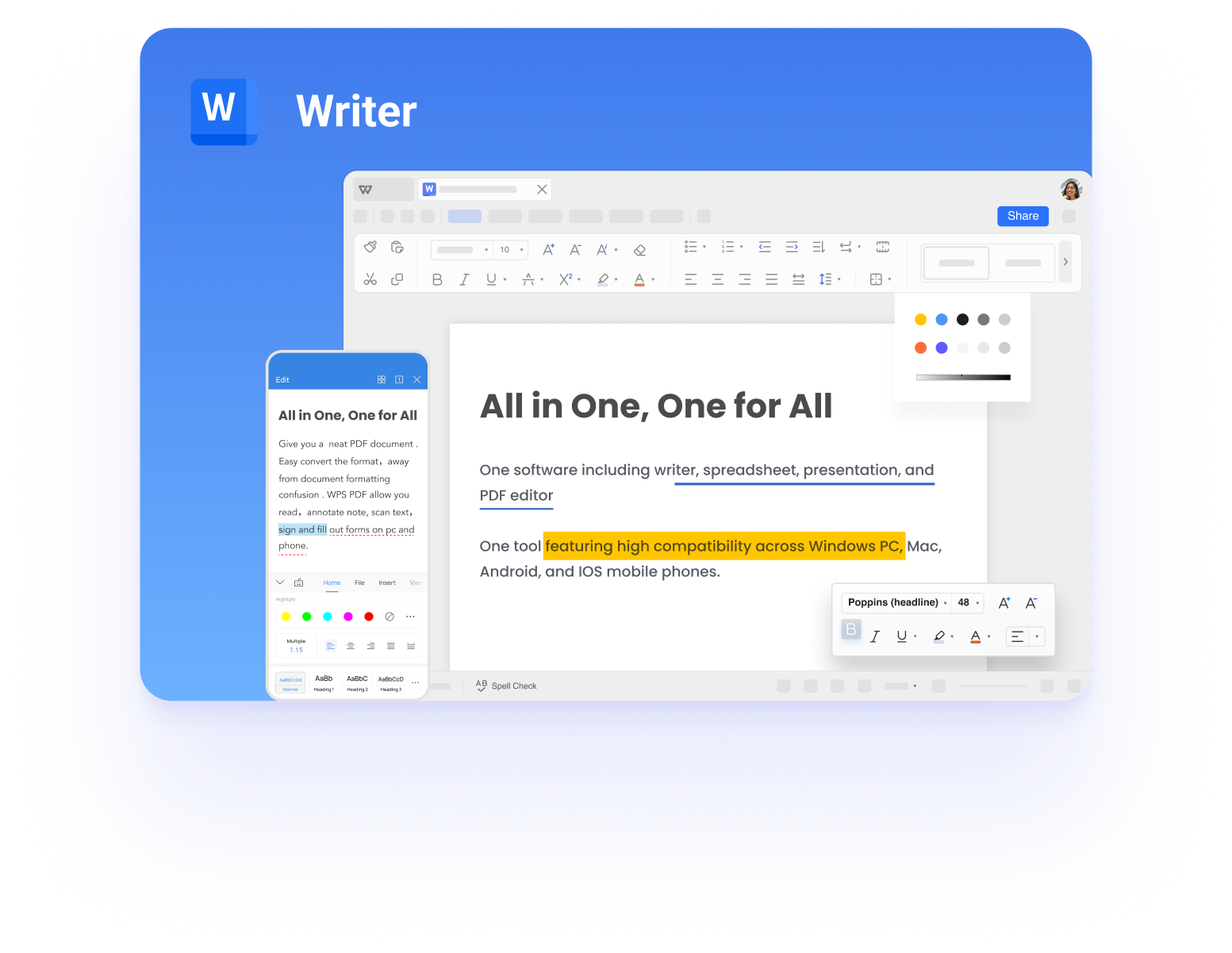
WPS Writer on desktop and mobile: the same document, two surfaces
DOCX, DOC, and ODT: which file types a word processor opens
File type is where most compatibility problems start, and it is the first thing to check before you commit to a tool.
.docx — the modern Office Open XML format. Almost every word processor opens it; fidelity is usually good for text, tables, and images.
.doc — the legacy binary Word format. Still supported by WPS, Word, LibreOffice, and Google Docs, but older files can shift layout when converted.
.odt — OpenDocument Text, the native format of LibreOffice Writer. Great if you stay inside LibreOffice, less common elsewhere.
.rtf / .txt — plain interchange formats with little or no layout; fine for notes, poor for formatted documents.
.pdf — a fixed export, not an editable document. Convert a PDF back to Word only when you must, because round trips damage complex layouts.
Macros (.docm), mail-merge fields, and unusual chart types are the usual casualties of a round trip between editors. The only reliable test is sending a copy of your actual document to the other tool and checking it comes back intact.
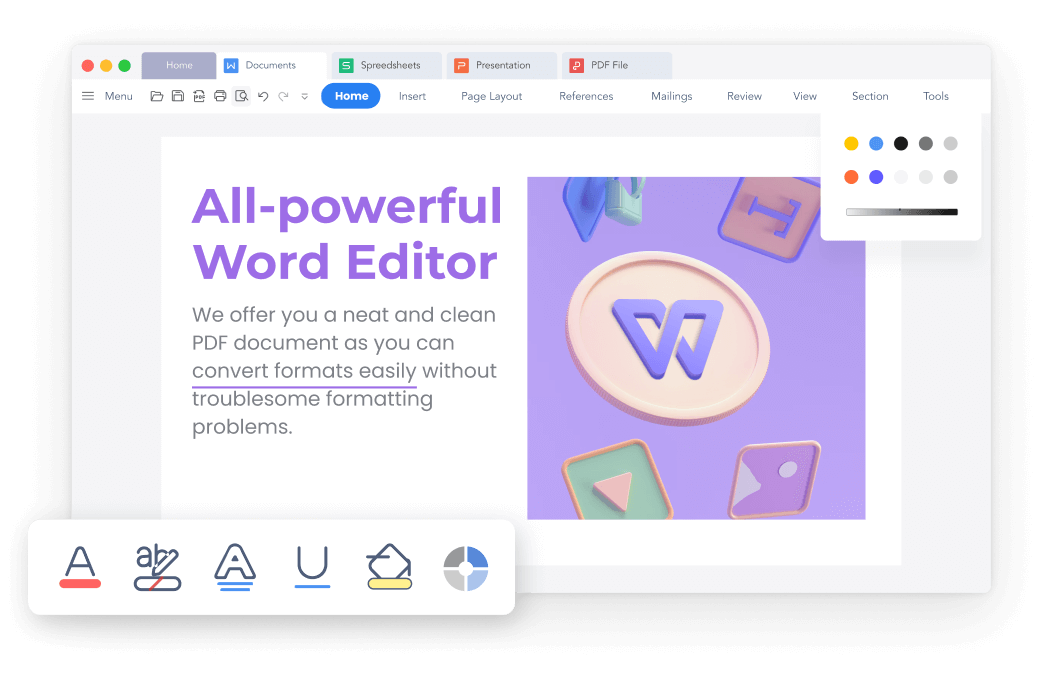
Opening and editing a .docx file in a modern word processor
Free vs paid word processors: where the line actually is
Every major word processor has a free way in, but "free" means something different in each case. The table below sets the free allowance against what the paid tier unlocks.
| Word processor | Free tier | Paid tier | Best for |
|---|---|---|---|
| WPS Writer | Free desktop app, no account needed, .docx compatible; ads in the free version | Optional premium for advanced PDF and AI features | Free .docx editing on Windows, macOS, and Linux |
| Microsoft Word | Word for the web is free with a Microsoft account | Desktop Word requires a paid Microsoft 365 subscription | Heavy formatting, macros, and the full Office ecosystem |
| Google Docs | Free with a Google account; 15 GB shared across Drive, Gmail, and Photos | Google Workspace adds admin controls and Gemini | Real-time co-editing in the browser |
| LibreOffice Writer | Completely free and open source; no account, no storage cap | None — no paid tier | No-ads, no-account, offline writing |
| Apple Pages | Free with Apple devices; opens .docx | None | Mac and iPad users already in the Apple ecosystem |
So Microsoft Word is not free as a desktop app — the free path is the browser version — while WPS Writer, LibreOffice Writer, and Google Docs all let you work at no cost. If you only need to open and lightly edit a document, a free tier is usually enough; pay when macros, advanced layout, or offline AI become requirements.
Platform coverage: Windows, Mac, iPad, Linux, and the browser
Platform is the second factor that narrows your choice, because not every word processor runs everywhere.
Windows: WPS Writer, Microsoft Word, LibreOffice Writer, and OnlyOffice all run natively.
macOS: WPS Writer, Word, Pages, and LibreOffice Writer are available as desktop apps.
iPad and iPhone: Pages, WPS Writer, and Word for iOS cover touch editing; Google Docs runs through the browser or its app.
Linux: LibreOffice Writer and OnlyOffice are the dependable free choices; WPS Writer also offers a Linux build.
Chromebook and browser: Google Docs, Word for the web, and WPS online need no install — useful on shared or locked-down machines.

Apple Pages: a word processor built for Mac and iPad
How WPS Writer, Google Docs, and LibreOffice Writer differ
These three are the free word processors most people weigh against each other, and they optimise for different things.
WPS Writer: a desktop app that opens .docx with high fidelity and works fully offline. It bundles Writer, Spreadsheet, Presentation, and PDF in one install, so it fits an Office-style workflow without a subscription. The trade-off is ads in the free version.
Google Docs: browser-first and the fastest way to co-edit one document by link. It is free, but the file lives in Google Drive and the 15 GB shared allowance is the real limit.
LibreOffice Writer: open source with no ads, no account, and no storage cap. It is the most "free" of the three, at the cost of polish and some .docx edge cases.
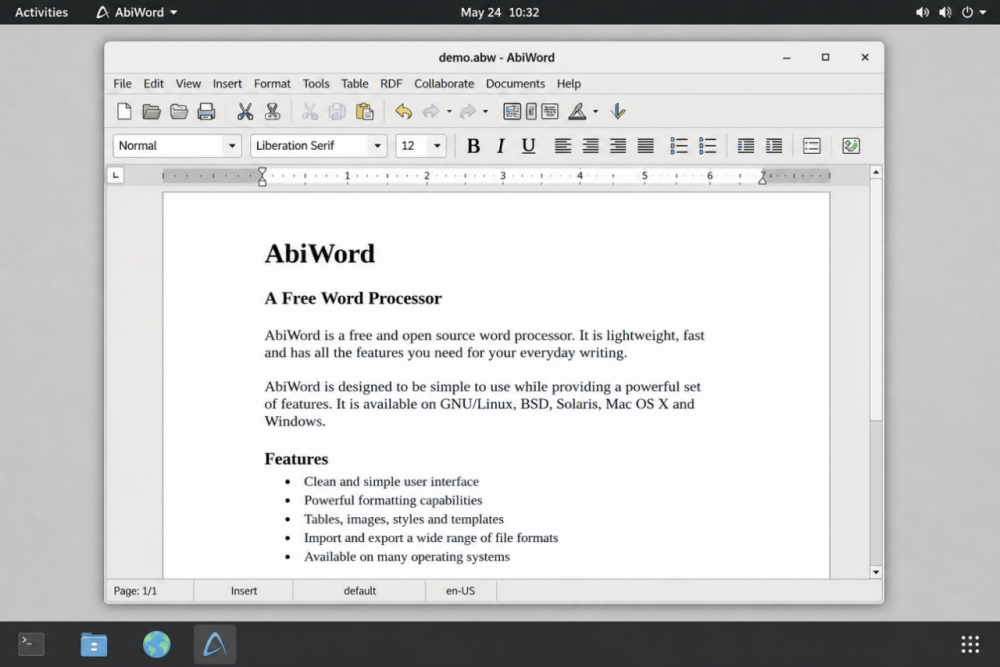
Free and open-source word processors keep the document on your own machine
Beyond typing: Word to PDF, scans, and document storage
Most people do not stop at typing. Three adjacent jobs decide which word processor feels complete.
Word to PDF: every tool on this page exports PDF, but check that fonts, page breaks, and images survive. Convert a sample first.
Scanned documents: if you start from paper, you need OCR before editing — a word processor alone will not read a photo of a page.
Storage: local disk, WPS cloud, OneDrive, or Google Drive. A free account usually comes with a storage cap, so pick the storage you already pay for.
WPS Office folds these into one free download — Writer for text, PDF tools for export, and AI assistance for drafting — which is why it suits people who want one install instead of four subscriptions.
If you are choosing a starting point, see the free WPS word processor, the free document editor for opening .docx in the browser, and the free office software for Windows roundup.
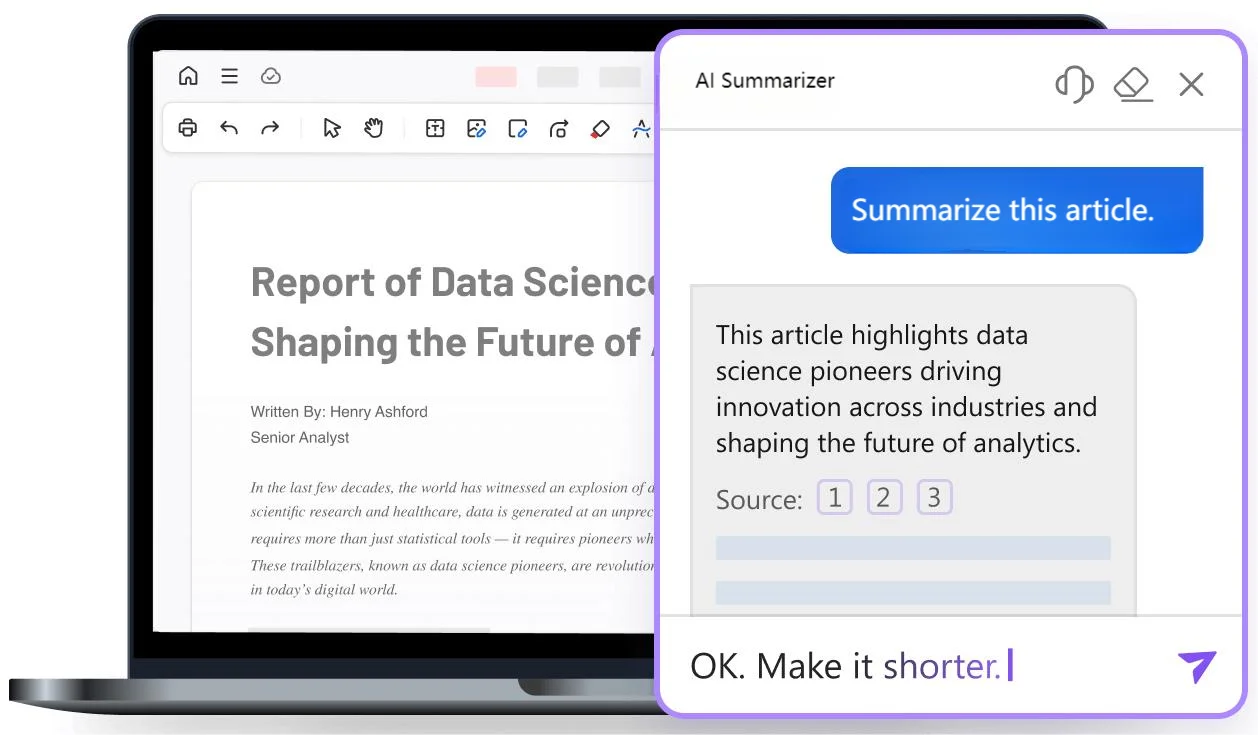
AI assistance inside a word processor: summarize and rewrite a document in place
FAQs
What is the difference between a word processor and a text editor?
A text editor handles plain characters with no layout; a word processor adds fonts, margins, tables, images, and page setup, and shows the printed page as you type.
Can a free word processor open .docx files without breaking them?
Usually yes for text, tables, and images. WPS Writer, LibreOffice Writer, and Google Docs open .docx reliably; macros, mail-merge fields, and unusual chart types are the common casualties, so test with a copy of your real file.
Is Microsoft Word free?
The browser version, Word for the web, is free with a Microsoft account. Desktop Word requires a paid Microsoft 365 subscription.
Which word processor works on both Mac and iPad?
Apple Pages is free with the device, and WPS Writer and Word for iOS run on both. Google Docs also works through its app.
How do I convert a Word document to PDF?
Open the document and choose File → Export or Save as PDF in WPS Writer, LibreOffice Writer, or Word, then check that fonts and page breaks survived on a sample export.