

'%3e%3cpath%20d='M8%200C12.4183%200%2016%203.58172%2016%208C16%2012.4183%2012.4183%2016%208%2016C3.58172%2016%200%2012.4183%200%208C0%203.58172%203.58172%200%208%200ZM11.6162%204.38379C11.2257%203.99337%2010.5927%203.99338%2010.2021%204.38379L8%206.58594L5.79785%204.38379C5.40732%203.99334%204.77429%203.99329%204.38379%204.38379C3.99331%204.77429%203.99335%205.40733%204.38379%205.79785L6.58594%208L4.38379%2010.2021C3.99348%2010.5927%203.99341%2011.2257%204.38379%2011.6162C4.77426%2012.0066%205.40734%2012.0065%205.79785%2011.6162L8%209.41406L10.2021%2011.6162C10.5927%2012.0066%2011.2257%2012.0067%2011.6162%2011.6162C12.0067%2011.2257%2012.0066%2010.5927%2011.6162%2010.2021L9.41406%208L11.6162%205.79785C12.0066%205.40735%2012.0066%204.77429%2011.6162%204.38379Z'%20fill='%23080E17'%20fill-opacity='0.46'/%3e%3c/g%3e%3cdefs%3e%3cclipPath%20id='clip0_3761_713'%3e%3crect%20width='16'%20height='16'%20fill='white'/%3e%3c/clipPath%3e%3c/defs%3e%3c/svg%3e)




'%3e%3cpath%20fill-rule='evenodd'%20clip-rule='evenodd'%20d='M21.4999%2010.9993C21.4999%205.20009%2016.7986%200.498901%2010.9993%200.498901C5.19994%200.498901%200.498657%205.20009%200.498657%2010.9993C0.498657%2016.2404%204.33858%2020.5844%209.35855%2021.3722V14.0346H6.69238V10.9993H9.35855V8.68594C9.35855%206.05427%2010.9262%204.60062%2013.3248%204.60062C14.4736%204.60062%2015.6753%204.80571%2015.6753%204.80571V7.38979H14.3512C13.0468%207.38979%2012.64%208.19921%2012.64%209.0296V10.9993H15.5523L15.0867%2014.0346H12.64V21.3722C17.66%2020.5844%2021.4999%2016.2404%2021.4999%2010.9993Z'%20fill='%231568EA'/%3e%3c/g%3e%3c/svg%3e)


'%3e%3cpath%20d='M2.42045%2022.1876H6.31818V12.7217L0.75%208.54553V20.5171C0.75%2021.4414%201.49892%2022.1876%202.42045%2022.1876Z'%20fill='%234285F4'/%3e%3cpath%20d='M19.682%2022.1876H23.5797C24.5041%2022.1876%2025.2502%2021.4387%2025.2502%2020.5171V8.54553L19.682%2012.7217'%20fill='%2334A853'/%3e%3cpath%20d='M19.682%205.48293V12.7216L25.2502%208.54543V6.31816C25.2502%204.25236%2022.8921%203.07469%2021.2411%204.31361'%20fill='%23FBBC04'/%3e%3cpath%20d='M6.31824%2012.7217V5.48303L13.0001%2010.4944L19.6819%205.48303V12.7217L13.0001%2017.733'%20fill='%23EA4335'/%3e%3cpath%20d='M0.75%206.31816V8.54543L6.31818%2012.7216V5.48293L4.75909%204.31361C3.10534%203.07469%200.75%204.25236%200.75%206.31816Z'%20fill='%23C5221F'/%3e%3c/g%3e%3cdefs%3e%3cclipPath%20id='clip0_2954_7305'%3e%3crect%20width='24.5'%20height='18.375'%20fill='white'%20transform='translate(0.75%203.8125)'/%3e%3c/clipPath%3e%3c/defs%3e%3c/svg%3e)


Quick answer: If a Word document freezes when printing (or Print Preview shows “Not responding”), treat it as a print-path problem—not a typing problem. First try Microsoft Print to PDF. If PDF works, clear the Windows print spooler and update/reinstall your printer driver. If every printer hangs Word, start Word in Safe Mode, disable add-ins, then lighten huge images and Track Changes before you print again.
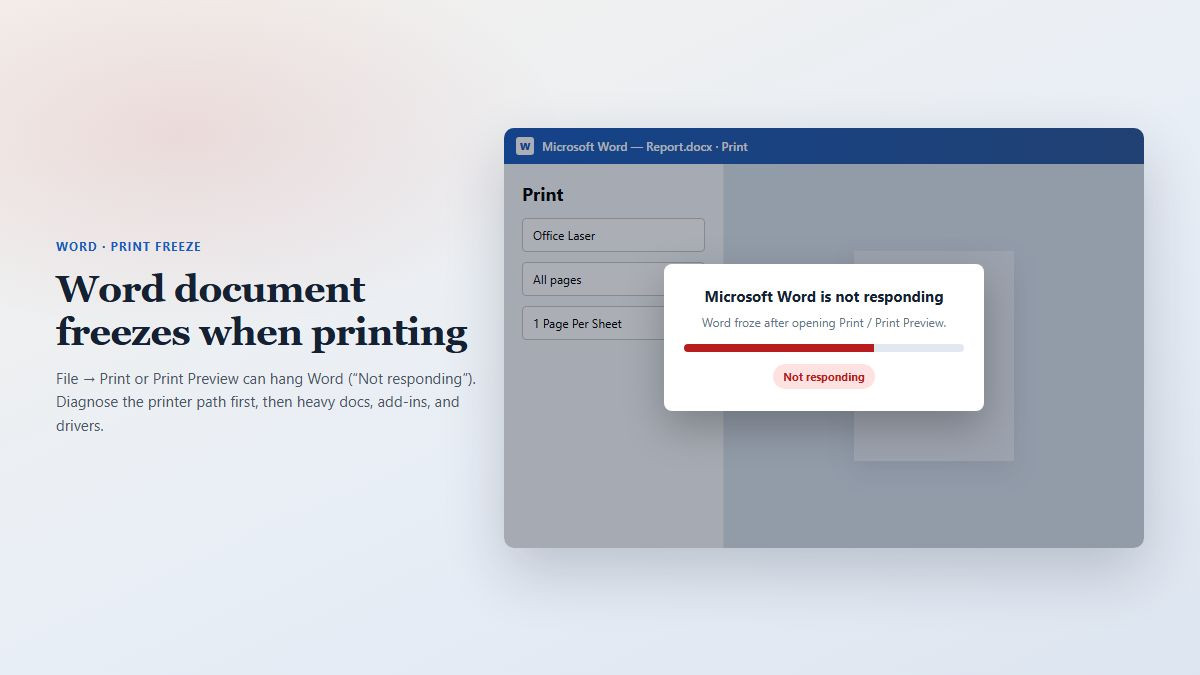
This is a classic problem-search intent: people can open, edit, and save, but the moment they hit File → Print or open Print Preview, Microsoft Word stalls or locks. Restarts sometimes help for a few days, then the freeze returns—so you need a diagnosis tree, not a one-click myth.
Why Word freezes when you print (common causes)
Printer driver / connection issues — outdated drivers, Windows 11 upgrades, flaky network printers, or unstable WSD ports.
Stuck Print Spooler jobs — a jammed queue makes Word hang as soon as it talks to the printer.
Word add-ins — PDF helpers, cloud sync, or vendor toolbars that crash only on Print.
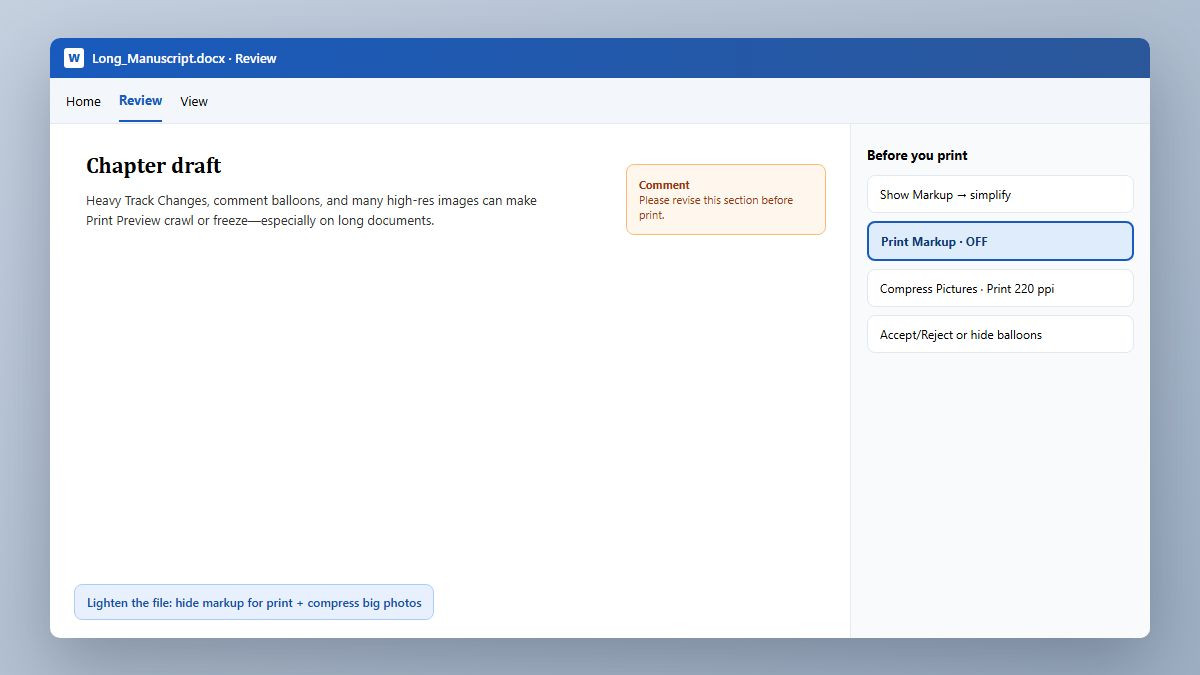
Heavy documents — many high-resolution photos, a huge .docx, Track Changes, comments, or complex layouts that choke Print Preview.
Office or OS damage / compatibility — corrupted Office install, missing updates, or Mac/Windows printer stack quirks.
Fix 1: Prove whether it’s the printer or the document
In Word, press Ctrl + P (or File → Print).
Change Printer to Microsoft Print to PDF (or Save as PDF on Mac).
Print/save a short page range first.
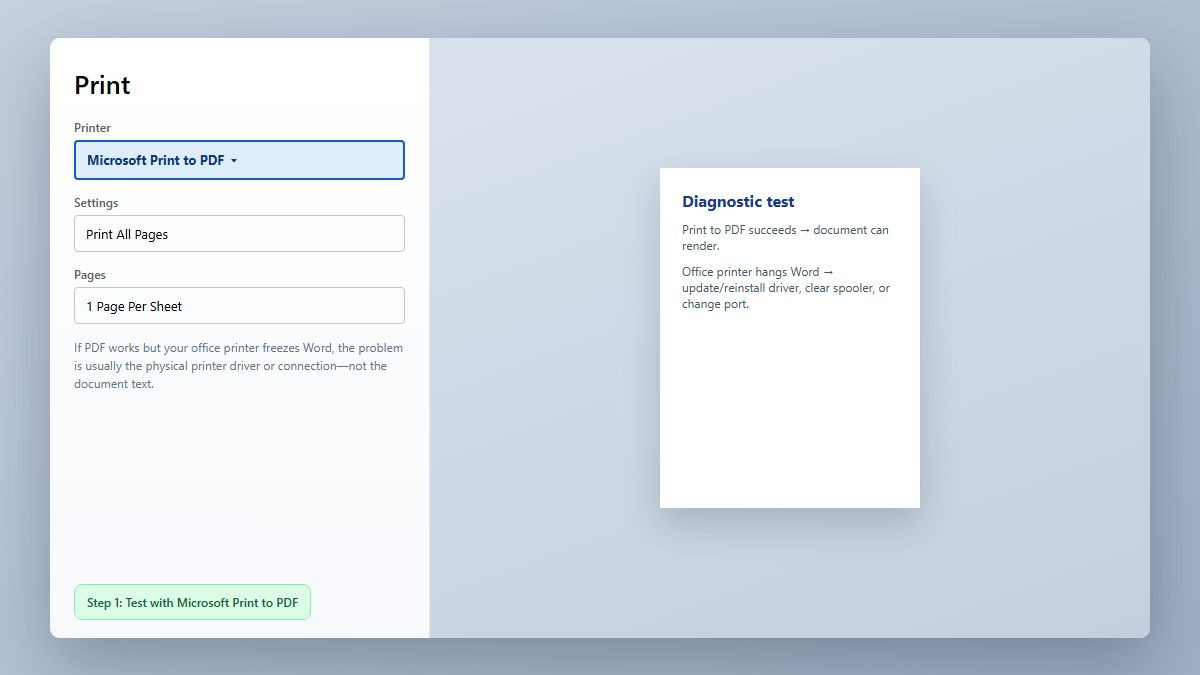
PDF works, office printer freezes Word: focus on spooler + driver + printer connection.
Every printer freezes Word (including PDF): focus on Word add-ins, the specific file, or Office repair.
Only one file freezes: lighten that document (images/markup) or copy content into a new blank file.
Fix 2: Clear the print spooler, then update the driver
Close Word.
Press Win + R, type services.msc, open Print Spooler → Stop.
Delete files inside
C:\Windows\System32\spool\PRINTERS(you may need admin rights).Start Print Spooler again.
In Windows Settings, remove the printer, then install the latest driver from the manufacturer (prefer the current Universal/PCL package on Windows 11 when the model-specific driver misbehaves).
For network printers that keep hanging, switch from a WSD port to a standard TCP/IP port with a fixed IP when possible.
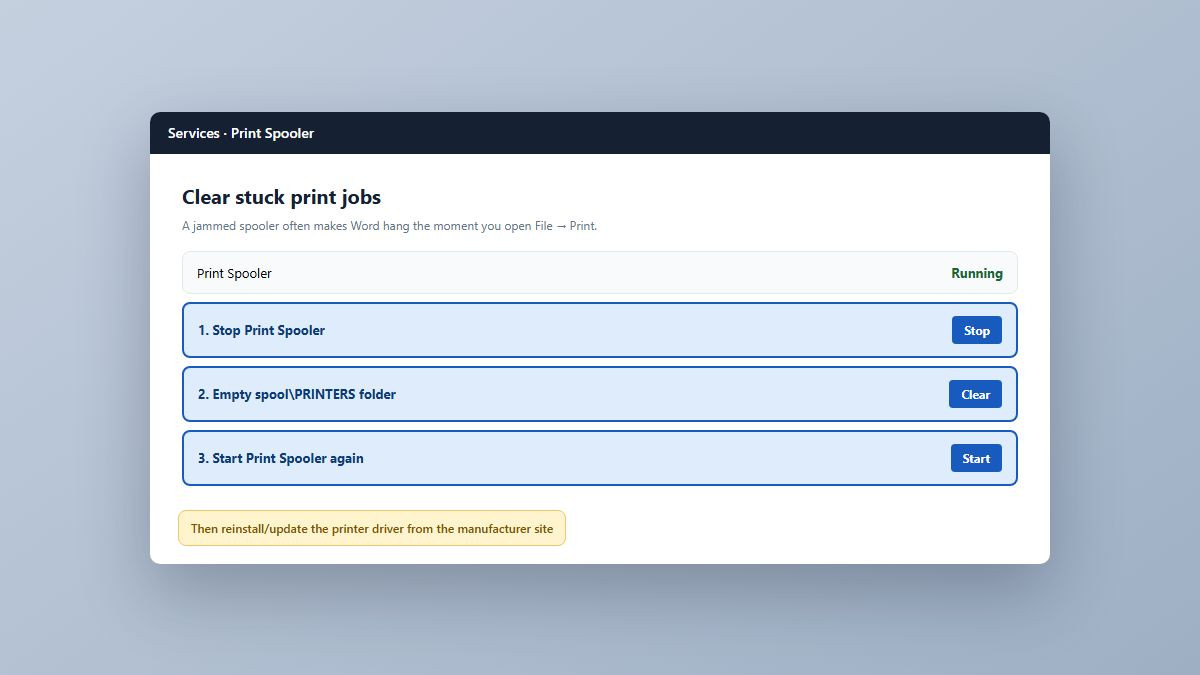
Also confirm the printer is powered on and Ready. Word often hangs longer when Windows is waiting on an offline default printer.
Fix 3: Rule out Word add-ins (Safe Mode)
Exit Word completely.
Press Win + R, type winword /safe, press Enter.
Open the same document and try File → Print.
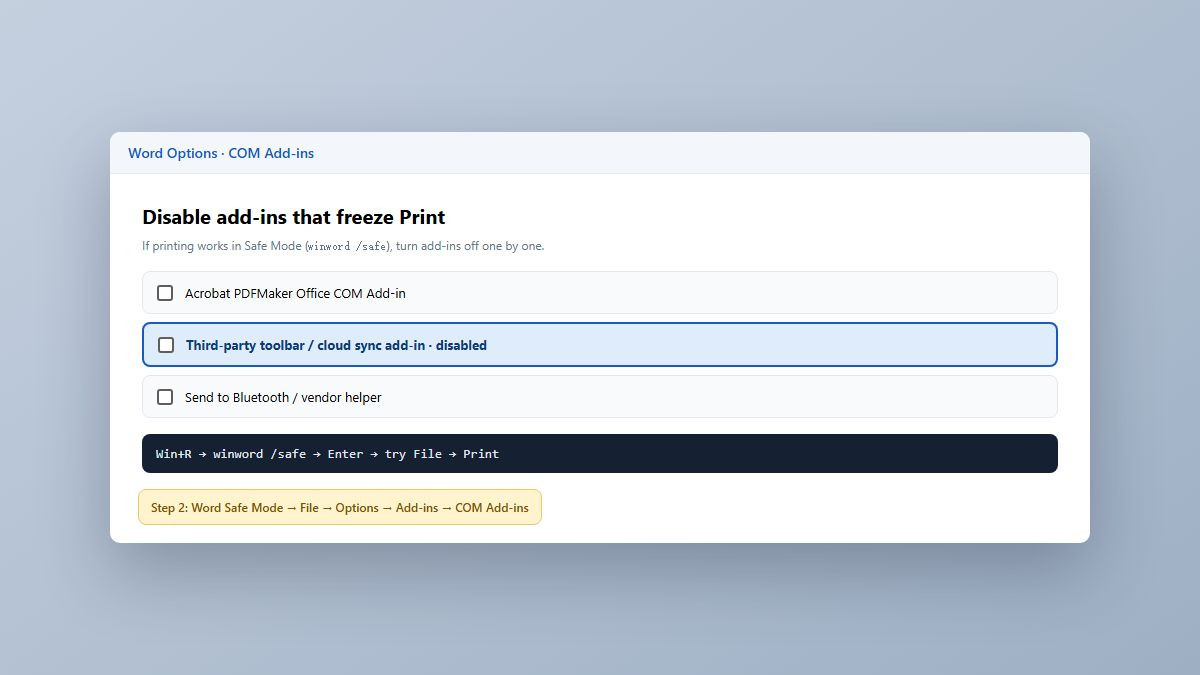
If Safe Mode prints normally: File → Options → Add-ins → Manage: COM Add-ins → Go, clear third-party add-ins, restart Word normally, and re-enable them one at a time to find the culprit.
Fix 4: Lighten documents that choke Print Preview
Print Preview and Print both ask Word to render the full page against the selected driver. Long manuscripts with balloons and camera-phone images are a frequent freeze trigger—especially on modest PCs.
On the Review tab, simplify markup (or turn off balloons) and in File → Print uncheck Print Markup when you need a clean hard copy.
Compress pictures: click an image → Picture Format → Compress Pictures → Print (220 ppi), delete cropped areas, apply to all pictures.
Save As a new .docx, then retry Print Preview.
Still stuck on one file? Create a blank document and paste in sections without embedding old objects.
Fix 5: Repair Office and update Windows or macOS
Windows: Settings → Apps → Microsoft 365 / Office → Modify → Online Repair, then reboot.
Install pending Windows Update and Office updates (users often report freezes returning until the OS is current).
Mac: update Word from Microsoft AutoUpdate and keep macOS current; re-add the printer if Print Preview locks after an OS upgrade.
Confirm page size/orientation match the paper, and that you’re not accidentally targeting a dead “Print to file” target.
Stop the freeze from coming back
Keep the manufacturer printer driver updated after Windows feature updates.
Don’t leave a missing network printer as Windows’ default.
Compress big photos before (or right after) you insert them.
Accept/reject or hide Track Changes before large final print runs.
Disable unused Word add-ins; test Print after each Office update.
For shared office MFPs, prefer a stable TCP/IP install over auto-discovered WSD when IT allows it.
Another option: print from WPS Writer when Word keeps locking up
Word’s Print Preview and print path are where many people hit “Not responding”—especially with large images, comments, and revision markup. Clearing caches, reinstalling drivers, and repairing Office fixes a lot of cases, but it’s a high bar when you just need the pages out today.
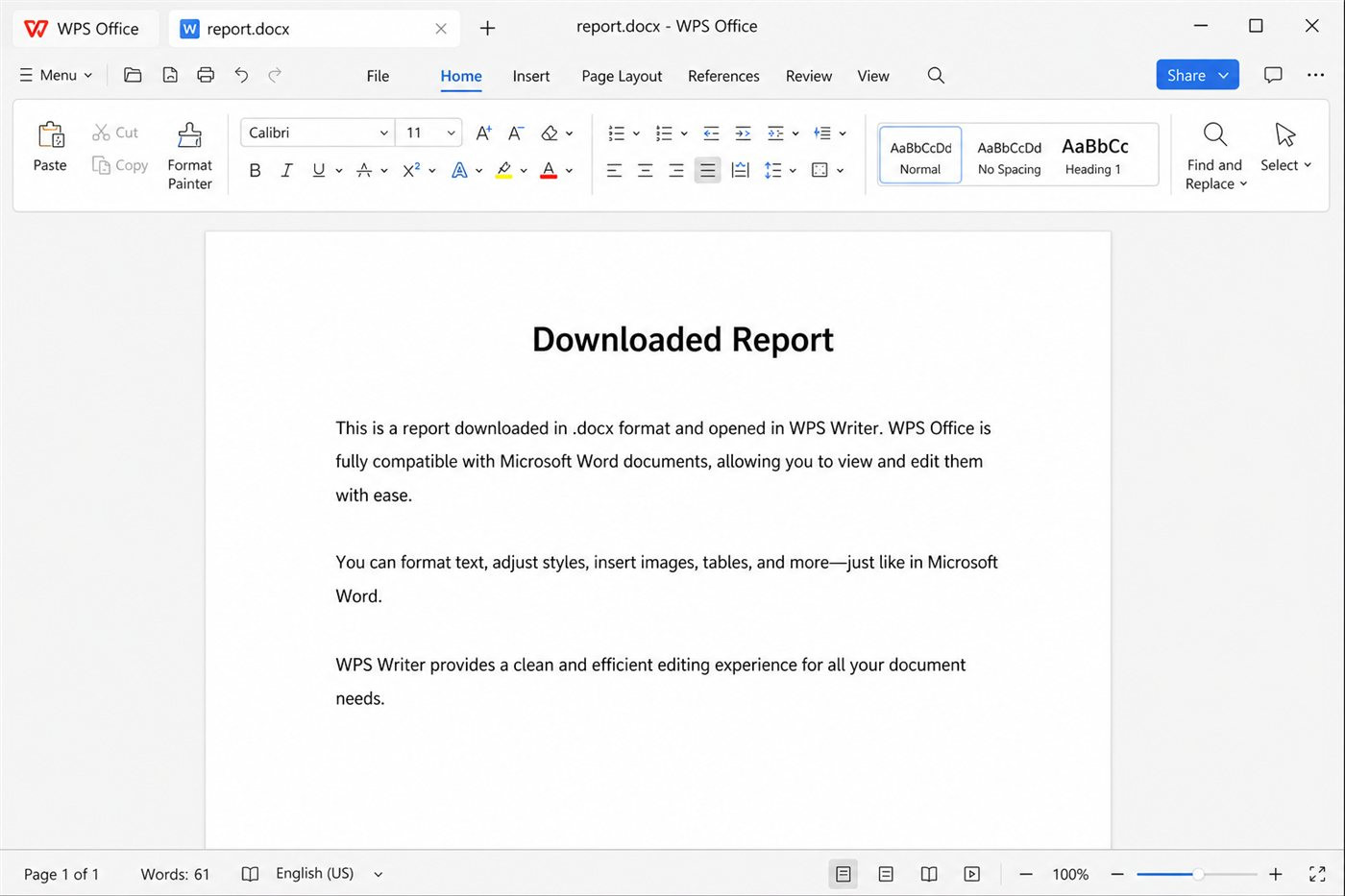
If you use WPS Office, open the same .docx in WPS Writer as a practical fallback: Print Preview and print jobs are built to stay responsive on everyday PCs, Writer can help you get through big picture-heavy files more smoothly, and you can hide comments/revisions for a clean print without fighting Word’s markup print settings. Check the preview, print at 100% scale, then keep your driver healthy so either app stays reliable.
FAQ
Why does a Word document freeze when printing?
Most often the printer driver, a stuck print spooler, or a Word add-in. Heavy images and Track Changes can also lock Print Preview on long files.
Word freezes when I open File → Print, but I can still edit—what should I try first?
Switch the printer to Microsoft Print to PDF. That single test tells you whether to chase the physical printer path or Word itself.
Why does Word Print Preview freeze or say Not responding?
Print Preview loads the active printer driver. A bad driver, offline default printer, or a markup-heavy document can hang the preview window.
How do I fix Word printing freezes on Windows 11?
Clear the Print Spooler, reinstall the manufacturer’s current driver, test Print to PDF, then run Word in Safe Mode to rule out add-ins. Repair Office and install Windows updates if it still fails.
Can Track Changes or comments make Word hang on print?
Yes—especially on long docs. Turn off Print Markup for a clean copy, simplify Show Markup, and compress pictures before retrying.
How do I keep Word from freezing again when I print?
Update drivers after OS upgrades, avoid offline default printers, compress photos early, clean markup before big print jobs, and remove unused add-ins.
Summary
When Word freezes on print or Print Preview, start with Print to PDF to split driver problems from document/Word problems. Clear the spooler, refresh the printer driver, test Safe Mode add-ins, then lighten image-heavy or markup-heavy files. Repair Office and update Windows/macOS if the hang persists. To reduce repeat lockups, keep drivers current and don’t send bloated revision drafts straight to the printer. If you need a steadier print pass on the same .docx, open it in WPS Writer after you’ve tried the Word fixes above.



'%3e%3cpath%20d='M19.9911%204.11386V6.471H18.5894C18.0775%206.471%2017.7322%206.57814%2017.5536%206.79243C17.3751%207.00671%2017.2858%207.32814%2017.2858%207.75671V9.44421H19.9019L19.5536%2012.0871H17.2858V18.8639H14.5536V12.0871H12.2769V9.44421H14.5536V7.49779C14.5536%206.39064%2014.8632%205.53201%2015.4822%204.92189C16.1013%204.31177%2016.9257%204.00671%2017.9554%204.00671C18.8304%204.00671%2019.509%204.04243%2019.9911%204.11386Z'%20fill='%23333333'/%3e%3c/g%3e%3cdefs%3e%3cclipPath%20id='clip0_2938_8199'%3e%3crect%20width='16'%20height='16'%20fill='white'%20transform='translate(8%204.00671)'/%3e%3c/clipPath%3e%3c/defs%3e%3c/svg%3e)
'%3e%3cpath%20d='M17.5237%2010.7813L23.4811%204H22.0699L16.8949%209.88693L12.7648%204H8L14.2469%2012.9029L8%2020.0133H9.4112L14.8725%2013.7952L19.2352%2020.0133H24M9.92053%205.04213H12.0885L22.0688%2019.0224H19.9003'%20fill='%23333333'/%3e%3c/g%3e%3cdefs%3e%3cclipPath%20id='clip0_2938_8200'%3e%3crect%20width='16'%20height='16.0134'%20fill='white'%20transform='translate(8%204)'/%3e%3c/clipPath%3e%3c/defs%3e%3c/svg%3e)


