



'%3e%3cpath%20fill-rule='evenodd'%20clip-rule='evenodd'%20d='M21.4999%2010.9993C21.4999%205.20009%2016.7986%200.498901%2010.9993%200.498901C5.19994%200.498901%200.498657%205.20009%200.498657%2010.9993C0.498657%2016.2404%204.33858%2020.5844%209.35855%2021.3722V14.0346H6.69238V10.9993H9.35855V8.68594C9.35855%206.05427%2010.9262%204.60062%2013.3248%204.60062C14.4736%204.60062%2015.6753%204.80571%2015.6753%204.80571V7.38979H14.3512C13.0468%207.38979%2012.64%208.19921%2012.64%209.0296V10.9993H15.5523L15.0867%2014.0346H12.64V21.3722C17.66%2020.5844%2021.4999%2016.2404%2021.4999%2010.9993Z'%20fill='%231568EA'/%3e%3c/g%3e%3c/svg%3e)


'%3e%3cpath%20d='M2.42045%2022.1876H6.31818V12.7217L0.75%208.54553V20.5171C0.75%2021.4414%201.49892%2022.1876%202.42045%2022.1876Z'%20fill='%234285F4'/%3e%3cpath%20d='M19.682%2022.1876H23.5797C24.5041%2022.1876%2025.2502%2021.4387%2025.2502%2020.5171V8.54553L19.682%2012.7217'%20fill='%2334A853'/%3e%3cpath%20d='M19.682%205.48293V12.7216L25.2502%208.54543V6.31816C25.2502%204.25236%2022.8921%203.07469%2021.2411%204.31361'%20fill='%23FBBC04'/%3e%3cpath%20d='M6.31824%2012.7217V5.48303L13.0001%2010.4944L19.6819%205.48303V12.7217L13.0001%2017.733'%20fill='%23EA4335'/%3e%3cpath%20d='M0.75%206.31816V8.54543L6.31818%2012.7216V5.48293L4.75909%204.31361C3.10534%203.07469%200.75%204.25236%200.75%206.31816Z'%20fill='%23C5221F'/%3e%3c/g%3e%3cdefs%3e%3cclipPath%20id='clip0_2954_7305'%3e%3crect%20width='24.5'%20height='18.375'%20fill='white'%20transform='translate(0.75%203.8125)'/%3e%3c/clipPath%3e%3c/defs%3e%3c/svg%3e)


The best Linux distro for gaming depends on your GPU and how much setup you want: choose a Steam/Proton-ready desktop (Ubuntu or Pop!_OS for mixed use), or a gaming-focused image (Bazzite/Nobara-style Fedora spins) when you want launchers and drivers pre-tuned. Enable Steam Play, check titles on ProtonDB, and verify your NVIDIA/AMD/Intel stack before chasing FPS myths. Success means your library launches stably with acceptable frame pacing—not a leaderboard screenshot.
Shortest path: identify GPU → install a maintained gaming-friendly distro → install Steam → enable Proton → test 2–3 important games → only then add Lutris/Heroic. New to Linux overall? Start with beginner distro picks, then harden for games.
What Matters More Than the Distro Logo
Kernel freshness, Mesa (AMD/Intel), proprietary NVIDIA drivers, and Proton versions move the needle more than wallpaper packs. Distros differ mainly in how quickly those pieces arrive and how much they pre-configure Steam, GameMode, and MangoHud.
Anti-cheat still blocks some multiplayer titles on Linux regardless of distro. Always verify each game’s ProtonDB reports and anti-cheat notes before dual-booting solely for one online shooter.
Storefronts beyond Steam matter too: Heroic and Lutris help with Epic, GOG, and Amazon games, but each adds moving parts (Wine runners, dependencies). Install them after Steam works. Native Linux titles (older indie games, some native ports) still deserve a non-Proton launch option when publishers ship one—Proton is compatibility, not a requirement for every binary.
Online advice that “just install this kernel” without explaining Secure Boot signing, NVIDIA module rebuilds, or hibernation breakage is a red flag. Prefer distro-documented driver paths. If you need a custom kernel for one stubborn title, snapshot/export the system first—especially on immutable images where layering packages works differently from classic apt/dnf.
Decision Tree
- NVIDIA laptop / hybrid graphics, beginner: Pop!_OS (NVIDIA ISO) or Ubuntu LTS with
ubuntu-drivers - AMD desktop, wants “Steam Deck-like” couch PC: Bazzite-style immutable gaming image
- Desktop NVIDIA, likes Fedora + tuning: Nobara-style gaming spin
- One machine for work + games: Ubuntu 24.04 LTS or Pop!_OS, add Steam
- Rolling bleeding edge: Arch-based gaming spins only if you already maintain Arch
Immutable gaming images trade easy dnf/apt tinkering for safer updates—great for living-room PCs, less ideal if you compile kernels daily.
Strong Defaults for Most Players
Ubuntu LTS + Steam
Ubuntu Desktop remains the documentation magnet. Install Steam from Ubuntu’s guidance or Flathub, enable Steam Play, and use Additional Drivers for NVIDIA. Mesa on LTS may lag brand-new AMD GPUs—acceptable for many libraries, tighter for newest cards.
Pop!_OS
Pop!_OS is popular for NVIDIA hybrid laptops because System76 ships an NVIDIA ISO path that reduces driver guesswork. Treat release base age as a factor: confirm the current Pop release notes before assuming newest Mesa.
Gaming-focused Fedora spins (Bazzite / Nobara class)
These projects aim to ship Steam, Proton helpers, and codecs with fewer post-install scripts. Bazzite-like images emphasize atomic updates and couch/handheld workflows; Nobara-like spins emphasize mutable Fedora desktops with gaming packages. Read each project’s install docs—names and defaults change across releases.
Minimum Setup That Actually Works
- Update the system fully after install.
- Install GPU drivers the distro officially documents.
- Install Steam; enable Proton for all titles or per-game.
- Test a ProtonDB “Gold/Platinum” title you own.
- Add Heroic/Lutris only for Epic/GOG needs.
steam
# In Steam: Settings → Compatibility → Enable Steam Play
Keep games on a fast SSD. NTFS Windows dual-boot libraries can work via Proton but add permission and update friction—prefer a Linux ext4/btrfs library disk when possible.
Shader caches and compatibility tools can grow large; give Steam’s library drive spare capacity. Moving libraries between disks inside Steam is safer than manually dragging Proton prefixes. When benchmarking, disable background uploads/compiles and use the same power profile (performance vs balanced) every time so “distro A is faster” is not actually “laptop was plugged in.”
Streaming with OBS introduces another stack: capture APIs, browser sources, and encoder support (NVENC/VAAPI). Gaming spins sometimes preinstall helpers; general desktops need a short OBS setup. Validate a five-minute local recording before your first live event on Linux.
GPU Notes (No Magic Distro)
- AMD: open Mesa stack; newer kernels help new GPUs
- Intel Arc / recent iGPU: need relatively fresh Mesa/kernel
- NVIDIA: proprietary drivers matter; hybrid laptops need correct PRIME offload habits
If games render on the wrong GPU, fix the session/driver path before switching distros. Distro hopping rarely fixes a mis-selected GPU.
When Not to Pick a “Gaming Distro”
If you need corporate VPN appliances, specialized CAD, or a locked-down IT image, start from Ubuntu/Fedora Workstation and add Steam—not the other way around. If your PC is low-RAM, fix that with a lightweight Linux distro first; AAA games will not run well on 4 GB regardless of Proton.
Verify Success
- Steam launches and downloads a known-good Proton title.
- GPU load appears on the expected device (nvtop/mangohud/radeontop as appropriate).
- Shader compilation stutters settle after first runs.
- Audio/controllers work in Big Picture or desktop mode.
- System updates do not uninstall your NVIDIA module unexpectedly.
Developers Who Also Game
Use one stable daily driver for code (developer distro guide) and either dual-boot a gaming image or keep Steam on the same Ubuntu/Fedora box. Containers and Flatpak Steam reduce “I broke glibc for one game” incidents.
After Gaming Sessions: Documents, Trackers, and Screenshots
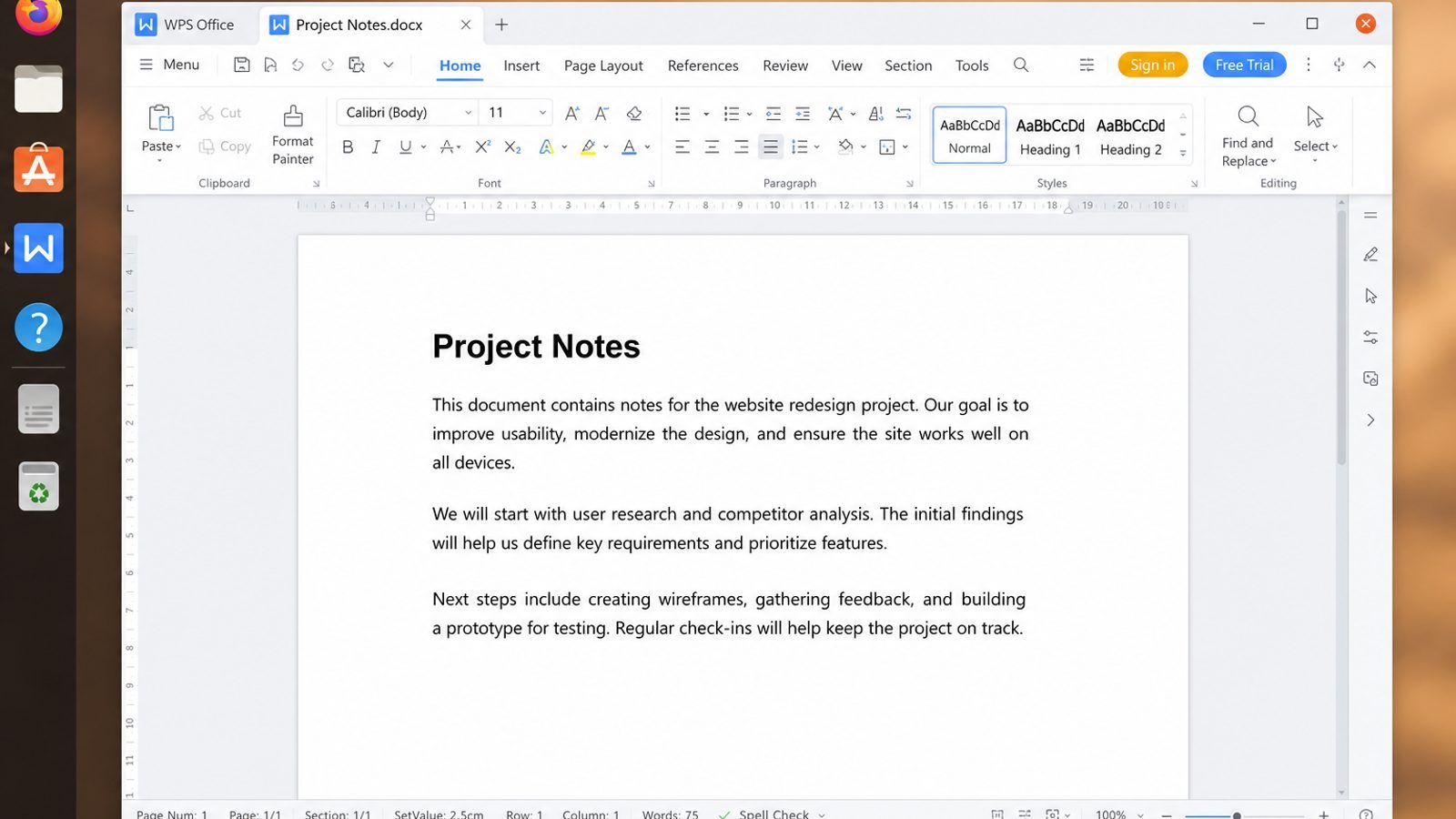
ProtonDB checks and driver notes do not stay in the game launcher forever. Players and streamers still need session notes, settings checklists, or a short handoff for a teammate’s dual-boot box.
WPS Office for Linux covers that post-session desk work with Writer for notes, Spreadsheet for game/test matrices, Presentation for setup walkthroughs, and PDF export for locked review copies.
| What you need next | What WPS gives you |
|---|---|
| Turn GPU notes and session findings into shareable files | Strong .docx / .xlsx / .pptx layout fidelity when files move between Linux, Windows, and macOS |
| One place for notes, sheets, slides, and PDFs | Free core suite: Writer, Spreadsheet, Presentation, plus PDF view/edit/convert tools |
| A familiar desktop UI for switchers | Ribbon-style apps with a lighter footprint than many heavy suites |
| A trusted install path | Official DEB (Ubuntu/Debian/Mint) and RPM packages from the vendor |
Get the current build from the official WPS Office for Linux download page, then install it with sudo apt install ./wps-office_VERSION_amd64.deb. Keep Steam and Proton for play; use WPS when those notes need to open as DOCX, XLSX, or PDF on another machine.


FAQ
Is Steam Deck’s SteamOS the best desktop gaming distro?
SteamOS is optimized for Deck hardware. On generic PCs, community images inspired by that stack (for example Bazzite-class) are the practical equivalent—follow each project’s hardware support list.
Do I need Wine separately if I use Proton?
Steam Proton covers Steam titles. Non-Steam Windows games often use Lutris/Heroic/Wine prefixes instead.
Will any distro run every multiplayer game?
No. Kernel-level anti-cheat can block Linux entirely.
Ubuntu or Arch for raw FPS?
Arch-based systems can ship newer stacks sooner, but misconfiguration costs more time. Most players gain more from correct drivers + Proton than from distro brand alone.
Flatpak Steam vs distro Steam?
Both work; Flatpak isolates dependencies. Use the method your distro documents first.
Can I game on Linux Mint?
Yes—Mint can run Steam—but gaming-first spins reduce setup. Mint vs Ubuntu desktop differences are covered in Linux Mint vs Ubuntu.
Is Proton the same as dual-booting Windows?
No. Proton translates Windows game APIs on Linux. Some titles still need Windows for anti-cheat or vendor launchers.
Should I disable Secure Boot for gaming?
Only when your distro/driver docs require it. Many NVIDIA setups work with Secure Boot when machine owner keys are enrolled correctly—follow the distro guide instead of turning Secure Boot off by reflex.
Pick one path, install updates, enable Proton, and test your real library on ProtonDB-backed expectations. That sequence answers “best Linux distro for gaming” for your hardware faster than reading another ranked list—then keep notes so the next GPU upgrade is boring in the best way.

'%3e%3cpath%20d='M19.9911%204.11386V6.471H18.5894C18.0775%206.471%2017.7322%206.57814%2017.5536%206.79243C17.3751%207.00671%2017.2858%207.32814%2017.2858%207.75671V9.44421H19.9019L19.5536%2012.0871H17.2858V18.8639H14.5536V12.0871H12.2769V9.44421H14.5536V7.49779C14.5536%206.39064%2014.8632%205.53201%2015.4822%204.92189C16.1013%204.31177%2016.9257%204.00671%2017.9554%204.00671C18.8304%204.00671%2019.509%204.04243%2019.9911%204.11386Z'%20fill='%23333333'/%3e%3c/g%3e%3cdefs%3e%3cclipPath%20id='clip0_2938_8199'%3e%3crect%20width='16'%20height='16'%20fill='white'%20transform='translate(8%204.00671)'/%3e%3c/clipPath%3e%3c/defs%3e%3c/svg%3e)
'%3e%3cpath%20d='M17.5237%2010.7813L23.4811%204H22.0699L16.8949%209.88693L12.7648%204H8L14.2469%2012.9029L8%2020.0133H9.4112L14.8725%2013.7952L19.2352%2020.0133H24M9.92053%205.04213H12.0885L22.0688%2019.0224H19.9003'%20fill='%23333333'/%3e%3c/g%3e%3cdefs%3e%3cclipPath%20id='clip0_2938_8200'%3e%3crect%20width='16'%20height='16.0134'%20fill='white'%20transform='translate(8%204)'/%3e%3c/clipPath%3e%3c/defs%3e%3c/svg%3e)


