



'%3e%3cpath%20fill-rule='evenodd'%20clip-rule='evenodd'%20d='M21.4999%2010.9993C21.4999%205.20009%2016.7986%200.498901%2010.9993%200.498901C5.19994%200.498901%200.498657%205.20009%200.498657%2010.9993C0.498657%2016.2404%204.33858%2020.5844%209.35855%2021.3722V14.0346H6.69238V10.9993H9.35855V8.68594C9.35855%206.05427%2010.9262%204.60062%2013.3248%204.60062C14.4736%204.60062%2015.6753%204.80571%2015.6753%204.80571V7.38979H14.3512C13.0468%207.38979%2012.64%208.19921%2012.64%209.0296V10.9993H15.5523L15.0867%2014.0346H12.64V21.3722C17.66%2020.5844%2021.4999%2016.2404%2021.4999%2010.9993Z'%20fill='%231568EA'/%3e%3c/g%3e%3c/svg%3e)


'%3e%3cpath%20d='M2.42045%2022.1876H6.31818V12.7217L0.75%208.54553V20.5171C0.75%2021.4414%201.49892%2022.1876%202.42045%2022.1876Z'%20fill='%234285F4'/%3e%3cpath%20d='M19.682%2022.1876H23.5797C24.5041%2022.1876%2025.2502%2021.4387%2025.2502%2020.5171V8.54553L19.682%2012.7217'%20fill='%2334A853'/%3e%3cpath%20d='M19.682%205.48293V12.7216L25.2502%208.54543V6.31816C25.2502%204.25236%2022.8921%203.07469%2021.2411%204.31361'%20fill='%23FBBC04'/%3e%3cpath%20d='M6.31824%2012.7217V5.48303L13.0001%2010.4944L19.6819%205.48303V12.7217L13.0001%2017.733'%20fill='%23EA4335'/%3e%3cpath%20d='M0.75%206.31816V8.54543L6.31818%2012.7216V5.48293L4.75909%204.31361C3.10534%203.07469%200.75%204.25236%200.75%206.31816Z'%20fill='%23C5221F'/%3e%3c/g%3e%3cdefs%3e%3cclipPath%20id='clip0_2954_7305'%3e%3crect%20width='24.5'%20height='18.375'%20fill='white'%20transform='translate(0.75%203.8125)'/%3e%3c/clipPath%3e%3c/defs%3e%3c/svg%3e)


Linux Mint vs Ubuntu: both can share an Ubuntu LTS package base, but they differ in desktop defaults and software delivery. Choose Linux Mint (Cinnamon) for a traditional Windows-like desktop with Flatpak-first habits; choose Ubuntu Desktop for GNOME, Canonical’s default tooling, and the widest cloud/dev documentation. Success means you pick based on desktop + Snap/Flatpak preference—not because one is “more Linux.”
Shortest path: if you want Start-menu familiarity → Mint Cinnamon; if you want the mainstream Ubuntu docs/cloud twin → Ubuntu LTS; if RAM is tight → Mint Xfce or a lightweight Linux distro instead of either full desktop.
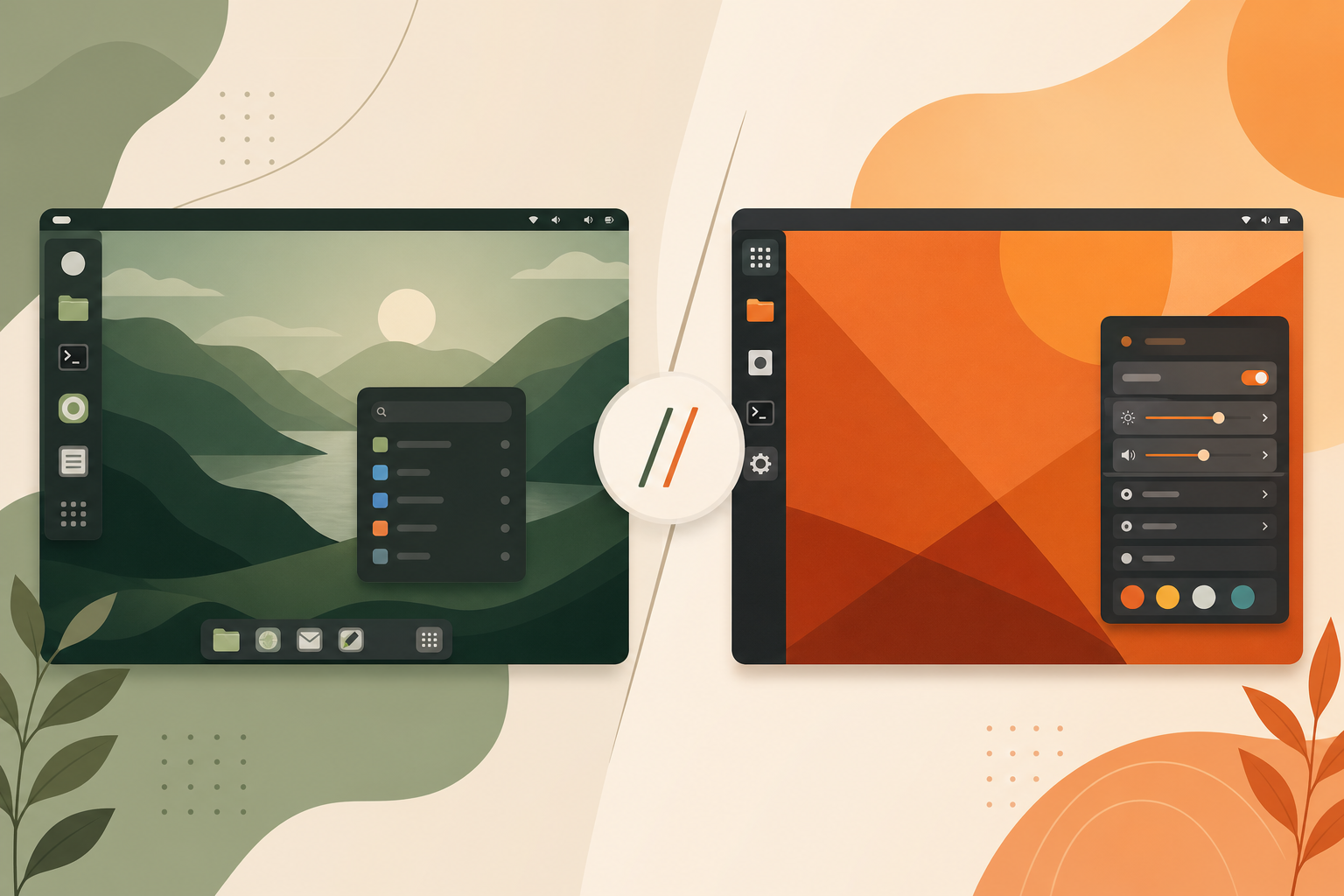
How They Relate
Linux Mint’s main editions are downstream of Ubuntu LTS: kernels, apt repositories, and many packages align with Ubuntu’s release. Mint is still a separate distribution—different installer branding, desktop, update UI, and policies (notably Snap handling).
Ubuntu Desktop is Canonical’s flagship GNOME desktop with its own release cadence, flavors, and enterprise options (including Ubuntu Pro). Flavors like Xubuntu/Lubuntu reuse Ubuntu packages with other desktops.
Because Mint tracks Ubuntu LTS packages, many apt install examples work on both. Breakage appears when instructions assume Snap Firefox, GNOME Settings panels, or Ubuntu-only PPAs. Translate those steps intentionally: on Mint, use Software Manager/Flatpak equivalents; on Ubuntu, expect GNOME paths and possible Snap packages for default apps.
Release timing also differs: Mint versions land after Ubuntu LTS exists and Mint’s team finishes integration. That lag is usually a feature for desktop polish, not a bug—just do not expect Mint to ship Canonical’s newest interim release features on day one.
Desktop Experience
- Mint Cinnamon: bottom panel, app menu, traditional window controls—low learning curve from Windows
- Ubuntu GNOME: overview, activities, extensions ecosystem—modern but different muscle memory
- Mint MATE/Xfce: lighter classic desktops inside the Mint family
- Ubuntu flavors: official alternates if you want Ubuntu without GNOME
Ask Ubuntu discussions about switching between Mint and Ubuntu often revolve around desktop preference and display quirks—not apt itself. Reinstalling is usually cleaner than “converting” desktops in place.
Software Delivery: Snap, Flatpak, Deb
Ubuntu integrates Snap for several default apps and store workflows. Linux Mint has historically disabled Snap by default and steers users toward Flatpak and traditional debs via its Software Manager. That policy difference affects how Firefox and other apps update—and how sandboxed they are.
Neither approach is universally “correct.” Developers targeting Snap packaging may prefer Ubuntu; users who dislike Snap often prefer Mint. You can add Flatpak on Ubuntu or (with effort) alter Mint’s defaults—but fighting the distro’s default path adds friction.
Practical example: a teacher image that must stay simple for years often favors Mint’s update UI and Timeshift-oriented backup culture. A student learning cloud certifications that literally say “use Ubuntu 24.04” should install Ubuntu to avoid translation overhead. Same apt DNA, different day-one experience.
If you sideload both Flatpak and Snap on one system, keep a mental model of which app came from where when debugging missing themes, portals, or file access sandboxes. Mixed stores are powerful and confusing—minimize mixtures on family PCs.
Updates, Kernels, and Hardware
Mint’s Update Manager groups updates and commonly ships Timeshift-friendly backup habits. Ubuntu uses GNOME Software/APT tooling and documents HWE kernels for newer hardware on LTS. Brand-new Wi-Fi/GPU chipsets may work earlier on whatever ship has the newer HWE/edge ISO—check each project’s release notes rather than assuming Mint or Ubuntu always wins.
Mint EDGE ISOs exist to help newer hardware; Ubuntu’s hardware enablement stack plays a similar role. For GPUs aimed at games, see best Linux distro for gaming—desktop choice ≠ Proton performance alone.
Which Should You Install?
- Windows switcher, home desktop: Linux Mint Cinnamon
- Cloud tutorials, ROS, many vendor “install on Ubuntu” guides: Ubuntu LTS
- Developer workstation mirroring production Ubuntu: Ubuntu (see best Linux distro for developers)
- Old laptop: Mint Xfce / Xubuntu / Lubuntu rather than full Cinnamon/GNOME
Side-by-Side Checklist
| Topic | Linux Mint | Ubuntu Desktop |
|---|---|---|
| Default desktop | Cinnamon (also MATE/Xfce) | GNOME |
| Package base | Ubuntu LTS downstream | Ubuntu LTS/interim |
| Snap default | Typically blocked/disabled | Integrated |
| Flatpak | First-class in Software Manager | Optional add-on |
| Signature tools | Update Manager, Timeshift emphasis | Canonical ecosystem, flavors, Pro |
| Best for | Familiar desktop, home PCs | Docs, cloud parity, GNOME users |
Migration Notes
You cannot meaningfully “turn Ubuntu into Mint” with a single package. Backup /home, install the other distro, restore files. Dual-boot is fine; share a data partition formatted for both.
sudo apt update && sudo apt full-upgrade -yCommands look similar on both because of the shared apt heritage—desktop tools differ.
Verify You Chose Well
- You can install apps without fighting the default store.
- Display scaling/HiDPI feels acceptable.
- Updates apply without surprises you disagree with (Snap vs Flatpak).
- Your must-have apps (bank, VPN, IDE) run.
- You are not planning a reinstall next week solely for cosmetics.
After You Settle: Documents That Still Need to Travel
Choosing Mint or Ubuntu settles the desktop question. The next friction is usually school or work files that still need to open cleanly as DOCX, spreadsheets, slides, or PDFs.
WPS Office for Linux fits that handoff on either distro: familiar Writer/Spreadsheet/Presentation apps with strong Microsoft Office compatibility and PDF tools when you need a fixed export.
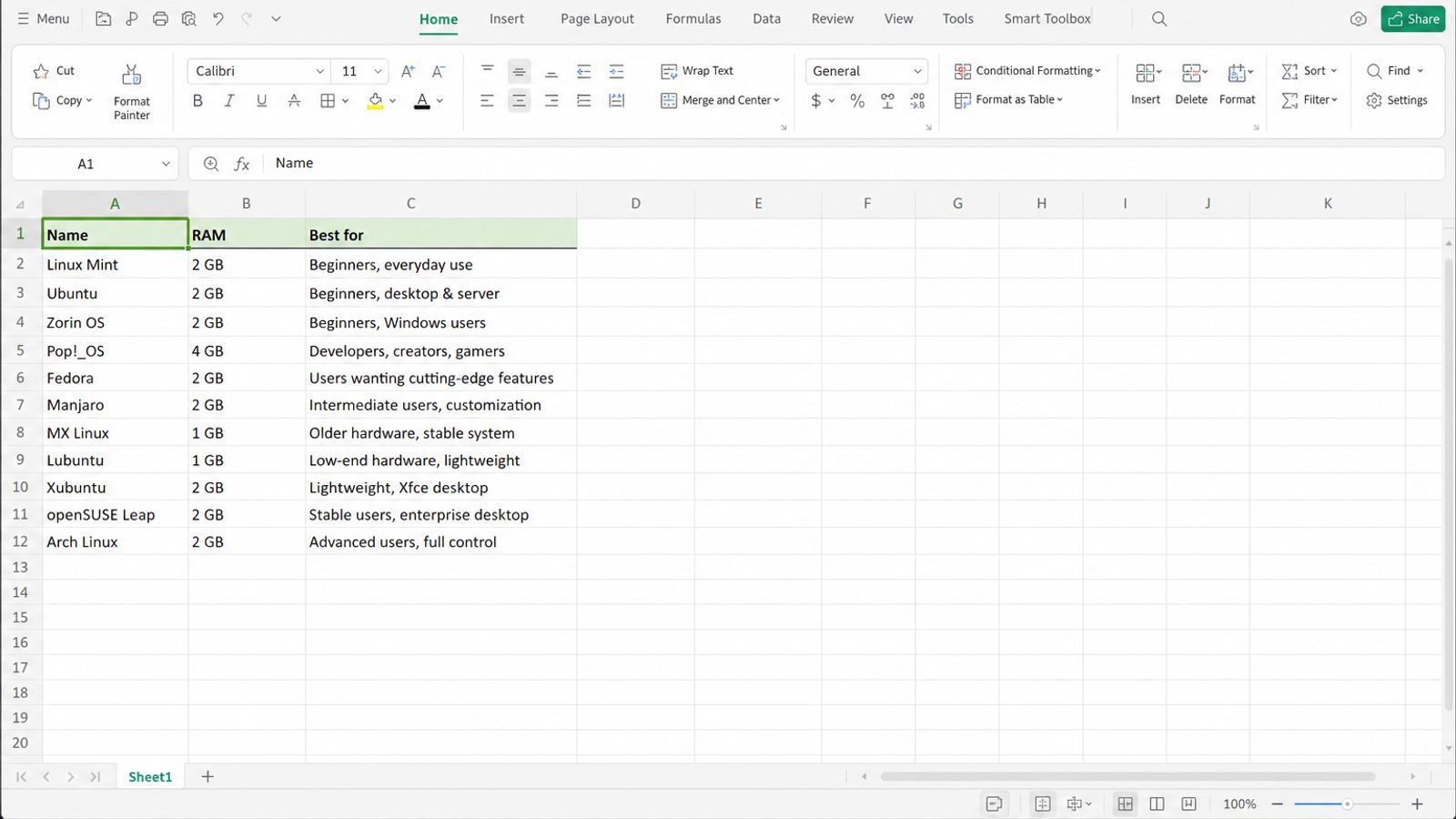
| What you need next | What WPS gives you |
|---|---|
| Open and share Office-style files after migrating to Mint or Ubuntu | Strong .docx / .xlsx / .pptx layout fidelity when files move between Linux, Windows, and macOS |
| One place for notes, sheets, slides, and PDFs | Free core suite: Writer, Spreadsheet, Presentation, plus PDF view/edit/convert tools |
| A familiar desktop UI for switchers | Ribbon-style apps with a lighter footprint than many heavy suites |
| A trusted install path | Official DEB (Ubuntu/Debian/Mint) and RPM packages from the vendor |
Use the official WPS Office for Linux download page, install the local package with sudo apt install ./wps-office_VERSION_amd64.deb, then open a few critical attachments to confirm layout before you fully retire the old OS.


FAQ
Is Mint just Ubuntu with a theme?
No. Shared package DNA, different desktop, policies, and utilities.
Can I install Cinnamon on Ubuntu?
Yes via packages, but you will not automatically get Mint’s Update Manager policies and branding. Prefer Mint if you want the Mint experience.
Which is more secure?
Both receive security updates through their maintained channels. Security depends more on timely updates and habits than the logo.
Does Mint support the same apt packages as Ubuntu?
Most Ubuntu LTS packages install on corresponding Mint releases, with occasional desktop-specific exceptions.
LMDE vs Ubuntu-based Mint?
LMDE is Debian-based Mint. Different base—do not assume Ubuntu PPA instructions apply.
Which is better for beginners?
Many beginners prefer Mint’s layout; Ubuntu wins when following Ubuntu-specific tutorials. Also see best Linux distros for beginners.
Can I run Ubuntu software on Mint?
Often yes via apt when releases align, but prefer Mint’s software tools first and avoid Ubuntu-only installers that assume Snap or GNOME paths.
Does Ubuntu Pro apply to Mint?
Ubuntu Pro is Canonical’s offering for Ubuntu systems. Do not assume Mint machines are covered—check Canonical’s terms for the OS you actually run.
Decide with a single sentence you can defend: “I want a familiar desktop and Flatpak defaults” → Mint; “I want Ubuntu docs, GNOME, and cloud parity” → Ubuntu. Everything else is fine-tuning. Revisit only when your hardware or job requirements change—not when a screenshot tour looks prettier on social media.
Both projects are mature, widely used, and capable of being a daily driver in 2026. The wrong choice is usually the one you install because a stranger ranked it #1 without asking about your GPU, apps, or patience for GNOME vs Cinnamon. Spend one evening on live USBs; spend years enjoying the desktop you actually picked on purpose.
When friends ask for a one-line tip: Mint for familiar desktops at home, Ubuntu when tutorials and cloud images say Ubuntu. That heuristic resolves most Linux Mint vs Ubuntu debates without a spreadsheet of idle RAM screenshots.
Install from official ISOs only, finish updates on day one, and give yourself a full week before declaring a winner. Most regrets come from judging an unfinished setup, not from picking the “wrong” logo between Mint and Ubuntu. Back up first, then commit.

'%3e%3cpath%20d='M19.9911%204.11386V6.471H18.5894C18.0775%206.471%2017.7322%206.57814%2017.5536%206.79243C17.3751%207.00671%2017.2858%207.32814%2017.2858%207.75671V9.44421H19.9019L19.5536%2012.0871H17.2858V18.8639H14.5536V12.0871H12.2769V9.44421H14.5536V7.49779C14.5536%206.39064%2014.8632%205.53201%2015.4822%204.92189C16.1013%204.31177%2016.9257%204.00671%2017.9554%204.00671C18.8304%204.00671%2019.509%204.04243%2019.9911%204.11386Z'%20fill='%23333333'/%3e%3c/g%3e%3cdefs%3e%3cclipPath%20id='clip0_2938_8199'%3e%3crect%20width='16'%20height='16'%20fill='white'%20transform='translate(8%204.00671)'/%3e%3c/clipPath%3e%3c/defs%3e%3c/svg%3e)
'%3e%3cpath%20d='M17.5237%2010.7813L23.4811%204H22.0699L16.8949%209.88693L12.7648%204H8L14.2469%2012.9029L8%2020.0133H9.4112L14.8725%2013.7952L19.2352%2020.0133H24M9.92053%205.04213H12.0885L22.0688%2019.0224H19.9003'%20fill='%23333333'/%3e%3c/g%3e%3cdefs%3e%3cclipPath%20id='clip0_2938_8200'%3e%3crect%20width='16'%20height='16.0134'%20fill='white'%20transform='translate(8%204)'/%3e%3c/clipPath%3e%3c/defs%3e%3c/svg%3e)


