



'%3e%3cpath%20fill-rule='evenodd'%20clip-rule='evenodd'%20d='M21.4999%2010.9993C21.4999%205.20009%2016.7986%200.498901%2010.9993%200.498901C5.19994%200.498901%200.498657%205.20009%200.498657%2010.9993C0.498657%2016.2404%204.33858%2020.5844%209.35855%2021.3722V14.0346H6.69238V10.9993H9.35855V8.68594C9.35855%206.05427%2010.9262%204.60062%2013.3248%204.60062C14.4736%204.60062%2015.6753%204.80571%2015.6753%204.80571V7.38979H14.3512C13.0468%207.38979%2012.64%208.19921%2012.64%209.0296V10.9993H15.5523L15.0867%2014.0346H12.64V21.3722C17.66%2020.5844%2021.4999%2016.2404%2021.4999%2010.9993Z'%20fill='%231568EA'/%3e%3c/g%3e%3c/svg%3e)


'%3e%3cpath%20d='M2.42045%2022.1876H6.31818V12.7217L0.75%208.54553V20.5171C0.75%2021.4414%201.49892%2022.1876%202.42045%2022.1876Z'%20fill='%234285F4'/%3e%3cpath%20d='M19.682%2022.1876H23.5797C24.5041%2022.1876%2025.2502%2021.4387%2025.2502%2020.5171V8.54553L19.682%2012.7217'%20fill='%2334A853'/%3e%3cpath%20d='M19.682%205.48293V12.7216L25.2502%208.54543V6.31816C25.2502%204.25236%2022.8921%203.07469%2021.2411%204.31361'%20fill='%23FBBC04'/%3e%3cpath%20d='M6.31824%2012.7217V5.48303L13.0001%2010.4944L19.6819%205.48303V12.7217L13.0001%2017.733'%20fill='%23EA4335'/%3e%3cpath%20d='M0.75%206.31816V8.54543L6.31818%2012.7216V5.48293L4.75909%204.31361C3.10534%203.07469%200.75%204.25236%200.75%206.31816Z'%20fill='%23C5221F'/%3e%3c/g%3e%3cdefs%3e%3cclipPath%20id='clip0_2954_7305'%3e%3crect%20width='24.5'%20height='18.375'%20fill='white'%20transform='translate(0.75%203.8125)'/%3e%3c/clipPath%3e%3c/defs%3e%3c/svg%3e)


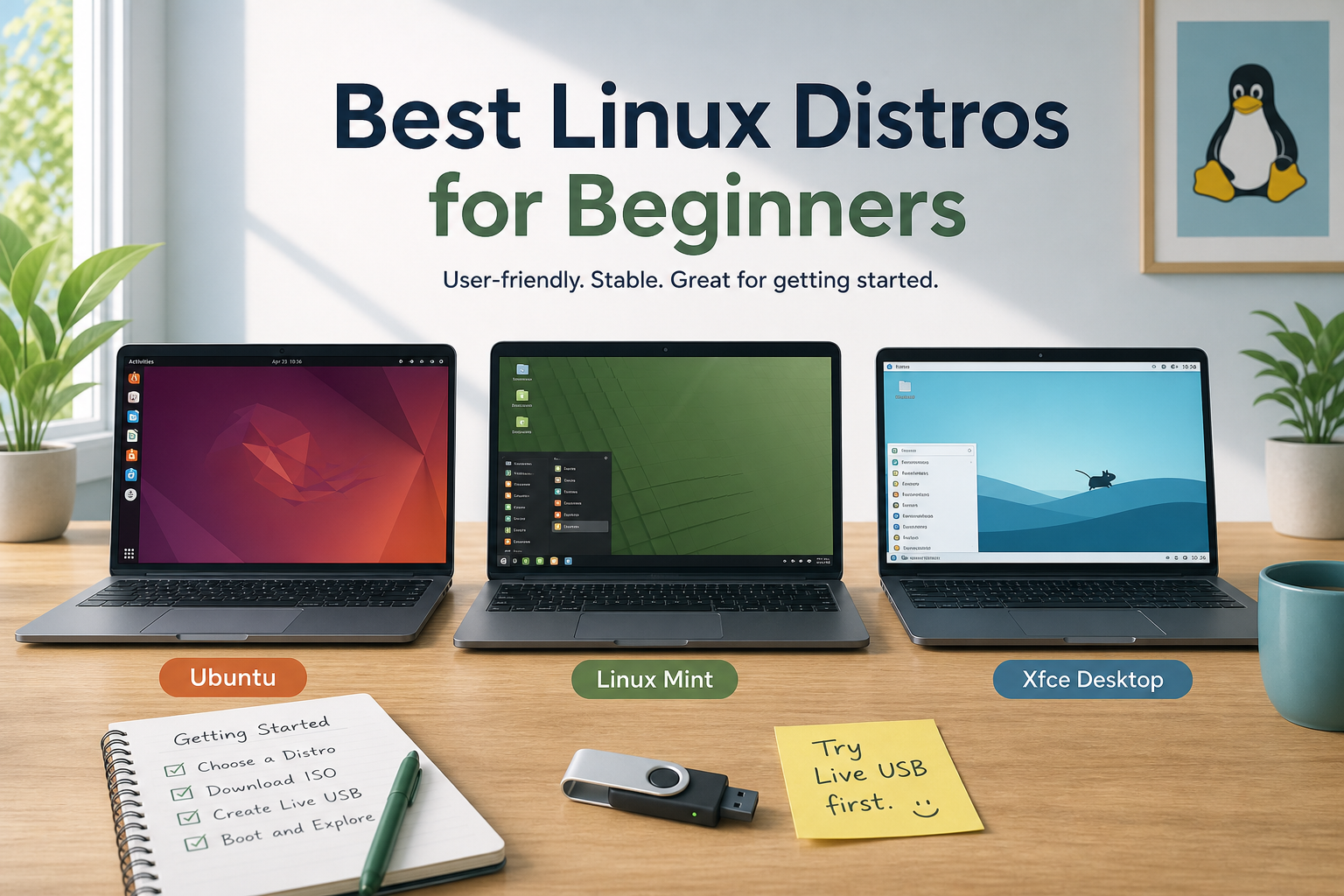
If you are choosing the best Linux distros for beginners, start with Ubuntu Desktop LTS when you want the widest tutorials and package answers, or Linux Mint (Cinnamon) when you want a desktop that feels closer to a classic Windows layout. Both are free desktop operating systems with guided installers, large communities, and enough polish for browsing, documents, media, and light development.
Do not begin with security-lab or expert-focused systems such as Kali, or rolling expert distros such as Arch, if your goal is a calm first desktop. Those projects serve different audiences. Success for a beginner means you can try a live session from USB, install without fighting the installer, connect to Wi‑Fi, open a browser, install apps from the distro’s software tools, and recover from common mistakes using searchable documentation.
The Short Recommendation
If you must choose one ISO today:
- Pick Ubuntu Desktop LTS when you want the most searchable how-tos and course notes that match package names.
- Pick Linux Mint Cinnamon when you are leaving Windows and want a traditional menu, panel, and calmer first week.
- Pick a lighter Ubuntu or Mint edition (Xubuntu or Mint Xfce) when the PC has limited RAM or an older CPU.
| Your situation | First pick | Why it fits beginners |
|---|---|---|
| You want the most searchable how-tos | Ubuntu Desktop LTS | Huge documentation footprint; many guides assume Ubuntu package names |
| You are switching from Windows | Linux Mint Cinnamon | Familiar desktop layout and a practical out-of-box feel |
| Older PC or low RAM | Xubuntu or Linux Mint Xfce | Lighter desktops with a still-supported beginner path |
| Newer hardware, faster updates | Fedora Workstation | Modern desktop; slightly steeper than Ubuntu/Mint for absolute first-timers |
What “Beginner-Friendly” Actually Means
A beginner-friendly Linux distribution usually offers:
- A graphical installer with clear disk options
- A maintained software store or package GUI
- Predictable update tools
- Active forums and documentation
- Drivers that are workable on common PCs (exact media codecs still vary by distro policy)
It does not mean “identical to Windows,” “every Windows program will run,” or “you will never need help.” Community threads repeatedly warn that Linux is capable, but it is a different operating system. Plan to adapt file locations, app installs, and some hardware quirks.
Also separate two goals that beginners often mix together:
- Daily desktop OS for browsing, documents, media, and schoolwork
- Specialist toolkit for security labs, bleeding-edge rolling releases, or deep DIY system building
This article ranks options for the first goal only.
Hardware Reality Check Before You Download Anything
Before you argue Ubuntu versus Mint, confirm the PC can run a modern desktop ISO at all. Canonical’s Ubuntu Desktop download guidance currently points beginners toward roughly a dual-core CPU, several gigabytes of RAM, and about 25 GB free disk space, plus USB installer media. Exact numbers can change by release, so always re-check the official download page for the ISO you choose.
Practical beginner targets:
- Comfortable: 8 GB RAM or more, SSD storage, 64-bit CPU
- Usable but tight: 4 GB RAM — prefer Xfce/MATE-style lighter desktops
- Installer media: an 8 GB or larger USB flash drive is a safe planning size for many current desktop ISOs
If the machine is a very old 32-bit-only PC, most current mainstream beginner ISOs will not fit. In that case, look for explicitly supported older or lightweight projects for that architecture rather than forcing a current Ubuntu/Mint amd64 image.
Ubuntu Desktop LTS: Best Default for Guided Learning
Best for: students, first-time Linux users who learn from tutorials, and anyone who wants answers that match package names found in most guides.
Official entry point: download Ubuntu Desktop from Canonical’s download pages, then follow Canonical’s install tutorial for writing the ISO to USB and running the installer. Prefer an LTS (Long Term Support) desktop release when you want fewer surprise upgrades and a longer free maintenance window. Interim releases can be fine later; they are usually a poorer first bet for absolute beginners.
Why beginners land here:
- Ask Ubuntu and Ubuntu docs cover an enormous range of first-week problems
- Software installation is centered on the distribution’s packaging tools and curated stores
- Official flavors such as Ubuntu MATE or Xubuntu exist if the default desktop feels heavy
- Many programming and cloud tutorials assume Ubuntu-like package commands
Watch-outs:
- Some hardware needs proprietary drivers; use Ubuntu’s additional-drivers tools when offered
- Snap-packaged apps appear in Ubuntu’s software story; that model is intentional on Ubuntu and can surprise users coming from classic
.exeinstalls - The default GNOME desktop is polished but can feel different from classic Windows panels
Expected first-week outcome on Ubuntu LTS: you can browse, update the system from the Software Updater or equivalent tools, install Firefox or Chromium-family browsers from official channels, and find answers for common Wi‑Fi or display issues without inventing custom repositories.
Linux Mint Cinnamon: Best Comfort Pick for Windows Switchers
Best for: home PCs, writers, and users who want a traditional start-menu-style desktop with fewer visual surprises.
Official entry point: download from linuxmint.com/download.php. Current Mint releases ship editions such as Cinnamon (most popular), Xfce (lighter), and MATE (classic layout). For most beginners, start with Cinnamon unless your machine is low-spec—then consider Xfce.
Why it ranks high for newcomers:
- Community advice frequently points Windows migrants to Mint’s desktop familiarity
- It is commonly described as shipping a practical out-of-box desktop experience
- Update tooling is presented in a beginner-oriented way
- The layout (menu, panel, applets) reduces “where did everything go?” friction on day one
Watch-outs:
- Mint is related to the Ubuntu ecosystem for many releases, but it is not identical to Ubuntu; follow Mint’s own install and update docs
- Brand-new hardware sometimes needs a newer kernel path; if Wi‑Fi or GPUs fail in a live session, test another recent beginner distro before wiping disks
- Do not assume every Ubuntu PPA or third-party guide is safe to paste into Mint without checking Mint guidance
Ubuntu vs Linux Mint: Side-by-Side Decision Guide
| Factor | Ubuntu Desktop LTS | Linux Mint Cinnamon |
|---|---|---|
| Learning from online tutorials | Usually strongest match | Strong, but some guides need small translation |
| Windows-like desktop comfort | Good after setup | Often easier on day one |
| Software discovery | App Center / package tools; Snap present | Software Manager focused; familiar store-like flow |
| Support trail | Huge Ubuntu ecosystem | Large Mint forums plus Ubuntu-adjacent knowledge |
| Best first question to ask yourself | “Will I follow many Ubuntu tutorials?” | “Do I want the desktop to feel familiar immediately?” |
There is no universal winner. The costly mistake is delaying either choice for weeks while comparing niche distros you will never install.
Other Solid Options—and What to Skip First
Xubuntu / Ubuntu MATE: stay with the Ubuntu family when you like Ubuntu’s ecosystem but want a lighter or more traditional desktop. These are excellent “same family, different desktop” choices rather than completely new learning curves.
Fedora Workstation: a strong modern desktop with frequent updates and polished defaults. It is beginner-usable, but absolute first-timers who rely on Ubuntu-specific tutorials may hit small command and package-name differences (dnf versus apt, different app store habits).
Zorin OS and similar Ubuntu-based desktops: often marketed toward Windows switchers. Evaluate them the same way you evaluate Mint: try the live session, test Wi‑Fi and display scaling, then install only from official channels.
Usually skip as your first daily driver:
- Kali Linux — penetration-testing toolkit, not a general beginner desktop
- Arch Linux — excellent for learning deep system control, poor as a first “just works” OS
- Gentoo or similarly source-heavy systems — too much DIY for week one
- Random “gaming” or “hacker” spins with unclear maintainers — weaker support trails and higher trust risk
Compare by Real Beginner Scenarios
School or office documents plus browsing
Pick Linux Mint Cinnamon or Ubuntu LTS. Install a browser, connect cloud storage, and add an office suite. Avoid specialty distros. Your bottleneck will be document compatibility and printers, not exotic kernels.
Learning programming and following online courses
Pick Ubuntu Desktop LTS. Course notes, Stack Overflow answers, and cloud docs skew toward Ubuntu package commands. You will waste less time translating instructions.
Older laptop with 4–8 GB RAM
Pick Linux Mint Xfce or Xubuntu. Favor lighter desktops over animated defaults. Test sleep/resume and browser performance in live mode before installing.
You are not ready to wipe Windows
Do not choose a distro yet—choose a trial method: live USB or a virtual machine. Distro shopping matters less than confirming your Wi‑Fi, display, and printer work. Only after a successful live test should you plan dual-boot or replacement installs.
Family PC that must stay simple
Prefer Mint Cinnamon or Ubuntu LTS with automatic updates enabled and a standard browser set as default. Avoid enabling experimental repositories. Create a standard user account for daily use rather than working as an administrator all day.
Related Linux distro guides: lightweight Linux distro; best Linux distro for gaming; Linux Mint vs Ubuntu; best Linux distro for developers; best Linux distro for old laptop; most secure Linux distro; best Linux server distro; best Linux distro for Windows users.


Try Before You Install (Safest Beginner Workflow)
- Download the official ISO only from the distro’s own site (Ubuntu Desktop download pages or Linux Mint’s download page).
- Create bootable USB media with a current image writer tool recommended by that distro’s install docs. Writing an ISO is not the same as copying the file onto the USB stick.
- Insert the USB, reboot, and open your PC’s boot menu (often Esc, F10, F12, or a vendor-specific key).
- Boot the USB and use Try / live mode for a full session: Wi‑Fi, video playback, external monitor, sleep/resume, and your usual websites.
- Only then run the installer. Prefer Install alongside / dual-boot options if you need Windows, and back up important files first.
Expected result: you know the desktop feels usable before any irreversible disk changes.
Data risk: disk partitioning can erase Windows. Back up first. If you are unsure about partitions, stop and use a virtual machine until you are comfortable. Do not follow random “delete all partitions” advice unless you intend to wipe the drive.
How Beginners Should Install Software (Without Digging Holes)
One of the biggest Linux culture shifts is package management. On Ubuntu-family systems, everyday apps usually come from the distro’s software store or apt repositories—not from random websites. On day one:
- Prefer the official Software / App Center / Software Manager
- Prefer packages maintained by your distribution
- Avoid stacking unknown PPAs, random
.debfiles from blogs, and unverified scripts
If you later need a local Deb package from a trusted vendor page, install it as a local file with a form like sudo apt install ./exact-package-name.deb. That is different from a repository lookup such as sudo apt install package-name. Do not invent repository names, and do not treat old community download links as current official sources.
After You Pick a Distro: Office Files with WPS Office
Choosing Ubuntu or Linux Mint settles the beginner OS question. The next real task is opening school and work DOCX, XLSX, PPTX, and PDF files without reformatting every attachment.
WPS Office for Linux covers that post-install handoff with Writer, Spreadsheet, Presentation, and PDF tools on Ubuntu/Mint-class desktops.
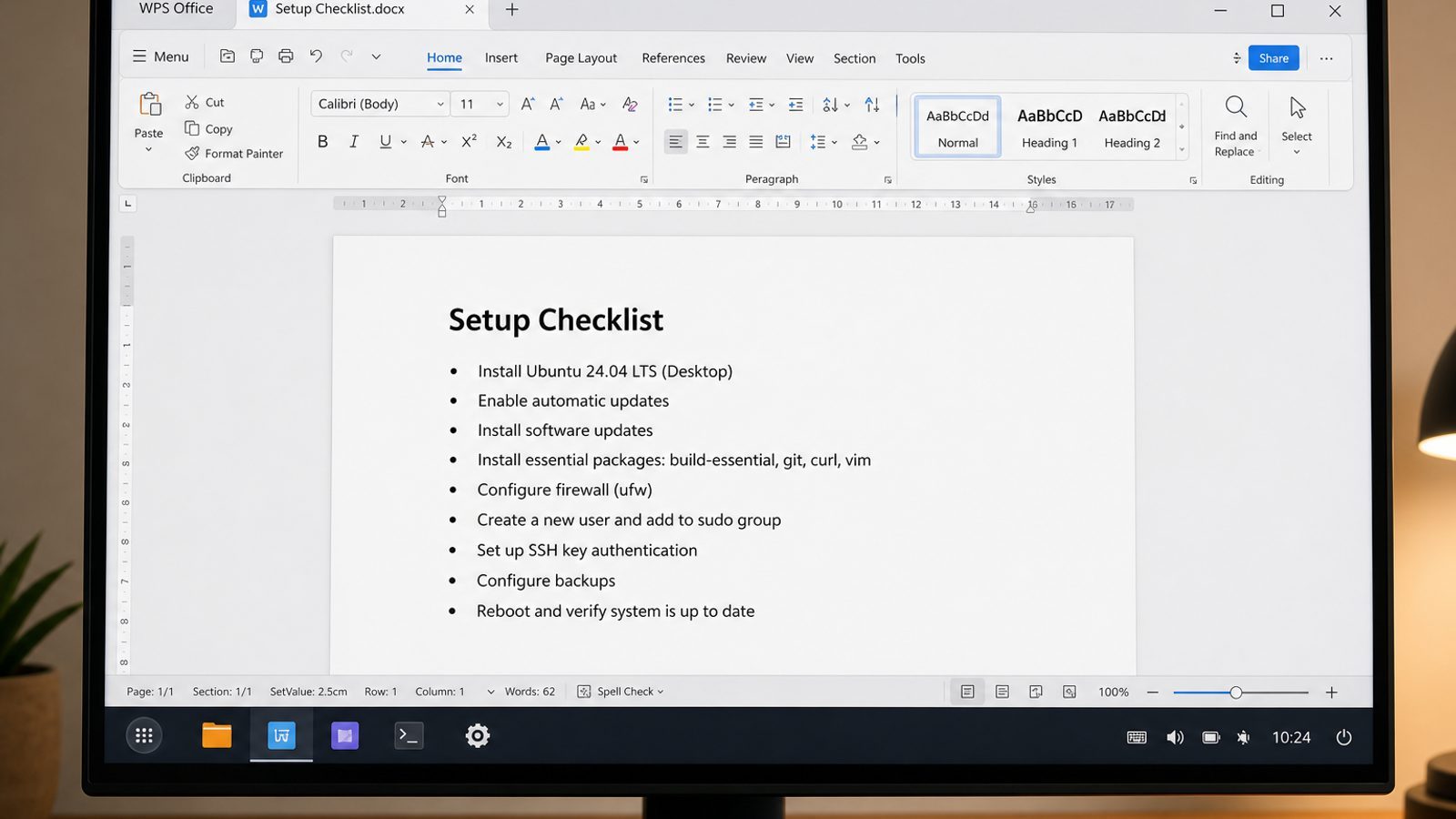
| What you need next | What WPS gives you |
|---|---|
| Open Microsoft-style files right after a beginner Linux install | Strong .docx / .xlsx / .pptx layout fidelity when files move between Windows, Linux, and macOS |
| One place for notes, sheets, slides, and PDFs | Free core suite: Writer, Spreadsheet, Presentation, plus PDF view/edit/convert tools |
| A familiar desktop UI | Ribbon-style apps that feel close to everyday Office workflows |
| A trusted install path | Official DEB (Ubuntu/Debian/Mint) and RPM packages from the vendor |
Download the current 64-bit package from the official WPS Office for Linux download page (choose Deb on Ubuntu/Mint), then install with sudo apt install ./wps-office_VERSION_amd64.deb. After the desktop feels stable, move notes and attachments into DOCX or PDF instead of staying in plain text only.
Common Beginner Selection Mistakes
- Choosing Kali because it “looks advanced.” It is the wrong first desktop for ordinary computing.
- Installing from unofficial ISO mirrors with no verification. Stick to official download pages.
- Judging a distro in five minutes. Live-test Wi‑Fi, sleep/resume, and app installs.
- Assuming every Windows app has a perfect clone. Plan browser-based or Linux-native alternatives for critical tools.
- Stacking random PPAs on day one. Prefer the distro’s default software channels until you understand update risks.
- Skipping backups before dual-boot. Partition mistakes are expensive.
- Chasing the “most lightweight” distro endlessly. A supported beginner desktop that works beats an obscure ultra-light system with no answers.
FAQ
Is Ubuntu or Linux Mint better for absolute beginners?
Both are strong. Choose Ubuntu LTS for maximum tutorial coverage; choose Linux Mint Cinnamon for a more traditional desktop feel. The worse choice is delaying either while endlessly comparing niche distros.
Should beginners use the newest release or LTS?
For Ubuntu, beginners usually do better on an LTS desktop release for longer support. For Mint, use the current stable release from Mint’s official download page.
Can I switch distros later without losing everything?
You can reinstall another distro later, but you should back up /home data and exported documents first. Switching is normal; unrecovered personal files are not.
Do I need to learn the terminal immediately?
Not on day one. Learn the software store and settings apps first. Add terminal skills when a trustworthy guide requires them.
What if my Wi‑Fi fails in the live session?
Try another beginner distro’s live USB before installing anything. A distro that cannot get online in live mode is a poor first install on that PC.
Should I dual-boot or replace Windows?
If you still need Windows apps or school exam tools that only run on Windows, dual-boot or keep Windows and use a live USB/VM first. Replace Windows only after backups and a successful live test.
Is Fedora a bad beginner choice?
No—Fedora Workstation is polished—but Ubuntu or Mint usually produce fewer “my tutorial doesn’t match” moments for absolute first-timers.

'%3e%3cpath%20d='M19.9911%204.11386V6.471H18.5894C18.0775%206.471%2017.7322%206.57814%2017.5536%206.79243C17.3751%207.00671%2017.2858%207.32814%2017.2858%207.75671V9.44421H19.9019L19.5536%2012.0871H17.2858V18.8639H14.5536V12.0871H12.2769V9.44421H14.5536V7.49779C14.5536%206.39064%2014.8632%205.53201%2015.4822%204.92189C16.1013%204.31177%2016.9257%204.00671%2017.9554%204.00671C18.8304%204.00671%2019.509%204.04243%2019.9911%204.11386Z'%20fill='%23333333'/%3e%3c/g%3e%3cdefs%3e%3cclipPath%20id='clip0_2938_8199'%3e%3crect%20width='16'%20height='16'%20fill='white'%20transform='translate(8%204.00671)'/%3e%3c/clipPath%3e%3c/defs%3e%3c/svg%3e)
'%3e%3cpath%20d='M17.5237%2010.7813L23.4811%204H22.0699L16.8949%209.88693L12.7648%204H8L14.2469%2012.9029L8%2020.0133H9.4112L14.8725%2013.7952L19.2352%2020.0133H24M9.92053%205.04213H12.0885L22.0688%2019.0224H19.9003'%20fill='%23333333'/%3e%3c/g%3e%3cdefs%3e%3cclipPath%20id='clip0_2938_8200'%3e%3crect%20width='16'%20height='16.0134'%20fill='white'%20transform='translate(8%204)'/%3e%3c/clipPath%3e%3c/defs%3e%3c/svg%3e)


