



'%3e%3cpath%20fill-rule='evenodd'%20clip-rule='evenodd'%20d='M21.4999%2010.9993C21.4999%205.20009%2016.7986%200.498901%2010.9993%200.498901C5.19994%200.498901%200.498657%205.20009%200.498657%2010.9993C0.498657%2016.2404%204.33858%2020.5844%209.35855%2021.3722V14.0346H6.69238V10.9993H9.35855V8.68594C9.35855%206.05427%2010.9262%204.60062%2013.3248%204.60062C14.4736%204.60062%2015.6753%204.80571%2015.6753%204.80571V7.38979H14.3512C13.0468%207.38979%2012.64%208.19921%2012.64%209.0296V10.9993H15.5523L15.0867%2014.0346H12.64V21.3722C17.66%2020.5844%2021.4999%2016.2404%2021.4999%2010.9993Z'%20fill='%231568EA'/%3e%3c/g%3e%3c/svg%3e)


'%3e%3cpath%20d='M2.42045%2022.1876H6.31818V12.7217L0.75%208.54553V20.5171C0.75%2021.4414%201.49892%2022.1876%202.42045%2022.1876Z'%20fill='%234285F4'/%3e%3cpath%20d='M19.682%2022.1876H23.5797C24.5041%2022.1876%2025.2502%2021.4387%2025.2502%2020.5171V8.54553L19.682%2012.7217'%20fill='%2334A853'/%3e%3cpath%20d='M19.682%205.48293V12.7216L25.2502%208.54543V6.31816C25.2502%204.25236%2022.8921%203.07469%2021.2411%204.31361'%20fill='%23FBBC04'/%3e%3cpath%20d='M6.31824%2012.7217V5.48303L13.0001%2010.4944L19.6819%205.48303V12.7217L13.0001%2017.733'%20fill='%23EA4335'/%3e%3cpath%20d='M0.75%206.31816V8.54543L6.31818%2012.7216V5.48293L4.75909%204.31361C3.10534%203.07469%200.75%204.25236%200.75%206.31816Z'%20fill='%23C5221F'/%3e%3c/g%3e%3cdefs%3e%3cclipPath%20id='clip0_2954_7305'%3e%3crect%20width='24.5'%20height='18.375'%20fill='white'%20transform='translate(0.75%203.8125)'/%3e%3c/clipPath%3e%3c/defs%3e%3c/svg%3e)


The best Linux server distro depends on what you run and who supports it: Ubuntu LTS for broad cloud images and docs, Debian stable for conservative longevity, and Rocky/AlmaLinux when you need RHEL-compatible enterprise packaging. Install a minimal image, enable automatic security updates, and manage configuration as code. Success means predictable patching and workloads that match your team’s skills—not a flashy desktop theme on a VPS.
Shortest path: pick Ubuntu LTS / Debian / Rocky|Alma by ecosystem → minimal install → SSH keys only → firewall → unattended security upgrades → deploy with containers or packages you already know. Desktop advice like Windows-user distros does not apply to headless servers.

For first-install picks and beginner decision criteria, start with best Linux distros for beginners.
Selection Criteria for Servers
- Security update cadence and length of support
- Cloud marketplace images and certified hardware
- Package ecosystem matching your app (apt vs dnf)
- Team muscle memory and runbooks
- Container host needs vs traditional packages
Avoid choosing a server OS because it was fun on your laptop. A lightweight desktop spin is the wrong starting point for production SSH hosts.
Ubuntu Server LTS
Ubuntu Server LTS dominates many tutorials, GitHub Actions examples, and cloud templates. Five years of standard security maintenance (extendable with Ubuntu Pro on eligible systems) makes planning easier. Choose Ubuntu when your playbooks, snaps (if used), and vendor docs already assume it.
Use the minimal install options, disable unused services, and prefer SSH keys over passwords. Match LTS versions to what your containers and languages support.
Cloud images from the official Ubuntu publisher save time: they arrive with cloud-init, sensible defaults, and predictable package sets. Pin your Terraform/Ansible to a known image serial. Avoid community AMIs that bundle mystery agents unless you have reviewed their startup scripts. The same caution applies to marketplace “one-click” app images—convenience can equal unpatched PHP stacks.
For desktop-derived packages on servers (browsers, full LibreOffice), simply do not. Keep compilation toolchains on build workers, not on internet-facing edge nodes. Separate roles: reverse proxy hosts, application hosts, and database hosts should not all share one bloated image. Draw the architecture on one page before you open the installer.
Debian Stable
Debian stable is the classic “boring network citizen.” Packages move slowly on purpose. Ideal when you want longevity and are comfortable with Debian’s release style. Many appliances and community guides are Debian-fluent.
Pin versions carefully when you need newer runtimes—use reverse proxies and containers rather than mixing random unstable packages onto production.
RHEL-Compatible: Rocky Linux and AlmaLinux
Rocky Linux and AlmaLinux provide community-driven RHEL-compatible targets for organizations that standardize on dnf, SELinux targeting, and enterprise software that certifies against RHEL. Choose them when vendors say “supports RHEL 9” and you are not buying RHEL subscriptions for every node.
Fedora is closer to a workstation/upstream playground; for servers that must track RHEL, prefer Rocky/Alma over raw Fedora except in special CI cases.
Enterprise software vendor matrices still drive many purchases: if the application certifies RHEL 9, Rocky/Alma reduce friction. If the application ships only .deb packages tested on Ubuntu 22.04/24.04, do not invent a DNF adventure. Read the support matrix before the distro popularity chart.
SELinux targeting on RHEL-like systems is a feature when you learn the basics; shipping with it disabled “to make installs easier” recreates the same blind spots on every node. Budget training time for the security model your OS ships. The same advice applies to AppArmor profiles on Ubuntu family hosts—tune them, do not casually delete them.
Minimal Install and Hardening Baseline
- Start from an official cloud or netinstall image.
- Create a non-root sudo user; disable password SSH when keys work.
- Configure firewall (ufw/firewalld/nftables per distro norms).
- Enable unattended security updates or a patched maintenance window.
- Synchronize time (chrony/systemd-timesyncd).
- Ship logs off-box when the host matters.
sudo apt update && sudo apt install -y unattended-upgrades
sudo dpkg-reconfigure --priority=low unattended-upgrades
On RHEL-like systems, use the documented dnf-automatic or enterprise patch tooling your org standardizes on. Do not copy Ubuntu apt commands blindly.
Containers vs Distro Packages
Modern teams often treat the host as a thin container engine (containerd/CRI-O/Docker) and keep apps in images. The distro still matters for kernel, cgroup behavior, SELinux/AppArmor defaults, and support contracts. Pin host kernels thoughtfully in production.
Immutable server ideas (ostree-based hosts, image-based nodes) help fleets, but require operational investment. Classic apt/dnf VMs remain valid for small deployments.
Monitoring agents, backup clients, and EDSR tools should come from your standard catalog—not from random websites. Treat every new daemon as a support commitment. If a package is not in the runbook, it should not be on the host. That rule alone prevents half of “mysterious listening ports” tickets after a hurried install weekend.
When Not to Use a Desktop Distro on a Server
Do not install Ubuntu Desktop or Mint on a VPS “because it is easier.” Extra GUI packages expand attack surface and waste RAM. Use server images and manage with SSH. For local labs, a VM hypervisor on your workstation is cleaner than converting a GUI laptop into a public server (secure distro thinking still applies).
Verify Success
- SSH with keys works; root password login disabled if that is your policy.
- Security updates install on a known schedule.
- Firewall denies unexpected inbound ports.
- Application health checks pass after reboot.
- Backup/restore of config and data is tested.
After the Server Is Stable: Runbooks and Shareable Docs
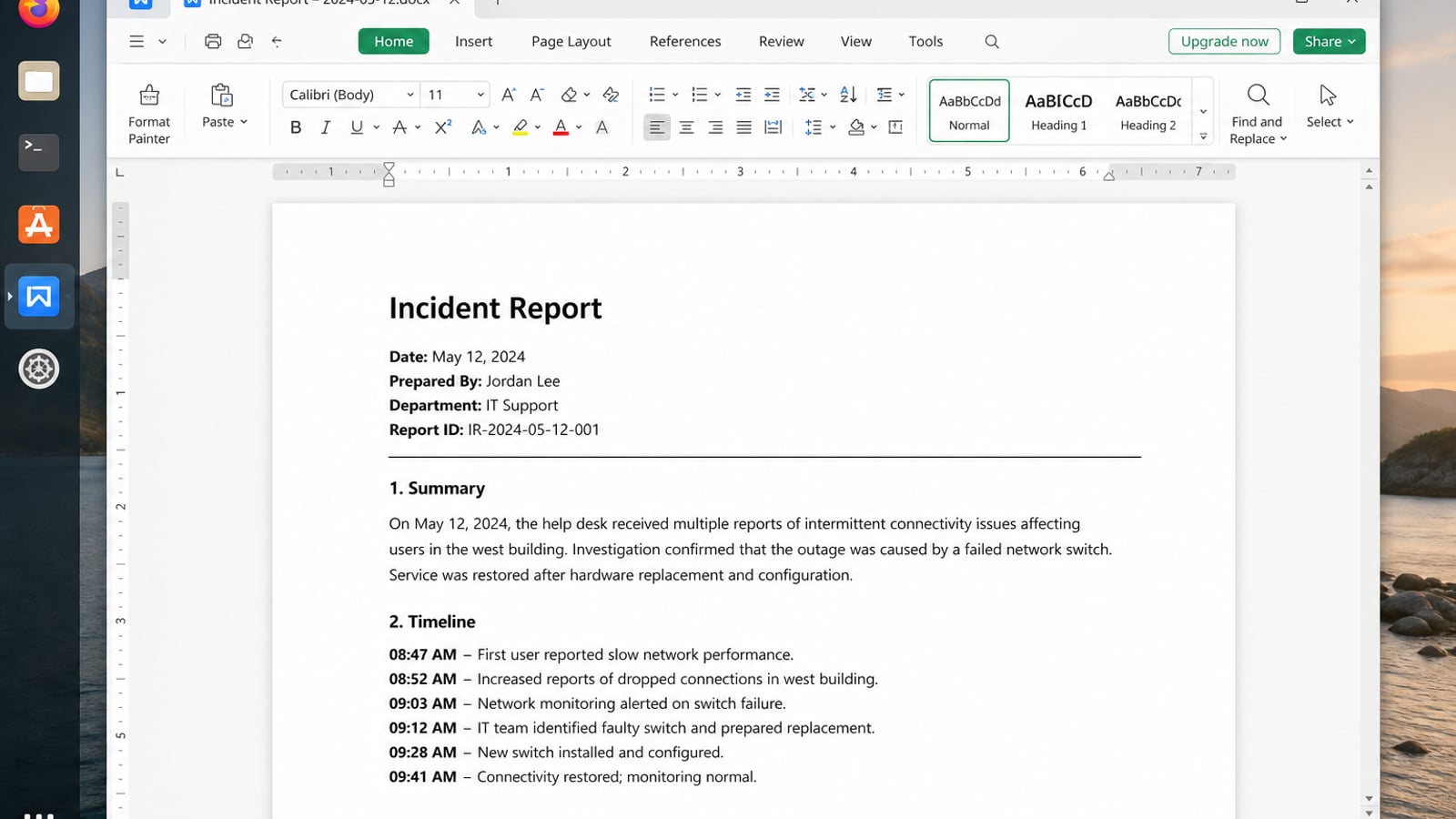
SSH and package pins keep the host healthy. On-call still needs runbooks, change notes, and capacity tables that non-terminal teammates can open during an incident.
WPS Office for Linux (or on your admin workstation) turns those ops notes into Writer docs, Spreadsheet trackers, and PDF runbooks with familiar Office formats.
| What you need next | What WPS gives you |
|---|---|
| Publish runbooks and change notes outside the shell | Strong .docx / .xlsx / .pptx layout fidelity when files move between Linux, Windows, and macOS |
| One place for notes, sheets, slides, and PDFs | Free core suite: Writer, Spreadsheet, Presentation, plus PDF view/edit/convert tools |
| A familiar desktop UI for switchers | Ribbon-style apps with a lighter footprint than many heavy suites |
| A trusted install path | Official DEB (Ubuntu/Debian/Mint) and RPM packages from the vendor |
Use the official WPS Office for Linux download page on a desktop/admin machine, install with sudo apt install ./wps-office_VERSION_amd64.deb, and keep production servers lean while your documentation stays in DOCX or PDF.


FAQ
Is Ubuntu or Debian better for a VPS?
Both are excellent. Choose the one your images and muscle memory already use.
Should I use Arch on a server?
Generally no for production. Rolling hosts demand more attention than most on-call rotations want.
Do I need a commercial support contract?
Optional for home labs; often required in enterprises for certified stacks and indemnification.
What about Alpine?
Great for containers and minimal images; ensure your team understands musl and package differences before converting critical VMs.
Can I upgrade major releases in place forever?
Prefer tested upgrade paths or golden-image replacement. Always snapshot first.
Is CentOS Stream fine?
Know that Stream is ahead of RHEL in places—use it intentionally, not as a silent CentOS Linux replacement without reading current project docs.
How many packages should a fresh server have?
As few as practical. Every extra daemon is inventory you must patch. Add packages when a ticket demands them, not “just in case.”
Do I need a GUI control panel?
Optional for beginners on small VPS hosts; many teams prefer SSH and infrastructure-as-code. If you install a panel, treat it as critical software with its own updates and firewall rules.
Document the distro, major version, and support end date in your inventory CMDB or spreadsheet. Schedule replacement before end of life—not after scanners light up. That calendar discipline, plus minimal installs and key-only SSH, does more for server security than arguing Ubuntu vs Debian on social media. Choose one family, automate it, and sleep better. Review the choice annually with your team, and write down why you rejected the alternatives so future hires do not reopen settled debates.

'%3e%3cpath%20d='M19.9911%204.11386V6.471H18.5894C18.0775%206.471%2017.7322%206.57814%2017.5536%206.79243C17.3751%207.00671%2017.2858%207.32814%2017.2858%207.75671V9.44421H19.9019L19.5536%2012.0871H17.2858V18.8639H14.5536V12.0871H12.2769V9.44421H14.5536V7.49779C14.5536%206.39064%2014.8632%205.53201%2015.4822%204.92189C16.1013%204.31177%2016.9257%204.00671%2017.9554%204.00671C18.8304%204.00671%2019.509%204.04243%2019.9911%204.11386Z'%20fill='%23333333'/%3e%3c/g%3e%3cdefs%3e%3cclipPath%20id='clip0_2938_8199'%3e%3crect%20width='16'%20height='16'%20fill='white'%20transform='translate(8%204.00671)'/%3e%3c/clipPath%3e%3c/defs%3e%3c/svg%3e)
'%3e%3cpath%20d='M17.5237%2010.7813L23.4811%204H22.0699L16.8949%209.88693L12.7648%204H8L14.2469%2012.9029L8%2020.0133H9.4112L14.8725%2013.7952L19.2352%2020.0133H24M9.92053%205.04213H12.0885L22.0688%2019.0224H19.9003'%20fill='%23333333'/%3e%3c/g%3e%3cdefs%3e%3cclipPath%20id='clip0_2938_8200'%3e%3crect%20width='16'%20height='16.0134'%20fill='white'%20transform='translate(8%204)'/%3e%3c/clipPath%3e%3c/defs%3e%3c/svg%3e)


