



'%3e%3cpath%20fill-rule='evenodd'%20clip-rule='evenodd'%20d='M21.4999%2010.9993C21.4999%205.20009%2016.7986%200.498901%2010.9993%200.498901C5.19994%200.498901%200.498657%205.20009%200.498657%2010.9993C0.498657%2016.2404%204.33858%2020.5844%209.35855%2021.3722V14.0346H6.69238V10.9993H9.35855V8.68594C9.35855%206.05427%2010.9262%204.60062%2013.3248%204.60062C14.4736%204.60062%2015.6753%204.80571%2015.6753%204.80571V7.38979H14.3512C13.0468%207.38979%2012.64%208.19921%2012.64%209.0296V10.9993H15.5523L15.0867%2014.0346H12.64V21.3722C17.66%2020.5844%2021.4999%2016.2404%2021.4999%2010.9993Z'%20fill='%231568EA'/%3e%3c/g%3e%3c/svg%3e)


'%3e%3cpath%20d='M2.42045%2022.1876H6.31818V12.7217L0.75%208.54553V20.5171C0.75%2021.4414%201.49892%2022.1876%202.42045%2022.1876Z'%20fill='%234285F4'/%3e%3cpath%20d='M19.682%2022.1876H23.5797C24.5041%2022.1876%2025.2502%2021.4387%2025.2502%2020.5171V8.54553L19.682%2012.7217'%20fill='%2334A853'/%3e%3cpath%20d='M19.682%205.48293V12.7216L25.2502%208.54543V6.31816C25.2502%204.25236%2022.8921%203.07469%2021.2411%204.31361'%20fill='%23FBBC04'/%3e%3cpath%20d='M6.31824%2012.7217V5.48303L13.0001%2010.4944L19.6819%205.48303V12.7217L13.0001%2017.733'%20fill='%23EA4335'/%3e%3cpath%20d='M0.75%206.31816V8.54543L6.31818%2012.7216V5.48293L4.75909%204.31361C3.10534%203.07469%200.75%204.25236%200.75%206.31816Z'%20fill='%23C5221F'/%3e%3c/g%3e%3cdefs%3e%3cclipPath%20id='clip0_2954_7305'%3e%3crect%20width='24.5'%20height='18.375'%20fill='white'%20transform='translate(0.75%203.8125)'/%3e%3c/clipPath%3e%3c/defs%3e%3c/svg%3e)


A lightweight Linux distro is a distribution (or official flavor) that keeps the desktop thin so older PCs and low-RAM laptops stay usable. Start with an Ubuntu flavor such as Lubuntu (LXQt) or Xubuntu (Xfce), or Linux Mint’s Xfce edition, install from a current LTS ISO, then verify idle RAM and responsiveness before adding browsers and office suites. Success means the desktop stays snappy with your real workload—not just a pretty live session.
Shortest path: note your RAM/CPU → pick Lubuntu for the lightest Ubuntu-family desktop, Xubuntu/Mint Xfce for a slightly richer panel experience → install LTS → update → test browser + documents. If you only need a friendly first Linux, also compare best Linux distros for beginners.
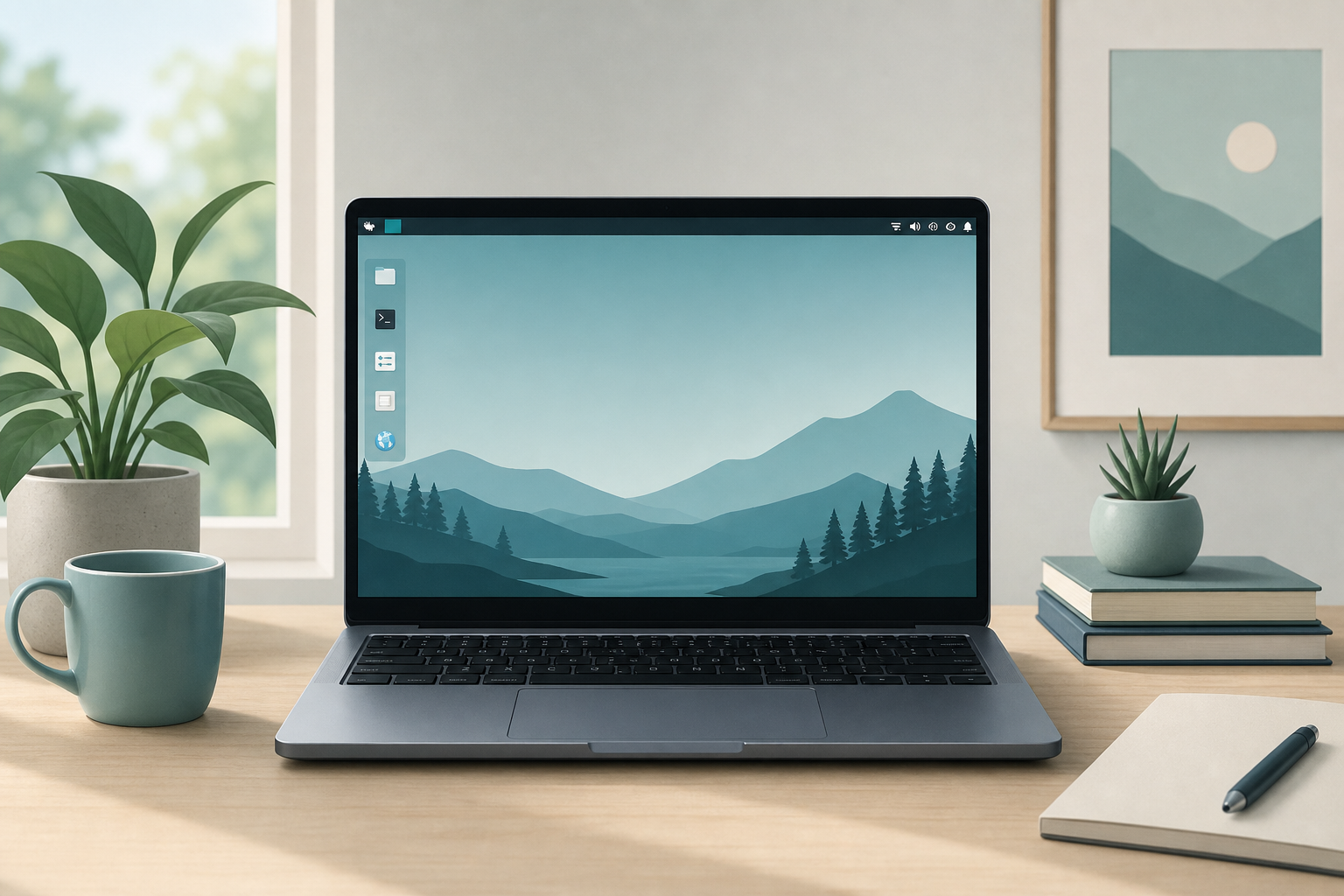
What “Lightweight” Actually Means
Lightweight is mostly about the desktop environment and default apps, not magic kernels. GNOME-heavy desktops feel modern but cost more RAM; LXQt and Xfce leave headroom for Firefox, LibreOffice, and Zoom. Ask Ubuntu threads comparing Lubuntu and Xubuntu repeatedly conclude Lubuntu/LX* stacks idle lighter, while Xfce often feels more polished for everyday clicking—both remain “full Ubuntu” for apt packages.
Do not confuse lightweight with abandoned. Prefer maintained LTS flavors with security updates. Ultra-minimal niche ISOs can revive ancient PCs but may lack drivers, Wi-Fi, or secure browsers—treat them as last resorts after Lubuntu/Xubuntu fail.
Also separate “lightweight distro” from “I disabled every effect on Ubuntu GNOME.” You can strip a heavy desktop, but you inherit GNOME app assumptions and larger default package sets. Official light flavors start from a thinner seed, which is why community advice on Ask Ubuntu so often points newcomers at Lubuntu or Xubuntu instead of a DIY minimal install guide.
Disk space is part of the story: browsers, flatpaks, and user downloads grow faster than the desktop shell. Leave tens of gigabytes free after install so updates and thumbnails do not fill a small eMMC. Lightweight UX dies quickly on a 100% full disk even when RAM looks fine.
Quick Picks by Hardware
- ~2 GB RAM / very old CPU: Lubuntu LTS (LXQt), keep browser tabs minimal
- ~4 GB RAM: Xubuntu or Linux Mint Xfce—better balance of features vs weight
- 8 GB+ but you want speed: still fine on light flavors; or use Mint Cinnamon / Ubuntu if you prefer comfort over minimal RAM
- Windows switchers who want light + familiar: Mint Xfce before exotic spins
For Mint’s Cinnamon vs Ubuntu GNOME trade-offs (not the lightest path), see Linux Mint vs Ubuntu.
Top Lightweight Options (Ubuntu Family First)
Lubuntu (LXQt)
Lubuntu is the official Ubuntu flavor aimed at low-resource machines. LXQt keeps panels and file managers lean. Use it when every megabyte matters and you accept a simpler default app set.
Xubuntu (Xfce)
Xubuntu pairs Ubuntu with Xfce. Community consensus on Ask Ubuntu: slightly heavier than Lubuntu, usually more configuration GUIs and a traditional desktop that many users prefer on 4 GB systems.
Linux Mint Xfce
Linux Mint Xfce keeps Mint’s update tools and friendly defaults on a light shell. Choose it when you want Mint’s Software Manager/Update Manager habits without Cinnamon’s weight.
Debian with a light DE (advanced)
Debian stable + Xfce/LXQt is rock solid but assumes you are comfortable installing firmware and choosing desktop packages. Not the first USB for absolute beginners.
Install and First-Hour Checklist
- Download the current LTS ISO from the project’s official site (not random mirrors).
- Verify checksum when the project publishes one.
- Create USB installer; boot Try/Live mode before wiping disks.
- In live mode, open a browser and a file manager—feel lag with your Wi-Fi stick.
- Install, update, then retest.
sudo apt update && sudo apt full-upgrade -yAfter install, check memory pressure while idle and with two browser tabs:
free -h
uptime
If swap thrashing starts as soon as a browser opens, reduce extensions, use a lighter browser profile, or add RAM—distro choice cannot invent hardware.
Optional metrics help you compare candidates fairly. Boot twice to a cold desktop, open the same three sites, and note whether the UI stutters when you drag windows. Record free -h and a subjective score. That thirty-minute test on your hardware beats any YouTube “fastest distro” thumbnail filmed on a different SSD and CPU generation.
Teachers and nonprofit refurbishers should standardize on one light ISO image and a written install checklist (disk wipe confirmation, user password rules, update step). Consistency matters more than chasing the absolute lowest idle RAM number between Lubuntu point releases.
What to Avoid on Low-RAM Boxes
- Full GNOME/KDE “kitchen sink” defaults on 2 GB RAM
- Snap-heavy stacks if your storage and RAM are already tight (policy differs by distro)
- Animating docks, blur effects, and multiple Electron apps at once
- Installing every “recommended” multimedia codec meta-package before the desktop is stable
Gaming on weak hardware is a separate problem—see best Linux distro for gaming only after the desktop itself is fluid.
Lightweight vs “Looks Like Windows”
Mint Cinnamon looks familiar but is not the lightest Mint edition. Xfce/MATE editions trade chrome for speed. Pick familiarity only if your machine has enough RAM; otherwise teach a simple Xfce panel once and gain years of usability.
Developers on Old Laptops
You can develop on a light distro: install build-essential, git, and containers carefully. For toolchain-first advice (Ubuntu LTS, Fedora, Arch), see best Linux distro for developers. On 4 GB machines, prefer remote builds or cloud VMs over local IDE giants.
Verify Success
- Desktop boots to login in a reasonable time on your SSD/HDD.
free -hshows usable free/available RAM after login.- Browser + documents open without multi-second freezes.
- Wi-Fi and audio survive reboot.
- Security updates install via the distro’s normal channel.
Export important documents to a USB or cloud before repartitioning. Lightweight installs often replace a dying Windows disk—backups first.
Plan storage layout before you click Install: keep a separate /home or data partition when dual-booting, and leave free space for Windows recovery if you are not wiping the disk. Lightweight desktops help CPU and RAM; they do not shrink the need for a sane partition plan. If the live USB already feels slow on an HDD, expect install and first updates to take longer—patience beats force-stopping the installer.
After you settle on Lubuntu, Xubuntu, or Mint Xfce, resist the urge to “optimize” with random sysctl pastebins from old forums. Apply updates, install only the apps you use weekly, and revisit performance after a week of real work. That habit beats distro-hopping every weekend. When friends ask for a lightweight Linux distro recommendation, give them your tested ISO name and RAM target—not a list of twelve obscure spins.
Browser choice matters as much as the desktop: a single Chromium-based browser with many tabs can erase LXQt’s savings. Use fewer extensions, consider a second lightweight browser profile for old machines, and close Electron chat apps when idle. Pair the thin desktop with thin habits and a 4 GB laptop suddenly feels usable again for email, docs, and classwork.
If Wi-Fi firmware is missing after install, use an Ethernet tether or USB phone hotspot once to install vendor firmware packages from the official repos—do not download random .deb files from unverified blogs. Official flavor documentation and Ubuntu/Mint forums beat screenshot tutorials that skip secure boot and Secure Boot key enrollment steps on newer laptops.
After the Distro Works: Setup Notes and Shareable Documents
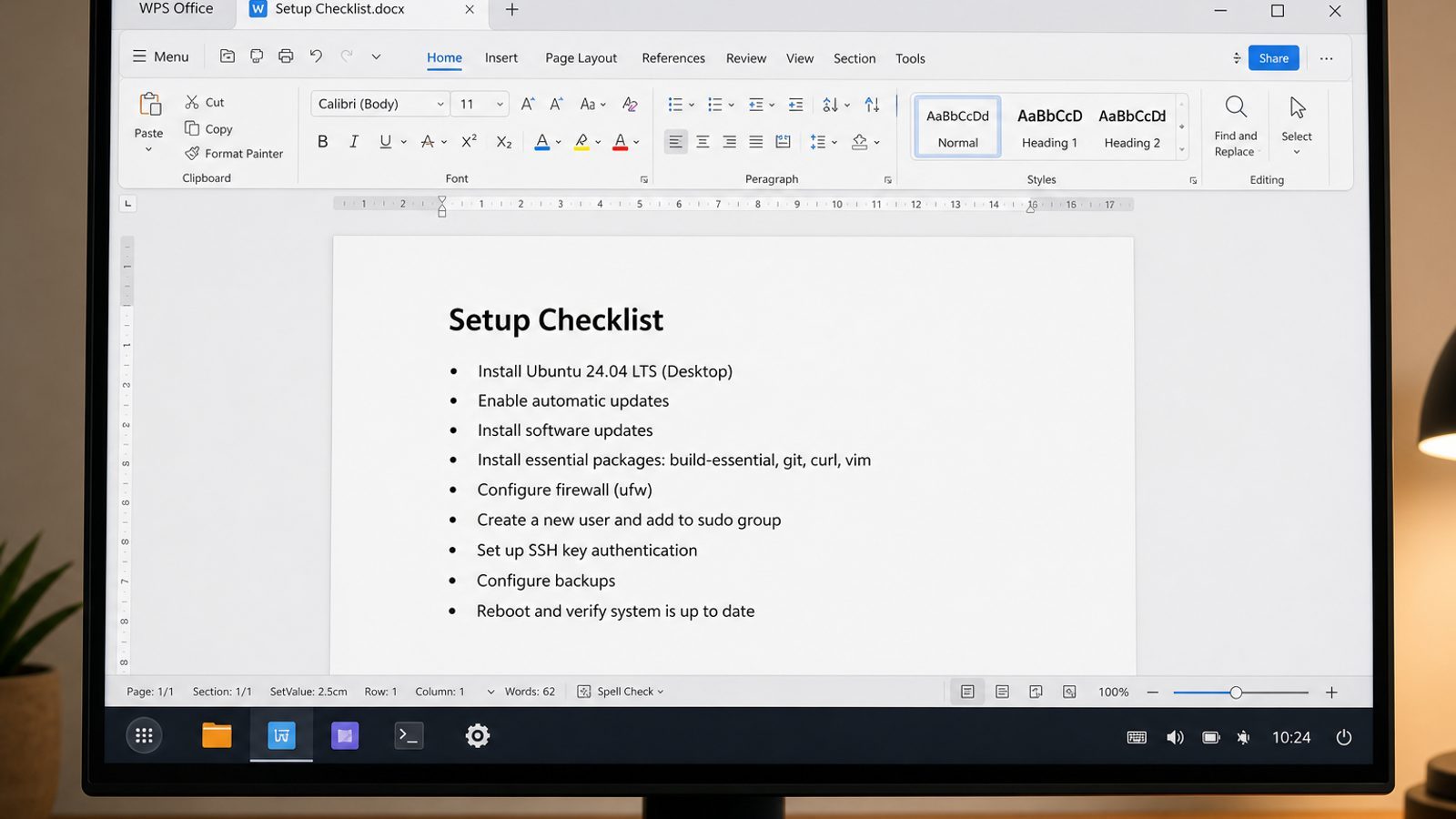
A lightweight desktop is only the start. Once the machine feels usable, people usually write a short setup checklist, note which packages they installed, or save a recovery tip for the next old PC.
WPS Office for Linux is a practical handoff suite for that moment: Writer for setup notes, Spreadsheet for hardware/RAM checklists, Presentation for training slides, and PDF tools when you need a fixed copy.
| What you need next | What WPS gives you |
|---|---|
| Save install notes and first-week checklists after picking a light distro | Strong .docx / .xlsx / .pptx layout fidelity when files move between Linux, Windows, and macOS |
| One place for notes, sheets, slides, and PDFs | Free core suite: Writer, Spreadsheet, Presentation, plus PDF view/edit/convert tools |
| A familiar desktop UI for switchers | Ribbon-style apps with a lighter footprint than many heavy suites |
| A trusted install path | Official DEB (Ubuntu/Debian/Mint) and RPM packages from the vendor |
Download the current 64-bit package from the official WPS Office for Linux download page (choose Deb on Ubuntu/Mint), then install the local file with sudo apt install ./wps-office_VERSION_amd64.deb. After the light desktop settles, move those notes into DOCX or PDF instead of leaving them only in a terminal scrollback.


FAQ
Is Lubuntu always lighter than Xubuntu?
Usually at idle, yes—LXQt stacks tend to use less RAM than Xfce—but real feel depends on apps you open. Test both live USBs on your hardware.
Can Ubuntu Desktop be made lightweight?
You can strip packages, but starting from Lubuntu/Xubuntu is cleaner than gutting GNOME after install.
Is Puppy Linux or Tiny Core better?
They can boot on ancient PCs, but software freshness and daily-driver support vary. Prefer maintained Ubuntu/Mint light editions first.
Do I need a 64-bit CPU?
Modern LTS desktop ISOs are typically 64-bit. Very old 32-bit-only machines may need older archived releases—with security trade-offs.
Will a light distro fix a failing hard drive?
No. Replace failing storage; a light DE only reduces CPU/RAM load.
Flatpak on low RAM?
Flatpaks are convenient but can be heavier than distro packages. Prefer apt packages on 2–4 GB systems when available.
Should I dual-boot or replace Windows?
Dual-boot if you still need Windows-only apps; replace Windows only after you verified Wi-Fi, printing, and backups on the light distro live session.
Does a lightweight Linux distro help Chromebooks or tablets?
Only if the device officially supports installing a generic Linux ISO—many do not. Prefer vendor-supported Linux paths when they exist.
Keep expectations honest: a lightweight Linux distro restores usability for browsing, documents, and classwork on aging hardware. It will not make a 2012 CPU play modern AAA games or edit 4K video smoothly. Choose the thin desktop for the jobs the machine can still do well—and retire machines that fail even that bar.

'%3e%3cpath%20d='M19.9911%204.11386V6.471H18.5894C18.0775%206.471%2017.7322%206.57814%2017.5536%206.79243C17.3751%207.00671%2017.2858%207.32814%2017.2858%207.75671V9.44421H19.9019L19.5536%2012.0871H17.2858V18.8639H14.5536V12.0871H12.2769V9.44421H14.5536V7.49779C14.5536%206.39064%2014.8632%205.53201%2015.4822%204.92189C16.1013%204.31177%2016.9257%204.00671%2017.9554%204.00671C18.8304%204.00671%2019.509%204.04243%2019.9911%204.11386Z'%20fill='%23333333'/%3e%3c/g%3e%3cdefs%3e%3cclipPath%20id='clip0_2938_8199'%3e%3crect%20width='16'%20height='16'%20fill='white'%20transform='translate(8%204.00671)'/%3e%3c/clipPath%3e%3c/defs%3e%3c/svg%3e)
'%3e%3cpath%20d='M17.5237%2010.7813L23.4811%204H22.0699L16.8949%209.88693L12.7648%204H8L14.2469%2012.9029L8%2020.0133H9.4112L14.8725%2013.7952L19.2352%2020.0133H24M9.92053%205.04213H12.0885L22.0688%2019.0224H19.9003'%20fill='%23333333'/%3e%3c/g%3e%3cdefs%3e%3cclipPath%20id='clip0_2938_8200'%3e%3crect%20width='16'%20height='16.0134'%20fill='white'%20transform='translate(8%204)'/%3e%3c/clipPath%3e%3c/defs%3e%3c/svg%3e)


