



'%3e%3cpath%20fill-rule='evenodd'%20clip-rule='evenodd'%20d='M21.4999%2010.9993C21.4999%205.20009%2016.7986%200.498901%2010.9993%200.498901C5.19994%200.498901%200.498657%205.20009%200.498657%2010.9993C0.498657%2016.2404%204.33858%2020.5844%209.35855%2021.3722V14.0346H6.69238V10.9993H9.35855V8.68594C9.35855%206.05427%2010.9262%204.60062%2013.3248%204.60062C14.4736%204.60062%2015.6753%204.80571%2015.6753%204.80571V7.38979H14.3512C13.0468%207.38979%2012.64%208.19921%2012.64%209.0296V10.9993H15.5523L15.0867%2014.0346H12.64V21.3722C17.66%2020.5844%2021.4999%2016.2404%2021.4999%2010.9993Z'%20fill='%231568EA'/%3e%3c/g%3e%3c/svg%3e)


'%3e%3cpath%20d='M2.42045%2022.1876H6.31818V12.7217L0.75%208.54553V20.5171C0.75%2021.4414%201.49892%2022.1876%202.42045%2022.1876Z'%20fill='%234285F4'/%3e%3cpath%20d='M19.682%2022.1876H23.5797C24.5041%2022.1876%2025.2502%2021.4387%2025.2502%2020.5171V8.54553L19.682%2012.7217'%20fill='%2334A853'/%3e%3cpath%20d='M19.682%205.48293V12.7216L25.2502%208.54543V6.31816C25.2502%204.25236%2022.8921%203.07469%2021.2411%204.31361'%20fill='%23FBBC04'/%3e%3cpath%20d='M6.31824%2012.7217V5.48303L13.0001%2010.4944L19.6819%205.48303V12.7217L13.0001%2017.733'%20fill='%23EA4335'/%3e%3cpath%20d='M0.75%206.31816V8.54543L6.31818%2012.7216V5.48293L4.75909%204.31361C3.10534%203.07469%200.75%204.25236%200.75%206.31816Z'%20fill='%23C5221F'/%3e%3c/g%3e%3cdefs%3e%3cclipPath%20id='clip0_2954_7305'%3e%3crect%20width='24.5'%20height='18.375'%20fill='white'%20transform='translate(0.75%203.8125)'/%3e%3c/clipPath%3e%3c/defs%3e%3c/svg%3e)


The best Linux distro for old laptop hardware is usually a light Ubuntu-family desktop: Lubuntu (LXQt) for the weakest machines, Xubuntu or Linux Mint Xfce when you have about 4 GB RAM and want a fuller panel. Install a current LTS ISO, test Wi-Fi and battery behavior in live mode, then replace a failing HDD with an SSD if you can. Success means browsing and documents stay usable without constant freeze—not that the laptop suddenly games like a new PC.
Shortest path: note RAM/CPU/age → pick Lubuntu, Xubuntu, or Mint Xfce → try live USB → install → update → verify battery/suspend. For general thin-desktop theory, see lightweight Linux distro. New to Linux overall? Also skim best Linux distros for beginners.
What “Old Laptop” Usually Means
Most people searching this phrase have Windows 10/11 feeling slow on 4–8 GB RAM, a spinning hard drive, and a battery that lasts under two hours. Linux helps by cutting desktop overhead and background services, but it cannot invent RAM or fix a dying disk. Treat the distro choice as one lever alongside storage upgrades and fewer browser tabs.
Ask Ubuntu and community threads about aging PCs repeatedly land on the same advice: prefer maintained light flavors over abandoned “ultra tiny” ISOs, and always test Wi-Fi in a live session before wiping Windows. Broadcom and some Realtek cards still surprise people—Ethernet or phone tethering for the first update is a valid plan.
Define success before you install: email, browser, Zoom/classroom apps, documents, and maybe light photo edits. If you need modern AAA gaming or heavy video encode, budget for newer hardware—see best Linux distro for gaming only after the laptop can idle smoothly.
Quick Picks by Specs
- ~2 GB RAM / very slow CPU: Lubuntu LTS; minimal browser tabs
- ~4 GB RAM: Xubuntu or Linux Mint Xfce
- ~8 GB RAM but sluggish Windows: Mint Cinnamon or Xubuntu if you want comfort; still prefer SSD
- 32-bit-only CPU: modern desktop ISOs are typically 64-bit—check architecture before downloading
Windows switchers who want familiar menus on better hardware should read best Linux distro for Windows users—Cinnamon/Zorin comfort beats LXQt when RAM allows.
Hardware Tweaks That Beat Distro Hopping
- Replace HDD with a SATA/NVMe SSD when possible—largest single speed win.
- Add RAM if the machine has free slots (often cheaper than a new laptop).
- Clean dust and replace dried thermal paste on older chassis.
- Use a known-good charger; undervoltage makes any OS feel broken.
Distro hopping every weekend wastes the time an SSD install would have saved permanently. Install one light LTS, live with it for two weeks, then decide.
Browser choice can erase desktop savings: one Chromium window with dozens of tabs may consume more RAM than LXQt and Xfce combined. Use a separate “old laptop” profile with few extensions, close Electron chat apps when idle, and prefer site versions that are not heavy PWAs when optional. Those habits matter as much as picking Lubuntu over Xubuntu.
Media playback often needs codecs from official repositories or documented restricted extras—follow your distro’s guide rather than random codec packs. Test a local MP4 and a streaming site before you call the install finished. Speakers and HDMI audio sometimes need a settings toggle after the first boot.
Install Workflow for Old Laptops
- Back up documents to external storage or cloud.
- Download the official LTS ISO; verify checksum when published.
- Create USB installer; boot “Try”/live mode first.
- Test Wi-Fi, audio, trackpad, brightness keys, and YouTube playback.
- Install (dual-boot if unsure), then update fully.
sudo apt update && sudo apt full-upgrade -y
free -h
uptime
After install, disable startup apps you do not need and avoid stacking Electron chat clients. On 4 GB systems, one browser profile with few extensions beats three messengers plus a full IDE.
Battery, Suspend, and Thermals
Old laptops often suspend poorly on any OS. Test lid close/open after install. If resume fails, check distro forums for your model before switching flavors again. TLP or similar power tools can help on Debian/Ubuntu-family systems—install only from official repos and read the package description first.
Expect shorter battery life on aging cells regardless of Linux. A light desktop reduces CPU wakeups but cannot restore a swollen battery. Replace the cell when safe and available.
What to Avoid
- Full GNOME/KDE “everything included” desktops on 2–4 GB RAM
- Random “best lightweight 2020” ISOs without security updates
- Installing Flatpak megapps on tiny eMMC storage without free space
- Assuming Linux fixes a failing hard drive’s click-of-death
For threat-hardening on a primary laptop, see most secure Linux distro—security tools usually need more RAM than a rescue netbook has.
Verify Success
- Cold boot to desktop in a tolerable time on your disk.
free -hshows usable memory after login.- Browser + documents work without multi-second freezes.
- Wi-Fi reconnects after suspend (or you have a documented workaround).
- Updates install from official channels.
Optional: keep a Windows recovery USB if you dual-boot and still need vendor diagnostics.
After the Old Laptop Boots: School and Office Documents
A light distro buys back RAM and battery. Students and office switchers still need the same homework files, spreadsheets, and PDFs to open without reformatting every attachment.
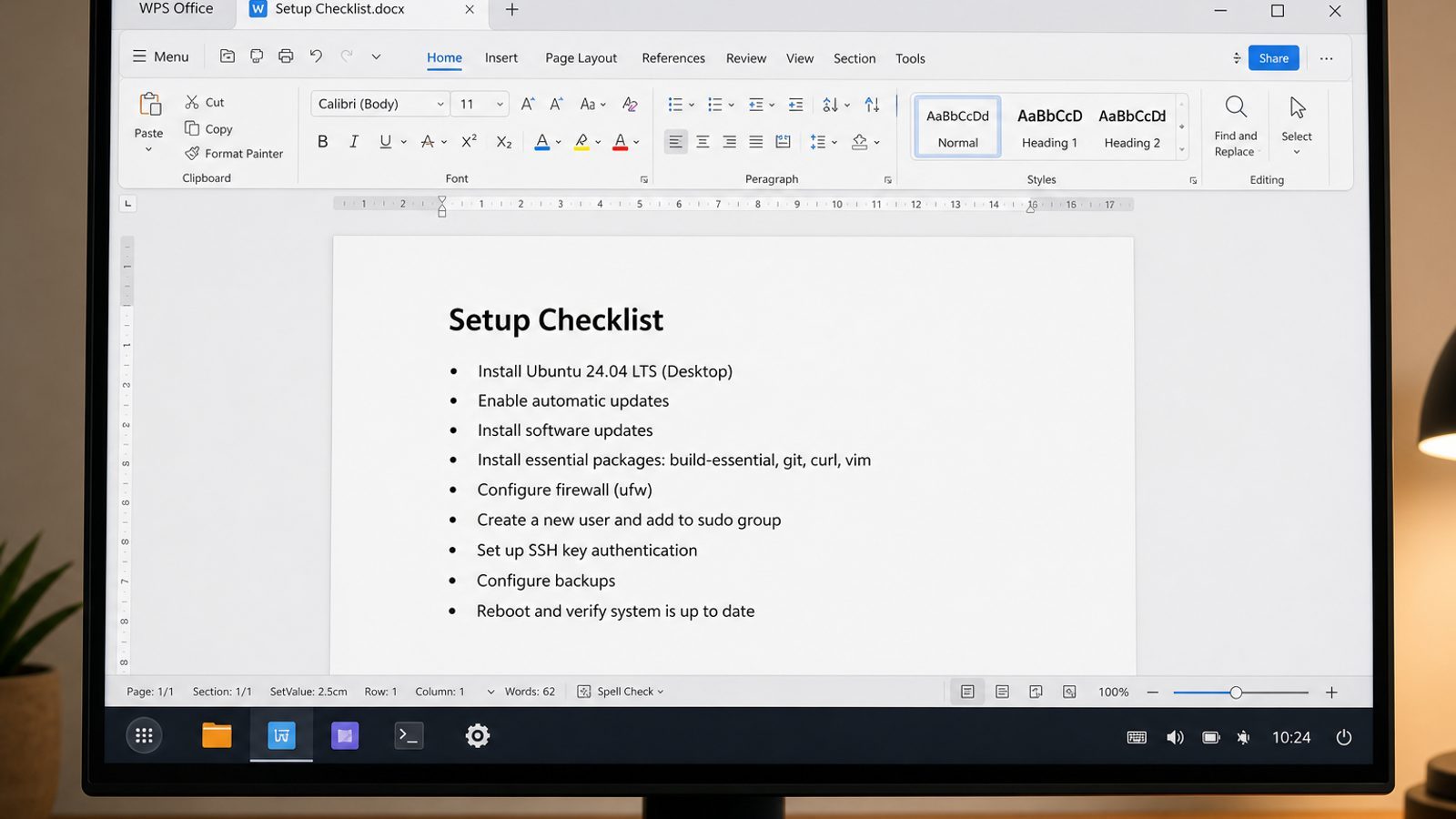
WPS Office for Linux keeps that workflow familiar on older hardware: Writer, Spreadsheet, Presentation, and PDF tools with a lighter footprint than many heavy suites.
| What you need next | What WPS gives you |
|---|---|
| Edit school and office files on a refurbished or aging laptop | Strong .docx / .xlsx / .pptx layout fidelity when files move between Linux, Windows, and macOS |
| One place for notes, sheets, slides, and PDFs | Free core suite: Writer, Spreadsheet, Presentation, plus PDF view/edit/convert tools |
| A familiar desktop UI for switchers | Ribbon-style apps with a lighter footprint than many heavy suites |
| A trusted install path | Official DEB (Ubuntu/Debian/Mint) and RPM packages from the vendor |
Get the current 64-bit package from the official WPS Office for Linux download page, install it with sudo apt install ./wps-office_VERSION_amd64.deb, then test a few real DOCX/XLSX files before you rely on the machine for class or work.


FAQ
Is Linux Mint good for old laptops?
Mint Xfce yes for many 4 GB machines; full Cinnamon needs more RAM. Compare editions in Linux Mint vs Ubuntu.
Lubuntu or Xubuntu?
Lubuntu usually idles lighter; Xubuntu often feels more polished. Test both live USBs on your hardware.
Will Linux make my laptop as fast as new?
No—but it can remove Windows update bloat and free RAM for real work.
Can I keep Windows and try Linux?
Yes—dual-boot or try live USB first. Back up before resizing partitions.
My Wi-Fi fails in live mode—now what?
Use Ethernet/USB tether for install and firmware packages; search your chipset on the distro’s forums before wiping the disk.
Is Chrome OS Flex better?
Flex can be fine for browser-only use. Choose Linux when you need apt packages, local apps, or fuller offline control.
Should I upgrade BIOS before installing Linux?
If the vendor provides a stable UEFI update that mentions USB, storage, or Linux improvements, apply it on AC power before you repartition—otherwise leave firmware alone.
Can I use an external USB SSD as the system disk?
Yes for experiments; prefer internal SSD for daily drivers so you do not depend on a fragile USB port.
Write your target workload on a sticky note—browser, documents, video calls—and refuse scope creep until those three feel solid. That focus is how old laptops become useful Linux machines instead of endless tweak projects. When the machine finally feels calm, stop distro hopping and enjoy the extra years you bought with a light desktop and an SSD.

'%3e%3cpath%20d='M19.9911%204.11386V6.471H18.5894C18.0775%206.471%2017.7322%206.57814%2017.5536%206.79243C17.3751%207.00671%2017.2858%207.32814%2017.2858%207.75671V9.44421H19.9019L19.5536%2012.0871H17.2858V18.8639H14.5536V12.0871H12.2769V9.44421H14.5536V7.49779C14.5536%206.39064%2014.8632%205.53201%2015.4822%204.92189C16.1013%204.31177%2016.9257%204.00671%2017.9554%204.00671C18.8304%204.00671%2019.509%204.04243%2019.9911%204.11386Z'%20fill='%23333333'/%3e%3c/g%3e%3cdefs%3e%3cclipPath%20id='clip0_2938_8199'%3e%3crect%20width='16'%20height='16'%20fill='white'%20transform='translate(8%204.00671)'/%3e%3c/clipPath%3e%3c/defs%3e%3c/svg%3e)
'%3e%3cpath%20d='M17.5237%2010.7813L23.4811%204H22.0699L16.8949%209.88693L12.7648%204H8L14.2469%2012.9029L8%2020.0133H9.4112L14.8725%2013.7952L19.2352%2020.0133H24M9.92053%205.04213H12.0885L22.0688%2019.0224H19.9003'%20fill='%23333333'/%3e%3c/g%3e%3cdefs%3e%3cclipPath%20id='clip0_2938_8200'%3e%3crect%20width='16'%20height='16.0134'%20fill='white'%20transform='translate(8%204)'/%3e%3c/clipPath%3e%3c/defs%3e%3c/svg%3e)


