

'%3e%3cpath%20d='M8%200C12.4183%200%2016%203.58172%2016%208C16%2012.4183%2012.4183%2016%208%2016C3.58172%2016%200%2012.4183%200%208C0%203.58172%203.58172%200%208%200ZM11.6162%204.38379C11.2257%203.99337%2010.5927%203.99338%2010.2021%204.38379L8%206.58594L5.79785%204.38379C5.40732%203.99334%204.77429%203.99329%204.38379%204.38379C3.99331%204.77429%203.99335%205.40733%204.38379%205.79785L6.58594%208L4.38379%2010.2021C3.99348%2010.5927%203.99341%2011.2257%204.38379%2011.6162C4.77426%2012.0066%205.40734%2012.0065%205.79785%2011.6162L8%209.41406L10.2021%2011.6162C10.5927%2012.0066%2011.2257%2012.0067%2011.6162%2011.6162C12.0067%2011.2257%2012.0066%2010.5927%2011.6162%2010.2021L9.41406%208L11.6162%205.79785C12.0066%205.40735%2012.0066%204.77429%2011.6162%204.38379Z'%20fill='%23080E17'%20fill-opacity='0.46'/%3e%3c/g%3e%3cdefs%3e%3cclipPath%20id='clip0_3761_713'%3e%3crect%20width='16'%20height='16'%20fill='white'/%3e%3c/clipPath%3e%3c/defs%3e%3c/svg%3e)




'%3e%3cpath%20fill-rule='evenodd'%20clip-rule='evenodd'%20d='M21.4999%2010.9993C21.4999%205.20009%2016.7986%200.498901%2010.9993%200.498901C5.19994%200.498901%200.498657%205.20009%200.498657%2010.9993C0.498657%2016.2404%204.33858%2020.5844%209.35855%2021.3722V14.0346H6.69238V10.9993H9.35855V8.68594C9.35855%206.05427%2010.9262%204.60062%2013.3248%204.60062C14.4736%204.60062%2015.6753%204.80571%2015.6753%204.80571V7.38979H14.3512C13.0468%207.38979%2012.64%208.19921%2012.64%209.0296V10.9993H15.5523L15.0867%2014.0346H12.64V21.3722C17.66%2020.5844%2021.4999%2016.2404%2021.4999%2010.9993Z'%20fill='%231568EA'/%3e%3c/g%3e%3c/svg%3e)


'%3e%3cpath%20d='M2.42045%2022.1876H6.31818V12.7217L0.75%208.54553V20.5171C0.75%2021.4414%201.49892%2022.1876%202.42045%2022.1876Z'%20fill='%234285F4'/%3e%3cpath%20d='M19.682%2022.1876H23.5797C24.5041%2022.1876%2025.2502%2021.4387%2025.2502%2020.5171V8.54553L19.682%2012.7217'%20fill='%2334A853'/%3e%3cpath%20d='M19.682%205.48293V12.7216L25.2502%208.54543V6.31816C25.2502%204.25236%2022.8921%203.07469%2021.2411%204.31361'%20fill='%23FBBC04'/%3e%3cpath%20d='M6.31824%2012.7217V5.48303L13.0001%2010.4944L19.6819%205.48303V12.7217L13.0001%2017.733'%20fill='%23EA4335'/%3e%3cpath%20d='M0.75%206.31816V8.54543L6.31818%2012.7216V5.48293L4.75909%204.31361C3.10534%203.07469%200.75%204.25236%200.75%206.31816Z'%20fill='%23C5221F'/%3e%3c/g%3e%3cdefs%3e%3cclipPath%20id='clip0_2954_7305'%3e%3crect%20width='24.5'%20height='18.375'%20fill='white'%20transform='translate(0.75%203.8125)'/%3e%3c/clipPath%3e%3c/defs%3e%3c/svg%3e)


A credit card authorization form PDF is a practical document that businesses and individuals use to get written permission to charge a customerâs credit cardâeither for a one-time amount or for recurring payments. In this guide, youâll learn what the form is for, where to get a free template, how to fill and edit it correctly with WPS Office, how to keep card data secure, and why WPS PDF (including AI Form Filler) is a strong all-in-one choice.
If you also need a w2 form pdf, see our related guide.
For a faster fill-and-sign workflow, try WPS pdf filler tools in WPS Office.
1. What Is a Credit Card Authorization Form PDF?
A credit card authorization form PDF records a customerâs consent so a merchant can process a payment without the physical card present. It typically captures the cardholderâs name, card number, expiration date, billing details, authorized amount (or recurring schedule), a description of goods/services, and a signature.
Common use cases include:
Hotels, rentals, and deposits that need a card on file
Subscription or installment billing
Phone / mail / online orders where the card is not swiped in person
Service businesses that invoice after work is completed
Having a clear, signed authorization PDF helps reduce payment disputes and keeps both the merchant and the cardholder aligned on what was approved.
2. How to Download Common Credit Card Authorization Form PDF Templates for Free?
You can download a credit card authorization form PDF from financial institutions, payment processors, merchant sites, or free template libraries. Choose a template that fits your region and complies with applicable rules.

How to get a free general template quickly:
Search for âcredit card authorization form PDF templateâ or âcredit card authorization form download.â
Pick a template that matches your country/region and business scenario.
Download and save it to an easy-to-find folder on your computer.
Core fields a solid template usually includes:
Cardholder / authorizer information (name, address, phone, email)
Credit card details (card number, expiration date, CVV if required by your process)
Authorized amount, billing frequency, and start/end dates for recurring charges
Description of products or services
Signature and date of authorization
If you also need a pdf filler download, see our related guide.
3. How to Correctly Fill Out and Edit a Credit Card Authorization Form?
Filling the form carefully protects both sides. Below is a practical three-step workflowâusing WPS PDF tools for editing, signing, converting, and faster AI-assisted filling.
Step 1: Enter key information and follow security basics
Open the form and complete only the fields you need. Double-check spelling of the cardholder name, the authorized amount, and the billing description. Avoid sharing the completed PDF over unsecured channels, and never leave a filled form on a shared public computer.

Step 2: Add an e-signature and edit the PDF in WPS
Install WPS Office, open the authorization form PDF, and switch to the PDF tab. Use Fill&Sign to type into fields, add dates, and place a digital signature or initials. You can also edit PDF text/annotations if the form needs small corrections before signing.

Faster option â WPS AI Form Filler: When WPS detects fillable fields, open AI Form or click AI Smart Form, paste/upload cardholder source details, then click Extract&Fill. Always review card number, expiry, and amount before saving.
Step 3: Convert Word or images into a proper PDF
If your authorization starts as a Word file or a scanned image, convert it into a clean PDF first. Use a PDF converter (or WPS desktop convert tools) to create a standard PDF, then open it in WPS for Fill&Sign. If the file is large for email, compress PDF; if you only need one page, split PDF before sending.
4. Advanced Tips to Keep Credit Card Authorization Secure
Credit card data is highly sensitive. Treat completed authorization PDFs like financial records:
Encrypt the PDF with a strong password before emailing or storing it in shared drives.
Add a watermark (for example, âConfidential â Authorized Use Onlyâ) to discourage casual forwarding.
Limit access to staff who need the form; remove completed files from personal downloads folders.
Verify identity before processing charges, especially for high-value or recurring authorizations.
Retain only what you need, and follow your companyâs data-retention and PCI-related policies.
WPS PDFâs protect and watermark tools make these security steps practical without switching to a separate app.
If you also need a free pdf filler, see our related guide.
5. A Recommended Tool: WPS Office for Credit Card Authorization PDFs
Filling out a credit card authorization form PDF is more than a quick admin task. The details are sensitive, the amounts must be exact, and a single wrong digit can delay payment or create a dispute. After working through the fields above, I looked for a tool that could make this process safer and fasterâand WPS Office stands out as a practical recommendation.
With WPS PDF, you can edit fillable forms, add e-signatures, convert Word or image files into clean PDFs, encrypt or watermark completed authorizations, and use AI Form Filler to populate repetitive cardholder fields with less manual typing.
AI smart form filling for repetitive cardholder fields
Free PDF editing and Fill&Sign tools
Electronic signatures and date stamps
One-click encryption / watermark for safer sharing
How to use WPS AI Form Filler on a credit card authorization form PDF
Similar to other multi-field PDF workflows, you can complete an authorization form faster with WPS AI Form Filler:
Step 1. Download your credit card authorization form PDF template and save it locally.
Step 2. Open it in WPS Office, then go to PDF â Fill&Sign.
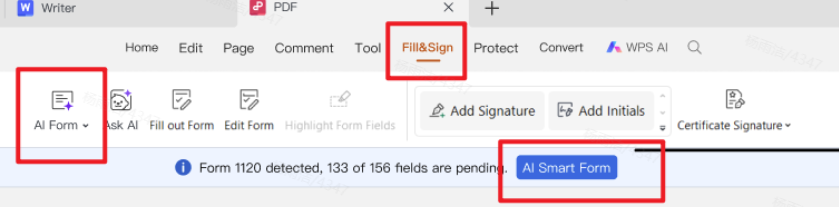
Step 3. When fields are detected, click AI Form in the ribbon or AI Smart Form on the prompt bar.
Step 4. In the AI Form Filler window, paste text, click + Upload File, or drag a file that contains the cardholder details. Then click Extract&Fill. Processing can run locally to help keep usage secure.
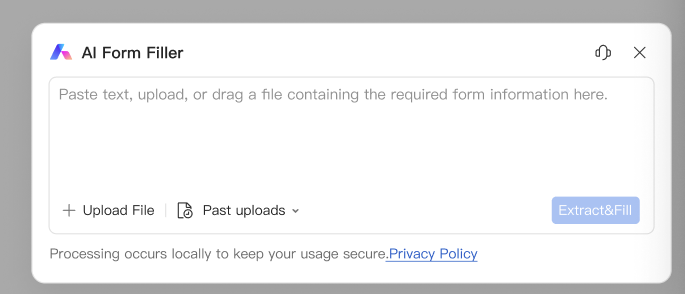
Step 5. Review every sensitive field (card number, expiry, amount, signature area), fix anything incorrect, then save and encrypt the PDF before sharing.
Summary

'%3e%3cpath%20d='M19.9911%204.11386V6.471H18.5894C18.0775%206.471%2017.7322%206.57814%2017.5536%206.79243C17.3751%207.00671%2017.2858%207.32814%2017.2858%207.75671V9.44421H19.9019L19.5536%2012.0871H17.2858V18.8639H14.5536V12.0871H12.2769V9.44421H14.5536V7.49779C14.5536%206.39064%2014.8632%205.53201%2015.4822%204.92189C16.1013%204.31177%2016.9257%204.00671%2017.9554%204.00671C18.8304%204.00671%2019.509%204.04243%2019.9911%204.11386Z'%20fill='%23333333'/%3e%3c/g%3e%3cdefs%3e%3cclipPath%20id='clip0_2938_8199'%3e%3crect%20width='16'%20height='16'%20fill='white'%20transform='translate(8%204.00671)'/%3e%3c/clipPath%3e%3c/defs%3e%3c/svg%3e)
'%3e%3cpath%20d='M17.5237%2010.7813L23.4811%204H22.0699L16.8949%209.88693L12.7648%204H8L14.2469%2012.9029L8%2020.0133H9.4112L14.8725%2013.7952L19.2352%2020.0133H24M9.92053%205.04213H12.0885L22.0688%2019.0224H19.9003'%20fill='%23333333'/%3e%3c/g%3e%3cdefs%3e%3cclipPath%20id='clip0_2938_8200'%3e%3crect%20width='16'%20height='16.0134'%20fill='white'%20transform='translate(8%204)'/%3e%3c/clipPath%3e%3c/defs%3e%3c/svg%3e)


