



'%3e%3cpath%20fill-rule='evenodd'%20clip-rule='evenodd'%20d='M21.4999%2010.9993C21.4999%205.20009%2016.7986%200.498901%2010.9993%200.498901C5.19994%200.498901%200.498657%205.20009%200.498657%2010.9993C0.498657%2016.2404%204.33858%2020.5844%209.35855%2021.3722V14.0346H6.69238V10.9993H9.35855V8.68594C9.35855%206.05427%2010.9262%204.60062%2013.3248%204.60062C14.4736%204.60062%2015.6753%204.80571%2015.6753%204.80571V7.38979H14.3512C13.0468%207.38979%2012.64%208.19921%2012.64%209.0296V10.9993H15.5523L15.0867%2014.0346H12.64V21.3722C17.66%2020.5844%2021.4999%2016.2404%2021.4999%2010.9993Z'%20fill='%231568EA'/%3e%3c/g%3e%3c/svg%3e)


'%3e%3cpath%20d='M2.42045%2022.1876H6.31818V12.7217L0.75%208.54553V20.5171C0.75%2021.4414%201.49892%2022.1876%202.42045%2022.1876Z'%20fill='%234285F4'/%3e%3cpath%20d='M19.682%2022.1876H23.5797C24.5041%2022.1876%2025.2502%2021.4387%2025.2502%2020.5171V8.54553L19.682%2012.7217'%20fill='%2334A853'/%3e%3cpath%20d='M19.682%205.48293V12.7216L25.2502%208.54543V6.31816C25.2502%204.25236%2022.8921%203.07469%2021.2411%204.31361'%20fill='%23FBBC04'/%3e%3cpath%20d='M6.31824%2012.7217V5.48303L13.0001%2010.4944L19.6819%205.48303V12.7217L13.0001%2017.733'%20fill='%23EA4335'/%3e%3cpath%20d='M0.75%206.31816V8.54543L6.31818%2012.7216V5.48293L4.75909%204.31361C3.10534%203.07469%200.75%204.25236%200.75%206.31816Z'%20fill='%23C5221F'/%3e%3c/g%3e%3cdefs%3e%3cclipPath%20id='clip0_2954_7305'%3e%3crect%20width='24.5'%20height='18.375'%20fill='white'%20transform='translate(0.75%203.8125)'/%3e%3c/clipPath%3e%3c/defs%3e%3c/svg%3e)


Whether you are filling a form, fixing a typo on a contract, or converting study notes, a reliable PDF editor can save hours. Many people search for a candy pdf editor because PDF Candy is easy to find and quick to try. In this guide, we introduce PDF Candy.
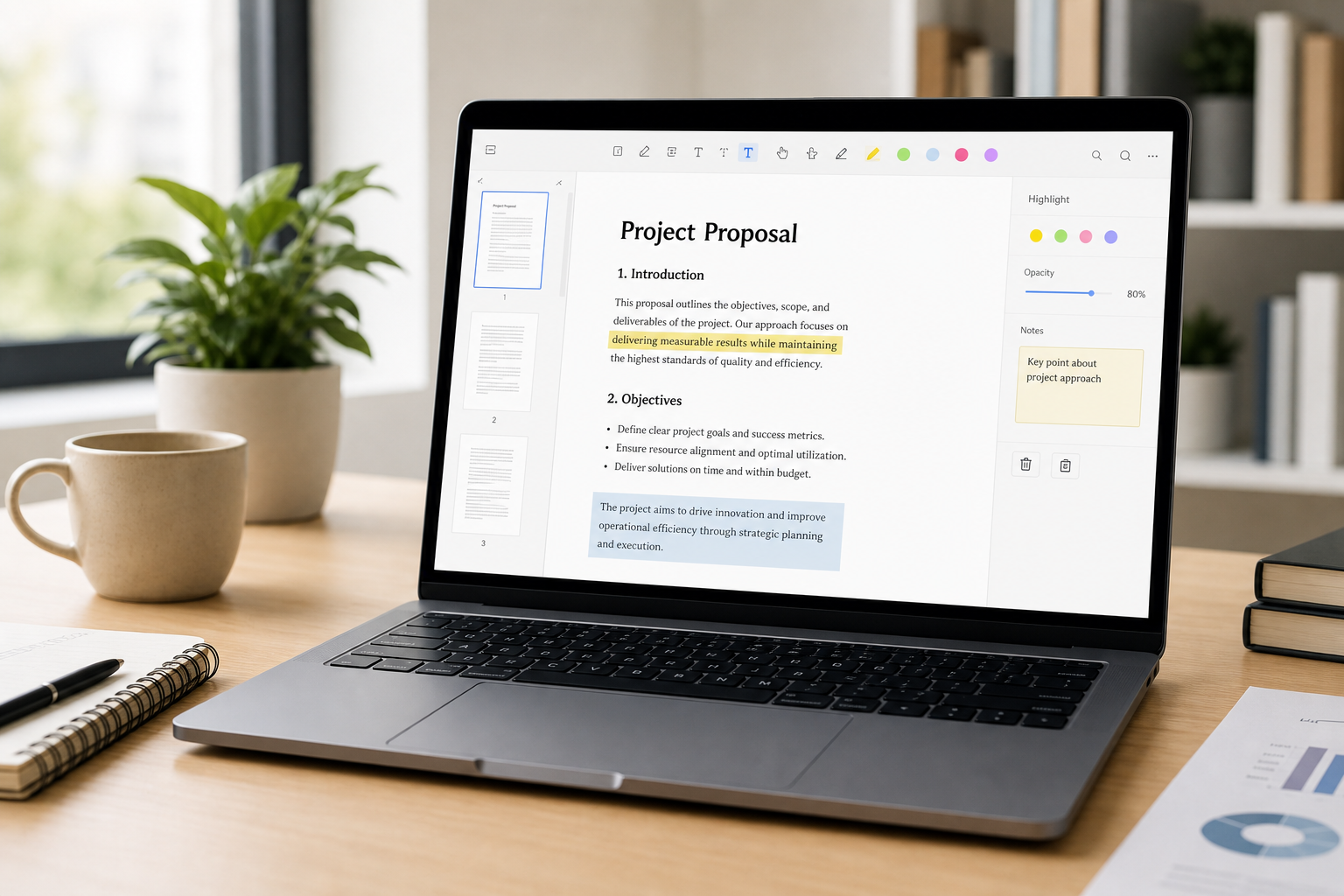
What Is PDF Candy?
PDF Candy is a multi-tool PDF toolkit from Icecream Apps. It focuses on common PDF jobs: edit, convert, merge, split, compress, sign, and more. You can use it in two main ways:
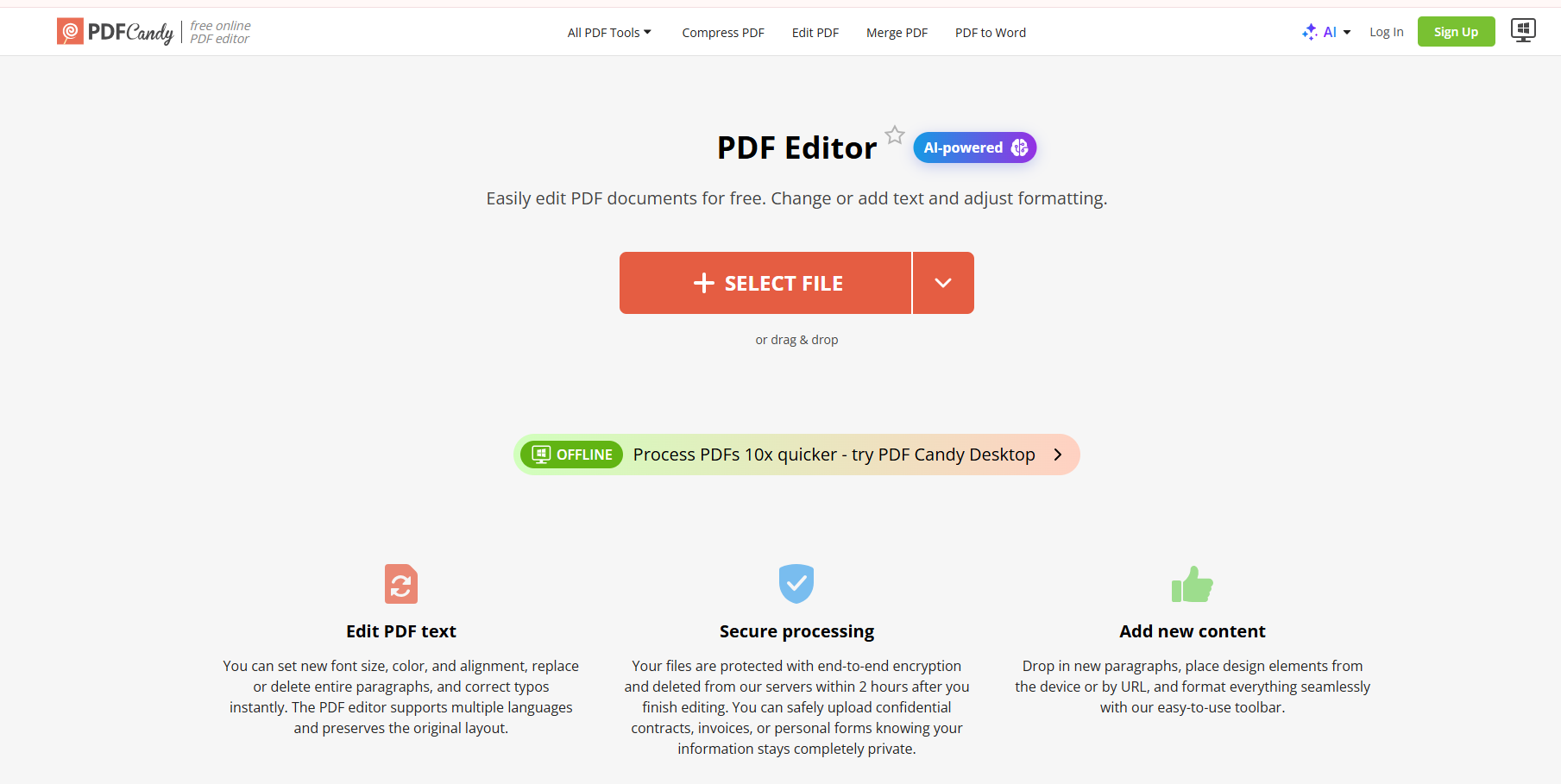
Online: browser tools on pdfcandy.com, including a free AI-assisted PDF editor for adding or changing text, annotations, images, and signatures.
Desktop: PDF Candy Desktop on Windows (also listed on the Microsoft Store), with dozens of local tools for conversion, page management, OCR (see how to edit scanned pdf), and batch processing.
In short, PDF Candy positions itself as an all-in-one candy-style toolbox: pick a task, process a file, and download the result—without needing a full office suite.
How to Edit a PDF with Candy PDF
1. Online PDF editing (recommended for quick jobs)
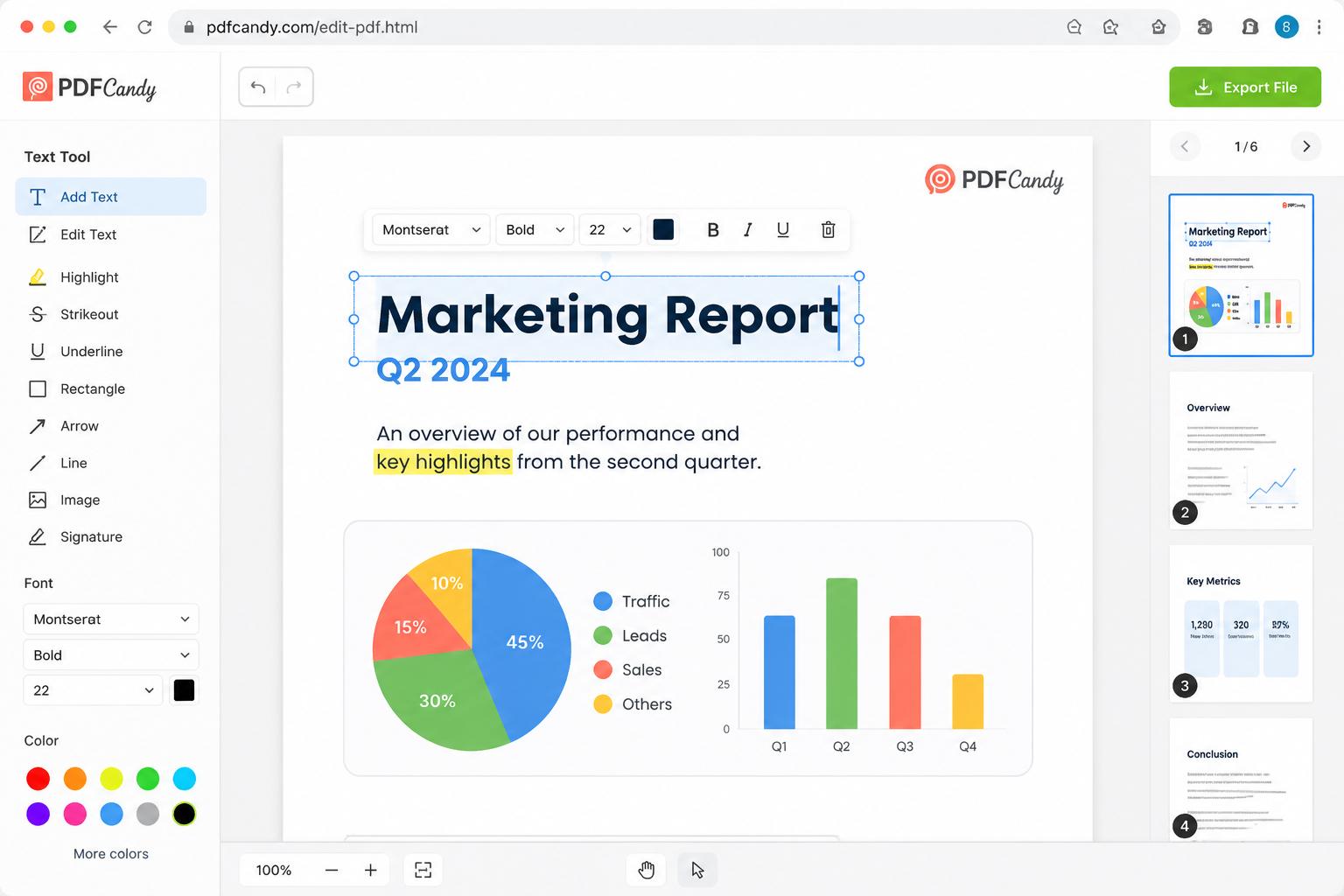
The online editor is the fastest path for light edits—perfect when you want to edit pdf online free without login. A typical flow on the Edit PDF page looks like this:
Open the Candy PDF in your browser.
Upload a file from your device, or pull it from cloud storage such as Google Drive or Dropbox.
Edit in the browser: change or add text (font size, color, alignment), highlight or annotate, insert images, add a handwritten/typed/uploaded signature, and rotate, delete, or reorder pages.
Click Export, then download the updated PDF.
Online PDF editing
2. Offline / desktop editing
If you prefer not to upload files—or you need repeated local work—install PDF Candy Desktop from the Microsoft Store or Icecream Apps’ download page. After install:
Launch the app and choose a tool (edit, convert, merge/split, compress, OCR, and more).
Select one or more local PDFs and run the task on your PC.
Use batch processing when you have many similar files to convert or organize.
The desktop build is useful for privacy-sensitive documents and offline workflows, though the free trial may limit how many operations you can run before upgrading.


PDF Candy Pros and Cons: Online vs Desktop
Here is a practical side-by-side view of the two PDF Candy options:
| Dimension | Online (Web) | Desktop (Offline) |
|---|---|---|
| Ease of use | No install; open the page and upload | Requires install; familiar Windows UI |
| Feature depth | Strong for quick edit/annotate/sign/convert tasks | Broader local toolkit (~35 tools), OCR, batch jobs |
| Processing speed | Depends on upload size and server queue | Runs locally; often steadier for repeated tasks |
| Privacy & security | Files go to the cloud (encrypted; auto-deleted after a short period) | Files stay on your device—better for confidential PDFs |
| Free-plan limits | File-size / hourly or plan limits (e.g., ~50 MB free) | Trial may restrict free operations; Pro unlocks full use |
Bottom line for PDF Candy: the online candy pdf editor is convenient for one-off edits; the desktop app is better when you need offline control or batch work. Neither replaces a full document workspace if you edit PDFs every day alongside Word, Excel, and slides.
Best Alternative to PDFFiller PDF Editor: WPS Office
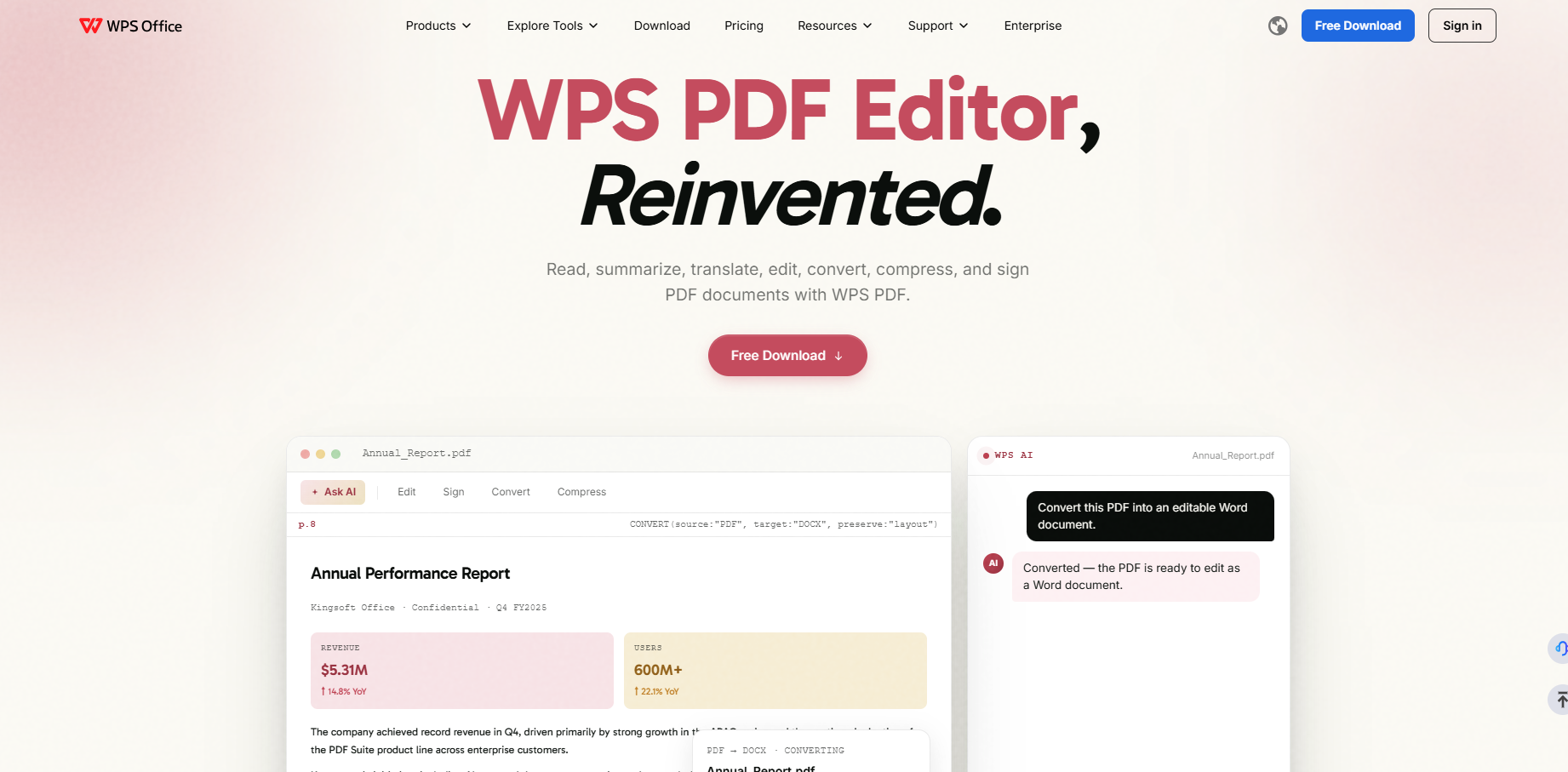
If your PDF work is frequent—or you need deeper edits than “add a line and export”—consider WPS PDF. It is built as part of the WPS Office suite, so PDF editing sits next to Writer, Spreadsheet, and Presentation instead of living as a standalone converter site.
Key advantages that matter in real office workflows:
Deep, Word-like PDF editing: revise text and layout more thoroughly when a quick online patch is not enough.
Full office ecosystem: convert PDF to Word/Excel/PPT, then continue editing in the same suite without jumping between websites.
AI-assisted reading: summarize long reports, translate content, explain selected text, and chat with a PDF to find answers faster.
Everyday PDF toolkit: compress, merge/split, e-sign, OCR, and share with comments—plus cross-device workflows for work that is not “upload once and leave.”
Better fit for high-frequency use: when PDF Candy’s free limits, queues, or single-task flow slow you down, WPS is designed for continuous document work.
That does not mean PDF Candy is useless. For a quick signature or a small text fix in the browser, it can still be enough. For students, freelancers, and teams who live in PDFs daily, WPS usually delivers a smoother long-term experience.


'%3e%3cpath%20d='M19.9911%204.11386V6.471H18.5894C18.0775%206.471%2017.7322%206.57814%2017.5536%206.79243C17.3751%207.00671%2017.2858%207.32814%2017.2858%207.75671V9.44421H19.9019L19.5536%2012.0871H17.2858V18.8639H14.5536V12.0871H12.2769V9.44421H14.5536V7.49779C14.5536%206.39064%2014.8632%205.53201%2015.4822%204.92189C16.1013%204.31177%2016.9257%204.00671%2017.9554%204.00671C18.8304%204.00671%2019.509%204.04243%2019.9911%204.11386Z'%20fill='%23333333'/%3e%3c/g%3e%3cdefs%3e%3cclipPath%20id='clip0_2938_8199'%3e%3crect%20width='16'%20height='16'%20fill='white'%20transform='translate(8%204.00671)'/%3e%3c/clipPath%3e%3c/defs%3e%3c/svg%3e)
'%3e%3cpath%20d='M17.5237%2010.7813L23.4811%204H22.0699L16.8949%209.88693L12.7648%204H8L14.2469%2012.9029L8%2020.0133H9.4112L14.8725%2013.7952L19.2352%2020.0133H24M9.92053%205.04213H12.0885L22.0688%2019.0224H19.9003'%20fill='%23333333'/%3e%3c/g%3e%3cdefs%3e%3cclipPath%20id='clip0_2938_8200'%3e%3crect%20width='16'%20height='16.0134'%20fill='white'%20transform='translate(8%204)'/%3e%3c/clipPath%3e%3c/defs%3e%3c/svg%3e)


