



'%3e%3cpath%20fill-rule='evenodd'%20clip-rule='evenodd'%20d='M21.4999%2010.9993C21.4999%205.20009%2016.7986%200.498901%2010.9993%200.498901C5.19994%200.498901%200.498657%205.20009%200.498657%2010.9993C0.498657%2016.2404%204.33858%2020.5844%209.35855%2021.3722V14.0346H6.69238V10.9993H9.35855V8.68594C9.35855%206.05427%2010.9262%204.60062%2013.3248%204.60062C14.4736%204.60062%2015.6753%204.80571%2015.6753%204.80571V7.38979H14.3512C13.0468%207.38979%2012.64%208.19921%2012.64%209.0296V10.9993H15.5523L15.0867%2014.0346H12.64V21.3722C17.66%2020.5844%2021.4999%2016.2404%2021.4999%2010.9993Z'%20fill='%231568EA'/%3e%3c/g%3e%3c/svg%3e)


'%3e%3cpath%20d='M2.42045%2022.1876H6.31818V12.7217L0.75%208.54553V20.5171C0.75%2021.4414%201.49892%2022.1876%202.42045%2022.1876Z'%20fill='%234285F4'/%3e%3cpath%20d='M19.682%2022.1876H23.5797C24.5041%2022.1876%2025.2502%2021.4387%2025.2502%2020.5171V8.54553L19.682%2012.7217'%20fill='%2334A853'/%3e%3cpath%20d='M19.682%205.48293V12.7216L25.2502%208.54543V6.31816C25.2502%204.25236%2022.8921%203.07469%2021.2411%204.31361'%20fill='%23FBBC04'/%3e%3cpath%20d='M6.31824%2012.7217V5.48303L13.0001%2010.4944L19.6819%205.48303V12.7217L13.0001%2017.733'%20fill='%23EA4335'/%3e%3cpath%20d='M0.75%206.31816V8.54543L6.31818%2012.7216V5.48293L4.75909%204.31361C3.10534%203.07469%200.75%204.25236%200.75%206.31816Z'%20fill='%23C5221F'/%3e%3c/g%3e%3cdefs%3e%3cclipPath%20id='clip0_2954_7305'%3e%3crect%20width='24.5'%20height='18.375'%20fill='white'%20transform='translate(0.75%203.8125)'/%3e%3c/clipPath%3e%3c/defs%3e%3c/svg%3e)


Have you ever needed to fix a typo in an urgent PDF contract—or sign a document while commuting—only to find your phone won't let you change the text?
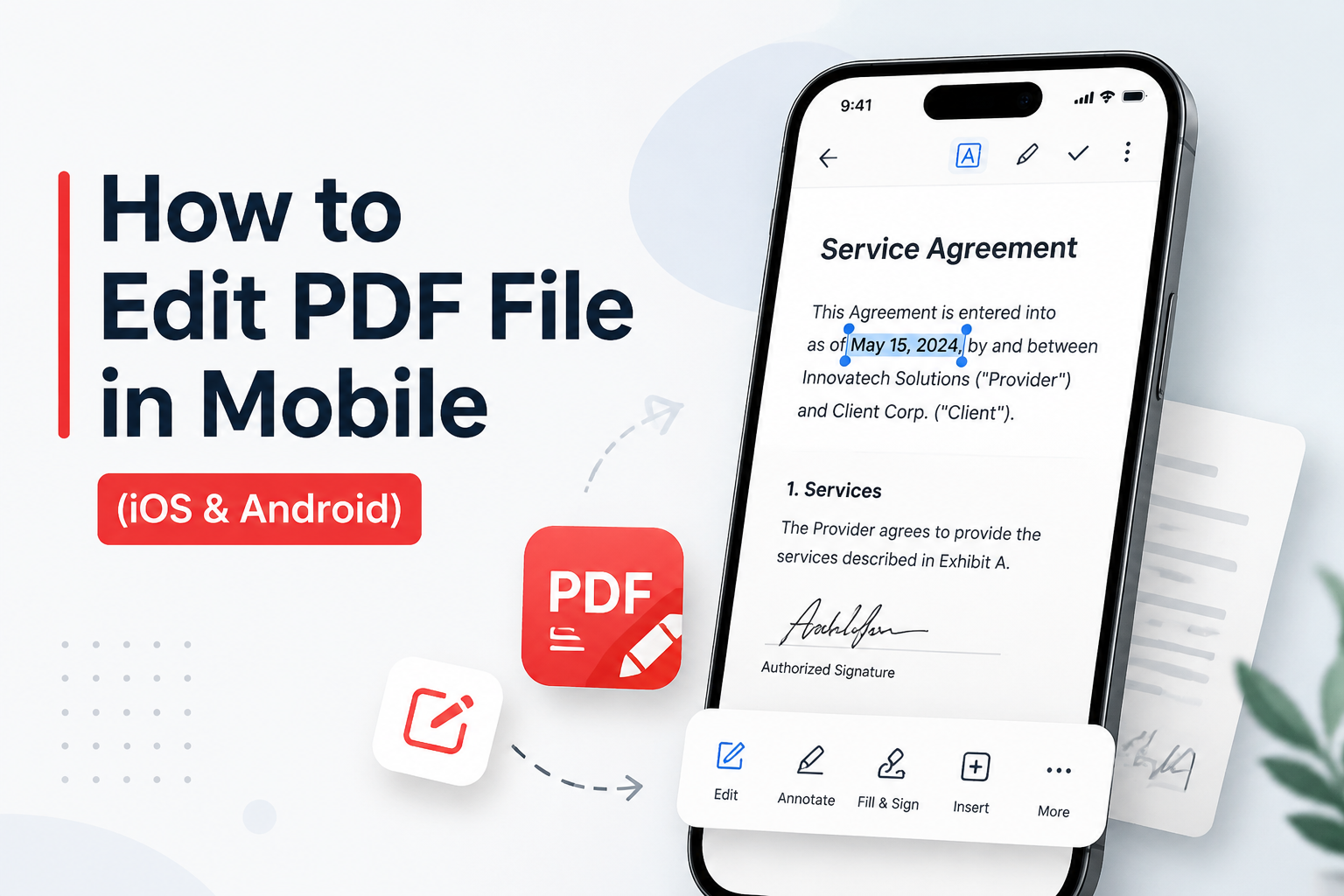
In a mobile-first world, being stuck waiting for a desktop just to tweak a simple document is frustrating. Fortunately, learning how to edit pdf file in mobile (including how to edit pdf in iphone) is easier than ever. Below are three practical methods—Foxit PDF Reader Mobile, Xodo PDF Reader & Editor, and WPS Office—followed by a side-by-side comparison and why WPS is often the best free alternative for everyday edits.
Pro Tips to Master Mobile PDF Editing
Before you pick an app, keep these practical tips in mind so your mobile PDF workflow stays fast on both Android and iPhone:
Use mobile OCR for scanned documents: Scanned PDFs are image-based and can't be typed into directly. Prefer an app with a clear OCR path (like WPS) so pages become searchable, editable text.
Compress large files: Need to email a PDF quickly? Use built-in compression to shrink file size without losing crisp quality.
Organize & reorder pages: Look for page tools that let you delete, rotate, split, or reorder pages on your phone—without jumping back to a desktop.
Method 1: Edit PDF File in Mobile with Foxit PDF Reader Mobile
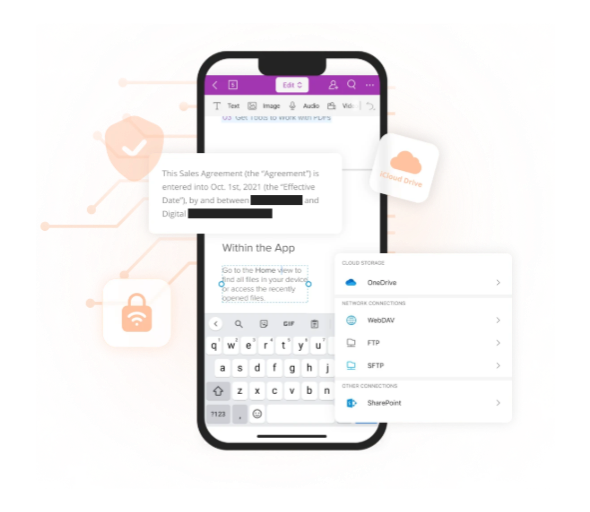
Foxit is a familiar name in PDF tools. On Android and iPhone, Foxit PDF Reader / Editor lets you open files from local storage or the cloud, annotate pages, fill forms, and—with the editor features—modify text and images. It's a solid option when you already work in the Foxit ecosystem.
Best for: users who need annotation, form fill, and subscription-based advanced editing on both Android and iOS.
How to edit a PDF on Android or iPhone with Foxit
Install and open the app: Download Foxit from Google Play or the App Store, then launch it on your phone.
Open your PDF: Pick a file from Recent, device storage, or a linked cloud account (Google Drive, Dropbox, OneDrive, iCloud, and similar).
Enter Edit mode: Tap Edit on the toolbar to access content tools.
Change text or images: Tap a text box to edit wording, boldness, or color; tap an image to remove, replace, resize, or rotate it.
Adjust layout if needed: Drag text boxes to improve spacing after edits.
Save your work: Tap Done / Save when you finish, then share or export the updated PDF.
Note: Viewing, basic markup, and form filling are often available for free, but deeper text/image editing usually requires a Foxit Editor subscription (pricing starts at about $11.22/month).
Method 2: Edit PDF File in Mobile with Xodo PDF Reader & Editor
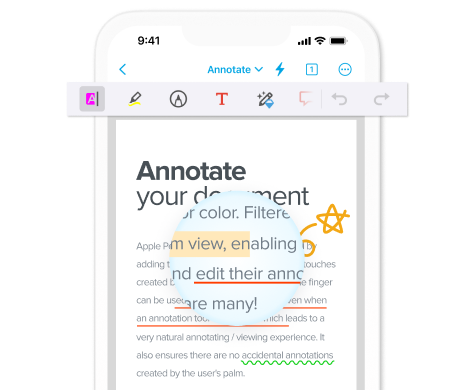
Xodo PDF Reader & Editor is a popular free-to-start app for reading and marking up PDFs on Android and iPhone. It shines for annotations, form fill, signing, and document actions like merge, split, or compress—handy when you need quick markup more than heavy layout rewrites.
Best for: annotating, signing, and light edits while syncing with cloud drives.
How to edit a PDF on Android or iPhone with Xodo
Install Xodo: Get Xodo PDF Reader & Editor from Google Play or the App Store.
Open the PDF: Tap Files (or View and Edit), then select your document from device folders or cloud storage. Use + if you need to import a new file.
Use the editing toolbar: Open the top-left tool menu to annotate, draw, fill & sign, or insert text/objects.
Add or edit text: Choose Add Text (T) from Annotate, tap the page, type your content, and adjust font, size, or color.
Use More Actions when needed: Tap the lightning / More Actions icon for OCR, convert, merge, extract pages, compress, and similar tools.
Save or export: Changes often auto-save; use Share / Export from the menu when you're ready to send the file.
Note: Xodo is strong for markup and page tools. True "rewrite the original paragraph like Word" editing can feel limited compared with a full office suite, and advanced features often sit behind paid plans (pricing starts at about $9.99/month).
Method 3: How to Edit PDF File in Mobile with WPS Office (Android & iPhone)
Whether you searched how to edit pdf file in mobile or how to edit pdf in iphone, the WPS workflow is the same on Android and iOS—only the store you download from changes.
Step 1: Download & Open WPS Office
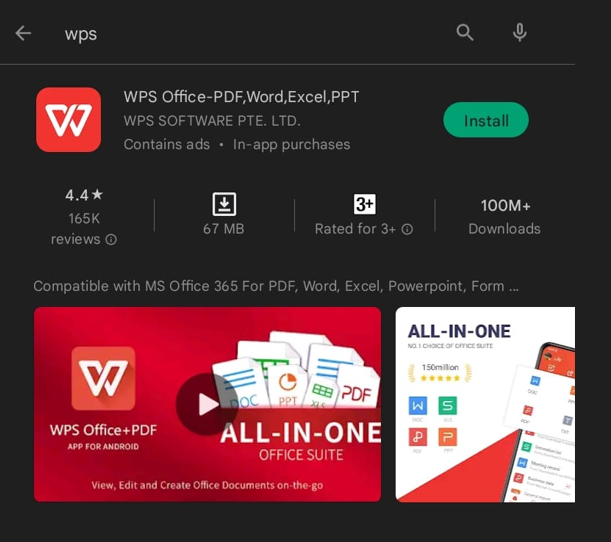
Install WPS Office from Google Play or the App Store. Open the app and sign in so cloud documents stay available when you switch devices.
iPhone tip: After installing from the App Store, grant Files / iCloud access so you can open PDFs from Mail, Files, or linked drives in one tap.
Step 2: Import Your PDF File
Tap + or Files and open the PDF from local storage, Google Drive, OneDrive, iCloud, or an email attachment.
Step 3: Enter Edit Mode
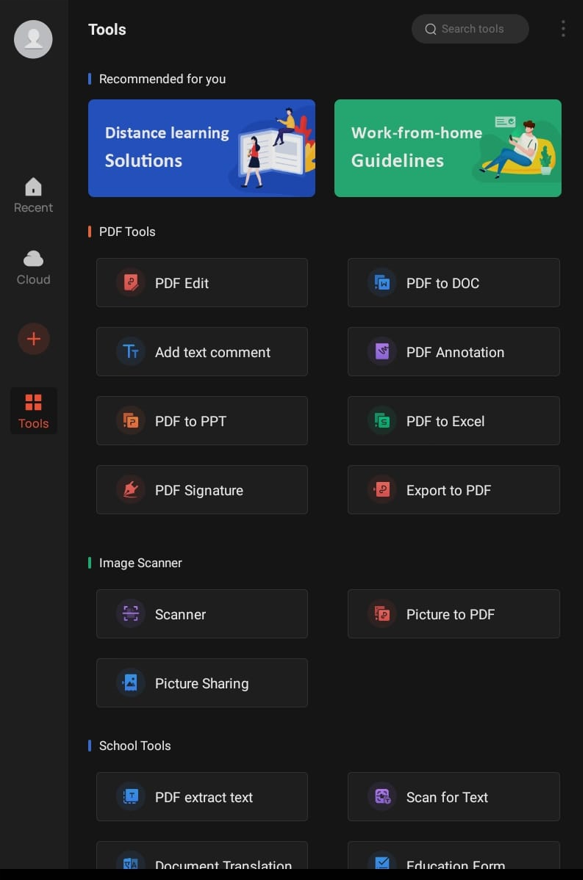
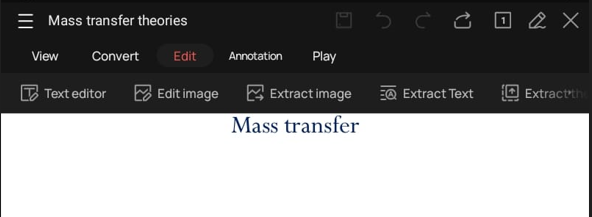
Go to Tools and choose PDF Edit, or tap Edit in the toolbar once the document is open.
Step 4: Modify Text and Images
Edit text: Tap a text box to change wording, font size, or color—ideal for quick typo fixes on the go.
Manage images: Tap an image to crop, rotate, adjust opacity, or replace it from your gallery.
Sign & share: Use Fill & Sign with your finger (or Apple Pencil on iPhone), then export via AirDrop, Mail, or messaging apps.
Step 5: Save & Export
Tap Done or the Save icon. Rename the file if needed, then save to local storage or your preferred cloud drive so the layout stays consistent when you reopen it on a PC.
Foxit vs Xodo vs WPS: Which App Fits Mobile PDF Editing?
After walking through all three methods, use this table to decide which app fits your workflow for how to edit pdf file in mobile and how to edit pdf in iphone—including a clear look at pricing:
| Feature | Foxit PDF Reader Mobile | Xodo PDF Reader & Editor | WPS Office |
|---|---|---|---|
| Price | Starts at $11.22/month | Starts at $9.99/month | Free (Standard) / Pro+ from $5.83/month (billed annually) |
| Platforms | Android & iOS | Android & iOS | Android & iOS (+ desktop / web) |
| Free basics | View, annotate, fill forms | View, annotate, sign, many page tools | View, annotate, edit, convert, OCR tools |
| Edit original text/images | Yes (often subscription-gated) | More oriented to add text / markup | Yes—text & image edit in one app |
| Office files (Word/Excel/PPT) | PDF-focused | PDF-focused | Full office suite + PDF toolkit |
| OCR / scanned PDFs | Available in paid editor flows | Available (often Pro) | Built-in mobile OCR path |
| Cross-device sync | Foxit cloud / linked drives | Cloud drives (Drive, Dropbox, etc.) | WPS Cloud + major cloud services |
| Best for | Foxit users needing Pro PDF edits | Fast markup, sign, page ops | All-in-one mobile office + PDF editing |
Price at a glance: Foxit starts at about $11.22/month and Xodo at about $9.99/month for advanced plans. WPS Office delivers premium productivity without the premium price tag—making it far more accessible for most mobile users.
Best Free Alternative: WPS Office
Foxit and Xodo can get basic jobs done, but everyday edit pdf file in mobile work often hits the same friction: advanced editing sits behind higher monthly fees (Foxit from ~$11.22, Xodo from ~$9.99), real body-text changes are paywalled, markup tools don't always rewrite the original wording cleanly, scanned pages need extra OCR steps, and PDF-only apps force you to switch elsewhere for Word, Excel, or PPT.
That's why WPS Office stands out as the best free alternative for most mobile users. WPS delivers premium productivity without the premium price tag:
WPS Standard (Free): Get instant access to basic PDF features, a free reader, 1GB of cloud space, and support for 47 file formats—no credit card required.
WPS Pro+ ($5.83/month): For advanced needs, just $5.83/month (billed annually) unlocks full PDF editing and conversion, advanced OCR, electronic signatures, 20GB of storage, and an ad-free workspace—typically more affordable than Foxit or Xodo paid tiers.
Desktop-level PDF editing on your phone: Edit existing text and images, not just overlay notes.
One app for the whole job: PDF + Word, Excel, and PPT—so you can convert, edit freely, then export back when needed.
Mobile scanner & OCR: Turn paper or image PDFs into searchable, editable text.
Annotation, Fill & Sign, page tools, and compression in the same toolkit—useful on both Android and iPhone.
Cross-device sync: Start on your phone, finish on a laptop without rebuilding the file.
If your real goal is a usable edited PDF today—without overpaying for a PDF-only subscription—edit PDF is the practical choice after comparing the three methods above.
Frequently Asked Questions (FAQs)
Q1: Can I edit a PDF file on my phone for free?
Yes. WPS Office offers free tools to open, view, annotate, and edit PDF files on both Android and iOS. Some advanced PDF features may require WPS Pro+—still priced lower than many PDF-only apps that start near $10–$11/month.
Q2: How to edit PDF in iPhone without installing extra apps?
The native iOS Files app lets you draw, add text boxes, highlight, and insert signatures. To edit the existing main text inside a PDF, you'll need a dedicated editor such as WPS Office.
Q3: Foxit vs Xodo vs WPS—which should I install?
Choose Foxit if you're already in that ecosystem and willing to pay from about $11.22/month for deep edits. Choose Xodo for fast markup and page tools (paid plans from about $9.99/month). Choose WPS Office if you want text/image PDF editing plus Word/Excel/PPT—with a free Standard plan and Pro+ from $5.83/month billed annually.
Q4: Will my edited PDF formatting break on a PC?
No. Edits saved in WPS Office Mobile are designed to keep layout integrity, so files stay consistent across desktop, web, and mobile.

'%3e%3cpath%20d='M19.9911%204.11386V6.471H18.5894C18.0775%206.471%2017.7322%206.57814%2017.5536%206.79243C17.3751%207.00671%2017.2858%207.32814%2017.2858%207.75671V9.44421H19.9019L19.5536%2012.0871H17.2858V18.8639H14.5536V12.0871H12.2769V9.44421H14.5536V7.49779C14.5536%206.39064%2014.8632%205.53201%2015.4822%204.92189C16.1013%204.31177%2016.9257%204.00671%2017.9554%204.00671C18.8304%204.00671%2019.509%204.04243%2019.9911%204.11386Z'%20fill='%23333333'/%3e%3c/g%3e%3cdefs%3e%3cclipPath%20id='clip0_2938_8199'%3e%3crect%20width='16'%20height='16'%20fill='white'%20transform='translate(8%204.00671)'/%3e%3c/clipPath%3e%3c/defs%3e%3c/svg%3e)
'%3e%3cpath%20d='M17.5237%2010.7813L23.4811%204H22.0699L16.8949%209.88693L12.7648%204H8L14.2469%2012.9029L8%2020.0133H9.4112L14.8725%2013.7952L19.2352%2020.0133H24M9.92053%205.04213H12.0885L22.0688%2019.0224H19.9003'%20fill='%23333333'/%3e%3c/g%3e%3cdefs%3e%3cclipPath%20id='clip0_2938_8200'%3e%3crect%20width='16'%20height='16.0134'%20fill='white'%20transform='translate(8%204)'/%3e%3c/clipPath%3e%3c/defs%3e%3c/svg%3e)


