



'%3e%3cpath%20fill-rule='evenodd'%20clip-rule='evenodd'%20d='M21.4999%2010.9993C21.4999%205.20009%2016.7986%200.498901%2010.9993%200.498901C5.19994%200.498901%200.498657%205.20009%200.498657%2010.9993C0.498657%2016.2404%204.33858%2020.5844%209.35855%2021.3722V14.0346H6.69238V10.9993H9.35855V8.68594C9.35855%206.05427%2010.9262%204.60062%2013.3248%204.60062C14.4736%204.60062%2015.6753%204.80571%2015.6753%204.80571V7.38979H14.3512C13.0468%207.38979%2012.64%208.19921%2012.64%209.0296V10.9993H15.5523L15.0867%2014.0346H12.64V21.3722C17.66%2020.5844%2021.4999%2016.2404%2021.4999%2010.9993Z'%20fill='%231568EA'/%3e%3c/g%3e%3c/svg%3e)


'%3e%3cpath%20d='M2.42045%2022.1876H6.31818V12.7217L0.75%208.54553V20.5171C0.75%2021.4414%201.49892%2022.1876%202.42045%2022.1876Z'%20fill='%234285F4'/%3e%3cpath%20d='M19.682%2022.1876H23.5797C24.5041%2022.1876%2025.2502%2021.4387%2025.2502%2020.5171V8.54553L19.682%2012.7217'%20fill='%2334A853'/%3e%3cpath%20d='M19.682%205.48293V12.7216L25.2502%208.54543V6.31816C25.2502%204.25236%2022.8921%203.07469%2021.2411%204.31361'%20fill='%23FBBC04'/%3e%3cpath%20d='M6.31824%2012.7217V5.48303L13.0001%2010.4944L19.6819%205.48303V12.7217L13.0001%2017.733'%20fill='%23EA4335'/%3e%3cpath%20d='M0.75%206.31816V8.54543L6.31818%2012.7216V5.48293L4.75909%204.31361C3.10534%203.07469%200.75%204.25236%200.75%206.31816Z'%20fill='%23C5221F'/%3e%3c/g%3e%3cdefs%3e%3cclipPath%20id='clip0_2954_7305'%3e%3crect%20width='24.5'%20height='18.375'%20fill='white'%20transform='translate(0.75%203.8125)'/%3e%3c/clipPath%3e%3c/defs%3e%3c/svg%3e)


Want to know how to download sejda pdf editor? Sejda offers both an online PDF editor you can use in the browser and a desktop app for Windows, macOS, and Linux. This guide walks you through the download and install steps first, then covers features, free-plan limits, and a stronger all-in-one alternative when you need a complete PDF workflow.
If you only need a quick edit, you can skip the installer and work online. If you prefer offline editing or better local privacy, follow the desktop download steps below. For a broader product overview, see our full guide to the sejda pdf editor.
How to Free Download Sejda PDF Editor (Step by Step)
Use these steps when you want the Sejda Desktop app on your computer. The same installer path covers Windows, macOS, and Linux, so choose the package that matches your system.
Open the official Sejda download page: In your browser, go to Sejdaâs official Desktop page at sejda.com/desktop. Confirm the address bar shows sejda.comâdo not use third-party mirror, APK, or âcracked installerâ sites. On the Desktop page, look for the PDF Editor / Free Download section so you get the authentic Sejda installer.
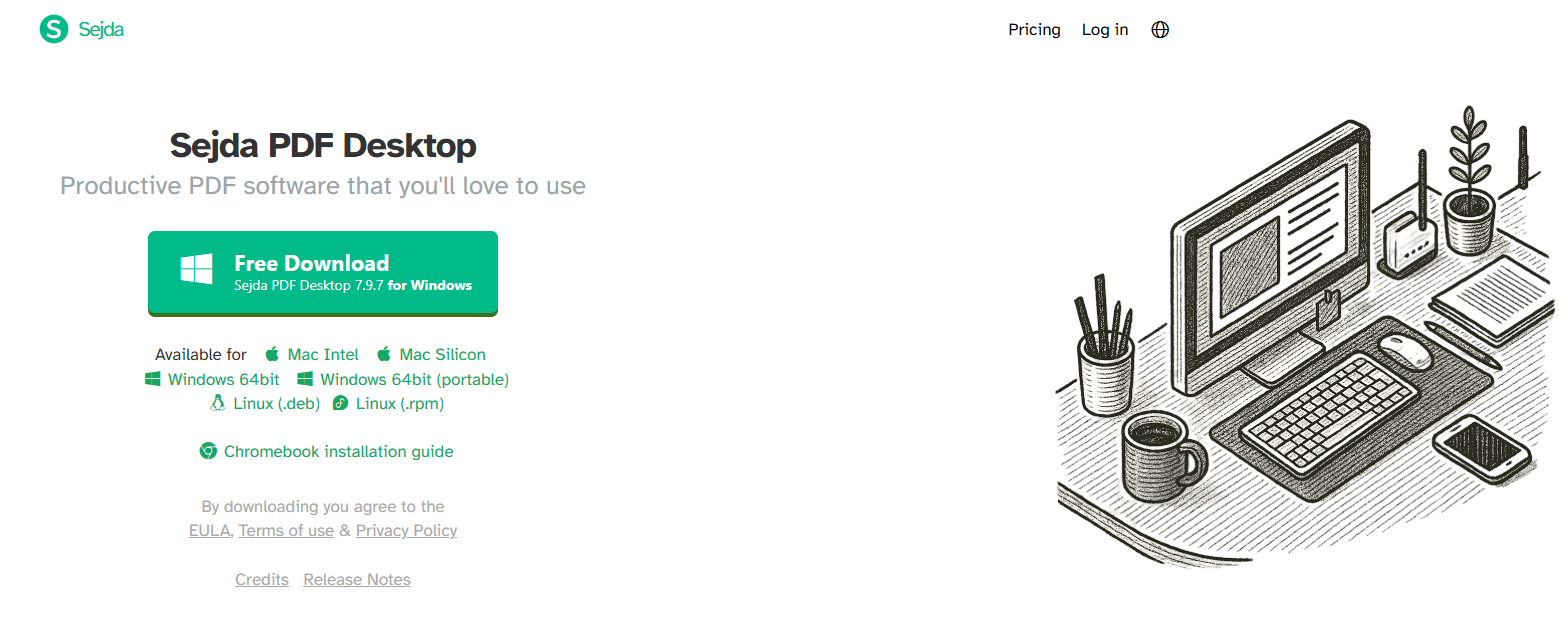
Sejda PDF download Choose your operating system: Select the installer that matches the computer you will use for PDF editing: Windows, macOS, or Linux. If the page offers more than one build (for example 64-bit Windows), pick the option that matches your system. Download for the device where you actually open PDFsânot a different machineâs OS.
Download the installer: Click the official Download / Free Download button and wait until the setup file finishes saving (common locations: your browserâs Downloads folder). Do not close the browser tab or interrupt the transfer mid-way. When the download completes, note the file name (for example a Windows
.msi/.exe, a macOS.dmg, or a Linux package) so you can find it quickly.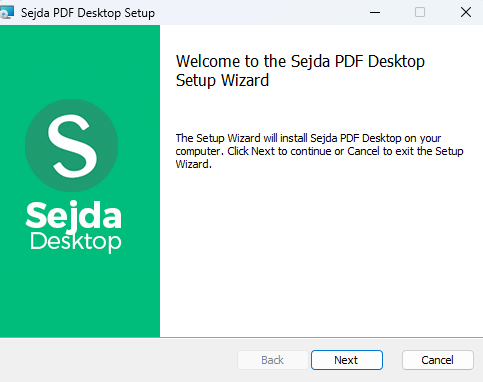
Sejda PDF Deskop Setup Install Sejda Desktop: Open the downloaded installer. On Windows, approve any security prompt if you trust the official Sejda file; on macOS, open the disk image and follow the drag-to-Applications steps if shown; on Linux, use the package method your distro expects. Accept the default install options unless you need a custom folder, then finish the setup wizard until it confirms installation is complete.
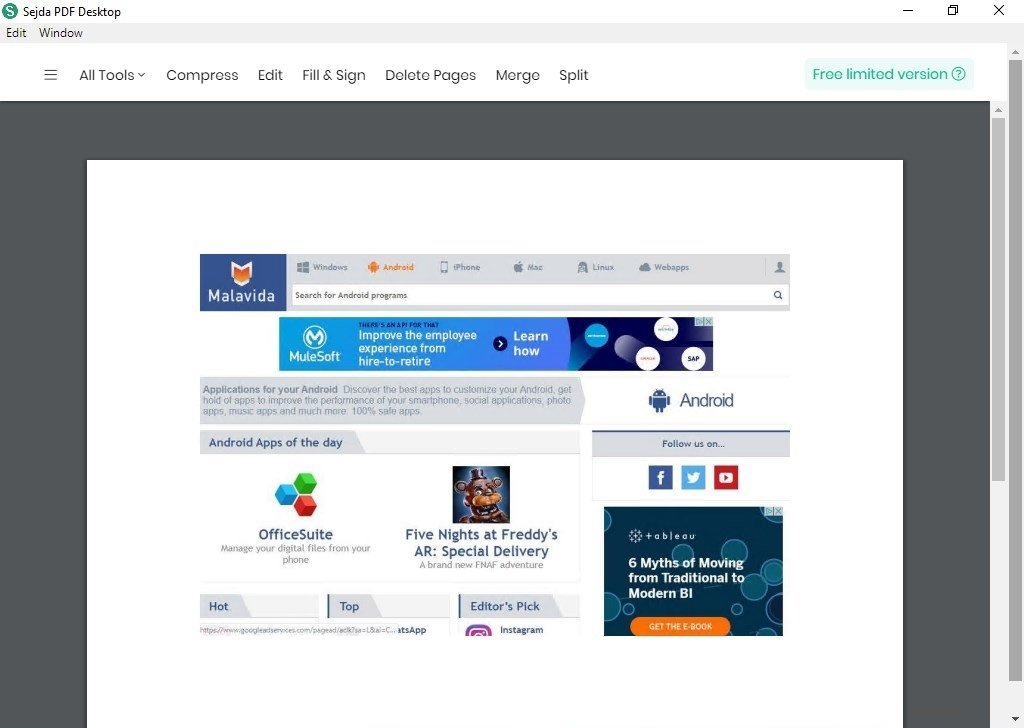
Launch and start editing: Open Sejda Desktop from the Start menu (Windows), Applications (macOS), or your app launcher (Linux). Click to open or drag in a PDF, then use the editor tools you needâedit text, annotate, merge, compress, or convert. Tip: you can still use Sejdaâs browser tools later for one-off tasks without uninstalling Desktop, so keep both options available if that fits your workflow.


Prefer not to install anything? Skip the desktop download and use Sejdaâs online editor insteadâupload a PDF in your browser, edit it, and download the result. The next section compares the online path and the desktop app so you can pick the better fit.
Sejda PDF Editor Download: Online Version vs Desktop App
Before you install anything, it helps to choose between Sejda browser tools and the desktop app. The online editor is faster for one-off edits, while Desktop is better when you want offline access or prefer keeping files on your own computer.
Use Sejda Online PDF Editor Without Download
If you want to start right away, Sejda online PDF editor requires no installation and works directly in modern browsers. You upload a PDF, make basic edits in the browser, and download the result when you are doneâideal for small files and quick corrections.
Here is the typical online workflow:
Open sejda pdf editor online: Go to Sejda website and open the PDF Editor tool (or the specific tool you need, such as merge, compress, or convert).
Upload your PDF document: Click upload or drag and drop the file from your computer. Some tools also support cloud imports from Google Drive, Dropbox, or OneDrive.
Edit text, images, or annotations: Adjust the content you needâfix text, add images, mark comments, or apply other supported edits.
Download the edited file: Process the task and save the updated PDF to your device.
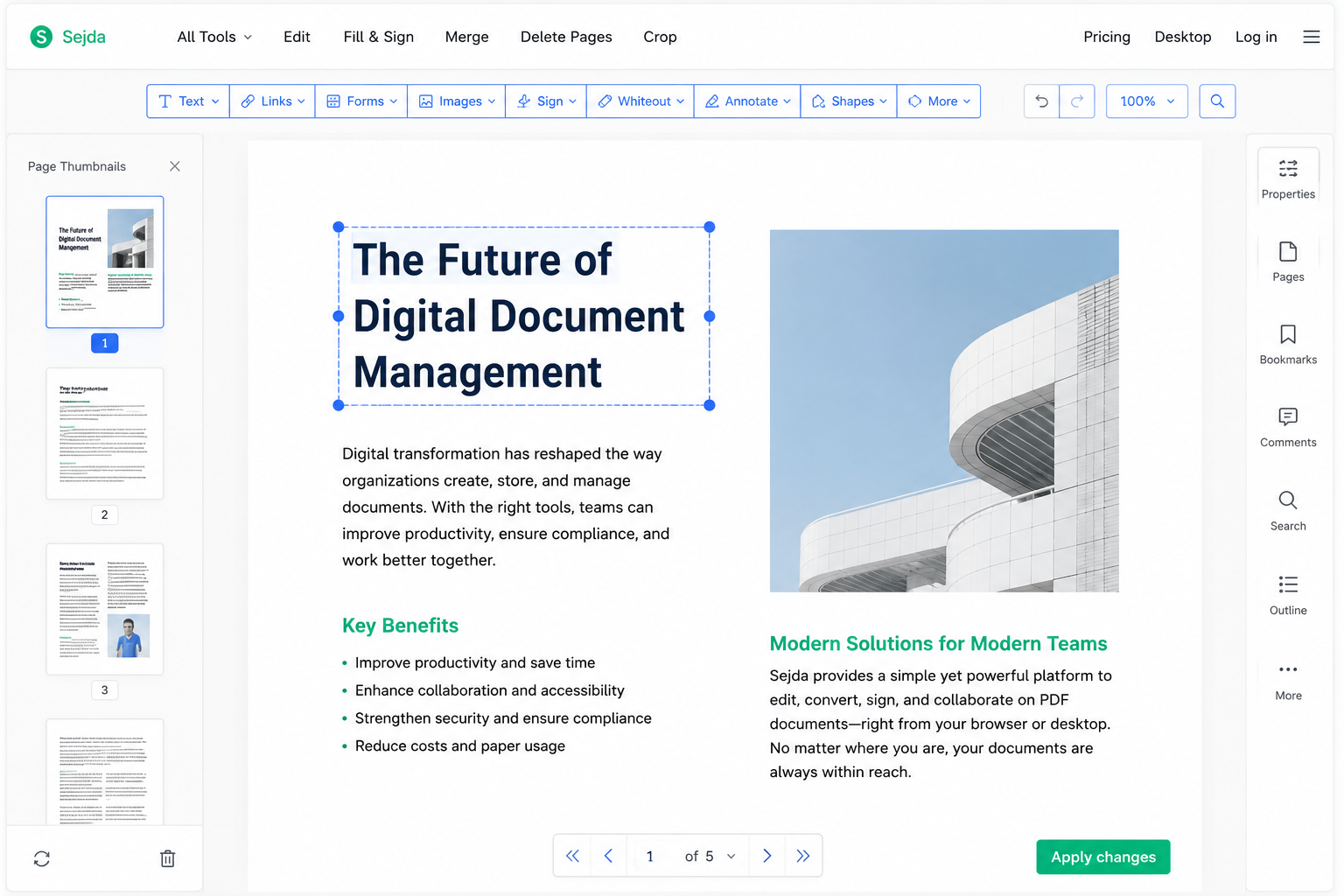
Use Sejda Online PDF Editor without download
Download Sejda PDF Desktop App
Sejda Desktop is the downloadable option for users who prefer local processing. It supports Windows, macOS, and Linux, and it is especially useful when you do not want every file to travel through a browser upload first.
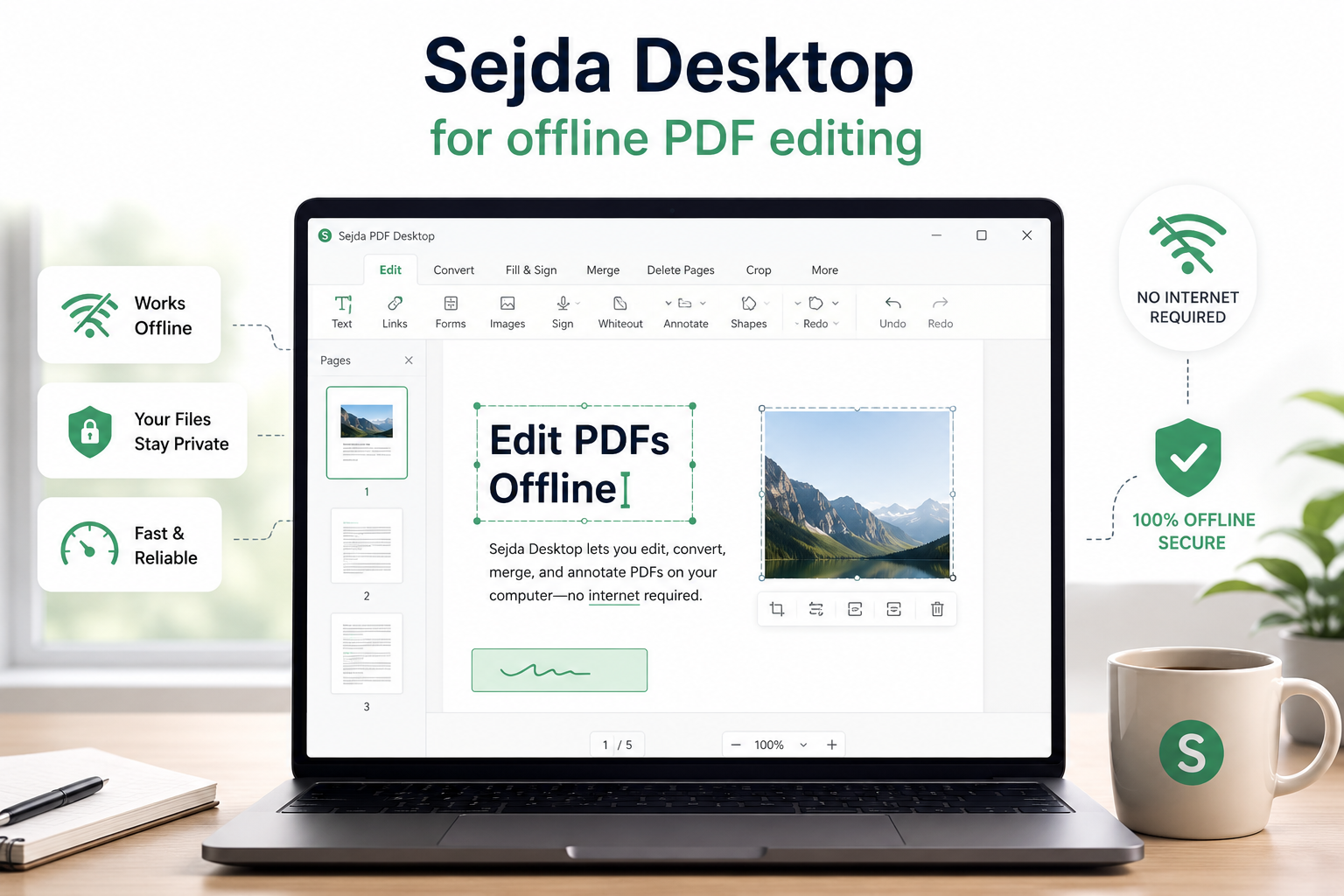
Sejda PDF Editor Features
Once you have accessâonline or via desktopâSejda focuses on the everyday PDF tasks most people need: light editing, organizing pages, compressing oversized files, and converting between common formats.
Edit PDF Text and Images
Sejda editing tools let you modify existing PDF content without converting the whole document first. You can revise text where supported, add images, and make layout adjustments that keep a file usable for reviews, forms, or last-minute fixes before sharing.
Merge, Split, and Organize PDF Files
When documents arrive as separate scans or exports, Sejda helps you combine multiple reports into one PDF, separate pages you no longer need, or rearrange the order so the final packet is easier to read. These organize tools are especially useful for contracts, homework packets, and multi-part business files that start as several smaller PDFs.
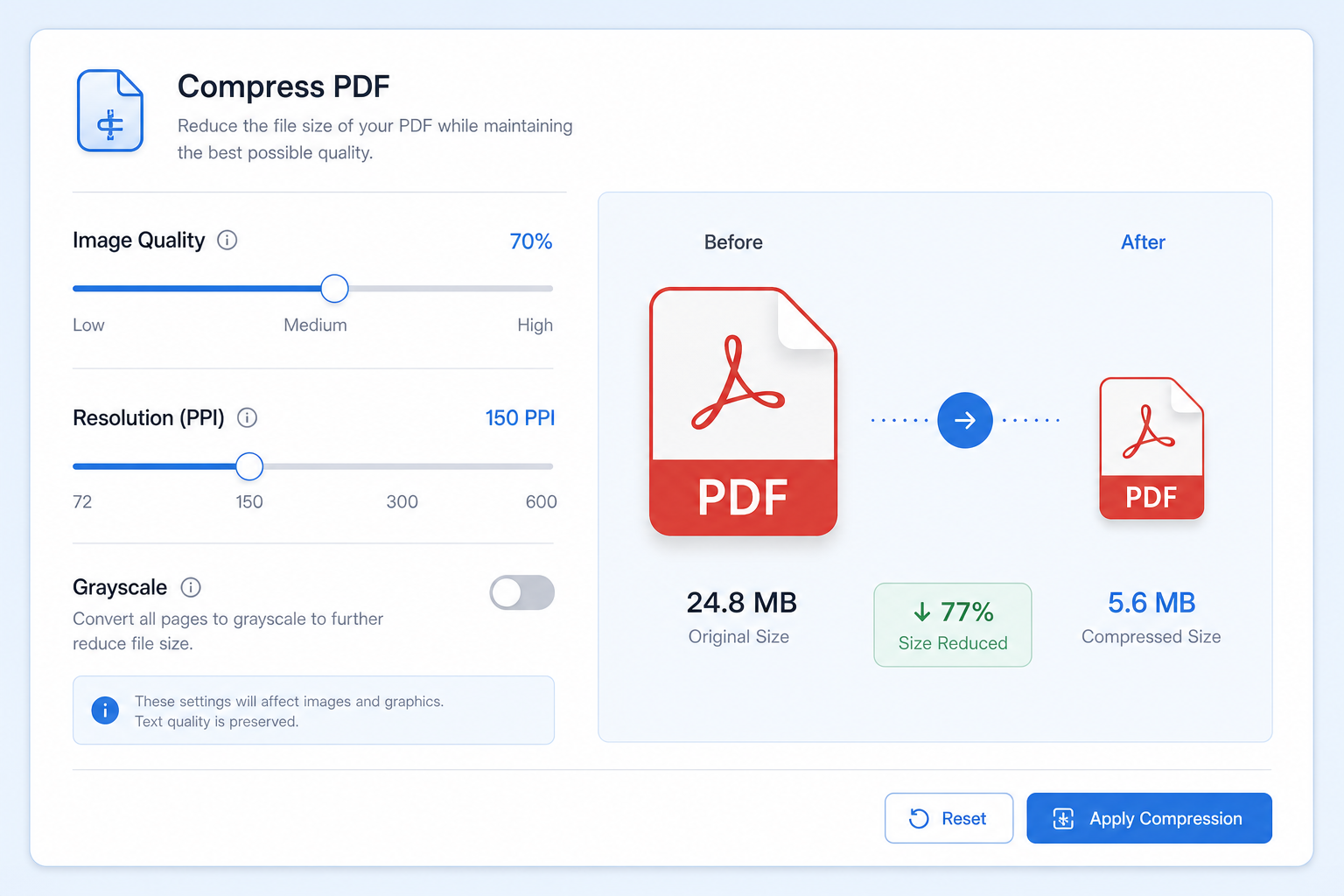
Compress PDF Files with Advanced Settings
Large attachments often fail email limits or slow down uploads. Sejda compression controls help reduce file size by tuning image quality, image resolution (PPI), and optional grayscale conversionâso you can shrink megabytes while keeping the document readable for email, web sharing, or light print use.
Sejda PDF Editor Free Limits and Common Issues
Although Sejda provides free PDF tools, users may encounter restrictions that interrupt larger or more frequent workflows. Free online use commonly includes limited tasks per hour, maximum file size ceilings, page limits, and upgrade prompts when you exceed the free allowance.
Those caps matter most when you process many PDFs in one sitting, work with long reports, or handle sensitive files that you would rather not upload repeatedly. If you are weighing privacy for cloud processing, it is also fair to ask is sejda safe for your compliance needs. When free limits or premium prompts become the main friction, many users look for a sejda license key pathâor switch to a desktop suite that keeps editing, compression, and conversion in one place.
Best Sejda Alternative: WPS Office PDF Tools
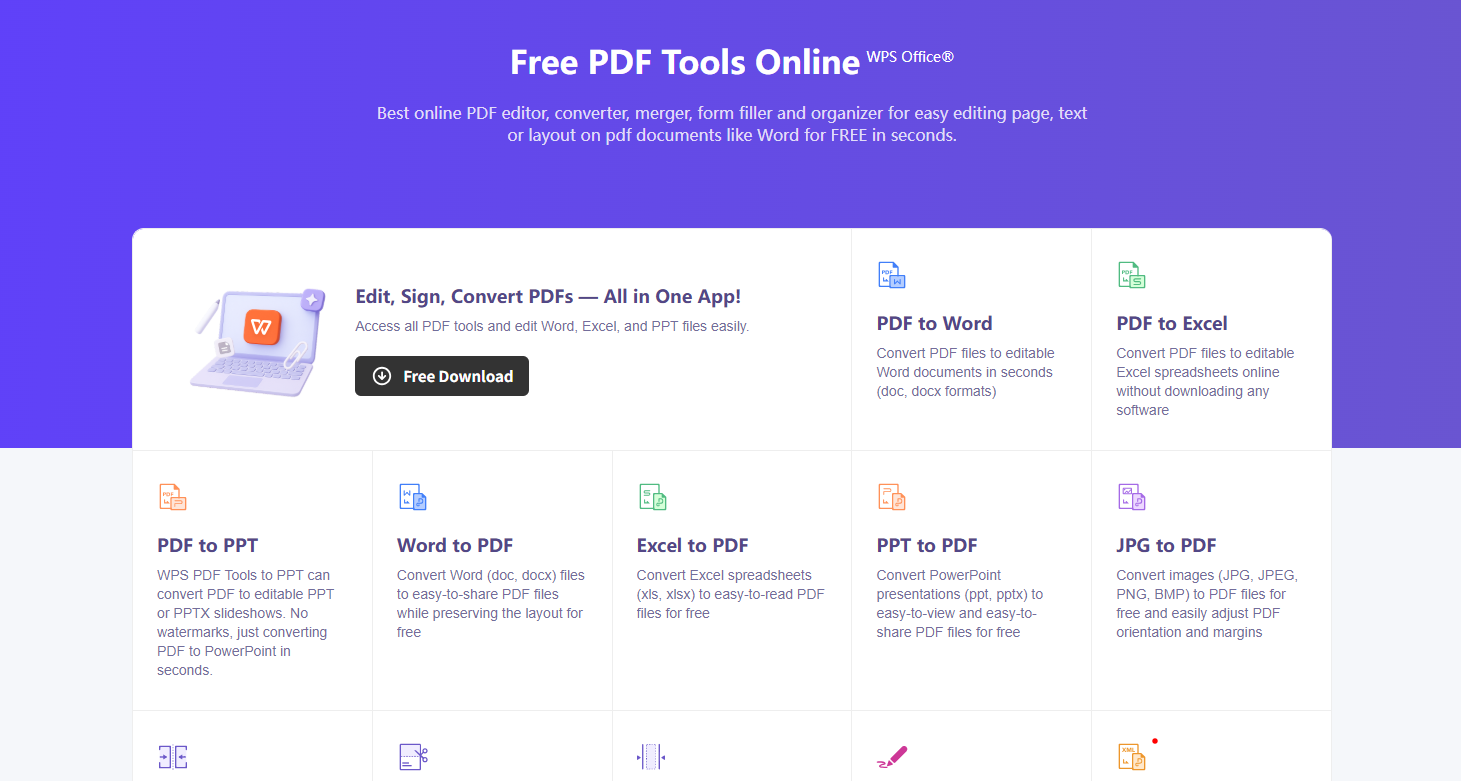
If you frequently work with PDFs, jumping between separate browser tools for editing, compressing, and converting can slow you down. WPS Office PDF editor provides an all-in-one PDF solution inside a full office suite, so you can shrink a file, convert it, and continue editing without starting over in another tab.
Why Choose WPS Office Instead of Sejda?
Use the comparison below to decide quickly based on editing depth, batch work, conversion, offline use, and Office integration. Both tools can handle core PDF edits and compression, but WPS is usually stronger when you need batch processing and a continuous PDF + Word workflow.
| Feature | Sejda | WPS Office |
|---|---|---|
| PDF Editing | â | â |
| PDF Compression | â | â |
| Batch Processing | Limited | â |
| PDF to Word | â | â |
| Offline Processing | Desktop only | â |
| Office Integration | â | â |
If conversion is a regular step after download or compression, Sejda own sejda pdf to word flow works for many one-off jobsâwhile WPS keeps PDF-to-Word conversion next to Writer, Spreadsheets, and Presentation so you can finish the full document cycle in one suite.
Compress PDFs in 3 Simple Steps with WPS Office
When file size is the blocker, WPS Compress PDF gives you a simple desktop-friendly path that also supports batch work and follow-up editing.
Step 1: Upload PDF Files. Open WPS Office, go to the PDF tools, and launch Compress. Drag and drop one file or multiple PDFsâsuch as Report.pdf, Contract.pdf, and Presentation.pdfâso you can shrink several documents in the same session.
Step 2: Choose Compression Level. Select High Quality, Standard, or Ultra Small based on whether you need print clarity or the smallest possible attachment. In suitable cases, WPS can reduce file size by up to about 90% while keeping the pages usable for sharing.
Step 3: Compress and Continue Editing. After compression, stay in WPS to convert PDF to Word, edit PDF text, or merge documents without switching tools. That continuous workflow is the main advantage over using Sejda only for a single online task.

FAQ
Is Sejda PDF Editor free? Sejda offers free access to many PDF tools, but free use usually comes with task, page, or file size limits. Heavier users may need a paid plan or an alternative desktop suite for unrestricted day-to-day work.
Can I download Sejda PDF Editor on Windows? Yes. Sejda Desktop is available for Windows, as well as macOS and Linux. You can also use the online editor without installing anything when you only need a quick browser task.
Does Sejda have file size limits? Yes. Free usage may include maximum file size and page restrictions, which can affect larger documents, scanned packets, or image-heavy PDFs.
What is the best Sejda alternative? WPS Office is a strong alternative if you want PDF editing, compression, conversion, and Office document tools in one placeâespecially when Sejda free limits interrupt your workflow.
'%3e%3cpath%20d='M19.9911%204.11386V6.471H18.5894C18.0775%206.471%2017.7322%206.57814%2017.5536%206.79243C17.3751%207.00671%2017.2858%207.32814%2017.2858%207.75671V9.44421H19.9019L19.5536%2012.0871H17.2858V18.8639H14.5536V12.0871H12.2769V9.44421H14.5536V7.49779C14.5536%206.39064%2014.8632%205.53201%2015.4822%204.92189C16.1013%204.31177%2016.9257%204.00671%2017.9554%204.00671C18.8304%204.00671%2019.509%204.04243%2019.9911%204.11386Z'%20fill='%23333333'/%3e%3c/g%3e%3cdefs%3e%3cclipPath%20id='clip0_2938_8199'%3e%3crect%20width='16'%20height='16'%20fill='white'%20transform='translate(8%204.00671)'/%3e%3c/clipPath%3e%3c/defs%3e%3c/svg%3e)
'%3e%3cpath%20d='M17.5237%2010.7813L23.4811%204H22.0699L16.8949%209.88693L12.7648%204H8L14.2469%2012.9029L8%2020.0133H9.4112L14.8725%2013.7952L19.2352%2020.0133H24M9.92053%205.04213H12.0885L22.0688%2019.0224H19.9003'%20fill='%23333333'/%3e%3c/g%3e%3cdefs%3e%3cclipPath%20id='clip0_2938_8200'%3e%3crect%20width='16'%20height='16.0134'%20fill='white'%20transform='translate(8%204)'/%3e%3c/clipPath%3e%3c/defs%3e%3c/svg%3e)


