



'%3e%3cpath%20fill-rule='evenodd'%20clip-rule='evenodd'%20d='M21.4999%2010.9993C21.4999%205.20009%2016.7986%200.498901%2010.9993%200.498901C5.19994%200.498901%200.498657%205.20009%200.498657%2010.9993C0.498657%2016.2404%204.33858%2020.5844%209.35855%2021.3722V14.0346H6.69238V10.9993H9.35855V8.68594C9.35855%206.05427%2010.9262%204.60062%2013.3248%204.60062C14.4736%204.60062%2015.6753%204.80571%2015.6753%204.80571V7.38979H14.3512C13.0468%207.38979%2012.64%208.19921%2012.64%209.0296V10.9993H15.5523L15.0867%2014.0346H12.64V21.3722C17.66%2020.5844%2021.4999%2016.2404%2021.4999%2010.9993Z'%20fill='%231568EA'/%3e%3c/g%3e%3c/svg%3e)


'%3e%3cpath%20d='M2.42045%2022.1876H6.31818V12.7217L0.75%208.54553V20.5171C0.75%2021.4414%201.49892%2022.1876%202.42045%2022.1876Z'%20fill='%234285F4'/%3e%3cpath%20d='M19.682%2022.1876H23.5797C24.5041%2022.1876%2025.2502%2021.4387%2025.2502%2020.5171V8.54553L19.682%2012.7217'%20fill='%2334A853'/%3e%3cpath%20d='M19.682%205.48293V12.7216L25.2502%208.54543V6.31816C25.2502%204.25236%2022.8921%203.07469%2021.2411%204.31361'%20fill='%23FBBC04'/%3e%3cpath%20d='M6.31824%2012.7217V5.48303L13.0001%2010.4944L19.6819%205.48303V12.7217L13.0001%2017.733'%20fill='%23EA4335'/%3e%3cpath%20d='M0.75%206.31816V8.54543L6.31818%2012.7216V5.48293L4.75909%204.31361C3.10534%203.07469%200.75%204.25236%200.75%206.31816Z'%20fill='%23C5221F'/%3e%3c/g%3e%3cdefs%3e%3cclipPath%20id='clip0_2954_7305'%3e%3crect%20width='24.5'%20height='18.375'%20fill='white'%20transform='translate(0.75%203.8125)'/%3e%3c/clipPath%3e%3c/defs%3e%3c/svg%3e)


This linux copy file guide shows how to copy a file in Linux: use cp source destination. Add -i to confirm overwrites, -v for verbose output, and -r only when copying directories. Verify with ls and checksums for important data. Success means a new file exists at the destination with the expected bytes.
Shortest path: cp notes.txt notes-backup.txt && ls -l notes*.txt. Copy into a folder with cp notes.txt ~/Backups/. Related: create, move, rename.
To locate files before you create, copy, move, or delete them, see how to find files in Linux.
Basic cp Syntax
cp source.txt dest.txt
cp source.txt /path/to/directory/
cp file1.txt file2.txt dir/
When the last argument is a directory, sources are copied into it. When copying one file to a new name, you rename the copy without removing the original—unlike mv.
Official behavior is documented in cp(1). Defaults may overwrite without asking—use -i while learning. Some distributions alias cp to cp -i for interactive users; scripts should not assume aliases are active.
Think about identity: after a successful copy you temporarily have two independent files. Editing one does not edit the other. That sounds obvious until a config change “mysteriously” fails because you edited the backup copy left in /tmp.
Safe Everyday Options
-iinteractive overwrite prompt-vshow what was copied-nno-clobber (do not overwrite)-ppreserve mode/ownership/timestamps when permitted-aarchive mode for recursive preserve (directories)
cp -iv report.pdf report-copy.pdf
cp -n important.cfg important.cfg.bak
Copy Directories
cp -r project/ project-backup/
# or
cp -a project/ project-backup/
-r/-R is required for directories. Without it, cp errors. Prefer -a when you want a near-clone including symlinks and attributes. After copying a project tree, open one known file and confirm the contents before deleting any source—even when you plan to keep both.
Desktop users sometimes drag-and-drop in a file manager; that still becomes a copy or move underneath. Learning cp makes SSH sessions and Docker bind-mount debugging far less scary when GUI tools are unavailable.
Progress and Large Files
Ask Ubuntu’s popular guidance notes that GNU cp historically lacked a built-in progress bar. For large trees, many admins use rsync -ah --progress instead of raw cp. For a single huge file, rsync or pv pipelines are clearer than staring at a silent prompt.
rsync -ah --progress big.iso ~/Backups/Common Failures
- Permission denied: cannot read source or write destination
- Argument list too long: too many glob matches—use find/rsync batches (classic AU issue)
- Accidentally overwrote a file: omitted
-i/-n - Copied symlink oddly: learn
-Lvs default symlink handling before mass copies
cp -i "$HOME/Documents/thesis.docx" "$HOME/Backups/"Quote paths with spaces:
cp "My File.txt" "My File Backup.txt"Copy vs Move vs Rename
Copy keeps the original. Move relocates (same or different filesystem). Rename is typically mv old new in the same folder—see linux rename file. Create sources first with linux create file when practicing.
Verify Success
ls -l source.txt dest.txt
cmp source.txt dest.txt && echo "identical bytes"
# or
sha256sum source.txt dest.txt- Destination exists.
- Size matches for normal files.
cmp/sha256summatches when integrity matters.- Original still exists (copy, not move).
Scripts and Backups
For recurring backups, prefer rsync with logs over blind cp -r. Test restore by copying back to a temp folder. Never practice destructive flags on /.
Spaces and special characters need quotes every time. A path like My Photos/Vacation will break unquoted globs. Tab-complete in Bash to let the shell insert correct escaping. When writing scripts, quote expansions: cp -i -- "$src" "$dst". The double dash helps when filenames start with a dash—another Ask Ubuntu classic footgun.
Sparse files, reflinks, and copy-on-write features differ by filesystem. On everyday ext4 home directories, think in simple bytes: cp reads and writes. On btrfs/xfs you may see advanced options in man pages—ignore them until you have a specific performance need and a tested restore plan.
Network destinations (SCP/SFTP) are not plain cp. Use scp, rsync over ssh, or your cloud CLI. Trying to cp to an unmounted CIFS share path that looks local will fail with confusing I/O errors. Confirm mounts with df -h and mount before large jobs.
Permissions after copy can surprise newcomers: you may own the copy even when the source was root-owned if you had read access. Check with ls -l. Preserve attributes with -p/-a when building deployment trees, but do not expect to preserve ownership without privilege.
Team workflows often copy templates then customize. Keep pristine templates read-only or marked .template so casual cp overwrites are obvious. Combine with rename to turn config.template into config.yaml after copying into a project folder.
Measure twice for production data: estimate size with du -sh, ensure free space with df -h, then copy. Filling a disk mid-copy corrupts the destination tree and wastes hours. For multi-gigabyte trees, prefer rsync so retries can continue.
Remember the product goal: duplicates for safety or distribution—not rearranging a single canonical file. If you need the file in a new folder without keeping the old one, that is linux move file, not cp. When both a backup and a live file must exist, name the backup with a date stamp so you never edit the wrong one by habit after a long debugging session on a tired Friday afternoon.
Linux file copy is cp with careful destinations, -i while learning, and checksum verification when the data matters—use rsync when you need progress or robust tree syncing.
Practice in a scratch directory such as ~/tmp-practice before touching production paths. Run ls -la after each experiment so you see hidden files and permissions. Build muscle memory with short daily drills: create, copy, move, rename, then clean up. Ten focused minutes beats an hour of panicked forum searching after a bad glob.
When scripts grow beyond one-liners, add careful Bash options and quote variables. Most file disasters come from unquoted globs and wrong working directories—not from the tools themselves. Keep a personal gist of safe snippets you have tested on your distro version.
Read the relevant man page once end to end (man touch, man cp, or man mv). You do not need every flag memorized; you need to know which section to skim when something odd happens. Official man pages beat random screenshots that omit destructive defaults.
On multi-user systems, communicate before mass renames or directory moves. A teammate’s cron job may still point at yesterday’s path. Chat first, change second, and leave a symlink temporarily when you must keep old paths alive during migration windows.
Backups turn irreversible mistakes into inconveniences. Even a crude cp -a ~/project ~/backups/project-$(date +%F) before experiments is enough for personal machines. Servers should already have snapshots; do not invent ad-hoc production edits without a ticket and a restore plan.
After you create or rearrange files on Linux, many workflows still end in DOCX, XLSX, or PDF for schools and workplaces. Keep an office suite available on the same machine or on Windows when you need print-ready documents from notes you drafted in the terminal.
If you work across WSL and Windows, decide which side owns the “source of truth” files. Edit in Linux home for code, export finished office documents to Windows only when sharing requires it. That boundary prevents half-saved files and permission weirdness on /mnt/c.
Teach teammates the same four verbs—create, copy, move, rename—before introducing find/xargs pipelines. Solid basics prevent clever one-liners from destroying directories. When someone asks for “just the command,” still mention -i, quoting, and verifying with ls.
Keep this mental model: touch/editors create, cp duplicates, mv relocates or renames, and rm deletes. Mixing them up is how backups become deletes and deletes become disasters. Slow down for production paths; go fast only inside throwaway practice folders you can rebuild in seconds.
After Copying Files: Document Paths and Handoffs
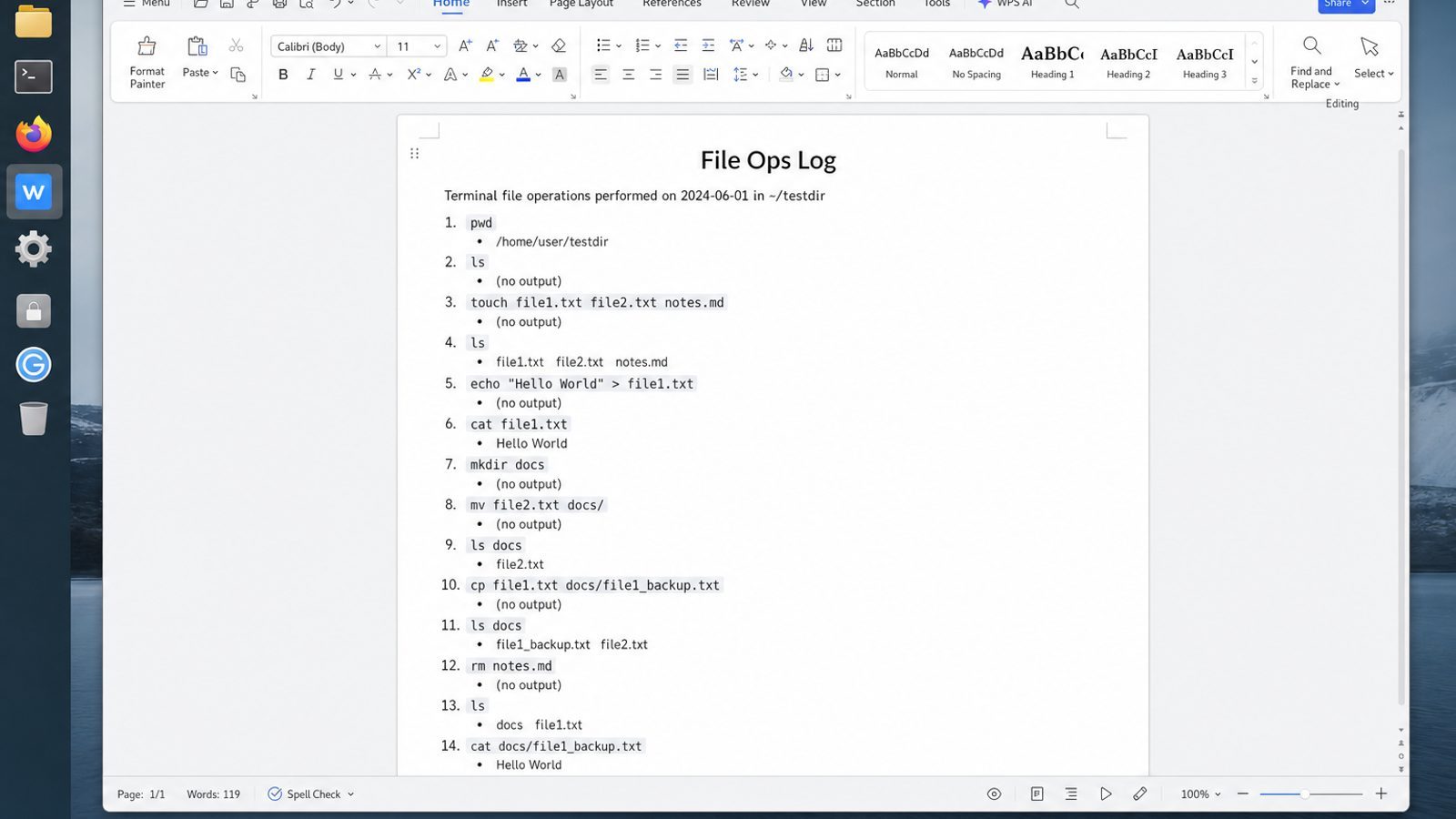
cp duplicates data safely when you use the right flags. Teams still need a short note of what was copied where—especially before backups, migrations, or shared folders.
WPS Office for Linux makes that follow-up easy: Writer for copy logs, Spreadsheet for source/destination tables, and PDF when the inventory should stay fixed.
| What you need next | What WPS gives you |
|---|---|
| Record copy operations as a readable checklist or report | Strong .docx / .xlsx / .pptx layout fidelity when files move between Linux, Windows, and macOS |
| One place for notes, sheets, slides, and PDFs | Free core suite: Writer, Spreadsheet, Presentation, plus PDF view/edit/convert tools |
| A familiar desktop UI for switchers | Ribbon-style apps with a lighter footprint than many heavy suites |
| A trusted install path | Official DEB (Ubuntu/Debian/Mint) and RPM packages from the vendor |
Install from the official WPS Office for Linux download page with sudo apt install ./wps-office_VERSION_amd64.deb, keep cp for the filesystem work, and use WPS when those paths need to travel as DOCX or PDF.


FAQ
Does cp delete the original?
No. Use mv to relocate. If both names exist after a “move,” you may have copied by mistake—check with ls.
How do I copy hidden files?
cp -a .config config-backup
# or explicit
cp .bashrc bashrc.bak
Why “omitting directory”?
You tried to copy a directory without -r/-a. Add the recursive flag or copy files individually.
Can I copy across drives?
Yes. cp reads and writes bytes; large copies take time and need free space on the destination mount.
How do I exclude files?
cp has limited excludes—use rsync --exclude for patterned trees (common Ask Ubuntu recommendation) instead of complex cp loops.
What about cp to current directory?
cp /var/tmp/example.txt .
ls -l example.txt
Is cp -r safe on symlinks?
Defaults and -L/-H change symlink handling. Read the man page before cloning complex trees with mixed links.
How do I show progress?
Use rsync --progress or pv; classic GNU cp may stay silent until finished.

'%3e%3cpath%20d='M19.9911%204.11386V6.471H18.5894C18.0775%206.471%2017.7322%206.57814%2017.5536%206.79243C17.3751%207.00671%2017.2858%207.32814%2017.2858%207.75671V9.44421H19.9019L19.5536%2012.0871H17.2858V18.8639H14.5536V12.0871H12.2769V9.44421H14.5536V7.49779C14.5536%206.39064%2014.8632%205.53201%2015.4822%204.92189C16.1013%204.31177%2016.9257%204.00671%2017.9554%204.00671C18.8304%204.00671%2019.509%204.04243%2019.9911%204.11386Z'%20fill='%23333333'/%3e%3c/g%3e%3cdefs%3e%3cclipPath%20id='clip0_2938_8199'%3e%3crect%20width='16'%20height='16'%20fill='white'%20transform='translate(8%204.00671)'/%3e%3c/clipPath%3e%3c/defs%3e%3c/svg%3e)
'%3e%3cpath%20d='M17.5237%2010.7813L23.4811%204H22.0699L16.8949%209.88693L12.7648%204H8L14.2469%2012.9029L8%2020.0133H9.4112L14.8725%2013.7952L19.2352%2020.0133H24M9.92053%205.04213H12.0885L22.0688%2019.0224H19.9003'%20fill='%23333333'/%3e%3c/g%3e%3cdefs%3e%3cclipPath%20id='clip0_2938_8200'%3e%3crect%20width='16'%20height='16.0134'%20fill='white'%20transform='translate(8%204)'/%3e%3c/clipPath%3e%3c/defs%3e%3c/svg%3e)


