



'%3e%3cpath%20fill-rule='evenodd'%20clip-rule='evenodd'%20d='M21.4999%2010.9993C21.4999%205.20009%2016.7986%200.498901%2010.9993%200.498901C5.19994%200.498901%200.498657%205.20009%200.498657%2010.9993C0.498657%2016.2404%204.33858%2020.5844%209.35855%2021.3722V14.0346H6.69238V10.9993H9.35855V8.68594C9.35855%206.05427%2010.9262%204.60062%2013.3248%204.60062C14.4736%204.60062%2015.6753%204.80571%2015.6753%204.80571V7.38979H14.3512C13.0468%207.38979%2012.64%208.19921%2012.64%209.0296V10.9993H15.5523L15.0867%2014.0346H12.64V21.3722C17.66%2020.5844%2021.4999%2016.2404%2021.4999%2010.9993Z'%20fill='%231568EA'/%3e%3c/g%3e%3c/svg%3e)


'%3e%3cpath%20d='M2.42045%2022.1876H6.31818V12.7217L0.75%208.54553V20.5171C0.75%2021.4414%201.49892%2022.1876%202.42045%2022.1876Z'%20fill='%234285F4'/%3e%3cpath%20d='M19.682%2022.1876H23.5797C24.5041%2022.1876%2025.2502%2021.4387%2025.2502%2020.5171V8.54553L19.682%2012.7217'%20fill='%2334A853'/%3e%3cpath%20d='M19.682%205.48293V12.7216L25.2502%208.54543V6.31816C25.2502%204.25236%2022.8921%203.07469%2021.2411%204.31361'%20fill='%23FBBC04'/%3e%3cpath%20d='M6.31824%2012.7217V5.48303L13.0001%2010.4944L19.6819%205.48303V12.7217L13.0001%2017.733'%20fill='%23EA4335'/%3e%3cpath%20d='M0.75%206.31816V8.54543L6.31818%2012.7216V5.48293L4.75909%204.31361C3.10534%203.07469%200.75%204.25236%200.75%206.31816Z'%20fill='%23C5221F'/%3e%3c/g%3e%3cdefs%3e%3cclipPath%20id='clip0_2954_7305'%3e%3crect%20width='24.5'%20height='18.375'%20fill='white'%20transform='translate(0.75%203.8125)'/%3e%3c/clipPath%3e%3c/defs%3e%3c/svg%3e)


This linux create file guide shows how to create a file in Linux: use touch filename for an empty file, or redirect text with echo/cat/printf, or open an editor such as nano. Confirm with ls -l and cat. Success means the path exists with the content you intended and the permissions you expect.
Shortest path: mkdir -p ~/tmp-practice && cd ~/tmp-practice && touch notes.txt && ls -l notes.txt. Need text inside immediately? Use printf 'hello\n' > notes.txt. Related skills: copy, move, and rename files after creation.
To locate files before you create, copy, move, or delete them, see how to find files in Linux.
Create an Empty File with touch
touch updates timestamps and creates missing files by default. It is the standard empty-file tool in tutorials:
touch report.txt
touch a.txt b.txt c.txt
ls -l a.txt b.txt c.txt
Create nested paths only after directories exist. Ask Ubuntu notes that touch dir/file fails if dir is missing—create the directory first:
mkdir -p project/docs
touch project/docs/readme.md
Community comparisons also mention > file as another empty-file trick. touch is clearer for beginners and does not truncate an existing file’s content the way > file does. If a tutorial mixes both, pause and check whether the file already has content you must keep.
Empty files are useful as lock markers, log stubs, or placeholders in project skeletons. Many generators create .gitkeep files so empty directories survive in git. Understanding that pattern makes touch feel purposeful rather than abstract.
Create a File with Content
echo / printf redirect
printf 'Line one\nLine two\n' > hello.txt
cat hello.txt
Use >> to append instead of overwrite:
echo 'another line' >> hello.txtcat heredoc
cat > notes.txt << EOF
Title
Details go here
EOF
Editors
nano notes.txt opens an editor; save and exit to create or update the file. vim/nvim work the same idea with different keybindings. Prefer editors when you need interactive typing. Saving in an editor is still creating or updating a file—just with a friendlier loop for humans. On minimal containers without nano, install it deliberately or use vi if that is all you have—and practice before an outage.
Heredocs are ideal for embedding short configs in shell scripts that bootstrap machines. Keep them indented carefully and choose a delimiter that will not appear in the content. For secrets, prefer copying from a secret manager over hardcoding heredoc passwords into scripts that land in git.
Permissions and Ownership Basics
New files inherit your umask. Check with ls -l and umask. Change mode only when required:
chmod u+w notes.txt
ls -l notes.txt
Creating under /etc or other system paths needs root and a clear reason—prefer files in your home directory for practice.
Common Failures
- No such file or directory: parent folder missing—use
mkdir -p - Permission denied: wrong directory ownership or read-only mount
- Accidentally truncated file: used
>instead of>>or editor save on wrong path - Wrong working directory: run
pwdbefore creating
pwd
ls -la
mkdir -p "$HOME/tmp-practice"
cd "$HOME/tmp-practice"
Create Many Files Safely
mkdir -p batch && cd batch
touch file{1..5}.txt
ls
Brace expansion is shell-specific (Bash/Zsh). In scripts, prefer explicit loops when readability matters:
for i in 1 2 3; do touch "item-$i.txt"; donetouch Timestamps (Advanced but Useful)
touch -c avoids creating a file if missing. touch -r ref file copies timestamps from a reference file. Day-to-day create workflows rarely need these; build tools sometimes do.
touch -c maybe-missing.txt
ls maybe-missing.txt 2>/dev/null || echo "was not created"
Verify Success
test -f file && echo yesreturns yes.ls -l fileshows size and time.cat fileshows expected content (if any).- Parent directory is the one you intended (
pwd).
After Creating: Organize
Next steps are often linux copy file, linux move file, or linux rename file. Create in a staging folder, then move into place when content is ready—safer than editing production paths live.
Working directory mistakes cause most beginner failures. Before any create command, run pwd and ls. If you expected ~/Documents but landed in /, stop. Prefer absolute paths in scripts: "$HOME/tmp-practice/notes.txt" beats relying on wherever the shell happened to be.
On shared servers, creating files in /tmp is fine for scratch data that can vanish on reboot. Do not store secrets there. For configuration snippets you will reuse, keep them under your home directory or a version-controlled repo. When collaborating, agree on filenames early so renames do not break everyone’s scripts.
WSL users create files the same way inside the Linux filesystem. Prefer ~/projects over /mnt/c/... for heavy text editing to avoid sync and permission surprises. You can still copy finished documents to the Windows desktop later with cp when coworkers need DOCX paths.
Editors deserve a short practice loop: open nano file.txt, type two lines, save, exit, cat file.txt. Then try appending with >>. That loop teaches create vs overwrite vs append better than reading flags alone. Keep a cheatsheet near your monitor until muscle memory sticks.
Sparse needs—like reserving space—are advanced; skip them until you have a measured reason. Likewise, fallocate and device nodes are not beginner “create file” tasks. Stay with touch, redirects, and editors until those feel boringly reliable.
If a graphical file manager is available, creating an empty file from the UI is acceptable for desktop users, but servers and containers often have no GUI. CLI create skills transfer to automation, CI jobs, and remote SSH sessions where you cannot click “New Document.”
Finally, name files with intent: avoid spaces when possible, prefer kebab-case or snake_case, and include dates only when they help (meeting-2026-07-24.md). Clear names reduce future rename churn and make moves into archive folders obvious.
On Linux, creating a file is usually touch for empty paths, redirects or editors for content, then ls/cat to verify—always from the correct directory with parent folders already present.
Practice in a scratch directory such as ~/tmp-practice before touching production paths. Run ls -la after each experiment so you see hidden files and permissions. Build muscle memory with short daily drills: create, copy, move, rename, then clean up. Ten focused minutes beats an hour of panicked forum searching after a bad glob.
When scripts grow beyond one-liners, add careful Bash options and quote variables. Most file disasters come from unquoted globs and wrong working directories—not from the tools themselves. Keep a personal gist of safe snippets you have tested on your distro version.
Read the relevant man page once end to end (man touch, man cp, or man mv). You do not need every flag memorized; you need to know which section to skim when something odd happens. Official man pages beat random screenshots that omit destructive defaults.
On multi-user systems, communicate before mass renames or directory moves. A teammate’s cron job may still point at yesterday’s path. Chat first, change second, and leave a symlink temporarily when you must keep old paths alive during migration windows.
Backups turn irreversible mistakes into inconveniences. Even a crude cp -a ~/project ~/backups/project-$(date +%F) before experiments is enough for personal machines. Servers should already have snapshots; do not invent ad-hoc production edits without a ticket and a restore plan.
After you create or rearrange files on Linux, many workflows still end in DOCX, XLSX, or PDF for schools and workplaces. Keep an office suite available on the same machine or on Windows when you need print-ready documents from notes you drafted in the terminal.
If you work across WSL and Windows, decide which side owns the “source of truth” files. Edit in Linux home for code, export finished office documents to Windows only when sharing requires it. That boundary prevents half-saved files and permission weirdness on /mnt/c.
Teach teammates the same four verbs—create, copy, move, rename—before introducing find/xargs pipelines. Solid basics prevent clever one-liners from destroying directories. When someone asks for “just the command,” still mention -i, quoting, and verifying with ls.
Keep this mental model: touch/editors create, cp duplicates, mv relocates or renames, and rm deletes. Mixing them up is how backups become deletes and deletes become disasters. Slow down for production paths; go fast only inside throwaway practice folders you can rebuild in seconds.
After Creating Files: Turn Notes into Shareable Documents
touch and redirects create empty or quick text files fast. Once those notes become a checklist, handoff, or assignment, a formatted DOCX or PDF is usually the next step.
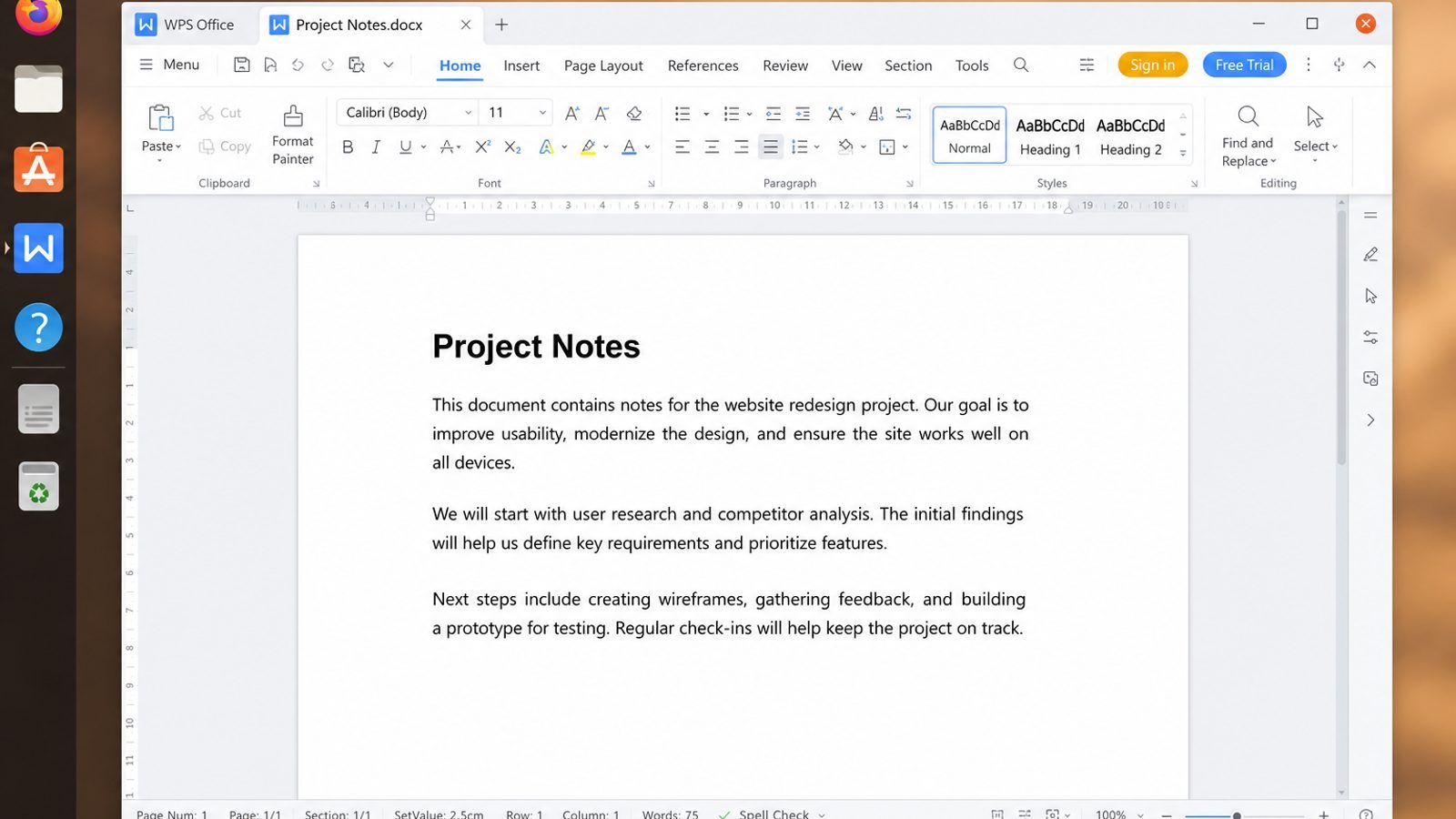
WPS Office for Linux covers that handoff with Writer for notes, Spreadsheet for inventories, Presentation for walkthroughs, and PDF tools for fixed exports.
| What you need next | What WPS gives you |
|---|---|
| Move newly created text into Office-compatible files | Strong .docx / .xlsx / .pptx layout fidelity when files move between Linux, Windows, and macOS |
| One place for notes, sheets, slides, and PDFs | Free core suite: Writer, Spreadsheet, Presentation, plus PDF view/edit/convert tools |
| A familiar desktop UI for switchers | Ribbon-style apps with a lighter footprint than many heavy suites |
| A trusted install path | Official DEB (Ubuntu/Debian/Mint) and RPM packages from the vendor |
Get the current build from the official WPS Office for Linux download page, install with sudo apt install ./wps-office_VERSION_amd64.deb, then paste or import your new files into Writer when collaborators need more than a blank touched path.


FAQ
Does touch overwrite content?
No. Existing file content stays; timestamps update. Redirect > can wipe content. When unsure, run ls -l before redirecting.
touch vs > file?
Both can create empty files; > file truncates existing content to empty. Prefer touch for empty create, and reserve > when you intentionally replace content.
How do I create a hidden file?
touch .env.example
ls -la .env.example
Can I create a file without a terminal?
Yes—file managers can create empty files—but this guide focuses on CLI methods used on servers and WSL where GUI options may be missing.
Why did touch fail in a new path?
Parent directories must exist first; use mkdir -p. Confirm with ls on the parent before retrying touch.
How do I create a file as root?
sudo touch /path/file when justified; fix ownership afterward if a normal user must edit it (sudo chown user:user /path/file).
What encoding should I use for new text files?
UTF-8 is the safe default on modern Linux. Avoid pasting binary data into text editors by mistake.
Can I create a file and set permissions in one step?
Create first, then chmod. Install tools that set modes in one motion exist, but touch-plus-chmod stays readable for beginners.

'%3e%3cpath%20d='M19.9911%204.11386V6.471H18.5894C18.0775%206.471%2017.7322%206.57814%2017.5536%206.79243C17.3751%207.00671%2017.2858%207.32814%2017.2858%207.75671V9.44421H19.9019L19.5536%2012.0871H17.2858V18.8639H14.5536V12.0871H12.2769V9.44421H14.5536V7.49779C14.5536%206.39064%2014.8632%205.53201%2015.4822%204.92189C16.1013%204.31177%2016.9257%204.00671%2017.9554%204.00671C18.8304%204.00671%2019.509%204.04243%2019.9911%204.11386Z'%20fill='%23333333'/%3e%3c/g%3e%3cdefs%3e%3cclipPath%20id='clip0_2938_8199'%3e%3crect%20width='16'%20height='16'%20fill='white'%20transform='translate(8%204.00671)'/%3e%3c/clipPath%3e%3c/defs%3e%3c/svg%3e)
'%3e%3cpath%20d='M17.5237%2010.7813L23.4811%204H22.0699L16.8949%209.88693L12.7648%204H8L14.2469%2012.9029L8%2020.0133H9.4112L14.8725%2013.7952L19.2352%2020.0133H24M9.92053%205.04213H12.0885L22.0688%2019.0224H19.9003'%20fill='%23333333'/%3e%3c/g%3e%3cdefs%3e%3cclipPath%20id='clip0_2938_8200'%3e%3crect%20width='16'%20height='16.0134'%20fill='white'%20transform='translate(8%204)'/%3e%3c/clipPath%3e%3c/defs%3e%3c/svg%3e)


