



'%3e%3cpath%20fill-rule='evenodd'%20clip-rule='evenodd'%20d='M21.4999%2010.9993C21.4999%205.20009%2016.7986%200.498901%2010.9993%200.498901C5.19994%200.498901%200.498657%205.20009%200.498657%2010.9993C0.498657%2016.2404%204.33858%2020.5844%209.35855%2021.3722V14.0346H6.69238V10.9993H9.35855V8.68594C9.35855%206.05427%2010.9262%204.60062%2013.3248%204.60062C14.4736%204.60062%2015.6753%204.80571%2015.6753%204.80571V7.38979H14.3512C13.0468%207.38979%2012.64%208.19921%2012.64%209.0296V10.9993H15.5523L15.0867%2014.0346H12.64V21.3722C17.66%2020.5844%2021.4999%2016.2404%2021.4999%2010.9993Z'%20fill='%231568EA'/%3e%3c/g%3e%3c/svg%3e)


'%3e%3cpath%20d='M2.42045%2022.1876H6.31818V12.7217L0.75%208.54553V20.5171C0.75%2021.4414%201.49892%2022.1876%202.42045%2022.1876Z'%20fill='%234285F4'/%3e%3cpath%20d='M19.682%2022.1876H23.5797C24.5041%2022.1876%2025.2502%2021.4387%2025.2502%2020.5171V8.54553L19.682%2012.7217'%20fill='%2334A853'/%3e%3cpath%20d='M19.682%205.48293V12.7216L25.2502%208.54543V6.31816C25.2502%204.25236%2022.8921%203.07469%2021.2411%204.31361'%20fill='%23FBBC04'/%3e%3cpath%20d='M6.31824%2012.7217V5.48303L13.0001%2010.4944L19.6819%205.48303V12.7217L13.0001%2017.733'%20fill='%23EA4335'/%3e%3cpath%20d='M0.75%206.31816V8.54543L6.31818%2012.7216V5.48293L4.75909%204.31361C3.10534%203.07469%200.75%204.25236%200.75%206.31816Z'%20fill='%23C5221F'/%3e%3c/g%3e%3cdefs%3e%3cclipPath%20id='clip0_2954_7305'%3e%3crect%20width='24.5'%20height='18.375'%20fill='white'%20transform='translate(0.75%203.8125)'/%3e%3c/clipPath%3e%3c/defs%3e%3c/svg%3e)


This linux rename file guide shows how to rename a file in Linux: use mv oldname newname in the same directory. There is no separate beginner rename requirement for single files—GNU mv handles it. Use -i so you do not overwrite an existing target name. Success means ls shows the new name and the old name is gone.
Shortest path: mv draft.txt final.txt && ls -l final.txt. Renaming while relocating is still mv: mv draft.txt ~/Documents/final.txt. Related guides: create, copy, move.
To locate files before you create, copy, move, or delete them, see how to find files in Linux.
Rename with mv
mv old.txt new.txt
mv -iv "My Report.docx" "My-Report.docx"
Quote names with spaces or special characters. Tab-completion reduces typos. If tab-completion fails, you are probably in the wrong directory—run pwd and ls before inventing a new name.
Batch fancy renames (extension case changes, regex) may use the Perl rename utility or mmv—package names vary by distro. For one file, stick to mv as documented in mv(1). Resist the urge to install extra tools until mv itself is automatic.
Rename vs Move
Same directory + new basename = rename. Different directory = move (with optional rename). Both are mv. Copying to a new name uses cp and keeps the original.
Extensions and Case
mv Photo.JPG photo.jpgOn typical Linux filesystems, names are case-sensitive: File.txt and file.txt can both exist. Ask Ubuntu threads about lowercase extensions often automate with rename or loops—test on copies first.
cp Report.PDF Report.PDF.bak
mv Report.PDF report.pdf
Common Failures
- Target exists: mv overwrites without
-i - Permission denied: directory lacks write permission (renames need write on the directory)
- Invalid name: slashes in names are path separators—cannot rename across implied directories without moving
- Broken app links: shortcuts still point to old names
mv -i config.yaml config.yml
ls -l config.yml
Rename Many Files (Carefully)
Simple sequential renames in Bash:
i=1
for f in *.txt; do
  mv -i -- "$f" "chapter-$i.txt"
  i=$((i+1))
done
Always dry-run by echoing first:
for f in *.txt; do echo mv -i -- "$f" "backup-$f"; doneGUI Renames
File managers rename via context menu; under the hood they still change directory entries like mv. CLI knowledge helps on servers and WSL where GUIs are absent. If a GUI rename fails with permissions errors, the terminal error text is usually clearer—use it.
Document renames that affect URLs or published paths. A blog slug change is more than mv: update links, sitemaps, and redirects. The same mindset applies inside codebases—rename the file and update imports in one commit.
Verify Success
- Old name missing.
- New name present with expected size.
- Opening the file works in your editor.
- Scripts referencing the old name are updated.
Workflow Tip
Create with touch/editors, save drafts with temporary names, then rename to final names before moving into published folders. That reduces half-edited files in production directories.
Good naming conventions prevent rename churn: use lowercase, hyphens, and descriptive stems (invoice-acme-2026-07.pdf). Avoid relying on Finder/Explorer habits like Copy of Document (1).docx inside Linux projects—those spaces and parentheses demand quoting forever.
Batch regex renames are powerful and dangerous. On Ubuntu, the rename package historically differed between Perl and util-linux variants; check man rename on your machine before copying internet one-liners. When in doubt, a small Bash loop with echo dry-runs is clearer for teammates reviewing your script.
Case-only renames on case-insensitive mounts (some external drives) can no-op or collide. If mv File file misbehaves on a USB stick, rename to a temporary third name first: mv File tempname && mv tempname file.
Applications cache paths: browsers, IDEs, and backup tools may keep old filenames in recent-file lists. After renaming configs, restart the service or update unit files. For code, run tests after mass renames; string references inside files do not change when the path changes.
International characters are valid in modern UTF-8 locales but complicate SSH clients and legacy tools. Prefer ASCII names for scripts shared across systems. You can still store human titles inside document metadata or first headings.
Atomic save patterns in editors sometimes write file.txt.tmp then rename to file.txt. That is mv under the hood and explains why brief temp files appear. Do not delete unknown temp names while editors are open.
Practice drill: create three files, rename them to a sequence, move them into done/, and copy one backup aside. That single drill ties together create, rename, move, and copy—the core Linux file hygiene set. Repeat it on a new VPS once so SSH latency does not surprise you later.
When renaming for publication, prefer stable names early. Changing draft-3.md to a final slug after reviewers already linked it creates churn. Agree on the final filename before you share URLs, then mv only to fix typos—not to rethink branding weekly. Stable names are a gift to future you and to every script that hardcodes the path across servers and laptops.
If a rename feels risky, copy first, rename the copy, verify, then remove the old name. That slower path is still faster than restoring from backups after an overwrite. For shared documents, announce the new name in chat so nobody searches for a ghost filename tomorrow morning—and update bookmarks the same day while the change is fresh. Small communication beats large recovery every single time you rename shared files at work today. Pause one beat, then proceed.
Linux rename file operations are mv old new—quote special characters, use -i to protect existing targets, and test batch renames on copies first.
Practice in a scratch directory such as ~/tmp-practice before touching production paths. Run ls -la after each experiment so you see hidden files and permissions. Build muscle memory with short daily drills: create, copy, move, rename, then clean up. Ten focused minutes beats an hour of panicked forum searching after a bad glob.
When scripts grow beyond one-liners, add careful Bash options and quote variables. Most file disasters come from unquoted globs and wrong working directories—not from the tools themselves. Keep a personal gist of safe snippets you have tested on your distro version.
Read the relevant man page once end to end (man touch, man cp, or man mv). You do not need every flag memorized; you need to know which section to skim when something odd happens. Official man pages beat random screenshots that omit destructive defaults.
On multi-user systems, communicate before mass renames or directory moves. A teammate’s cron job may still point at yesterday’s path. Chat first, change second, and leave a symlink temporarily when you must keep old paths alive during migration windows.
Backups turn irreversible mistakes into inconveniences. Even a crude cp -a ~/project ~/backups/project-$(date +%F) before experiments is enough for personal machines. Servers should already have snapshots; do not invent ad-hoc production edits without a ticket and a restore plan.
After you create or rearrange files on Linux, many workflows still end in DOCX, XLSX, or PDF for schools and workplaces. Keep an office suite available on the same machine or on Windows when you need print-ready documents from notes you drafted in the terminal.
If you work across WSL and Windows, decide which side owns the “source of truth” files. Edit in Linux home for code, export finished office documents to Windows only when sharing requires it. That boundary prevents half-saved files and permission weirdness on /mnt/c.
Teach teammates the same four verbs—create, copy, move, rename—before introducing find/xargs pipelines. Solid basics prevent clever one-liners from destroying directories. When someone asks for “just the command,” still mention -i, quoting, and verifying with ls.
Keep this mental model: touch/editors create, cp duplicates, mv relocates or renames, and rm deletes. Mixing them up is how backups become deletes and deletes become disasters. Slow down for production paths; go fast only inside throwaway practice folders you can rebuild in seconds.
After Renaming: Capture Naming Rules in a Document
mv renames are instant in the shell. Naming conventions for datasets, deliverables, or course folders are easier to share when they live in a short written guide.
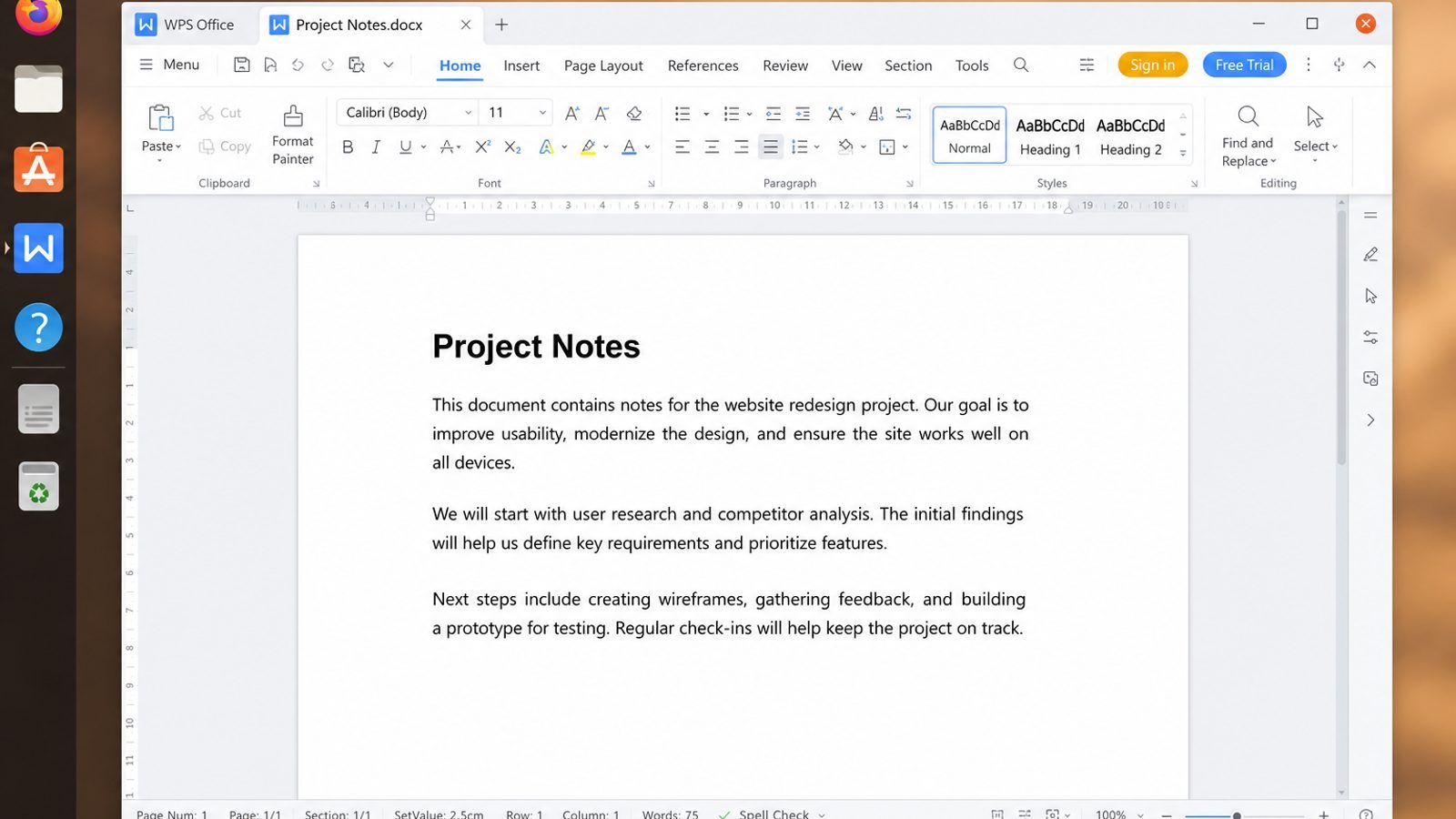
WPS Office for Linux is a simple place for that guide: Writer for rename rules, Spreadsheet for old→new maps, and PDF when the convention should not drift.
| What you need next | What WPS gives you |
|---|---|
| Publish rename conventions as a shareable note | Strong .docx / .xlsx / .pptx layout fidelity when files move between Linux, Windows, and macOS |
| One place for notes, sheets, slides, and PDFs | Free core suite: Writer, Spreadsheet, Presentation, plus PDF view/edit/convert tools |
| A familiar desktop UI for switchers | Ribbon-style apps with a lighter footprint than many heavy suites |
| A trusted install path | Official DEB (Ubuntu/Debian/Mint) and RPM packages from the vendor |
Download from the official WPS Office for Linux download page, install with sudo apt install ./wps-office_VERSION_amd64.deb, and keep the naming map beside the files you just renamed.


FAQ
Is there a rename command?
Some distros ship a rename utility for batch patterns; single-file renames use mv everywhere. Always check which rename implementation your package provides.
Can I rename a directory the same way?
mv old-dir new-dirWhy can’t I rename across devices with a new name?
You can—mv accepts a destination path on another mount—but it becomes a copy+delete. Verify free space and consider explicit cp verification for critical data.
How do I rename hidden files?
mv .oldname .newname
ls -la .newname
Does renaming change file content?
No. Only the path/name changes on the same filesystem. Content hashes stay the same.
What about undo?
mv back to the old name if known. Version control (git) is safer for code trees and provides history.
How do I rename only the extension?
mv document.TXT document.txtCan two files differ only by case?
Yes on typical Linux filesystems. Be careful when syncing to case-insensitive platforms like default Windows/macOS volumes.

'%3e%3cpath%20d='M19.9911%204.11386V6.471H18.5894C18.0775%206.471%2017.7322%206.57814%2017.5536%206.79243C17.3751%207.00671%2017.2858%207.32814%2017.2858%207.75671V9.44421H19.9019L19.5536%2012.0871H17.2858V18.8639H14.5536V12.0871H12.2769V9.44421H14.5536V7.49779C14.5536%206.39064%2014.8632%205.53201%2015.4822%204.92189C16.1013%204.31177%2016.9257%204.00671%2017.9554%204.00671C18.8304%204.00671%2019.509%204.04243%2019.9911%204.11386Z'%20fill='%23333333'/%3e%3c/g%3e%3cdefs%3e%3cclipPath%20id='clip0_2938_8199'%3e%3crect%20width='16'%20height='16'%20fill='white'%20transform='translate(8%204.00671)'/%3e%3c/clipPath%3e%3c/defs%3e%3c/svg%3e)
'%3e%3cpath%20d='M17.5237%2010.7813L23.4811%204H22.0699L16.8949%209.88693L12.7648%204H8L14.2469%2012.9029L8%2020.0133H9.4112L14.8725%2013.7952L19.2352%2020.0133H24M9.92053%205.04213H12.0885L22.0688%2019.0224H19.9003'%20fill='%23333333'/%3e%3c/g%3e%3cdefs%3e%3cclipPath%20id='clip0_2938_8200'%3e%3crect%20width='16'%20height='16.0134'%20fill='white'%20transform='translate(8%204)'/%3e%3c/clipPath%3e%3c/defs%3e%3c/svg%3e)


