



'%3e%3cpath%20fill-rule='evenodd'%20clip-rule='evenodd'%20d='M21.4999%2010.9993C21.4999%205.20009%2016.7986%200.498901%2010.9993%200.498901C5.19994%200.498901%200.498657%205.20009%200.498657%2010.9993C0.498657%2016.2404%204.33858%2020.5844%209.35855%2021.3722V14.0346H6.69238V10.9993H9.35855V8.68594C9.35855%206.05427%2010.9262%204.60062%2013.3248%204.60062C14.4736%204.60062%2015.6753%204.80571%2015.6753%204.80571V7.38979H14.3512C13.0468%207.38979%2012.64%208.19921%2012.64%209.0296V10.9993H15.5523L15.0867%2014.0346H12.64V21.3722C17.66%2020.5844%2021.4999%2016.2404%2021.4999%2010.9993Z'%20fill='%231568EA'/%3e%3c/g%3e%3c/svg%3e)


'%3e%3cpath%20d='M2.42045%2022.1876H6.31818V12.7217L0.75%208.54553V20.5171C0.75%2021.4414%201.49892%2022.1876%202.42045%2022.1876Z'%20fill='%234285F4'/%3e%3cpath%20d='M19.682%2022.1876H23.5797C24.5041%2022.1876%2025.2502%2021.4387%2025.2502%2020.5171V8.54553L19.682%2012.7217'%20fill='%2334A853'/%3e%3cpath%20d='M19.682%205.48293V12.7216L25.2502%208.54543V6.31816C25.2502%204.25236%2022.8921%203.07469%2021.2411%204.31361'%20fill='%23FBBC04'/%3e%3cpath%20d='M6.31824%2012.7217V5.48303L13.0001%2010.4944L19.6819%205.48303V12.7217L13.0001%2017.733'%20fill='%23EA4335'/%3e%3cpath%20d='M0.75%206.31816V8.54543L6.31818%2012.7216V5.48293L4.75909%204.31361C3.10534%203.07469%200.75%204.25236%200.75%206.31816Z'%20fill='%23C5221F'/%3e%3c/g%3e%3cdefs%3e%3cclipPath%20id='clip0_2954_7305'%3e%3crect%20width='24.5'%20height='18.375'%20fill='white'%20transform='translate(0.75%203.8125)'/%3e%3c/clipPath%3e%3c/defs%3e%3c/svg%3e)


How to find files in Linux is a core skill for new users who feel lost after leaving Windows File Explorer. The built-in find command is the most flexible native search tool—once you know a few safe patterns. This beginner guide covers practical find examples, targeted vs full-disk search, common errors, and an easier graphical option for office documents with WPS Office on Linux.


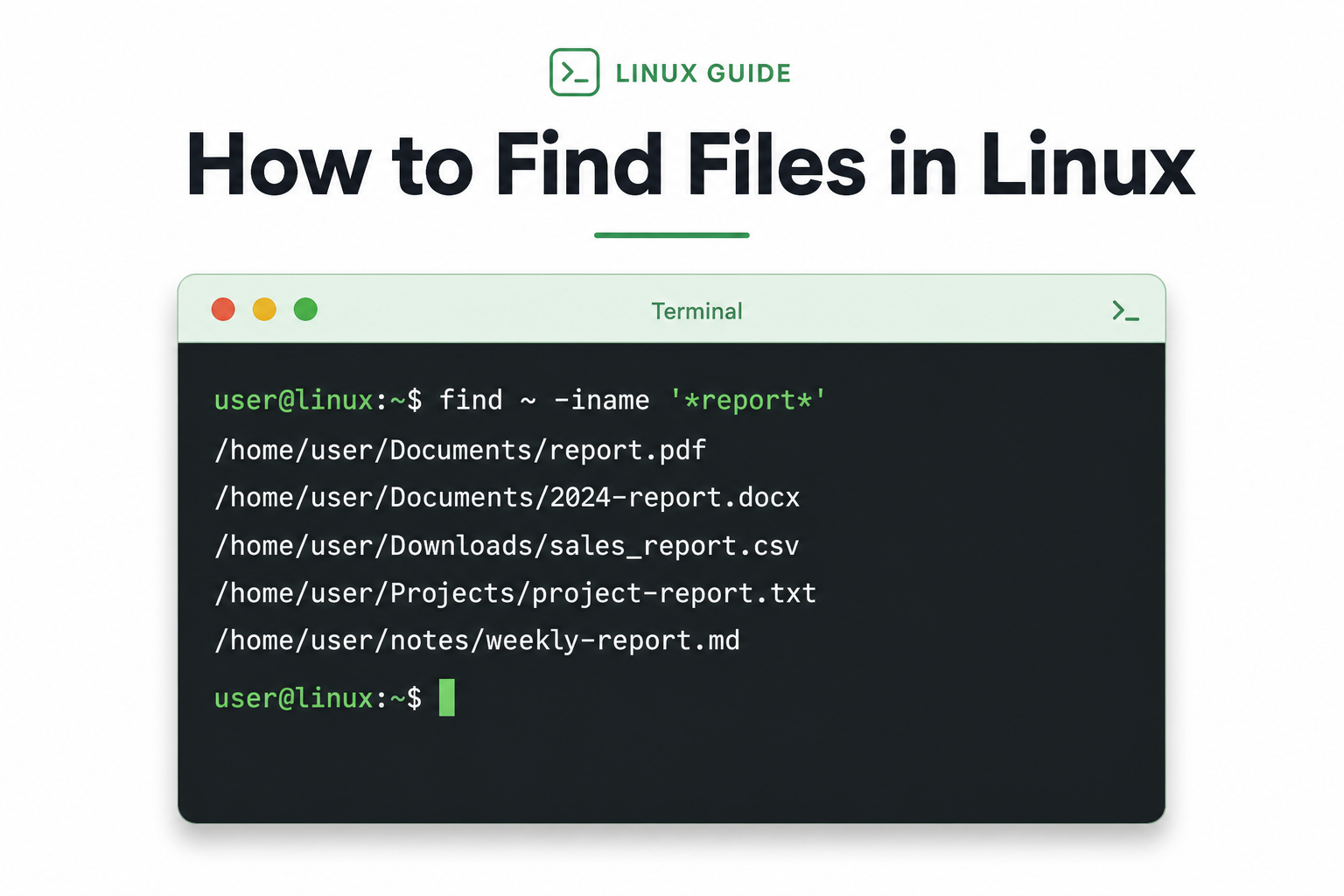
Quick answer: Search your home folder first: find ~ -iname '*report*'. Limit by type with -type f (files) or -type d (folders), by size with -size +1G, or by time with -mtime -7. Prefer a specific path over /. Use -iname for case-insensitive matches. Avoid -delete until you have previewed results.
Basic Syntax of the Linux find Command
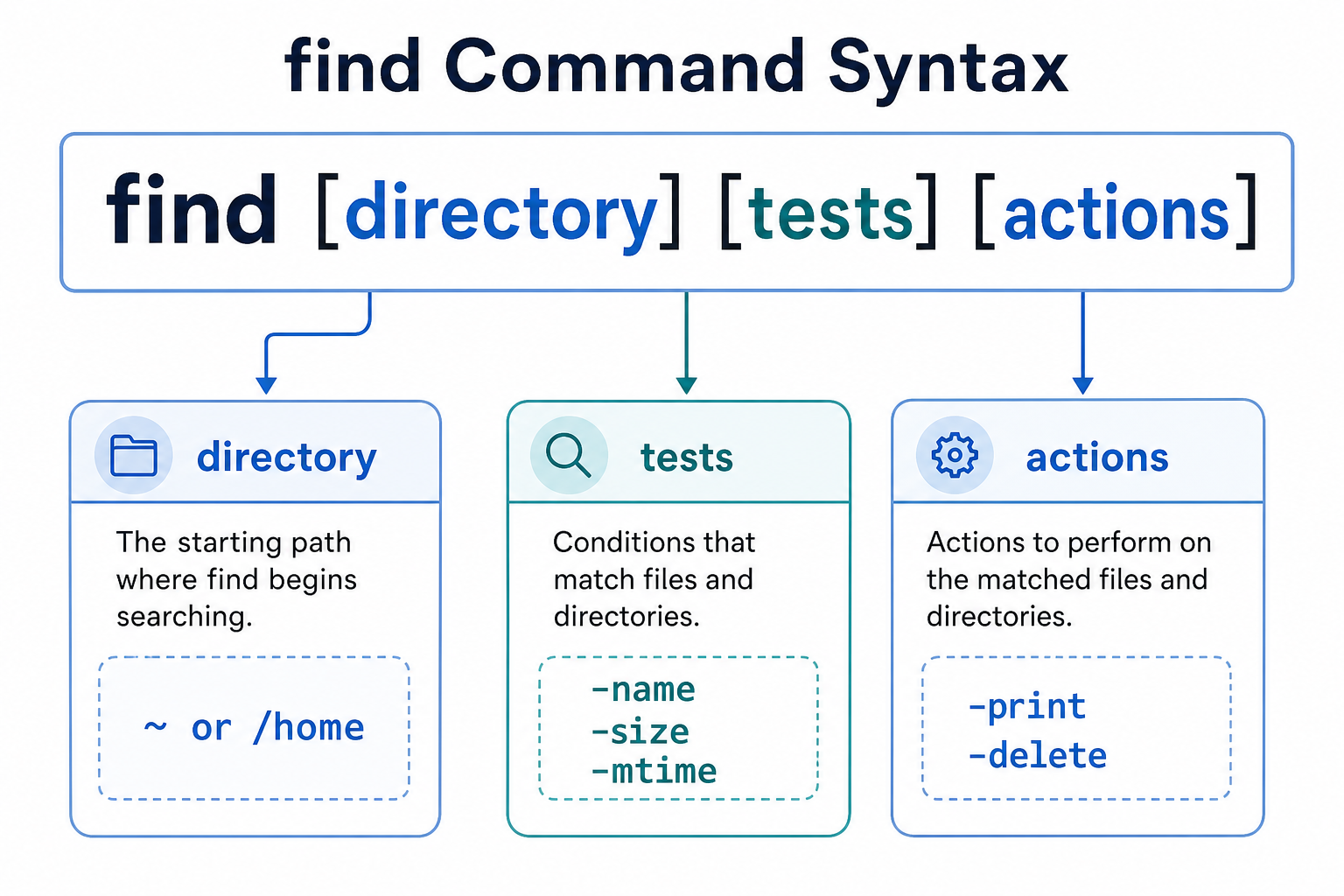
find [search_directory] [tests...] [actions...]
| Part | Meaning | Beginner tip |
|---|---|---|
| search_directory | Where to start (for example ~, ~/Documents, /) | Start with ~, not the whole disk |
| tests | Filters such as name, size, type, or time | Combine only what you need |
| actions | Optional follow-ups (-print, -delete, -exec) | Default is to print matches—preview before delete |
Quotes matter. Patterns with * should usually be wrapped in single quotes so the shell does not expand them early: -name '*.pdf'.
Most Practical File Search Examples
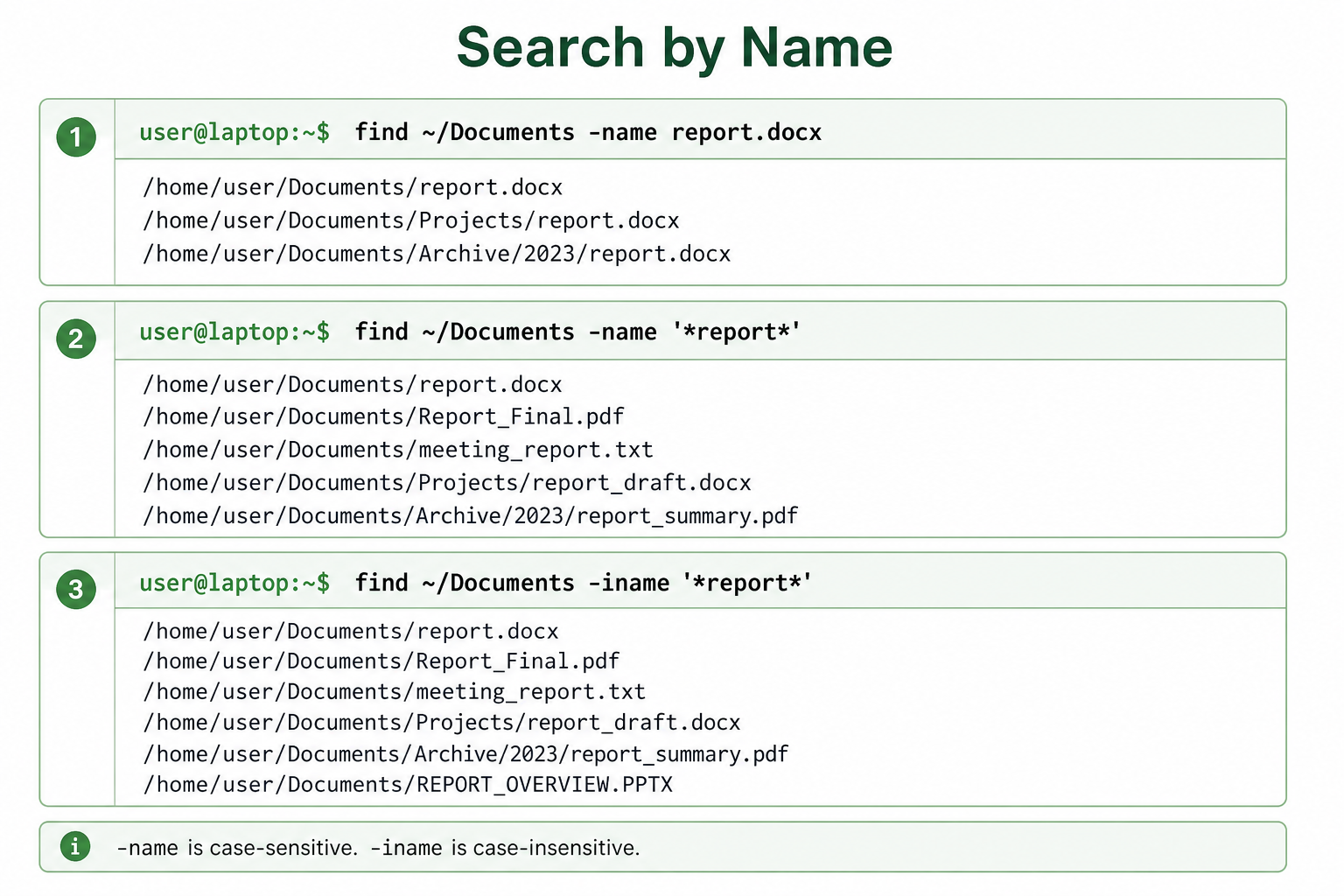
1. Search by full or partial name
# Case-sensitive name match (exact filename)
find ~/Documents -name 'report.docx'

# Partial match: names containing “report”
find ~/Documents -name '*report*'

# Case-insensitive partial match (recommended for beginners)
find ~/Documents -iname '*report*'
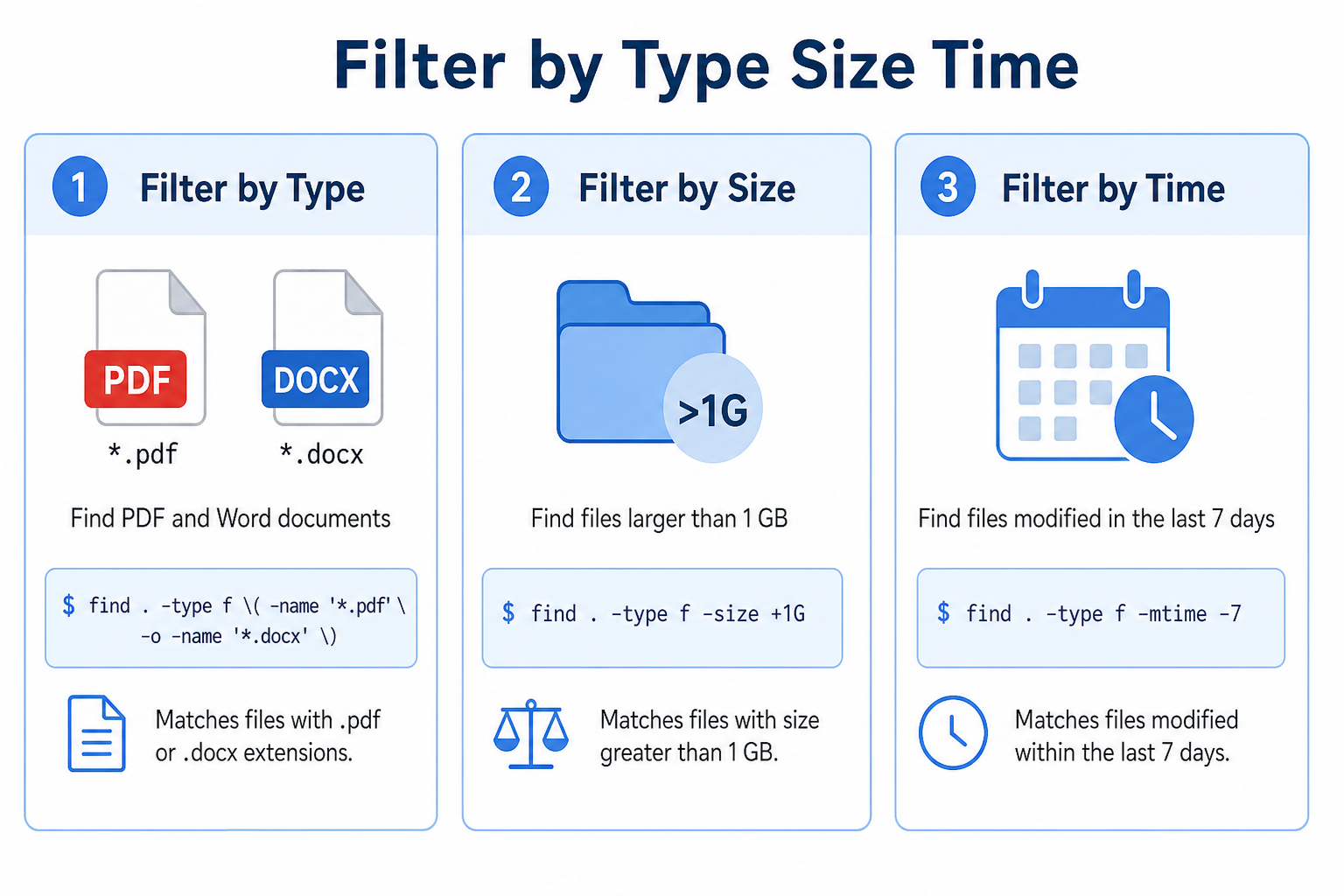
2. Filter by file format (extension)
# All PDFs under your home folder
find ~ -type f -name '*.pdf'

# PDFs or Word docs (group the OR conditions)
find ~ -type f \( -name '*.pdf' -o -name '*.docx' \)
Use *.pdf / *.docx—not .pdf alone—or you will miss normal files.
3. Find large files by size
# Files larger than 1GB (start in home to stay safer/faster)
find ~ -type f -size +1G

# Full-disk scan (slower; may show Permission denied without sudo)
find / -type f -size +1G 2>/dev/null
4. Filter by modification time
# Modified within the last 7 days
find ~ -type f -mtime -7

# Not modified in the last 30 days
find ~ -type f -mtime +30
-mtime -7 means “less than 7 days ago.” -mtime +7 means “more than 7 days ago.”
5. Search folders only or files only
# Directories only
find ~ -type d -iname '*project*'

# Regular files only
find ~ -type f -iname '*project*'
Targeted Folder Search vs Full System Search
| Approach | Example | When to use |
|---|---|---|
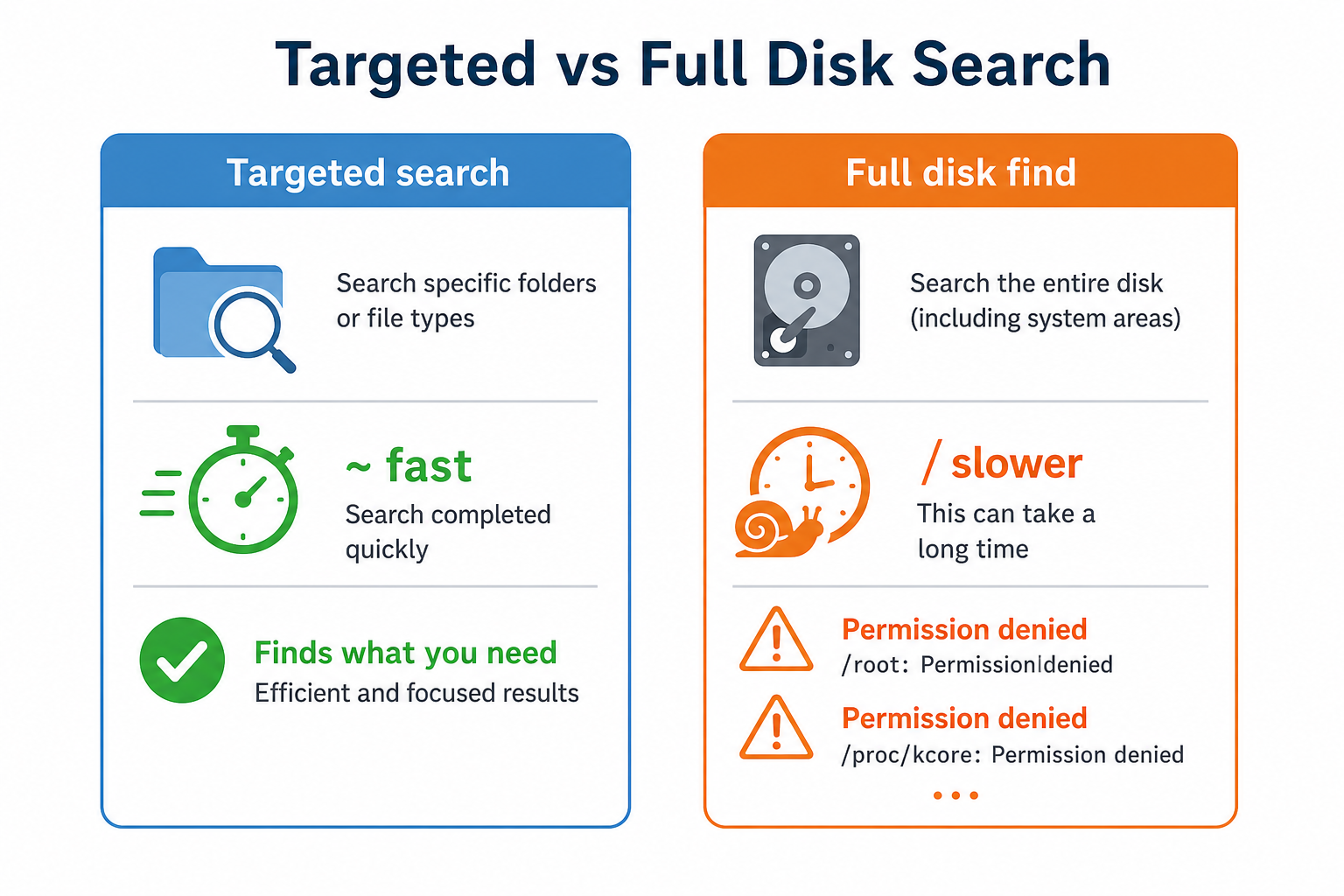
| Targeted (recommended) | find ~ -iname 'budget.xlsx' | Faster, fewer permission errors, everyday use |
| Project folder | find ~/Documents -name '*.pptx' | You already know the rough location |
| Full disk | find / -name 'hosts' | System files; expect delays and denied paths |
~ is your home directory. / is the entire filesystem root. Full-disk searches take longer and often print Permission denied for protected system folders—that is normal without elevated access.
Common Errors and Quick Fixes
| Problem | What to try |
|---|---|
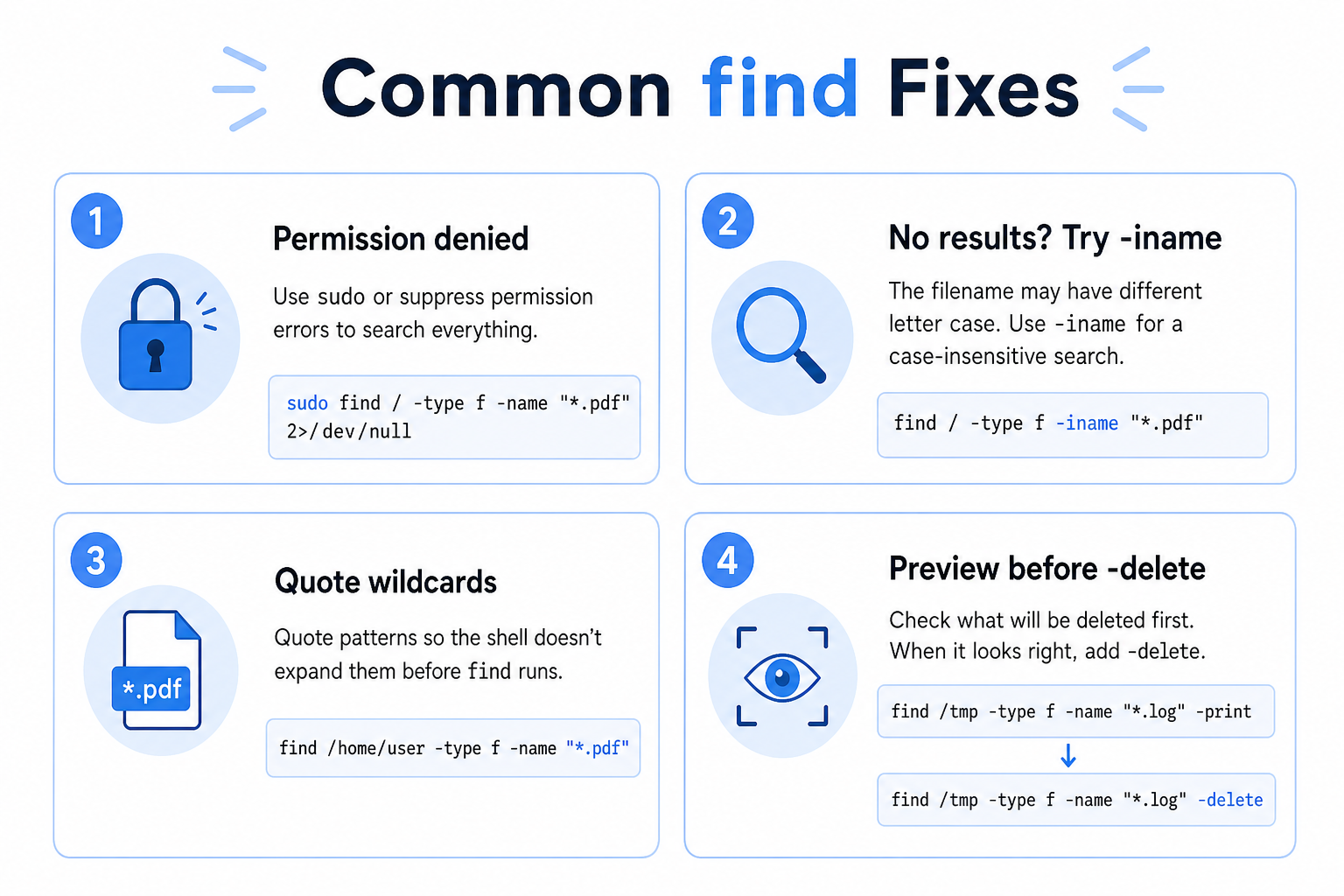
| Permission denied | Search under ~ first; or hide noise with 2>/dev/null; use sudo only when you truly need system paths |
| No results | Check spelling/path; try -iname; confirm wildcards like '*.pdf'; verify the file still exists |
| Shell expands * | Quote patterns: -name '*.docx' |
| USB files missing | Mount the drive, then search the mount path (often under /media/$USER/ or /run/media/$USER/) |
| Accidental deletes | Never start with -delete—run a print-only search first |
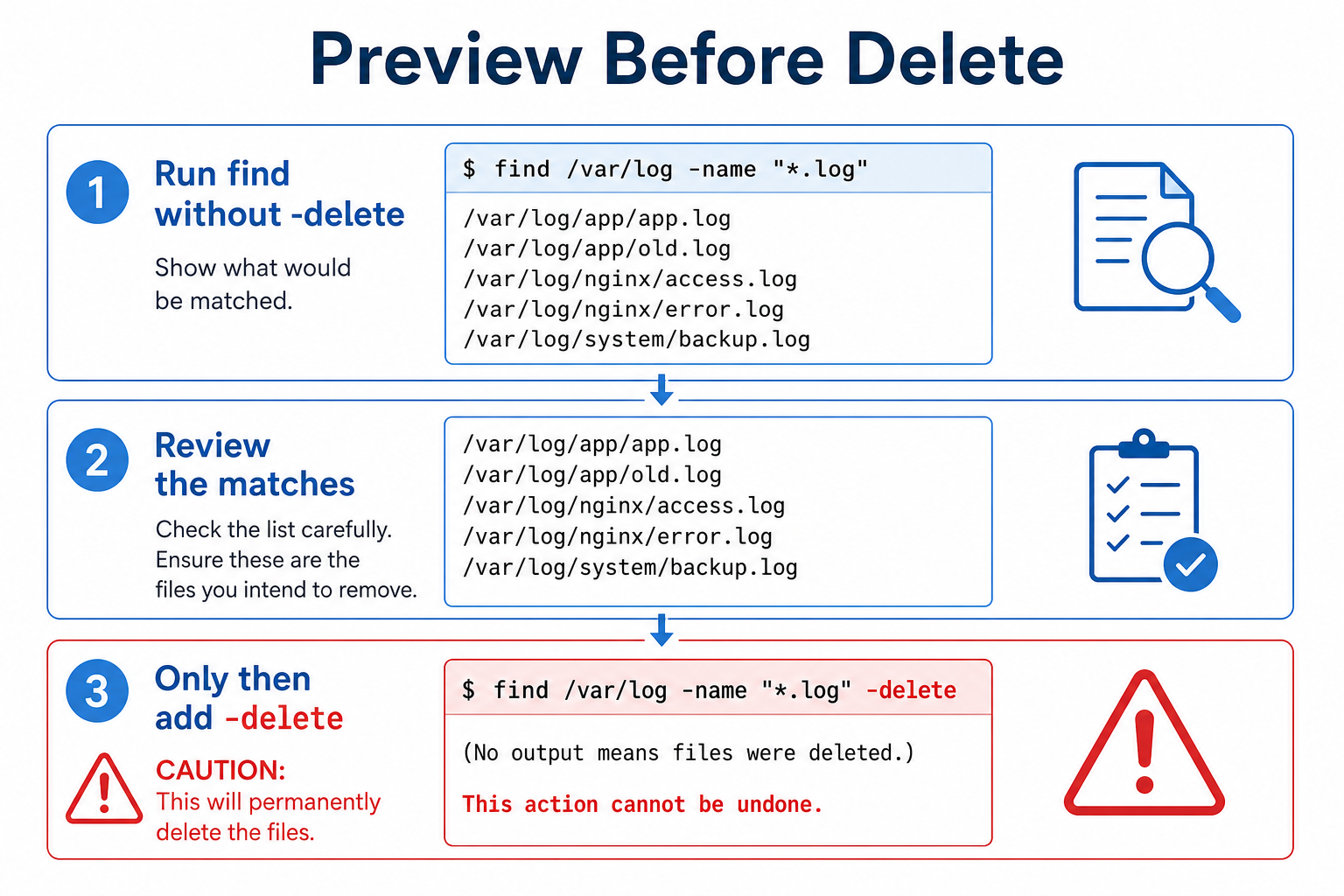
# Preview matches first
find ~/Downloads -type f -name '*.tmp'

# Only after you verify the list (destructive—use with care)
find ~/Downloads -type f -name '*.tmp' -delete
Graphical Alternatives (Including WPS for Office Files)
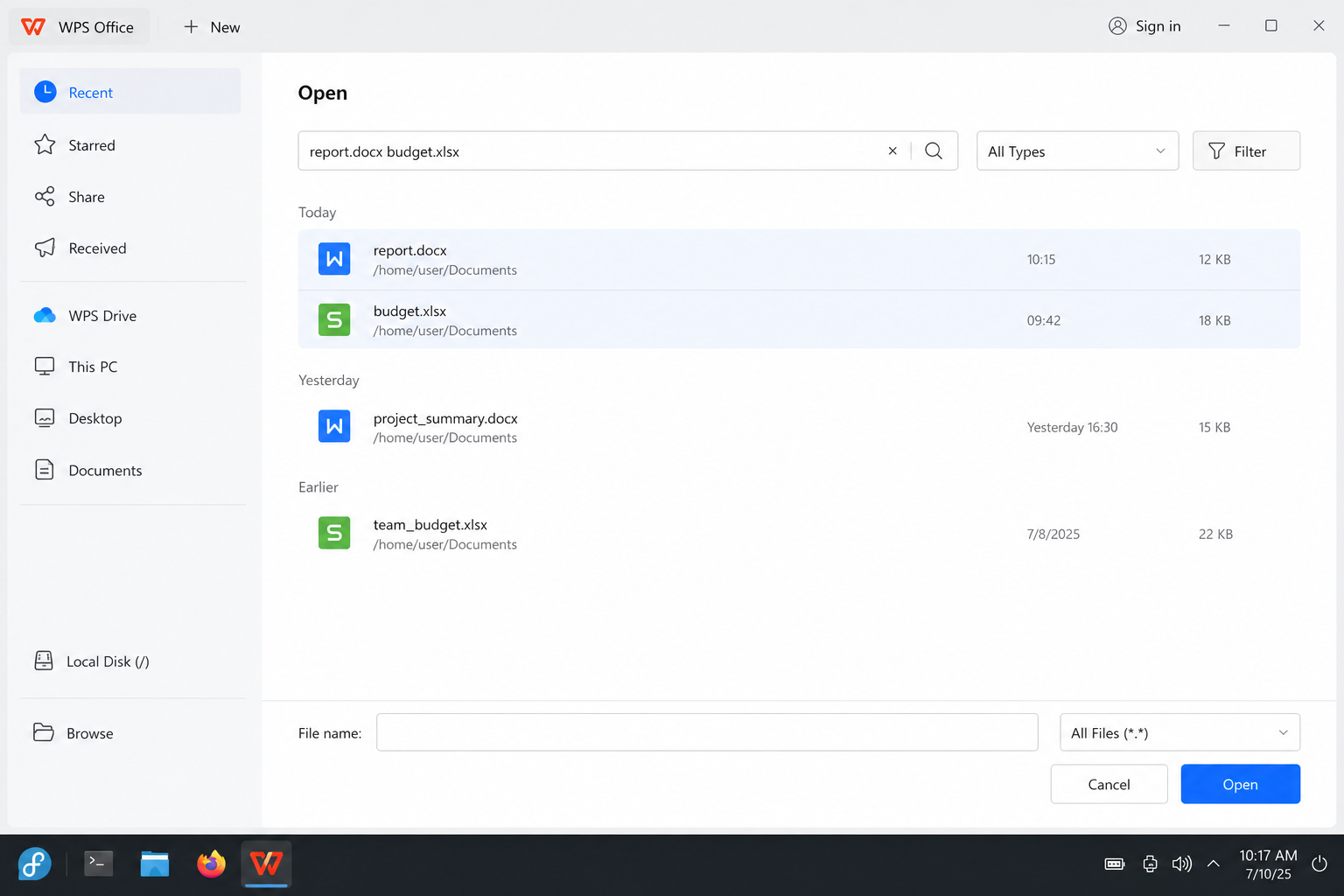
If you prefer not to use the terminal for everyday hunting:
Files (GNOME) / Dolphin (KDE): use the window search box inside a folder.
locate (if installed): fast name index after the database is updated—great for quick lookups, less flexible than find for size/time filters.
WPS Office for Linux: handy when you mainly need Word, Excel, or PowerPoint files. Open WPS and use its file/open recent/search workflow to jump to office documents without memorizing find flags. Core editing features are free for personal use, with strong compatibility for common Microsoft Office formats.
Tip: Use find for system cleanup and precise filters; use WPS or your file manager when you just need that report.docx from last week.
Related Linux file management guides: linux create file; linux copy file; linux move file; linux rename file; linux delete file; remove directory linux; linux size of directory; linux zip folder; linux unzip.
FAQ
Does find distinguish uppercase and lowercase?
Yes by default with -name. Use -iname to ignore case: find ~ -iname '*readme*'.
Can I delete files directly with find?
Yes—with -delete or -exec rm—but it is easy to wipe the wrong files. Always run the same command without delete first and read the output carefully.
Why can’t find see files on a USB drive?
The drive must be mounted. Search the mount point (check your file manager sidebar path), for example find /media/$USER/USBNAME -iname '*.pdf'.
What is the difference between find and locate?
find walks directories in real time and supports rich filters. locate queries a prebuilt index and is often faster for simple name searches, but results can be slightly stale until the index updates.
Conclusion
To find files in Linux, learn a few find patterns: start in ~, match with -iname '*text*', narrow with -type, -size, and -mtime, and quote your wildcards. Prefer targeted folders over full-disk scans. Preview before -delete. For daily office documents on Linux, WPS Office offers a simpler graphical path alongside the terminal when you do not need advanced filters.

'%3e%3cpath%20d='M19.9911%204.11386V6.471H18.5894C18.0775%206.471%2017.7322%206.57814%2017.5536%206.79243C17.3751%207.00671%2017.2858%207.32814%2017.2858%207.75671V9.44421H19.9019L19.5536%2012.0871H17.2858V18.8639H14.5536V12.0871H12.2769V9.44421H14.5536V7.49779C14.5536%206.39064%2014.8632%205.53201%2015.4822%204.92189C16.1013%204.31177%2016.9257%204.00671%2017.9554%204.00671C18.8304%204.00671%2019.509%204.04243%2019.9911%204.11386Z'%20fill='%23333333'/%3e%3c/g%3e%3cdefs%3e%3cclipPath%20id='clip0_2938_8199'%3e%3crect%20width='16'%20height='16'%20fill='white'%20transform='translate(8%204.00671)'/%3e%3c/clipPath%3e%3c/defs%3e%3c/svg%3e)
'%3e%3cpath%20d='M17.5237%2010.7813L23.4811%204H22.0699L16.8949%209.88693L12.7648%204H8L14.2469%2012.9029L8%2020.0133H9.4112L14.8725%2013.7952L19.2352%2020.0133H24M9.92053%205.04213H12.0885L22.0688%2019.0224H19.9003'%20fill='%23333333'/%3e%3c/g%3e%3cdefs%3e%3cclipPath%20id='clip0_2938_8200'%3e%3crect%20width='16'%20height='16.0134'%20fill='white'%20transform='translate(8%204)'/%3e%3c/clipPath%3e%3c/defs%3e%3c/svg%3e)


