



'%3e%3cpath%20fill-rule='evenodd'%20clip-rule='evenodd'%20d='M21.4999%2010.9993C21.4999%205.20009%2016.7986%200.498901%2010.9993%200.498901C5.19994%200.498901%200.498657%205.20009%200.498657%2010.9993C0.498657%2016.2404%204.33858%2020.5844%209.35855%2021.3722V14.0346H6.69238V10.9993H9.35855V8.68594C9.35855%206.05427%2010.9262%204.60062%2013.3248%204.60062C14.4736%204.60062%2015.6753%204.80571%2015.6753%204.80571V7.38979H14.3512C13.0468%207.38979%2012.64%208.19921%2012.64%209.0296V10.9993H15.5523L15.0867%2014.0346H12.64V21.3722C17.66%2020.5844%2021.4999%2016.2404%2021.4999%2010.9993Z'%20fill='%231568EA'/%3e%3c/g%3e%3c/svg%3e)


'%3e%3cpath%20d='M2.42045%2022.1876H6.31818V12.7217L0.75%208.54553V20.5171C0.75%2021.4414%201.49892%2022.1876%202.42045%2022.1876Z'%20fill='%234285F4'/%3e%3cpath%20d='M19.682%2022.1876H23.5797C24.5041%2022.1876%2025.2502%2021.4387%2025.2502%2020.5171V8.54553L19.682%2012.7217'%20fill='%2334A853'/%3e%3cpath%20d='M19.682%205.48293V12.7216L25.2502%208.54543V6.31816C25.2502%204.25236%2022.8921%203.07469%2021.2411%204.31361'%20fill='%23FBBC04'/%3e%3cpath%20d='M6.31824%2012.7217V5.48303L13.0001%2010.4944L19.6819%205.48303V12.7217L13.0001%2017.733'%20fill='%23EA4335'/%3e%3cpath%20d='M0.75%206.31816V8.54543L6.31818%2012.7216V5.48293L4.75909%204.31361C3.10534%203.07469%200.75%204.25236%200.75%206.31816Z'%20fill='%23C5221F'/%3e%3c/g%3e%3cdefs%3e%3cclipPath%20id='clip0_2954_7305'%3e%3crect%20width='24.5'%20height='18.375'%20fill='white'%20transform='translate(0.75%203.8125)'/%3e%3c/clipPath%3e%3c/defs%3e%3c/svg%3e)


To delete a file in Linux, use rm filename. Add -i to confirm, avoid bare rm * until you understand globs, and remember most servers have no Trash for CLI deletes. Success means ls no longer shows the path and dependent apps are updated. For folders, see remove directory linux.
Shortest safe path: ls -l file.txt && rm -i file.txt && ls file.txt (the last ls should fail). Need a backup first? cp or mv to ~/Archive/ before rm.

To locate files before you create, copy, move, or delete them, see how to find files in Linux.
Basic rm for Files
rm file.txt
rm -i notes.md report.pdf
rm -- -weirdname.txt
rm unlinks directory entries. The double dash helps when a name starts with -. Always ls the exact name first—tab completion reduces typos.
Interactive mode is your seatbelt:
rm -i important.cfgWhat rm Does Not Do
- It does not move to Desktop Trash on typical SSH servers
- It does not ask by default on many systems (unless aliased)
- It does not free space held by open file descriptors until processes close
- It is not a secure wipe (use dedicated wipe tools only when required)
Aliases like alias rm='rm -i' may exist in interactive shells but vanish in scripts—never rely on aliases for safety in automation.
Multiple Files and Globs
rm -i *.tmp
rm -i file1.txt file2.txt
Globs expand before rm runs. If *.tmp matches hundreds of files, you may hit “argument list too long.” Use find carefully or delete in batches. Never paste internet commands that combine rm with unquoted command substitutions like rm $(ls)—Ask Ubuntu warns that broken names and whitespace make that pattern unsafe.
Write-Protected and Permission Errors
rm -i protected.txt
# if prompted about write-protected file, answer thoughtfully
ls -l protected.txt
Permission denied on rm often means you lack write permission on the directory, not only the file. Check ls -ld .. Do not escalate to sudo rm unless you own the operational reason and have backups.
I/O Errors and Stubborn Paths
Ask Ubuntu threads about “cannot remove: Input/output error” often point to failing disks or bad mounts—not a missing rm flag. Check dmesg, SMART, and mount health before inventing force flags. Forcing deletes on a dying disk can worsen data loss.
Safe Workflow Before Delete
pwdandls -laconfirm location.- Measure if unsure: see linux size of directory for folder impact.
- Copy or move valuables aside.
rm -ithe targets.- Verify with
ls/ application tests.
Files vs Directories
Plain rm file fails on directories. Removing directories needs rmdir (empty) or rm -r (recursive)—covered in remove directory linux. Do not memorize rm -rf as a reflex; it is a last resort with verified paths.
Verify Success
test ! -e file.txt && echo "deleted"
ls -la- Path absent.
- No critical process errors from missing configs.
- Free space increased if large files were removed (
df -h).
Recoverability Reality Check
Extundelete and forensic tools are not a plan. Snapshots, backups, and version control are. If the file mattered, it should have lived in git or a backup before rm. Treat “I can probably recover it” as fiction unless you already tested restores last month.
Name discipline helps deletes stay safe: avoid spaces when you can, and never leave production configs named config.txt beside config.txt.bak without a clear policy for which one is live. After renaming keepers out of the way, delete the leftovers with explicit names—not broad globs.
Log-oriented systems may recreate files the moment you delete them. If a log returns instantly, fix rotation or the service configuration instead of looping rm in a for-loop. Disk-full incidents need root-cause cleanup (journal vacuum, old artifacts), not blind recursive deletes from /var.
When automating, print the file list to a log, sleep, then delete. That two-phase pattern gives you a chance to Ctrl-C after seeing something unexpected. Automation without a rehearsal is how outages get a shell history.
Desktop Linux may offer a Trash for GUI deletes, but SSH sessions to Ubuntu servers usually do not. Mentally switch modes when you open a terminal: shell rm is permanent. If you need soft deletes, invent a quarantine directory and stick to it as policy.
Editable documents you still need should be exported before folder-wide cleanups. Screenshots, CSV exports, and PDF proofs are cheaper to keep than to recreate. After deletes, update bookmarks and scripts that referenced old paths so “file not found” does not cascade into support tickets.
Resist rm -rf * inside directories you have not listed in the same minute. Type the directory name twice—once in ls, once in rm—or use tab completion from a freshly pasted absolute path. The few extra keystrokes are cheaper than restoring a home directory from last week’s backup tape—or discovering you never had a backup.
Linux delete file operations use rm with confirmation habits, careful globs, and backups first—treat CLI delete as permanent unless you already have a restore path.
Practice destructive commands only inside a throwaway tree such as ~/tmp-practice. Create sample files with touch, copy them, then delete the copies—not your only originals. Run ls -la before and after every experiment. Ten calm minutes of drills beat one panicked recovery attempt.
Quote paths, prefer -i while learning, and never run recursive deletes against /, ~, or unreviewed globs. Most disasters are one misplaced space or an expanded * away. Slow down on production hosts; go fast only where rebuild is cheap. If a command feels clever, it is probably unsafe without a dry run.
Read rm(1), rmdir(1), and du(1) once. You do not need every flag memorized—you need to know where to look when an error is unfamiliar. Official man pages beat viral “one weird tip” posts that skip warnings and sell false confidence.
On shared machines, announce bulk deletes in chat. Cron jobs and teammates may still expect yesterday’s paths. Prefer moving into an Archive folder for a week before permanent rm when you are unsure. That quarantine habit has saved more teams than any force flag ever will.
Before you delete project folders that hold drafts, export finished DOCX, XLSX, or PDF copies you still need for school or work. Terminal cleanup is permanent on most systems—office-ready exports are your safety net when Trash is not available.
WSL users should delete inside the Linux filesystem for project trees. Cross-deleting under /mnt/c works but follows Windows permissions and can surprise you with locked files. Confirm with pwd before recursive flags. Keep Windows Explorer closed on files you plan to remove from WSL.
Keep a personal checklist: list → measure size if needed → backup or move → delete → verify gone. That order turns risky commands into a boring routine—which is exactly what you want on Friday afternoons and during incidents alike.
Teach juniors the same order out loud before they receive sudo. Narrating pwd, ls, and intended targets catches typos that eyes skip when someone is stressed. Pair programming beats postmortems.
Finally, separate “cleanup” from “secure erase.” Everyday rm/rmdir/du workflows reclaim space and reduce clutter. Classified-data destruction policies require approved wipe procedures beyond this beginner series—follow your organization’s standards when those rules apply.
Cross-link your personal notes to the sibling skills: create, copy, move, and rename. File hygiene is a loop, not a single command. Operators who practice the whole loop make fewer irreversible mistakes when disks fill at inconvenient times.
If you remember only one sentence, make it this: measure and list before you destroy, and verify after. That sentence covers delete file, remove directory, and directory sizing better than any force-flag folklore circulating in chat threads.
Before and After Deletes: Keep a Cleanup Record
rm is permanent for most everyday cases. A short cleanup log—what you removed, why, and what you kept—saves arguments later when disk space or audits come up.
WPS Office for Linux fits that paperwork: Writer for cleanup notes, Spreadsheet for path inventories, and PDF when you need a fixed audit-friendly copy.
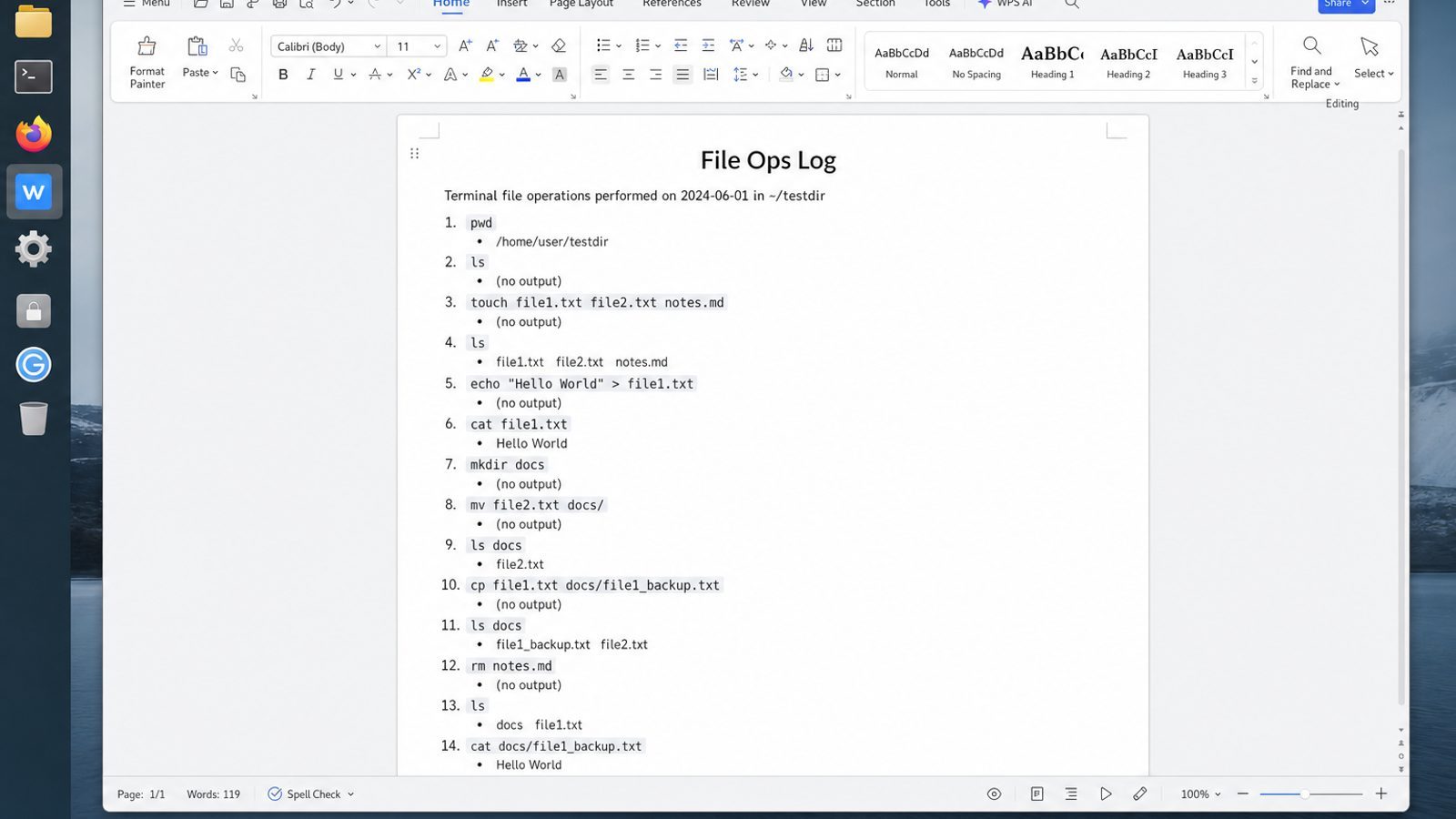
| What you need next | What WPS gives you |
|---|---|
| Document cleanup decisions without living in the terminal | Strong .docx / .xlsx / .pptx layout fidelity when files move between Linux, Windows, and macOS |
| One place for notes, sheets, slides, and PDFs | Free core suite: Writer, Spreadsheet, Presentation, plus PDF view/edit/convert tools |
| A familiar desktop UI for switchers | Ribbon-style apps with a lighter footprint than many heavy suites |
| A trusted install path | Official DEB (Ubuntu/Debian/Mint) and RPM packages from the vendor |
Get the package from the official WPS Office for Linux download page, install with sudo apt install ./wps-office_VERSION_amd64.deb, and write the cleanup note before the next large rm pass.
FAQ
Can I undo rm?
Not reliably. Restore from backup, snapshots, or version control.
Does rm -f mean force forever?
It suppresses many prompts and some errors—use sparingly and only with reviewed paths.
How do I delete hidden files?
rm -i .env.local
ls -la
Why is space not freed after rm?
A process may still hold the file open. Restart the service or identify open handles.
Is shred required?
Only for specific secure-erase policies. Normal rm is enough for everyday cleanup.
rm vs unlink?
Both remove file names; rm is the everyday interface with recursion options.
How do I delete by date?
Use carefully reviewed find predicates—and dry-run prints first—never start with -delete on production.
What about Trash on desktop Linux?
GUI Trash differs from shell rm. On servers, assume no Trash. If you use a desktop, empty Trash separately when df still looks full after “deleting” in the file manager.
Make delete boring: short absolute paths, interactive flags, and a backup habit. The operators who never make headlines are the ones who treat rm like a controlled explosion—planned, announced, and verified—not like a reflex when the disk bar turns red.



'%3e%3cpath%20d='M19.9911%204.11386V6.471H18.5894C18.0775%206.471%2017.7322%206.57814%2017.5536%206.79243C17.3751%207.00671%2017.2858%207.32814%2017.2858%207.75671V9.44421H19.9019L19.5536%2012.0871H17.2858V18.8639H14.5536V12.0871H12.2769V9.44421H14.5536V7.49779C14.5536%206.39064%2014.8632%205.53201%2015.4822%204.92189C16.1013%204.31177%2016.9257%204.00671%2017.9554%204.00671C18.8304%204.00671%2019.509%204.04243%2019.9911%204.11386Z'%20fill='%23333333'/%3e%3c/g%3e%3cdefs%3e%3cclipPath%20id='clip0_2938_8199'%3e%3crect%20width='16'%20height='16'%20fill='white'%20transform='translate(8%204.00671)'/%3e%3c/clipPath%3e%3c/defs%3e%3c/svg%3e)
'%3e%3cpath%20d='M17.5237%2010.7813L23.4811%204H22.0699L16.8949%209.88693L12.7648%204H8L14.2469%2012.9029L8%2020.0133H9.4112L14.8725%2013.7952L19.2352%2020.0133H24M9.92053%205.04213H12.0885L22.0688%2019.0224H19.9003'%20fill='%23333333'/%3e%3c/g%3e%3cdefs%3e%3cclipPath%20id='clip0_2938_8200'%3e%3crect%20width='16'%20height='16.0134'%20fill='white'%20transform='translate(8%204)'/%3e%3c/clipPath%3e%3c/defs%3e%3c/svg%3e)


