



'%3e%3cpath%20fill-rule='evenodd'%20clip-rule='evenodd'%20d='M21.4999%2010.9993C21.4999%205.20009%2016.7986%200.498901%2010.9993%200.498901C5.19994%200.498901%200.498657%205.20009%200.498657%2010.9993C0.498657%2016.2404%204.33858%2020.5844%209.35855%2021.3722V14.0346H6.69238V10.9993H9.35855V8.68594C9.35855%206.05427%2010.9262%204.60062%2013.3248%204.60062C14.4736%204.60062%2015.6753%204.80571%2015.6753%204.80571V7.38979H14.3512C13.0468%207.38979%2012.64%208.19921%2012.64%209.0296V10.9993H15.5523L15.0867%2014.0346H12.64V21.3722C17.66%2020.5844%2021.4999%2016.2404%2021.4999%2010.9993Z'%20fill='%231568EA'/%3e%3c/g%3e%3c/svg%3e)


'%3e%3cpath%20d='M2.42045%2022.1876H6.31818V12.7217L0.75%208.54553V20.5171C0.75%2021.4414%201.49892%2022.1876%202.42045%2022.1876Z'%20fill='%234285F4'/%3e%3cpath%20d='M19.682%2022.1876H23.5797C24.5041%2022.1876%2025.2502%2021.4387%2025.2502%2020.5171V8.54553L19.682%2012.7217'%20fill='%2334A853'/%3e%3cpath%20d='M19.682%205.48293V12.7216L25.2502%208.54543V6.31816C25.2502%204.25236%2022.8921%203.07469%2021.2411%204.31361'%20fill='%23FBBC04'/%3e%3cpath%20d='M6.31824%2012.7217V5.48303L13.0001%2010.4944L19.6819%205.48303V12.7217L13.0001%2017.733'%20fill='%23EA4335'/%3e%3cpath%20d='M0.75%206.31816V8.54543L6.31818%2012.7216V5.48293L4.75909%204.31361C3.10534%203.07469%200.75%204.25236%200.75%206.31816Z'%20fill='%23C5221F'/%3e%3c/g%3e%3cdefs%3e%3cclipPath%20id='clip0_2954_7305'%3e%3crect%20width='24.5'%20height='18.375'%20fill='white'%20transform='translate(0.75%203.8125)'/%3e%3c/clipPath%3e%3c/defs%3e%3c/svg%3e)


To find the Linux size of a directory, use du -sh dirname for a human-readable total, or du -h --max-depth=1 dirname to compare subfolders. Confirm disk free space with df -h. Success means you know which trees consume space before you delete or remove directories.
Shortest path: du -sh ~/Downloads. Rank children: du -h --max-depth=1 ~/Downloads | sort -h.

To locate files before you create, copy, move, or delete them, see how to find files in Linux.
Quick Totals with du
du -sh /path/to/dir
du -sh *
du -ah /path/to/dir | sort -h | tail
du estimates file space usage. -s summarizes; -h prints human units (K/M/G). Without -s, du lists every subdirectory—useful but noisy on large trees.
Compare Subdirectories
du -h --max-depth=1 /var | sort -h
# some systems use -d 1 instead of --max-depth=1
This view answers “which folder ate my disk?” better than a single total. Delete or archive the offenders deliberately after backups.
du vs df vs ls
- du: space used by files under a path
- df: free/used space on mounted filesystems
- ls -l: apparent file sizes, not recursive directory totals
df -h .
du -sh .
ls -l
Ask Ubuntu discussions often clarify discrepancies: sparse files, open deleted files, and different block sizes can make tools disagree slightly. For cleanup decisions, du on the directory plus df on the mount is enough.
Apparent Size vs Disk Usage
Some du versions support --apparent-size to show logical sizes versus allocated blocks. Sparse files look “huge” logically but use little disk. Know which question you are asking: storage capacity planning vs transfer size estimates.
Exclude and Focus
du -sh --exclude=.git project/
du -sh --exclude=node_modules project/
Excludes help when dependency folders dominate. Still measure them once—sometimes node_modules is the entire problem.
Before You Delete
- Identify largest children with depth-limited du.
- Copy or backup keepers.
- Move uncertain trees to quarantine.
- Delete files or remove directories intentionally.
- Re-run
duanddfto confirm recovery.
Performance on Huge Trees
First du on a cold multi-terabyte tree takes time—du must walk inodes. Narrow scope to suspect paths. Avoid running heavy du against network mounts during peak hours without need.
Readable Reports for Teams
du -h --max-depth=2 /var/log | sort -h > /tmp/log-usage.txt
cat /tmp/log-usage.txt
Share the report before proposing deletes. Numbers beat guesses in incident channels.
Verify You Measured the Right Place
pwd
realpath .
du -sh "$(pwd)"
Symlink farms can redirect what you think you are measuring. Prefer absolute paths after realpath.
Scheduled reports help more than one-off panic measurements. A weekly du snapshot of /var and home directories into a dated log makes growth trends obvious before disks hit 100%. Pair with alerts on df thresholds so humans intervene early.
Containers and build caches inflate directories quietly: Docker images, language package caches, browser profiles, and IDE indexes. Measure those known suspects explicitly instead of only staring at the project root. Clearing the wrong cache wastes time; clearing the right one restores gigabytes.
When presenting sizes to non-Linux stakeholders, convert to GB and include the mount’s free space from df -h. “The folder is 40G and the disk has 3G free” is an actionable sentence. Raw block counts are not.
After cleanup, measure again. Confirmation prevents the false belief that deletes worked when you removed a symlink or an empty directory while the heavy data lived elsewhere. Trust the second du, not the hope.
Home directory surprises often hide in ~/.cache, browser profiles, and old virtualenv trees. Measure those explicitly: du -sh ~/.cache /* 2>/dev/null | sort -h | tail. Clean caches with application-native tools when possible so you do not break formats mid-flight.
For capacity planning, track growth rate, not only today’s total. A folder that grew 10G in a week deserves investigation even if the disk is not full yet. du reports become operational intelligence when you keep historical copies in a dated log directory your whole team can read without asking for SSH access first thing Monday morning during standup.
If sort is unavailable in a tiny container, still run plain du -h --max-depth=1 and read carefully. Tooling gaps are not an excuse to skip measurement before deletes. Eyes on numbers first; fingers on rm second. That habit scales from a laptop SSD to a production data disk without changing philosophy.
To get the Linux size of a directory, start with du -sh, break down children with depth limits and sort -h, then use df to confirm filesystem free space before cleanup.
Practice destructive commands only inside a throwaway tree such as ~/tmp-practice. Create sample files with touch, copy them, then delete the copies—not your only originals. Run ls -la before and after every experiment. Ten calm minutes of drills beat one panicked recovery attempt.
Quote paths, prefer -i while learning, and never run recursive deletes against /, ~, or unreviewed globs. Most disasters are one misplaced space or an expanded * away. Slow down on production hosts; go fast only where rebuild is cheap. If a command feels clever, it is probably unsafe without a dry run.
Read rm(1), rmdir(1), and du(1) once. You do not need every flag memorized—you need to know where to look when an error is unfamiliar. Official man pages beat viral “one weird tip” posts that skip warnings and sell false confidence.
On shared machines, announce bulk deletes in chat. Cron jobs and teammates may still expect yesterday’s paths. Prefer moving into an Archive folder for a week before permanent rm when you are unsure. That quarantine habit has saved more teams than any force flag ever will.
Before you delete project folders that hold drafts, export finished DOCX, XLSX, or PDF copies you still need for school or work. Terminal cleanup is permanent on most systems—office-ready exports are your safety net when Trash is not available.
WSL users should delete inside the Linux filesystem for project trees. Cross-deleting under /mnt/c works but follows Windows permissions and can surprise you with locked files. Confirm with pwd before recursive flags. Keep Windows Explorer closed on files you plan to remove from WSL.
Keep a personal checklist: list → measure size if needed → backup or move → delete → verify gone. That order turns risky commands into a boring routine—which is exactly what you want on Friday afternoons and during incidents alike.
Teach juniors the same order out loud before they receive sudo. Narrating pwd, ls, and intended targets catches typos that eyes skip when someone is stressed. Pair programming beats postmortems.
Finally, separate “cleanup” from “secure erase.” Everyday rm/rmdir/du workflows reclaim space and reduce clutter. Classified-data destruction policies require approved wipe procedures beyond this beginner series—follow your organization’s standards when those rules apply.
Cross-link your personal notes to the sibling skills: create, copy, move, and rename. File hygiene is a loop, not a single command. Operators who practice the whole loop make fewer irreversible mistakes when disks fill at inconvenient times.
If you remember only one sentence, make it this: measure and list before you destroy, and verify after. That sentence covers delete file, remove directory, and directory sizing better than any force-flag folklore circulating in chat threads.
After Measuring Disk Use: Share the Size Report
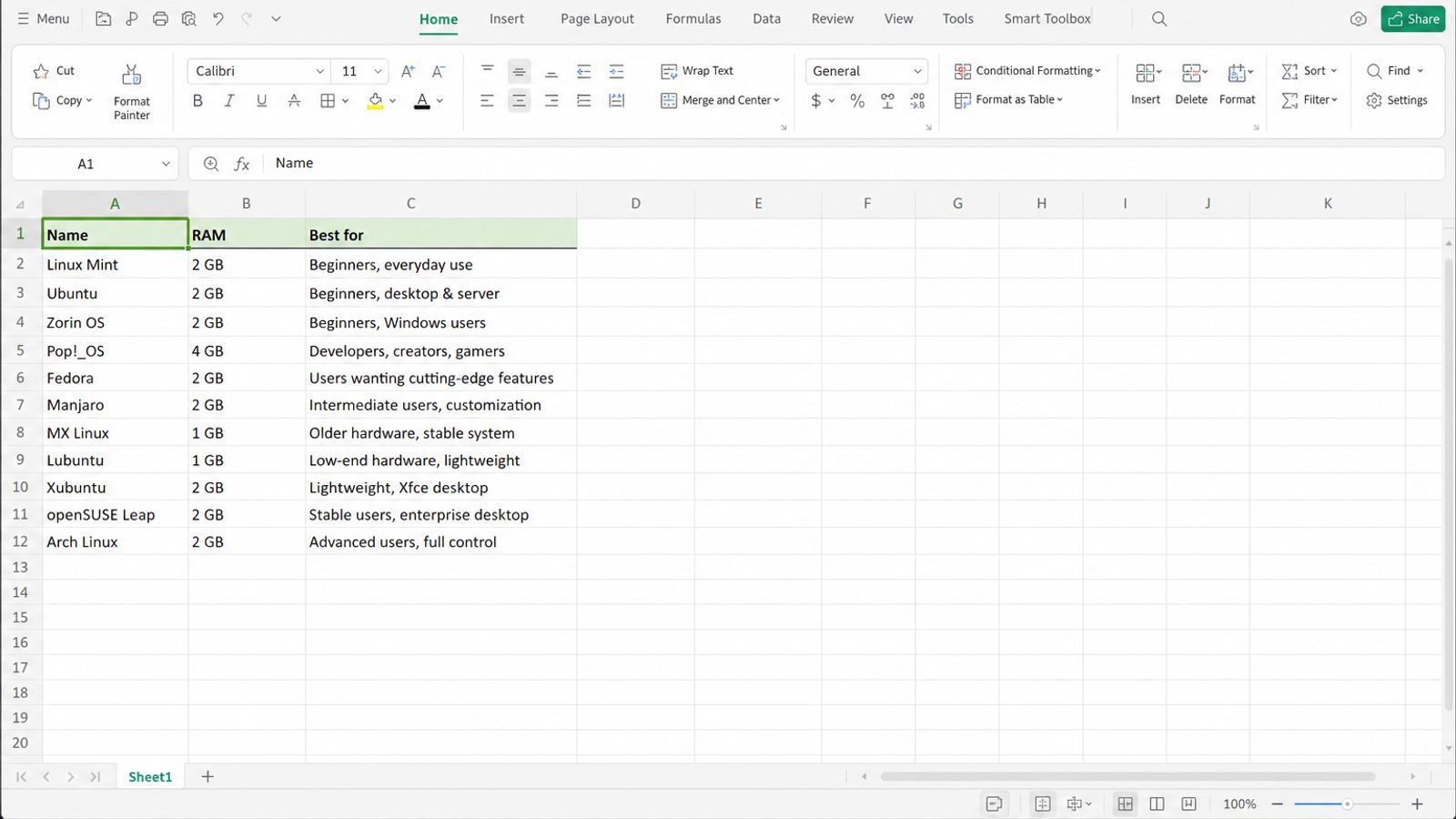
du shows where space went. Managers and teammates usually want that summary as a table or short report—not a wall of terminal numbers.
WPS Office for Linux is ideal for that report: Spreadsheet for directory size tables, Writer for commentary, and PDF when the snapshot should stay fixed.
| What you need next | What WPS gives you |
|---|---|
| Turn du output into a readable size report | Strong .docx / .xlsx / .pptx layout fidelity when files move between Linux, Windows, and macOS |
| One place for notes, sheets, slides, and PDFs | Free core suite: Writer, Spreadsheet, Presentation, plus PDF view/edit/convert tools |
| A familiar desktop UI for switchers | Ribbon-style apps with a lighter footprint than many heavy suites |
| A trusted install path | Official DEB (Ubuntu/Debian/Mint) and RPM packages from the vendor |
Use the official WPS Office for Linux download page, install with sudo apt install ./wps-office_VERSION_amd64.deb, paste the top offenders into a sheet, and share the DOCX/PDF instead of another screenshot of the terminal.
FAQ
Why du and df disagree?
Different scopes, reserved blocks, open deleted files, or mounts. Measure both and interpret in context.
How do I find the largest files?
find /path -type f -printf "%s\t%p\n" 2>/dev/null | sort -n | tailDoes du follow symlinks?
Defaults usually do not follow into other trees; check man flags if results look doubled.
How do I measure remote folders?
Run du on the system that hosts the files, or use tools designed for the protocol—not a naive local assumption.
Can I get live progress?
Standard du is silent until done; narrow the path for faster feedback.
Is ncdu better?
Interactive tools like ncdu help exploration when installed from official repos—still based on the same walk idea.
How often should I check?
After big downloads, before deletes, and when df shows the disk filling.
Does trash still use space?
Yes—empty Trash/GUI wastebaskets separately from shell rm. Measure Trash folders too if your desktop environment stores them under the home directory where they quietly steal gigabytes.
Should I run du as root?
Only when you must read directories your user cannot enter. Prefer least privilege; sudo du on / can be slow and noisy.
Directory sizing is how you aim cleanup. Without du, deletes are guesswork. With du and df together, you know what to archive, what to remove, and whether the filesystem actually recovered space afterward—close the loop every time. Make “du before rm” as automatic as buckling a seatbelt before driving, even on familiar machines you think you already understand completely after years of daily use at work and home on every laptop you touch during busy weeks.



'%3e%3cpath%20d='M19.9911%204.11386V6.471H18.5894C18.0775%206.471%2017.7322%206.57814%2017.5536%206.79243C17.3751%207.00671%2017.2858%207.32814%2017.2858%207.75671V9.44421H19.9019L19.5536%2012.0871H17.2858V18.8639H14.5536V12.0871H12.2769V9.44421H14.5536V7.49779C14.5536%206.39064%2014.8632%205.53201%2015.4822%204.92189C16.1013%204.31177%2016.9257%204.00671%2017.9554%204.00671C18.8304%204.00671%2019.509%204.04243%2019.9911%204.11386Z'%20fill='%23333333'/%3e%3c/g%3e%3cdefs%3e%3cclipPath%20id='clip0_2938_8199'%3e%3crect%20width='16'%20height='16'%20fill='white'%20transform='translate(8%204.00671)'/%3e%3c/clipPath%3e%3c/defs%3e%3c/svg%3e)
'%3e%3cpath%20d='M17.5237%2010.7813L23.4811%204H22.0699L16.8949%209.88693L12.7648%204H8L14.2469%2012.9029L8%2020.0133H9.4112L14.8725%2013.7952L19.2352%2020.0133H24M9.92053%205.04213H12.0885L22.0688%2019.0224H19.9003'%20fill='%23333333'/%3e%3c/g%3e%3cdefs%3e%3cclipPath%20id='clip0_2938_8200'%3e%3crect%20width='16'%20height='16.0134'%20fill='white'%20transform='translate(8%204)'/%3e%3c/clipPath%3e%3c/defs%3e%3c/svg%3e)


