



'%3e%3cpath%20fill-rule='evenodd'%20clip-rule='evenodd'%20d='M21.4999%2010.9993C21.4999%205.20009%2016.7986%200.498901%2010.9993%200.498901C5.19994%200.498901%200.498657%205.20009%200.498657%2010.9993C0.498657%2016.2404%204.33858%2020.5844%209.35855%2021.3722V14.0346H6.69238V10.9993H9.35855V8.68594C9.35855%206.05427%2010.9262%204.60062%2013.3248%204.60062C14.4736%204.60062%2015.6753%204.80571%2015.6753%204.80571V7.38979H14.3512C13.0468%207.38979%2012.64%208.19921%2012.64%209.0296V10.9993H15.5523L15.0867%2014.0346H12.64V21.3722C17.66%2020.5844%2021.4999%2016.2404%2021.4999%2010.9993Z'%20fill='%231568EA'/%3e%3c/g%3e%3c/svg%3e)


'%3e%3cpath%20d='M2.42045%2022.1876H6.31818V12.7217L0.75%208.54553V20.5171C0.75%2021.4414%201.49892%2022.1876%202.42045%2022.1876Z'%20fill='%234285F4'/%3e%3cpath%20d='M19.682%2022.1876H23.5797C24.5041%2022.1876%2025.2502%2021.4387%2025.2502%2020.5171V8.54553L19.682%2012.7217'%20fill='%2334A853'/%3e%3cpath%20d='M19.682%205.48293V12.7216L25.2502%208.54543V6.31816C25.2502%204.25236%2022.8921%203.07469%2021.2411%204.31361'%20fill='%23FBBC04'/%3e%3cpath%20d='M6.31824%2012.7217V5.48303L13.0001%2010.4944L19.6819%205.48303V12.7217L13.0001%2017.733'%20fill='%23EA4335'/%3e%3cpath%20d='M0.75%206.31816V8.54543L6.31818%2012.7216V5.48293L4.75909%204.31361C3.10534%203.07469%200.75%204.25236%200.75%206.31816Z'%20fill='%23C5221F'/%3e%3c/g%3e%3cdefs%3e%3cclipPath%20id='clip0_2954_7305'%3e%3crect%20width='24.5'%20height='18.375'%20fill='white'%20transform='translate(0.75%203.8125)'/%3e%3c/clipPath%3e%3c/defs%3e%3c/svg%3e)


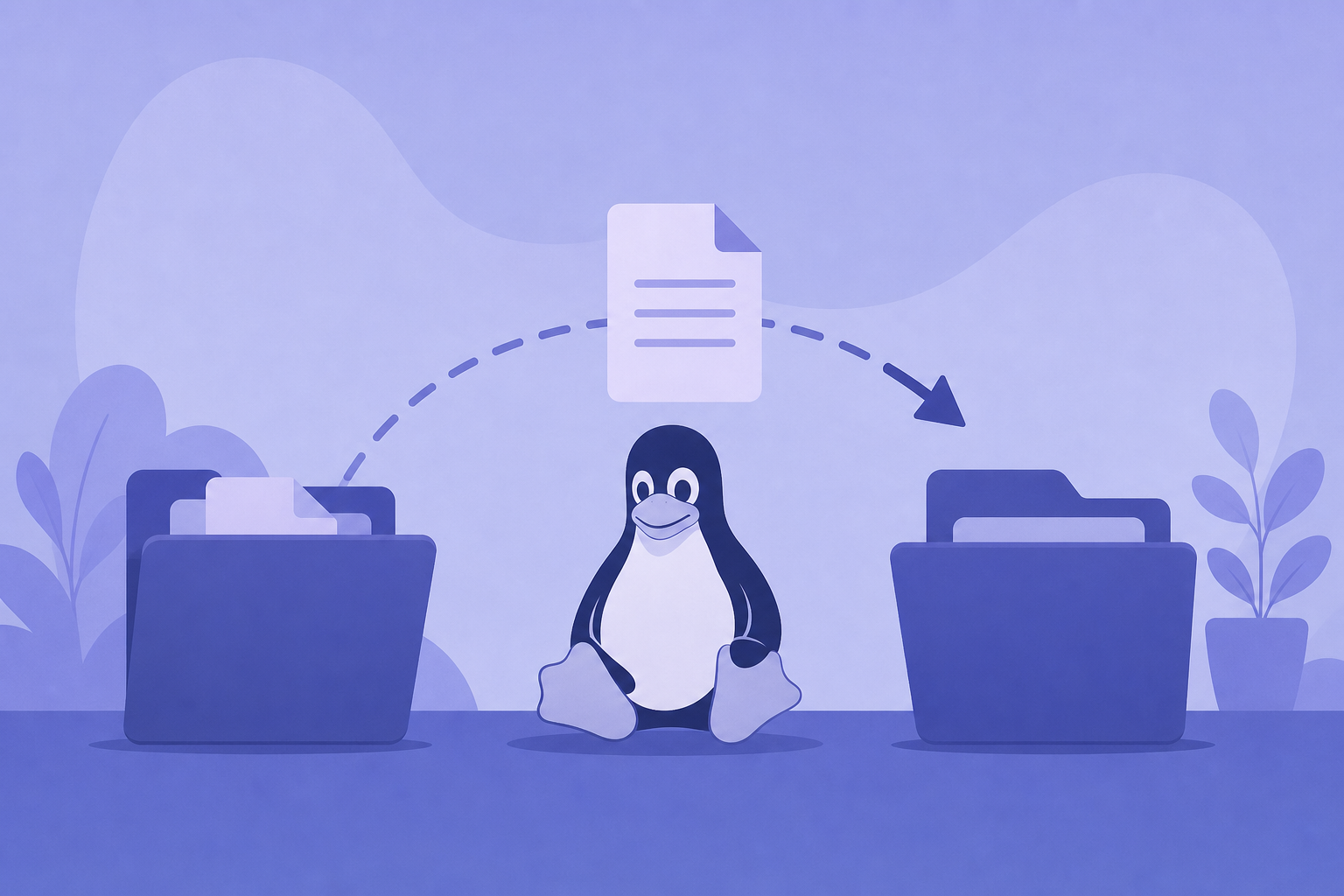
This linux move file guide shows how to move a file in Linux: use mv source destination. Moving to another directory relocates the file; moving to a new name in the same directory renames it. Use -i to avoid overwriting. Success means the path leaves the old location and appears at the new one (same inode on the same filesystem).
Shortest path: mkdir -p ~/Backups && mv report.txt ~/Backups/ && ls ~/Backups/report.txt. Same-folder rename: mv old.txt new.txt (details in linux rename file). Also see copy when you need a duplicate.
To locate files before you create, copy, move, or delete them, see how to find files in Linux.
Basic mv Patterns
mv file.txt /path/to/dir/
mv file.txt /path/to/dir/newname.txt
mv *.log logs-archive/
mv(1) overwrites destinations by default on many systems—add -i while learning. Interactive prompts protect you once; good naming and directories protect you every day.
mv -iv notes.txt ~/Documents/Before moving into shared folders, list the destination and confirm nobody already uses your target filename. Overwrites are silent without -i, and recovery may be impossible if you lacked backups. Treat mv like a seatbelt: boring until the moment it matters.
Same Disk vs Cross-Filesystem
On the same filesystem, mv usually updates directory entries quickly without rewriting file bytes. Across filesystems (for example from ext4 home to a USB drive), mv copies then removes—needs space and time, and can leave partial results if interrupted. For critical cross-device moves, copy with verification first, then delete:
cp -iv important.db /media/usb/
cmp important.db /media/usb/important.db && rm important.db
Hidden Files and Globs
Ask Ubuntu’s classic gotcha: mv * dirname often skips dotfiles. Move hidden names explicitly or use patterns carefully:
mv .env .env.backup
# or shopt -s dotglob in Bash before * expansion (advanced)
Common Failures
- No such file or directory: typo, wrong cwd, or missing destination folder
- Permission denied: cannot unlink source or write destination
- Target is not a directory: multiple sources need a directory destination
- Overwrote a file: forgotten
-i
pwd
ls -la
mkdir -p "$HOME/Archive"
mv -i ./report.txt "$HOME/Archive/"
Move vs Copy vs Rename
Move relocates. Copy duplicates (linux copy file). Rename is mv within a directory (linux rename file). Create practice files with linux create file before experimenting.
Directories
mv project/ ~/Archive/project-old/mv renames/moves directories without a special -r flag (unlike cp). Ensure destination parent exists. Moving a directory moves its entire contents as one tree—double-check the name so you do not nest project/project accidentally.
When cleaning Downloads folders, move instead of delete for a week: mv ~/Downloads/* ~/Archive/inbox-week/ (after creating the archive). Recovery is a reverse mv away, not a forensic undelete fantasy.
Verify Success
- Old path is gone (
test ! -e oldpath). - New path exists.
- For cross-device jobs, checksums match before deleting source.
- Applications pointing at old paths are updated.
mv -iv app.log logs/app.log
ls logs/app.log
Automation Tips
In scripts, quote variables and avoid mv $files $dir without arrays. Exclude folders with explicit finds when needed—mv itself has no rich exclude language. Test with echo mv ... dry runs.
Destinations that already exist as directories cause mv to place sources inside them. Destinations that exist as files may be overwritten. That dual behavior confuses beginners: mv a.txt b.txt renames when b.txt is absent, but overwrites when b.txt is a file, and nests when b.txt is a directory. Inspect with ls -ld destination before you confirm.
Shell globs expand before mv runs. mv *.txt archive/ fails if the glob matches nothing under nullglob settings, or if archive is missing. Create the destination directory first. For selective moves, list names explicitly or use find with -exec mv -t dir {} + patterns you have tested.
On WSL, moving between /mnt/c and the Linux filesystem is a cross-filesystem operation—expect slower copies and permission translations. Keep active projects in the Linux home tree; move to /mnt/c only for interchange with Windows apps.
Version control tip: git tracks renames heuristically. Moving tracked files is fine, but commit cleanly and avoid mixing huge binary moves with unrelated code edits. For untracked bulky data, mv outside git and document the new path for teammates.
Interrupted cross-device moves can leave a complete destination and an intact source, or a partial destination. Always verify sizes before deleting anything manually. Prefer the explicit cp-cmp-rm pattern for irreplaceable databases.
Permissions on the containing directory control whether you can move a file—even if you own the file. Shared project folders sometimes allow create but not delete/rename; mv needs unlink rights on the source directory. When “Permission denied” appears, check directory modes with ls -ld ..
Operational habit: move first into a holding area (~/Quarantine), confirm applications still work, then move into final locations. Combined with copies of critical configs, this two-step pattern prevents “vanished file” emergencies during cleanup days. Write the holding-area path into your personal runbook so you do not invent a new folder name each time—consistency turns careful moves into a habit you can trust under pressure.
Before you automate moves in cron, log every mv line to a dated file. A one-line history of what moved where is priceless when a job runs twice or a path typo ships overnight. Start simple: echo "$(date -Is) mv $src $dst" >> ~/logs/mv-audit.log next to the real command.
Linux move file operations use mv: relocate between folders, rename in place, prefer -i to protect destinations, and treat cross-filesystem moves like copy-plus-delete.
Practice in a scratch directory such as ~/tmp-practice before touching production paths. Run ls -la after each experiment so you see hidden files and permissions. Build muscle memory with short daily drills: create, copy, move, rename, then clean up. Ten focused minutes beats an hour of panicked forum searching after a bad glob.
When scripts grow beyond one-liners, add careful Bash options and quote variables. Most file disasters come from unquoted globs and wrong working directories—not from the tools themselves. Keep a personal gist of safe snippets you have tested on your distro version.
Read the relevant man page once end to end (man touch, man cp, or man mv). You do not need every flag memorized; you need to know which section to skim when something odd happens. Official man pages beat random screenshots that omit destructive defaults.
On multi-user systems, communicate before mass renames or directory moves. A teammate’s cron job may still point at yesterday’s path. Chat first, change second, and leave a symlink temporarily when you must keep old paths alive during migration windows.
Backups turn irreversible mistakes into inconveniences. Even a crude cp -a ~/project ~/backups/project-$(date +%F) before experiments is enough for personal machines. Servers should already have snapshots; do not invent ad-hoc production edits without a ticket and a restore plan.
After you create or rearrange files on Linux, many workflows still end in DOCX, XLSX, or PDF for schools and workplaces. Keep an office suite available on the same machine or on Windows when you need print-ready documents from notes you drafted in the terminal.
If you work across WSL and Windows, decide which side owns the “source of truth” files. Edit in Linux home for code, export finished office documents to Windows only when sharing requires it. That boundary prevents half-saved files and permission weirdness on /mnt/c.
Teach teammates the same four verbs—create, copy, move, rename—before introducing find/xargs pipelines. Solid basics prevent clever one-liners from destroying directories. When someone asks for “just the command,” still mention -i, quoting, and verifying with ls.
Keep this mental model: touch/editors create, cp duplicates, mv relocates or renames, and rm deletes. Mixing them up is how backups become deletes and deletes become disasters. Slow down for production paths; go fast only inside throwaway practice folders you can rebuild in seconds.
After Moving Files: Keep a Clear Location Log
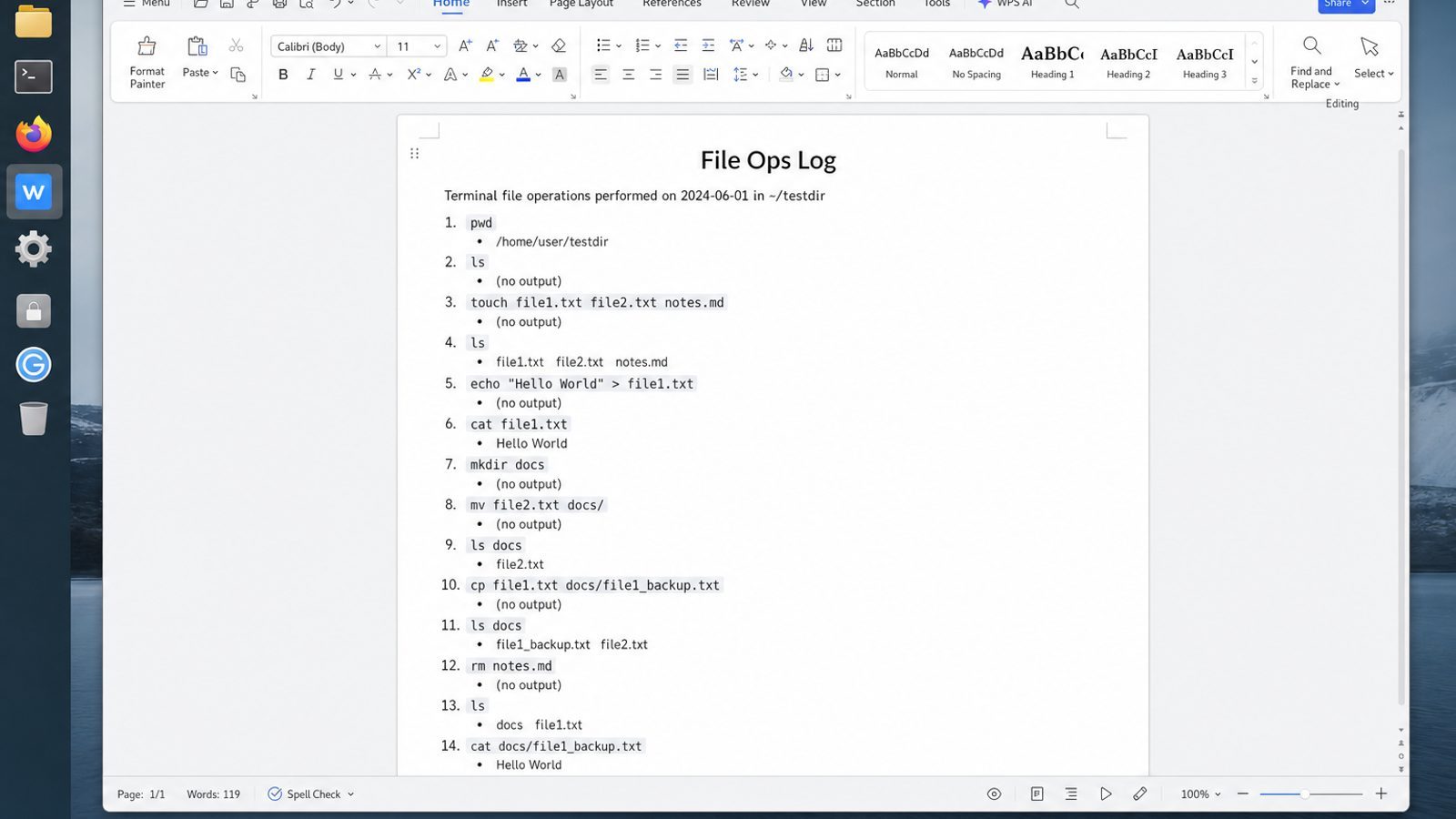
mv reorganizes folders quickly. The risk is losing track of where important paths landed—especially across drives or shared project trees.
WPS Office for Linux helps you capture that reorganization: Writer for move notes, Spreadsheet for before/after path tables, and PDF for a review copy you can archive.
| What you need next | What WPS gives you |
|---|---|
| Document folder moves for teammates and future you | Strong .docx / .xlsx / .pptx layout fidelity when files move between Linux, Windows, and macOS |
| One place for notes, sheets, slides, and PDFs | Free core suite: Writer, Spreadsheet, Presentation, plus PDF view/edit/convert tools |
| A familiar desktop UI for switchers | Ribbon-style apps with a lighter footprint than many heavy suites |
| A trusted install path | Official DEB (Ubuntu/Debian/Mint) and RPM packages from the vendor |
Use the official WPS Office for Linux download page, install with sudo apt install ./wps-office_VERSION_amd64.deb, then jot the final locations into a DOCX while the change is still fresh.


FAQ
Is mv faster than cp?
On the same filesystem, usually yes because directory entries change. Across filesystems, mv must copy bytes and then remove the source.
Can I undo mv?
Not automatically—move it back if you know the destination. Keep backups for important data and avoid overwriting with -i.
How do I move all files including hidden?
Do not rely on bare *; move dotfiles explicitly or enable careful dotglob practices after reading Bash docs.
Why “Directory not empty”?
That message is more common with rmdir. For mv conflicts, check whether the destination name already exists as a non-directory file.
Does mv change permissions?
Same-filesystem renames keep the same inode metadata. Cross-filesystem copies may be influenced by umask and mount options.
Move open log files?
Processes may keep writing to the old inode. Coordinate with service rotation tools for live logs instead of ad-hoc mv in production.
Can I move multiple files at once?
Yes—list them before a directory destination: mv -i a.txt b.txt dir/.
Is rename different from move?
Renaming is mv with a new basename; see linux rename file for naming-focused examples.

'%3e%3cpath%20d='M19.9911%204.11386V6.471H18.5894C18.0775%206.471%2017.7322%206.57814%2017.5536%206.79243C17.3751%207.00671%2017.2858%207.32814%2017.2858%207.75671V9.44421H19.9019L19.5536%2012.0871H17.2858V18.8639H14.5536V12.0871H12.2769V9.44421H14.5536V7.49779C14.5536%206.39064%2014.8632%205.53201%2015.4822%204.92189C16.1013%204.31177%2016.9257%204.00671%2017.9554%204.00671C18.8304%204.00671%2019.509%204.04243%2019.9911%204.11386Z'%20fill='%23333333'/%3e%3c/g%3e%3cdefs%3e%3cclipPath%20id='clip0_2938_8199'%3e%3crect%20width='16'%20height='16'%20fill='white'%20transform='translate(8%204.00671)'/%3e%3c/clipPath%3e%3c/defs%3e%3c/svg%3e)
'%3e%3cpath%20d='M17.5237%2010.7813L23.4811%204H22.0699L16.8949%209.88693L12.7648%204H8L14.2469%2012.9029L8%2020.0133H9.4112L14.8725%2013.7952L19.2352%2020.0133H24M9.92053%205.04213H12.0885L22.0688%2019.0224H19.9003'%20fill='%23333333'/%3e%3c/g%3e%3cdefs%3e%3cclipPath%20id='clip0_2938_8200'%3e%3crect%20width='16'%20height='16.0134'%20fill='white'%20transform='translate(8%204)'/%3e%3c/clipPath%3e%3c/defs%3e%3c/svg%3e)


