



'%3e%3cpath%20fill-rule='evenodd'%20clip-rule='evenodd'%20d='M21.4999%2010.9993C21.4999%205.20009%2016.7986%200.498901%2010.9993%200.498901C5.19994%200.498901%200.498657%205.20009%200.498657%2010.9993C0.498657%2016.2404%204.33858%2020.5844%209.35855%2021.3722V14.0346H6.69238V10.9993H9.35855V8.68594C9.35855%206.05427%2010.9262%204.60062%2013.3248%204.60062C14.4736%204.60062%2015.6753%204.80571%2015.6753%204.80571V7.38979H14.3512C13.0468%207.38979%2012.64%208.19921%2012.64%209.0296V10.9993H15.5523L15.0867%2014.0346H12.64V21.3722C17.66%2020.5844%2021.4999%2016.2404%2021.4999%2010.9993Z'%20fill='%231568EA'/%3e%3c/g%3e%3c/svg%3e)


'%3e%3cpath%20d='M2.42045%2022.1876H6.31818V12.7217L0.75%208.54553V20.5171C0.75%2021.4414%201.49892%2022.1876%202.42045%2022.1876Z'%20fill='%234285F4'/%3e%3cpath%20d='M19.682%2022.1876H23.5797C24.5041%2022.1876%2025.2502%2021.4387%2025.2502%2020.5171V8.54553L19.682%2012.7217'%20fill='%2334A853'/%3e%3cpath%20d='M19.682%205.48293V12.7216L25.2502%208.54543V6.31816C25.2502%204.25236%2022.8921%203.07469%2021.2411%204.31361'%20fill='%23FBBC04'/%3e%3cpath%20d='M6.31824%2012.7217V5.48303L13.0001%2010.4944L19.6819%205.48303V12.7217L13.0001%2017.733'%20fill='%23EA4335'/%3e%3cpath%20d='M0.75%206.31816V8.54543L6.31818%2012.7216V5.48293L4.75909%204.31361C3.10534%203.07469%200.75%204.25236%200.75%206.31816Z'%20fill='%23C5221F'/%3e%3c/g%3e%3cdefs%3e%3cclipPath%20id='clip0_2954_7305'%3e%3crect%20width='24.5'%20height='18.375'%20fill='white'%20transform='translate(0.75%203.8125)'/%3e%3c/clipPath%3e%3c/defs%3e%3c/svg%3e)


This linux zip folder guide shows how to zip a folder on Linux: install Info-ZIP’s zip if needed, then run zip -r archive.zip foldername from the parent directory. Confirm with unzip -l archive.zip and du -sh archive.zip. Success means the archive opens elsewhere and contains the files you intended—not accidental parent paths or unwanted secrets.
Shortest path: sudo apt install zip unzip → cd ~/tmp-practice → zip -r project.zip project/ → unzip -l project.zip | head. Extract later with linux unzip.
To locate files before you create, copy, move, or delete them, see how to find files in Linux.
Install zip
sudo apt update
sudo apt install -y zip unzip
zip -v | head -n 2
Package names are usually zip and unzip on Ubuntu/Debian. Other distros use their package managers similarly. Do not confuse zip with gzip (single-file compression) or tar (common for .tar.gz).
Basic: Zip a Whole Directory
cd /path/to/parent
zip -r project.zip project/
ls -lh project.zip
The -r flag recurses into subfolders. Running from the parent keeps paths inside the archive shorter and clearer. Ask Ubuntu guidance often stresses controlling what relative paths get stored—zipping from too high in the tree embeds long useless prefixes.
Exclude Hidden Files (Common Ask)
A classic Ask Ubuntu question is how to zip a directory without hidden files. One practical approach uses exclude patterns:
zip -r project-clean.zip project/ -x "project/.*" "project/*/.*" "*/.*"Tune excludes to your tree. Always verify with unzip -l so you did not exclude required config that happens to start with a dot (for example .env.example you actually need).
Zip Without an Extra Parent Folder
If recipients complain the archive contains project/project/... nesting, change into the folder and zip contents:
cd project
zip -r ../project-flat.zip .
cd ..
unzip -l project-flat.zip | head
Ask Ubuntu threads about “without including parent directory” revolve around this cwd choice. Decide whether extractors should get a single top-level folder (usually friendlier) or loose files.
Useful Options
-rrecurse directories-qquieter output-x patternexclude-eencrypt (password prompt)—share passwords out of band-uupdate existing archive entries
zip -r -q backup.zip data/ -x "*.tmp" -x "*/cache/*"What Not to Zip Blindly
- Secrets (
.ssh, raw.envwith production keys) - Huge caches (
node_modules, build artifacts) unless required - Virtual disk images you can transfer more efficiently otherwise
Check size first: du -sh folder. If the folder is enormous, consider splitting, using tar+compression, or syncing with rsync instead of emailing a giant zip.
Verify the Archive
unzip -t project.zip
unzip -l project.zip | head -n 40
du -sh project.zip project/- Test integrity with
unzip -t. - List entries for sanity.
- Spot-extract into a temp dir (unzip guide).
Update or Re-Zip
zip -u project.zip project/changed-file.txtFor major tree changes, recreating the archive is often clearer than long update sessions. Delete the old zip only after the new one tests clean.
CI pipelines should fail if zip returns non-zero or if unzip -t fails on the artifact. Publishing a corrupt zip wastes everyone’s afternoon. Store checksums (sha256sum project.zip) beside releases when auditors care about integrity.
GUI archive managers exist on desktop Linux, but servers and containers usually only have the CLI. Learn zip/unzip in the terminal so SSH sessions and Docker images do not block you. File managers are fine for occasional desktop use; automation still needs commands.
When zipping logs for support tickets, redact secrets first. Prefer copying a scrubbed tree into /tmp/support-bundle, zip that, then delete the scrubbed tree. Never zip an entire home directory “just in case”—you will leak browser data and SSH keys.
Scripting Tips
Use dated names: project-$(date +%F).zip. Write archives to a dedicated folder, then copy to USB or object storage. Fail the script if zip exits non-zero.
On Linux, zip a folder with zip -r from the right working directory, exclude what you must, verify with unzip -l/-t, and keep passwords and paths under control.
Practice in ~/tmp-practice: create a small folder tree, zip it, move the archive aside, unzip into a fresh directory, then compare with diff -r. That drill beats learning on production home directories. Repeat until the flags feel boring.
Install tools from your distro packages (sudo apt install zip unzip on Debian/Ubuntu). Prefer official repos over random binaries. Check versions with zip -v and unzip -v when a flag behaves differently than a blog post from 2014. Document the package version in team runbooks when CI depends on specific behavior.
Quote paths with spaces. Prefer absolute destinations when scripting. Never unzip as root into system paths “to make permissions easier.” Own the extract directory as your normal user whenever possible. Root extractions create root-owned trees that juniors then “fix” with reckless chmod -R 777.
Measure before and after with du so large archives do not fill the disk mid-job. If space is tight, extract to another mount or clean caches first—do not discover No space left on device halfway through a multi-gigabyte unzip. Free space checks belong in the same checklist as the unzip command itself.
Archives often carry DOCX, XLSX, and PDF hand-offs. After you zip or unzip on Linux, open critical office files once to confirm nothing corrupted in transit—then keep working copies outside the archive when collaborators need ongoing edits.
On WSL, keep large zip/unzip work inside the Linux filesystem (~/projects) for speed; copy finished archives to /mnt/c only when Windows users need the file. Cross-filesystem I/O is slower and more permission-noisy. If Windows Defender locks a file mid-extract, close Explorer windows on that path and retry.
Security habit: treat unexpected archives as untrusted. List contents (unzip -l) before extracting, and extract into a new empty folder so a malicious archive cannot overwrite ~/.ssh via tricky relative paths. Delete suspect trees with care using rm / rmdir workflows after inspection. Do not run post-extract install scripts you have not read.
Keep zip and unzip as a pair in your notes—create archives for sharing, extract archives for use, verify, then archive or delete leftovers. That loop prevents “Downloads full of half-extracted folders” entropy and keeps disks predictable for the next incident.
When teaching teammates, demonstrate one good path end to end: install packages, zip with excludes, list, extract to -d, test, then clean up. Watching the whole loop once prevents a month of fragmented Stack Overflow pastes that disagree with each other.
Name archives with purpose and date: invoice-export-2026-07-23.zip beats final-final2.zip. Clear names reduce accidental double-sends and make log lines searchable months later when someone asks which bundle went to the client.
If compression ratio looks worse than expected, check whether you zipped already-compressed media (JPG, MP4, DOCX). Those formats rarely shrink much; the win is packaging, not size. For text-heavy trees, zip still helps network transfer and keeps a single attachable artifact.
After Zipping Folders: Ship Manifests with the Archive
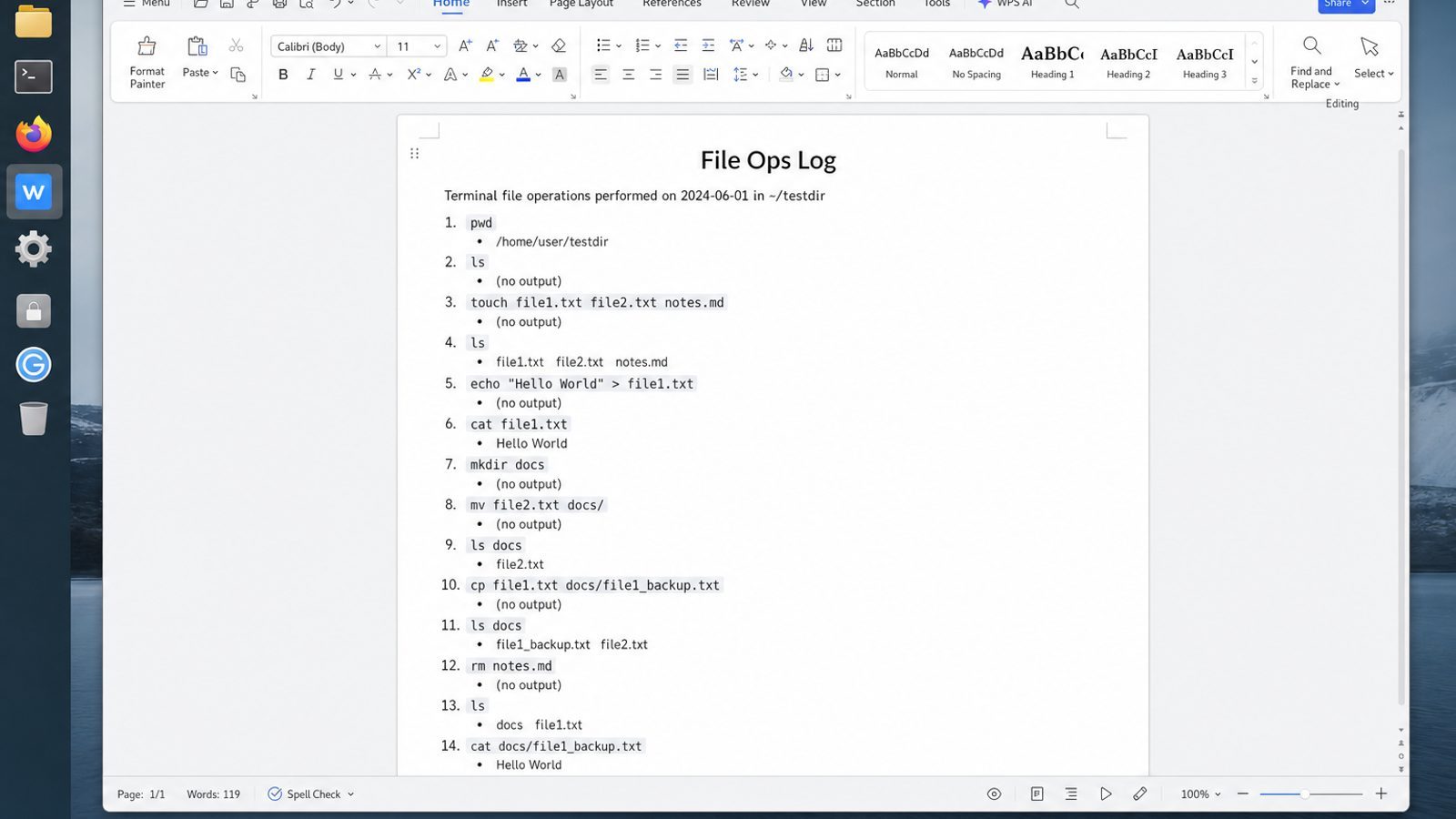
zip -r packages a tree for transfer. Recipients still ask what is inside, what was excluded, and how to restore it—answers that belong in a short document beside the archive.
WPS Office for Linux covers that companion file: Writer for manifests, Spreadsheet for file lists, and PDF when the inventory should not change in transit.
| What you need next | What WPS gives you |
|---|---|
| Attach a readable manifest to a zip handoff | Strong .docx / .xlsx / .pptx layout fidelity when files move between Linux, Windows, and macOS |
| One place for notes, sheets, slides, and PDFs | Free core suite: Writer, Spreadsheet, Presentation, plus PDF view/edit/convert tools |
| A familiar desktop UI for switchers | Ribbon-style apps with a lighter footprint than many heavy suites |
| A trusted install path | Official DEB (Ubuntu/Debian/Mint) and RPM packages from the vendor |
Download from the official WPS Office for Linux download page, install with sudo apt install ./wps-office_VERSION_amd64.deb, and keep a DOCX/PDF checklist next to the .zip you just built.


FAQ
zip vs tar.gz?
Zip is universal with Windows/macOS users. tar.gz is common for Linux-native backups. Choose based on recipients. If both sides are Linux servers, tar.gz (or tar.xz) often preserves ownership metadata better; if one side is a non-technical Windows user, zip usually wins for “double-click and open.”
Why is my zip path too deep?
You started zip too high in the directory tree. cd closer to the folder you mean. Listing with unzip -l immediately shows whether entries look like home/you/projects/... instead of project/...—fix by recreating the archive from the correct parent.
Can I zip multiple folders?
zip -r bundle.zip folderA folderB file.txtOrder arguments carefully: archive name first, then inputs. A typo that swaps names can overwrite a folder name you meant as a source.
How do I exclude node_modules?
zip -r app.zip app/ -x "app/node_modules/*"Exclude patterns are easy to get wrong—verify with unzip -l that node_modules is gone before uploading. Also exclude .git, build caches, and .env files that should never leave the machine.
Does zip preserve permissions perfectly?
Zip has limits versus tar for Unix permissions/ownership. For system backups, prefer tar-based workflows. For sharing documents and source trees with mixed OS teammates, zip’s limitations are usually acceptable.
Password zip safe enough?
Traditional zip encryption is weak by modern standards. Prefer strong tools for sensitive data; never email passwords with the file. For regulated data, use your org’s approved transfer channel instead of “zip + password in Slack.”
Command not found: zip?
Install the zip package from your distro repositories. On minimal containers you may also need unzip separately even if you only plan to create archives—verification uses unzip.
How do I split a huge zip?
Use zip split options or alternative transfer methods; test reassembly before deleting sources. For very large datasets, rsync or object storage uploads are often healthier than email-sized zip thinking.
Zip is a sharing format first. Treat it like packaging: include what recipients need, exclude junk, label clearly, and verify before you hit send. That mindset matters more than memorizing every obscure flag in the man page.

'%3e%3cpath%20d='M19.9911%204.11386V6.471H18.5894C18.0775%206.471%2017.7322%206.57814%2017.5536%206.79243C17.3751%207.00671%2017.2858%207.32814%2017.2858%207.75671V9.44421H19.9019L19.5536%2012.0871H17.2858V18.8639H14.5536V12.0871H12.2769V9.44421H14.5536V7.49779C14.5536%206.39064%2014.8632%205.53201%2015.4822%204.92189C16.1013%204.31177%2016.9257%204.00671%2017.9554%204.00671C18.8304%204.00671%2019.509%204.04243%2019.9911%204.11386Z'%20fill='%23333333'/%3e%3c/g%3e%3cdefs%3e%3cclipPath%20id='clip0_2938_8199'%3e%3crect%20width='16'%20height='16'%20fill='white'%20transform='translate(8%204.00671)'/%3e%3c/clipPath%3e%3c/defs%3e%3c/svg%3e)
'%3e%3cpath%20d='M17.5237%2010.7813L23.4811%204H22.0699L16.8949%209.88693L12.7648%204H8L14.2469%2012.9029L8%2020.0133H9.4112L14.8725%2013.7952L19.2352%2020.0133H24M9.92053%205.04213H12.0885L22.0688%2019.0224H19.9003'%20fill='%23333333'/%3e%3c/g%3e%3cdefs%3e%3cclipPath%20id='clip0_2938_8200'%3e%3crect%20width='16'%20height='16.0134'%20fill='white'%20transform='translate(8%204)'/%3e%3c/clipPath%3e%3c/defs%3e%3c/svg%3e)


