



'%3e%3cpath%20fill-rule='evenodd'%20clip-rule='evenodd'%20d='M21.4999%2010.9993C21.4999%205.20009%2016.7986%200.498901%2010.9993%200.498901C5.19994%200.498901%200.498657%205.20009%200.498657%2010.9993C0.498657%2016.2404%204.33858%2020.5844%209.35855%2021.3722V14.0346H6.69238V10.9993H9.35855V8.68594C9.35855%206.05427%2010.9262%204.60062%2013.3248%204.60062C14.4736%204.60062%2015.6753%204.80571%2015.6753%204.80571V7.38979H14.3512C13.0468%207.38979%2012.64%208.19921%2012.64%209.0296V10.9993H15.5523L15.0867%2014.0346H12.64V21.3722C17.66%2020.5844%2021.4999%2016.2404%2021.4999%2010.9993Z'%20fill='%231568EA'/%3e%3c/g%3e%3c/svg%3e)


'%3e%3cpath%20d='M2.42045%2022.1876H6.31818V12.7217L0.75%208.54553V20.5171C0.75%2021.4414%201.49892%2022.1876%202.42045%2022.1876Z'%20fill='%234285F4'/%3e%3cpath%20d='M19.682%2022.1876H23.5797C24.5041%2022.1876%2025.2502%2021.4387%2025.2502%2020.5171V8.54553L19.682%2012.7217'%20fill='%2334A853'/%3e%3cpath%20d='M19.682%205.48293V12.7216L25.2502%208.54543V6.31816C25.2502%204.25236%2022.8921%203.07469%2021.2411%204.31361'%20fill='%23FBBC04'/%3e%3cpath%20d='M6.31824%2012.7217V5.48303L13.0001%2010.4944L19.6819%205.48303V12.7217L13.0001%2017.733'%20fill='%23EA4335'/%3e%3cpath%20d='M0.75%206.31816V8.54543L6.31818%2012.7216V5.48293L4.75909%204.31361C3.10534%203.07469%200.75%204.25236%200.75%206.31816Z'%20fill='%23C5221F'/%3e%3c/g%3e%3cdefs%3e%3cclipPath%20id='clip0_2954_7305'%3e%3crect%20width='24.5'%20height='18.375'%20fill='white'%20transform='translate(0.75%203.8125)'/%3e%3c/clipPath%3e%3c/defs%3e%3c/svg%3e)


To unzip on Linux, install unzip if needed, list the archive with unzip -l file.zip, then extract with unzip file.zip or unzip file.zip -d targetdir. Success means files appear where you expect without overwriting critical paths. Creating archives is covered in linux zip folder.
Shortest safe path: mkdir -p ~/tmp-practice/extract && cd ~/tmp-practice && unzip -l archive.zip | head && unzip archive.zip -d extract && ls extract.
To locate files before you create, copy, move, or delete them, see how to find files in Linux.
Install unzip
sudo apt update
sudo apt install -y unzip
unzip -v | head -n 2
Ask Ubuntu’s most-voted unzip answers start here: the tool may not be installed on minimal images. Install from official packages, not random websites.
List Before You Extract
unzip -l archive.zip | less
unzip -Z archive.zip | head
Listing first answers: Does it contain a single top folder? Are there absolute-looking paths? Is it huge? Measure free space with df -h and compare to directory size needs after extract.
Extract into the Current Directory
unzip archive.zipFiles land relative to your cwd. Always pwd first. Prefer a dedicated empty folder so extraction cannot pollute Downloads or overwrite siblings.
Extract into a New Folder (-d)
mkdir -p ~/tmp-practice/out
unzip archive.zip -d ~/tmp-practice/out
ls -la ~/tmp-practice/out
Ask Ubuntu frequently recommends extracting each zip into a folder named after the archive when batch-processing many zips—keeps trees separated and reviewable.
for z in *.zip; do
  d="${z%.zip}"
  mkdir -p "$d"
  unzip -n "$z" -d "$d"
done
The -n flag skips extracting files that already exist—useful when re-running. Use -o only when you intentionally overwrite.
Common Problems
- unzip: command not found → install package
- End-of-central-directory → truncated/corrupt download; re-fetch and
unzip -t - Overwrite prompts → decide
-nvs-oconsciously - Filename encoding junk → archive created on another OS with different encoding; try locale options carefully
- Permission denied → cannot write destination; fix directory permissions
unzip -t archive.zip
df -h .
ls -ld "$PWD"
zip vs tar.gz vs .tgz
Ask Ubuntu users sometimes ask to “unzip” a .tgz. That is usually tar -xzf file.tgz, not unzip. Match the tool to the format:
file archive.zip
file archive.tar.gz
Quiet, Junk Paths, and Junk Folders
unzip -q archive.zip -d out/
# -j junks paths (extract files flattened)—use only when you understand collisions
Flattening can overwrite same-named files from different folders. Prefer keeping structure unless you have a reason.
After Extract: Organize
- Spot-check important files.
- Move the keepers into project homes.
- Copy backups if needed.
- Delete or archive the zip when verified.
- Remove empty leftover dirs with remove directory patterns.
Verify Success
unzip -t archive.zip
find out/ -type f | head
du -sh out/ archive.zip
Integrity test plus a quick file listing beats assuming a silent unzip worked. Compare counts when the sender provided a manifest.
Batch downloads from vendors often arrive as multiple zips. Extract each into its own folder named after the archive, then promote only the needed trees into your project. That isolates “wrong zip” mistakes and makes rollback a folder move instead of a forensic scavenger hunt.
If unzip warns about backslashes or absolute paths, stop and inspect. Older Windows-created archives sometimes embed awkward path styles. Extracting into a jail directory limits damage while you decide whether to recreate the archive on the sender’s side.
After a successful extract, decide the zip’s fate: keep as the canonical transport artifact, or delete to reclaim space. Leaving dozens of identical zips beside extracted folders doubles disk use for no benefit—measure with du and clean deliberately.
When an extract looks wrong, do not keep “fixing in place.” Remove the bad tree, re-list the archive, and extract again into a fresh empty directory. Partial overlays hide the original mistake and waste debugging time.
On Linux, unzip safely by listing first, extracting into a dedicated directory with -d, testing integrity, and using the right tool for non-zip formats.
Practice in ~/tmp-practice: create a small folder tree, zip it, move the archive aside, unzip into a fresh directory, then compare with diff -r. That drill beats learning on production home directories. Repeat until the flags feel boring.
Install tools from your distro packages (sudo apt install zip unzip on Debian/Ubuntu). Prefer official repos over random binaries. Check versions with zip -v and unzip -v when a flag behaves differently than a blog post from 2014. Document the package version in team runbooks when CI depends on specific behavior.
Quote paths with spaces. Prefer absolute destinations when scripting. Never unzip as root into system paths “to make permissions easier.” Own the extract directory as your normal user whenever possible. Root extractions create root-owned trees that juniors then “fix” with reckless chmod -R 777.
Measure before and after with du so large archives do not fill the disk mid-job. If space is tight, extract to another mount or clean caches first—do not discover No space left on device halfway through a multi-gigabyte unzip. Free space checks belong in the same checklist as the unzip command itself.
Archives often carry DOCX, XLSX, and PDF hand-offs. After you zip or unzip on Linux, open critical office files once to confirm nothing corrupted in transit—then keep working copies outside the archive when collaborators need ongoing edits.
On WSL, keep large zip/unzip work inside the Linux filesystem (~/projects) for speed; copy finished archives to /mnt/c only when Windows users need the file. Cross-filesystem I/O is slower and more permission-noisy. If Windows Defender locks a file mid-extract, close Explorer windows on that path and retry.
Security habit: treat unexpected archives as untrusted. List contents (unzip -l) before extracting, and extract into a new empty folder so a malicious archive cannot overwrite ~/.ssh via tricky relative paths. Delete suspect trees with care using rm / rmdir workflows after inspection. Do not run post-extract install scripts you have not read.
Keep zip and unzip as a pair in your notes—create archives for sharing, extract archives for use, verify, then archive or delete leftovers. That loop prevents “Downloads full of half-extracted folders” entropy and keeps disks predictable for the next incident.
When teaching teammates, demonstrate one good path end to end: install packages, zip with excludes, list, extract to -d, test, then clean up. Watching the whole loop once prevents a month of fragmented Stack Overflow pastes that disagree with each other.
Name archives with purpose and date: invoice-export-2026-07-23.zip beats final-final2.zip. Clear names reduce accidental double-sends and make log lines searchable months later when someone asks which bundle went to the client.
If compression ratio looks worse than expected, check whether you zipped already-compressed media (JPG, MP4, DOCX). Those formats rarely shrink much; the win is packaging, not size. For text-heavy trees, zip still helps network transfer and keeps a single attachable artifact.
After Unzipping: Organize Extracts into Shareable Docs
unzip dumps files onto disk. Sorting what matters, what to ignore, and what to send onward is easier when you capture the plan in a short document.
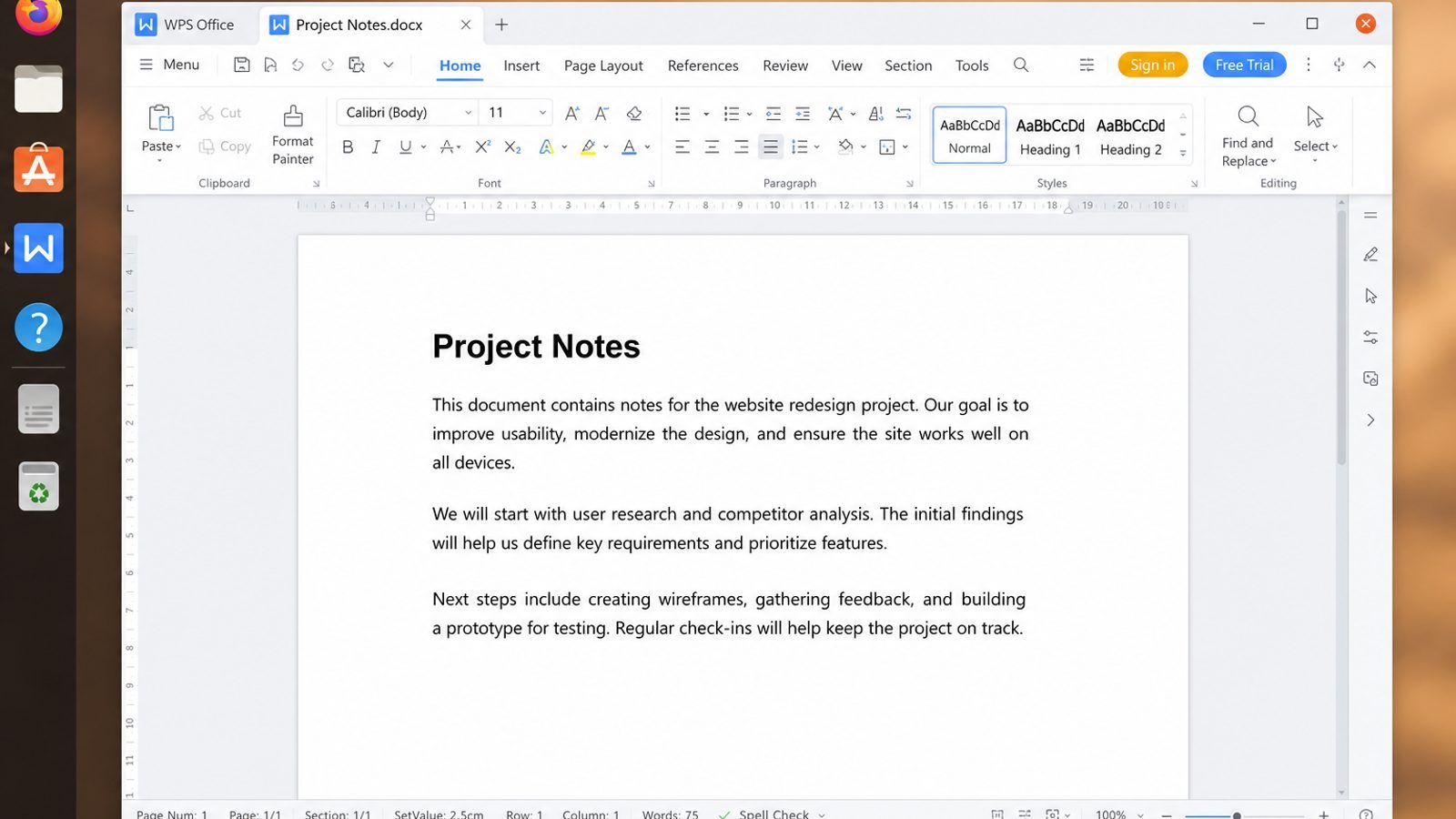
WPS Office for Linux helps after extract: Writer for organize notes, Spreadsheet for file inventories, and PDF when you need a fixed review of what arrived.
| What you need next | What WPS gives you |
|---|---|
| Turn extract inventories into handoff documents | Strong .docx / .xlsx / .pptx layout fidelity when files move between Linux, Windows, and macOS |
| One place for notes, sheets, slides, and PDFs | Free core suite: Writer, Spreadsheet, Presentation, plus PDF view/edit/convert tools |
| A familiar desktop UI for switchers | Ribbon-style apps with a lighter footprint than many heavy suites |
| A trusted install path | Official DEB (Ubuntu/Debian/Mint) and RPM packages from the vendor |
Get the current package from the official WPS Office for Linux download page, install with sudo apt install ./wps-office_VERSION_amd64.deb, then list critical extracted files in DOCX or XLSX before you rearrange or delete the rest.
FAQ
How do I unzip from the terminal?
unzip file.zip or unzip file.zip -d dir after installing unzip—this is the standard Ask Ubuntu answer. If the command is missing, install the package first; GUI “extract here” menus are not available on headless servers.
How do I see contents without extracting?
unzip -l file.zipPipe to less for long archives. Scan for unexpected top-level names, absolute-looking paths, or huge binaries before you commit disk space.
How do I overwrite existing files?
Use -o cautiously. Prefer extracting to a new directory instead. Overwrite flags are convenient in automation and dangerous in a cluttered home directory—separate those contexts intentionally.
Password-protected zip?
unzip -P "password" file.zip -d out/
# better: omit -P and let unzip prompt so password stays out of shell history
Interactive prompts keep secrets out of shell history and process lists more often than -P. Still treat password-zip as convenience encryption, not a vault.
Can I unzip multiple files at once?
Yes—loop as shown above, one destination folder per archive. Parallelizing with xargs -P can help on large batches, but watch disk I/O and free space so concurrent extracts do not fill the volume.
Why are filenames garbled?
Encoding mismatch between creator OS and your locale. Fix naming after extract or recreate the archive with UTF-8 aware tools. If only a few names matter, rename/move them manually after a clean extract rather than fighting every flag combination.
unzip vs tar for Linux backups?
Use unzip for .zip interchange; use tar for native Linux backup pipelines. Mixing tools usually means someone sent the wrong format—identify with file before inventing hybrid commands.
Is extract location the cwd?
By default yes—unless you pass -d. Always check pwd. Making a new empty directory first is the simplest safety upgrade most people never bother with—and should.
Unzip is easy to rush and hard to undo when it overwrites the wrong tree. List, isolate, extract, test—then clean up. Pair it with zip folder skills so you can recreate archives instead of living forever in messy extract folders.



'%3e%3cpath%20d='M19.9911%204.11386V6.471H18.5894C18.0775%206.471%2017.7322%206.57814%2017.5536%206.79243C17.3751%207.00671%2017.2858%207.32814%2017.2858%207.75671V9.44421H19.9019L19.5536%2012.0871H17.2858V18.8639H14.5536V12.0871H12.2769V9.44421H14.5536V7.49779C14.5536%206.39064%2014.8632%205.53201%2015.4822%204.92189C16.1013%204.31177%2016.9257%204.00671%2017.9554%204.00671C18.8304%204.00671%2019.509%204.04243%2019.9911%204.11386Z'%20fill='%23333333'/%3e%3c/g%3e%3cdefs%3e%3cclipPath%20id='clip0_2938_8199'%3e%3crect%20width='16'%20height='16'%20fill='white'%20transform='translate(8%204.00671)'/%3e%3c/clipPath%3e%3c/defs%3e%3c/svg%3e)
'%3e%3cpath%20d='M17.5237%2010.7813L23.4811%204H22.0699L16.8949%209.88693L12.7648%204H8L14.2469%2012.9029L8%2020.0133H9.4112L14.8725%2013.7952L19.2352%2020.0133H24M9.92053%205.04213H12.0885L22.0688%2019.0224H19.9003'%20fill='%23333333'/%3e%3c/g%3e%3cdefs%3e%3cclipPath%20id='clip0_2938_8200'%3e%3crect%20width='16'%20height='16.0134'%20fill='white'%20transform='translate(8%204)'/%3e%3c/clipPath%3e%3c/defs%3e%3c/svg%3e)


