

'%3e%3cpath%20d='M8%200C12.4183%200%2016%203.58172%2016%208C16%2012.4183%2012.4183%2016%208%2016C3.58172%2016%200%2012.4183%200%208C0%203.58172%203.58172%200%208%200ZM11.6162%204.38379C11.2257%203.99337%2010.5927%203.99338%2010.2021%204.38379L8%206.58594L5.79785%204.38379C5.40732%203.99334%204.77429%203.99329%204.38379%204.38379C3.99331%204.77429%203.99335%205.40733%204.38379%205.79785L6.58594%208L4.38379%2010.2021C3.99348%2010.5927%203.99341%2011.2257%204.38379%2011.6162C4.77426%2012.0066%205.40734%2012.0065%205.79785%2011.6162L8%209.41406L10.2021%2011.6162C10.5927%2012.0066%2011.2257%2012.0067%2011.6162%2011.6162C12.0067%2011.2257%2012.0066%2010.5927%2011.6162%2010.2021L9.41406%208L11.6162%205.79785C12.0066%205.40735%2012.0066%204.77429%2011.6162%204.38379Z'%20fill='%23080E17'%20fill-opacity='0.46'/%3e%3c/g%3e%3cdefs%3e%3cclipPath%20id='clip0_3761_713'%3e%3crect%20width='16'%20height='16'%20fill='white'/%3e%3c/clipPath%3e%3c/defs%3e%3c/svg%3e)




'%3e%3cpath%20fill-rule='evenodd'%20clip-rule='evenodd'%20d='M21.4999%2010.9993C21.4999%205.20009%2016.7986%200.498901%2010.9993%200.498901C5.19994%200.498901%200.498657%205.20009%200.498657%2010.9993C0.498657%2016.2404%204.33858%2020.5844%209.35855%2021.3722V14.0346H6.69238V10.9993H9.35855V8.68594C9.35855%206.05427%2010.9262%204.60062%2013.3248%204.60062C14.4736%204.60062%2015.6753%204.80571%2015.6753%204.80571V7.38979H14.3512C13.0468%207.38979%2012.64%208.19921%2012.64%209.0296V10.9993H15.5523L15.0867%2014.0346H12.64V21.3722C17.66%2020.5844%2021.4999%2016.2404%2021.4999%2010.9993Z'%20fill='%231568EA'/%3e%3c/g%3e%3c/svg%3e)


'%3e%3cpath%20d='M2.42045%2022.1876H6.31818V12.7217L0.75%208.54553V20.5171C0.75%2021.4414%201.49892%2022.1876%202.42045%2022.1876Z'%20fill='%234285F4'/%3e%3cpath%20d='M19.682%2022.1876H23.5797C24.5041%2022.1876%2025.2502%2021.4387%2025.2502%2020.5171V8.54553L19.682%2012.7217'%20fill='%2334A853'/%3e%3cpath%20d='M19.682%205.48293V12.7216L25.2502%208.54543V6.31816C25.2502%204.25236%2022.8921%203.07469%2021.2411%204.31361'%20fill='%23FBBC04'/%3e%3cpath%20d='M6.31824%2012.7217V5.48303L13.0001%2010.4944L19.6819%205.48303V12.7217L13.0001%2017.733'%20fill='%23EA4335'/%3e%3cpath%20d='M0.75%206.31816V8.54543L6.31818%2012.7216V5.48293L4.75909%204.31361C3.10534%203.07469%200.75%204.25236%200.75%206.31816Z'%20fill='%23C5221F'/%3e%3c/g%3e%3cdefs%3e%3cclipPath%20id='clip0_2954_7305'%3e%3crect%20width='24.5'%20height='18.375'%20fill='white'%20transform='translate(0.75%203.8125)'/%3e%3c/clipPath%3e%3c/defs%3e%3c/svg%3e)


If you searched power point text to speech, you are usually trying to do one of three jobs: hear slide text while you edit, turn a script into playable narration without recording yourself, or ship a deck that talks during slideshow. Those jobs use different tools—and mixing them up is why many tutorials feel wrong halfway through.
This guide starts with PowerPoint’s built-in Speak / Read Aloud path, then shows how to embed AI or system-generated audio, when to switch to Record instead, and how WPS Office helps you finish the same delivery workflow.

What PowerPoint Text to Speech Actually Means
PowerPoint text to speech is not a single button. It is a family of outcomes:
Live listen-only: Speak or Read Aloud reads selected text on your machine. The sound is not saved in the PPTX.
Embedded narration: You generate a WAV/MP3 (system TTS or an AI voice tool), then Insert → Audio so the file travels with the deck.
Human recording: Record Slide Show or Record Audio captures your microphone. That is voiceover, not text to speech.
How to Use Built-In PowerPoint Text to Speech (Speak)
For quick proofreading or accessibility listening, desktop PowerPoint’s classic Speak command is the built-in PowerPoint text to speech path documented by Microsoft.
Add Speak to the Quick Access Toolbar
Open your presentation in the desktop app (Windows or Mac). Web PowerPoint does not match this Speak workflow.
Select the Customize Quick Access Toolbar arrow → More Commands.
In Choose commands from, pick All Commands.
Find Speak, click Add, then OK.
If your build shows Read Aloud under Review, you can use that for a fuller playback bar on supported Windows Microsoft 365 installs. Speak remains the reliable fallback when Read Aloud is missing.
Read selected slide text aloud
Select the words, bullets, or notes text you want to hear.
Click the Speak icon on the Quick Access Toolbar.
Click Speak again to stop.
Important: this live PowerPoint text to speech pass does not embed audio. Your audience will not hear Speak during Slide Show unless you add a saved audio file.
If Speak is grayed out, confirm text is selected and the proofing language matches an installed TTS voice (Review → Language).
Turn PowerPoint Text to Speech Into Embedded Narration
When you need a deck that talks for viewers, convert script text to an audio file, then insert it. That is still PowerPoint text to speech—just a deliverable workflow instead of a listen-only review tool.
Write a short script per slide (speaker notes work well).
Generate audio with your OS TTS voice, or an AI narration tool that exports MP3/WAV.
In PowerPoint, go to Insert → Audio → Audio on My PC (wording may vary slightly by version).
Select the clip. A speaker icon appears on the slide.
Open Playback options: set Start: Automatically, optionally Hide During Show, and trim fade if needed.
Repeat per slide, or export Create a Video when recipients should get an MP4.
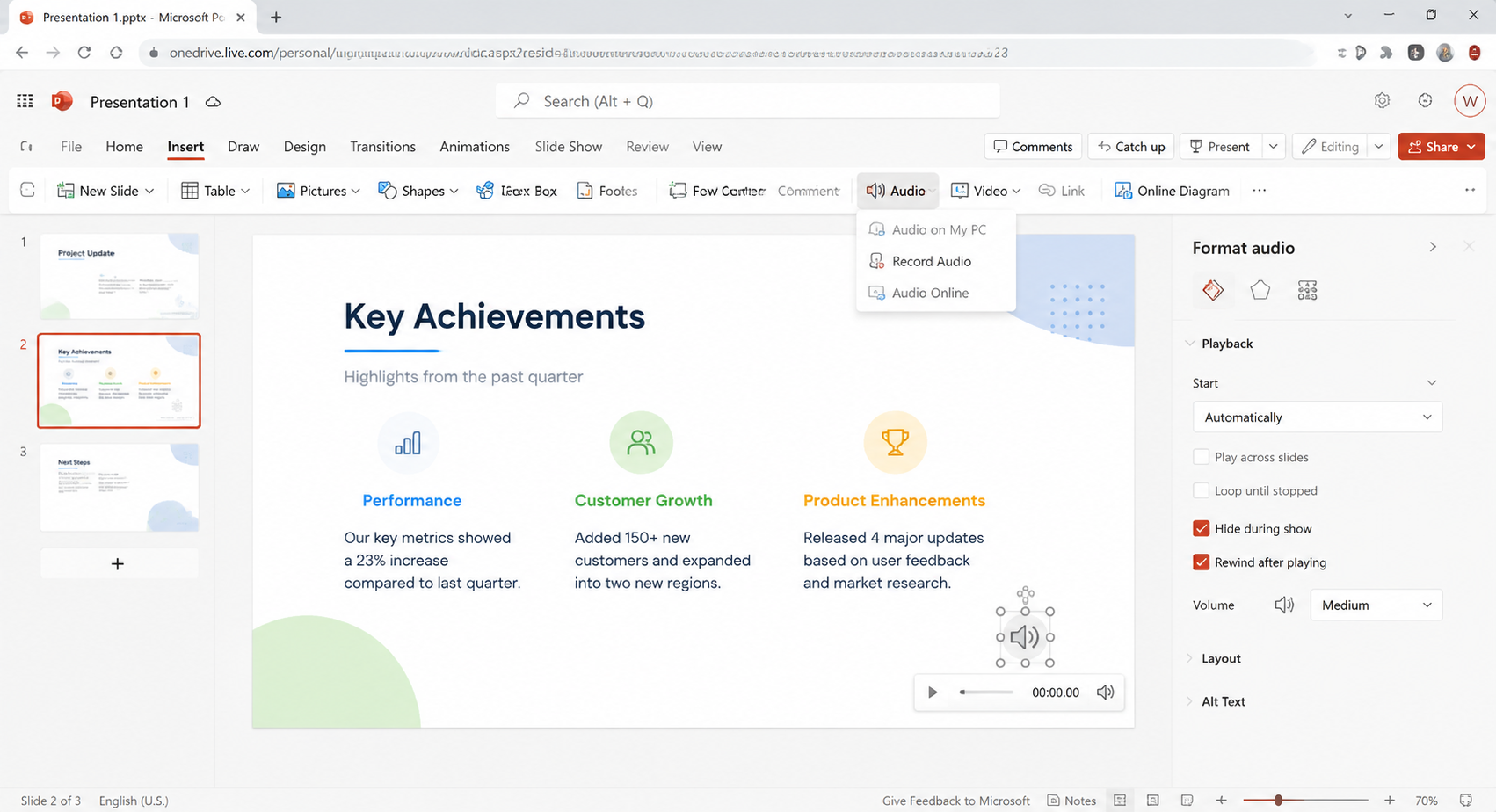
Manual insert is flexible but slow on long decks. Upload-to-PPTX AI tools can automate embedding; weigh privacy and brand voice before sending client content to a third-party site.
When PowerPoint Text to Speech Is Not the Right Tool
Skip TTS when you need your real voice, laser pointer timing, or webcam presence. Use Record / Record Slide Show instead—or a screen recorder if you must capture apps outside the slide stage.
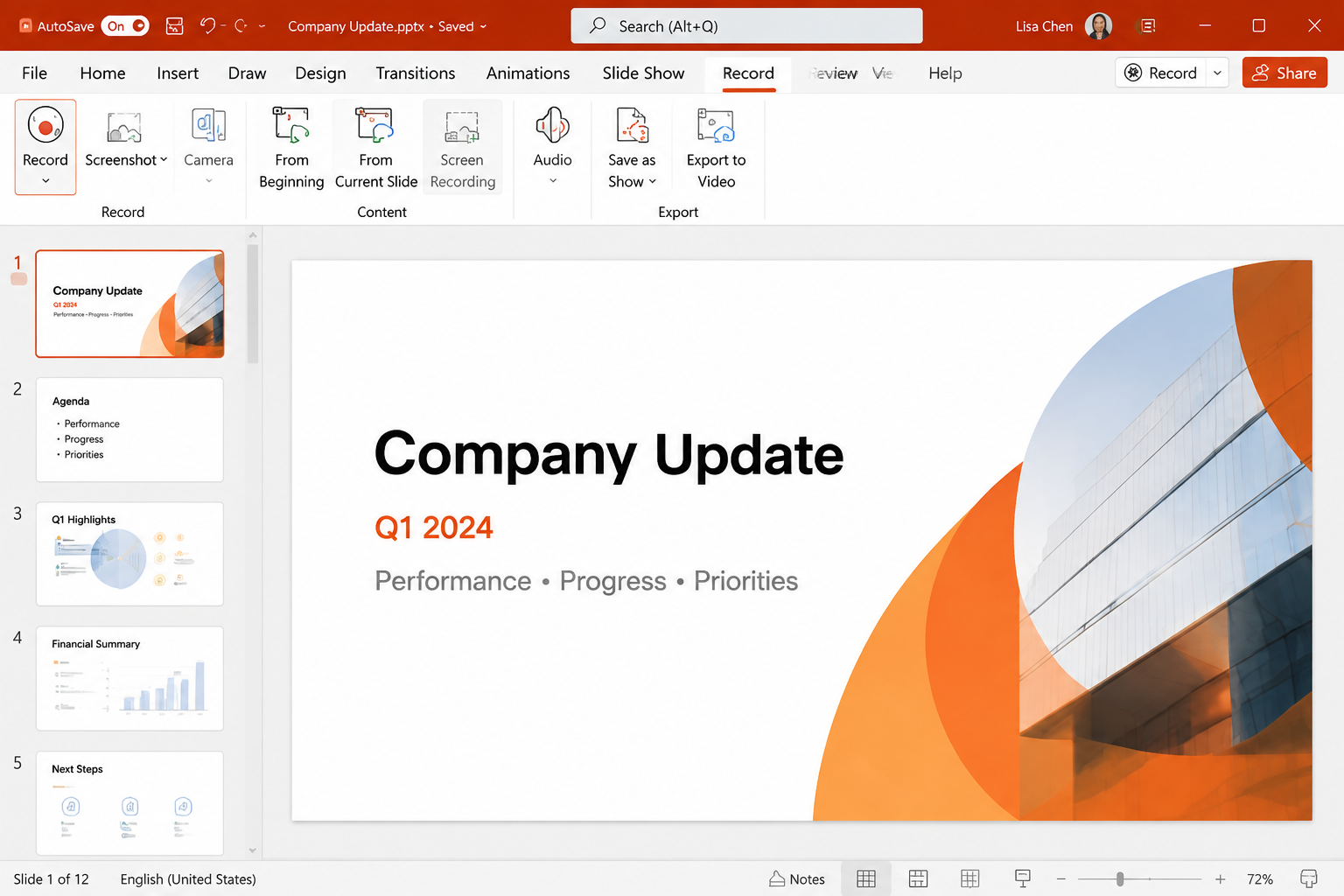
Quick rule:
Need to hear text while editing → Speak / Read Aloud
Need a saved synthetic voice → TTS file + Insert Audio
Need your voice + timings → Record presentation
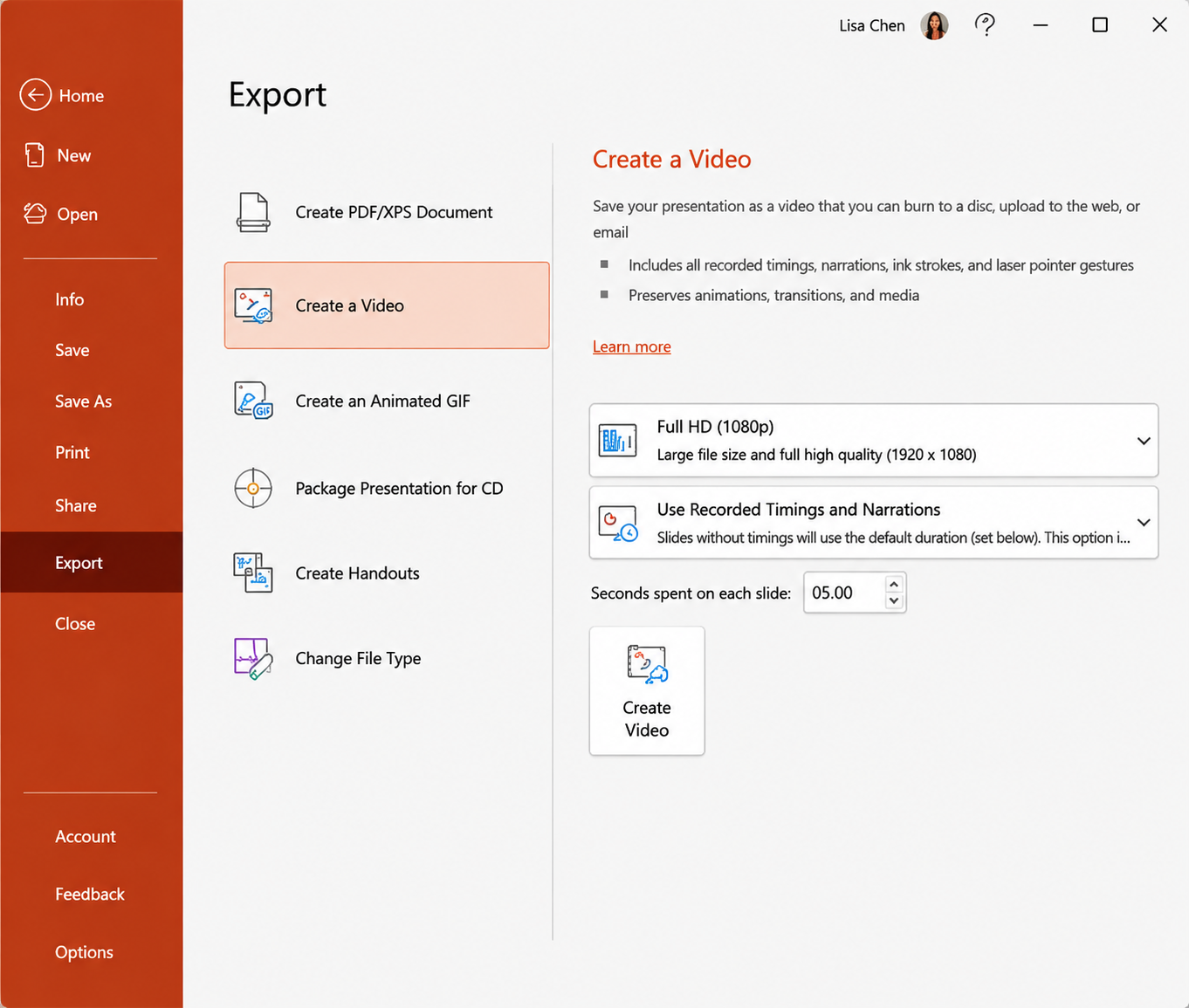
Related guides on this site cover how to do a voice over in PowerPoint and a screen recorder for PowerPoint workflow when demos matter more than slide text.


Best Free Alternative for PowerPoint Text to Speech: WPS Office
If Microsoft 365 cost, version gaps, or tool sprawl is the real blocker, WPS Office is a strong free-friendly alternative for the delivery half of a PowerPoint text to speech project. You can keep editing standard PPTX files in WPS Presentation, then insert the audio you already generated—without switching suites mid-workflow.

Why teams pick WPS for this job:
PPTX compatibility: Open and save PowerPoint files with a familiar ribbon layout.
Built-in Insert Audio: Embed MP3/WAV per slide, then tune Automatic play and Hide During Show.
Lower cost barrier: Core editing stays accessible for students and light business use.
One suite: Writer, Spreadsheet, Presentation, and PDF tools in the same download.
WPS is not a pixel-perfect clone of every Microsoft Speak menu. Treat it as the practical place to finish narrated decks after you create TTS audio—or as your daily presentation editor when Office licensing is the friction.
Do PowerPoint Text to Speech Style Narration in WPS Presentation
Once WPS Office is installed, use WPS Presentation to complete a PowerPoint text to speech style delivery: insert your generated clip, set playback, and share the PPTX.
Open your .pptx in WPS Presentation.
Select the target slide.
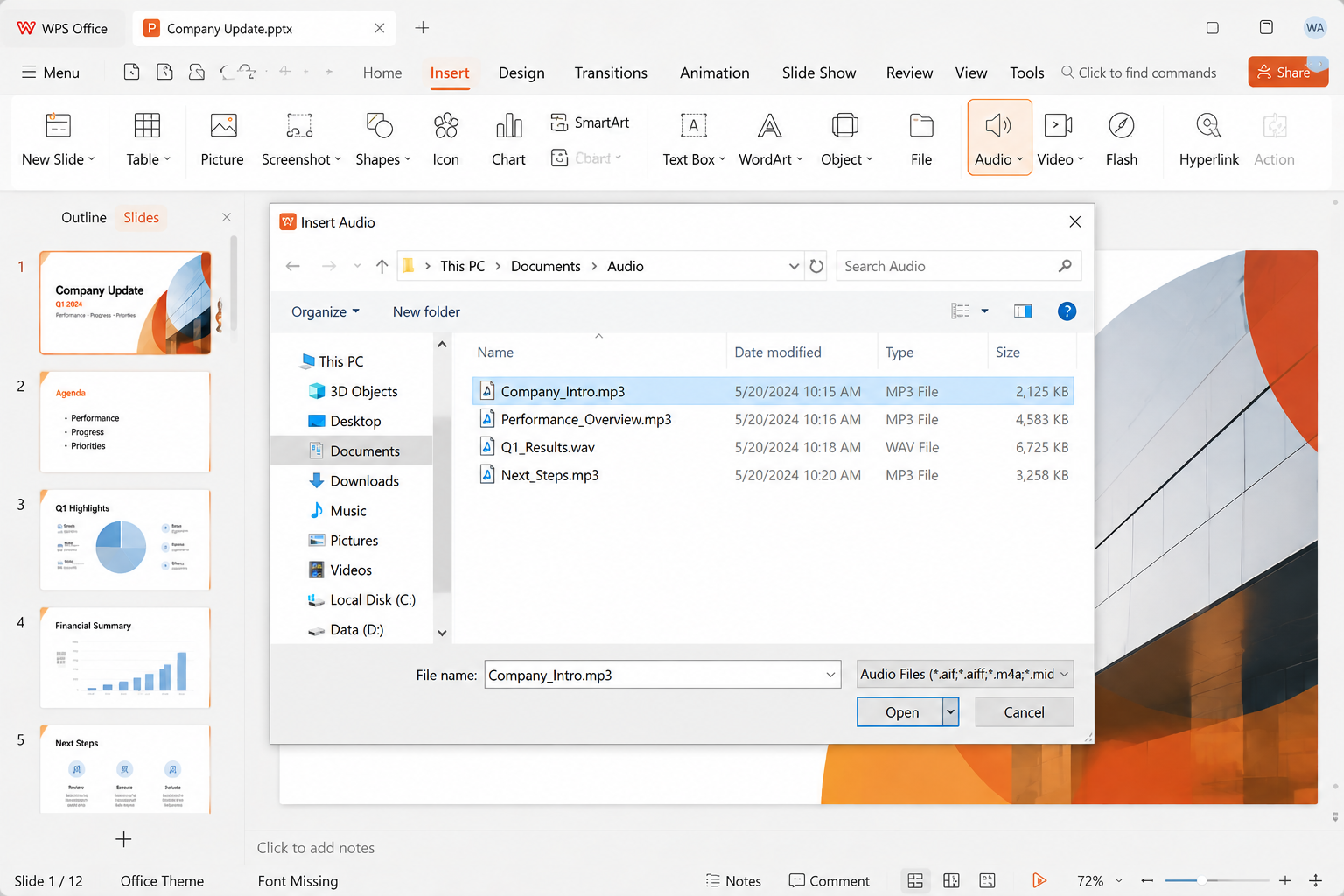
Go to the Insert tab and choose Audio.
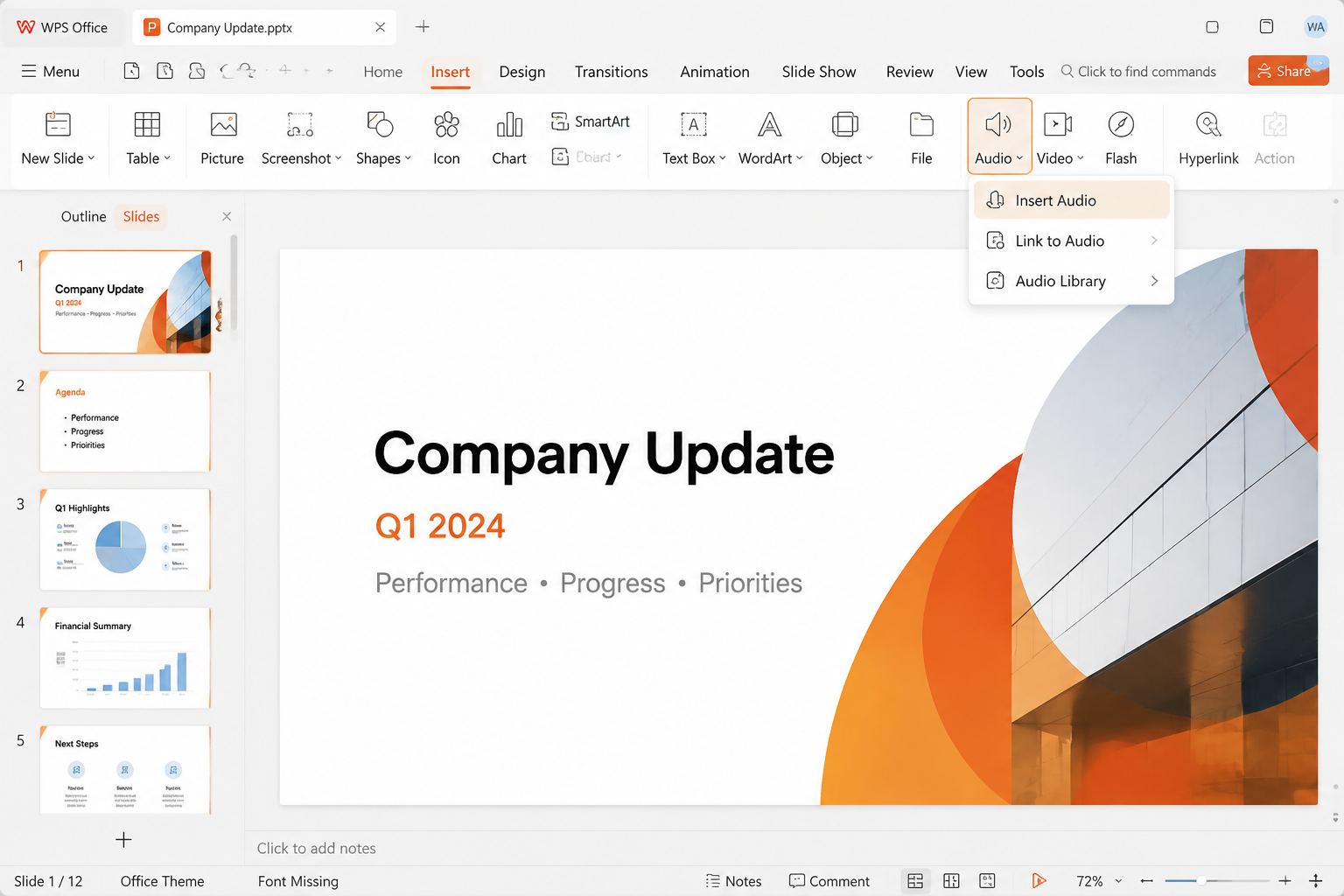
Choose Insert Audio (prefer embed over link if you will share the file).
Pick your TTS MP3/WAV and confirm.
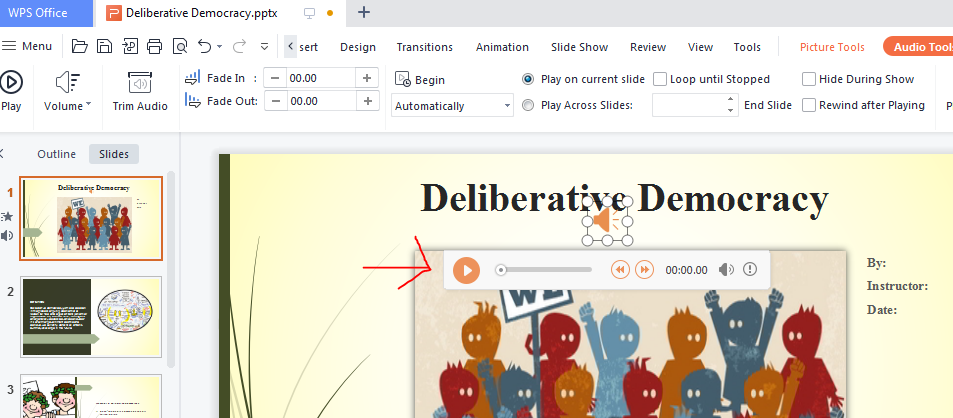
Select the speaker icon to open audio tools / playback settings.
Set volume, trim, fade, Begin: Automatically, and Hide During Show as needed.
Notes from WPS documentation: link-style audio may break when the file moves to another PC. For training packs and email handoffs, embedded Insert Audio is safer. Feature names and premium gates can vary by WPS build, so match the menus you see in your version.
PowerPoint Text to Speech FAQ
Does Speak save audio inside the PPTX?
No. Live Speak / Read Aloud is for listening on your computer. Embed a generated file if viewers must hear narration.
Can I use PowerPoint text to speech on the web?
The classic Speak QAT path is a desktop feature. On PowerPoint for the web, check Immersive Reader / available accessibility tools, or create audio elsewhere and insert it where the web app allows.
Why is Speak grayed out?
Usually no text is selected, or the language of the text does not match an installed TTS engine. Set proofing language and install the matching voice pack.
Is AI narration the same as Speak?
No. AI tools export audio (or rewrite a PPTX with audio). Speak only reads live. Both can be part of a PowerPoint text to speech plan, but they solve different jobs.
How do I hide the speaker icon during slideshow?
Select the audio icon → Playback / Audio Tools → enable Hide During Show (wording varies slightly in PowerPoint vs WPS).
Summary:
Use Speak when you only need to listen. Use generated audio + Insert Audio when the file must talk for others. Use Record when the story needs your voice. When licensing or tool sprawl gets in the way, WPS Office is the practical free-friendly alternative to finish the same PPTX delivery path.
If you came here for power point text to speech and still need help picking a path, start with the three-way split above—then follow only the section that matches your outcome.

'%3e%3cpath%20d='M19.9911%204.11386V6.471H18.5894C18.0775%206.471%2017.7322%206.57814%2017.5536%206.79243C17.3751%207.00671%2017.2858%207.32814%2017.2858%207.75671V9.44421H19.9019L19.5536%2012.0871H17.2858V18.8639H14.5536V12.0871H12.2769V9.44421H14.5536V7.49779C14.5536%206.39064%2014.8632%205.53201%2015.4822%204.92189C16.1013%204.31177%2016.9257%204.00671%2017.9554%204.00671C18.8304%204.00671%2019.509%204.04243%2019.9911%204.11386Z'%20fill='%23333333'/%3e%3c/g%3e%3cdefs%3e%3cclipPath%20id='clip0_2938_8199'%3e%3crect%20width='16'%20height='16'%20fill='white'%20transform='translate(8%204.00671)'/%3e%3c/clipPath%3e%3c/defs%3e%3c/svg%3e)
'%3e%3cpath%20d='M17.5237%2010.7813L23.4811%204H22.0699L16.8949%209.88693L12.7648%204H8L14.2469%2012.9029L8%2020.0133H9.4112L14.8725%2013.7952L19.2352%2020.0133H24M9.92053%205.04213H12.0885L22.0688%2019.0224H19.9003'%20fill='%23333333'/%3e%3c/g%3e%3cdefs%3e%3cclipPath%20id='clip0_2938_8200'%3e%3crect%20width='16'%20height='16.0134'%20fill='white'%20transform='translate(8%204)'/%3e%3c/clipPath%3e%3c/defs%3e%3c/svg%3e)


