

'%3e%3cpath%20d='M8%200C12.4183%200%2016%203.58172%2016%208C16%2012.4183%2012.4183%2016%208%2016C3.58172%2016%200%2012.4183%200%208C0%203.58172%203.58172%200%208%200ZM11.6162%204.38379C11.2257%203.99337%2010.5927%203.99338%2010.2021%204.38379L8%206.58594L5.79785%204.38379C5.40732%203.99334%204.77429%203.99329%204.38379%204.38379C3.99331%204.77429%203.99335%205.40733%204.38379%205.79785L6.58594%208L4.38379%2010.2021C3.99348%2010.5927%203.99341%2011.2257%204.38379%2011.6162C4.77426%2012.0066%205.40734%2012.0065%205.79785%2011.6162L8%209.41406L10.2021%2011.6162C10.5927%2012.0066%2011.2257%2012.0067%2011.6162%2011.6162C12.0067%2011.2257%2012.0066%2010.5927%2011.6162%2010.2021L9.41406%208L11.6162%205.79785C12.0066%205.40735%2012.0066%204.77429%2011.6162%204.38379Z'%20fill='%23080E17'%20fill-opacity='0.46'/%3e%3c/g%3e%3cdefs%3e%3cclipPath%20id='clip0_3761_713'%3e%3crect%20width='16'%20height='16'%20fill='white'/%3e%3c/clipPath%3e%3c/defs%3e%3c/svg%3e)



'%3e%3cpath%20fill-rule='evenodd'%20clip-rule='evenodd'%20d='M21.4999%2010.9993C21.4999%205.20009%2016.7986%200.498901%2010.9993%200.498901C5.19994%200.498901%200.498657%205.20009%200.498657%2010.9993C0.498657%2016.2404%204.33858%2020.5844%209.35855%2021.3722V14.0346H6.69238V10.9993H9.35855V8.68594C9.35855%206.05427%2010.9262%204.60062%2013.3248%204.60062C14.4736%204.60062%2015.6753%204.80571%2015.6753%204.80571V7.38979H14.3512C13.0468%207.38979%2012.64%208.19921%2012.64%209.0296V10.9993H15.5523L15.0867%2014.0346H12.64V21.3722C17.66%2020.5844%2021.4999%2016.2404%2021.4999%2010.9993Z'%20fill='%231568EA'/%3e%3c/g%3e%3c/svg%3e)


'%3e%3cpath%20d='M2.42045%2022.1876H6.31818V12.7217L0.75%208.54553V20.5171C0.75%2021.4414%201.49892%2022.1876%202.42045%2022.1876Z'%20fill='%234285F4'/%3e%3cpath%20d='M19.682%2022.1876H23.5797C24.5041%2022.1876%2025.2502%2021.4387%2025.2502%2020.5171V8.54553L19.682%2012.7217'%20fill='%2334A853'/%3e%3cpath%20d='M19.682%205.48293V12.7216L25.2502%208.54543V6.31816C25.2502%204.25236%2022.8921%203.07469%2021.2411%204.31361'%20fill='%23FBBC04'/%3e%3cpath%20d='M6.31824%2012.7217V5.48303L13.0001%2010.4944L19.6819%205.48303V12.7217L13.0001%2017.733'%20fill='%23EA4335'/%3e%3cpath%20d='M0.75%206.31816V8.54543L6.31818%2012.7216V5.48293L4.75909%204.31361C3.10534%203.07469%200.75%204.25236%200.75%206.31816Z'%20fill='%23C5221F'/%3e%3c/g%3e%3cdefs%3e%3cclipPath%20id='clip0_2954_7305'%3e%3crect%20width='24.5'%20height='18.375'%20fill='white'%20transform='translate(0.75%203.8125)'/%3e%3c/clipPath%3e%3c/defs%3e%3c/svg%3e)


A strong visual theme can turn an average presentation into a memorable one, which is why many users search for Google Slides themes free download options that are both high-quality and fully compatible. Although many free options look great at first, they usually break during import with missing fonts or messy layouts. Knowing where to find reliable, compatible themes is the key to avoiding that problem. This guide covers the best themes to import for Google Slides, explains how to import them correctly, and shows how AI tools like WPS AI Slides can simplify the process and help you build polished decks faster.

Top 5 Sources for Google Slides Themes
Google Slides default templates get the job done, but they rarely deliver the visual impact needed for important presentations. To help you raise the bar without designing everything from scratch, we’ve narrowed down five reliable sources for themes to import for Google Slides. Each option offers layouts that import cleanly into Google Slides and work well for everything from classroom lessons to executive-level decks.
1. Slidesgo
Slidesgo is a comprehensive resource for high-quality presentation templates, catering specifically to students, teachers, and professionals who require visually distinct designs. It provides a vast searchable database where users can filter results by color, creative style, or industry, making it efficient to locate a theme that matches a specific branding requirement.
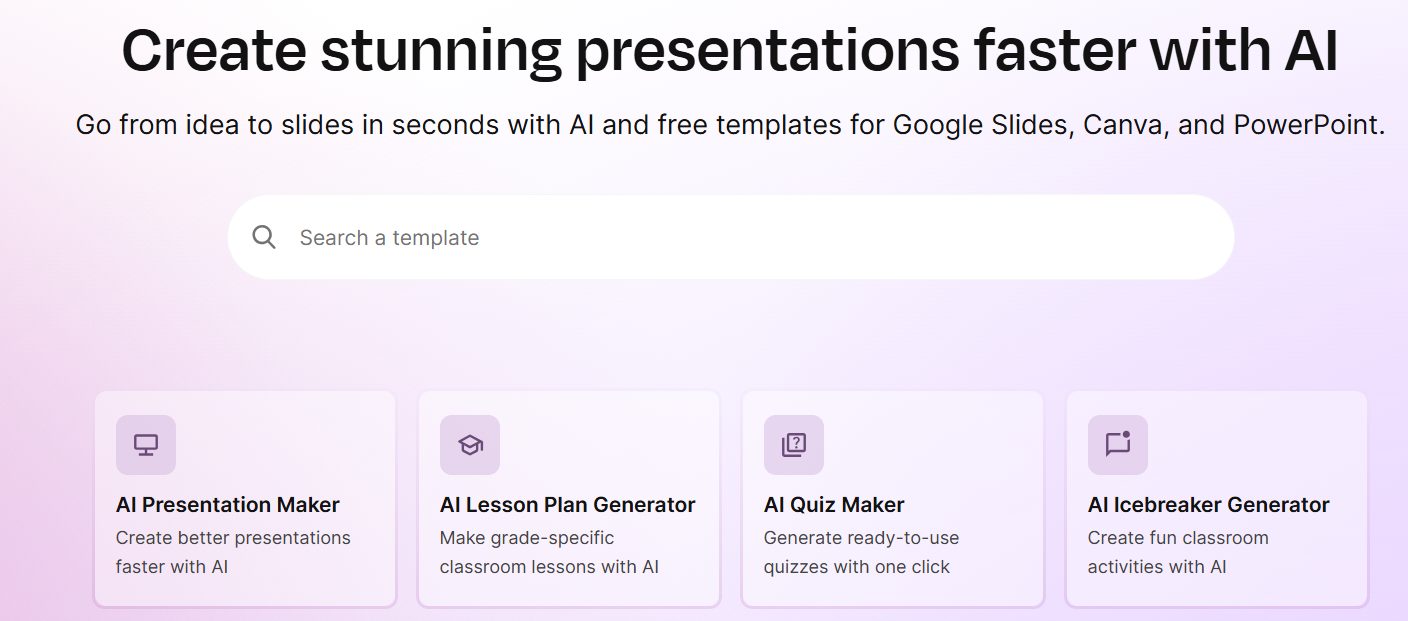
The platform is particularly valuable because it prioritizes compatibility. Unlike generic template sites, Slidesgo offers a specific download option for Google Slides, which means the formatting, fonts, and transitions are optimized for the platform before you even open the file. This reliability makes it an excellent choice for users who want complex visuals without the risk of broken layouts during import.
Key Features
Structured categorization: Filter themes by color, style, or industry to find the perfect match for your topic in seconds.
Google Slides native: Downloads are formatted specifically for Google Slides, ensuring that transitions and fonts work immediately upon import.
Fully editable graphics: Modify vector illustrations and icons directly within the slides to align perfectly with your brand identity.
Frequent updates: Access a constantly growing library of trendy designs that keep your presentations looking current and fresh.
2. SlidesMania
SlidesMania is widely recognized in the education sector for offering creative, unconventional designs that move beyond standard bullet points. The site specializes in free templates that mimic interactive interfaces, such as digital planners, yearbooks, or game boards, providing a refreshing alternative to traditional corporate slide decks.
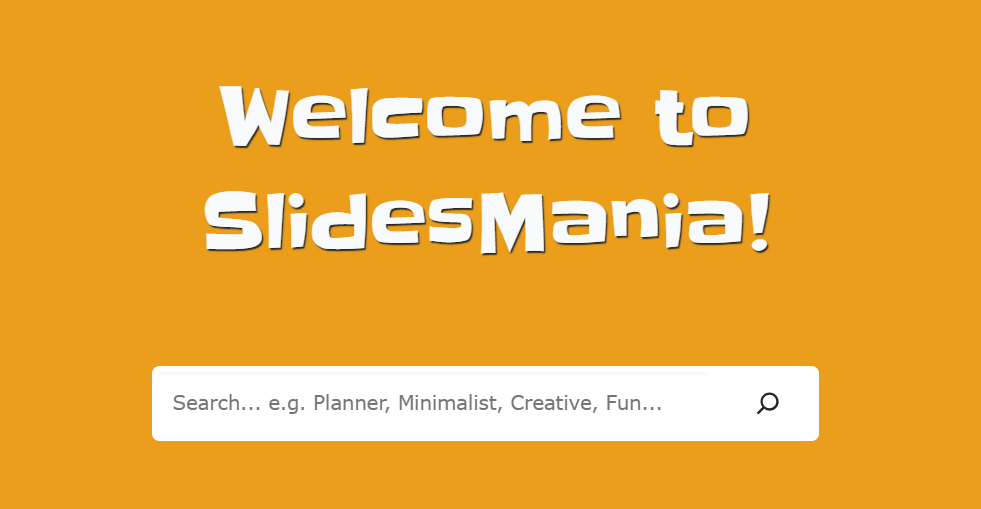
Many themes come pre-configured with clickable navigation menus and non-linear paths, allowing presenters to create engaging, app-like experiences for their audience. It is an ideal resource for educators or workshop leaders who need to maintain high levels of engagement through active participation.
Key Features
Gamified layouts: Use pre-built interactive boards and quiz templates to turn passive viewers into active participants.
100% free access: Download any template without subscription fees or hidden costs, making it ideal for teachers and students.
Creative structures: Access unique formats like digital planners and yearbooks that standard presentation software rarely offers.
Easy customization: Edit master slides easily to change colors globally without breaking the interactive links.
3. Google Slides Template Gallery
The built-in Google Slides Template Gallery serves as the most immediate and accessible source for themes directly within the application. It offers a curated selection of native designs that allow users to apply a professional look to their presentation instantly without navigating away from their current workspace or managing external file downloads.

While the variety is more limited than external marketplaces, the primary benefit is seamless integration. Since these themes are engineered by Google, they guarantee perfect compatibility with all Workspace tools, ensuring that fonts render correctly and layouts adjust automatically to different screen sizes. This makes it the most reliable option for professionals needing a clean, functional design on a tight deadline.
Key Features
Instant application: Apply a new look to your entire deck with a single click, saving valuable time during rush projects.
Zero compatibility issues: Use themes designed by Google for Google, ensuring every bullet point and header renders perfectly.
Clean aesthetic: Rely on professional, minimalist designs that prioritize readability and are safe for any corporate environment.
Workspace integration: Seamlessly match fonts and styles with other Google Workspace tools like Docs and Sheets.
4. Envato Elements / GraphicRiver
Envato Elements functions as a premium marketplace tailored for agencies, corporate teams, and designers who require commercial-grade assets. It hosts an extensive library of complex, data-rich presentation themes created by professional graphic designers, often providing significantly more depth and polish than free alternatives.

The value of this platform lies in the sheer volume and quality of the content. A single download typically includes hundreds of unique slide layouts, ranging from advanced data visualization charts to device mockups, giving users a comprehensive toolkit for building pitch decks. For business users, the inclusion of commercial licensing provides necessary legal security for client-facing projects.
Key Features
Commercial licensing: Use templates for for-profit projects and client work with full legal peace of mind.
Massive slide variety: Access hundreds of unique layouts within a single theme, covering every possible data visualization need.
High-end design: Impress stakeholders with polished, agency-quality aesthetics that far exceed standard free templates.
Vector icon packs: Receive bundles of professionally designed icons included with the theme to enhance your visual storytelling.
5. WPS Office Template Gallery
The WPS Office Template Gallery is a versatile hub that combines the power of desktop software with the flexibility of cloud-based sharing. It provides a wide array of professional templates integrated directly into the WPS suite, which can be easily customized and exported for use in other platforms.
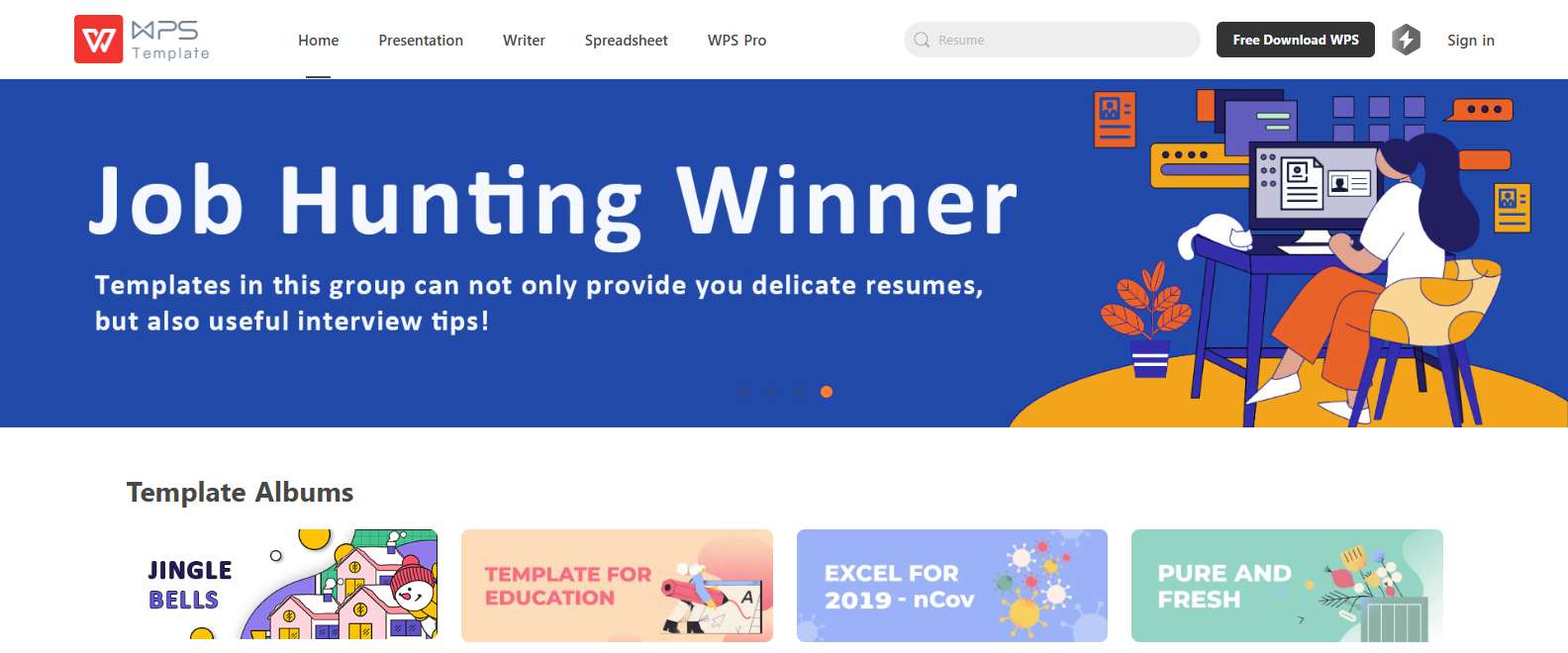
Alt text: WPS Office Free Template Gallery
A unique strength of this source is the integration of AI-assisted design tools. You can leverage AI to generate slide structures or refine content within WPS before exporting the final file as a PowerPoint presentation for Google Slides. This workflow offers a distinct advantage by allowing you to utilize advanced creation tools offline before collaborating online.
Key Features
AI-enhanced creation: Generate slide structures and content using AI prompts before finalizing the design.
Direct export: Save your customized themes as .pptx files that are fully compatible for import into Google Slides.
Built-in convenience: Access thousands of professional templates directly inside the software without browsing external websites.
Cross-platform design: Create themes that work equally well for offline presenting in WPS and online collaboration in Google.
Theme Sources: Comparison Table
Each of these platforms caters to a different type of user, from educators needing free interactive tools to business leaders requiring commercial licenses. The comparison below breaks down the key strengths of each source to help you select the one that best fits your project requirements.
How to Import Theme to Google Slides
Once you have downloaded a template, you need to import it properly to apply its look to your presentation. Here is the standard method for how to import themes into Google Slides.
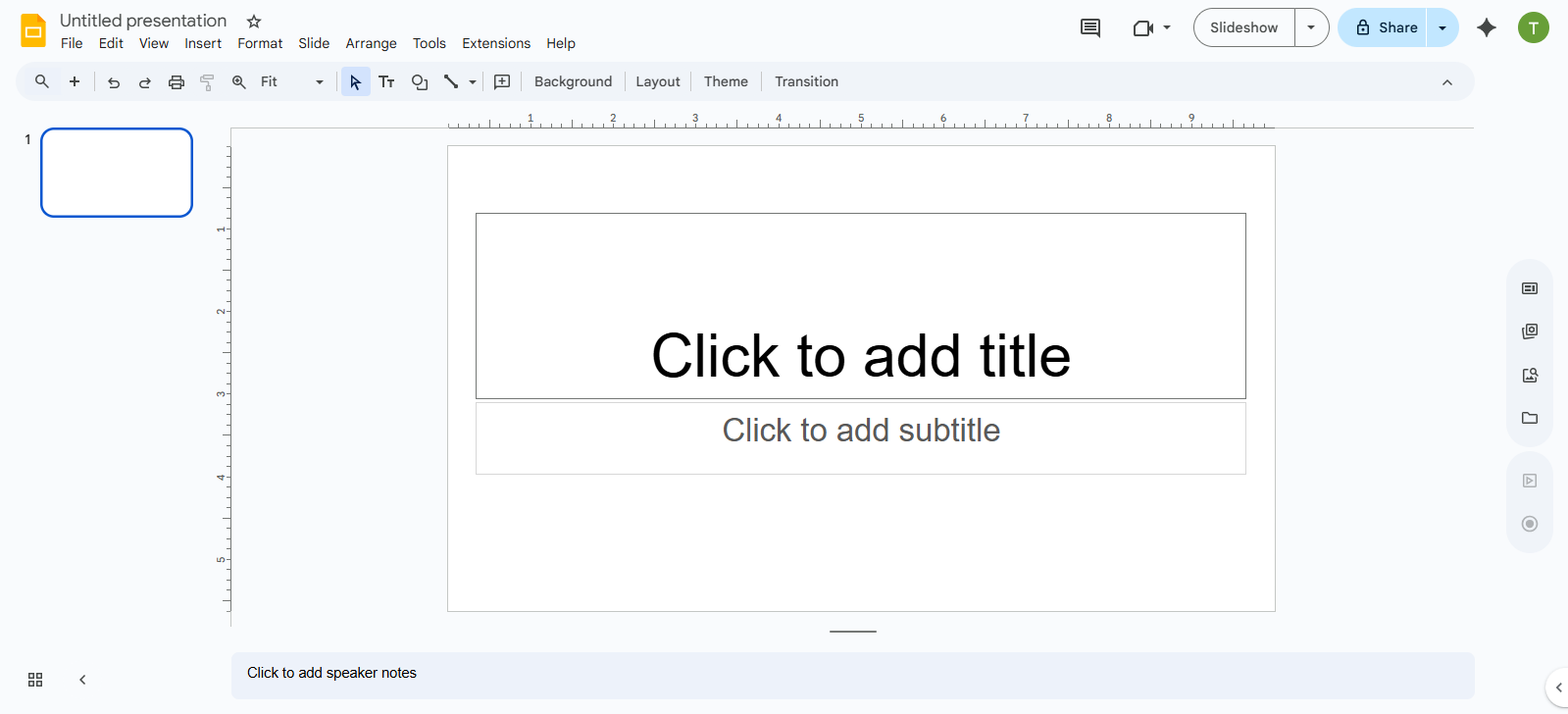
Step 1: Open a new or existing Google Slides in your browser.
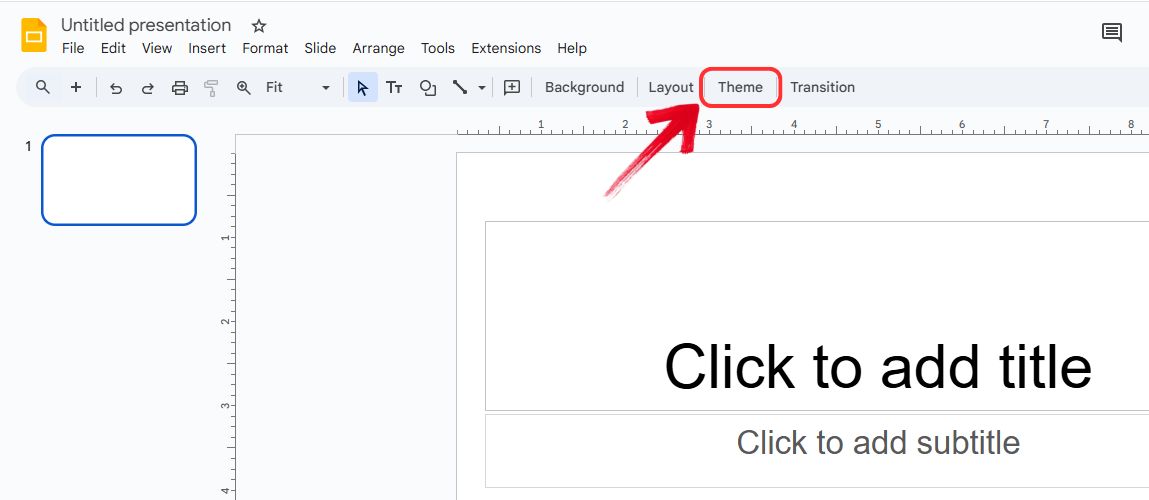
Step 2: In the top toolbar, click “Theme” to select or import your theme.
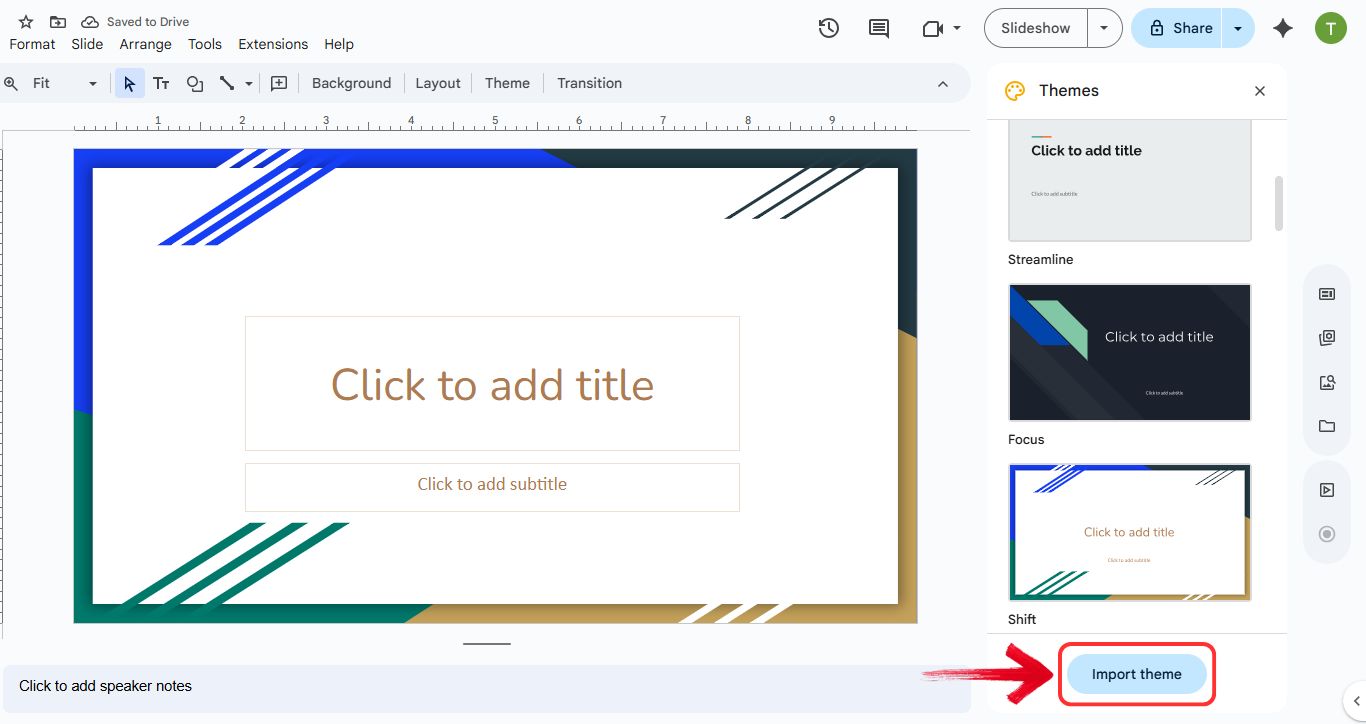
Step 3: A sidebar will appear on the right side of the screen. At the bottom of this sidebar, click the “Import theme” button.
4: A window will pop up. Click the “Upload” tab and select the PowerPoint (.pptx) file you downloaded from one of the sources above (like Slidesgo or WPS).
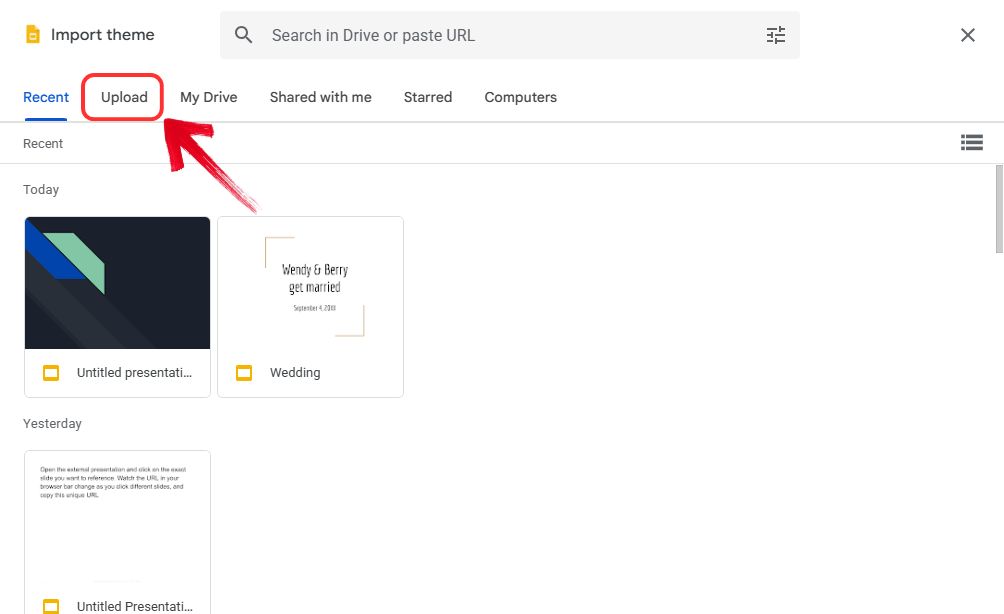
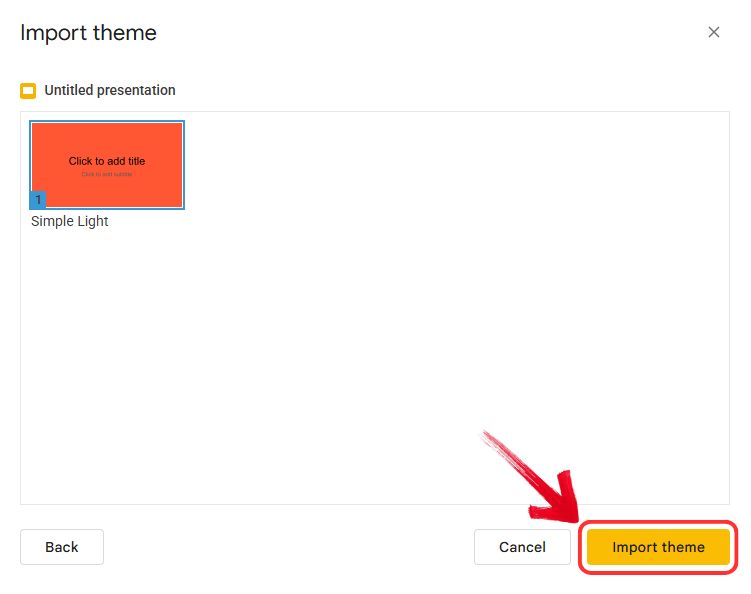
Step 5: Google Slides will process the file. Once loaded, click on the slide image that appears and press the “Import theme” button. Your current slides will instantly update to match the new colors, fonts, and background of the imported file.
How to Leverage WPS AI Slides for Themes and Import to Google Slides
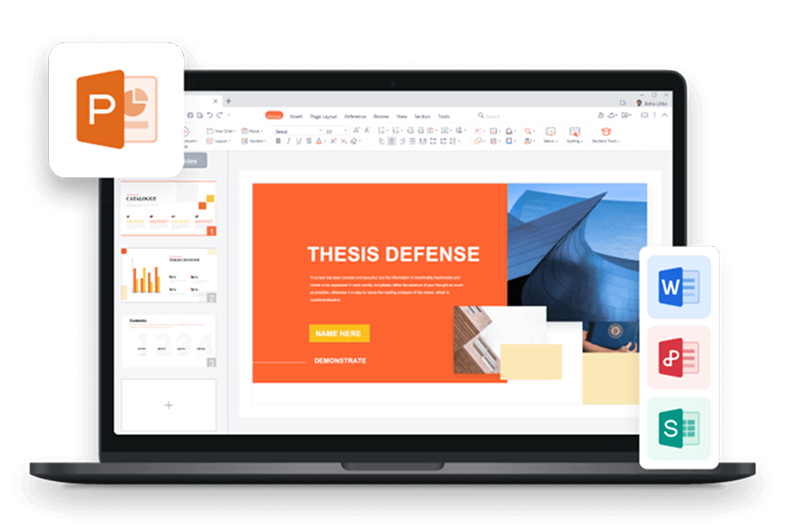
Google Slides includes built-in templates, but creating a theme that actually looks polished and original usually takes more time and design skill than most people want to spend. A smarter option is to build your theme in WPS AI Slides, then bring it into Google Slides for collaboration. This gives you the speed and consistency of AI-driven design without giving up Google’s sharing and teamwork features.
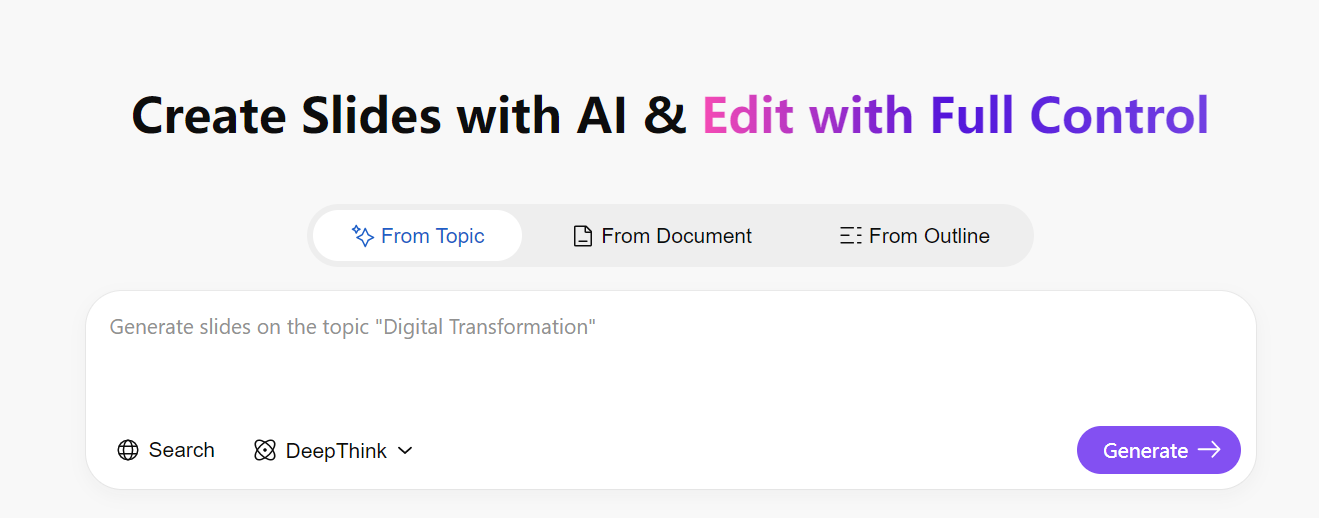
WPS AI Slides turns theme creation into a guided, creative process instead of a manual hunt. You can generate a complete visual style from a simple prompt like modern tech blue or friendly educational, and the AI keeps fonts, colors, and graphics consistent across every slide. In seconds, you get a professional presentation that you can tweak as needed, then export cleanly into Google Slides with no layout issues.
Step-by-Step Tutorial: From AI Theme to Google Slides
Getting started is simple. Rather than spending time on manual formatting, you can let the AI handle the structure and design for you in just a few clicks. Here’s how to use the AI pitch deck generator.
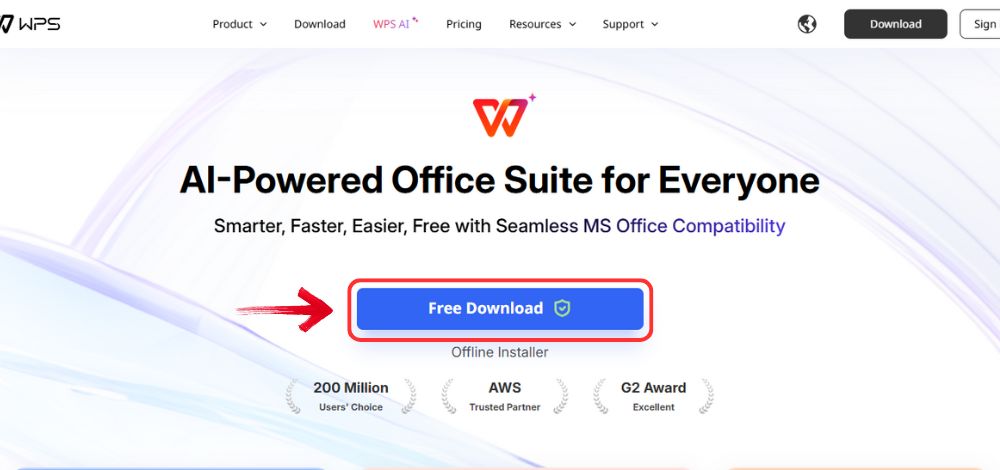
Step 1: Open your browser to visit WPS Office and click the "Free Download" button to start the download.
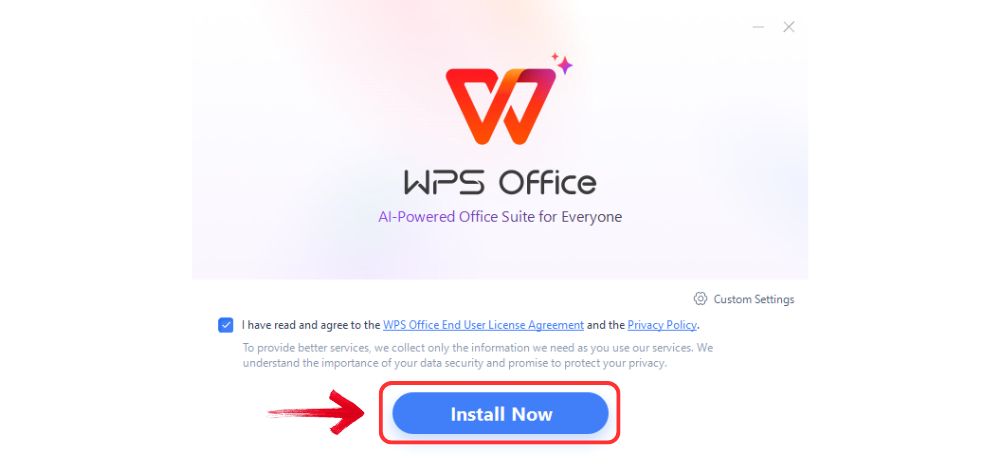
Step 2: After the download finishes, click and run the installed file.
Step 3: Agree to the terms and conditions after you read them thoroughly, then click the "Install Now" button to begin the installation.
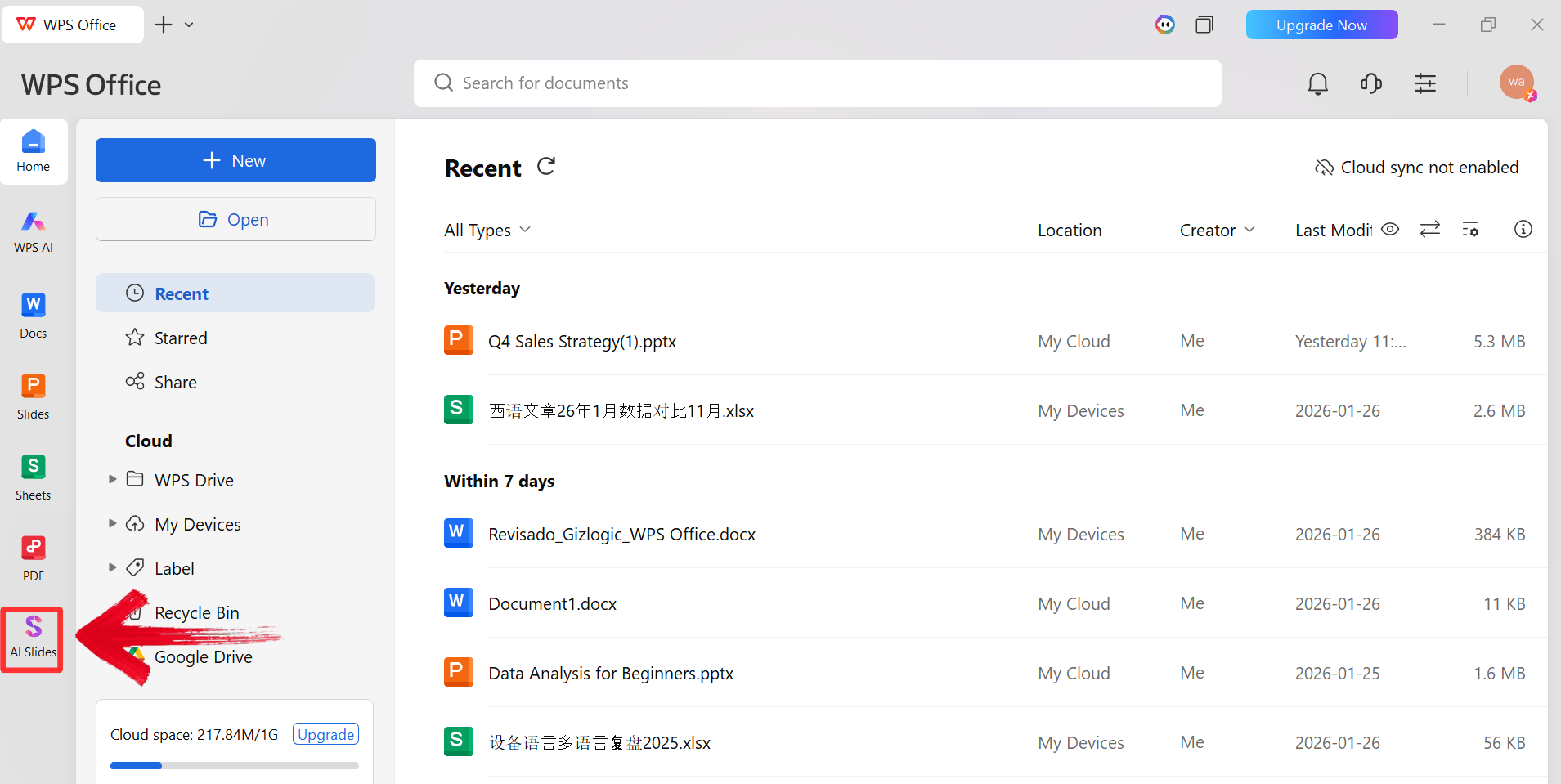
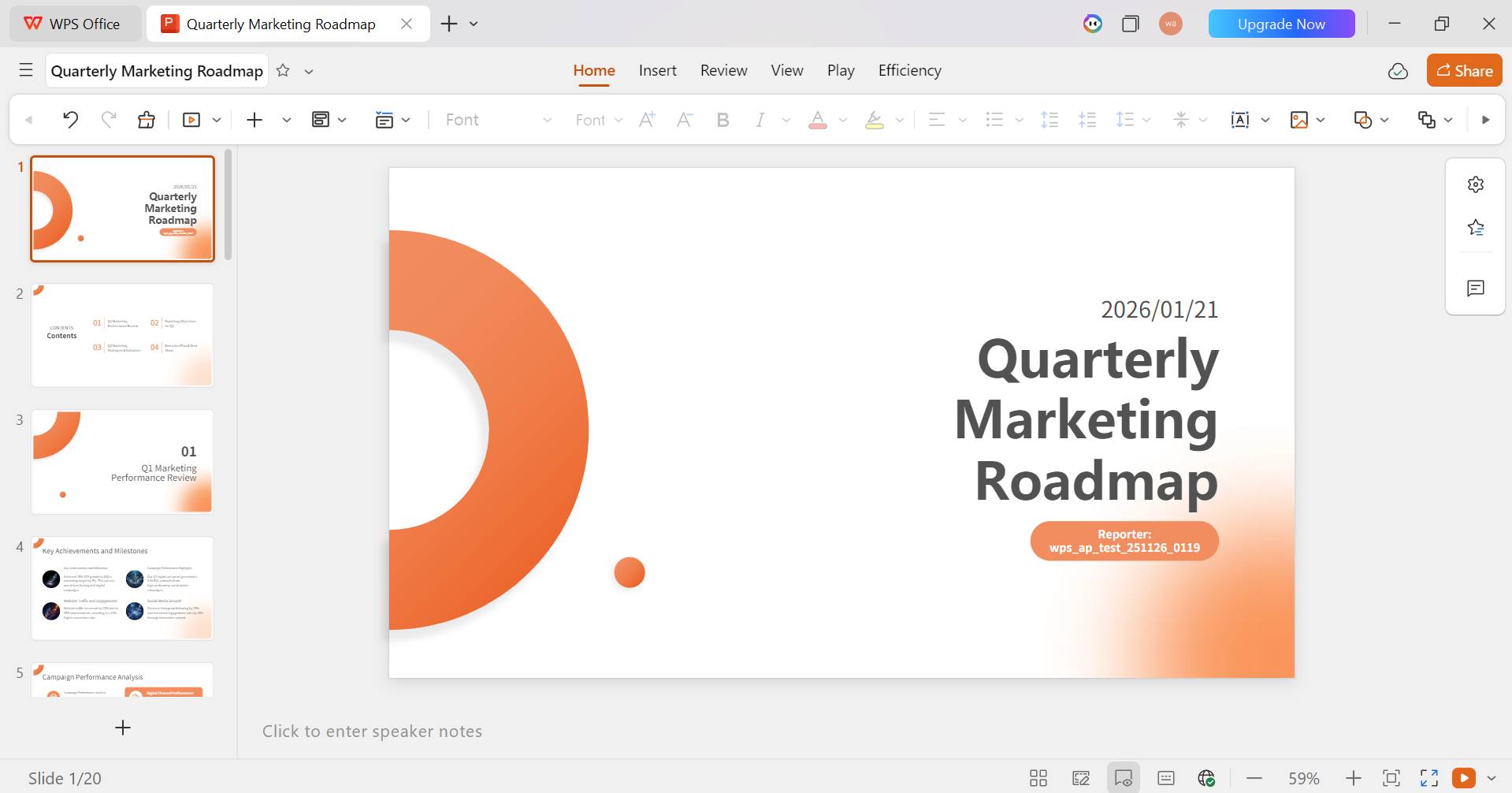
Step 4: After installation, in WPS Office, click “Slides” from the left sidebar.
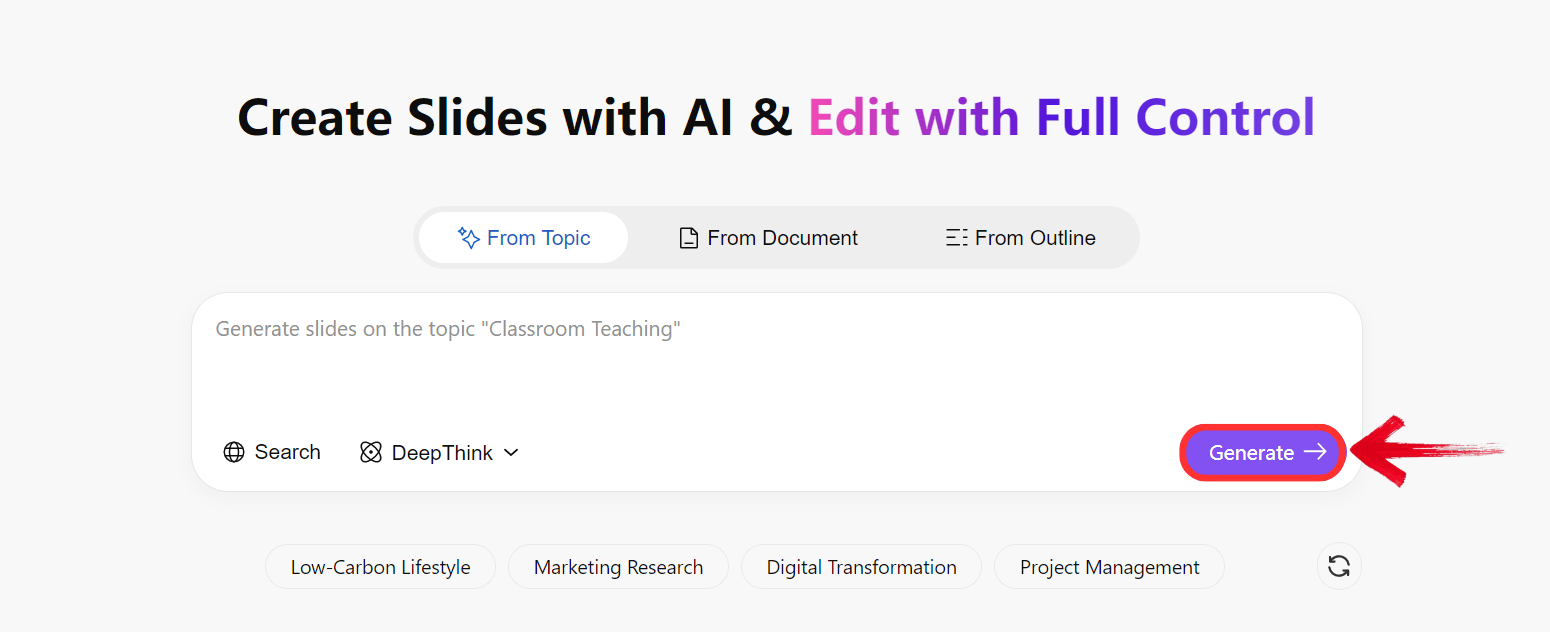
Step 5: Enter a detailed prompt into the AI or upload a document and click “Generate” to create the outline.
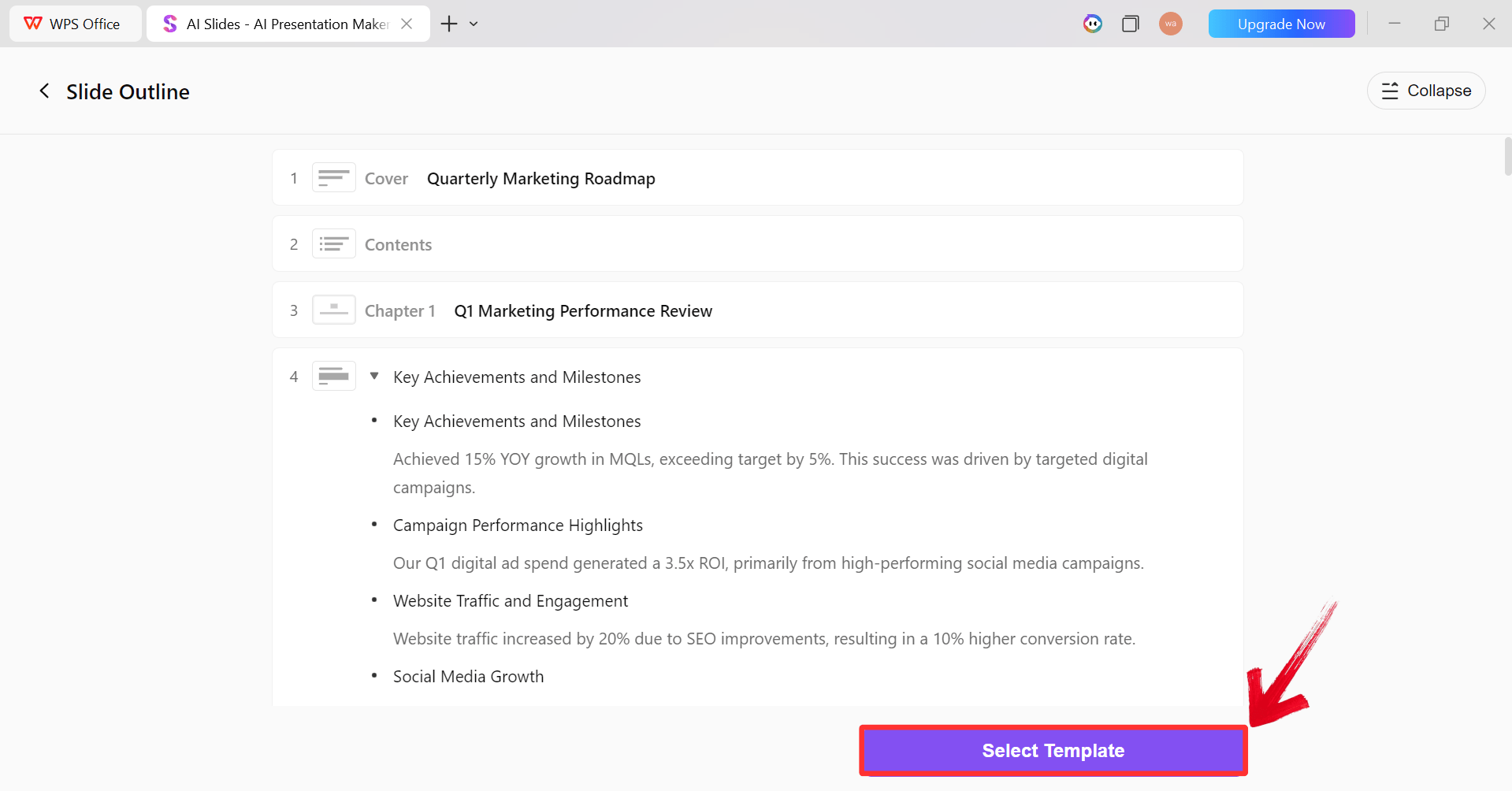
Step 6: After the AI creates the outline, click “Select Template” to pick a theme from the already available ones.
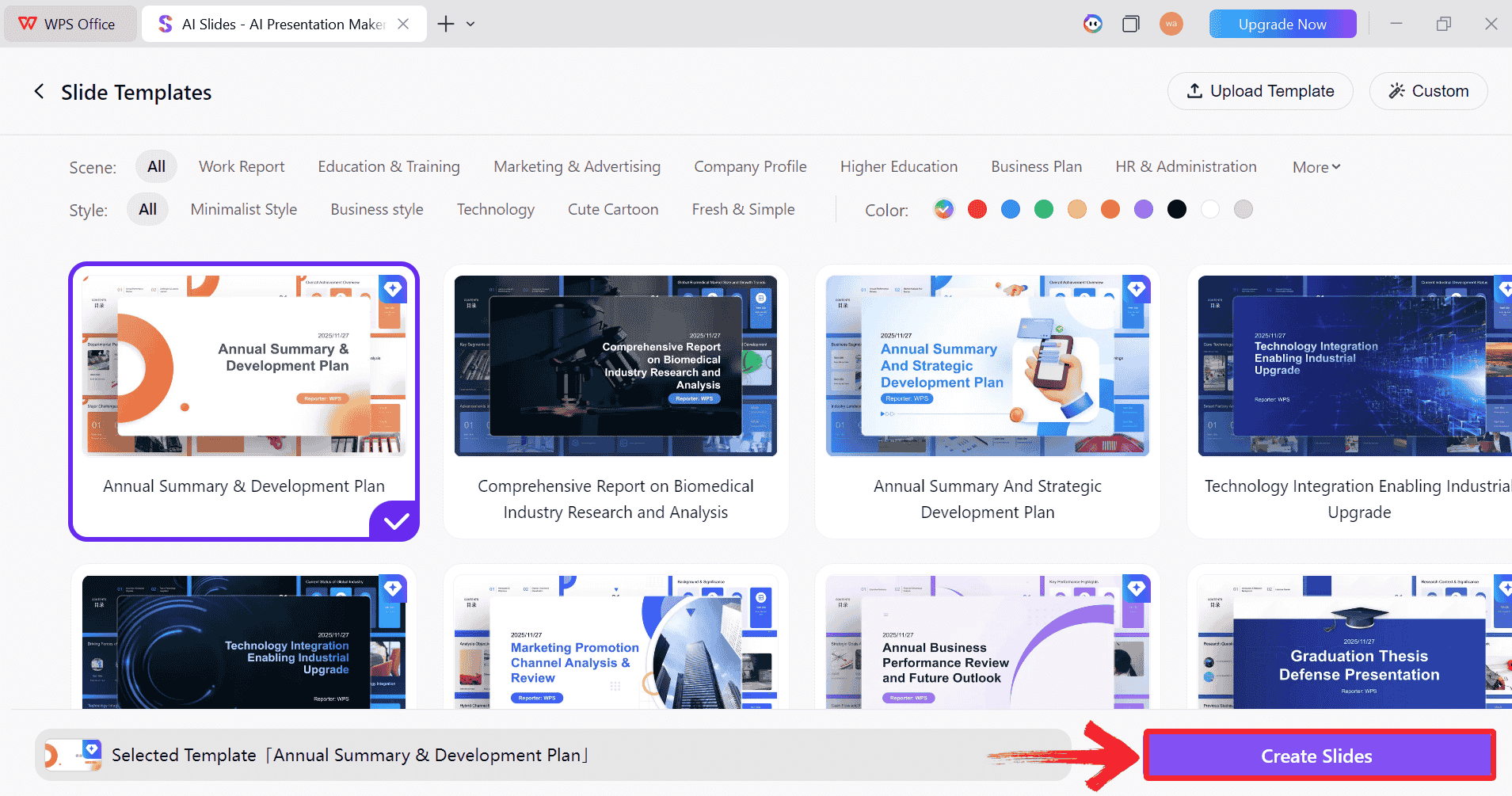
Step 7: After selecting the theme, click “Create Slides” to generate your presentation.
Step 8: Finally, your presentation will be generated with your selected theme and content.
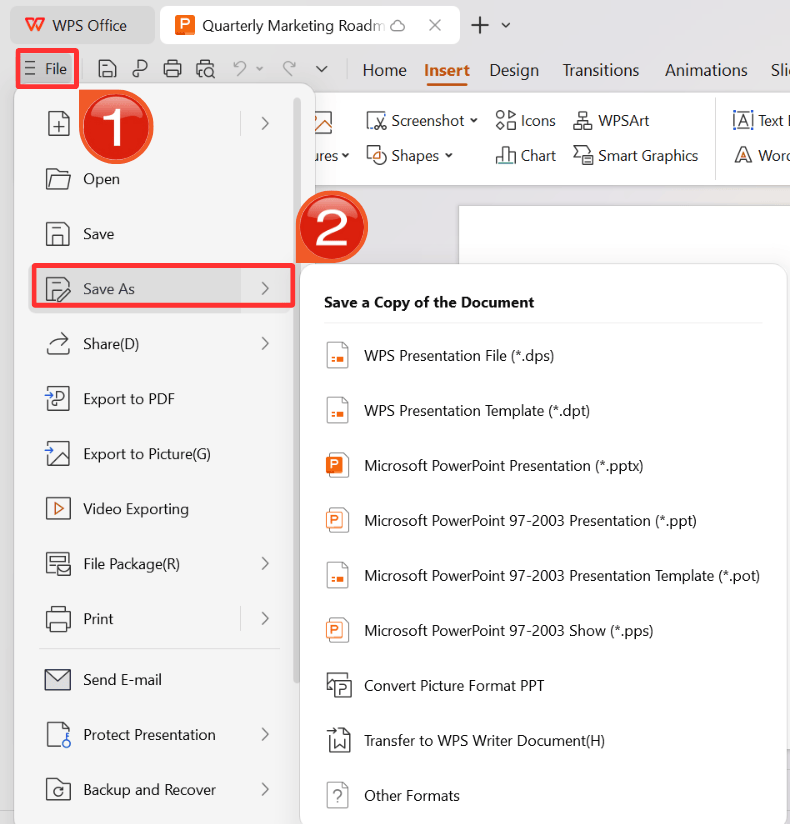
Step 9: Click on the File menu and then click “Export as” to download your PPT.
Using WPS AI Slides as your design engine lets you start with a theme that’s actually built around your content, not a one-size-fits-all template. You can generate or customize a polished design in WPS, export it as a .pptx file, and then bring it straight into Google Slides. The result is a smooth workflow that pairs AI-driven design speed and creative control with the easy sharing and collaboration Google Slides is known for. It’s a practical option for anyone who wants stronger visuals without giving up the Google ecosystem.
Why Use WPS AI Slides for Theme Creation & Import
Downloading a ready-made theme can be quick, but it usually means bending your content to fit someone else’s layout. WPS AI Slides takes a more flexible approach by creating a design around your topic from the very beginning. You can let the AI shape the look and structure, then export the finished theme to Google Slides for easy sharing and collaboration. It’s a smarter way to get custom visuals without slowing down your workflow.
Key Advantages
AI-enhanced theme design: Analyze your presentation content to provide automated color matching and layout optimization that ensures a cohesive visual flow.
Seamless compatibility: Save projects directly in Google Slides-compatible formats and use one-click export to preserve formatting perfectly during the transfer to Drive.
Cost and time efficiency: Utilize the free built-in template library and AI automation to reduce manual design time significantly without the need to purchase external themes.
Professional output: Deliver enterprise-grade design quality with uniform styling across all slides to allow for easy and professional brand customization.
FAQs
1. Where can I find free themes to import into Google Slides?
The best free sources are Slidesgo and SlidesMania, which offer hundreds of templates designed specifically for Google Slides. You can download them as PowerPoint files (.pptx) and then import them into Google Slides. Alternatively, use the built-in template gallery in WPS Office, which is free and includes AI design help, and then export your themed presentation to Google Slides.
2. Can I import a PowerPoint theme into Google Slides?
Yes, most themes from PowerPoint or template websites are provided as .pptx files. You can upload these directly to Google Drive, open them with Google Slides, and Google will convert them while preserving most design elements. For best results, use themes that are labeled as "Google Slides compatible" or use WPS AI Slides to apply a theme and export in a format that ensures full compatibility.
3. What should I do if the fonts change after importing a theme?
This happens if the imported theme uses a font that Google Slides does not support. To fix this, simply select the text, go to the font menu, and choose a similar Google Font (like Lato, Roboto, or Open Sans) to replace the missing one.
4. Will importing a new theme delete my current content?
No, importing a theme only changes the visual style (backgrounds, colors, fonts) of your slides. Your text, images, and charts will remain on the slides, although you may need to adjust their position slightly if the new theme has different margins or layouts.
How to Choose and Import Google Slides Themes Successfully
Choosing the right themes to import for Google Slides is essential for creating professional, engaging presentations. While sources like Slidesgo and SlidesMania offer excellent pre-made options, importing them correctly ensures your design stays intact. For a smarter workflow, WPS AI Slides allows you to generate custom, high-quality themes with AI and export them directly to Google Slides, giving you the perfect balance of creativity and collaboration.

'%3e%3cpath%20d='M19.9911%204.11386V6.471H18.5894C18.0775%206.471%2017.7322%206.57814%2017.5536%206.79243C17.3751%207.00671%2017.2858%207.32814%2017.2858%207.75671V9.44421H19.9019L19.5536%2012.0871H17.2858V18.8639H14.5536V12.0871H12.2769V9.44421H14.5536V7.49779C14.5536%206.39064%2014.8632%205.53201%2015.4822%204.92189C16.1013%204.31177%2016.9257%204.00671%2017.9554%204.00671C18.8304%204.00671%2019.509%204.04243%2019.9911%204.11386Z'%20fill='%23333333'/%3e%3c/g%3e%3cdefs%3e%3cclipPath%20id='clip0_2938_8199'%3e%3crect%20width='16'%20height='16'%20fill='white'%20transform='translate(8%204.00671)'/%3e%3c/clipPath%3e%3c/defs%3e%3c/svg%3e)
'%3e%3cpath%20d='M17.5237%2010.7813L23.4811%204H22.0699L16.8949%209.88693L12.7648%204H8L14.2469%2012.9029L8%2020.0133H9.4112L14.8725%2013.7952L19.2352%2020.0133H24M9.92053%205.04213H12.0885L22.0688%2019.0224H19.9003'%20fill='%23333333'/%3e%3c/g%3e%3cdefs%3e%3cclipPath%20id='clip0_2938_8200'%3e%3crect%20width='16'%20height='16.0134'%20fill='white'%20transform='translate(8%204)'/%3e%3c/clipPath%3e%3c/defs%3e%3c/svg%3e)


