



'%3e%3cpath%20fill-rule='evenodd'%20clip-rule='evenodd'%20d='M21.4999%2010.9993C21.4999%205.20009%2016.7986%200.498901%2010.9993%200.498901C5.19994%200.498901%200.498657%205.20009%200.498657%2010.9993C0.498657%2016.2404%204.33858%2020.5844%209.35855%2021.3722V14.0346H6.69238V10.9993H9.35855V8.68594C9.35855%206.05427%2010.9262%204.60062%2013.3248%204.60062C14.4736%204.60062%2015.6753%204.80571%2015.6753%204.80571V7.38979H14.3512C13.0468%207.38979%2012.64%208.19921%2012.64%209.0296V10.9993H15.5523L15.0867%2014.0346H12.64V21.3722C17.66%2020.5844%2021.4999%2016.2404%2021.4999%2010.9993Z'%20fill='%231568EA'/%3e%3c/g%3e%3c/svg%3e)


'%3e%3cpath%20d='M2.42045%2022.1876H6.31818V12.7217L0.75%208.54553V20.5171C0.75%2021.4414%201.49892%2022.1876%202.42045%2022.1876Z'%20fill='%234285F4'/%3e%3cpath%20d='M19.682%2022.1876H23.5797C24.5041%2022.1876%2025.2502%2021.4387%2025.2502%2020.5171V8.54553L19.682%2012.7217'%20fill='%2334A853'/%3e%3cpath%20d='M19.682%205.48293V12.7216L25.2502%208.54543V6.31816C25.2502%204.25236%2022.8921%203.07469%2021.2411%204.31361'%20fill='%23FBBC04'/%3e%3cpath%20d='M6.31824%2012.7217V5.48303L13.0001%2010.4944L19.6819%205.48303V12.7217L13.0001%2017.733'%20fill='%23EA4335'/%3e%3cpath%20d='M0.75%206.31816V8.54543L6.31818%2012.7216V5.48293L4.75909%204.31361C3.10534%203.07469%200.75%204.25236%200.75%206.31816Z'%20fill='%23C5221F'/%3e%3c/g%3e%3cdefs%3e%3cclipPath%20id='clip0_2954_7305'%3e%3crect%20width='24.5'%20height='18.375'%20fill='white'%20transform='translate(0.75%203.8125)'/%3e%3c/clipPath%3e%3c/defs%3e%3c/svg%3e)


You press Ctrl + C, move to the next cell, press Ctrl + V, and Excel 2016 does nothing. Sometimes Paste is greyed out. Sometimes Excel throws the stressful message, Cannot open the Clipboard. When a report is due, that tiny clipboard error feels much bigger than it should.
Try the fastest rescue first: press Esc once or twice to exit edit mode and release the current copy border. If Windows itself feels stuck, open Task Manager, select Windows Explorer, and click Restart. Then reopen Excel and test a plain cell copy before changing deeper settings.
Excel 2016 Copy Paste Not Working? Fix It Fast
Quick Rescue When Excel 2016 Copy Paste Is Not Working
When Excel 2016 copy paste is not working, start with a small test that separates a temporary clipboard lock from a damaged workbook or add-in conflict.
Press Esc to leave cell edit mode. If the formula bar is active, Excel may ignore normal copy commands until editing ends.
Copy one empty cell, then paste into another empty cell in the same workbook.
Open Notepad and press Ctrl + V. If Notepad also cannot paste, the issue is probably Windows clipboard related.
Save your workbook, close extra Office apps, and reopen Excel before testing again.
If copy and paste broke right after a Windows or Office update, check Microsoft’s current known issues and update history. In September 2026, multiple reports described a copy-paste failure affecting Excel 2016 and newer versions after a security update, so recent update timing matters. For update-specific cases, see what happened when KB5002914 broke Excel copy and paste silently, follow the focused guide for Excel copy paste not working after KB5002914, or use the Windows 11 checklist for Excel copy-paste bug causes and fixes.
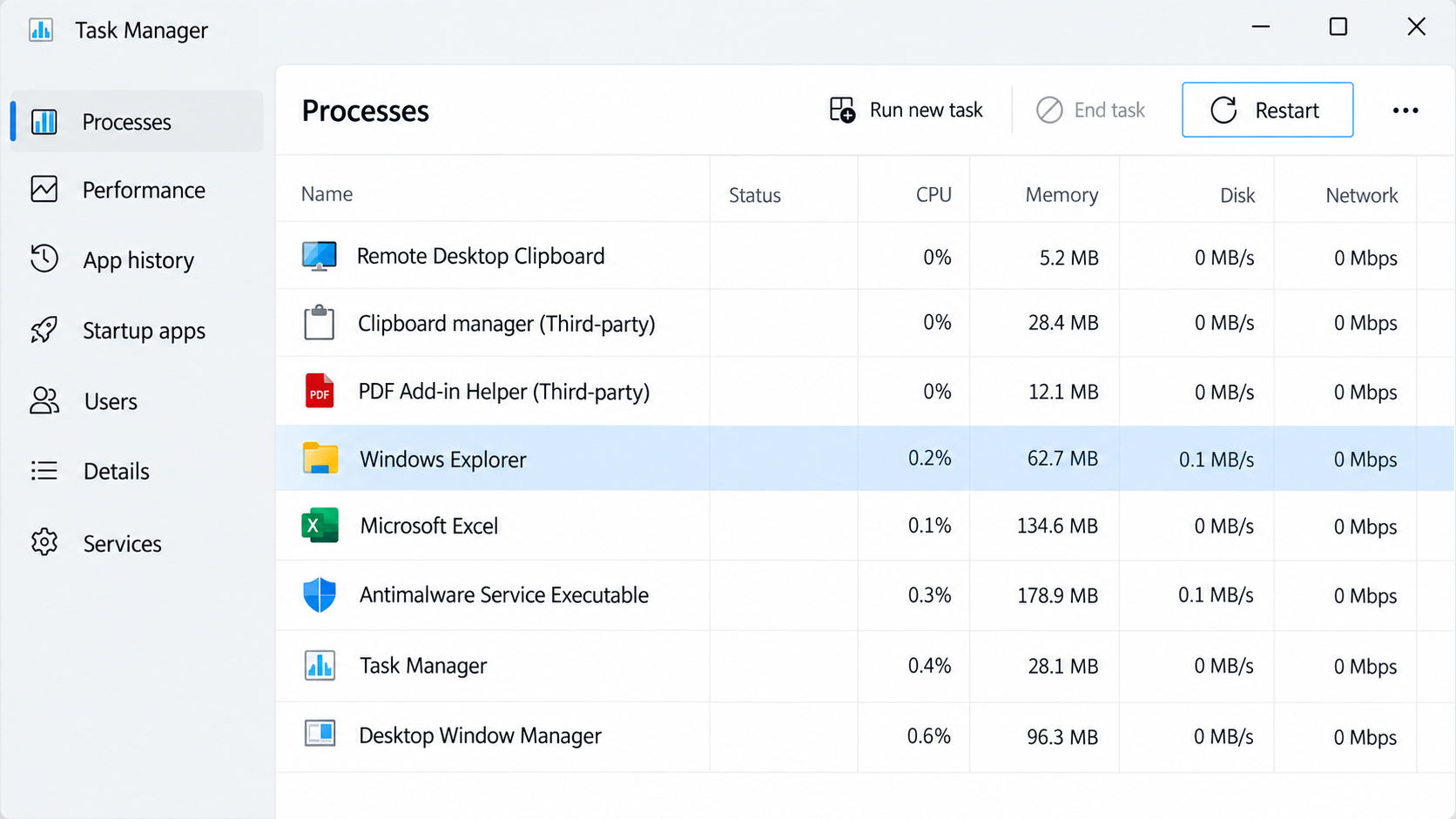
Restart Windows Explorer clipboard


Why Excel 2016 Copy Paste Suddenly Stops Working
Excel 2016 depends on older Windows clipboard and Office integration paths. That is why the same shortcut can work in a browser but fail inside one workbook.
DDE and add-in conflicts: Dynamic Data Exchange is an older Windows communication mechanism. In Excel 2016, outdated third-party add-ins such as PDF tools, equation editors, reporting plug-ins, or clipboard extensions can hold the clipboard or interrupt paste commands.
Hardware acceleration and format overload: Rich text from web pages, large formatted ranges, merged cells, and copied images can overload Excel 2016’s rendering path. Disabling hardware graphics acceleration often helps older installations.
Windows clipboard service stuck: Remote Desktop, clipboard managers, screen capture tools, and explorer.exe can keep ownership of clipboard data. Excel then reports Cannot open the Clipboard or silently loses the copied range.
Workbook protection or filtered ranges: Protected sheets, hidden cells, filtered lists, and external links can make Paste appear unavailable even when shortcuts still work elsewhere.
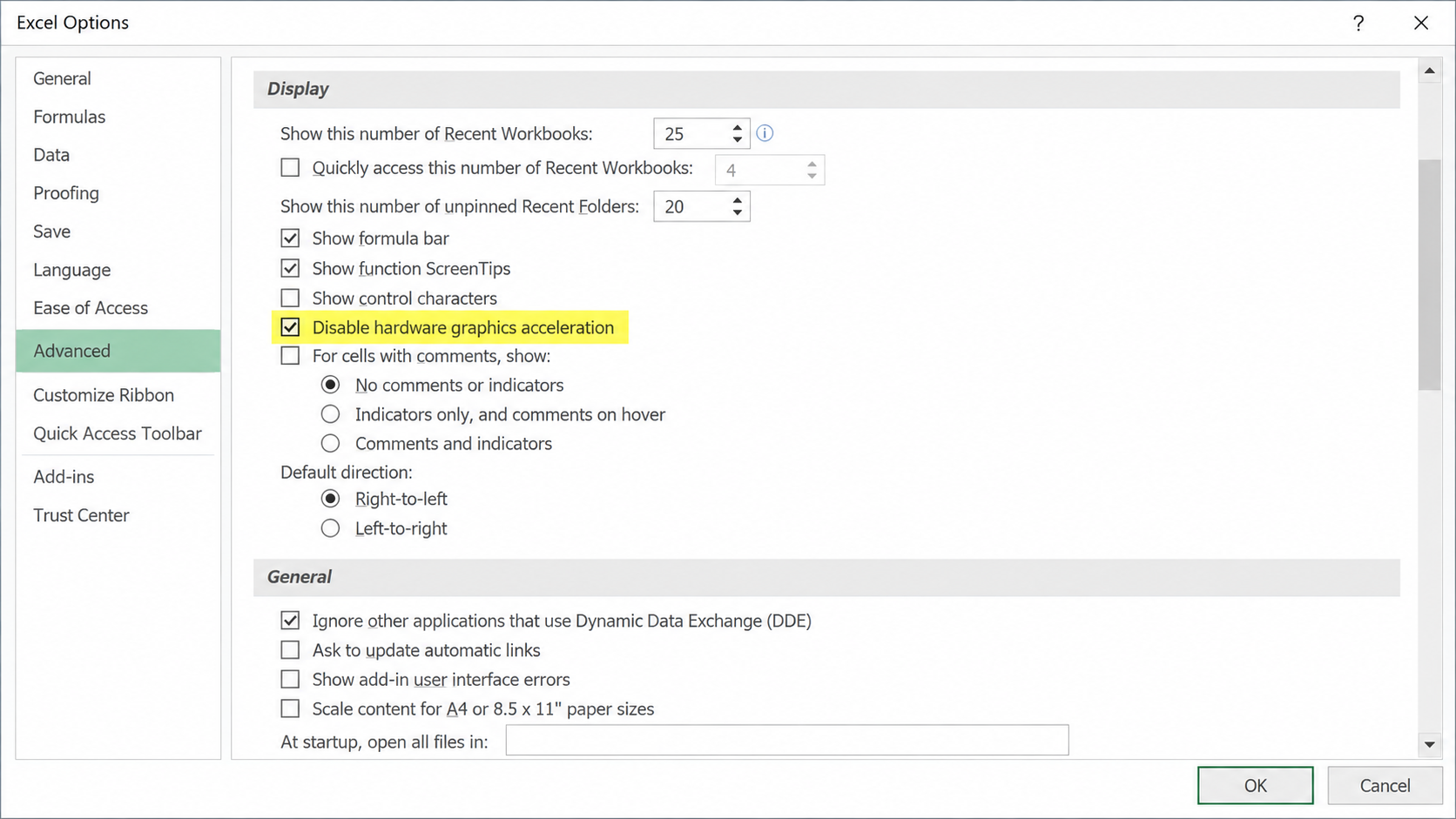
Excel DDE graphics settings
How to Fix Excel 2016 Copy Paste Not Working Step by Step
Use these methods in order. After each method, test Ctrl + C and Ctrl + V with a plain value in a new blank workbook. For a broader troubleshooting path, see this step-by-step guide to fixing Excel copy and paste not working.
Start Excel 2016 in Safe Mode. Press Windows + R, type excel /safe, and press Enter. If copy and paste works in Safe Mode, go to File > Options > Add-ins, manage COM Add-ins, and disable nonessential add-ins one by one.
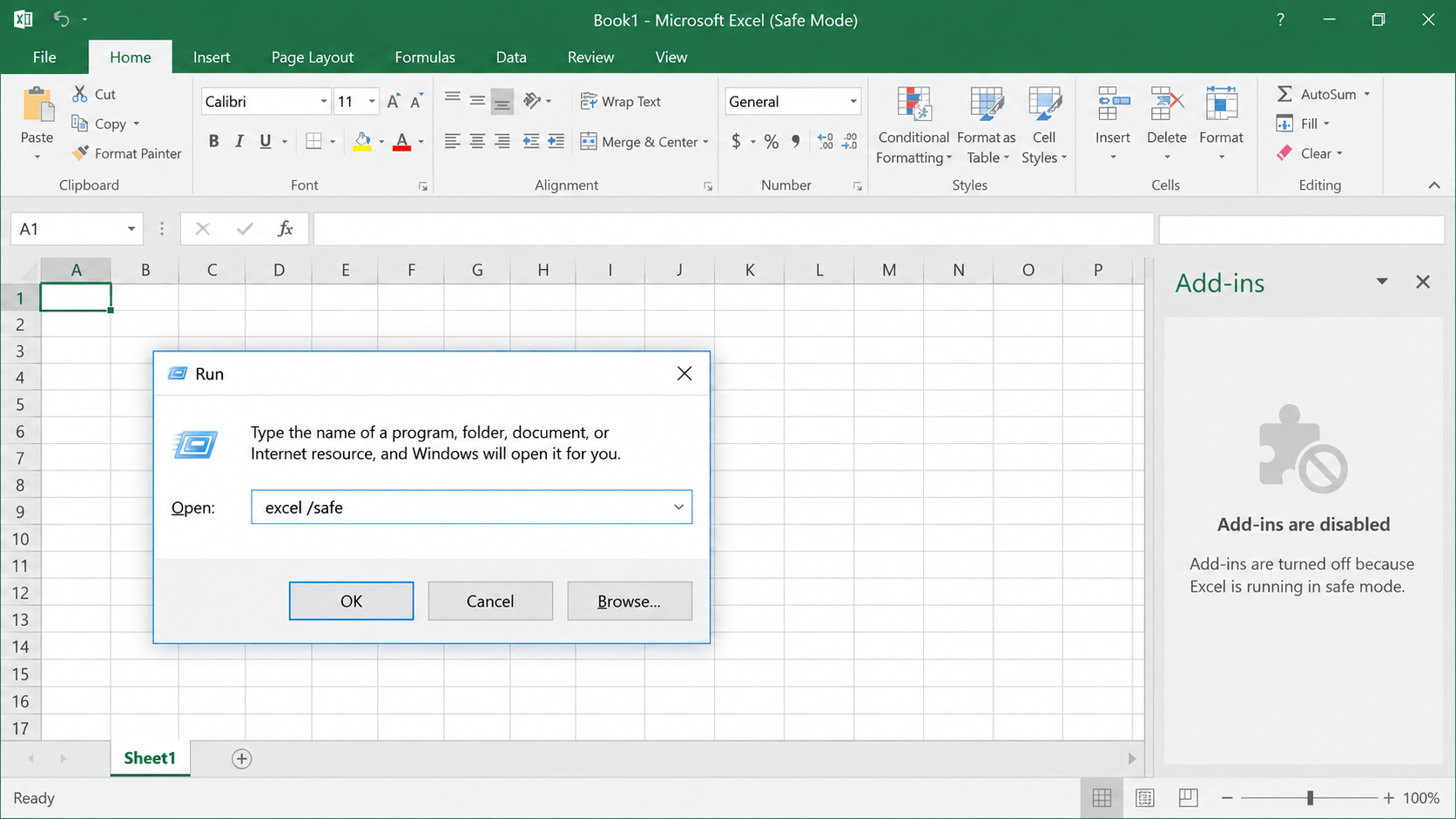
Start Excel 2016 safe mode
Check DDE and hardware graphics acceleration. Go to File > Options > Advanced. Under Display, enable Disable hardware graphics acceleration if available. Under General, test the DDE-related setting only if Excel also has trouble opening files from File Explorer, then restart Excel after each change.
Disable Excel graphics acceleration
Clear the Office Clipboard cache. On the Home tab, click the small launcher in the Clipboard group, then choose Clear All. This removes stale Office clipboard entries that can block new copy actions.
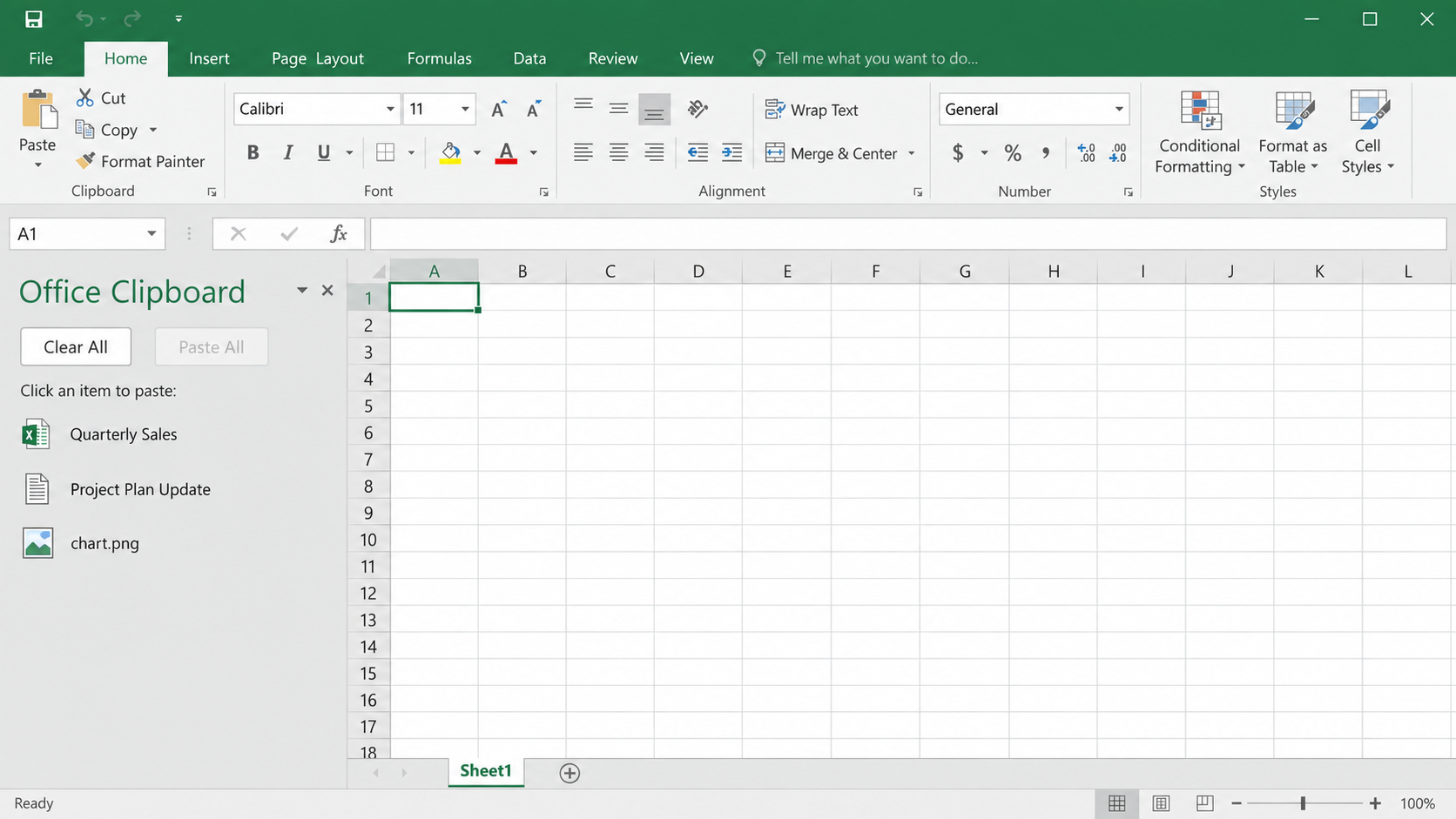
Clear Excel Office Clipboard
Close third-party clipboard interference. Exit Remote Desktop clipboard sync, clipboard managers, PDF helper tools, screenshot utilities, MathType-style add-ins, and browser extensions that capture copied content. Reopen Excel and test again.
Close clipboard interference tools
Repair Office if every workbook fails. Open Windows Settings or Control Panel, choose Microsoft Office 2016, select Change, and run a Quick Repair first. Use Online Repair only after saving work and confirming you have installation access.
The Best Free Alternative: WPS Office
If Excel 2016 copy paste is not working again and again, the practical fix may be to stop relying on a legacy spreadsheet engine for everyday editing. WPS Office gives you a modern spreadsheet workspace while keeping the Excel habits most users already know.
| Need | WPS Office advantage | Why it helps |
|---|---|---|
| Clipboard stability | Modern lightweight editing engine | Reduces the old clipboard lock behavior users often meet in Excel 2016. |
| .xlsx compatibility | Opens and saves Excel workbooks | You can keep common formulas, sheets, and keyboard shortcuts. |
| Paste control | Smart paste menu | Choose text only, match format, keep source style, or preserve column width. |
| Daily migration | Microsoft-like interface | Users can keep Ctrl + C and Ctrl + V muscle memory. |
| Cost | Free office suite | Useful when an old Office 2016 install is unstable or hard to repair. |
Cleaner copy-paste workflow: WPS focuses paste choices in a quick floating menu instead of forcing repeated ribbon searches.
Low-friction migration: Open your existing .xlsx file, test formulas, and keep editing with familiar shortcuts.
Better multi-format handling: Use plain-text paste for web content, matched formatting for reports, and column-width retention for spreadsheets.
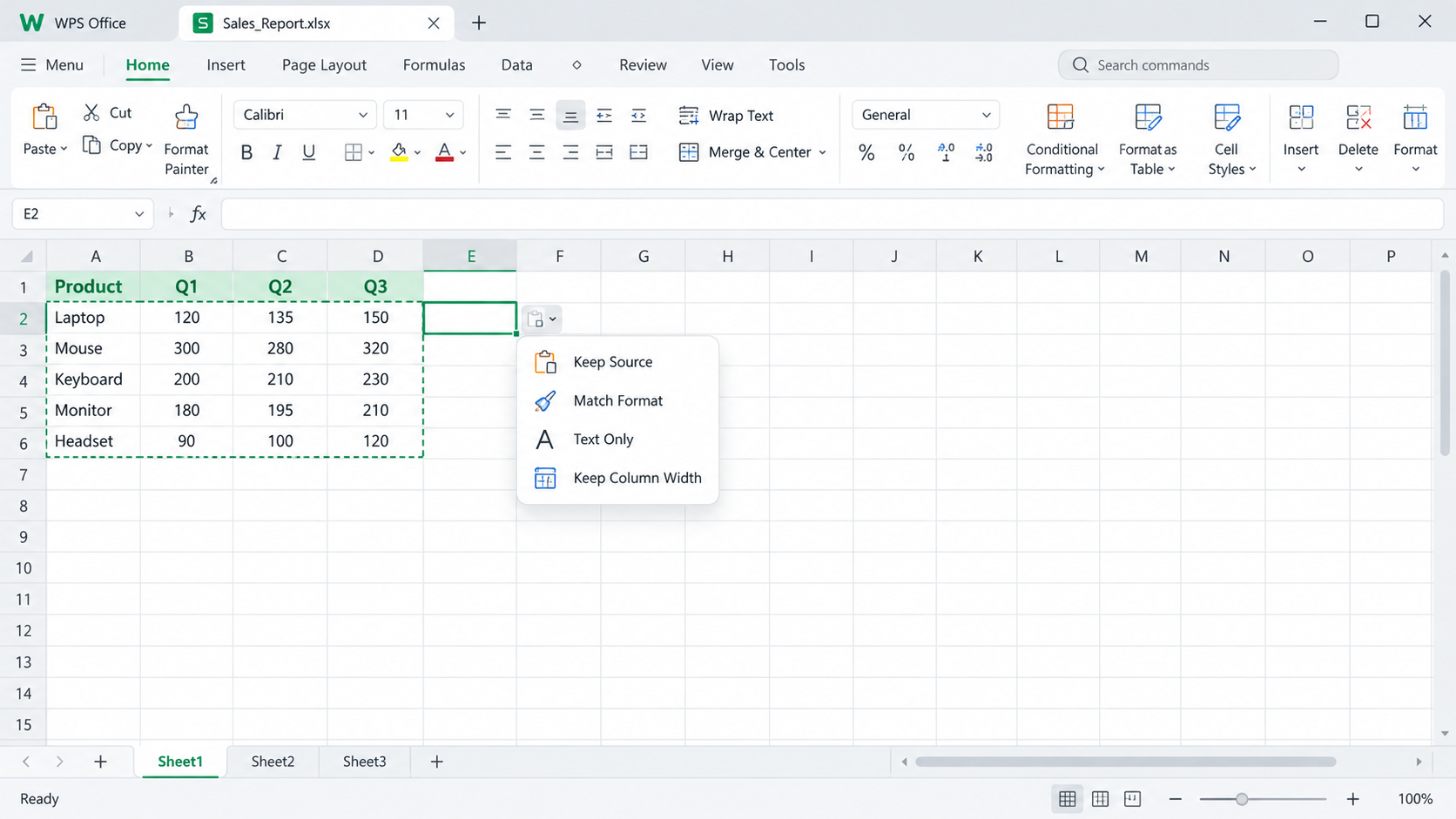
WPS Office paste options
How to Use WPS Office When Excel 2016 Copy Paste Is Not Working
WPS Office can act as a fast workaround while you repair Excel 2016, or as a long-term replacement when the old install keeps losing clipboard access.
Install WPS Office from the official WPS download page.
Open WPS Spreadsheet and choose Open, then select your existing .xlsx workbook.
Copy the problem range again. Use Ctrl + C and Ctrl + V exactly as you would in Excel.
When the paste menu appears, choose Text Only for web data, Match Format for clean reports, or Keep Column Width for table layouts.
Save the workbook as .xlsx so colleagues can still open it in Excel, WPS Office, or other compatible spreadsheet tools.
This does not erase the need to fix a broken Office installation, but it lets you keep working when Excel 2016 copy paste is not working during a deadline.
Use WPS for xlsx copy paste
FAQs
Why is Paste greyed out in Excel 2016?
Paste is often greyed out when Excel is in edit mode, the copied range was lost, the worksheet is protected, or another app has taken control of the Windows clipboard. Press Esc, copy a plain cell again, and test in a blank workbook.
How do I fix Cannot open the Clipboard in Excel 2016?
Close clipboard managers, Remote Desktop sessions, PDF add-ins, and other Office apps first. Then clear the Office Clipboard pane, restart Windows Explorer in Task Manager, and test Excel in Safe Mode.
Does excel /safe delete my files or settings?
No. The excel /safe command starts Excel with add-ins and some customizations disabled for troubleshooting. It does not delete workbooks. If copy and paste works there, an add-in is a likely cause.
Should I turn off DDE in Excel 2016?
Do not change DDE settings randomly. Test the related Advanced option only when Excel also has file-opening or external command issues, then restart Excel and verify whether the behavior improves.
Can WPS Office open my Excel 2016 workbook?
Yes, WPS Office supports common .xlsx workbooks and familiar spreadsheet shortcuts. For complex VBA macros or specialized Excel-only add-ins, test a copy of the file before replacing your main workflow.


'%3e%3cpath%20d='M19.9911%204.11386V6.471H18.5894C18.0775%206.471%2017.7322%206.57814%2017.5536%206.79243C17.3751%207.00671%2017.2858%207.32814%2017.2858%207.75671V9.44421H19.9019L19.5536%2012.0871H17.2858V18.8639H14.5536V12.0871H12.2769V9.44421H14.5536V7.49779C14.5536%206.39064%2014.8632%205.53201%2015.4822%204.92189C16.1013%204.31177%2016.9257%204.00671%2017.9554%204.00671C18.8304%204.00671%2019.509%204.04243%2019.9911%204.11386Z'%20fill='%23333333'/%3e%3c/g%3e%3cdefs%3e%3cclipPath%20id='clip0_2938_8199'%3e%3crect%20width='16'%20height='16'%20fill='white'%20transform='translate(8%204.00671)'/%3e%3c/clipPath%3e%3c/defs%3e%3c/svg%3e)
'%3e%3cpath%20d='M17.5237%2010.7813L23.4811%204H22.0699L16.8949%209.88693L12.7648%204H8L14.2469%2012.9029L8%2020.0133H9.4112L14.8725%2013.7952L19.2352%2020.0133H24M9.92053%205.04213H12.0885L22.0688%2019.0224H19.9003'%20fill='%23333333'/%3e%3c/g%3e%3cdefs%3e%3cclipPath%20id='clip0_2938_8200'%3e%3crect%20width='16'%20height='16.0134'%20fill='white'%20transform='translate(8%204)'/%3e%3c/clipPath%3e%3c/defs%3e%3c/svg%3e)


