



'%3e%3cpath%20fill-rule='evenodd'%20clip-rule='evenodd'%20d='M21.4999%2010.9993C21.4999%205.20009%2016.7986%200.498901%2010.9993%200.498901C5.19994%200.498901%200.498657%205.20009%200.498657%2010.9993C0.498657%2016.2404%204.33858%2020.5844%209.35855%2021.3722V14.0346H6.69238V10.9993H9.35855V8.68594C9.35855%206.05427%2010.9262%204.60062%2013.3248%204.60062C14.4736%204.60062%2015.6753%204.80571%2015.6753%204.80571V7.38979H14.3512C13.0468%207.38979%2012.64%208.19921%2012.64%209.0296V10.9993H15.5523L15.0867%2014.0346H12.64V21.3722C17.66%2020.5844%2021.4999%2016.2404%2021.4999%2010.9993Z'%20fill='%231568EA'/%3e%3c/g%3e%3c/svg%3e)


'%3e%3cpath%20d='M2.42045%2022.1876H6.31818V12.7217L0.75%208.54553V20.5171C0.75%2021.4414%201.49892%2022.1876%202.42045%2022.1876Z'%20fill='%234285F4'/%3e%3cpath%20d='M19.682%2022.1876H23.5797C24.5041%2022.1876%2025.2502%2021.4387%2025.2502%2020.5171V8.54553L19.682%2012.7217'%20fill='%2334A853'/%3e%3cpath%20d='M19.682%205.48293V12.7216L25.2502%208.54543V6.31816C25.2502%204.25236%2022.8921%203.07469%2021.2411%204.31361'%20fill='%23FBBC04'/%3e%3cpath%20d='M6.31824%2012.7217V5.48303L13.0001%2010.4944L19.6819%205.48303V12.7217L13.0001%2017.733'%20fill='%23EA4335'/%3e%3cpath%20d='M0.75%206.31816V8.54543L6.31818%2012.7216V5.48293L4.75909%204.31361C3.10534%203.07469%200.75%204.25236%200.75%206.31816Z'%20fill='%23C5221F'/%3e%3c/g%3e%3cdefs%3e%3cclipPath%20id='clip0_2954_7305'%3e%3crect%20width='24.5'%20height='18.375'%20fill='white'%20transform='translate(0.75%203.8125)'/%3e%3c/clipPath%3e%3c/defs%3e%3c/svg%3e)


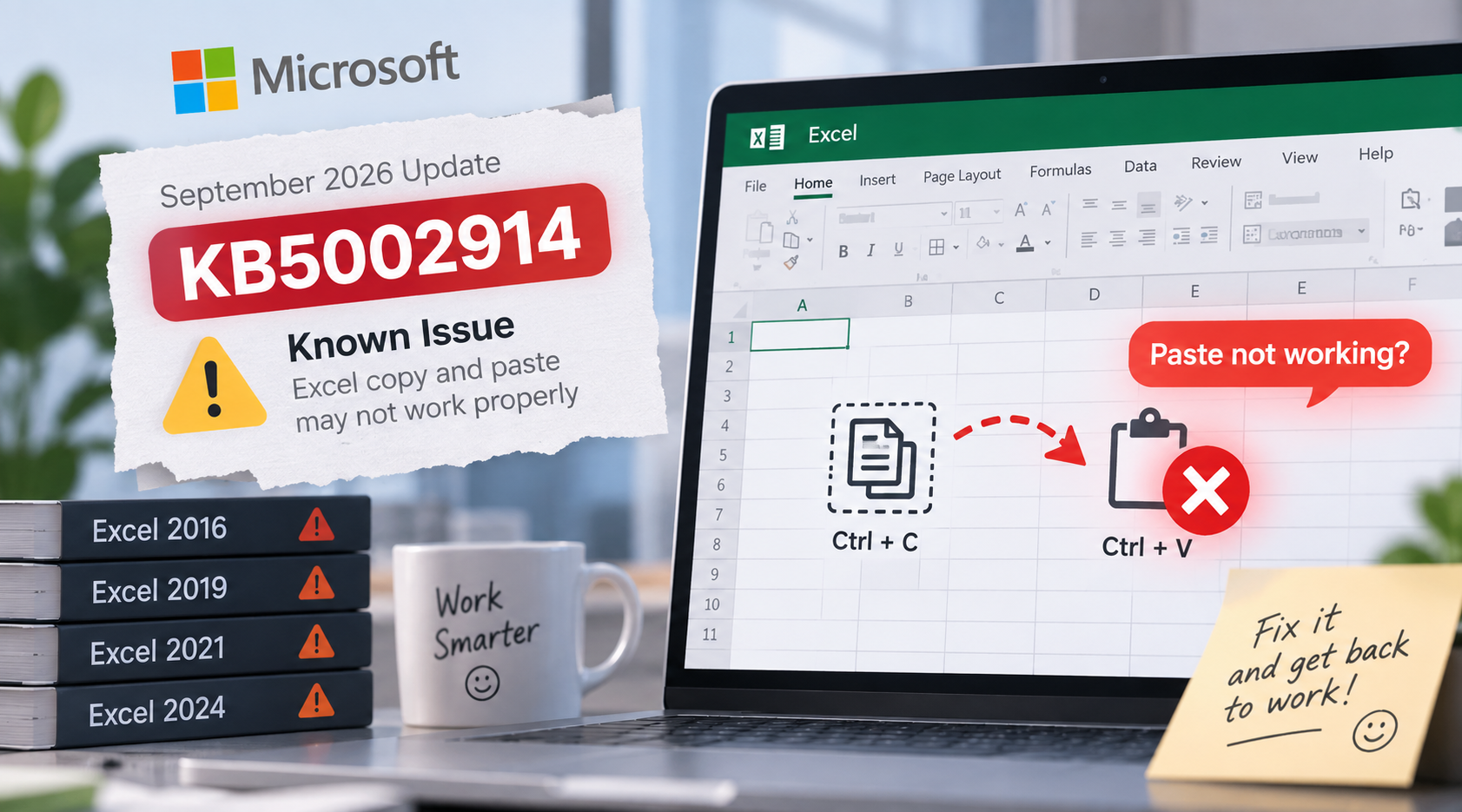
Last checked: September 15, 2026. If Excel stopped pasting cells after the KB5002914 update, you may be encountering a known issue that Microsoft is investigating. In affected Excel 2024, 2021, 2019, and 2016 installations, the source cells can remain selected while the destination stays unchanged—and Excel may show no error.
Start with the low-risk checks below. Because KB5002914 is a security update, do not remove it unless your IT administrator approves the temporary security tradeoff. Check Microsoft’s KB5002914 support page for the latest status before changing your installation.


Quick Answer: What Should You Do First?
Save your workbook and create a backup copy.
Confirm the documented symptom: Copy appears to work, but Paste makes no change and shows no error.
Check your Excel edition and build under File > Account > About Excel.
Test the workbook in Excel Safe Mode and in a new blank workbook.
If you use a managed work computer, contact IT before changing or removing updates.
Use a temporary workaround until Microsoft provides a permanent resolution.
What Is the KB5002914 Excel Issue?
KB5002914 is the September 8, 2026 security update for the MSI-based edition of Excel 2016. Microsoft’s support notice also documents the paste failure in Excel 2024, 2021, 2019, and 2016.
The characteristic behavior is a silent paste failure: after you copy one or more cells, the moving border remains around the source, but the target cells do not change. There may be no beep, dialog, or other error message. Users have also reported related trouble with drag-to-fill and AutoFill, although you should diagnose those symptoms separately rather than assume the update is always responsible.
For a deeper breakdown of this exact no-error behavior, see our related guide on how KB5002914 can break Excel copy and paste silently.
Microsoft was still researching the issue when this article was checked. The official support page should take priority over older forum workarounds because the status can change quickly.
How to Confirm Whether KB5002914 Is the Likely Cause
1. Match the symptoms
The update-related problem is more likely when it began immediately after an Office update, Copy selects the source cells normally, Paste leaves the destination unchanged without an error, the behavior occurs in a new workbook, and restarting Excel and Windows does not help.
If Paste works in a new workbook, the original file may instead contain protection, corruption, merged-cell conflicts, or another workbook-specific problem.
2. Record your Excel version and installation type
In Excel, go to File > Account > About Excel. Record the product name, version, build number, and whether the installation is MSI-based or Click-to-Run. Update and rollback procedures differ.
Microsoft states that the downloadable KB5002914 package applies to the MSI-based edition of Office 2016, not Office 2016 Click-to-Run editions such as Microsoft 365 Home. Do not use an Office 2016 removal command on a different edition.
If your main affected app is Excel 2016, you can also compare these checks with our focused Excel 2016 copy and paste not working fix guide.
3. Test Excel in Safe Mode
Press Windows + R, enter excel /safe, and select OK. Open a blank workbook, enter sample values, and try copying and pasting them.
If Paste works in Safe Mode, an add-in or customization may be involved. Disable add-ins one at a time under File > Options > Add-ins. If Paste still fails in Safe Mode and the timing matches the update, KB5002914 becomes a stronger suspect.
Here are some low-risk workarounds you can try. If you need more detailed steps, please refer to the article "How to Fix Excel Copy and Paste Not Working."
Low-Risk Workarounds to Try
Use Cut, Undo, and Paste temporarily
Microsoft community moderators have shared this temporary sequence:
Select the cells and press Ctrl+X.
Press Ctrl+Z to restore the cells to their original location.
Move to the destination and press Ctrl+V.
Test the result carefully, especially when formulas or references are involved. This is a workaround, not a permanent fix.
Try Paste Special
Press Ctrl+Alt+V after copying. If the Paste Special dialog opens, try pasting values, formulas, or formatting separately. This may help in some cases, but it will not bypass every form of the KB5002914 failure.
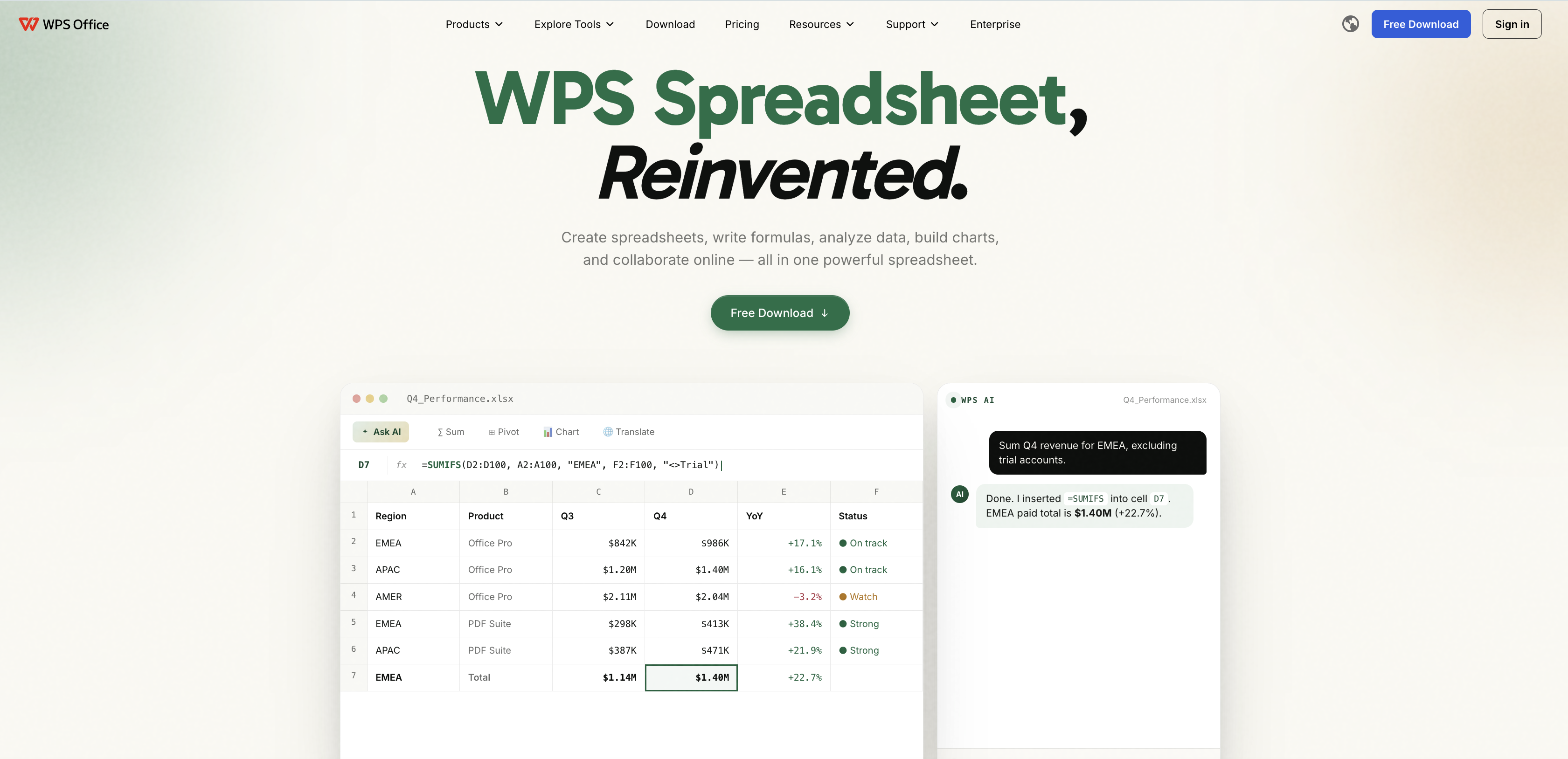
Continue urgent work in WPS Spreadsheet
If you cannot change updates on a managed PC, you can open a backup copy of the XLSX file in WPS Spreadsheet and continue essential edits while waiting for an approved Excel fix. Verify formulas, formatting, macros, external links, and other advanced workbook features before saving over the original file. This does not repair Microsoft Excel or remove KB5002914; it is a temporary continuity option.
Should You Uninstall KB5002914?
Only consider rollback after the low-risk checks fail and your administrator approves it. KB5002914 is a security update, so uninstalling it can restore functionality at the cost of removing its security protections.
Before proceeding, back up important workbooks, confirm the exact Office product and installation type, ask IT to assess the risk and choose the correct Microsoft-supported method, and plan to install Microsoft’s corrected update or approved replacement as soon as it is available. Avoid copying commands from forums unless they match your exact Office edition and deployment channel.
On a work or school device, do not attempt a rollback yourself. Organization policies may reinstall the update automatically or require central deployment tools.
How to Report the Issue to Microsoft
In Excel, select Help > Feedback > Report a Problem. Include your Excel product, version and build, Windows version, installation type, when the failure began, whether KB5002914 appears in update history, whether it occurs in Safe Mode and a blank workbook, and the exact reproduction steps. Do not attach confidential data unless your organization permits it.
Other Reasons Excel Copy and Paste May Fail
If KB5002914 is not installed or the symptoms do not match, check incompatible merged cells, protected worksheets, multiple Excel instances, clipboard utilities, remote desktop sessions, add-ins, or a damaged workbook. See our broader guide to fixing Excel copy and paste problems. If the issue appears only after moving to a newer PC, our Windows 11 Excel copy and paste bug guide covers OS-specific causes and fixes.
FAQ
Does KB5002914 affect every Excel user?
No. Microsoft documents a possible silent paste failure, but not every installation is affected. Confirm the symptoms, version, build, and installation type before taking action.
Which Excel versions are affected?
Microsoft’s known-issue notice names Excel 2024, 2021, 2019, and 2016. The KB5002914 downloadable package itself is for the MSI-based edition of Excel 2016, so the delivery mechanism may differ across versions.
Is there a permanent fix?
As of September 15, 2026, Microsoft’s support page said the issue was under investigation. Recheck the official page for the latest status before acting on this article.
Is uninstalling KB5002914 safe?
Removing a security update reduces protection against the vulnerabilities it addresses. Roll back only with IT or security approval, and install the corrected update or approved replacement promptly when available.
Can WPS Office fix Excel after KB5002914?
No. WPS Office cannot repair Microsoft Excel or its update. It can provide a temporary way to open and edit many XLSX files while you wait for an approved resolution. Always verify compatibility with complex workbooks.


'%3e%3cpath%20d='M19.9911%204.11386V6.471H18.5894C18.0775%206.471%2017.7322%206.57814%2017.5536%206.79243C17.3751%207.00671%2017.2858%207.32814%2017.2858%207.75671V9.44421H19.9019L19.5536%2012.0871H17.2858V18.8639H14.5536V12.0871H12.2769V9.44421H14.5536V7.49779C14.5536%206.39064%2014.8632%205.53201%2015.4822%204.92189C16.1013%204.31177%2016.9257%204.00671%2017.9554%204.00671C18.8304%204.00671%2019.509%204.04243%2019.9911%204.11386Z'%20fill='%23333333'/%3e%3c/g%3e%3cdefs%3e%3cclipPath%20id='clip0_2938_8199'%3e%3crect%20width='16'%20height='16'%20fill='white'%20transform='translate(8%204.00671)'/%3e%3c/clipPath%3e%3c/defs%3e%3c/svg%3e)
'%3e%3cpath%20d='M17.5237%2010.7813L23.4811%204H22.0699L16.8949%209.88693L12.7648%204H8L14.2469%2012.9029L8%2020.0133H9.4112L14.8725%2013.7952L19.2352%2020.0133H24M9.92053%205.04213H12.0885L22.0688%2019.0224H19.9003'%20fill='%23333333'/%3e%3c/g%3e%3cdefs%3e%3cclipPath%20id='clip0_2938_8200'%3e%3crect%20width='16'%20height='16.0134'%20fill='white'%20transform='translate(8%204)'/%3e%3c/clipPath%3e%3c/defs%3e%3c/svg%3e)


